EEvlarSoft

Media Info Viewer

Open a video or song and read its codec, resolution, HDR type, bitrate, frame rate and loudness, laid out one stream at a time.

Buy for $1.99
One payment. No subscription.
14-day money-back guarantee.
5.0
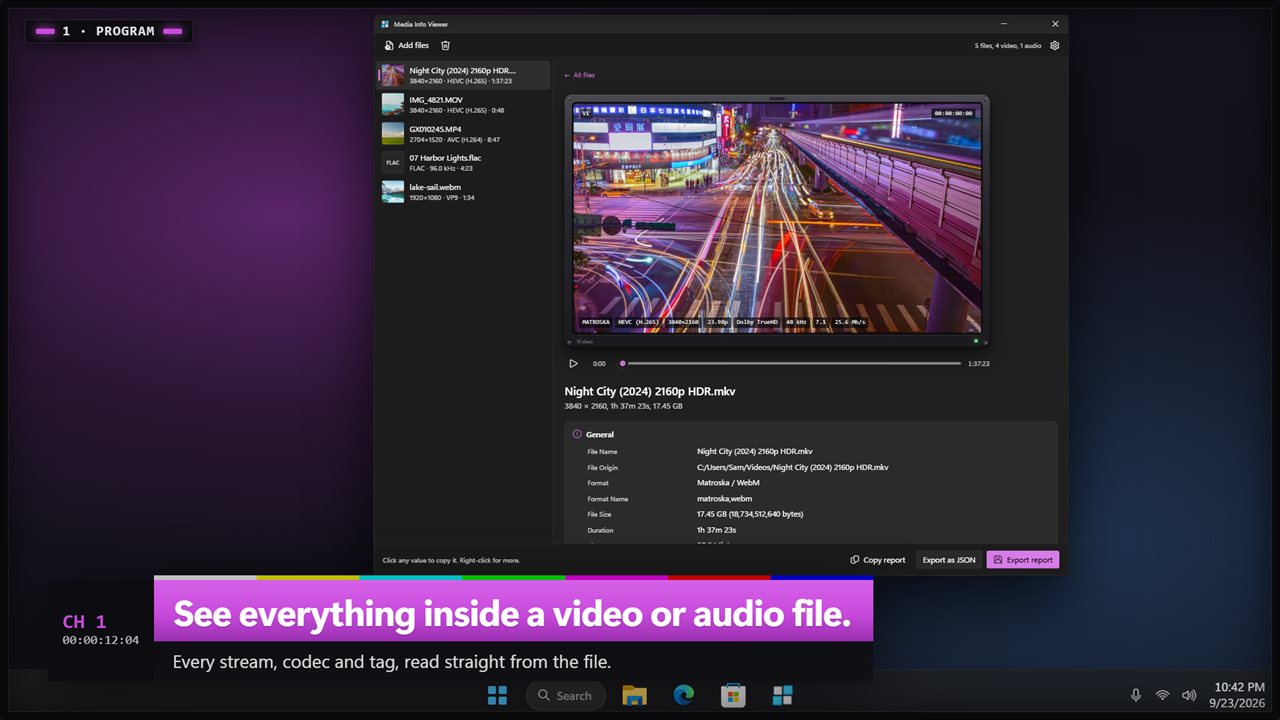
See everything inside a video or audio file.
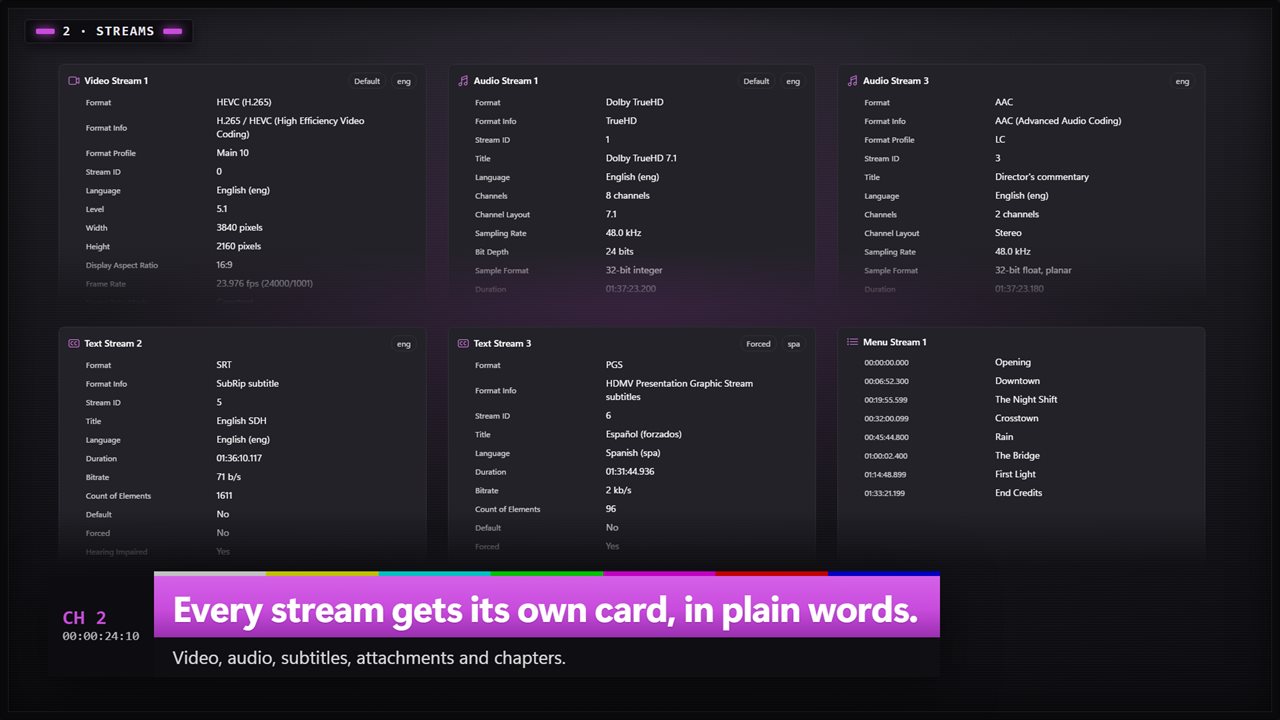
Every stream gets its own card, in plain words.
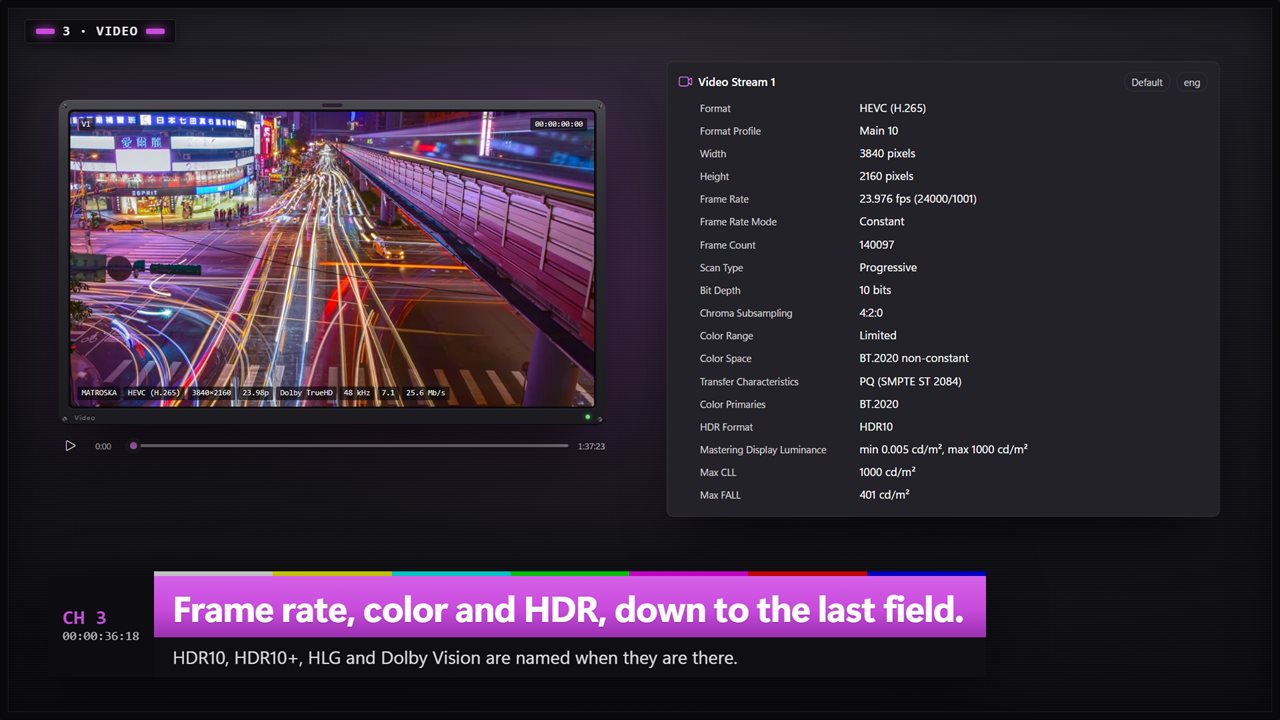
Frame rate, color and HDR, down to the last field.
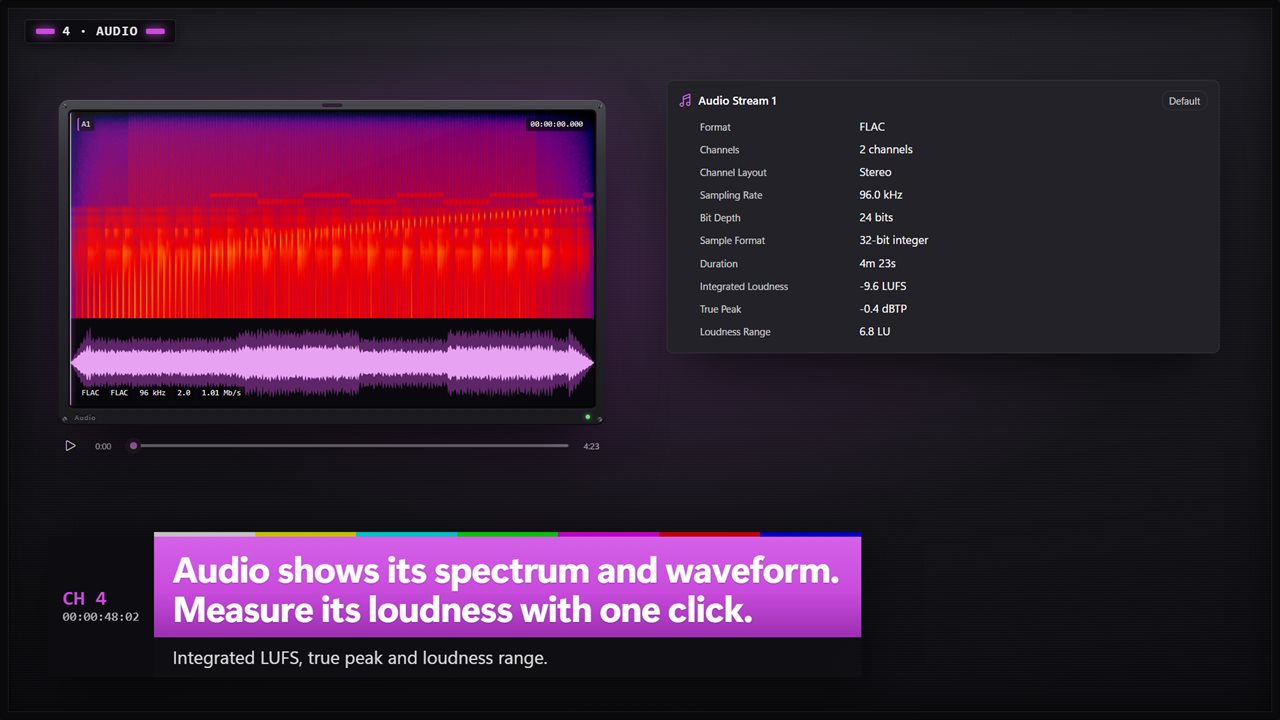
Audio shows its spectrum and waveform. Measure its loudness with one click.
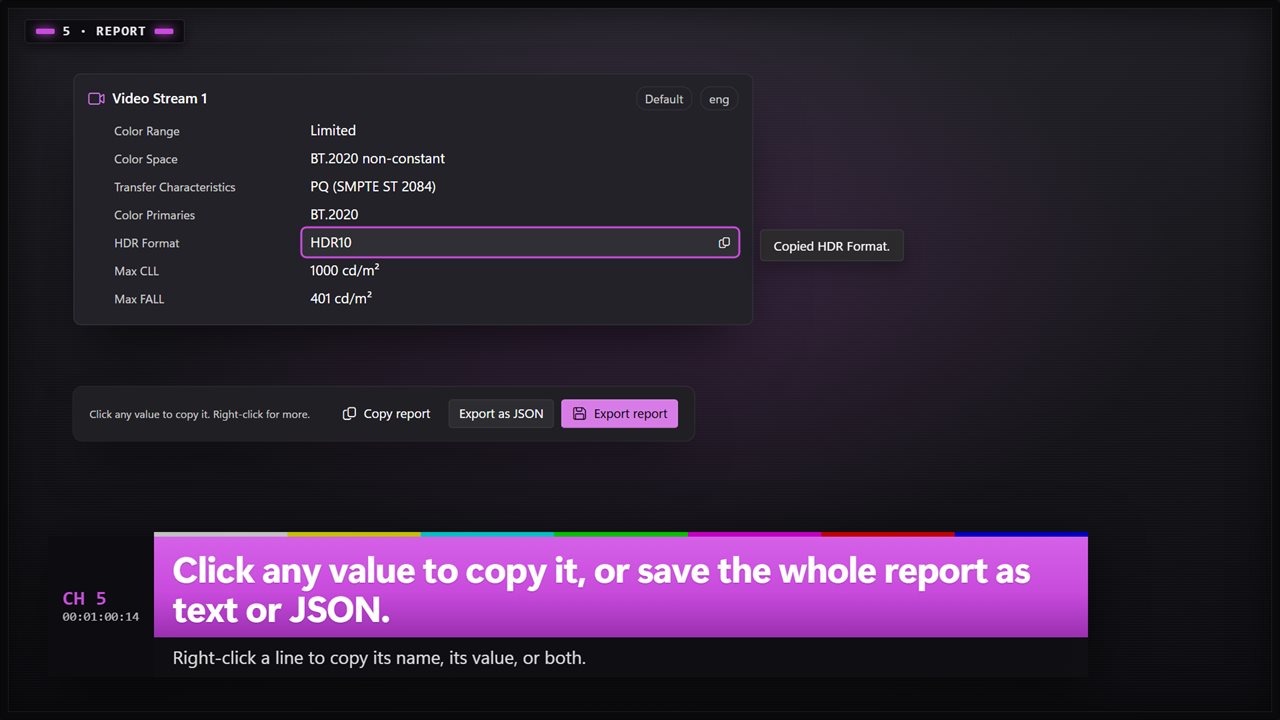
Click any value to copy it, or save the whole report as text or JSON.
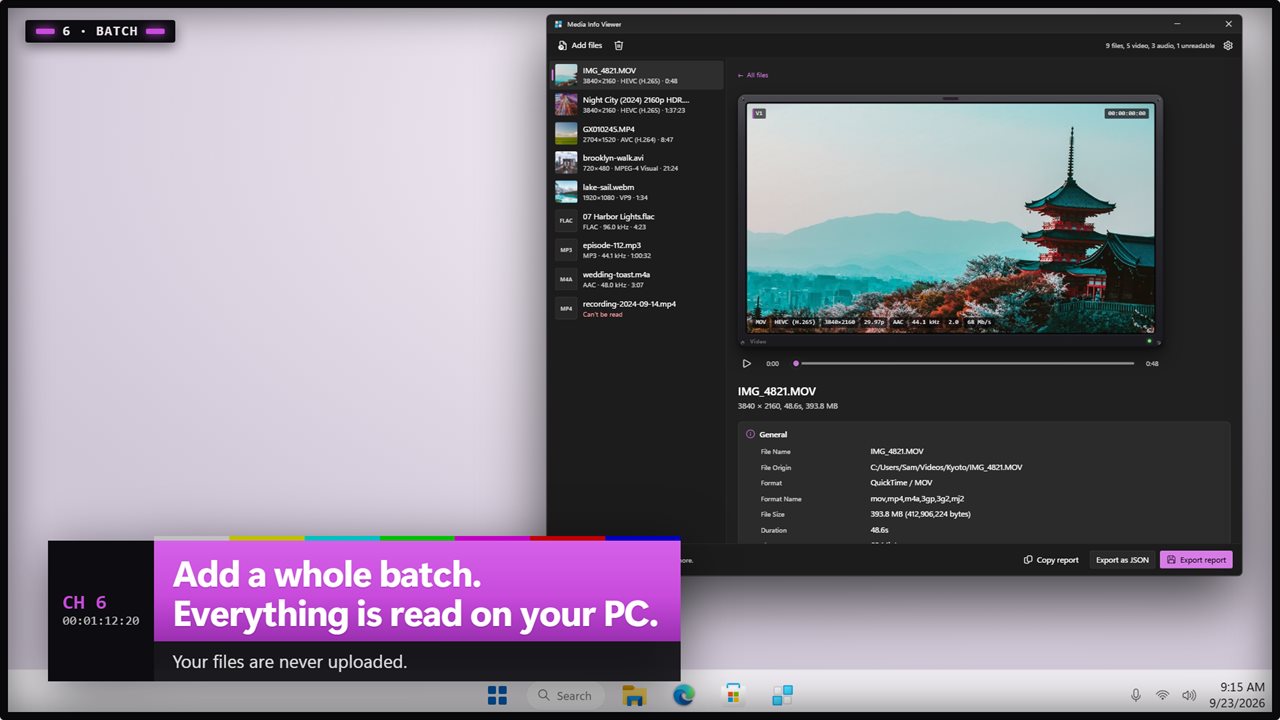
Add a whole batch. Everything is read on your PC.

See everything inside a video or audio file.

190,000+downloads of EvlarSoft apps
Signed by EvlarSoftVerified US publisher
14-day money-backNo questions asked
Updates includedNo upgrade fees

Media info for every video and audio file

File Explorer's Properties dialog gives you a length and maybe a frame size. When you need real media info, the codec a phone actually used, whether a download is truly 10-bit HDR, or why a clip stutters in an editor, you need to look inside the container. Media Info Viewer does exactly that and nothing more: it reads the file and reports what it finds, without changing a byte.

The report is split into cards. General describes the container itself: format, file size, duration, overall bitrate and the number of streams. After it come separate cards for each video track, each audio track, each subtitle track, and any attachments or chapters. A movie with three audio languages and six subtitle tracks shows every one of them, each with its Language and its Default or Forced flag.

Codec names are given the way people search for them, so you see HEVC (H.265) rather than a four-letter code, with the raw Codec ID listed underneath for anyone who wants it.

A video metadata viewer for codec, HDR and frame rate

The video card answers the questions that decide whether a file will play, edit or stream cleanly. Width, Height and Display Aspect Ratio come first, then Frame Rate with its Frame Rate Mode, Constant or Variable. A variable frame rate is a common cause of audio drifting out of sync in editing software, and here it is spelled out.

Scan Type separates Progressive footage from Interlaced, including which field comes first. Chroma Subsampling, Bit Depth and Pixel Format together tell you whether a file is 8-bit 4:2:0 delivery video or a 10-bit master. Color Primaries, Transfer Characteristics, Color Space and Color Range round it out.

HDR Format is where the HDR question gets settled. The viewer names Dolby Vision, HDR10+, HDR10 and HLG from the metadata the file carries, and adds Max FALL, Max CLL and the Mastering Display Luminance when the file includes them. Rotation is shown too, which explains why a phone clip sometimes opens sideways.

A LUFS meter built into the audio report

Each audio card gives the Sampling Rate, Channels and Channel Layout, then Sample Format, Bit Depth, Bitrate and Duration. Press Measure on a track and the app decodes the whole stream and returns three EBU R128 figures: Integrated Loudness (LUFS), Loudness Range and True Peak. That makes it a quick way to check a podcast episode or a music master against a loudness target without opening an audio editor.

Audio-only files get a spectrum and a waveform drawn in the monitor, and both fill in as the file is read. Video files show a frame instead, which plays when clicked; the Position slider scrubs through it.

Read the tags a recording carries

Files remember more than most people expect. Media Info Viewer lists the tags it finds, including Recorded Date, Recorded Location, Device Make, Device Model and Device Software from a phone, plus Writing Application, Encoded Date and the usual Title, Artist, Album and Genre on music. Before you post a clip publicly, this is where you see whether it still holds the place it was filmed.

Copy, export and check a batch

A single click copies any value. Right-click a line for Copy Name, Copy Value or Copy Both. Copy report puts the whole readable report on the clipboard. Export report saves it as a text file, and Export as JSON saves the machine-readable version, one file per report. The JSON holds the full container, stream, chapter and program data plus any loudness figures you measured.

Drop in a folder's worth of files and the list shows each one's resolution, codec and length straight away. A damaged or unfinished recording is marked Can't be read, with the reason and the error the file reported, instead of failing silently.

What Media Info Viewer reports

  • Container detailsFormat, size, duration, overall bitrate and stream count
  • A separate card for every video, audio and subtitle track, plus attachments and chapters
  • Frame rate mode, scan type, chroma subsampling, pixel format and bit depth
  • Dolby Vision, HDR10+, HDR10 and HLG named, with light levels and mastering luminance
  • EBU R128 loudness on demandLUFS, loudness range and true peak
  • Device, date, location and app tags from phones and cameras
  • Playable preview with scrubbing for video, spectrum and waveform for audio
  • Copy any value, the whole report, or export it as text or JSON
  • Reads MP4, MOV, MKV, WebM, AVI, TS, M2TS, MP3, FLAC, WAV, Opus, AC3 and more

What's new in 2.0.3

  • New: every stream gets its own card, with codecs in plain words
  • New: color and HDR details, including HDR10, HDR10+, HLG and Dolby Vision
  • New: measure loudness in LUFS, true peak and loudness range
  • New: play the file and scrub through it, with a spectrum and waveform for audio
  • New: click any value to copy it, and save the report as text or JSON
  • New: add many files at once
  • New: dark and light themes

Questions

Anything else? Ask us

Can it edit or remove the tags in a video or audio file?

No. It only reads files and never changes them. The only thing it writes is a report, when you choose to save one.

How does it tell whether a video is HDR10, HDR10+, HLG or Dolby Vision?

From what the file itself declares. Dolby Vision and HDR10+ are named when their metadata is present, with the Dolby Vision profile when it is given. A PQ video with mastering display data is shown as HDR10, without it as PQ, and an HLG transfer as HLG.

How does the loudness measurement work?

Click Measure on an audio track and it reads the whole track to give integrated loudness in LUFS, true peak and loudness range, following EBU R128. Each track is measured on its own, and a long file takes a while because every second of it is decoded.

What is in the JSON export?

Everything the file reports about its container, streams, chapters and programs, plus the loudness figures if you measured them. The text export is the readable report as shown in the window. Each report is saved for one file.

Which file types does it open?

Video: MP4, M4V, MOV, MKV, WebM, AVI, WMV, FLV, MPG, MPEG, M2TS, MTS, TS, 3GP, VOB, OGV, ASF, DivX and GIF. Audio: MP3, WAV, M4A, AAC, FLAC, OGG, OGA, Opus, WMA, AIFF, AIF, AMR, AC3 and MKA. Files with other extensions are turned away.

Why does it say a file cannot be read?

It names the reason where it can: the file is damaged or is not really a video or audio file, a recording was stopped before it finished so its index is missing, the file has been moved, or another app is holding it. The error the file reported is shown underneath.

How can I tell if a video has a variable frame rate?

Open it and look at Frame Rate Mode on the video card. It reads Constant or Variable, next to the Frame Rate itself.

How do I check a video's bitrate on Windows?

The General card shows the overall bitrate of the whole file, and each video and audio card shows the Bitrate of that stream on its own.

Can I see where and on which phone a video was recorded?

When the file carries those tags, yes. They appear as Recorded Location, Device Make, Device Model and Device Software, along with Recorded Date.

Which versions of Windows does it run on?

Windows 10 (version 1809 or later) and Windows 11.

Is it a subscription?

No. Media Info Viewer is a one-time purchase of $1.99, and updates are included.

How do I get it?

Buy it on this page and your license key arrives by email. If the button says Notify me, Media Info Viewer is not on sale here yet; leave your email and we will tell you when it is.