An MP4 to MP3 converter for the videos already on your PC
Most searches for MP4 to MP3 lead to websites that want you to upload your file and wait. When the videos are already on your computer, a concert you filmed, a lecture recording, a stack of phone clips, it is quicker to do the job locally. VidToAudio takes the audio track out of each video and writes it as a separate audio file, leaving the video in place.
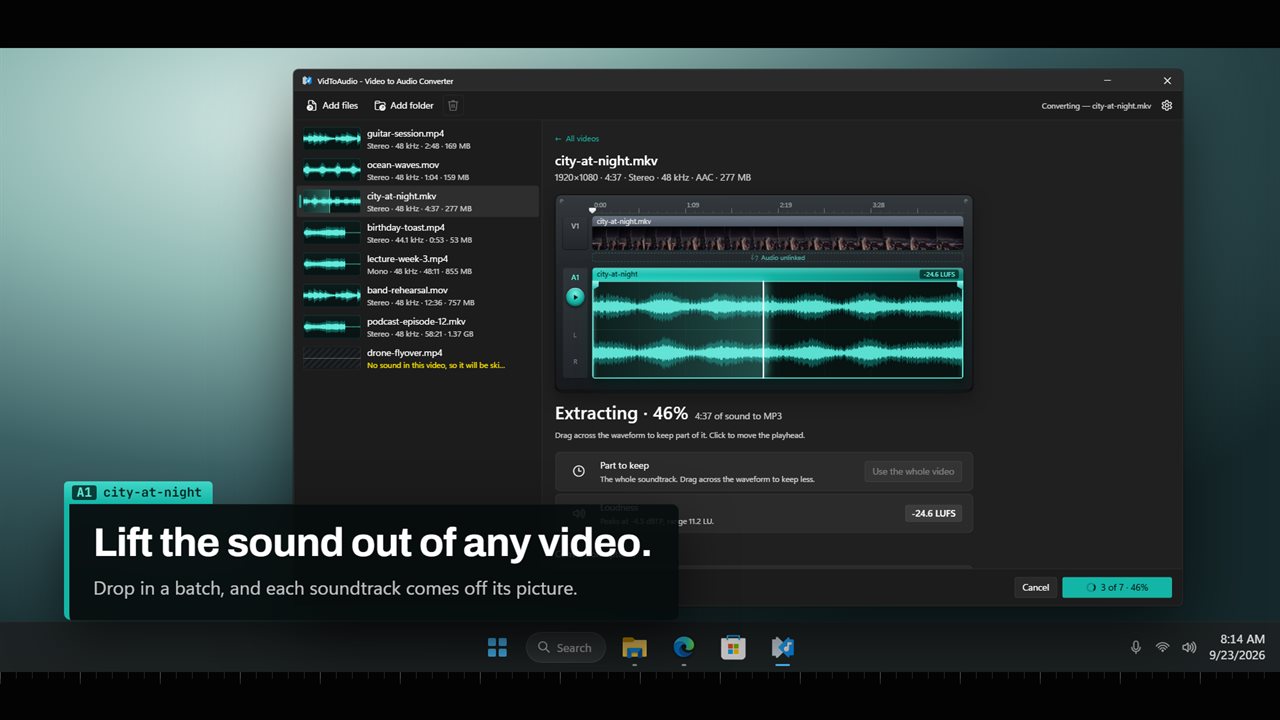
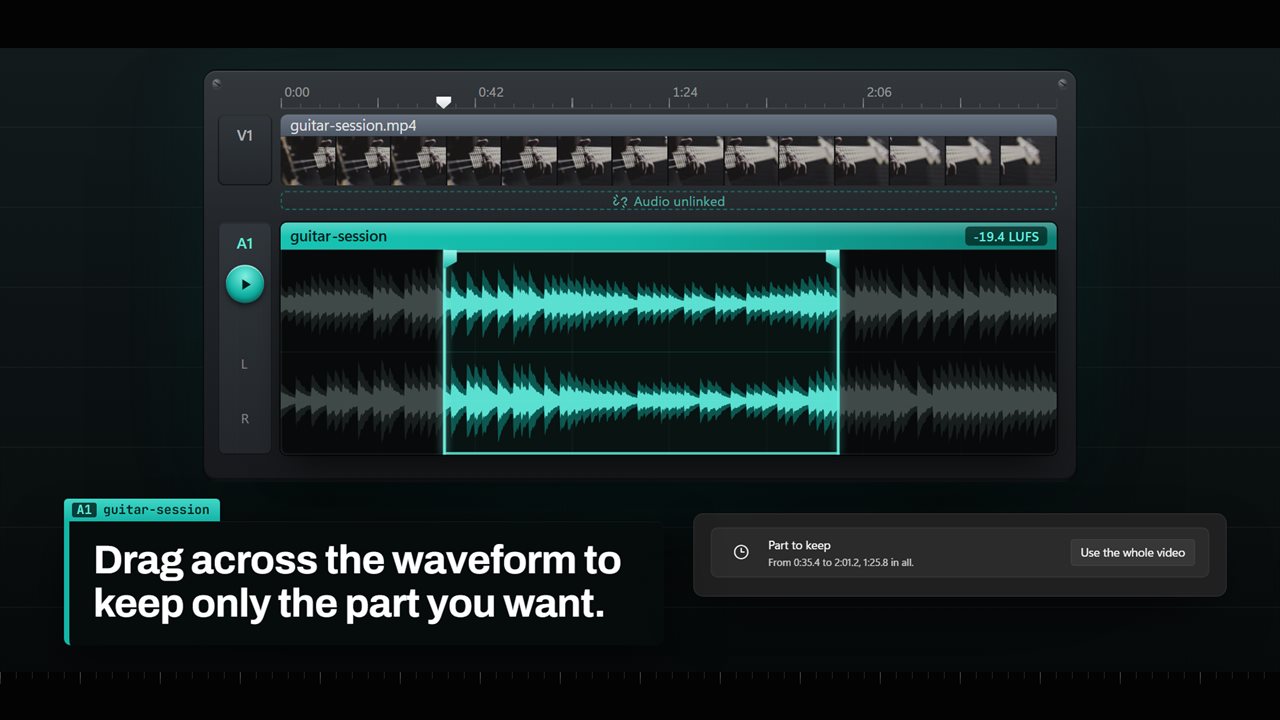
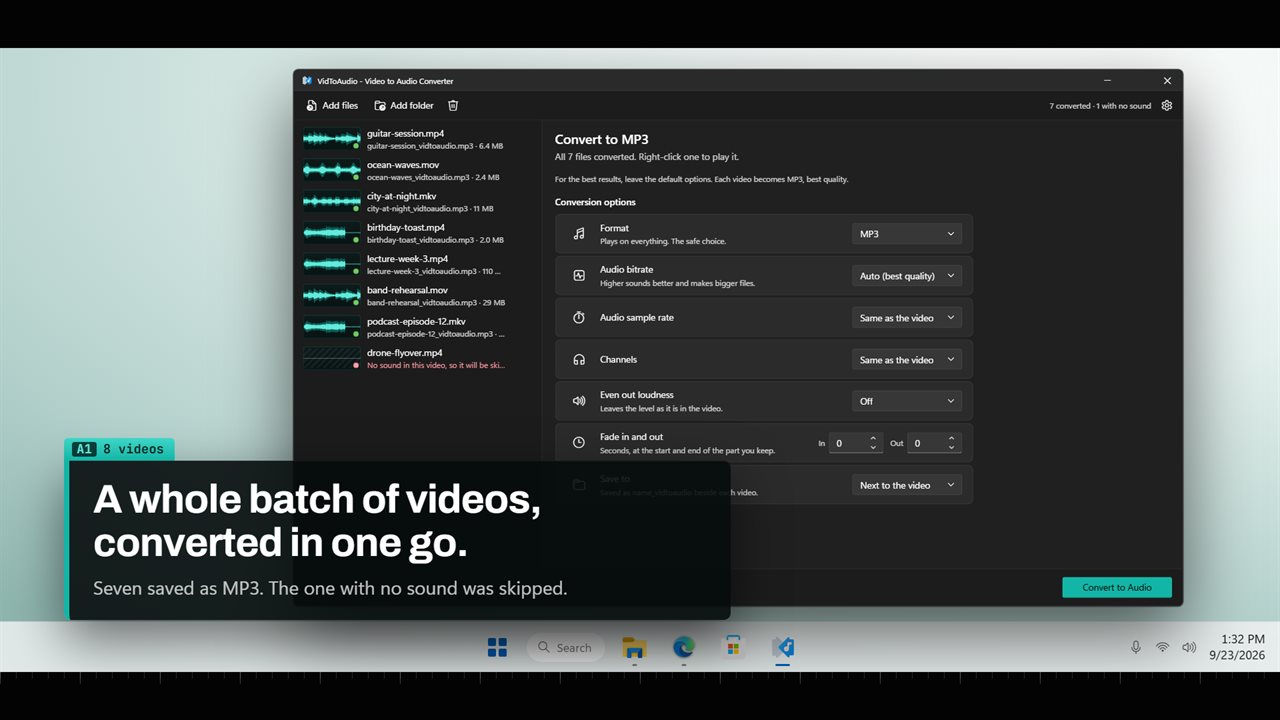
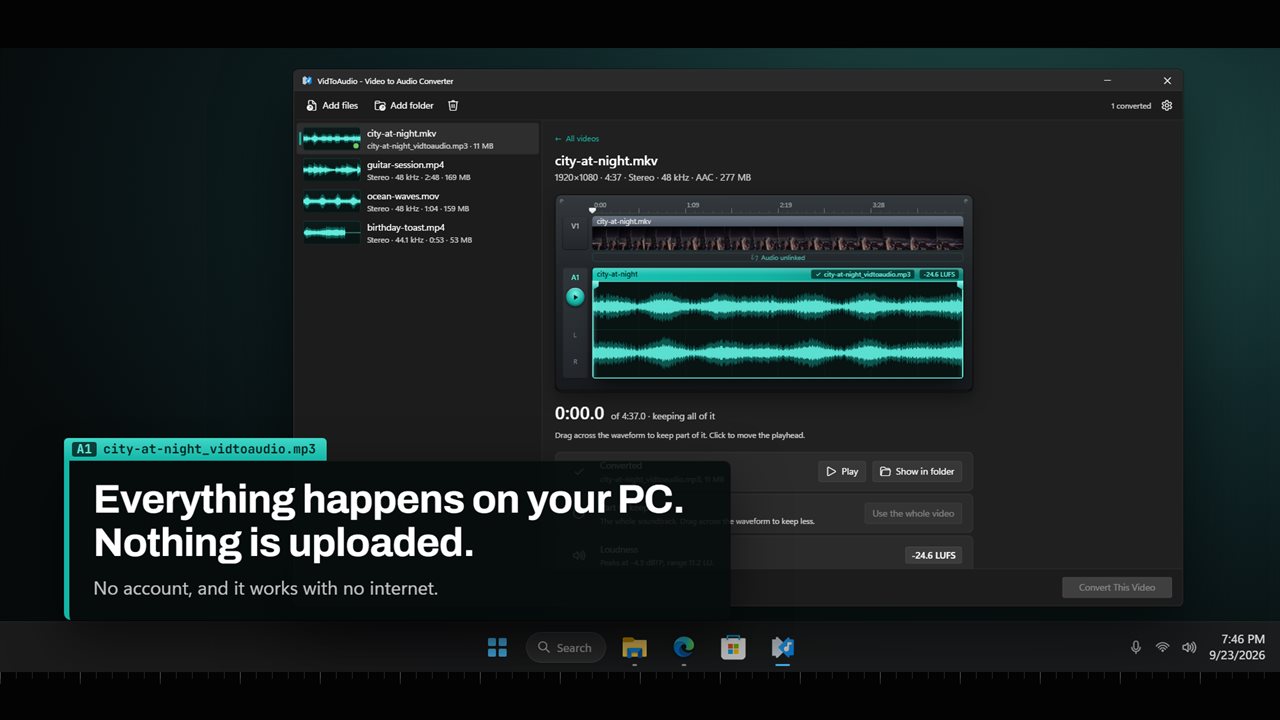
The window is laid out like an editing timeline. The list of videos sits on the left, each with its length, channels and size, plus a thumbnail-sized waveform. Select one and the right side shows its picture strip on top and its sound lifted out underneath as a large stereo waveform, the way an editor shows a clip once audio and video are unlinked.
That waveform is how you work. Click it to move the Playhead, press Space or Play to hear the part you are keeping, and drag across it to set Part to keep. Press Convert to Audio when you are ready, and the whole list is processed with the same settings.
How to extract audio from a video in five steps
The same steps work for a single clip or a folder of them.
- Drop videos onto the window or add a folder. Only the files directly inside the folder are picked up.
- Pick a Format. MP3 with its bitrate on Auto (best quality) is the right answer for most people.
- Click a video and drag across its waveform to keep part of it, or leave it on Use the whole video.
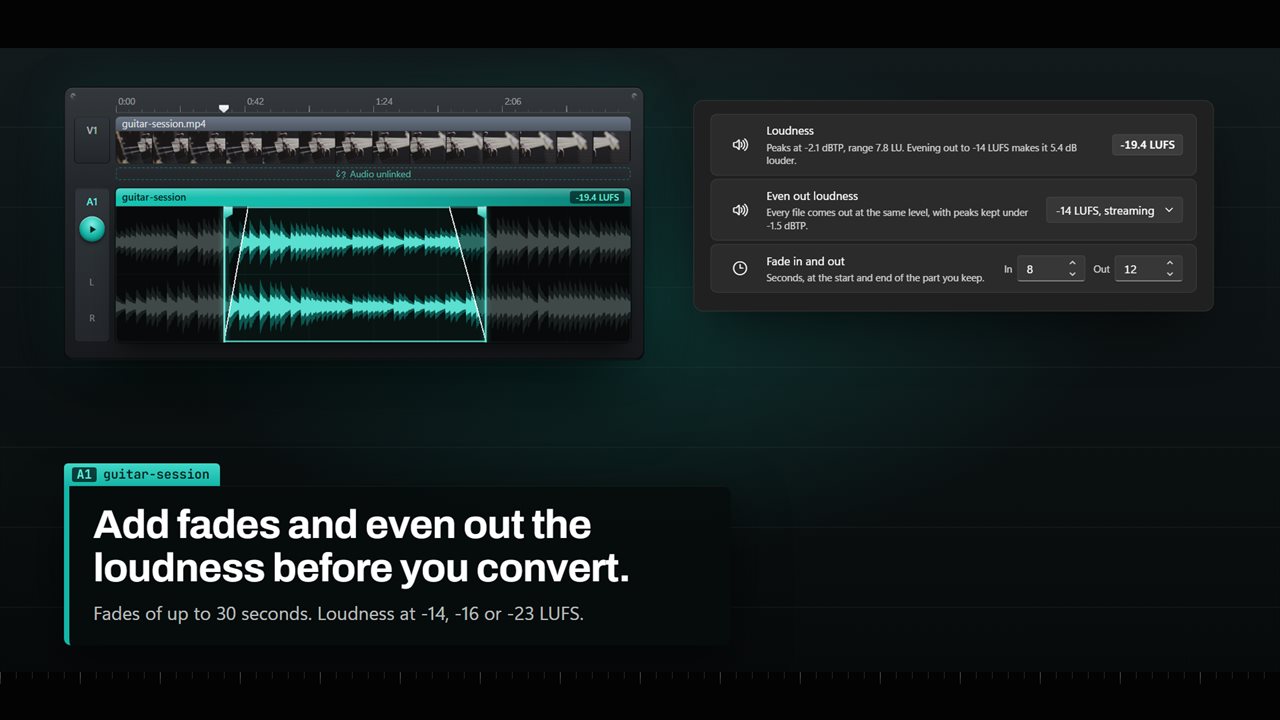
- Optionally set Fade in and out, Even out loudness, or a different Audio track for movies with several languages.
- Choose where it goes under Save to: Next to the video, A folder I choose, or Replace the original file. Then press Convert to Audio.
Which format to pick when you convert video to audio
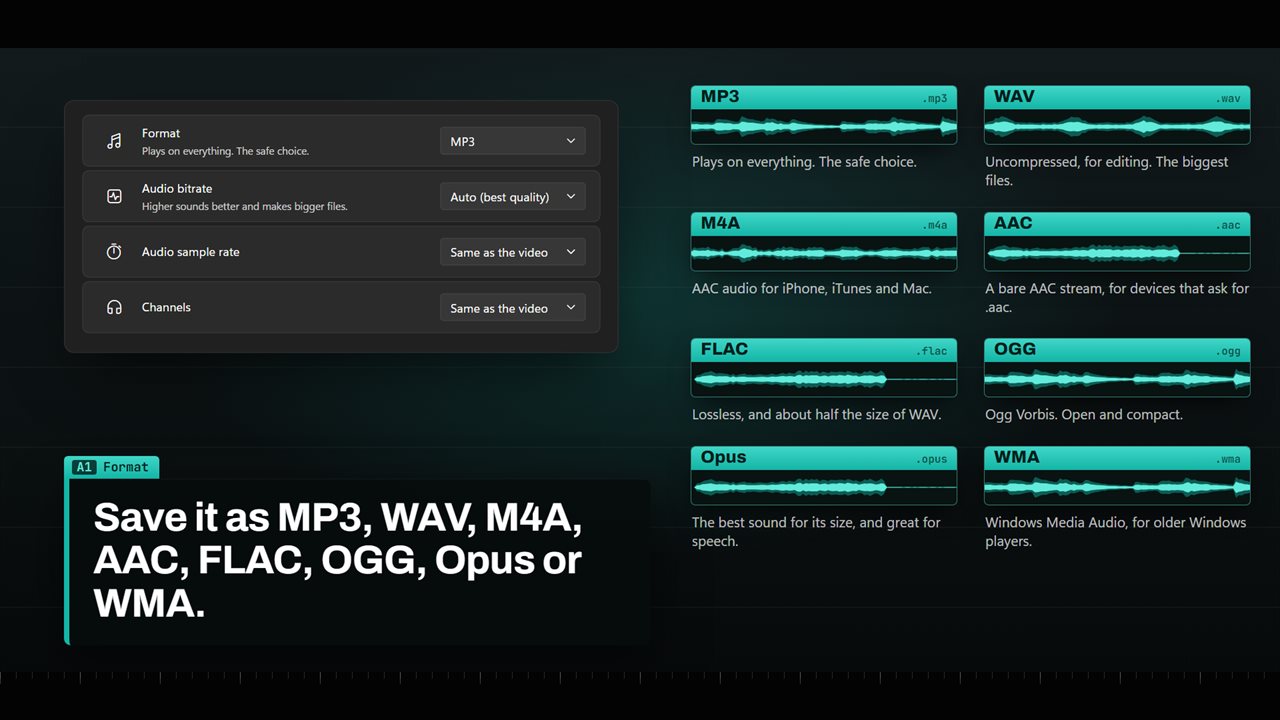
Eight output formats are on offer, and each one has a job.
If you are unsure, MP3 is the answer. Choose a lossless format only when the audio is going on to be edited, since each lossy encode drops a little more detail.
- MP3: plays on any device and in any app. Bitrates from 96 to 320 kbps, or Auto.
- WAV: uncompressed, for editing software, in 32-bit float, 24-bit or 16-bit.
- FLAC: lossless like WAV, usually close to half its size, at 24-bit or 16-bit.
- M4A and AAC: compact AAC audio, 96 to 192 kbps, at 48 kHz or 44.1 kHz.
- Opus: the most sound for the smallest file, especially for speech, always at 48 kHz.
- OGG and WMA: for players and older Windows software that expect them.
MOV to MP3, MKV to MP3 and other video types
VidToAudio is not limited to MP4. It reads MOV files from phones and cameras, MKV downloads, AVI, WebM, WMV, MPEG and FLV, M2TS and TS from camcorders, 3GP and DVD VOB files, among others. It also accepts plain audio files such as FLAC, AIFF, WAV, WMA and M4A, so the same window doubles as an audio converter.
MKV and some MP4 files carry several soundtracks, commonly different languages or a commentary. The Audio track picker lists each one, with its language and channel layout where the file provides them, so you can extract the one you want rather than whatever happens to be first. Videos with no sound at all are marked No sound and skipped instead of producing an empty file.
Each video's loudness is measured across the whole soundtrack and shown in LUFS. Turning on Even out loudness brings every file in the batch to one target: Streaming at -14 LUFS, podcasts at -16, broadcast at -23, which keeps a playlist of clips recorded on different devices at one level. Sample rate can stay Same as the video or be set to 22,050, 44,100 or 48,000 Hz, and MP3, WAV, FLAC, OGG and WMA can be saved in stereo or mono.