
Picture in picture on Windows 11, for any window
Picture in picture on Windows 11 normally means one video at a time, popped out of a browser tab. That covers a single clip. It does not cover the meeting you want to keep an eye on while you write, the render you are waiting for, or the stream you watch while gaming on a single monitor.
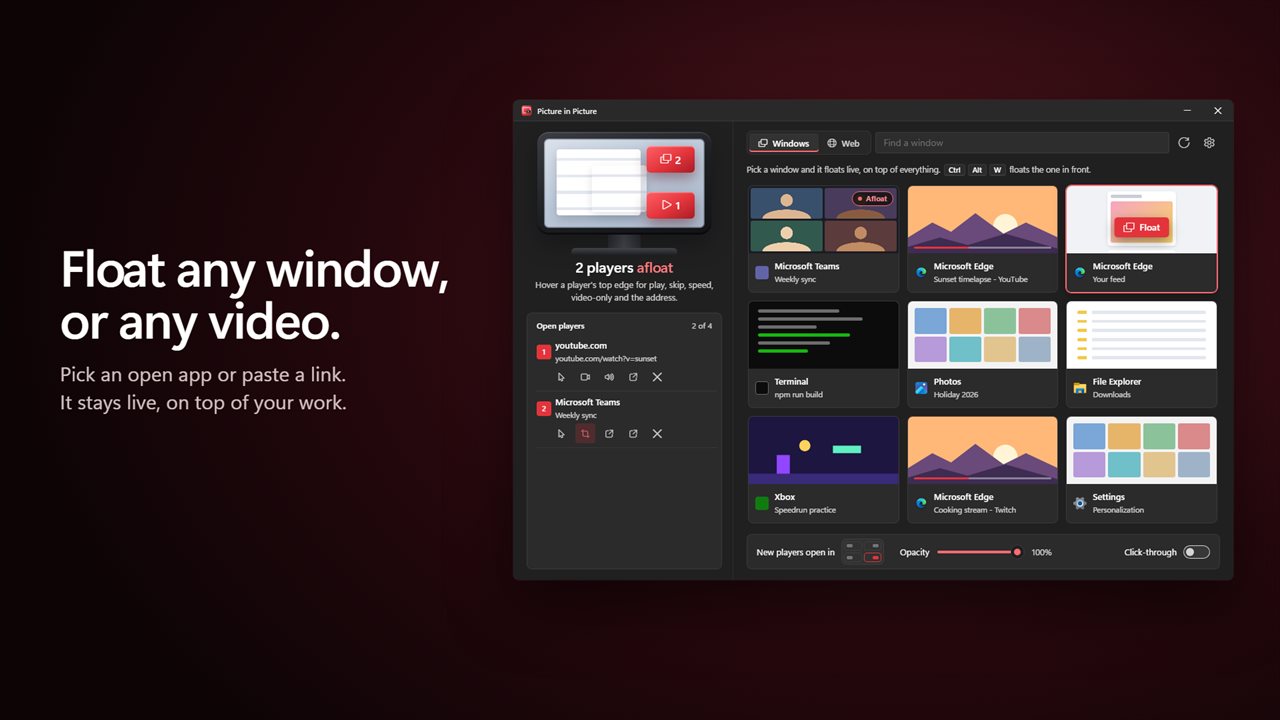
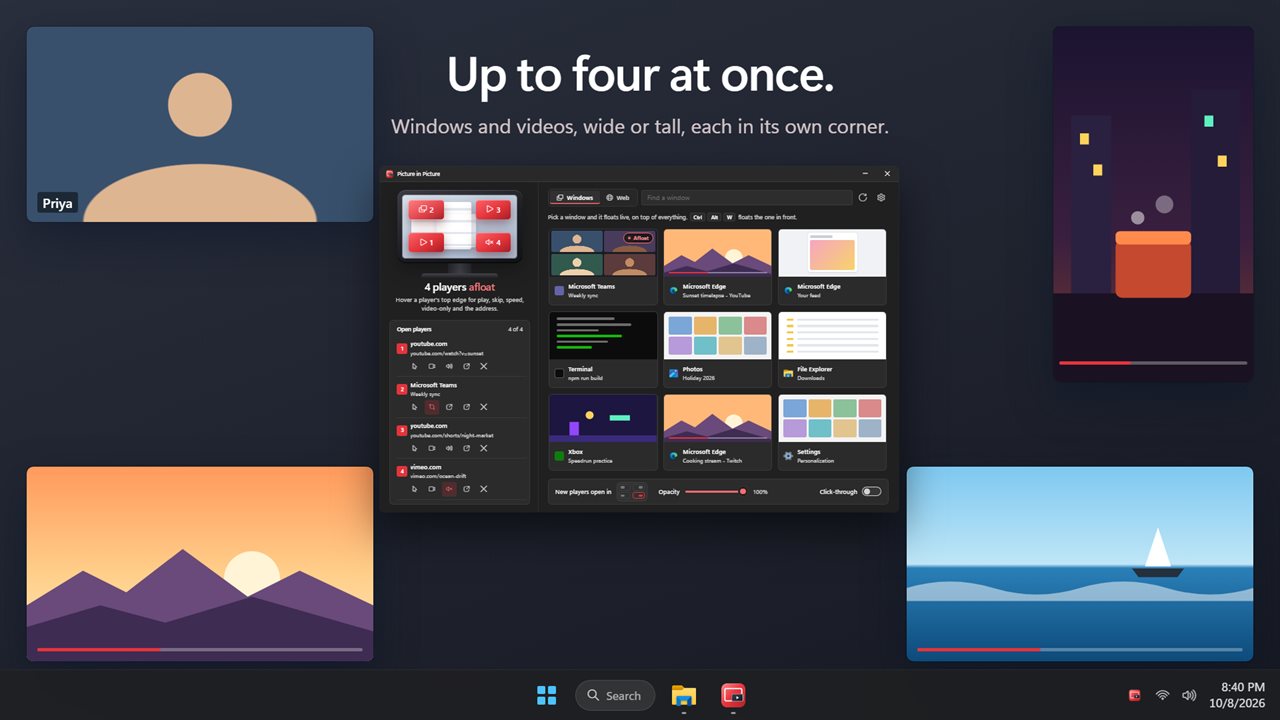
Picture in Picture floats two kinds of thing. A window player shows another program live, composited by Windows from the real window, so nothing is recorded and the program runs at its normal speed. A web player loads a page you paste or search for and can strip it down to just its video.
As many as four players can float together, in any mix. Each is a frameless window with its own taskbar button, and every one stays on top unless you switch Keep players on top off.
How to keep a window always on top in Windows 11, and shrink it
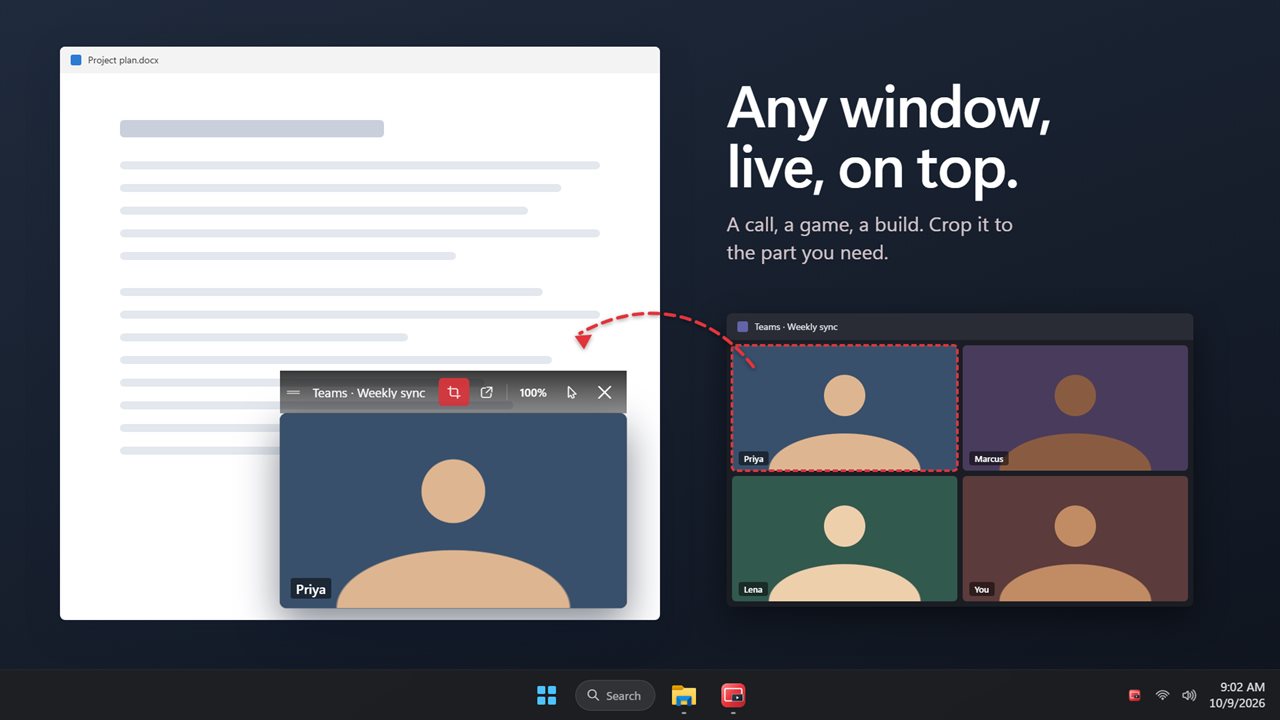
Pinning a full-size window above everything else covers half your screen. A window player gives you a small live copy instead, which you can trim to the part that matters.
- Open Picture in Picture and pick a window from the list, using Find a window to filter by name. Or switch to the program you want and press Ctrl+Alt+W.
- Hover the player's top edge to show its bar, then choose Crop: keep only part of the window. Draw around one face in a call, a chat column or a progress bar.
- Double-click the player, or use Go to the window, whenever you need to type into the real program. The player only mirrors it, so it never steals your clicks.
A floating video player for any website
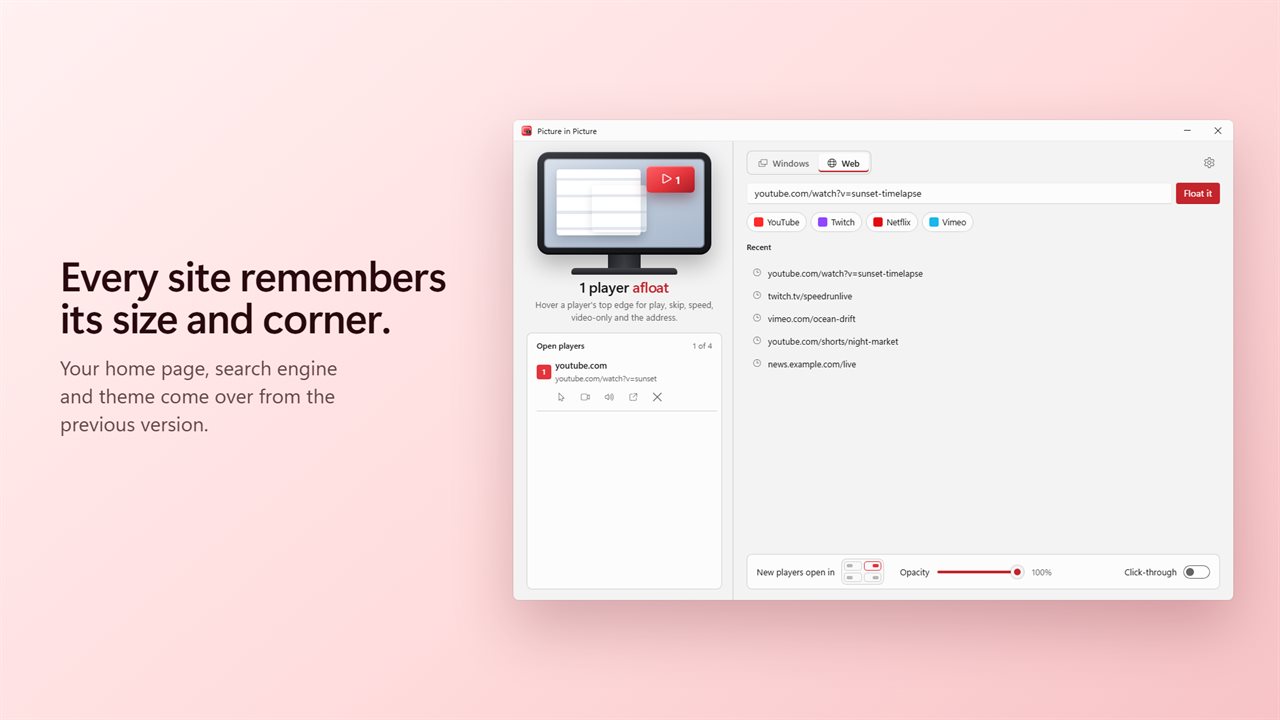
Type an address or a search into Paste a link or search and press Float it. Words that are not an address go to the engine set under Search with in Settings, and an empty box floats your Home page. Recent sites are listed so you can float them again in one click.
Turn on Video only from the player's bar and the video takes over the whole player, with comments, sidebars and menus hidden. The same bar has Play or pause, Back 10 seconds, Ahead 10 seconds and Playback speed, which cycles 1x, 1.25x, 1.5x, 2x, 0.5x and 0.75x. These controls act on the page's video element, so they are not tied to one site.
See through it or click through it
A floating player should never become the thing in your way. Three settings handle that:
- Opacity runs from 30% to 100% in steps of 5, adjustable from a player's bar or from the main window.
- The fade setting in Settings drops a player to a faint ghost whenever the pointer hovers it, then restores it when you move away.
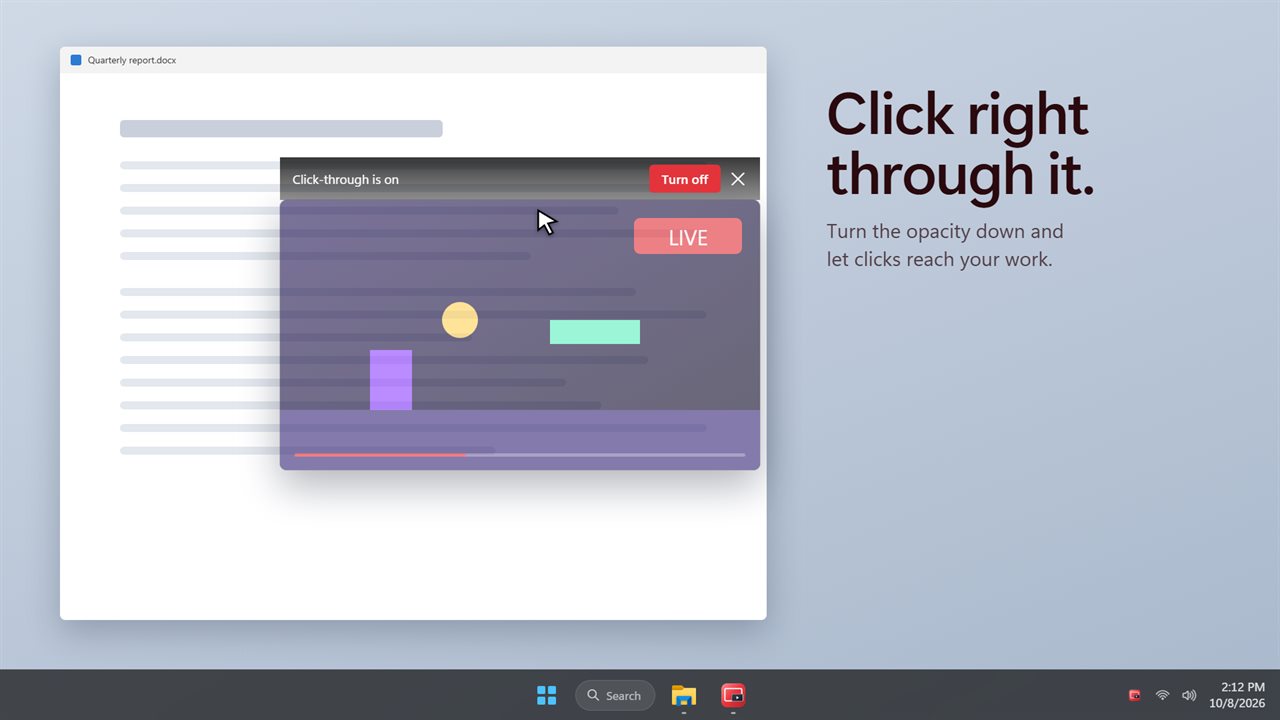
- Click through sends your mouse clicks to whatever sits underneath. Point at the player's top edge, or press Ctrl+Alt+T, to switch it back off.
Placing and sizing players
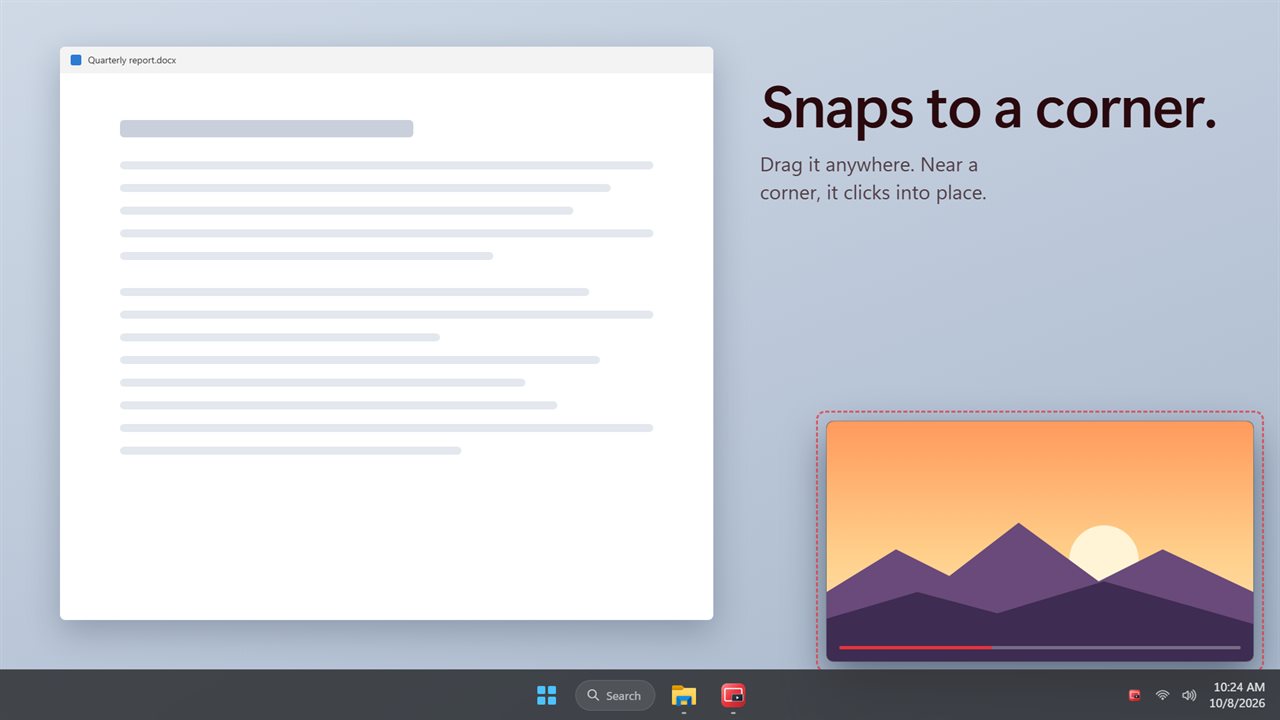
Choose a corner for new players in the main window, then drag them wherever you like; release one close to a screen corner and it snaps in with a small margin. A window player keeps the shape of the program it shows as you resize it, so there are never bars down the sides. Every site and program remembers its own last size and corner, so a call lands where your last call was. Ctrl+Alt+P hides every player at once and brings them back the same way.