An AVIF viewer for the files that will not open
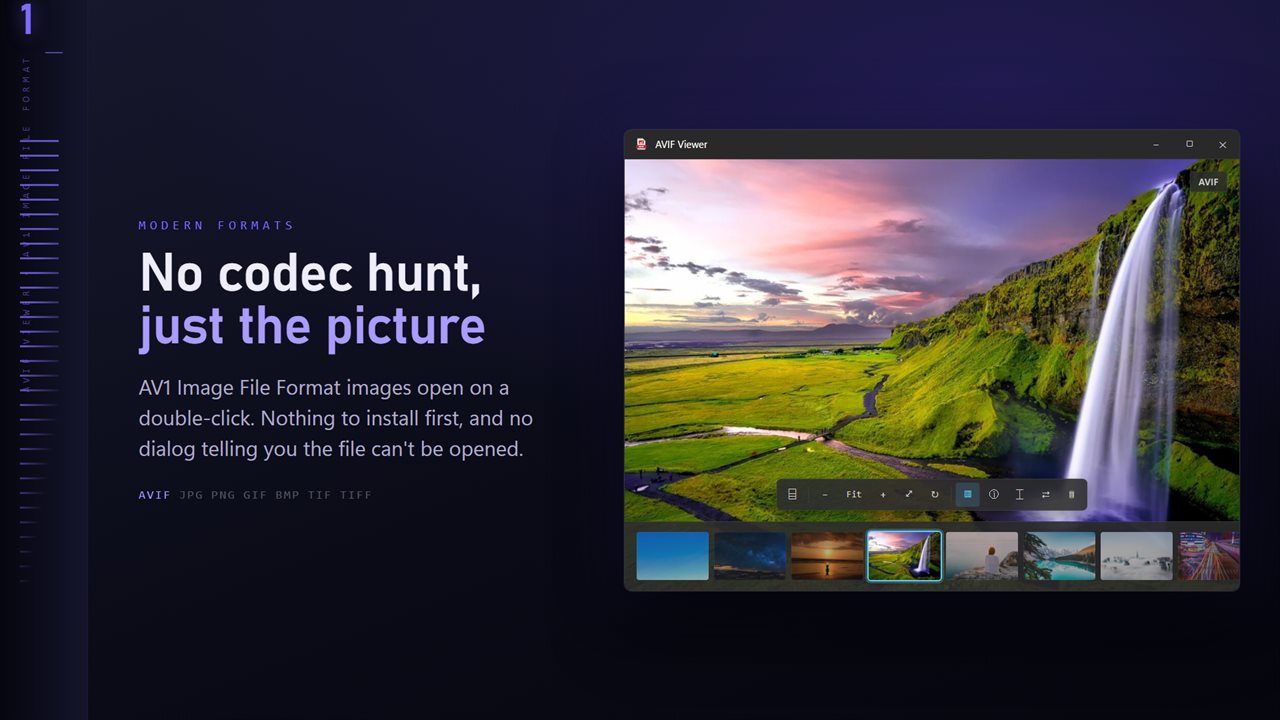
AVIF is a newer image format built on the AV1 video codec. Websites like it because the files are small, so more and more images you save from a browser land on your drive as .avif. Then you double-click one and get an error, a blank window, or a prompt to go find an extension. An AVIF viewer that is made for the format avoids that detour.
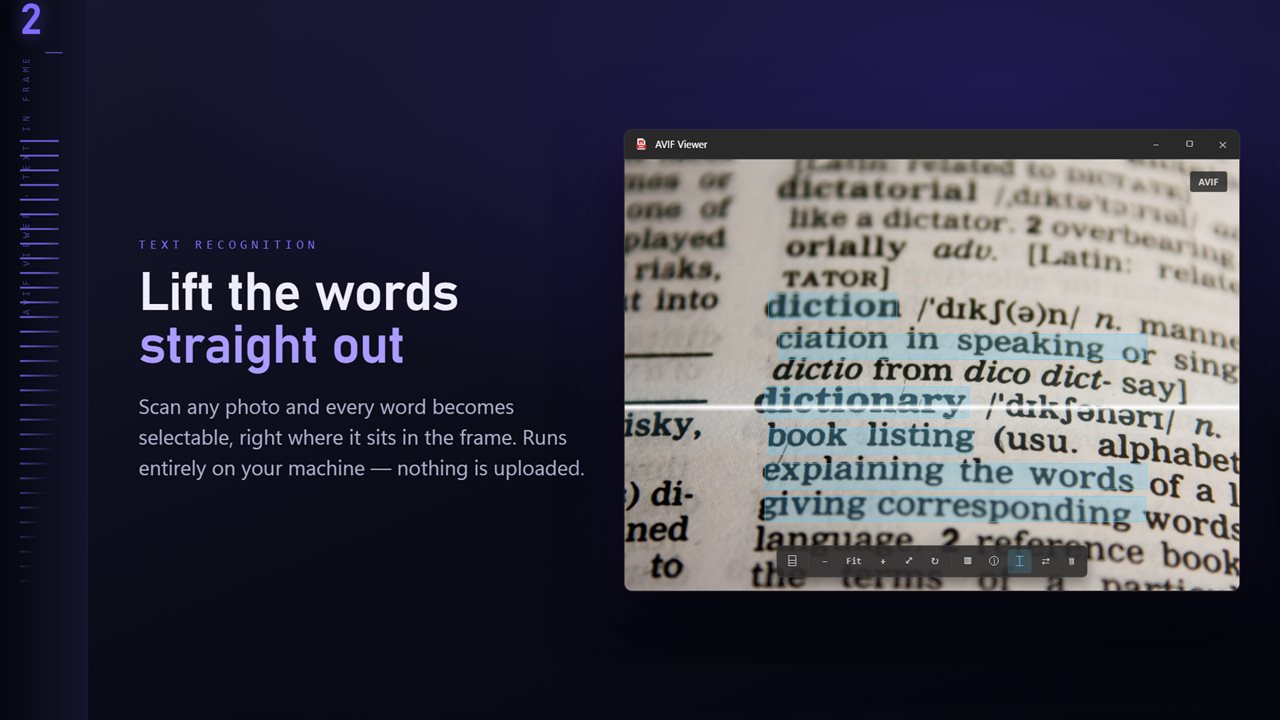
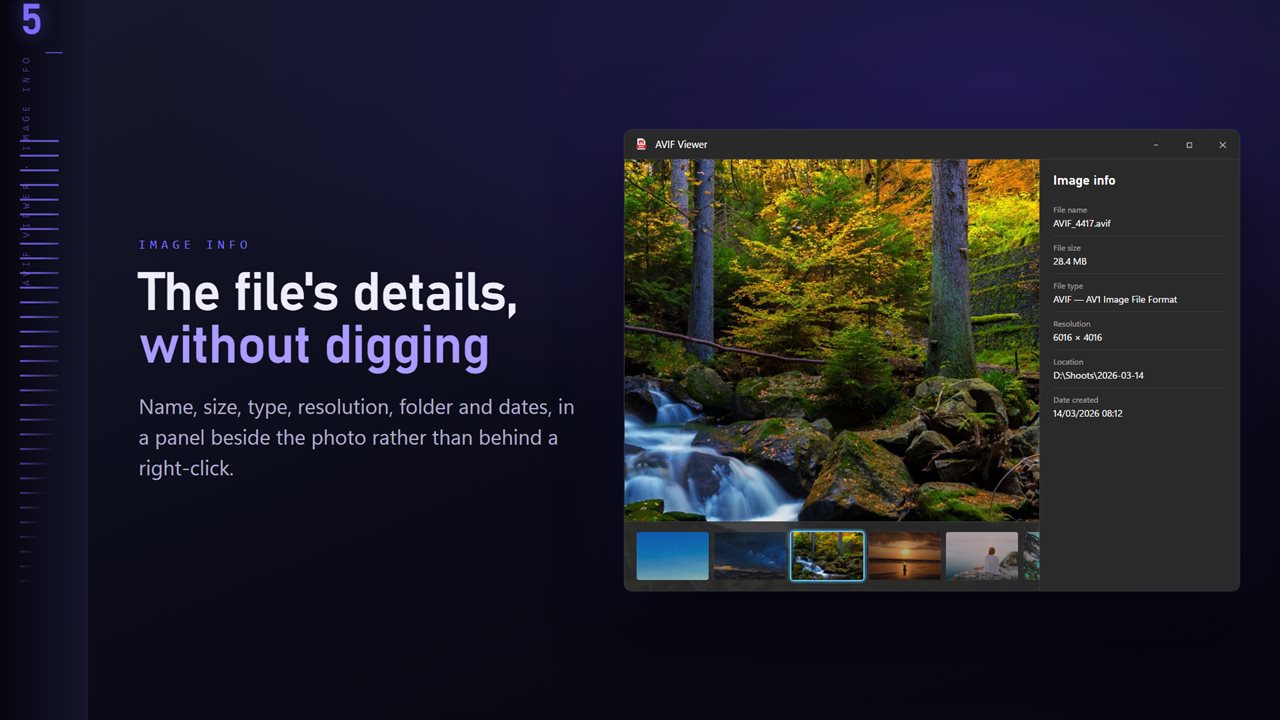
This one opens the image on a plain dark canvas with the controls out of the way. The arrow keys move to the previous and next picture in the folder, F fits it to the window, plus and minus zoom, and R, H and V rotate and flip. Press I for the info panel, which shows file name, size, type, resolution, folder and the created and modified dates.
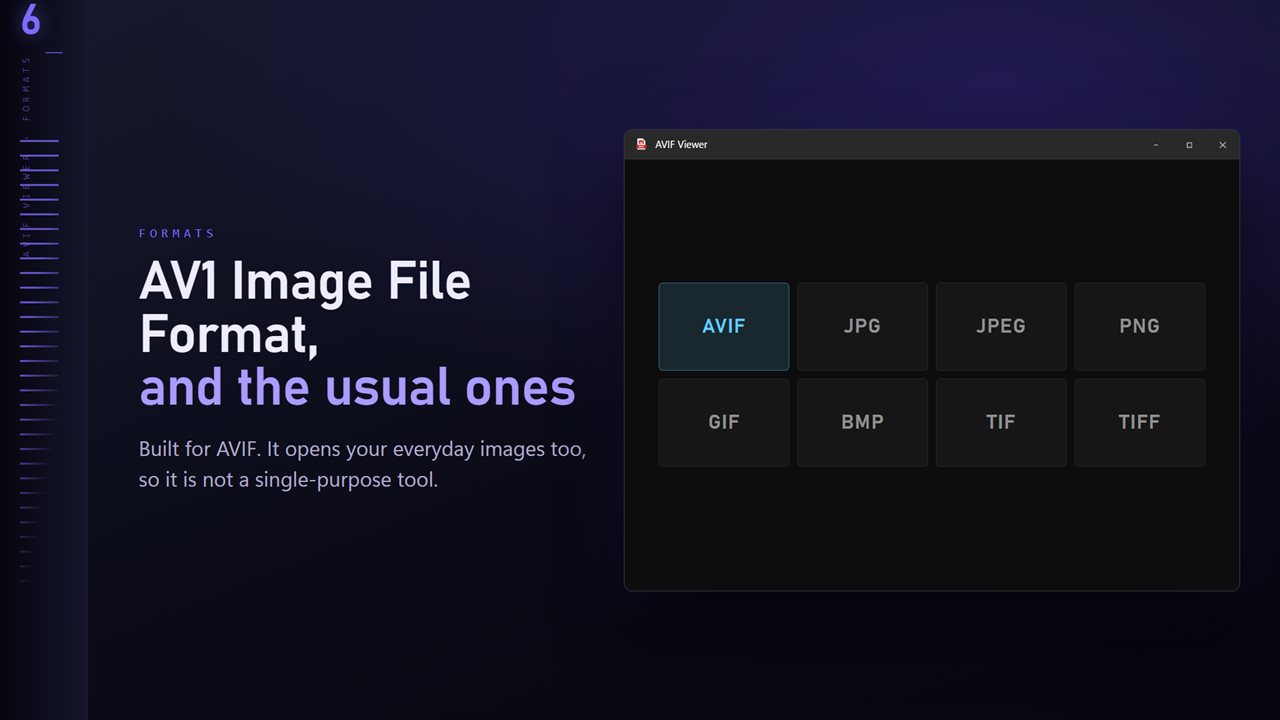
It also opens the everyday formats likely to sit beside an AVIF in a downloads folder: JPG, PNG, GIF, BMP and TIFF.
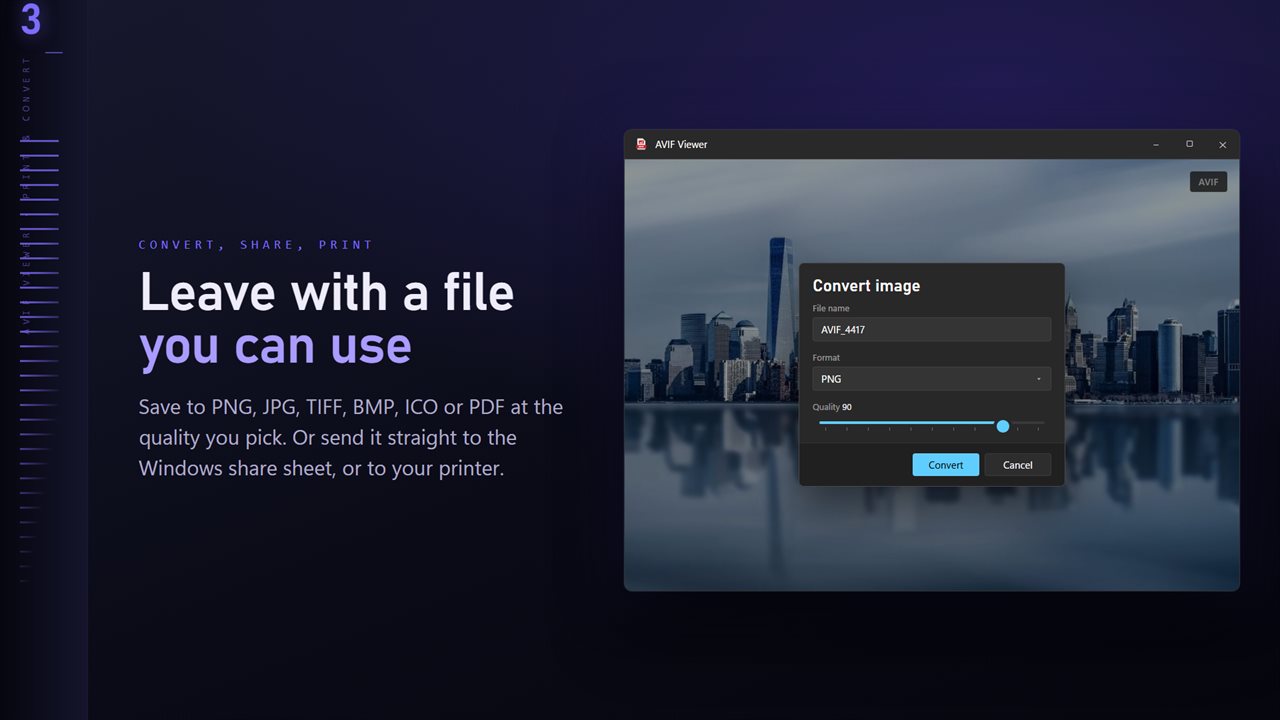
How to convert AVIF to JPG or PNG
PNG is the better target for screenshots, logos and anything with transparent areas; JPG suits photos you are going to email or upload to a site that rejects AVIF.
- Open an AVIF and choose Convert image from the menu.
- Leave the format on JPG, which is selected first, or choose PNG, TIFF, BMP, ICO or PDF.
- Set the quality for JPG output if you want smaller or sharper files.
- Pick a destination and save. The AVIF you started from stays exactly as it was.
Convert a folder of AVIF images in bulk
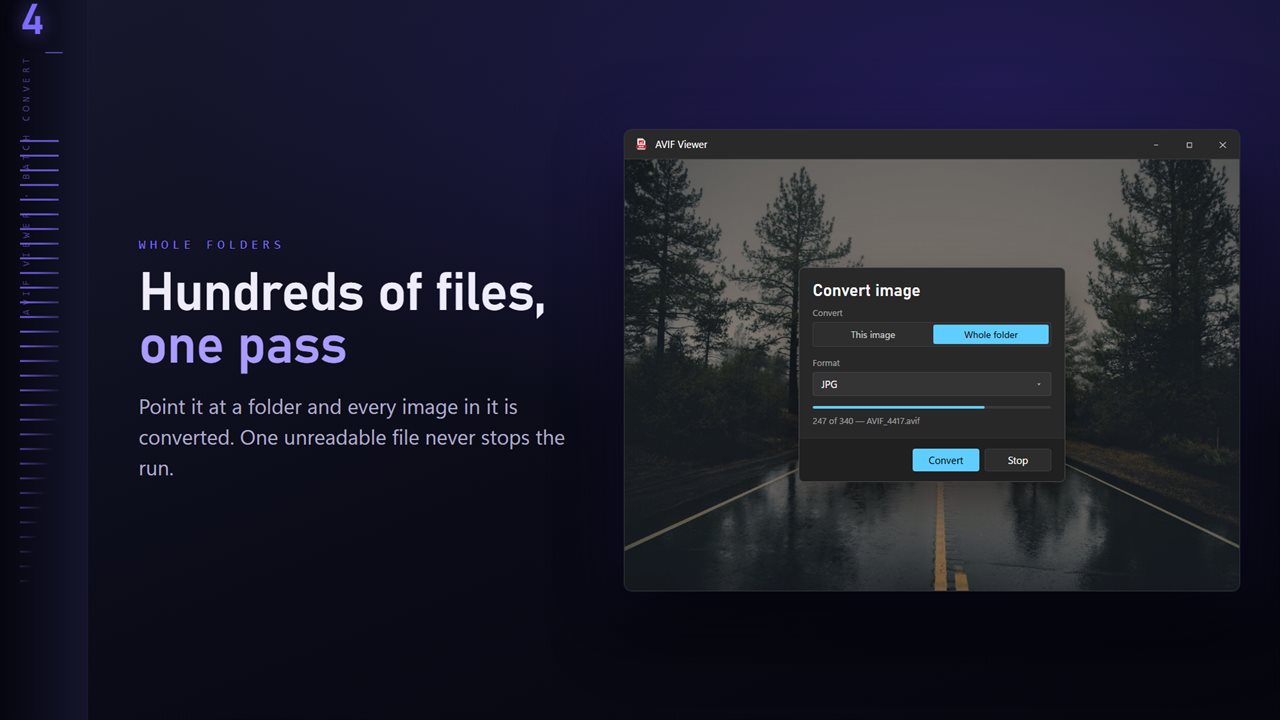
Downloading a gallery or a product catalog can leave you with dozens of AVIFs at once. Choose Whole folder in the conversion dialog and every image the viewer can open in that folder is written to a folder you pick, AVIF files and any JPG or PNG alongside them. Subfolders are left out.
Decide in advance what happens to names that already exist at the destination: skip them, keep both copies, or replace the old ones.
AVIF vs WebP vs JPEG: seeing the size difference yourself
Claims about which web format is smallest are easy to find and hard to apply to your own pictures. The optional Professional Pack includes Size check, on the S key, which encodes the open photo as JPEG, WebP, AVIF and JPEG XL at a quality you choose and lists each resulting file size next to the original's.
The same Pack adds a Pixel loupe on L that reads out the exact color under the pointer as hex and RGB, with views for Photo, Transparency and Alpha, which is handy for checking whether an AVIF really carries a transparent background. It also lets you convert to WebP, AVIF and JPEG XL, not just from them.