EEvlarSoft

Quick Resolution Switcher

Change screen resolution and refresh rate from the notification area, on whichever monitor you choose, or jump to a saved layout with a hotkey.

Buy for $2.99
One payment. No subscription.
14-day money-back guarantee.
3.2
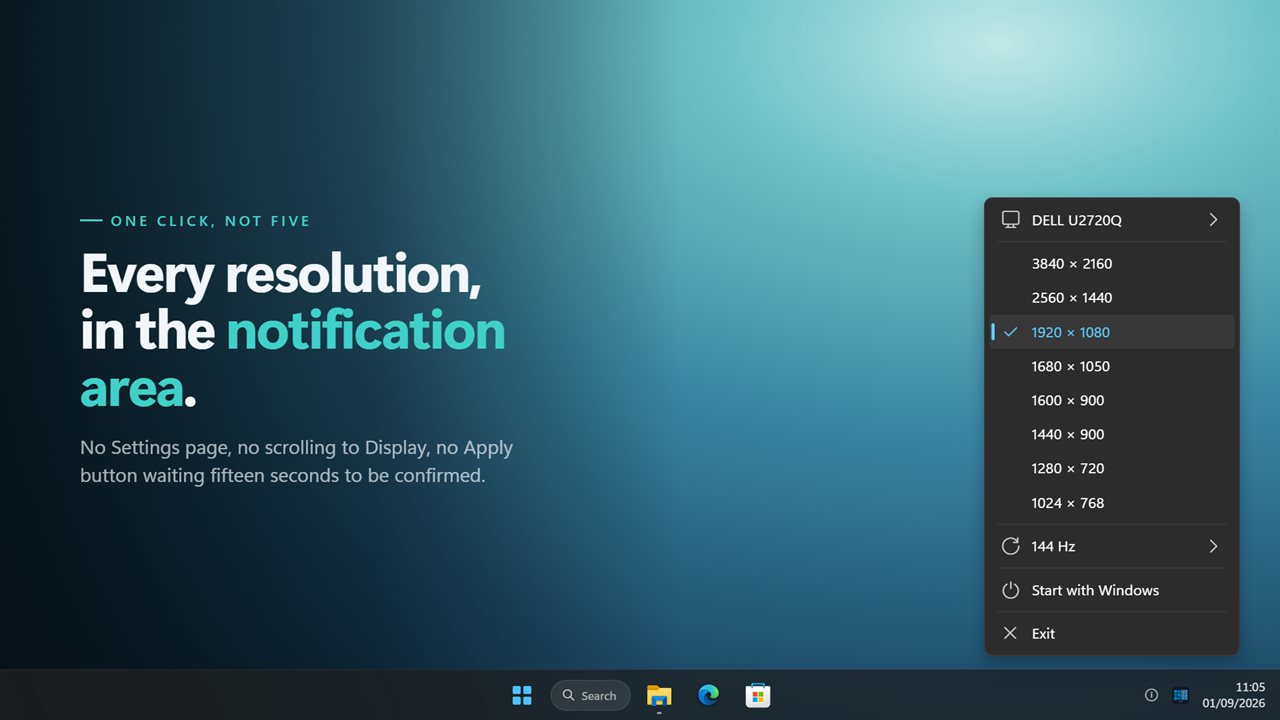
Every resolution your display reports, one click from the tray.
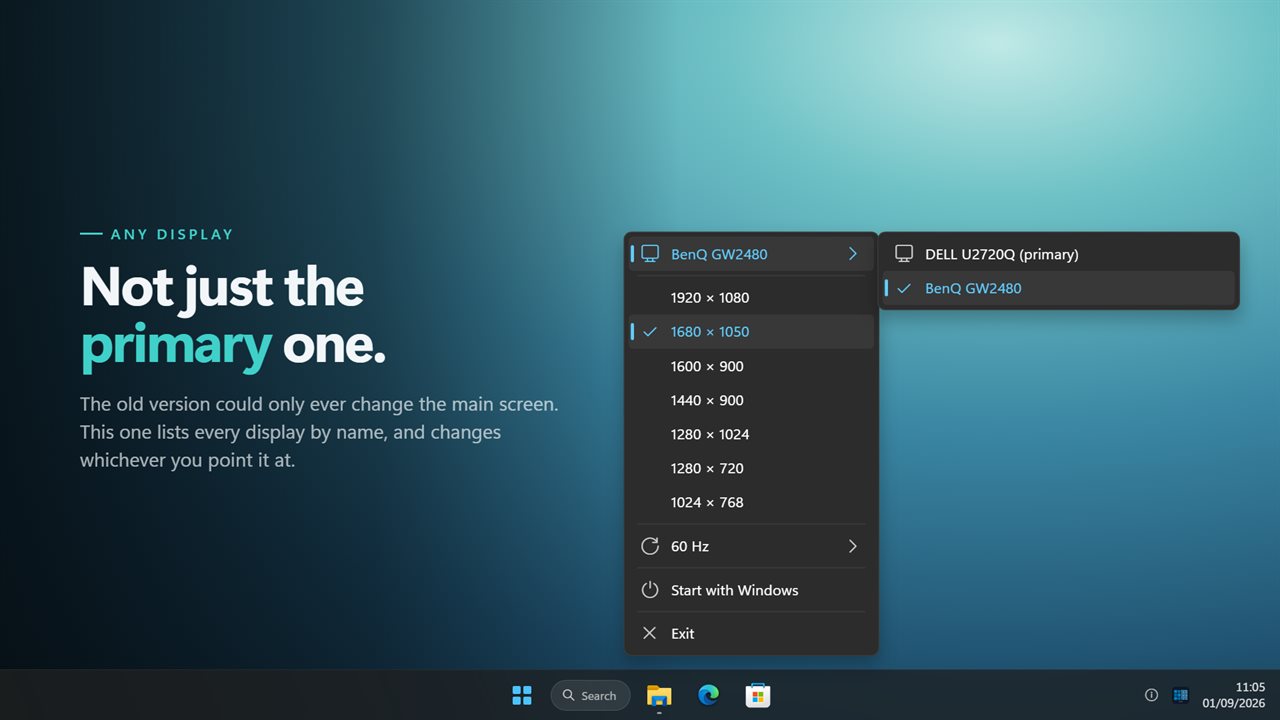
Any display, by the name Windows knows it by — not just the primary.
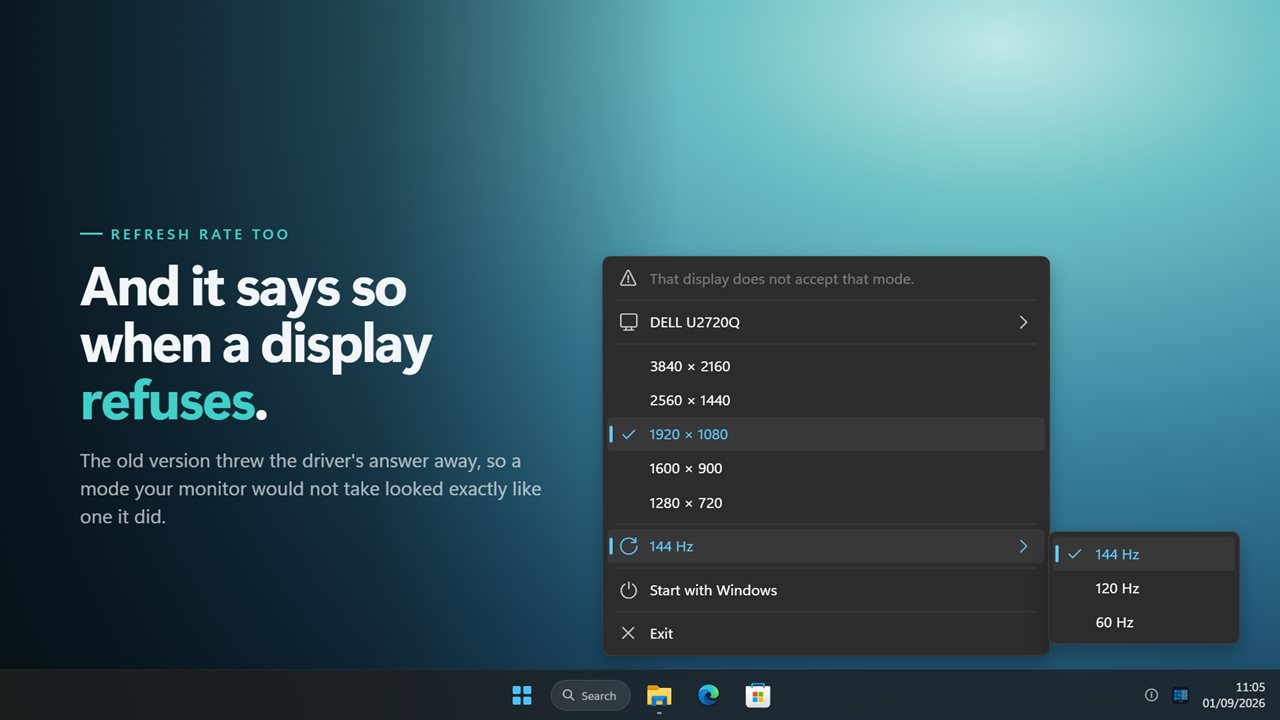
Refresh rate too, and a refusal reported instead of swallowed.

Every resolution your display reports, one click from the tray.

190,000+downloads of EvlarSoft apps
Signed by EvlarSoftVerified US publisher
14-day money-backNo questions asked
Updates includedNo upgrade fees

A resolution changer that lives one click from the clock

Quick Resolution Switcher is a resolution changer for Windows that turns the Display settings page into a menu. Click its icon in the notification area and you get a list of every size your monitor reports, written as 1920 × 1080, 2560 × 1440 and so on, with a tick beside the one in use. Click another size and the screen switches.

Each size appears once, even when the monitor offers it at several refresh rates, so the list stays readable. The rates for the current size sit in their own submenu underneath.

If a monitor refuses a mode, the reason Windows gives appears as the first line of the menu instead of the change quietly failing. Nothing else about the display is touched: scaling stays as you set it, and HDR is switched back on if Windows drops it during the change.

How to change screen resolution without opening Settings

The built-in route is Settings, System, Display, Display resolution, then a confirmation prompt. With this app running it is two clicks.

  • Click the tray icon to open the menu.
  • With more than one monitor, click the row showing the display's name and pick the screen to change. The primary one is marked.
  • Click a size from the list. The new resolution is saved to Windows, so it is still there after a restart.
  • Turn on Start with Windows from the same menu so it is always ready.

Change the refresh rate, including 59.94 Hz

When the size you are on supports more than one rate, a row showing the current rate, such as 144 Hz, opens a submenu with the rest. Rates are read precisely, so 59.94 Hz and 23.98 Hz show up as separate choices next to 60 Hz and 24 Hz. That matters for matching video frame rates on a TV or a capture setup.

Switching size keeps your current refresh rate whenever the new size offers it, and otherwise picks the fastest rate that size supports, so dropping to a lower resolution does not leave you at 60 Hz by accident.

A change resolution shortcut for every layout you use

Windows has no keyboard shortcut for resolution. Here, set the screen the way you want it, open the menu and choose Save this resolution as a favorite. Favorites appear at the top of the menu, up to nine of them, and each one is bound to a hotkey from Ctrl+Alt+1 to Ctrl+Alt+9.

On a desk with several monitors the wording changes to Save this layout as a favorite, because a favorite then records the mode of every display together and restores them all with one key press. Since there is no automatic revert timer, a favorite hotkey is also your quickest way back from a mode the monitor cannot show.

What it changes

  • Every resolution the display reports, largest first, with the current one ticked
  • Any connected monitor, listed by the name it reports, with the primary marked
  • Refresh rate per size, with exact rates such as 59.94 Hz and 23.98 Hz
  • Up to nine favorites on Ctrl+Alt+1 through Ctrl+Alt+9
  • Multi-monitor favorites that restore every display at once
  • A plain-language message when a display rejects a mode
  • Scaling left alone and HDR restored after a switch
  • Start with Windows from the tray menu, with a light and dark menu that follows Windows

When a quick switch helps

Games that run better lower

Save your desktop resolution and a lower one as favorites, then flip between them with Ctrl+Alt+1 and Ctrl+Alt+2 before and after a session.

Screen sharing and recording

Drop a large monitor to 1920 × 1080 so viewers can read your screen, then put it back afterward.

Watching film on a TV

Set the TV to 23.98 Hz for a movie and back to 60 Hz for the desktop from the refresh rate submenu.

What's new in 2.0.13

  • New: change any display, not just the primary one. The old version could only ever drive the main screen
  • New: displays are listed by the name Windows knows them by, with the primary one marked
  • New: pick the refresh rate for the resolution you are on. The old version never touched it
  • New: when a display refuses a mode, the app says so. The driver's answer used to be discarded
  • One row per size at its best refresh rate, instead of the same resolution repeated once per rate
  • The list no longer drops everything below 1024 × 500, and no longer sorts as text — which put 800 × 600 above 1920 × 1080
  • The list is rebuilt when displays change, instead of growing every time one was plugged in
  • Redesigned menu that matches Windows 11 and follows the light and dark themes

Questions

Anything else? Ask us

Can Quick Resolution Switcher set exact refresh rates like 59.94 Hz?

Yes. It reads the exact rate from DirectX, so 59.94 Hz and 23.98 Hz appear as their own choices beside a true 60 Hz and 24 Hz. Changing the resolution keeps your current refresh rate when the new size offers it, and otherwise uses the highest rate that size supports.

Can it change the resolution of a second monitor?

Yes. Every active display is listed by the name the monitor reports, with the primary one marked, and the menu acts on whichever one you pick. If that monitor is unplugged, it goes back to the primary display.

Can I switch resolutions with a keyboard shortcut?

Yes. Save the current resolution as a favorite, up to nine of them, and each gets a hotkey from Ctrl+Alt+1 to Ctrl+Alt+9. With more than one monitor, a favorite saves and restores the mode of every display at once.

Does the new resolution stay after a restart?

Yes. The change is saved to Windows the same way the Settings app saves it. There is no countdown that switches back, so a favorite hotkey is the quickest way out of a mode your monitor cannot show.

What happens if my monitor refuses a resolution?

The menu tells you at the top, in the reason Windows gave, such as "That display does not accept that mode." The screen stays as it was.

Does changing resolution turn off HDR or change scaling?

No. Only the width, height and refresh rate are changed, and if Windows switches HDR off during the change, the app turns it back on. Scaling stays whatever Windows Settings has it at.

Why does the menu show only one row for each resolution?

Monitors often list the same size at several refresh rates. The app groups them so each size appears once, and the rates for the size you are on are in the refresh rate submenu.

What happens to favorites if I unplug a monitor?

Nothing is deleted. Pressing the favorite's hotkey sets the displays that are still connected and skips the missing one, so the whole layout comes back once that monitor is plugged in again.

How do I remove a favorite resolution?

Switch to it, open the tray menu and choose Remove this resolution from favorites (Remove this layout from favorites with several monitors). Once nine are saved, the Save option disappears until you remove one.

Which versions of Windows does it run on?

Windows 10 (version 1809 or later) and Windows 11.

Is it a subscription?

No. Quick Resolution Switcher is a one-time purchase of $2.99, and updates are included.

How do I get it?

Buy it on this page and your license key arrives by email. If the button says Notify me, Quick Resolution Switcher is not on sale here yet; leave your email and we will tell you when it is.

More from EvlarSoft