EEvlarSoft

Left and Right Audio Balance for Windows

Shifts your PC's sound between left and right from a small panel by the clock, for the times one ear, one speaker or one headphone needs more.

Buy for $2.99
One payment. No subscription.
14-day money-back guarantee.
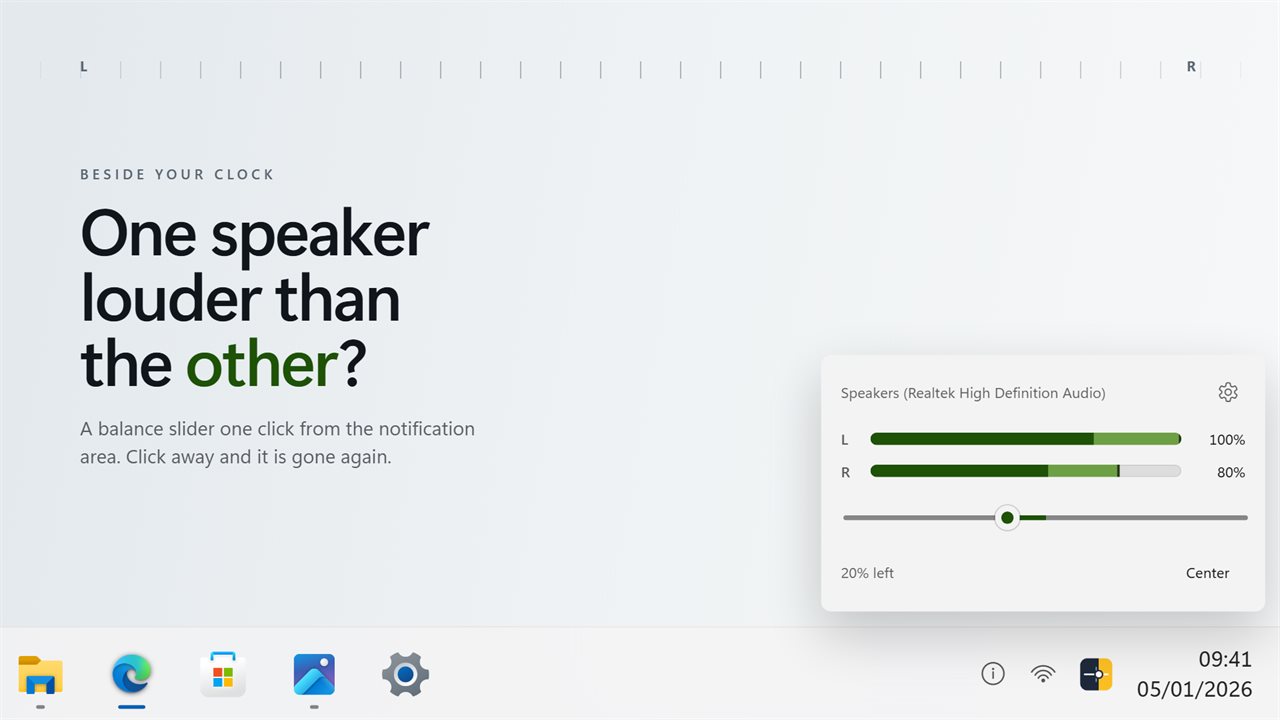
Modern Audio Balancer's panel open above the taskbar with the balance slider and two channel meters
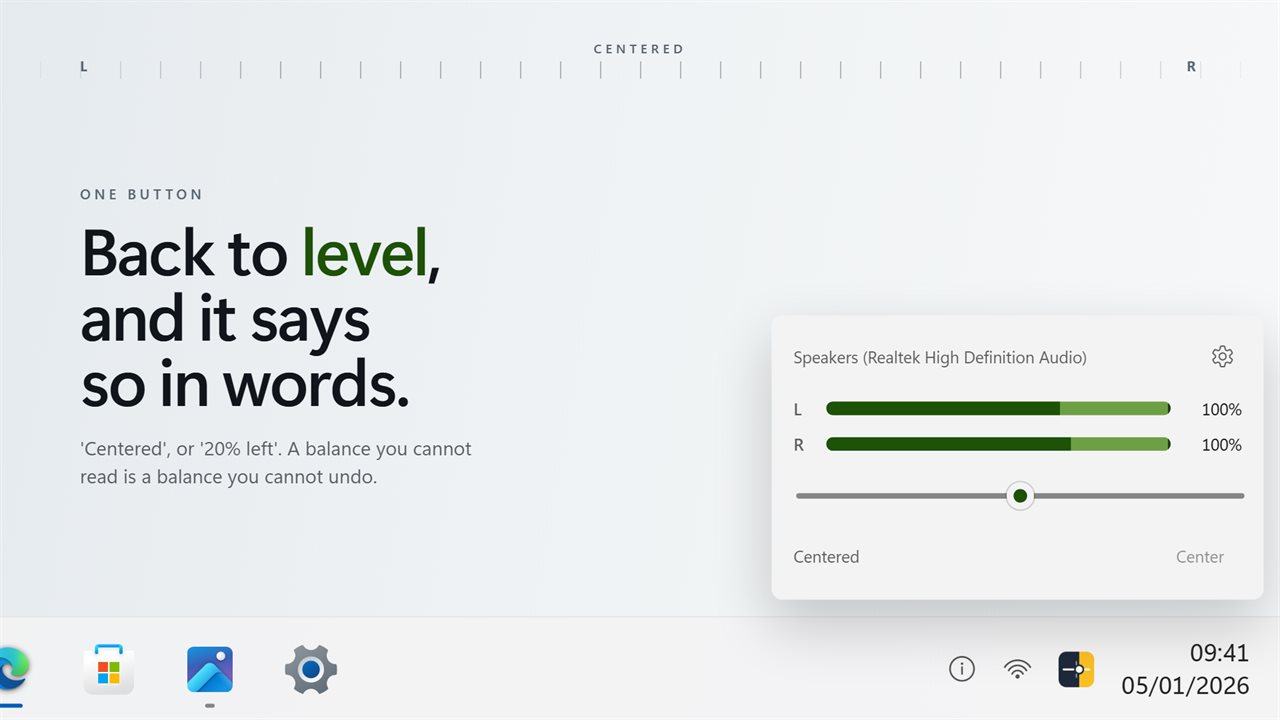
One button puts both channels back to level, and says so in words.
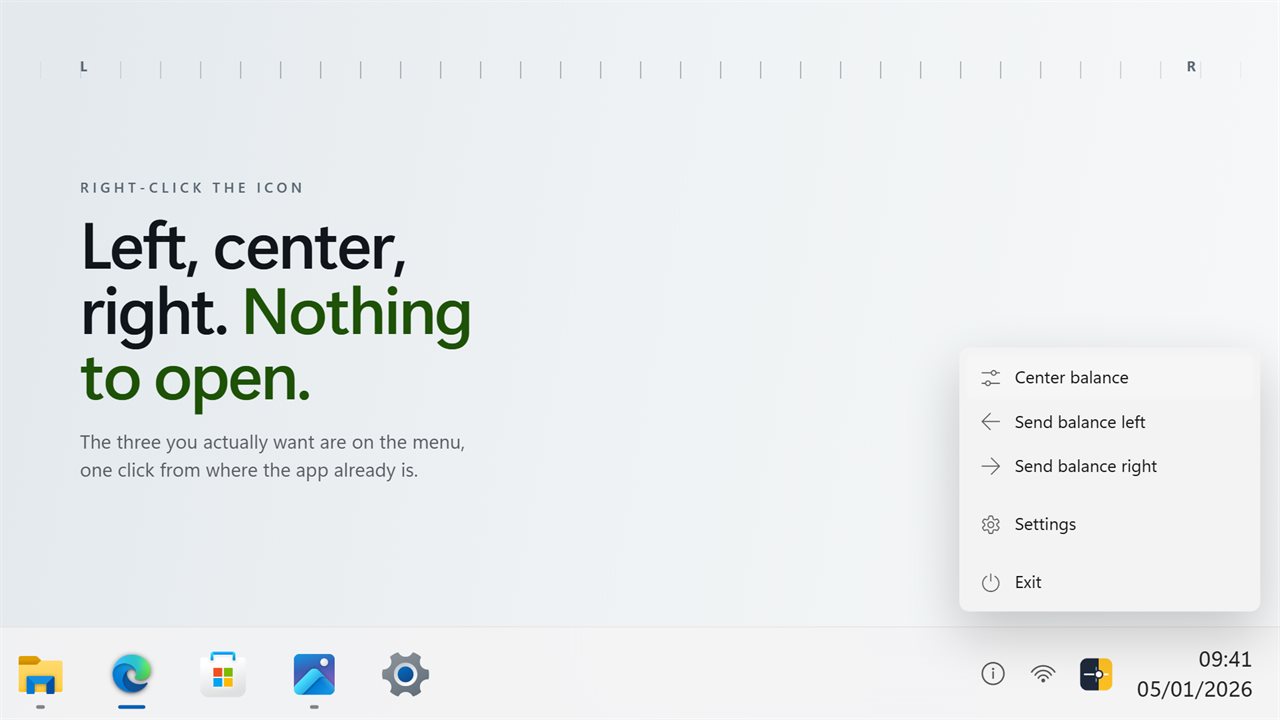
Left, center and right on the tray menu, without opening anything.
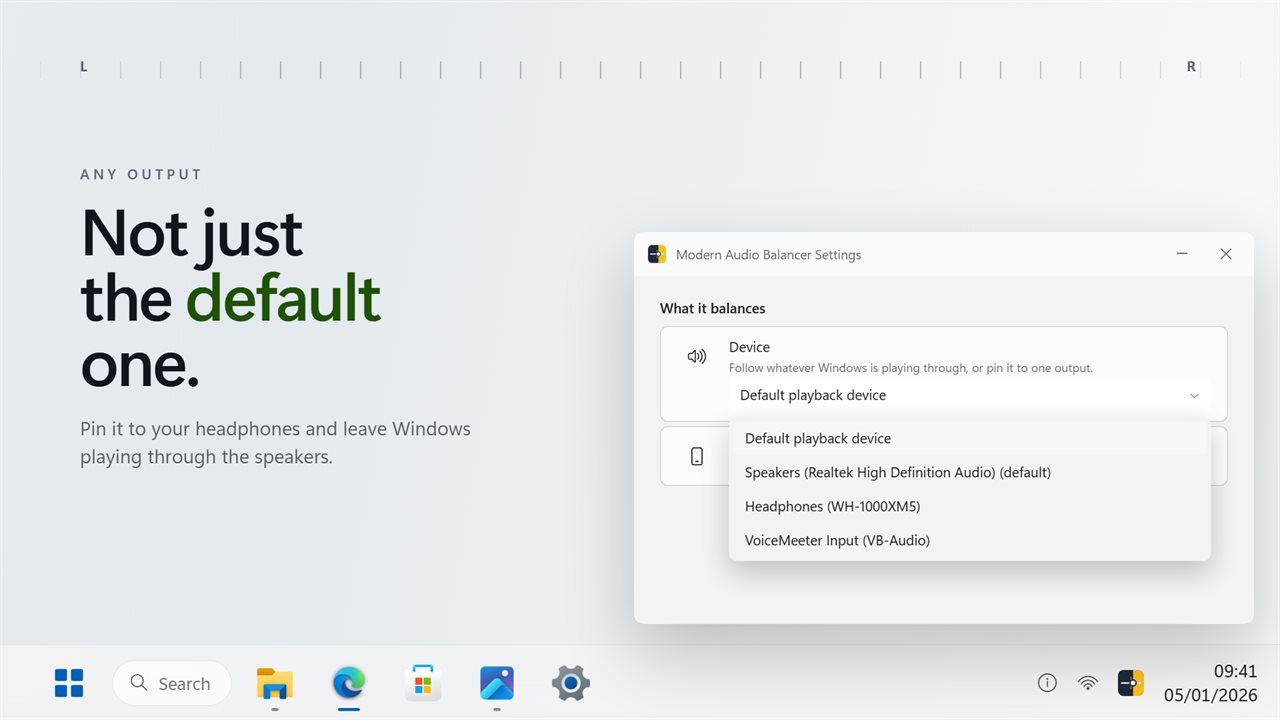
Pick which output it balances, rather than only the one Windows is using.
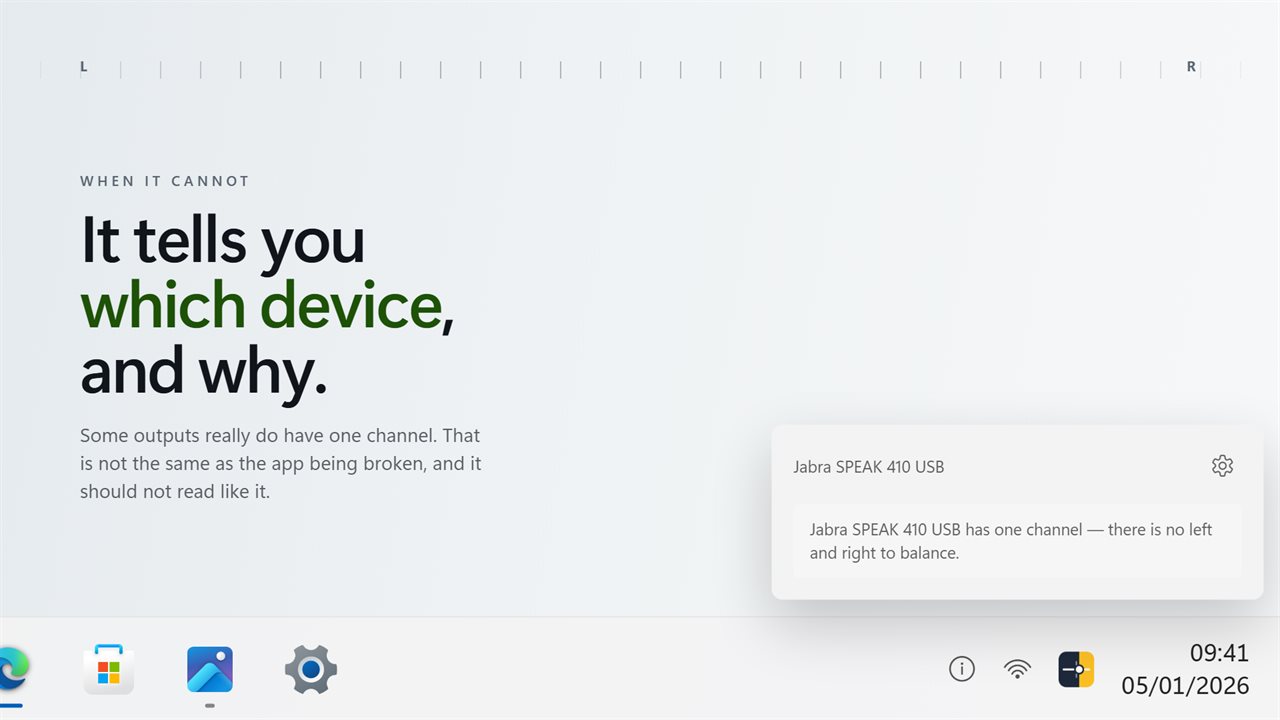
When a device really has one channel it says which, and why.
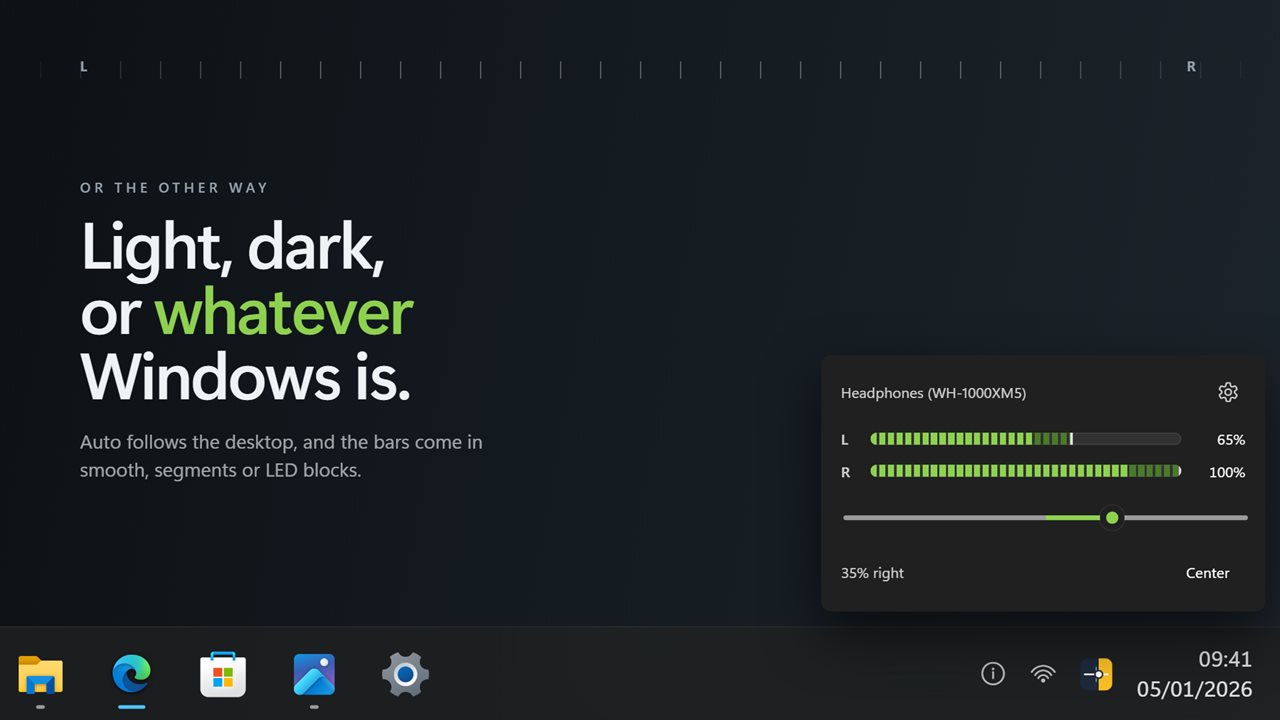
Light, dark, or whatever Windows is set to.

A balance slider one click from the notification area, gone again when you click away.

190,000+downloads of EvlarSoft apps
Signed by EvlarSoftVerified US publisher
14-day money-backNo questions asked
Updates includedNo upgrade fees
100% left · Centered · 100% right

Fine steps, said in words

The slider moves one percent at a time, and the panel reads out where you are, such as "20% left".

Any output

Not only the default device

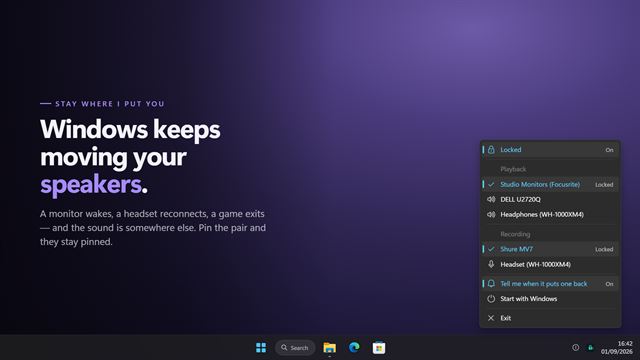
Follow whatever Windows is playing through, or pin the balance to one pair of speakers or headphones.

Smooth · Segments · LED blocks

Hear it and see it

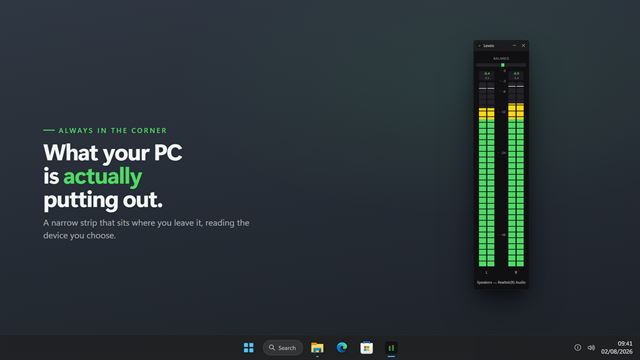
Each channel carries a live level meter, so you can watch one side get quieter as you move the slider.

What balance actually changes

Every stereo device in Windows has a volume for the left channel and one for the right. Balance is the difference between them. Windows does have a balance control, but it sits several pages deep in Sound settings and has to be found again every time.

Modern Audio Balancer turns the quieter side down and leaves the louder side where it is. Your overall volume does not change, and moving the slider back to the middle puts both sides exactly where they started.

On a 5.1 or 7.1 device it balances the front left and right speakers and leaves the rest alone. A device with only one channel cannot be balanced, and the panel says so by name instead of quietly doing nothing.

How to change left and right audio balance in Windows

Modern Audio Balancer keeps the balance slider one click from the clock. You can adjust it, check it and close it in a few seconds.

  • Click the Modern Audio Balancer icon in the notification area. The panel opens beside it, wherever your taskbar is docked.
  • Move the slider toward the side that needs more. It moves one percent at a time.
  • Read the line under the slider, such as "20% left", to see exactly where you are.
  • Press the button under the slider to put both channels back to center.
  • Click anywhere else to close the panel, or right-click the tray icon for left, center and right without opening it.

Balancing audio for one ear or one headphone

If you hear less on one side, or one side of a pair of headphones has worn, a balance you can read in words is easier to live with than one you set by eye. The panel says "Centered" or how far to which side, so you can return to a setting that worked, and a percent at a time lets you make small corrections.

Because only the quieter side is turned down, shifting the balance never lowers your overall volume. In settings you can pin the balance to one output, your headphones for example, and leave Windows playing through your speakers, or the other way round.

How it differs from the balance setting built into Windows

Windows keeps its balance control inside Sound settings, several pages in. Modern Audio Balancer puts the same left and right channel volumes in a flyout from the tray, and the tray menu reaches left, center and right without opening anything at all.

It also shows what the sound is doing, not just where the slider is. Each channel has a live level bar in Smooth, Segments or LED blocks style, so you can watch one side get quieter as you move it. While the flyout is closed it does no audio work at all, and it stays out of your taskbar and Alt+Tab.

Modern Audio Balancer features

  • A flyout by the clockOpens beside the tray icon and closes when you click away.
  • One-percent stepsMove the balance as little or as far as you need.
  • A readout in wordsShows "Centered" or how far to one side, such as "20% left".
  • Center in one clickOne button puts both channels back to level.
  • Tray menu shortcutsLeft, center and right without opening the panel.
  • Any output deviceBalance headphones, speakers or whatever Windows is using.
  • No volume lossOnly the quieter side changes, and centering returns exactly to where you started.
  • Live channel metersA level bar per channel in Smooth, Segments or LED blocks style.
  • Surround and mono handledBalances the front pair on 5.1 or 7.1, and names a mono device that cannot be balanced.
  • Idle while closedNo audio work while the flyout is closed, with an optional start with Windows.

What people use it for

Hearing better on one side

Moving sound toward the ear that hears less, and keeping it there.

Uneven headphones or speakers

Evening out a pair where one side has worn or one speaker sits further away.

Checking a stereo setup

Sending sound fully left or right to confirm which speaker is which.

What's new in version 2

  • Opens beside the tray icons, wherever the taskbar is
  • Choose which output it balances, not only the default
  • One-percent steps and a readout in words
  • Left, center and right on the tray menu
  • Balance no longer lowers the volume, and centering returns exactly to where you started
  • Idle while closed, with a light theme alongside dark

Questions

Anything else? Ask us

Will it turn my volume down?

No. Only the quieter side changes. The louder side and the overall volume stay where they were.

Why does it say my device cannot be balanced?

That device reports a single channel, so there is no left and right to move between. The panel names the device so you know which one it means.

Does it work with surround sound?

Yes. It balances the front left and right channels and leaves the others alone.

Can it reset to center every time?

Yes. Turn on Center on launch in Settings.

Does it run in the background?

It waits in the notification area, and does no audio work while the panel is closed.

Which versions of Windows does it run on?

Windows 10 (version 1809 or later) and Windows 11.

Is it a subscription?

No. Modern Audio Balancer is a one-time purchase of $2.99, and updates are included.

How do I get it?

Buy it on this page and your license key arrives by email. If the button says Notify me, Modern Audio Balancer is not on sale here yet; leave your email and we will tell you when it is.

Prefer widgets? The Audio Balance widget on WidgetSpark does a similar job, alongside over 100 other desktop widgets in one app.