How to open JXL files on Windows
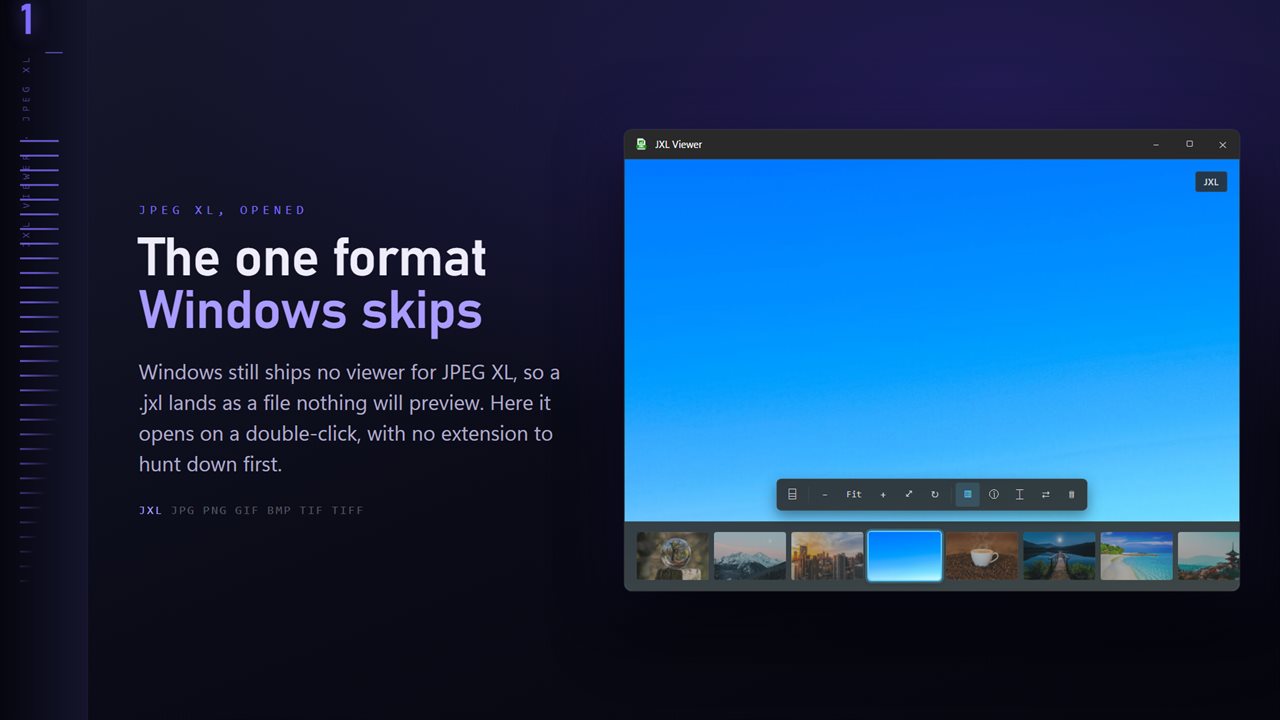
JXL is the extension for JPEG XL, a newer image format that compresses smaller than JPEG at the same quality and can also repack an existing JPEG without losing a bit. Support on Windows is patchy: Windows 10 has no JPEG XL decoder of its own, and on Windows 11 it depends on an optional extension, so double-clicking a .jxl often leads nowhere.
JXL Viewer opens them directly. Set it as the default for .jxl and the image appears on a double-click. You can also drag a file onto the window or press Ctrl+O, and the folder's other images are a press of T away as a thumbnail ribbon.
Animated JPEG XL files show their first frame only. Everything else, from a camera export to a web graphic, opens at full resolution with zoom, pan, rotate and flip on the keyboard.
Convert JXL to JPG or PNG
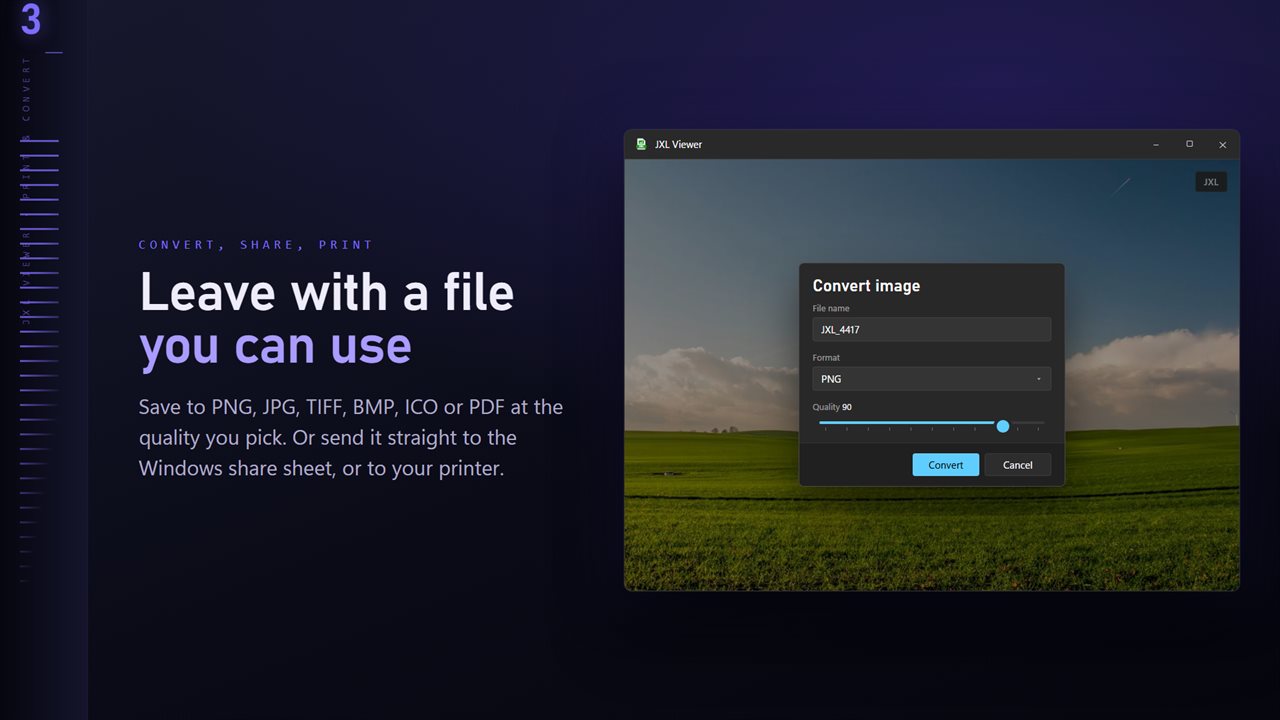
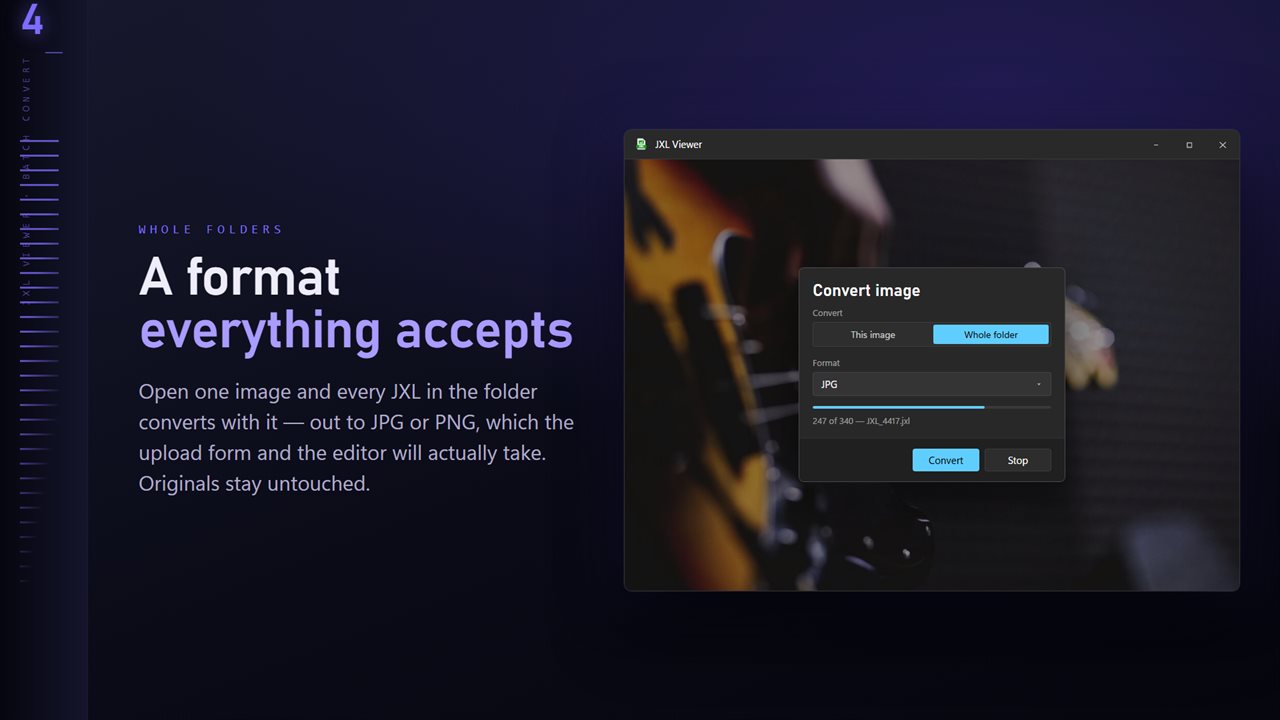
Open the image, choose Convert image from the More menu, and select This image or Whole folder. Pick JPG for anything that has to upload to a site or attach to a form, or PNG when you need transparency kept. TIFF, BMP, ICO and PDF are also on the list.
Quality runs from 50 to 100 for JPG. Existing files sets what happens when a name is taken: Skip, Keep both or Replace. A folder run counts any image it could not read in its closing summary rather than stopping.
Your JXL files are only read during conversion. The new copies go to the folder you choose, so the originals stay exactly where and how they were, ready to convert again at a different quality if the first pass was too large.
Get the original JPEG back out of a JXL
One of JPEG XL's best tricks is lossless JPEG recompression: a JPEG can be packed into a JXL in noticeably less space and later restored exactly. With the optional Professional Pack, Save the original JPEG in the More menu writes that JPEG back out byte for byte, so nothing is decoded and re-encoded on the way.
It only works on a JXL that was made from a JPEG in that mode. For any other JXL there is no JPEG inside, so the command does not appear at all, and you never get a re-encoded copy passed off as the original.
JPEG XL vs AVIF, WebP and JPEG for the same photo
The Professional Pack's Size check encodes the open image as JPEG, WebP, AVIF and JPEG XL at one Quality setting, from 30 to 100, and lists each file size next to the original's. Pick a format to inspect it at 100% against the original, then save the one that wins. That settles the format question with your own picture rather than someone else's benchmark.
Pixel loupe reads any pixel's color and transparency from a lossless copy and copies it with a click, useful for designers checking a transparent JXL.