Convert PNG to ICO with the right sizes packed inside
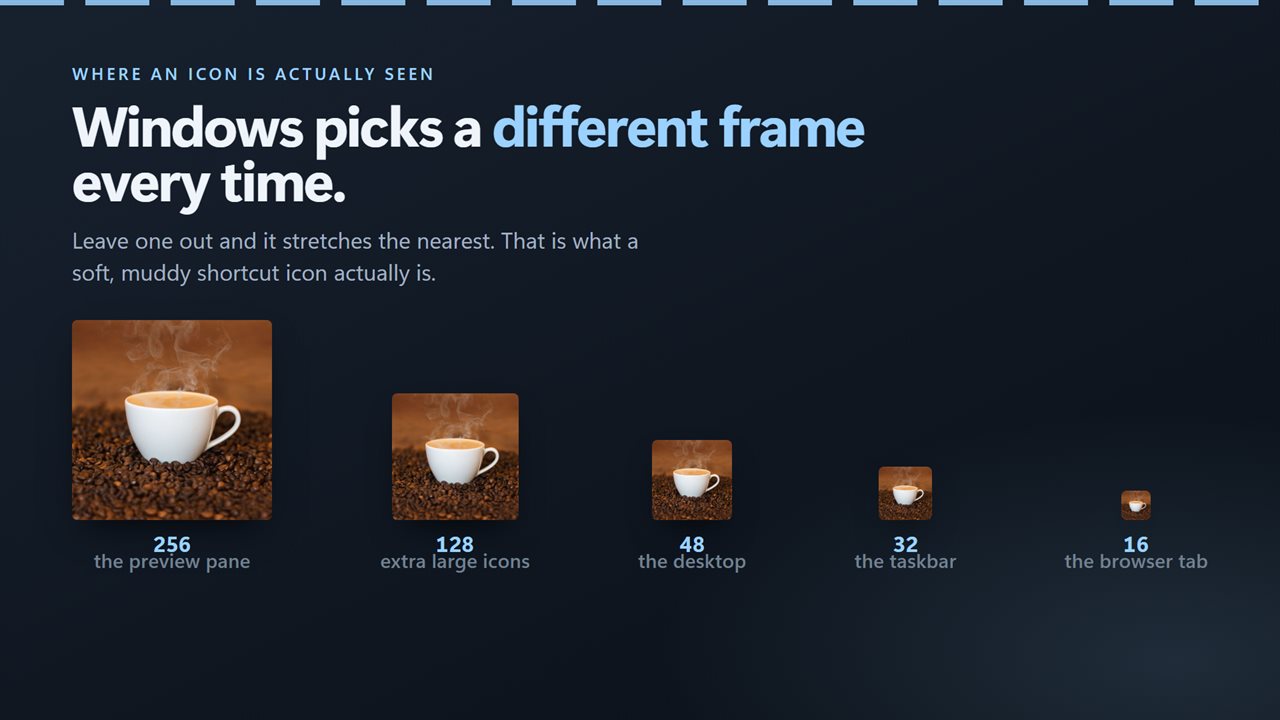
An .ico file is not one image but a small stack of them. Windows picks the frame that matches the size it is drawing, a 16-pixel version in a title bar, 32 or 48 on the desktop, 256 in a large Explorer view, and scales from the nearest one when the exact size is missing. A PNG to ICO conversion that writes only one size leaves Windows to stretch it, which is where blurry shortcuts and fuzzy taskbar buttons come from.
Icon Set Generator writes the whole stack in one go. You choose what the icon is for, and it builds a single .ico per picture containing every frame that destination reads. It handles a batch at once, so a folder of logos or toolbar glyphs becomes a folder of icons in a single run.
It is not limited to PNG. Artwork can come in as JPEG, GIF, BMP, TIFF, WebP, HEIC, AVIF, JPEG XL, PSD, TGA, an existing ICO and other raster formats, 28 file extensions in all. Vector SVG files are not accepted, so export your logo to a large PNG first.
Windows icon sizes for each kind of icon
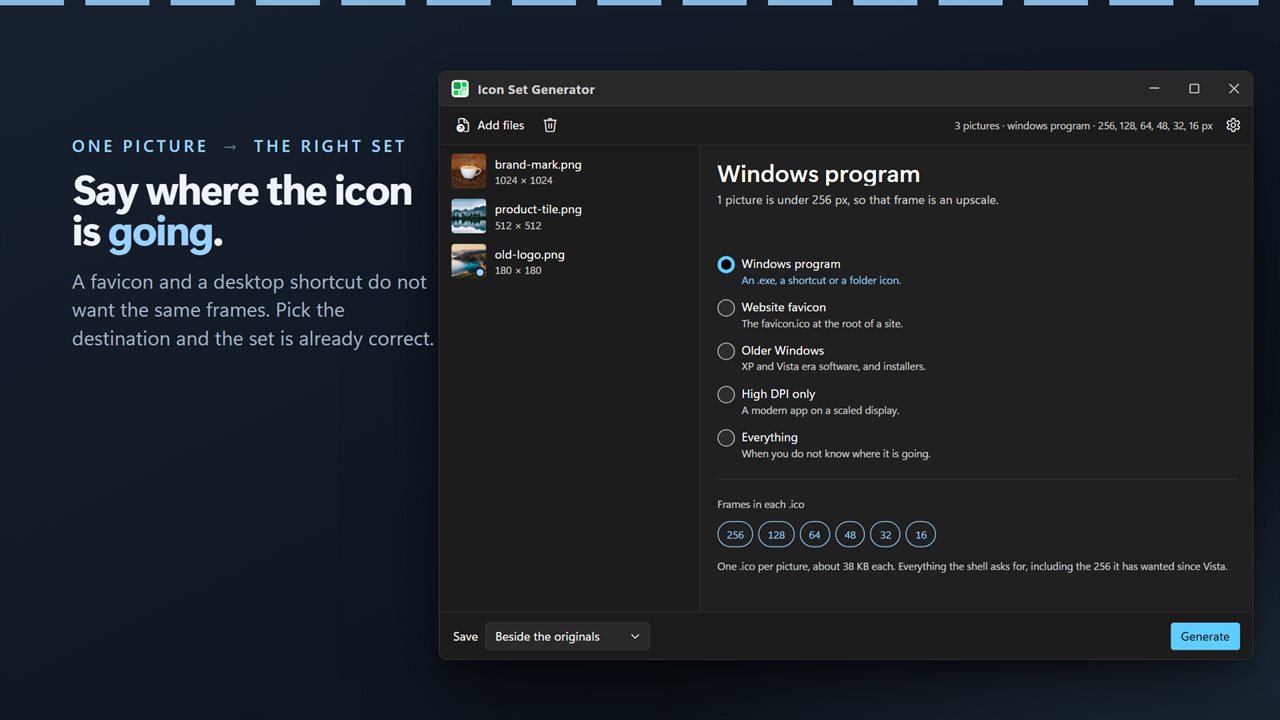
The pane titled Where is it going offers five presets. Each one decides which frames go into the file:
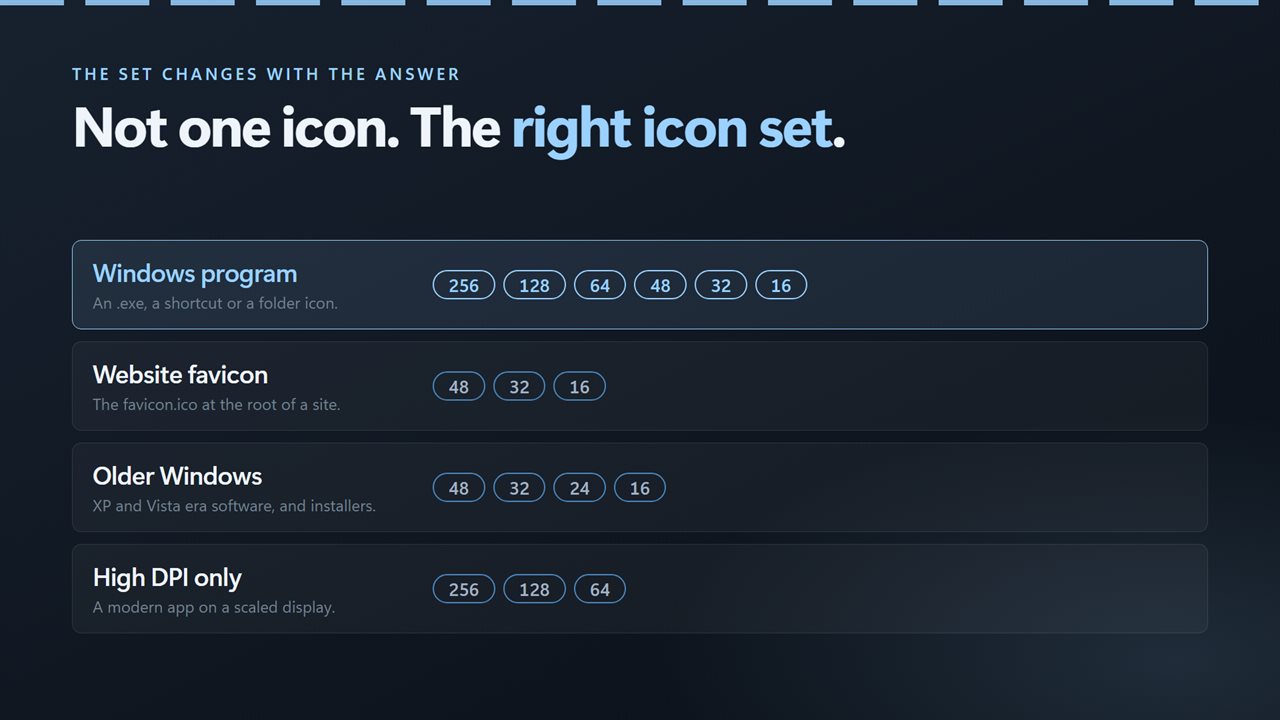
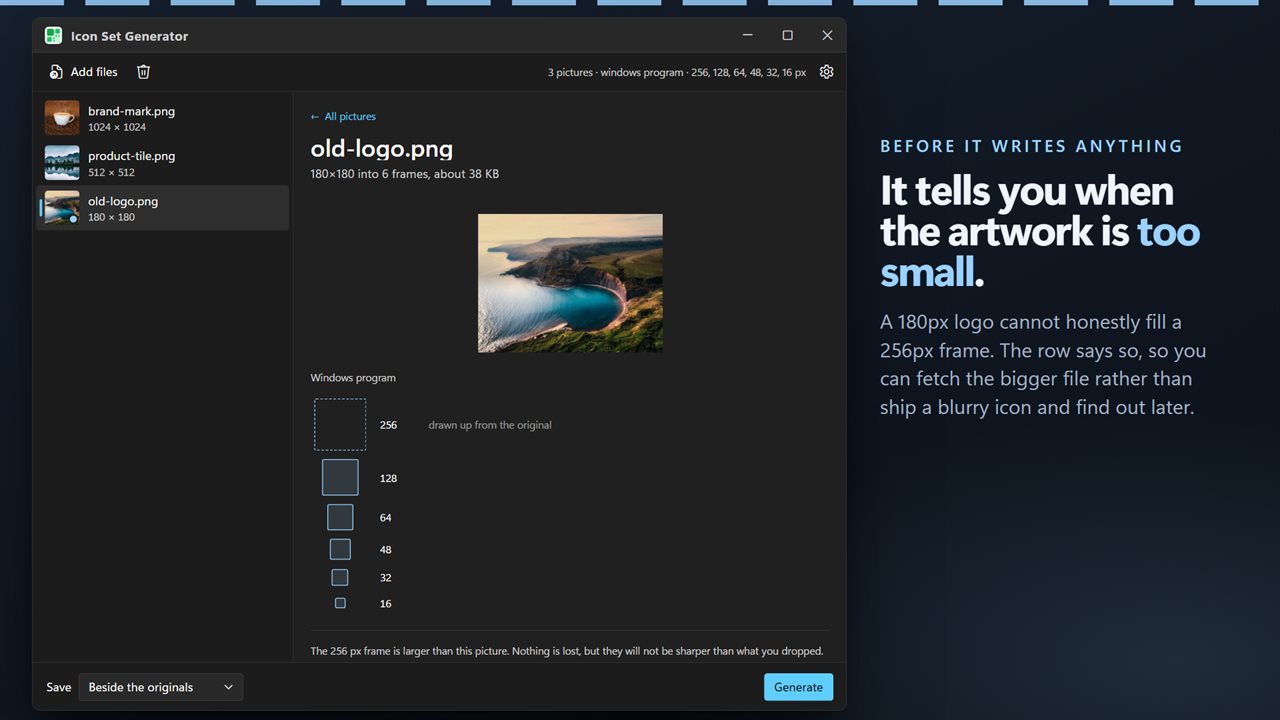
- Windows program: 256, 128, 64, 48, 32 and 16 px, for an .exe, a shortcut or a folder
- Website favicon: 48, 32 and 16 px, the frames browsers read from favicon.ico
- Older Windows: 48, 32, 24 and 16 px, for installers and XP or Vista era software
- High DPI only: 256, 128 and 64 px, for a modern app on a scaled display
- Everything: all six sizes from 256 to 16 px, for when you do not yet know
How to make an icon from a picture in four steps
The window opens on Drop the artwork. From there:
- Drag your images onto the window, or use the add button to pick them.
- Choose a preset under Where is it going.
- Set Not square to Pad with transparency or Crop to the middle, and Save to Beside the originals or Into a folder.
- Press Generate. Each finished row shows .ico and the size of the file written.
Favicon.ico and app icons that stay sharp
Shrinking a large picture keeps detail; enlarging a small one cannot invent it. Before you generate, the list checks every image against the largest frame in the preset you picked and flags anything that falls short, and the summary tells you how many pictures will be upscaled. Starting from artwork at least 256 pixels on its shortest side avoids that for every preset.
Pictures that are not square are handled the way you choose. Padding keeps the whole image and fills the leftover space with transparency, which suits wide wordmarks. Cropping fills the square and trims the long edges, which suits photos and avatars. For a website, the favicon preset gives you the three small frames in one file; rename it to favicon.ico and place it at the root of your site.