EEvlarSoft
No upload. Files stay on your PC

Quick Image to Icon Converter

ico appears next to it.

Buy for $1.99
One payment. No subscription.
14-day money-back guarantee.
5.0
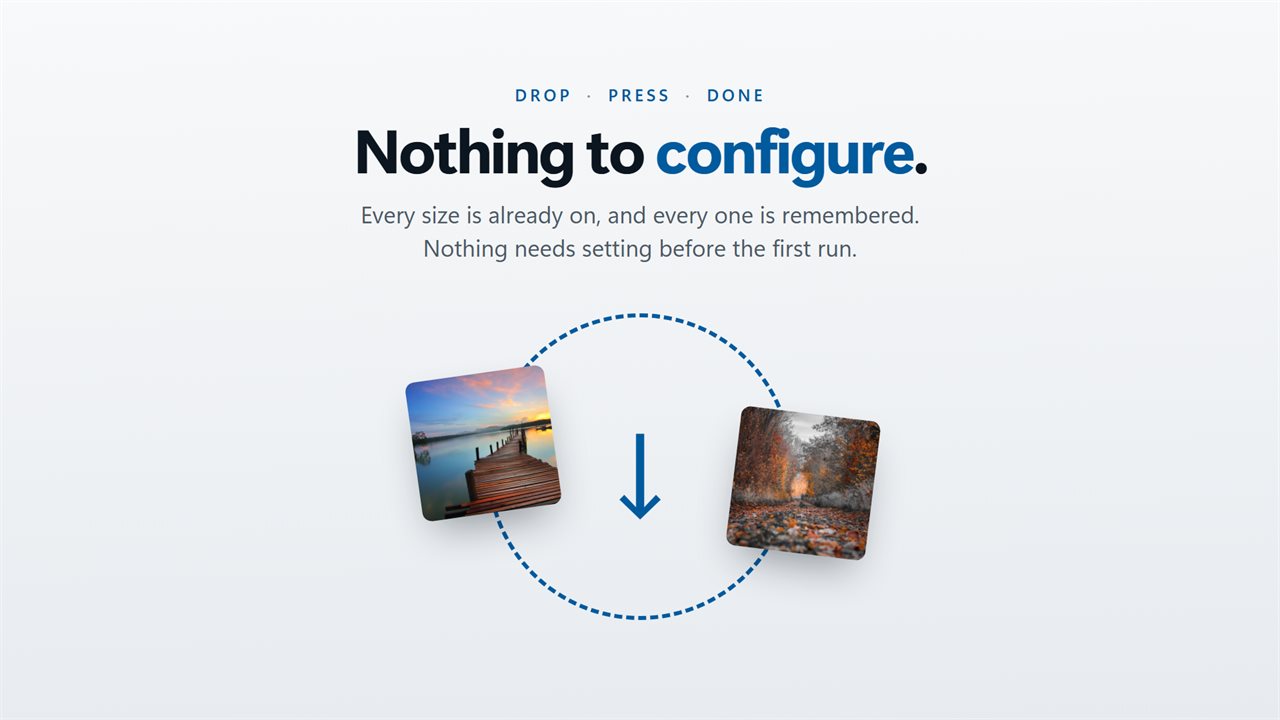
Drop, press, done — there is nothing to configure.
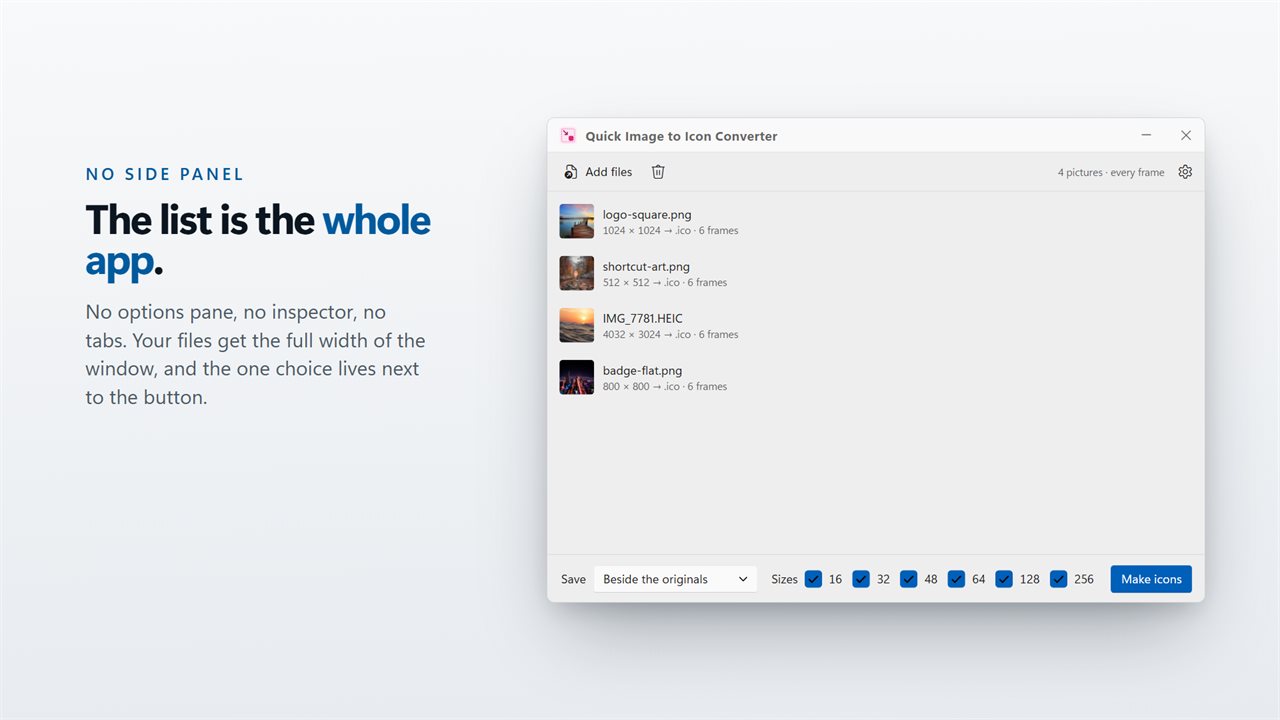
No side panel: the list is the whole app.
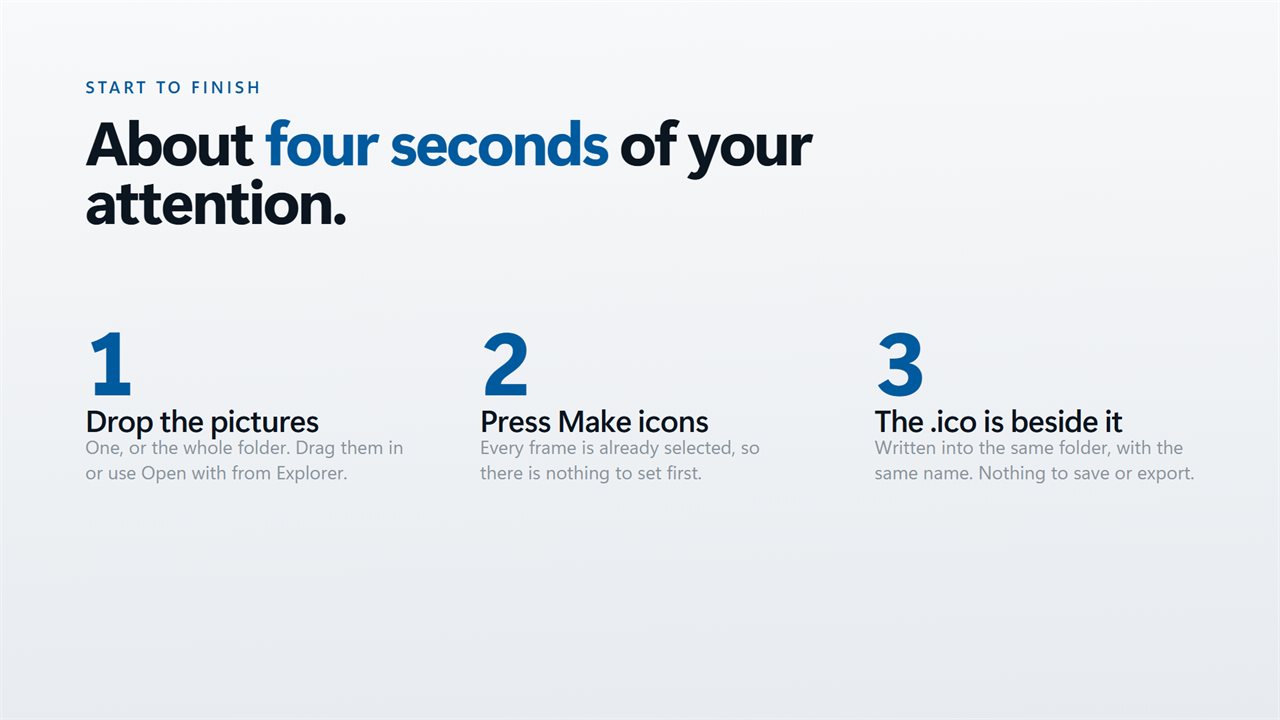
Start to finish, about four seconds of your attention.
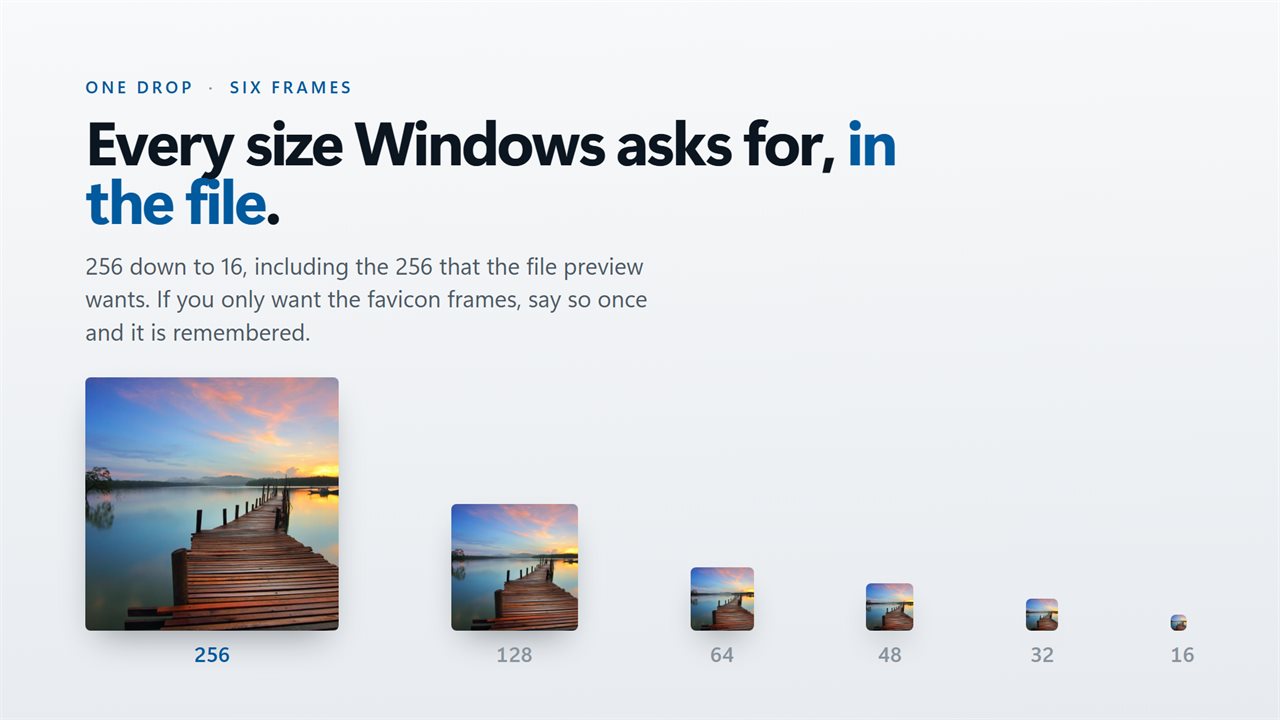
One drop, six frames — every size Windows asks for, in the file.
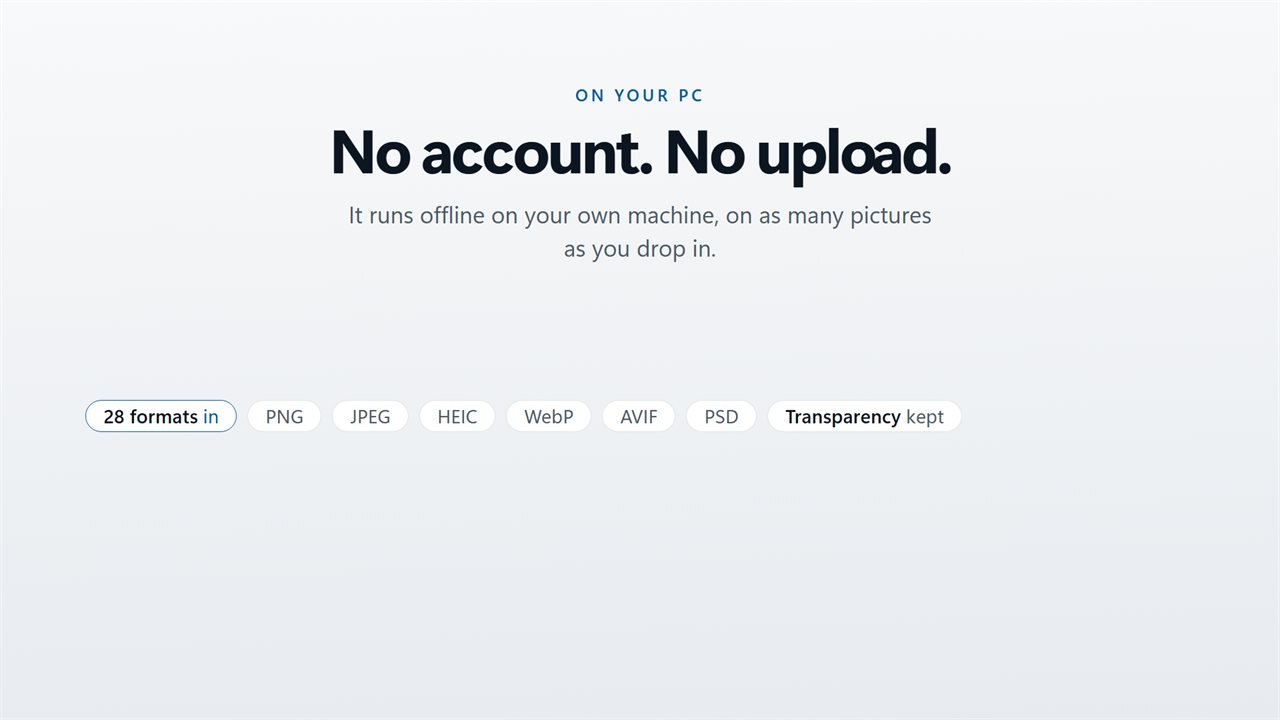
No account. No upload.

Drop, press, done — there is nothing to configure.

190,000+downloads of EvlarSoft apps
Signed by EvlarSoftVerified US publisher
14-day money-backNo questions asked
Updates includedNo upgrade fees

The fastest way to turn an image into an icon

Going from image to icon usually means finding an upload site, picking one size, downloading the result and hoping Windows likes it. This app skips all of that. You drop pictures onto the window, press Make icons, and each picture becomes a real Windows .ico file on your own drive.

There is no side panel, no preview pane and no settings page to visit first. The list of files takes the whole window, and the only two choices sit in the bar along the bottom: where to save, and which sizes to put in the file. Both are already set the way most people want them, so a first run needs nothing but the drop.

Each icon is a multi-size file. Windows picks a different frame depending on where the icon is shown: a tiny one in a title bar or list view, a medium one on the desktop, a large one in Explorer's big-icon views. A single-size icon gets scaled on the fly and looks blurry in at least one of those places. Here every frame is drawn from your picture directly.

How to convert JPG to ICO (or any picture to an icon)

The steps are the same for a JPG photo, a PNG logo or a screenshot.

  • Drag your pictures onto the window, or click Choose pictures and pick them.
  • Check the row for each file. It shows the picture's dimensions and how many frames its icon will hold.
  • Leave Save on Beside the originals, or switch it to Into a folder… to collect every icon in one place.
  • Untick any sizes you do not need under Sizes. You can skip this step.
  • Press Make icons. Each row then shows the size of the finished .ico.

Picture to icon from WebP, HEIC, PSD and more

The input does not have to be a JPG or PNG. The app also reads WebP, HEIC and HEIF from phones, AVIF, JPEG XL, TIFF, BMP, GIF, Photoshop PSD, TGA, DDS, OpenEXR and HDR, QOI, PCX and several older formats. You can even drop an existing .ico to rebuild it with a different set of sizes.

For a GIF or any other file holding more than one image, the icon is built from the first frame. Photos are turned upright using the rotation your camera recorded, so a portrait shot taken on a phone does not end up as a sideways icon.

Getting a sharp result, and what happens to odd shapes

The largest frame is 256 by 256 pixels. When a picture is smaller than the biggest size you ticked, its row is flagged, because that frame has to be enlarged and will look soft wherever Windows uses it. Start from an image at least 256 pixels on its shorter side, or untick the 256 frame for small sources.

A wide banner or a tall portrait is not stretched to fit. It is centered in a square canvas and the leftover area stays transparent, so the icon keeps the picture's real proportions. Any transparent background already in a PNG or WebP carries through to every frame.

What the converter does

  • Writes one .ico per picture, each holding 16, 32, 48, 64, 128 and 256 pixel frames by default
  • Sizes are ticked or unticked in the bottom bar and kept between sessions
  • Handles a whole selection in one run, with a progress count while it works
  • Saves next to each source picture, or into a single folder you pick
  • Never writes over a file that is already there; a clash gets a numbered name such as logo (2).ico
  • Flags pictures too small for the largest frame you asked for
  • Pads non-square pictures with transparency instead of distorting them
  • Accepts 28 image file extensions, including HEIC, AVIF, WebP and PSD

Where people use their new icons

Custom folder icons

Make an icon from a photo or a project logo, then set it on a folder through Properties, Customize, Change Icon, so the folder stands out in Explorer.

Desktop shortcuts

Give a shortcut to a script, a game or a web page its own picture instead of the generic one Windows assigns.

Icons for your own software

Developers who need an application .ico can turn a square logo into a file with every standard frame in one drop.

What's new in 2.0.4

  • Added support for .TIFF files
  • Performance fixes
  • Bug fixes

Questions

Anything else? Ask us

Do I have to pick icon sizes before converting?

No. Every size, 16, 32, 48, 64, 128 and 256 pixels, is on when you start, so you can drop pictures and press Make icons. If you only want some sizes, untick the others in the bar at the bottom.

Does it remember the sizes I chose?

Yes. The sizes you tick are saved and come back the next time you open the app. At least one size always stays ticked.

Can it convert many images to .ico at once?

Yes. Drop as many pictures as you like and each one becomes its own .ico file, saved beside the original or into a folder you choose. The originals are never changed or replaced.

Will a rectangular logo get stretched?

No. The picture is fitted into a square and the spare space is left transparent. Transparency already in a PNG is kept too.

Does it show a preview of the icon?

No. There is no preview pane, only the list of files and what each will become. The list flags pictures smaller than the largest size you picked, because that size will be scaled up and look soft.

Can it make PNG favicons or icons from SVG files?

No. The output is always a Windows .ico file, and SVG is not an accepted input. It reads JPEG, PNG, GIF, BMP, TIFF, WebP, HEIC, AVIF, PSD and other common image formats.

What size image should I use to make an icon?

Use a picture at least 256 by 256 pixels, since that is the largest frame in a Windows icon. A square image fills the frame exactly; other shapes are centered with transparent margins.

Do I need to upload my pictures anywhere?

No. You pick or drop files that are already on your PC, and the .ico files are written to a folder on that same PC.

Can I use the .ico file on a folder or shortcut?

Yes. Right-click a shortcut and open Properties, then Change Icon, or open a folder's Properties and use Customize, then Change Icon, and browse to the .ico file.

Which versions of Windows does it run on?

Windows 10 (version 1809 or later) and Windows 11.

Is it a subscription?

No. Quick Image to Icon Converter is a one-time purchase of $1.99, and updates are included.

How do I get it?

Buy it on this page and your license key arrives by email. If the button says Notify me, Quick Image to Icon Converter is not on sale here yet; leave your email and we will tell you when it is.