How does Windows give a folder its own icon?
Windows lets any folder carry its own icon. It looks for a small hidden settings file inside the folder, called desktop.ini, that points to an icon file. That is how the Pictures and Music folders get their own look.
Custom Folder Icon Changer draws the icon you designed, saves it inside the folder with the settings file, and tells Explorer to refresh. Because both files live in the folder, the icon follows it when you move it, rename it or sync it to another PC.
Windows sometimes drops custom icons by itself, for example after a sync or when its icon cache is rebuilt. The app keeps a list of what you changed, shows which ones have gone back to plain yellow, and puts them all back with one button.
How to change a folder icon in Windows 11
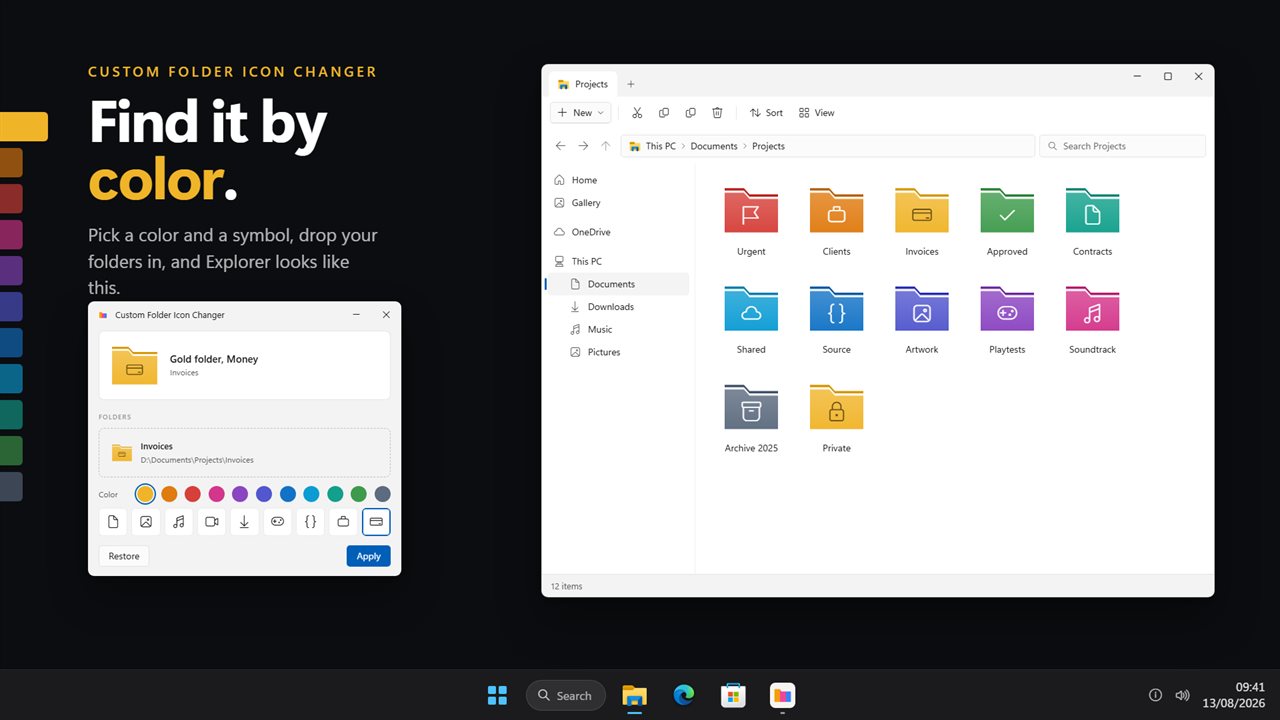
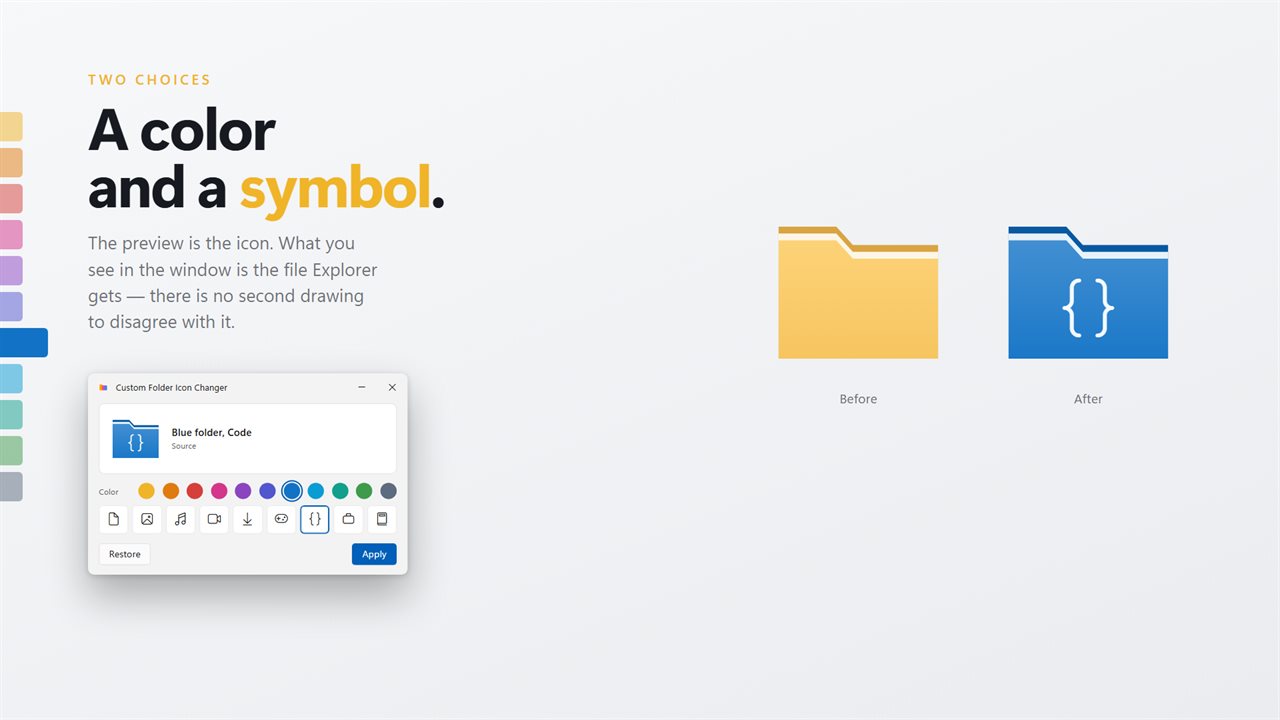
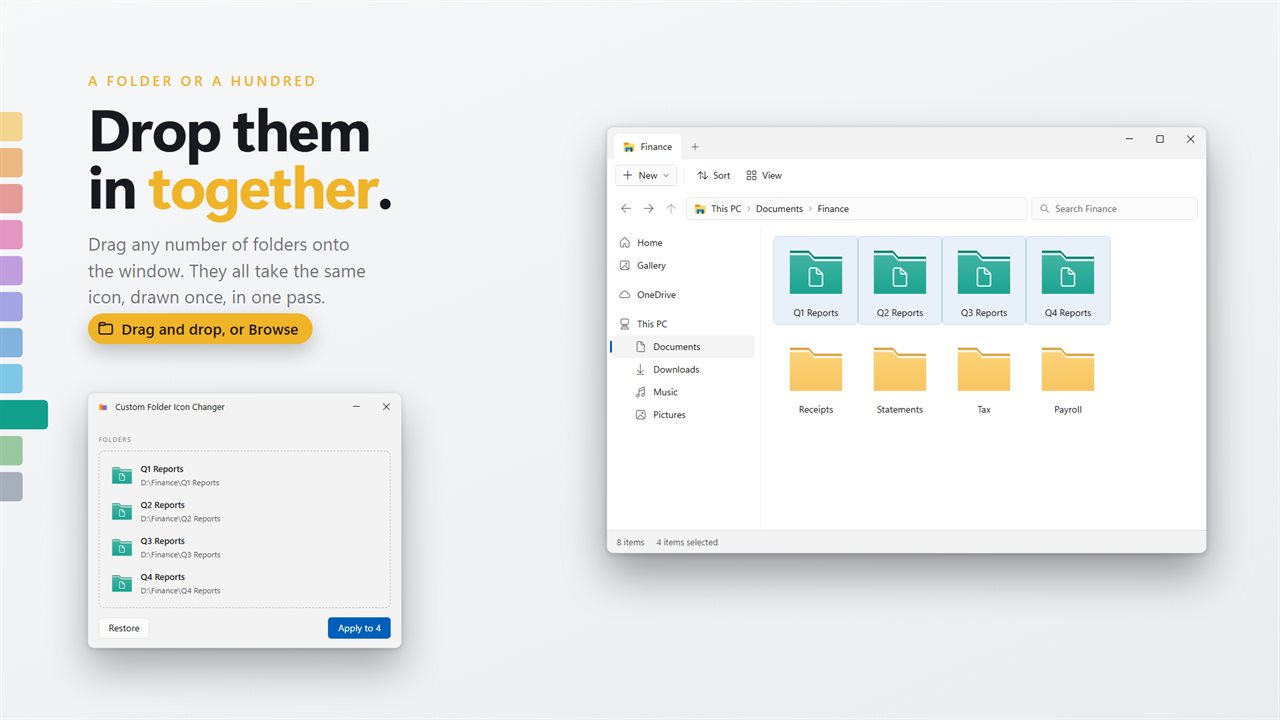
Custom Folder Icon Changer builds the icon from a color and a symbol, or from a picture, and applies it to as many folders as you drop in.
- Drag one folder, or any number of them, onto the window.
- Pick one of eleven colors, or open the Windows color picker for any color.
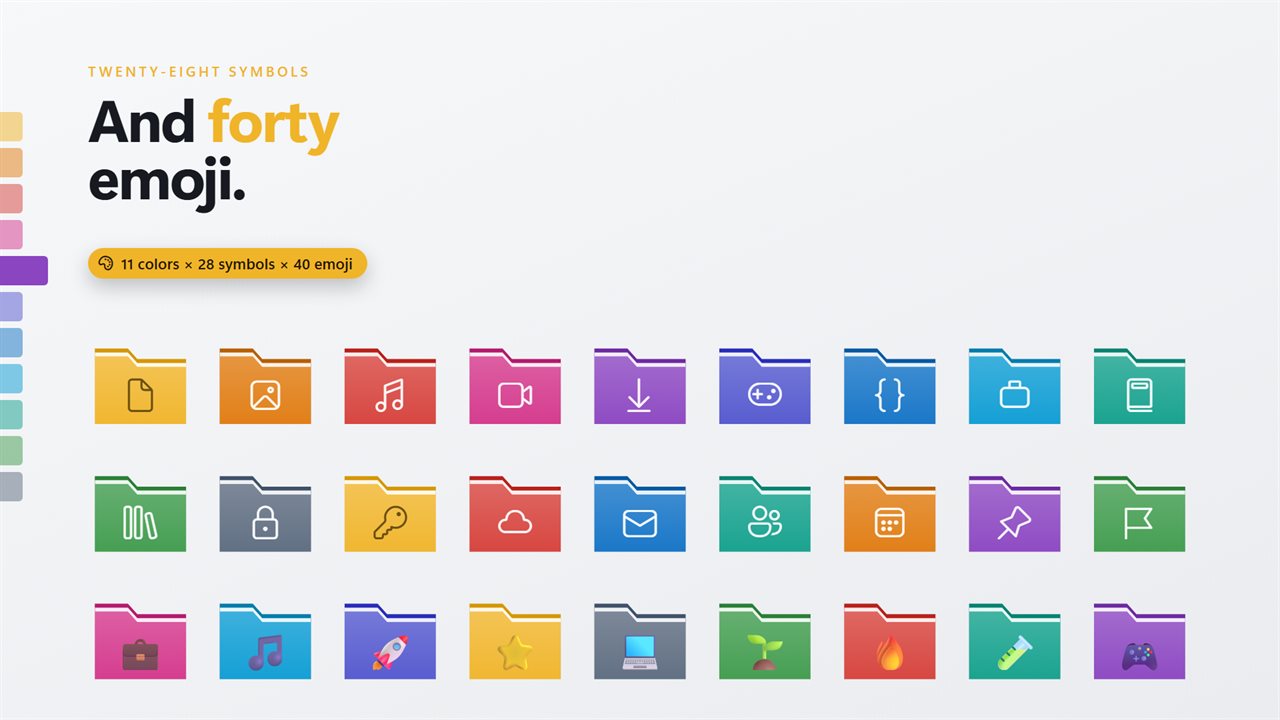
- Add one of twenty-eight symbols or forty emoji, or use a picture instead.
- Check the preview and the 48, 32 and 16 pixel sizes beside it.
- Apply. The folders change in the Explorer window you already have open, with no restart or sign-out.
Using a photo as a custom folder icon
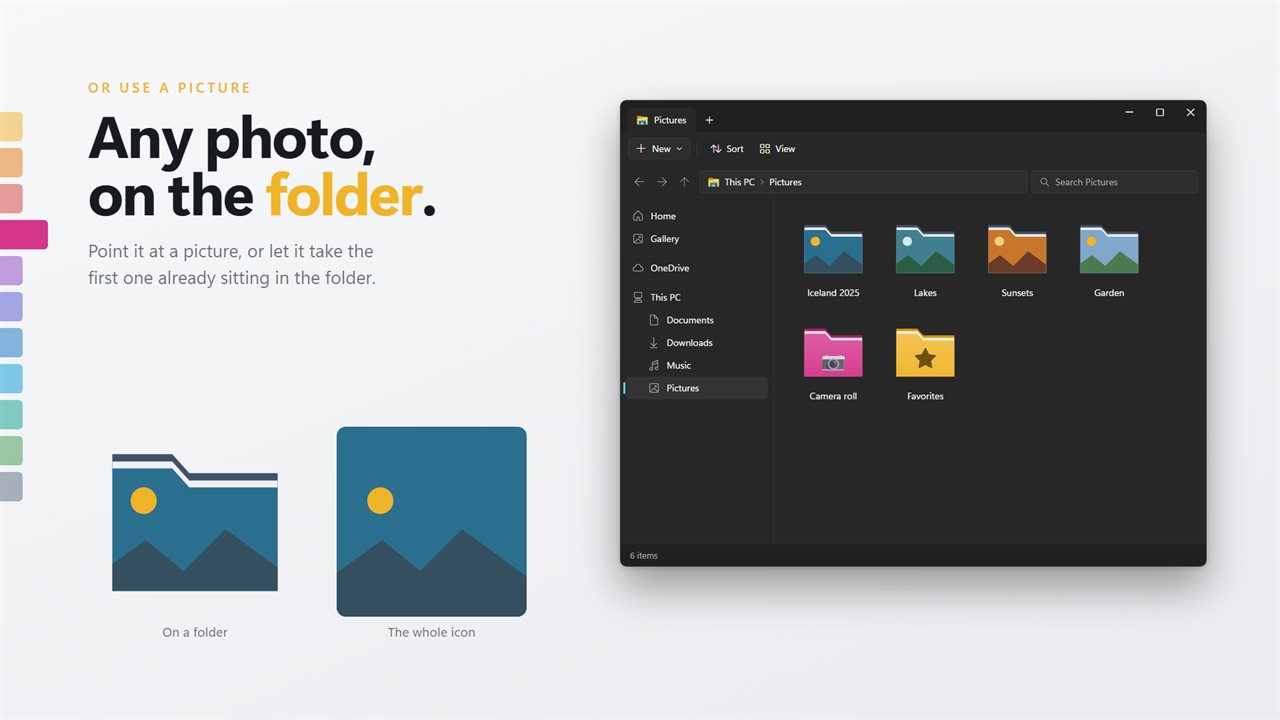
A picture can go on the front of the folder, or it can be the whole icon with no folder shape behind it. The first works well when you still want to see at a glance that it is a folder.
For a folder that already holds photos, one button takes the first picture inside it. You do not have to go and find a photo for the album folder, it uses one of its own.
Custom folder icons that stay sharp at small sizes
Explorer shows folders at several sizes depending on the view, and an icon that looks good large can turn to mush at 16 pixels. Each icon carries six sizes, and each is drawn at its own size rather than shrunk from the big one.
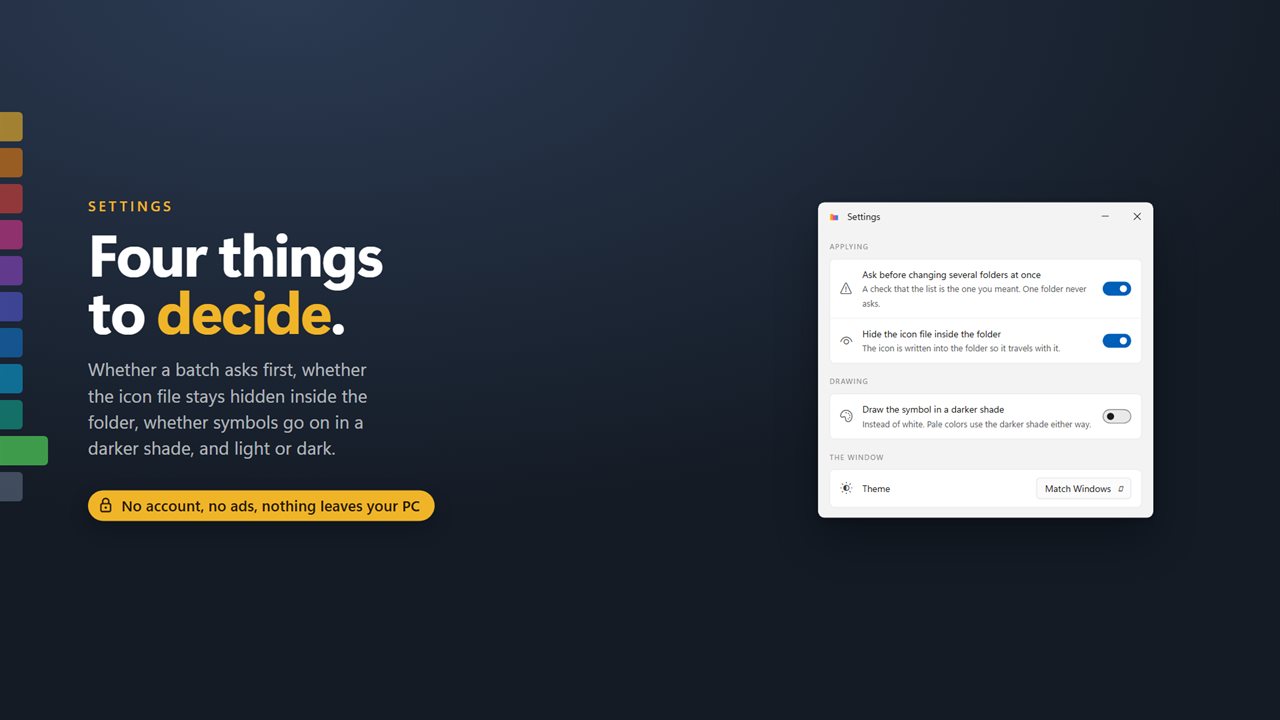
The preview shows the small sizes Explorer actually draws, so you can see before applying whether a symbol still reads in a details list. Settings include darker symbols if you want more contrast.
Putting a folder back the way it was
Every folder you change is kept in a list. Restore returns a folder exactly as it was found: an icon it had before comes back, and a desktop.ini that was not there before is deleted rather than left behind.
The same list marks folders whose custom icon Windows has dropped, for example after a resync. One button puts them all back, so a batch of colored folders does not quietly turn yellow again.