EEvlarSoft

Mouse and Keyboard Recorder

Do a repetitive job once while the macro recorder watches, then replay every move, click and keystroke whenever you need it, from any app.

Buy for $3.99
One payment. No subscription.
14-day money-back guarantee.
1,000+ downloads
Record your mouse and keyboard once. Play it back as often as you like.
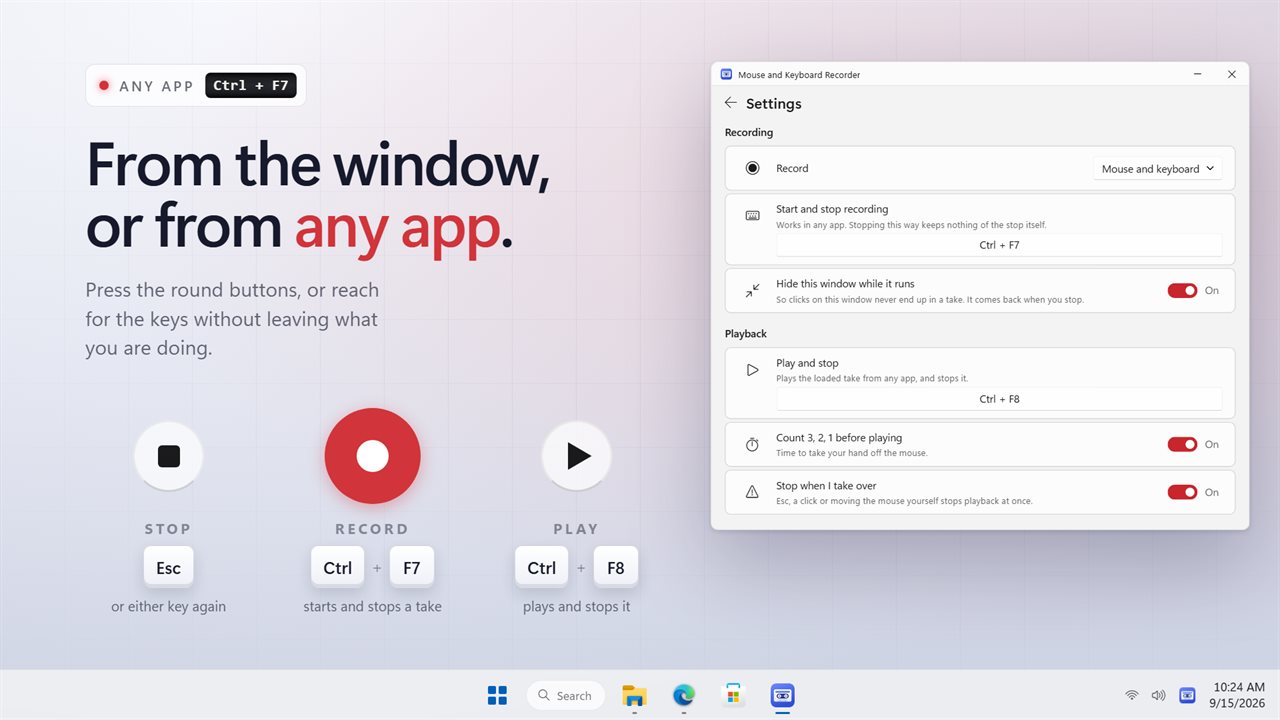
Record, play and stop from the window or from any app.
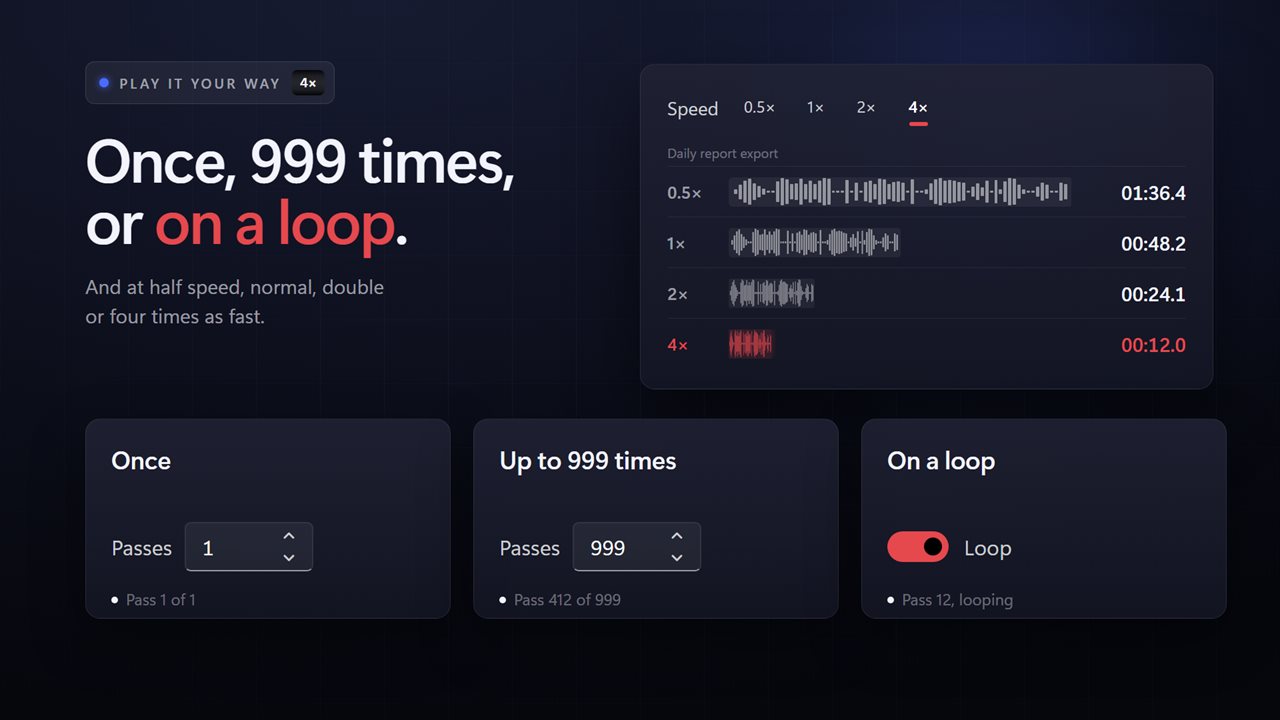
Once, up to 999 times, or on a loop, at up to four times the speed.
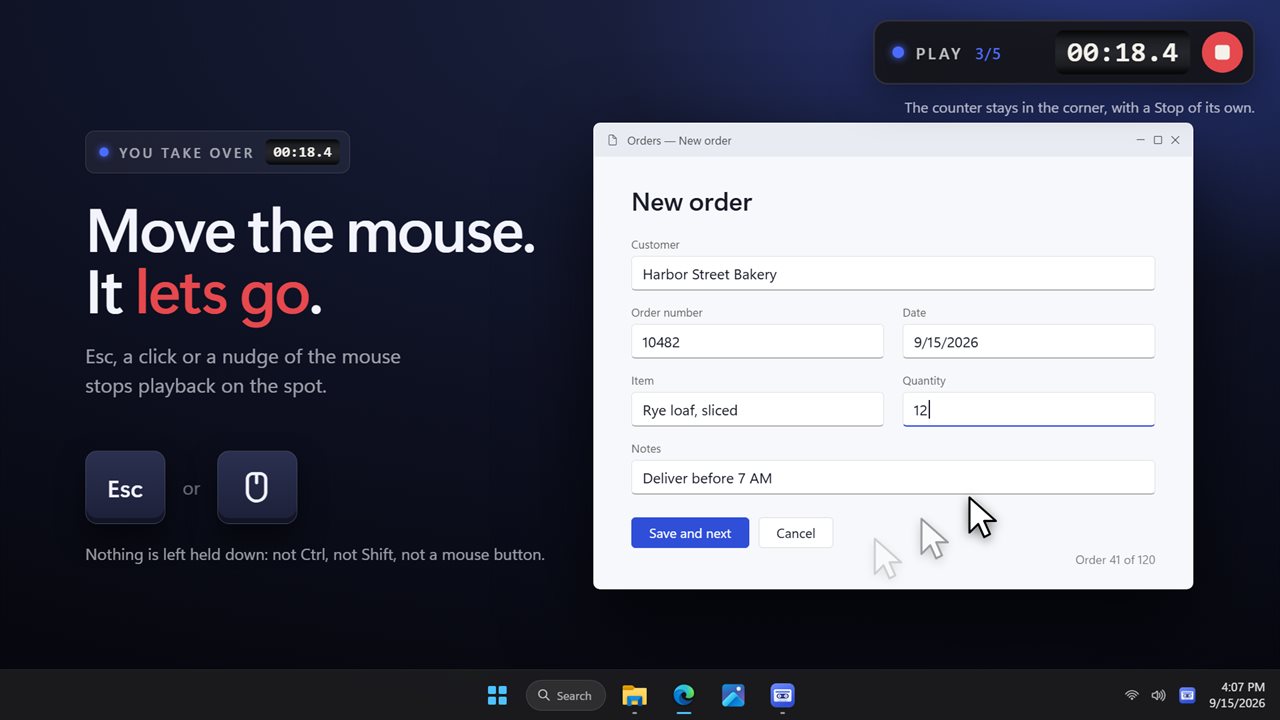
Esc or a move of the mouse stops it. Nothing is left held down.
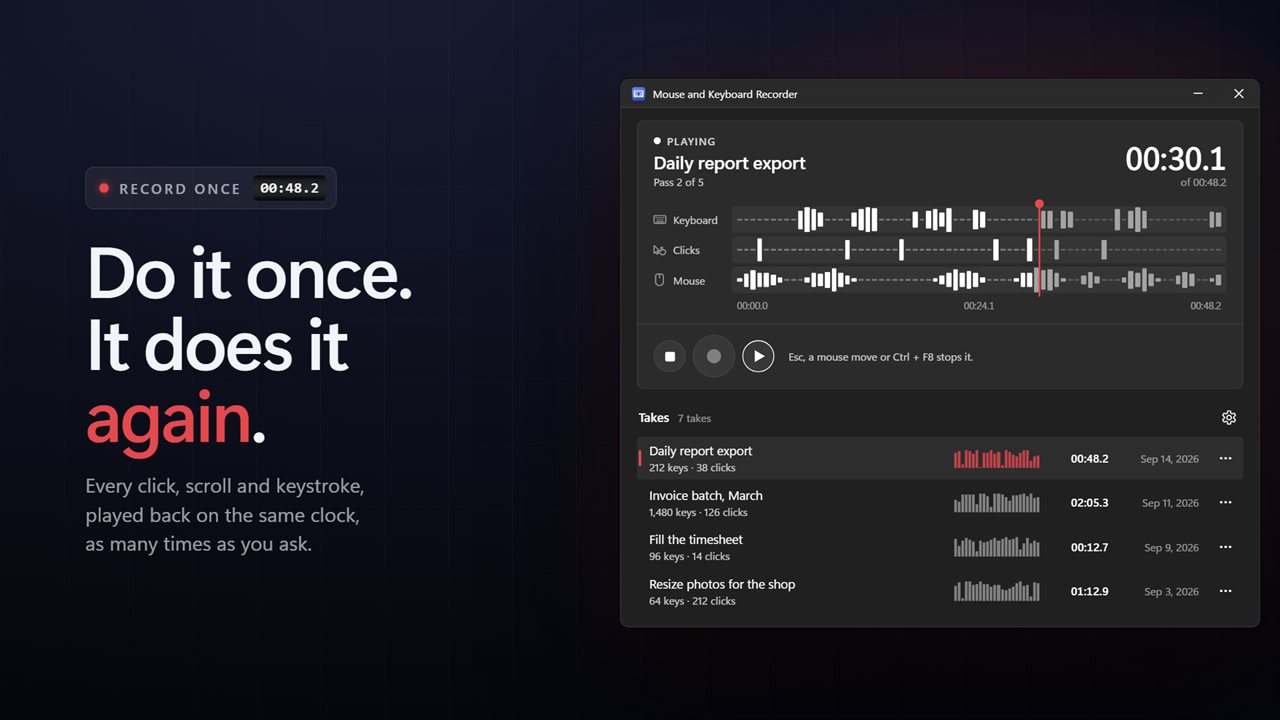
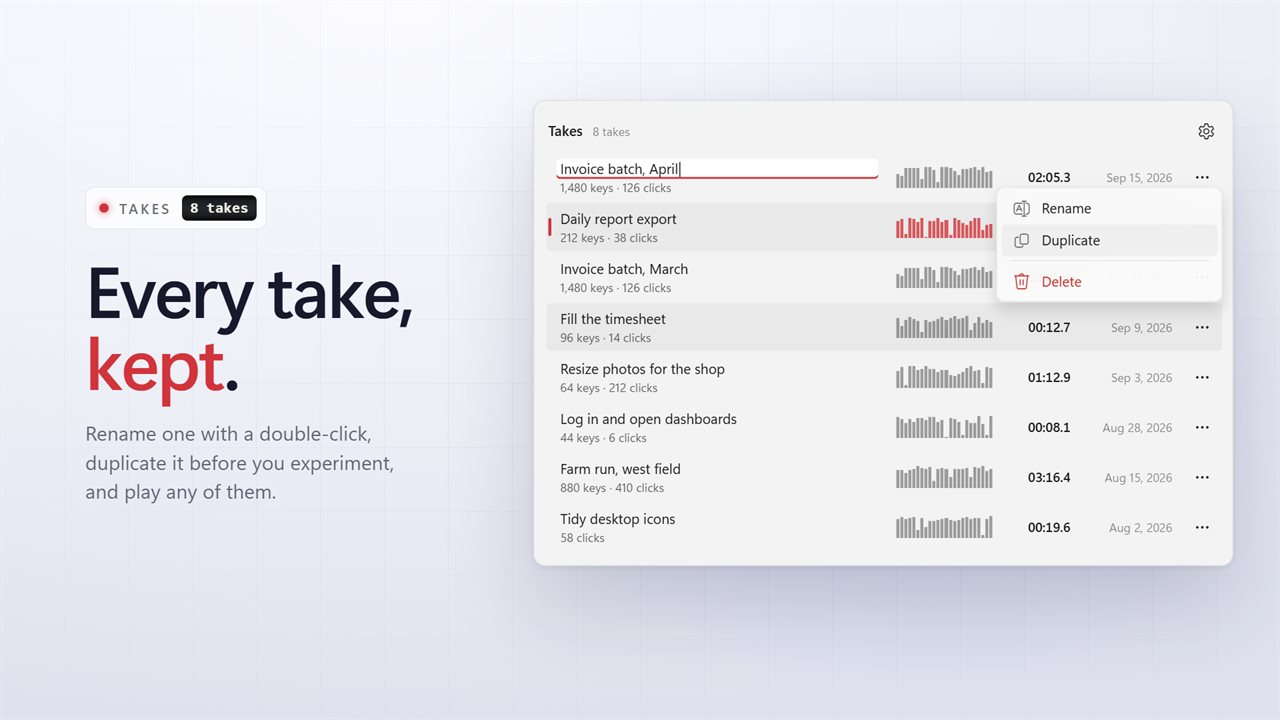
Every take in one list, ready to rename, duplicate or play.

Record your mouse and keyboard once. Play it back as often as you like.

190,000+downloads of EvlarSoft apps
Signed by EvlarSoftVerified US publisher
14-day money-backNo questions asked
Updates includedNo upgrade fees

What a macro recorder does, and when it saves you time

A macro recorder is a mouse and keyboard recorder: it notes every pointer move, click, wheel turn and key press, with the gaps between them, and later sends the same input back to Windows. Nothing is scripted. You show it the job, and it repeats the job.

That suits work with a fixed sequence on a fixed screen: entering the same values into a form, stepping through a batch of files in a program that has no batch mode, clicking through a routine every morning, or soak-testing your own software. Anything that needs judgment partway through, or a window that moves, is a job for a script, not a recording.

Each recording is called a take. Takes are kept in a list showing the duration and the number of keystrokes and clicks in each, so you can build up a small library of routines and run whichever one the day calls for.

How to record mouse movements, clicks and keystrokes

Out of the box, Ctrl+F7 starts and stops a recording and Ctrl+F8 starts or halts playback, and both work while another program has focus. Both keys can be changed in Settings.

  • Arrange your windows the way the job needs them.
  • Press Ctrl+F7. The recorder's own window gets out of the way, so clicks on it are never captured.
  • Do the job once at a normal pace.
  • Press Ctrl+F7 again. The take is saved and laid out as separate Keyboard, Clicks and Mouse lanes.
  • Set Passes, or switch on Loop, choose a Speed, and press Ctrl+F8. A short countdown runs first so your hand is clear of the mouse.

Repeat mouse clicks and keystrokes, fast or slow

Passes accepts any number from 1 to 999. Loop ignores the count and keeps going until you stop it, and the counter reads Pass 3, looping, so you always know where it is. Speed offers 0.5×, 1×, 2× and 4×: slow a take down for an app that cannot keep up, or speed it up once you trust it.

Real recordings have dead air in them. Turn on Cut long pauses short and set Longest pause anywhere from 0.5 to 10 seconds; every wait longer than that is trimmed to it, while short, deliberate delays are left alone.

You can also choose under Record whether a take captures Mouse and keyboard, Keyboard only or Mouse only.

Stopping a mouse macro safely

A replay that cannot be interrupted is the main worry with any mouse macro recorder. With Stop when I take over switched on, pressing Esc, clicking, or simply nudging the mouse yourself ends playback immediately. Ctrl+F8, the Stop button on the small counter in the top-right corner and the notification area icon all stop it as well.

However playback ends, any key or button the take was holding down is let go, so you are not left with a stuck Shift or a dragged selection.

Recorder features

  • Captures all five mouse buttons, the scroll wheel in both directions and every key
  • Global record and play hotkeys you can reassign
  • 1 to 999 passes, or a continuous loop
  • 0.5×, 1×, 2× and 4× playback speed
  • Long pauses trimmed to a limit you set between 0.5 and 10 seconds
  • Clicks replay at the right spot on scaled displays and across several monitors
  • A click-through counter shows elapsed time and the current pass
  • Rename, duplicate or delete any saved take
  • Starts with Windows and waits in the notification area if you want it to

Jobs people hand to it

Data entry

Record one row of copying fields from a sheet into a form, then let it run the rest while you check the results.

Software testing

Capture a click path through your own app and loop it overnight to shake out crashes or memory growth.

Daily routines

Open the same reports, set the same filters and export them with one hotkey instead of twenty clicks.

What's new in 2.0.5

  • New: record, play and stop, a timeline of keyboard, click and mouse activity, and a list of saved takes you can rename, duplicate and delete
  • Fixed: playback no longer ties up a whole processor core
  • Fixed: clicks land in the right place on scaled and multi-monitor displays
  • Fixed: keys and buttons are never left held down after playback
  • Fixed: shifted and Ctrl shortcuts now play back
  • New: Esc, a click or moving the mouse stops playback at once, and Ctrl+F8 plays and stops
  • New: loop, four speeds, and cutting long pauses short
  • New: the window steps aside while it works, with a small counter in the corner
  • New: lives in the notification area. Your recordings come across automatically

Questions

Anything else? Ask us

What does Mouse and Keyboard Recorder record?

Pointer movement, clicks with any of the five mouse buttons, the scroll wheel in both directions, and every key you press, with their timing. You can also record only the mouse or only the keyboard.

Can it repeat a recording over and over?

Yes. A take plays once, any number of times up to 999, or on a loop until you stop it, at 0.5x, 1x, 2x or 4x speed. You can also cut long pauses down to anything from 0.5 to 10 seconds.

How do I stop playback?

Press Esc, click, or move the mouse yourself, and it stops right away. Ctrl+F8, the Stop button on the corner counter and the notification area icon stop it too, and any key or button the take was holding is released.

Can I change the Ctrl+F7 and Ctrl+F8 shortcuts?

Yes. Ctrl+F7 starts and stops recording and Ctrl+F8 plays and stops, from any app, and you can set your own keys for both in Settings.

Will the clicks land in the right place if I move a window?

No. Clicks are replayed at the same screen position where you made them, across all your monitors, so put windows back where they were when you recorded. The recorder does not follow a window.

Does it work in programs running as administrator?

No. Windows does not let an app that is not elevated send input to an elevated window, so playback into those programs does nothing.

Can I edit a recorded macro?

No. A take is replayed exactly as it was recorded. You can rename it, duplicate it or delete it, and change how it plays with Passes, Loop, Speed and the pause limit, but individual steps are not edited.

Do I need to keep the app open while a macro plays?

The window hides while it works and the app keeps running in the notification area, so playback continues in whatever program you recorded against.

Can it record only keyboard input?

Yes. In Settings, set Record to Keyboard only, or to Mouse only if you want pointer moves and clicks without keys.

Which versions of Windows does it run on?

Windows 10 (version 1809 or later) and Windows 11.

Is it a subscription?

No. Mouse and Keyboard Recorder is a one-time purchase of $3.99, and updates are included.

How do I get it?

Buy it on this page and your license key arrives by email. If the button says Notify me, Mouse and Keyboard Recorder is not on sale here yet; leave your email and we will tell you when it is.