A keyboard shortcut to hide desktop icons, which Windows never added
Windows lets you hide desktop icons, but only through a menu: right-click the desktop, open View, untick Show desktop icons, and repeat it all to get them back. There is no built-in key for it, which is a nuisance before every screen share, recording or screenshot.
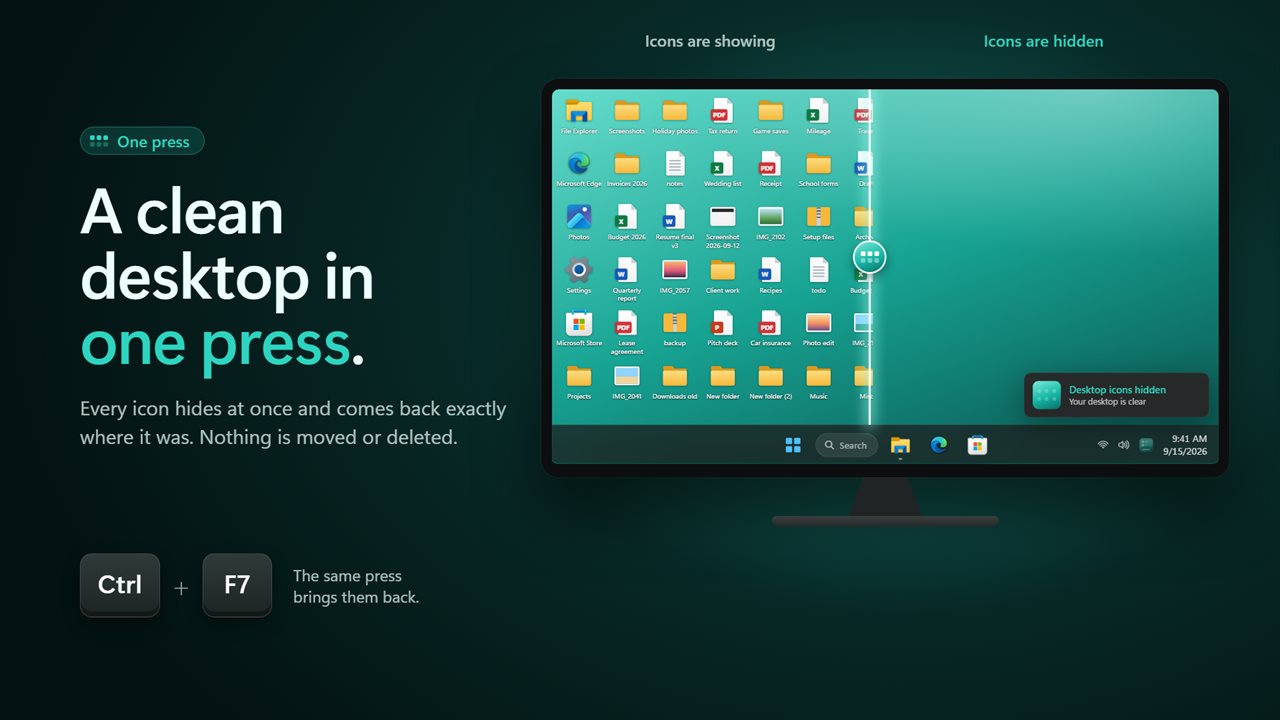
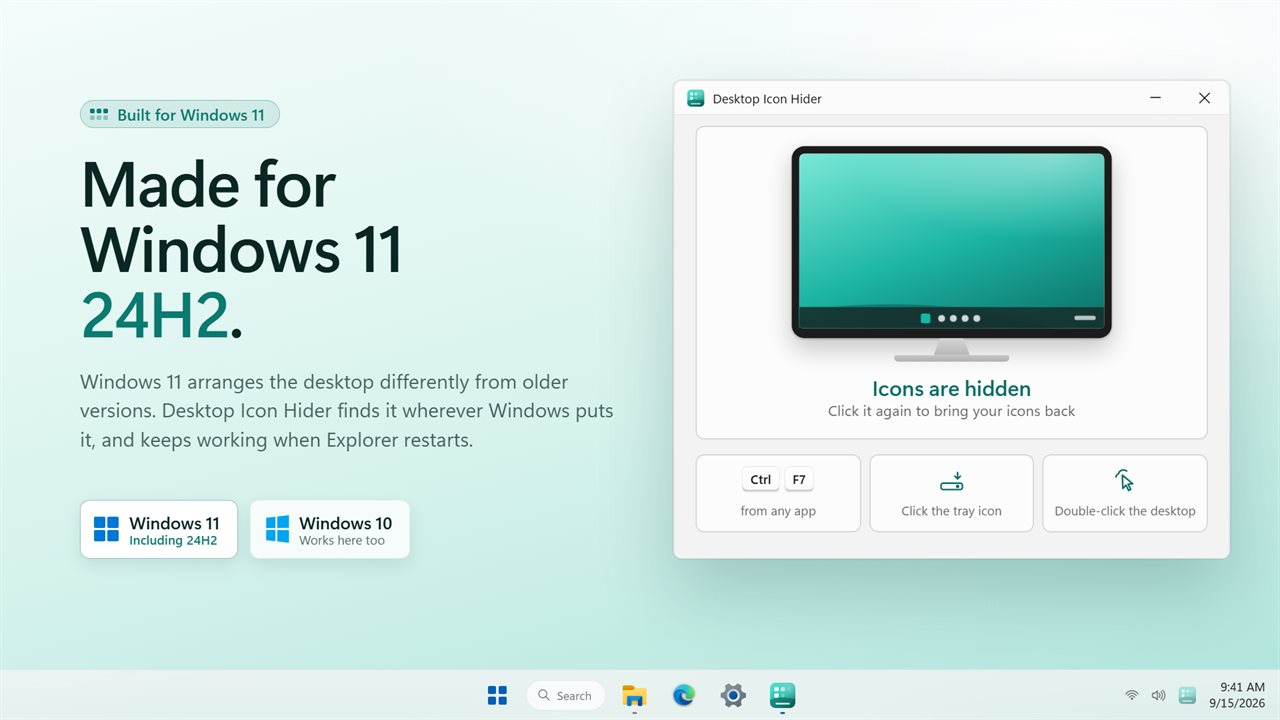
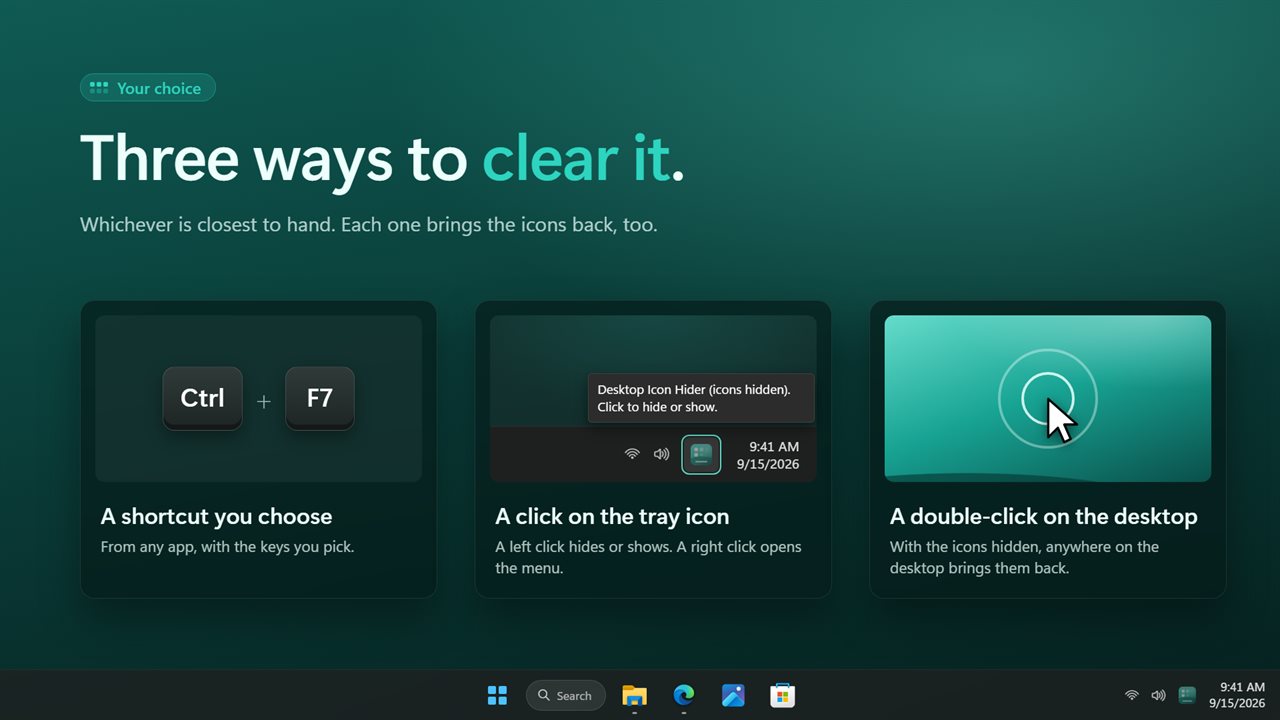
Desktop Icon Hider adds that missing toggle. Press Ctrl+F7 in any program and every icon on every monitor disappears; press it again and they return to the exact spots they were in. It flips the same switch the View menu does, so nothing is moved, deleted or rearranged, and it does not need administrator rights.
If the F-keys on your laptop control volume or brightness, pick another combination: open Settings, click the current shortcut under Hide and show, then type the new combination.
How to hide icons on the desktop without the menu
Beyond the shortcut, there are two more one-step methods, and you can use whichever is nearest to hand:
- Tray icon: one left click toggles them, and the right button brings up its menu.
- Desktop double-click: hit a blank area of the wallpaper twice to clear it, and do the same anywhere on the bare desktop to restore. Your shortcuts still launch with a double-click as usual. Switch this off under Double-click the desktop if it gets in your way.
- Open the app window and click the miniature desktop at the top; its icons sweep away along with yours.
Auto hide desktop icons when you step away
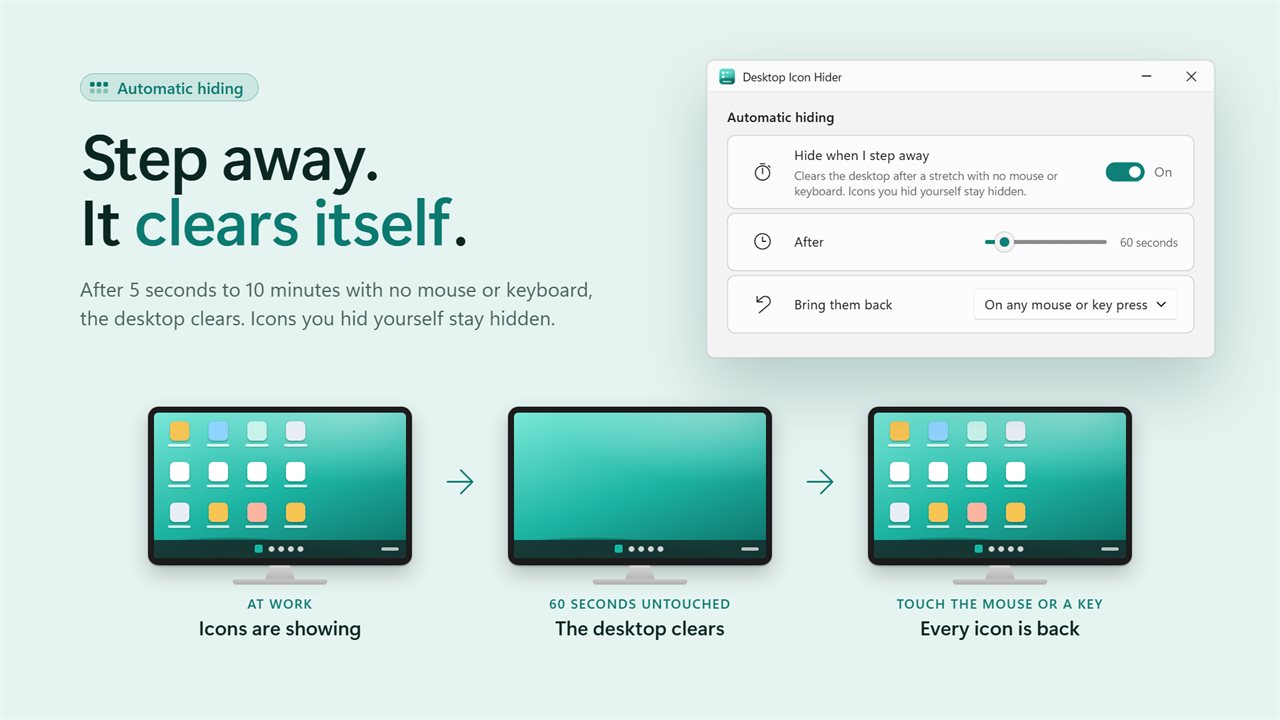
Turn on Hide when I step away and set After to a delay between 5 and 600 seconds, adjustable in 5-second steps. When the mouse and keyboard have been idle that long, the desktop clears itself, which is handy on a display PC, a lobby screen or a desk where you like a clean wallpaper while you are gone.
Under Bring them back, choose On any mouse or key press for an instant return, or When I use the desktop to keep things clear until you actually go back to it. Icons you hid on purpose are not brought back by this feature.
Desktop icons disappeared? Getting them back
A common fear with icon hiders is ending up with an empty desktop and no idea why. Here, quitting the app or restarting the PC brings every icon back, unless you deliberately turn on Keep icons hidden after a restart. A small note near the clock confirms each hide and show, so you always know what just happened; switch it off with Confirm with a note.
If the window ever says Explorer is starting or restarting, give it a moment. That happens when Windows restarts the desktop shell, and the app finds the desktop again on its own once Explorer is back.