Convert audio to WAV in one small window
People usually need to convert audio to WAV because something downstream insists on it: a CD burner, a sampler or DJ deck, a video editor, a phone system, a transcription service. The source could be anything from an MP3 to a voice note saved from a chat app to the soundtrack of a phone video.
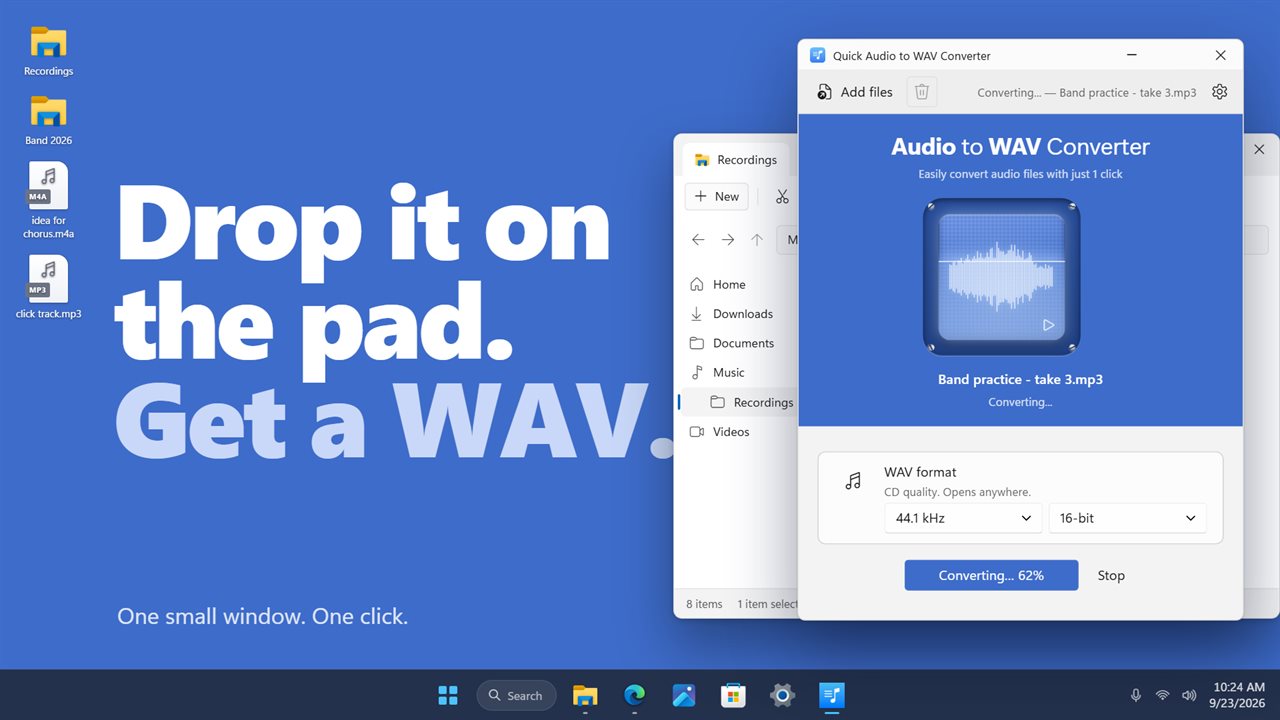
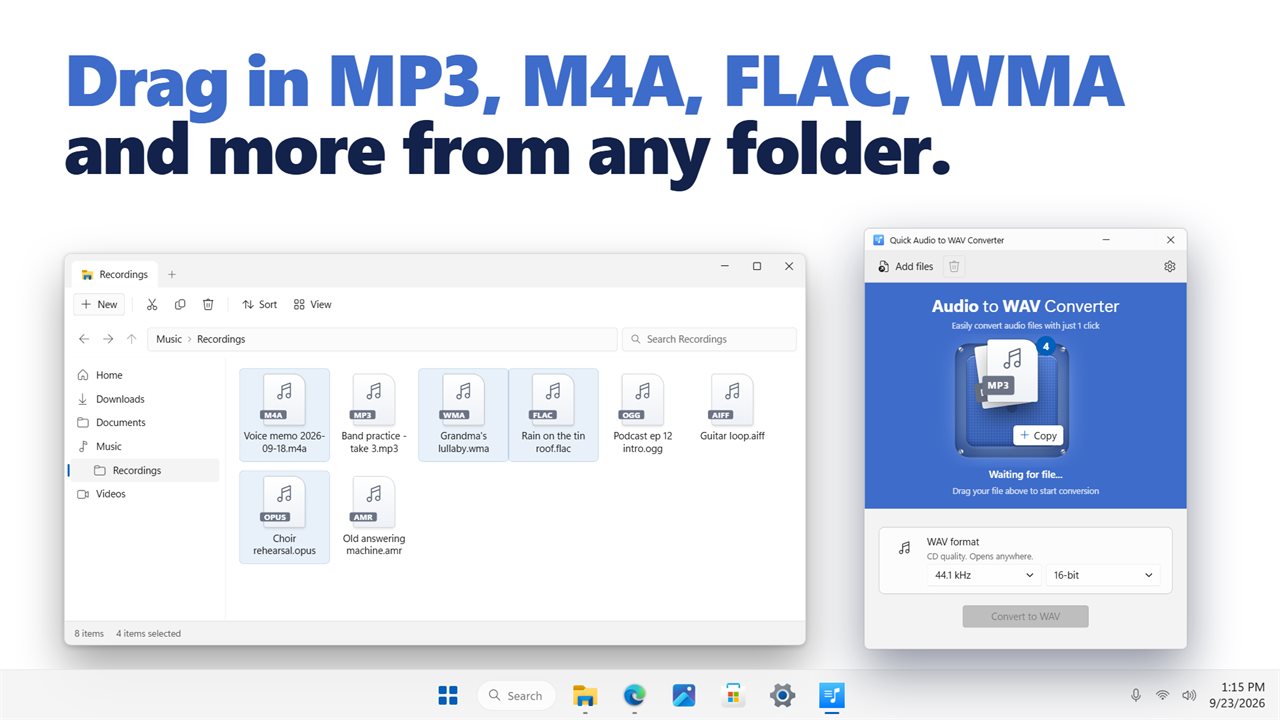
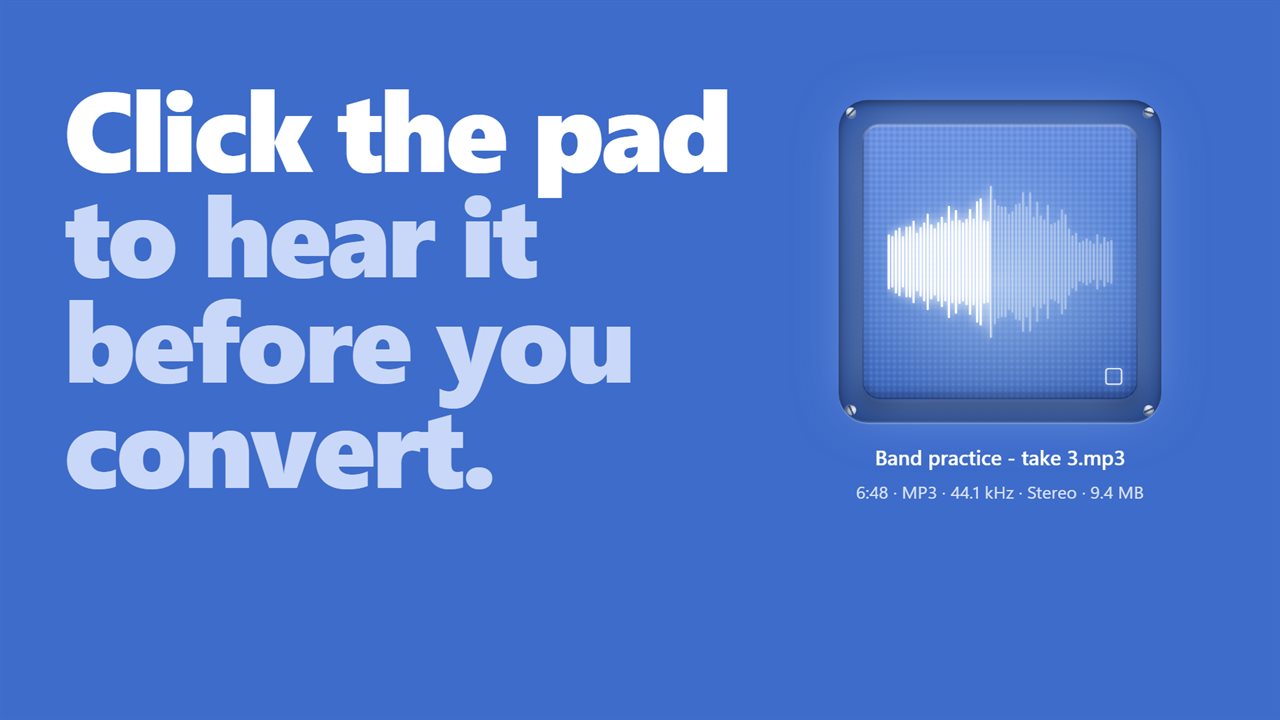
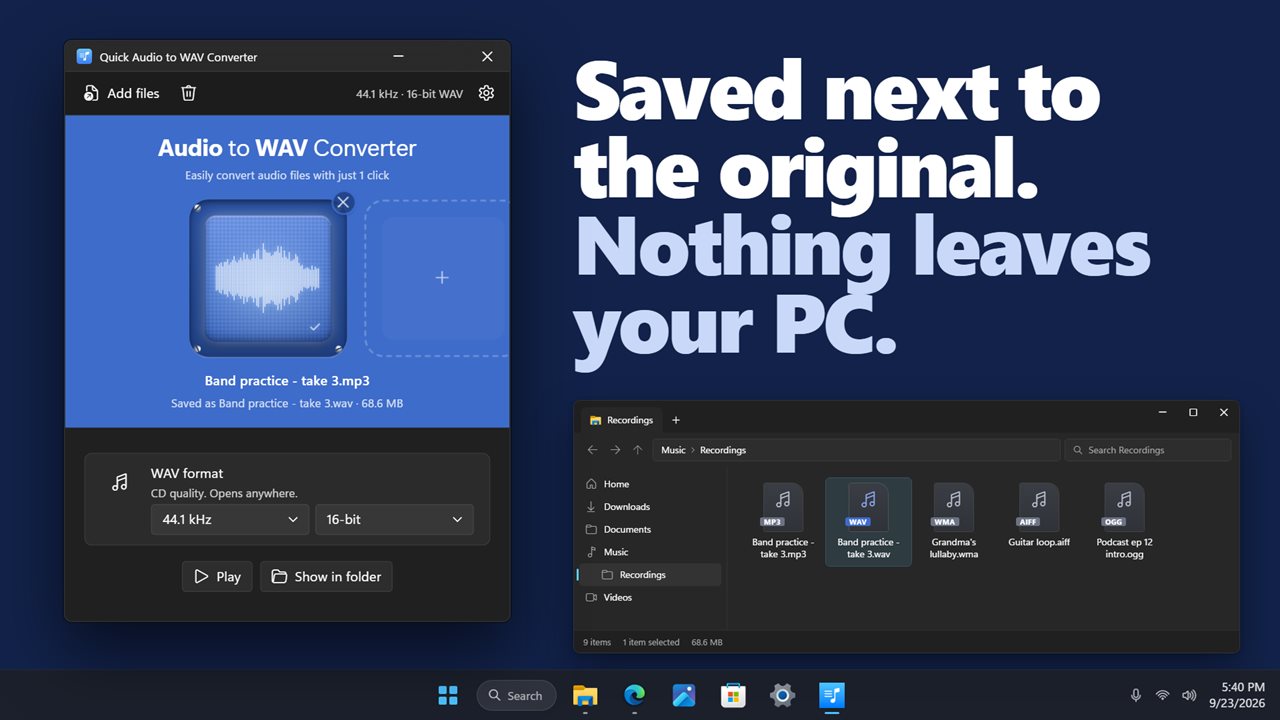
This app keeps that job small. Its window centers on one blue pad: drag a file onto the pad, or press the pad to browse, and the waveform appears across its face, while the line underneath gives the length, format, sample rate, mono or stereo, and size. Press Convert to WAV and the pad fills from the bottom as it works.
When it finishes, the line reads Saved as with the new file's name and size, and two buttons appear: Play to hear the WAV, and Show in folder to open it in File Explorer.
Which WAV settings to choose: 44.1 vs 48 kHz, 16 vs 24-bit
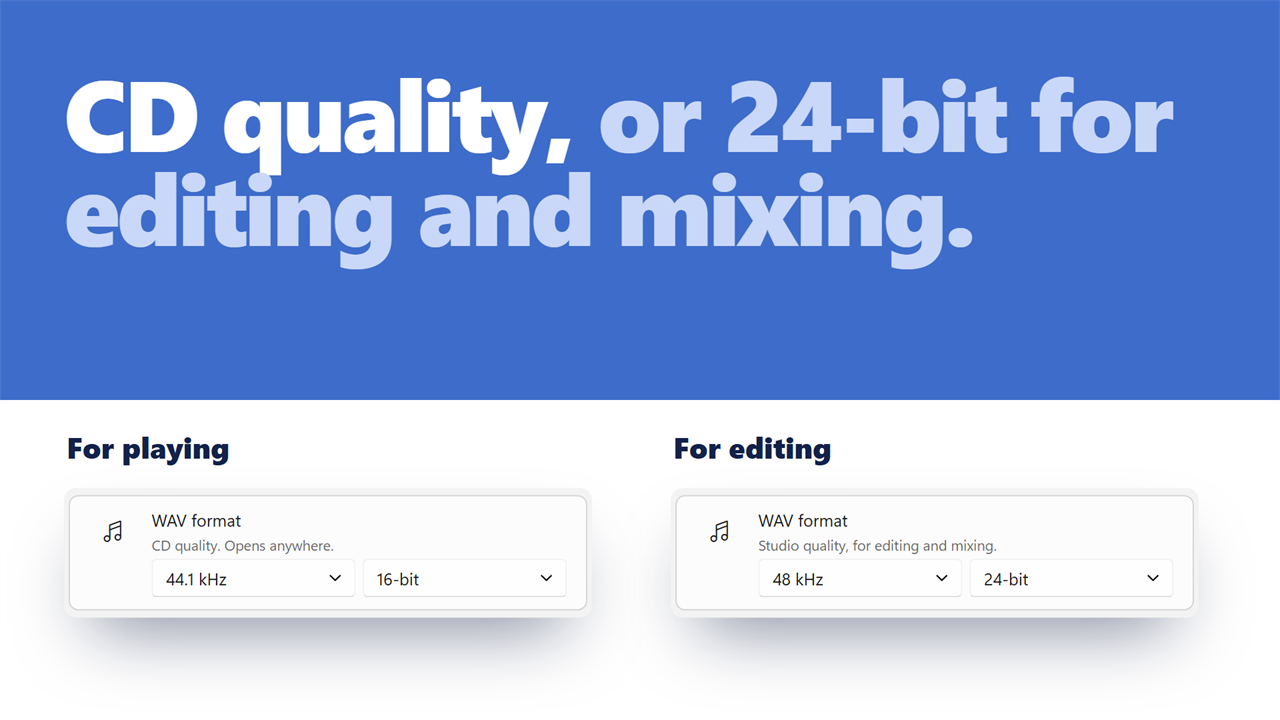
The WAV format row has two drop-downs, and the hint beside them changes with your choice:
- The default, 44.1 kHz with 16-bit samples, matches an audio CD. It plays on everything, from car stereos to old media players, and is what audio CD burning software expects.
- 48 kHz is the rate video and broadcast work in. Use it when the WAV is going into a video project, so the editor does not have to resample it.
- A 24-bit file suits editing and mixing. It gives more headroom for processing, at roughly one and a half times the file size of 16-bit.
Convert WMA, AMR, Opus and other awkward formats to WAV
Some formats cause trouble because many programs simply will not open them. WMA files from old Windows rips, AMR voice recordings from phones, Opus voice notes and AC3 tracks from DVDs all go in like any other file. So do FLAC, M4A, AAC, OGG, AIFF and MKA.
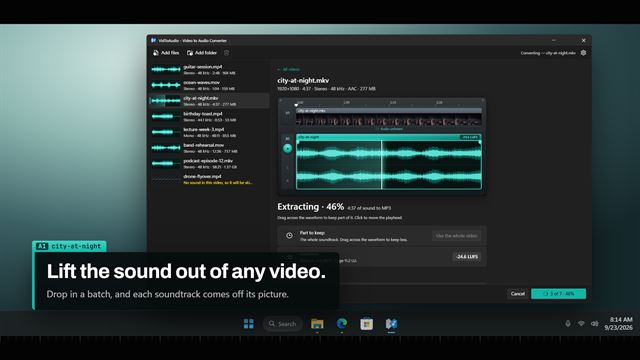
Video works too. Drop an MP4, MOV, MKV, WebM, AVI, WMV or 3GP and the app writes its soundtrack as a WAV, leaving the picture out. A file with no sound in it is flagged on the pad instead of producing an empty WAV.
How to convert several files to WAV at once
Each WAV lands in the same folder as its source, with the same name. Nothing is overwritten: if a file of that name is already there, the new one gets a number such as "(2)". Under settings, Open Location on complete and Play sound on complete let the app tell you when a long batch is finished.
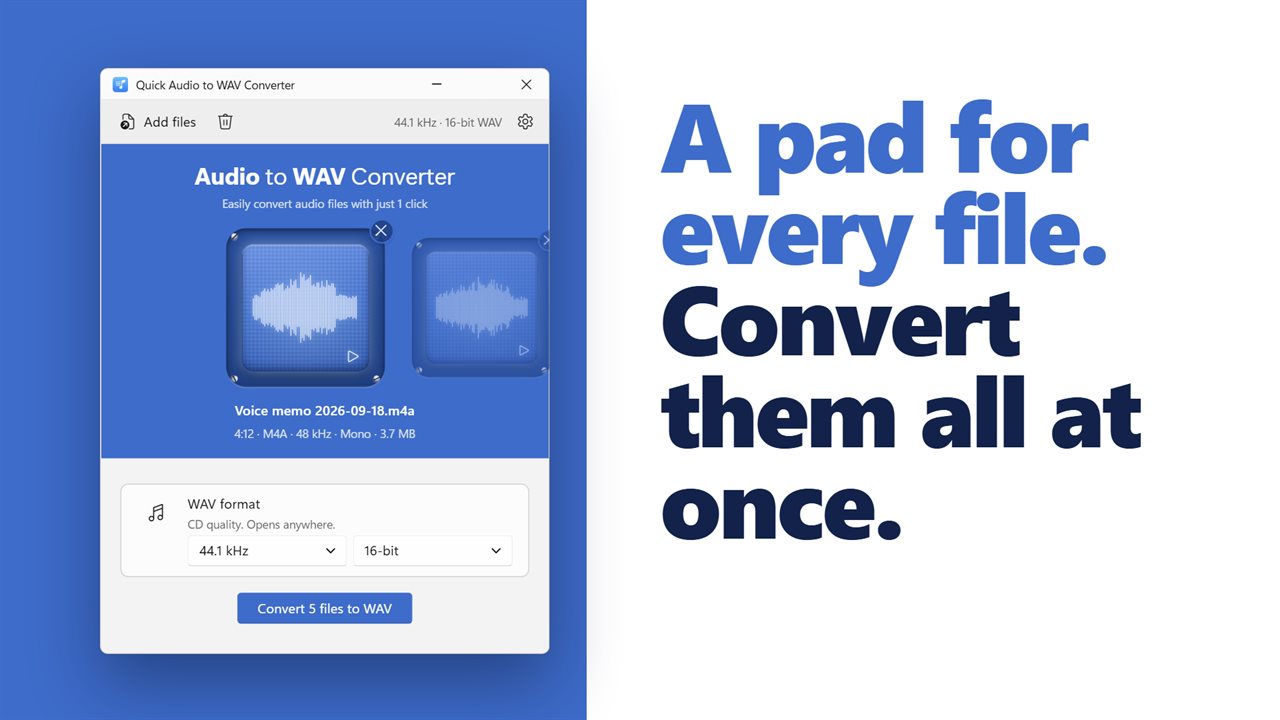
- Drop a handful of files, or use the + pad at the end of the row to add more.
- Scroll along the row; the pad in the middle is the one you are looking at, and clicking it plays or stops that file.
- Set the WAV format once for the whole batch.
- Press the button, which reads Convert 6 files to WAV or similar, and watch the count go file by file. Stop halts the run.