EEvlarSoft

Batch Image Resize

Resize a whole folder of photos at once by choosing what they are for, and see the size every picture will come out at before you press Resize.

Buy for $1.99
One payment. No subscription.
14-day money-back guarantee.
4.3
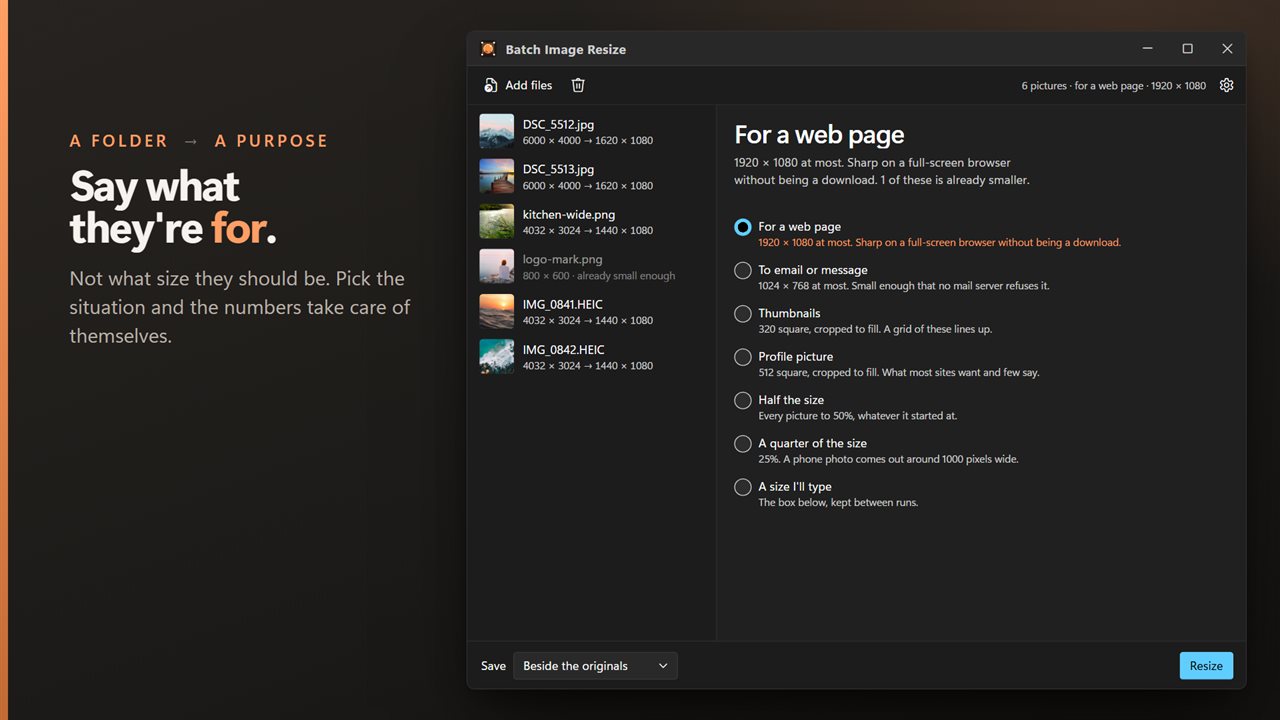
A folder in, and you just say what the pictures are for.
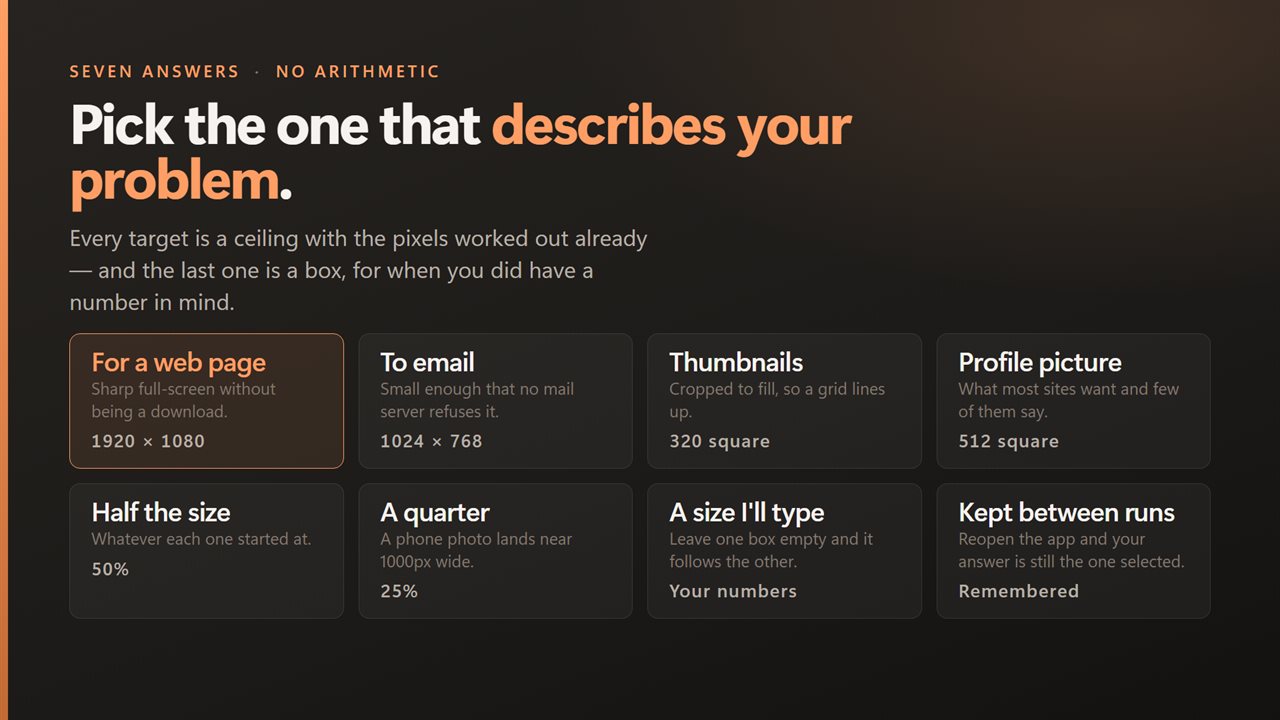
Seven plain answers instead of arithmetic — pick the one that fits.
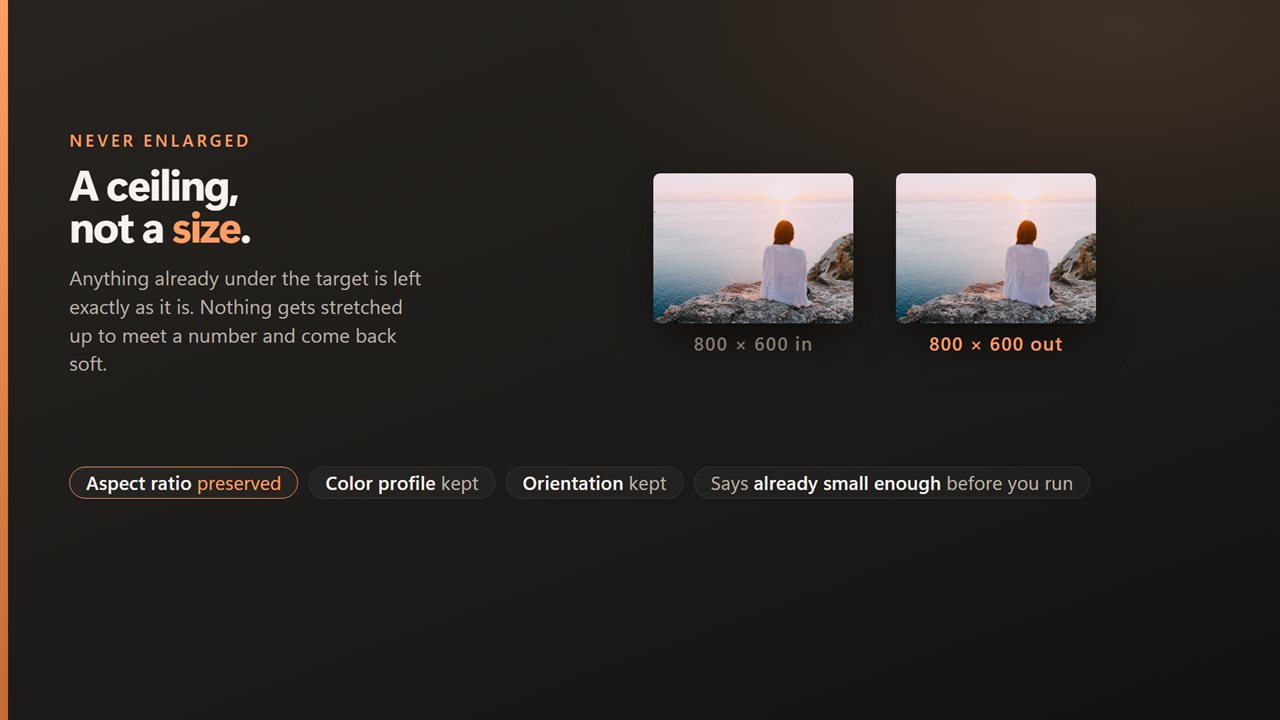
It is a ceiling, not a size: nothing is ever enlarged.
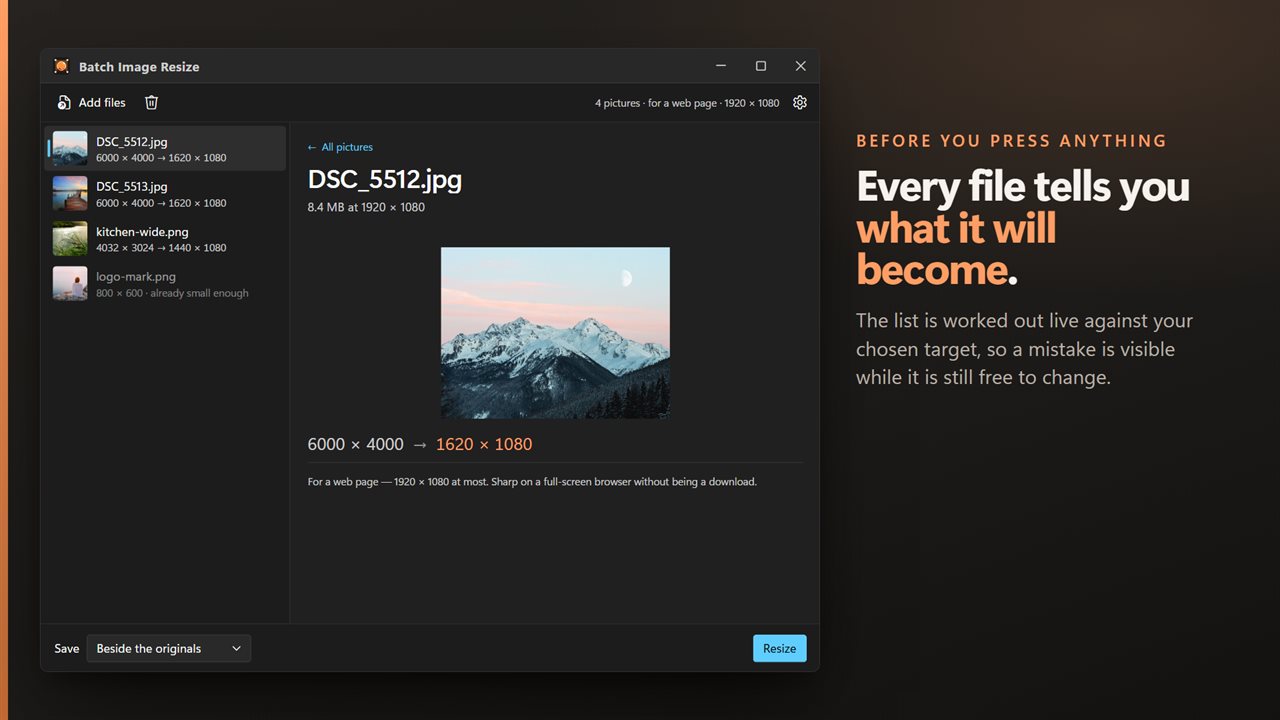
Every file tells you what it will become before you press anything.
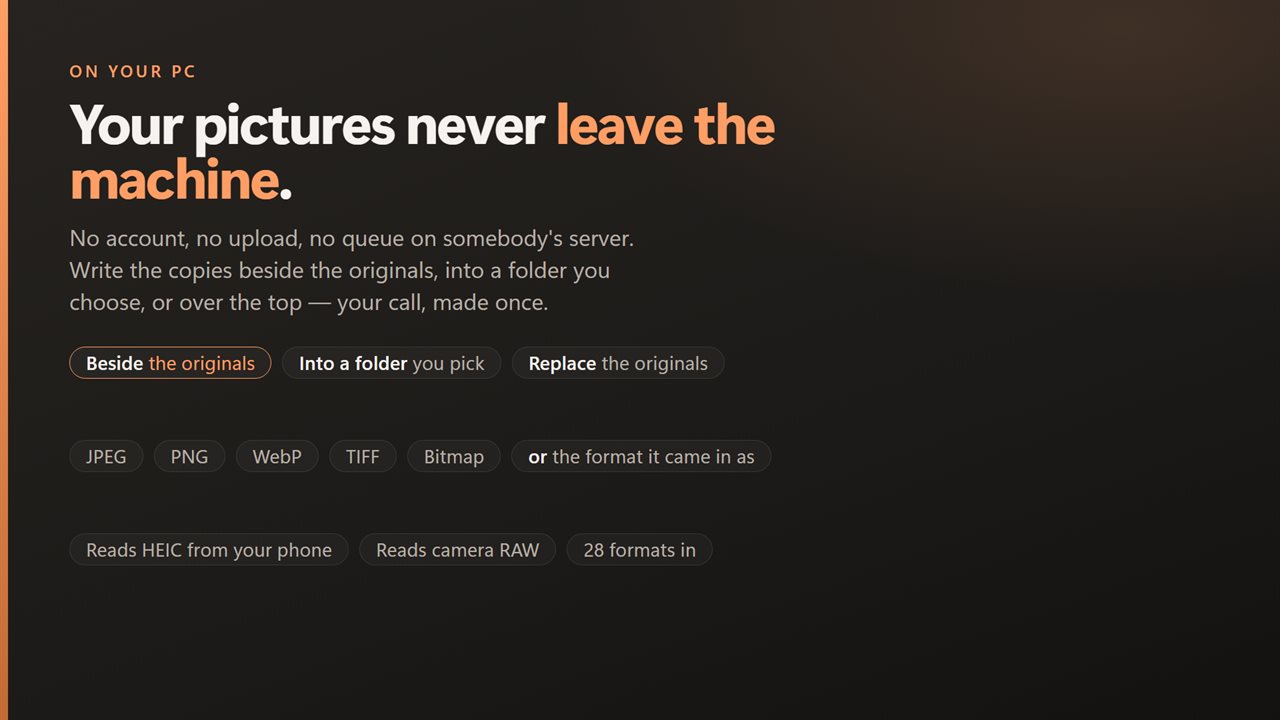
Your pictures never leave the machine.

A folder in, and you just say what the pictures are for.

190,000+downloads of EvlarSoft apps
Signed by EvlarSoftVerified US publisher
14-day money-backNo questions asked
Updates includedNo upgrade fees

A bulk image resizer that asks what the pictures are for

Most bulk image resizers open with two empty boxes, width and height, and leave you to work out the right numbers. Batch Image Resize starts from the other end. You add the photos, then answer one question in the side pane, What are these for, and the numbers follow from the answer.

Seven answers cover the common jobs: a web page, an email or message, a grid of thumbnails, a profile picture, half the size, a quarter of the size, or a size you type yourself. Each one carries its own target box and its own JPEG and WebP quality, so a batch meant for email comes out lighter than a batch meant for a full-screen browser.

Before anything runs, every row in the list reads like a receipt: the picture's current pixel size, an arrow, and the size it will become. Pictures that are already smaller than the target say so and are left at their own size. After the run, the same rows show the file size before and after, so you can see how much each photo shrank.

How to resize multiple images at once

The whole job is four steps, and none of them involves a calculator.

  • Drop a folder or a selection of photos onto the window, or click Add pictures.
  • Under What are these for, pick the answer that matches the job. Choose A size I'll type for a custom Width and Height; leave one of them empty and it follows the other.
  • Set Save to Beside the originals, Into a folder…, or Replace the originals, and set Write as if you want a different file type.
  • Press Resize. The summary line counts how many were resized and how many failed, and a failed row shows the reason.

Bulk resize photos for the web, email and social profiles

For a web page fits each picture inside 1920 × 1080, which stays sharp in a full-screen browser without turning into a slow download. To email or message fits inside 1024 × 768, so a message carrying several photos stays a manageable size.

Thumbnails and Profile picture work differently. Instead of fitting the picture inside a box, they fill a square, 320 pixels for thumbnails and 512 for a profile photo, trimming whatever overflows and keeping the middle. That is what makes a gallery grid line up and what most sign-up forms quietly expect from an avatar.

Half the size and A quarter of the size scale every picture by 50% or 25% whatever its starting dimensions, which suits a mixed folder from several cameras. A typical phone photo at 25% lands around 1000 pixels wide.

Image resizer for Windows that never stretches a small photo

Every fitted target is a ceiling, not a demand. A 900-pixel picture in a batch set for a web page stays 900 pixels instead of being blown up and blurred, and its row is marked already small enough so you know nothing will happen to it. The square targets are the one exception, because a thumbnail grid needs every tile the same size.

Write as turns the resize into a conversion at the same time: keep each file's own type, or save the batch as JPEG, PNG, WebP, TIFF or Bitmap. The reader is broader than the writer. Alongside the usual JPEG, PNG, GIF, BMP and TIFF it opens HEIC and HEIF phone photos, AVIF, JPEG XL, JPEG 2000, PSD, TGA, DDS, EXR, HDR, QOI and several older formats, so a folder copied off a phone can come out as JPEGs sized for email in one pass.

What Batch Image Resize does

  • Seven named targets in place of width and height boxes, plus a typed size for anything else
  • A live before-and-after pixel size on every row before the run starts
  • Fitted targets keep the aspect ratio and never enlarge a smaller picture
  • Square thumbnails (320 px) and profile pictures (512 px), center-cropped to fill
  • Percentage scaling at 50% or 25% for folders of mixed sizes
  • Output as the original type, JPEG, PNG, WebP, TIFF or Bitmap
  • Save beside the originals, into a chosen folder, or over the originals
  • File size before and after shown for each finished picture
  • Type only a width or only a height and the other side follows the picture's proportions

Who resizes photos in bulk

Store and blog owners

Bring a folder of product shots down to web size so pages load quickly, and save them as WebP in the same pass.

Families sharing trip photos

Shrink a few hundred phone pictures to email size so they fit in a message, without touching the full-size originals.

Anyone building a gallery or team page

Turn a stack of headshots into matching 512-pixel squares, or a whole album into 320-pixel thumbnails that line up in a grid.

What's new in 2.0.4

  • Bug Fixes
  • Added compress after resize

Questions

Anything else? Ask us

What size choices does it offer?

Seven: For a web page (within 1920 × 1080), To email or message (within 1024 × 768), Thumbnails (320 pixels square), Profile picture (512 pixels square), Half the size, A quarter of the size, and A size I'll type. Each row in the list shows the size that picture will come out at before you start.

Does it keep the aspect ratio?

Yes for the web, email, percentage and typed sizes, where each picture is fitted inside the box and keeps its shape. Thumbnails and Profile picture fill a square instead, cropping the edges that do not fit and keeping the center.

Will it make small pictures bigger?

No for the web, email, percentage and typed sizes: a picture already inside the box keeps its own size. Thumbnails and Profile picture always produce the full square, so a picture smaller than that is scaled up to it.

Can it change the file format while resizing?

Yes. Write as offers Same as the original, JPEG, PNG, WebP, TIFF and Bitmap. HEIC and HEIF photos can be read but not saved as HEIC, so pick another format under Write as for those.

What quality are JPEG and WebP files saved at?

It is set by the choice you pick: 85 for a web page, 82 for email, 80 for thumbnails and 88 for the others. There is no quality slider.

What happens to the originals and their metadata?

By default each resized copy is saved beside its original with "(resized)" added to the name, or you can save into another folder or replace the originals. The copies keep the color profile but not the EXIF data, so GPS location, camera details and the date taken are not carried over. Rotation is applied to the picture, so portraits stay upright.

How do I make all my photos exactly the same size?

Choose Thumbnails (320 × 320) or Profile picture (512 × 512). Those two crop every picture to an identical square. The other choices keep each photo's own proportions, so a portrait and a landscape shot in the same batch end up with different dimensions.

Can I set only the width and let the height work itself out?

Yes. Pick A size I'll type, enter the Width, and leave Height empty. Each picture is scaled to that width and its height follows, and the reverse works too.

Can I convert HEIC photos to JPEG while resizing them?

Yes. HEIC and HEIF files can be added like any other photo. Set Write as to JPEG (or PNG, WebP, TIFF or Bitmap) and the resized copies are saved in that format.

Which versions of Windows does it run on?

Windows 10 (version 1809 or later) and Windows 11.

Is it a subscription?

No. Batch Image Resize is a one-time purchase of $1.99, and updates are included.

How do I get it?

Buy it on this page and your license key arrives by email. If the button says Notify me, Batch Image Resize is not on sale here yet; leave your email and we will tell you when it is.