

How to convert HEIC to JPG on Windows without doing it one by one
iPhones save photos as HEIC by default. The format is compact, but plenty of Windows software, upload forms and older photo apps still refuse it. So the usual question is how to convert HEIC to JPG on Windows, and the usual answers are slow: open each picture in Photos or Paint and Save as, install an extension first, or upload your private photos to a website you know nothing about.
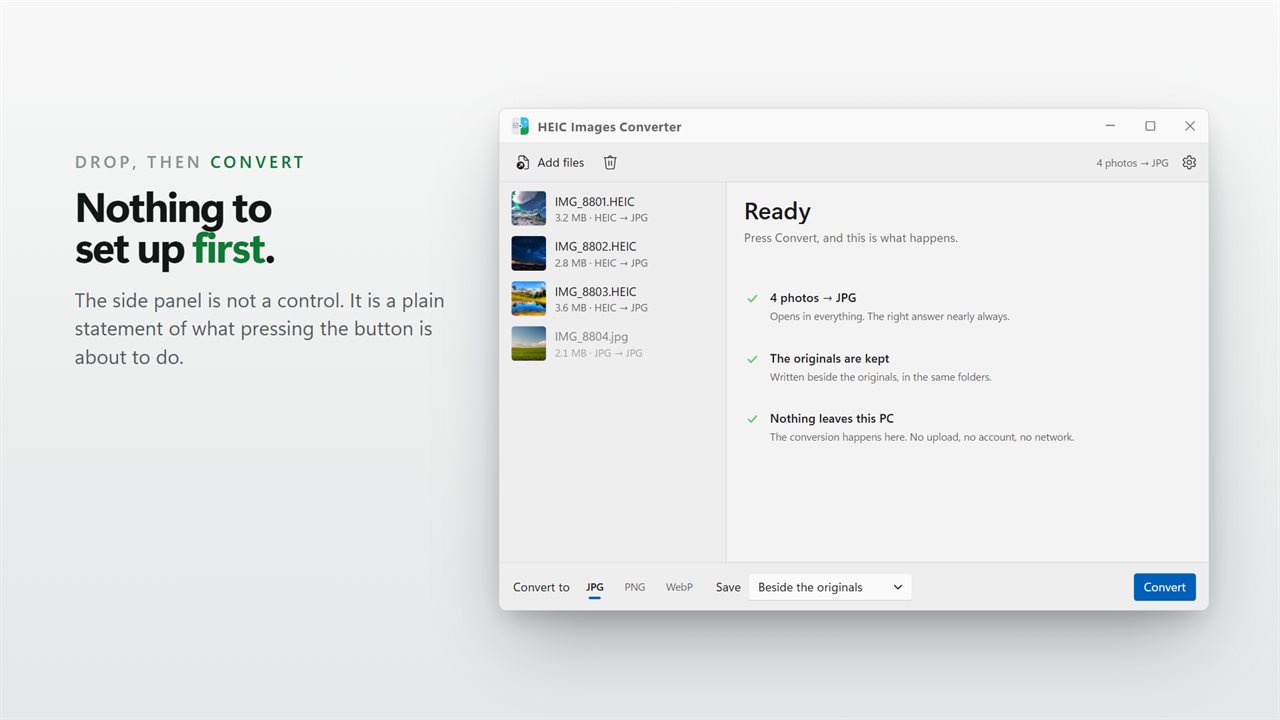
HEIC Images Converter does the job in bulk. Drop in the photos you copied from your phone, leave the format on JPG, press Convert, and every one is written as a JPG beside the HEIC it came from. The decoder is built into the app, so there is nothing else to install, and the work happens on your PC rather than on someone's server.
When a run finishes, the app tells you how many photos were converted and, if the new set is smaller, by how much.
Convert iPhone photos to JPG in four steps
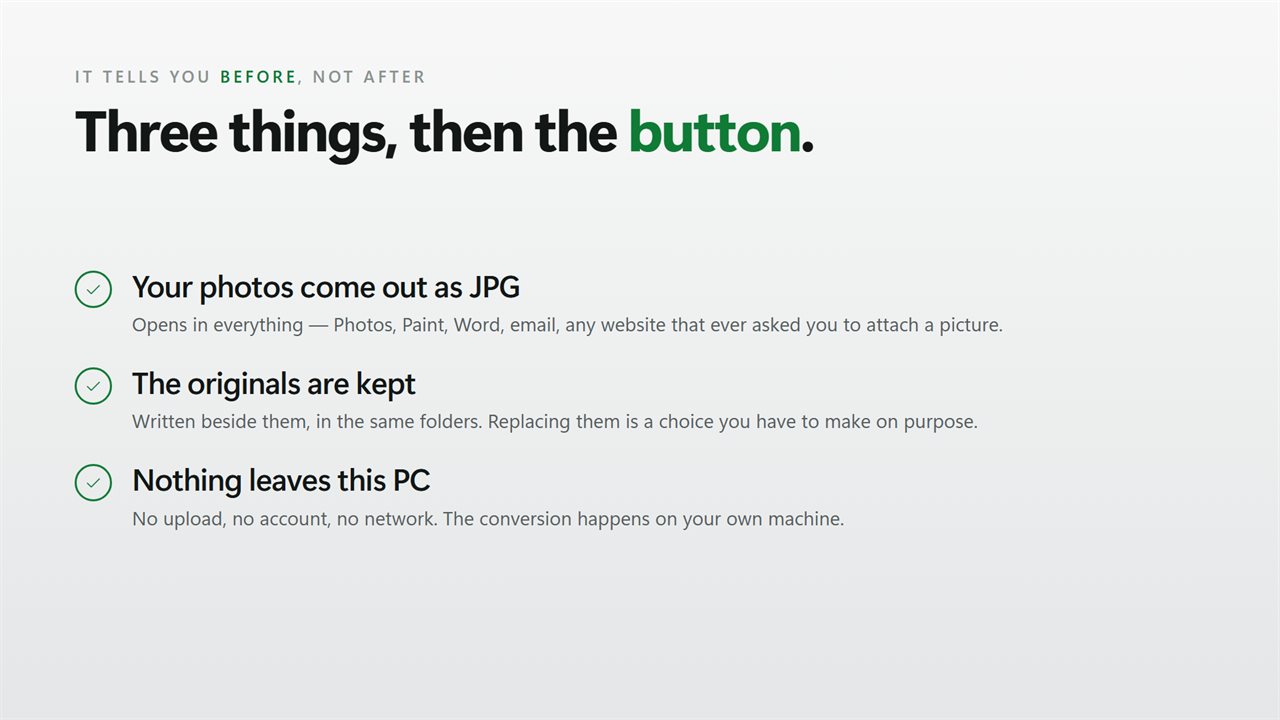
The side panel spells out what is about to happen before you commit, including whether your originals will be kept or replaced.
- Drag your HEIC photos, or a folder of them, onto the window.
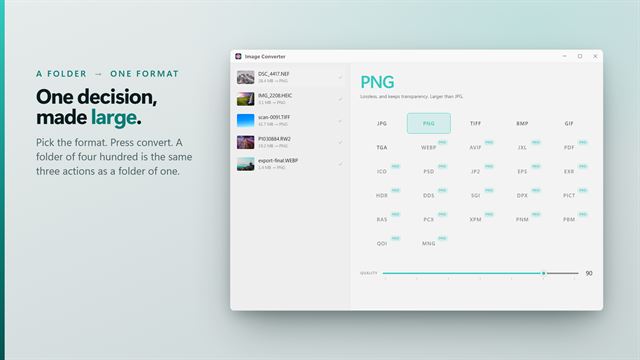
- Under Convert to, choose JPG, PNG or WebP. JPG is selected when the app opens.
- Under Save, pick Beside the originals, Into a folder… or Replace the originals.
- Press Convert. Each row shows the old size and the new one as it finishes.
HEIC to JPG, PNG or WebP: which should you pick?
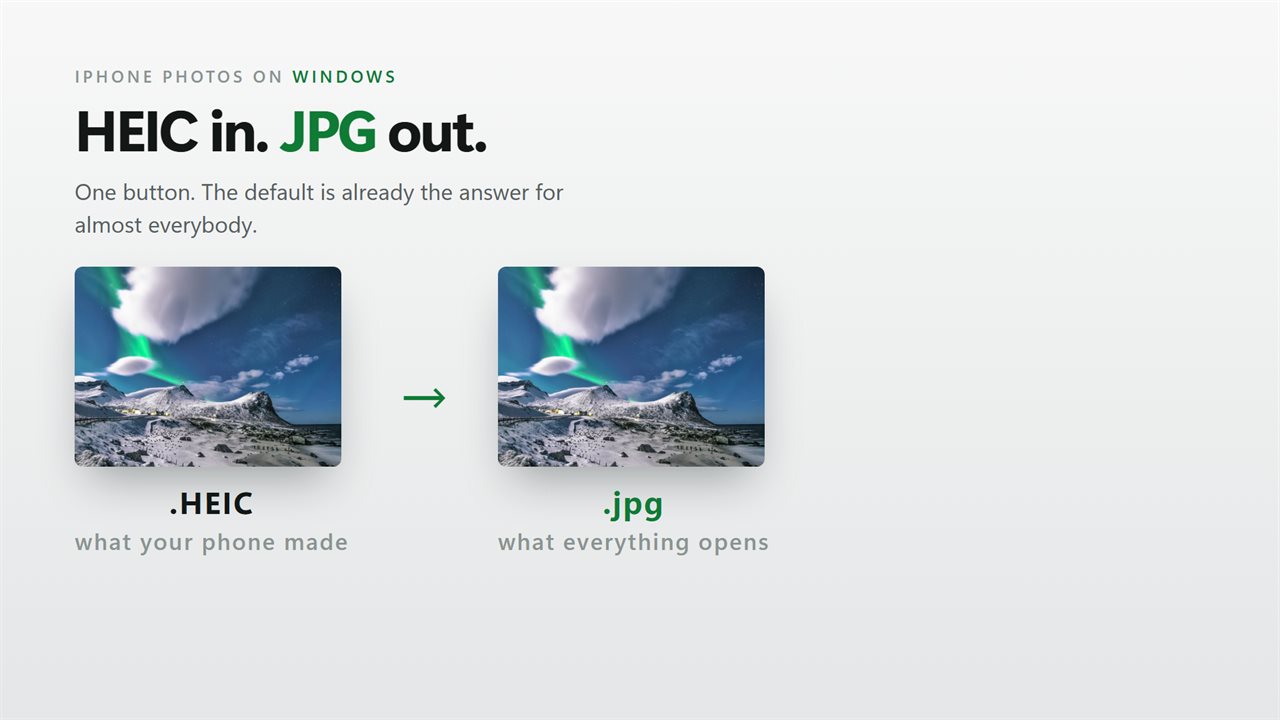
JPG is the right answer nearly always. It opens everywhere, and photos are saved at quality 92, high enough that the difference from the HEIC is hard to see.
Pick PNG when nothing at all may be thrown away, for example before more editing. Expect much larger files. WebP, saved at quality 84, gives smaller files than JPG at similar quality and suits pictures headed for a website.
Will HEIC to JPG on Windows 11 keep orientation and color?
Yes to both. A phone often stores a portrait shot sideways and just records which way is up. The converter applies that rotation to the image itself, so the JPG stands upright in every viewer, including ones that ignore rotation tags. The embedded color profile is carried across too, so skies and skin tones do not come out flat or washed out.
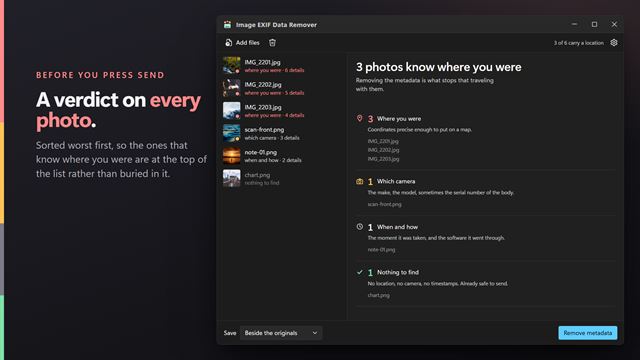
Other EXIF details such as the capture date and GPS location are not copied into the new files. If you are sharing the photos, that is usually what you want.