Why you need WebP to JPG, and the quickest way to do it
Many websites now serve their pictures as WebP because the files are small. Right-click, Save image, and that is what lands in your Downloads folder. The trouble starts afterwards, when an older editor, a print kiosk, a job application form or a slide template refuses the file. Converting WebP to JPG is the fix almost everyone ends up searching for.
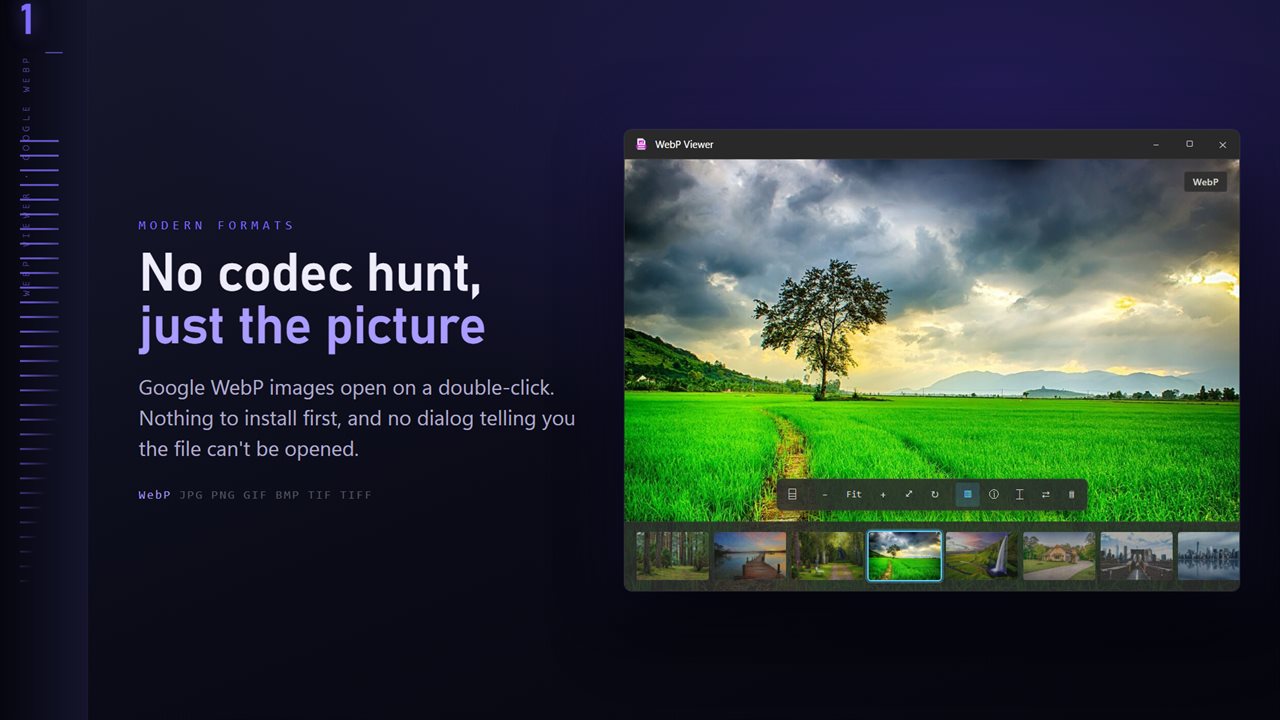
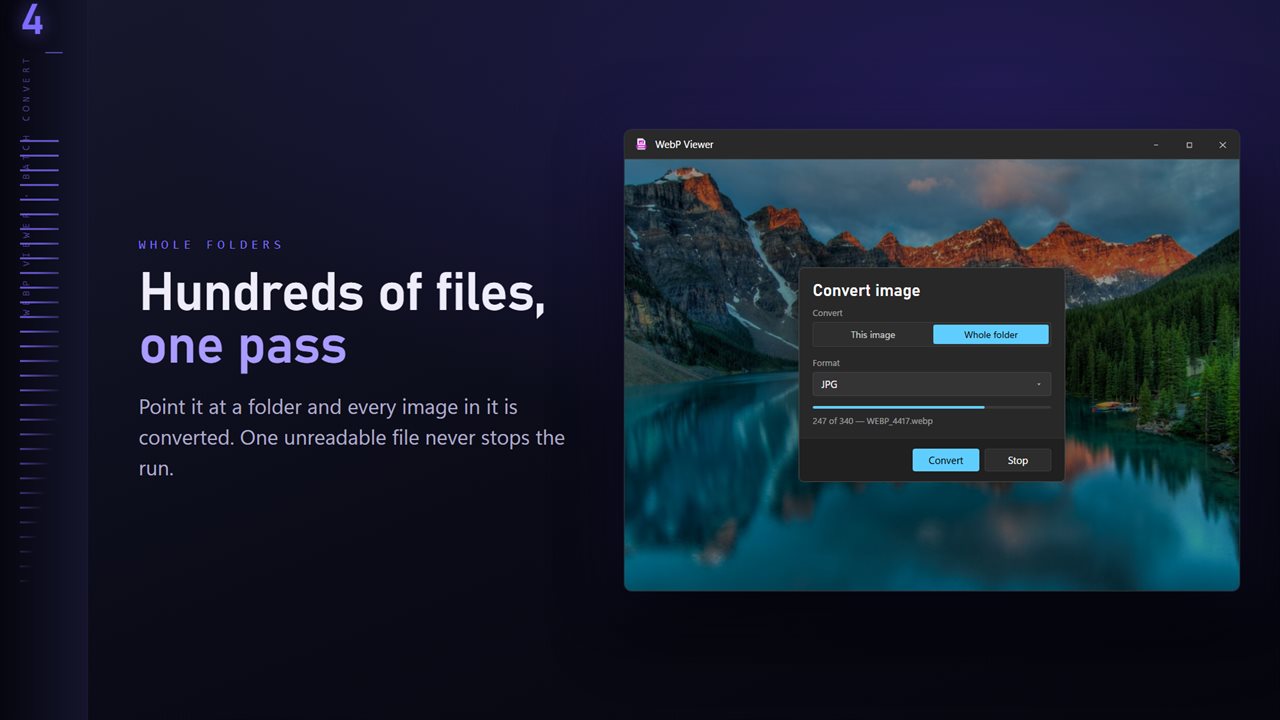
Online converters make you upload each image and download it again, and re-saving pictures one by one in a basic editor gives you no say over quality. WebP Viewer opens the image, shows it to you, and converts it on your PC, with JPG already selected as the target. Point it at a folder and every image in it is converted in one pass.
The WebP you started from is left in place, so you can always convert again at a different quality.
How to batch convert WebP to JPG
Files that cannot be read do not halt the batch; they are reported once it finishes.
- Open any WebP in the folder, with a double-click or Ctrl+O.
- Click Convert on the command bar, or right-click and choose Convert image.
- Set Convert to Whole folder. JPG is already the Format.
- Drag Quality: 90 keeps photos looking their best, 70 to 80 gives smaller files for email.
- Pick what Existing files should do with names that already exist: Skip, Keep both or Replace.
- Choose an output folder and start. A bar shows progress, and you can cancel.
WebP to PNG when the image has transparency
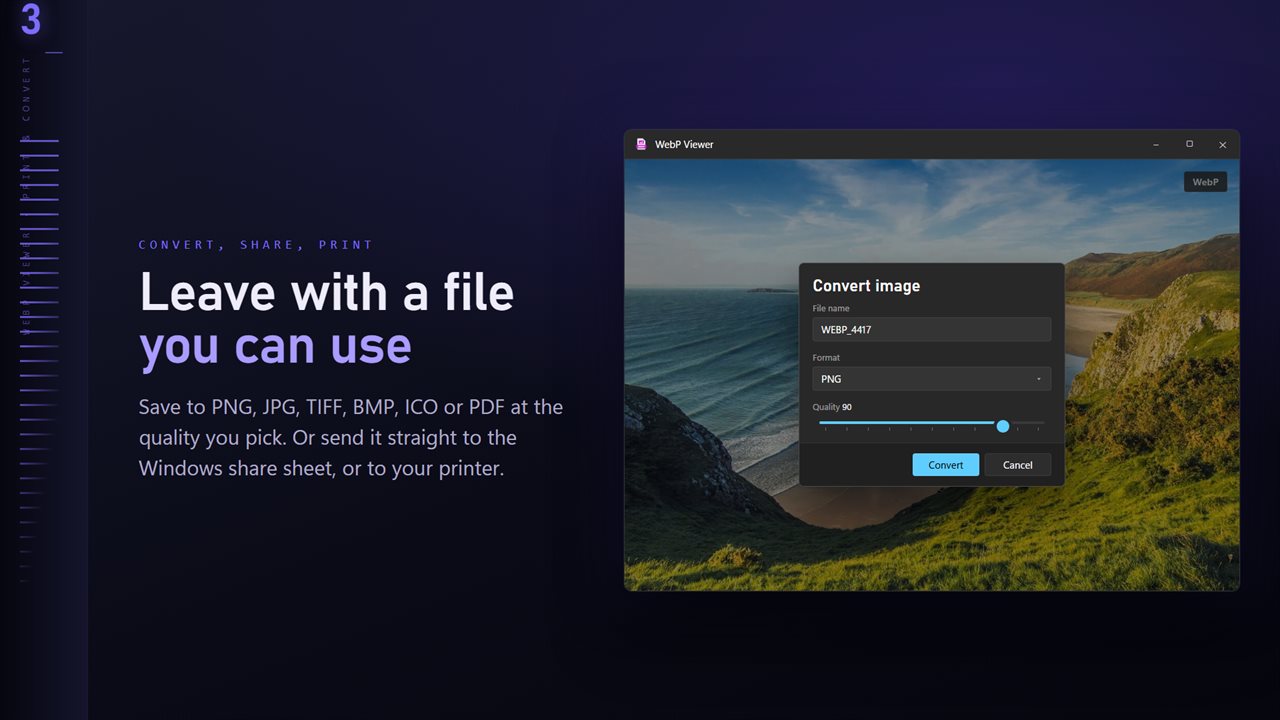
Logos, stickers and product cut-outs saved from websites are often WebP with a transparent background. JPG has no transparency, so those areas cannot survive the conversion. Choose PNG in the Format list instead; it is lossless and keeps the see-through parts intact, and TIFF does the same. Animated WebP is the other catch: only the first frame is converted.
The same Format list offers PDF, useful when a form wants a document rather than a picture, and ICO for turning a small graphic into a Windows icon.
Going the other way: making WebP files
If you publish images rather than collect them, the optional Professional Pack adds WebP, AVIF and JPEG XL to Convert. Size check, on the S key, encodes the current photo in each of those formats and JPEG side by side at 100%, with the resulting file sizes, so you can see what a lower quality setting actually costs before you commit. Export options then resize to a long edge, target a file size such as Under 500 KB, and remove the location from the copy.