A faster volume mixer for Windows 11
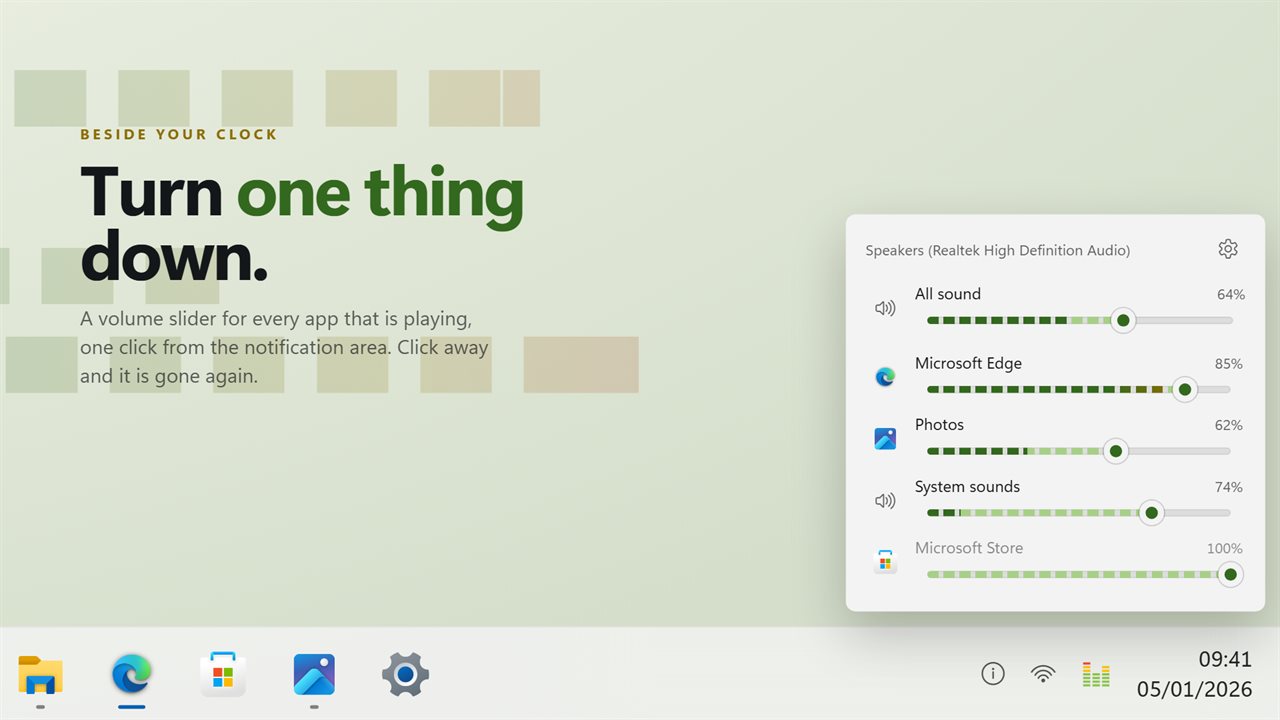
The volume mixer in Windows 11 lives inside the Settings app, several clicks from the taskbar, and it is slow to open when a video suddenly blares. Modern Volume Mixer puts the same per-app control in a flyout that opens from its own tray icon and closes as soon as you click elsewhere.
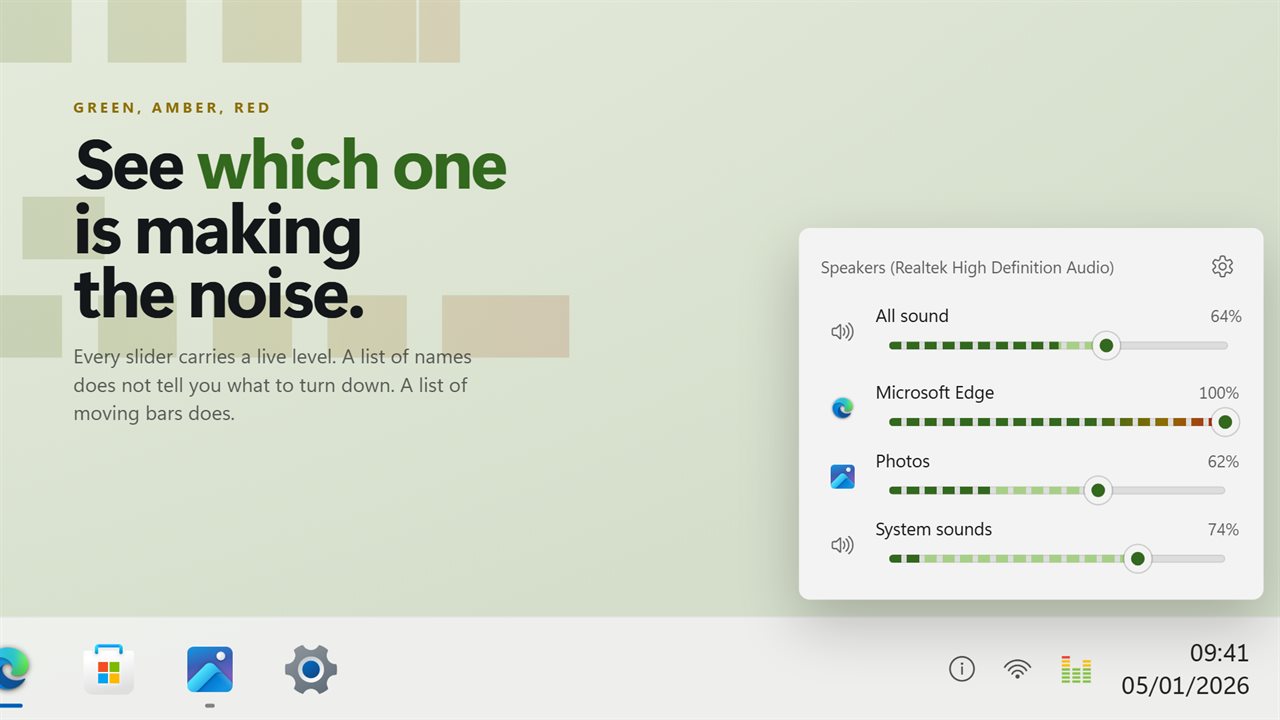
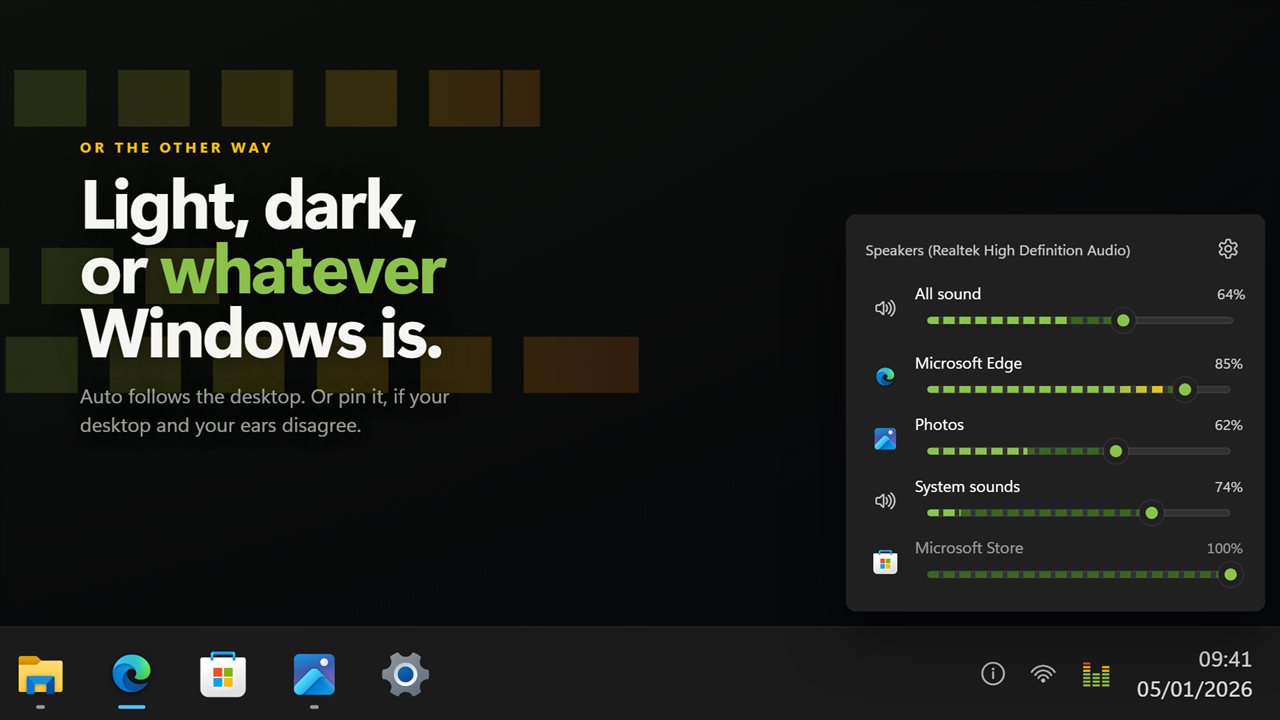
At the top is the master volume. Below the line, every app that has a sound stream gets a row with its own icon and name, a slider and a mute button. A program that opens several streams at once still shows up as one row, so the list stays as short as the number of apps you actually run.
Along each slider runs a live level meter. When something starts making noise you can see which app it is at a glance instead of guessing from a list of names, and turn exactly that one down. Under Level bars in Settings you can draw the meters as LED blocks, Segments or a Smooth bar, whichever reads fastest for you.
App volume control: how to turn one app down
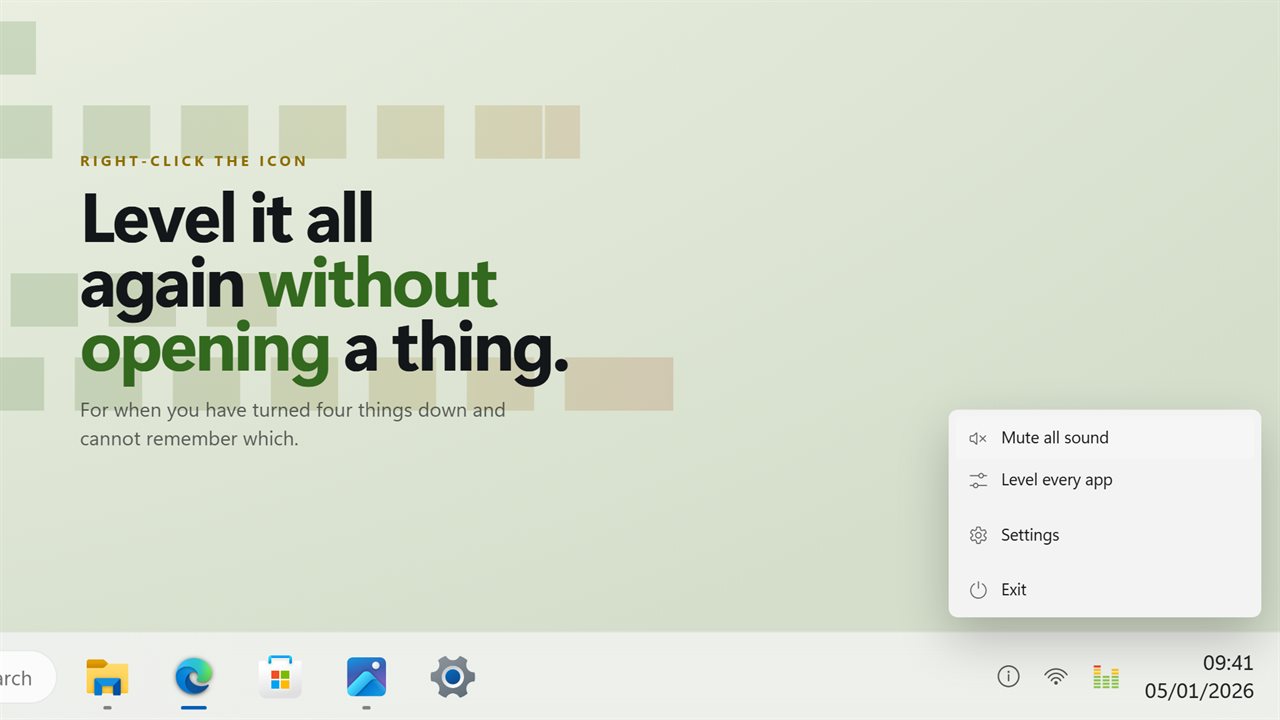
Lost track of which apps you turned down during a call? The tray menu has a one-step way back to full volume for everything on the device, covered in the questions below, next to a switch that silences the whole PC.
- Click the mixer's icon in the notification area. The flyout opens next to it, wherever your taskbar is docked.
- Find the app by its icon, or by the meter that is moving.
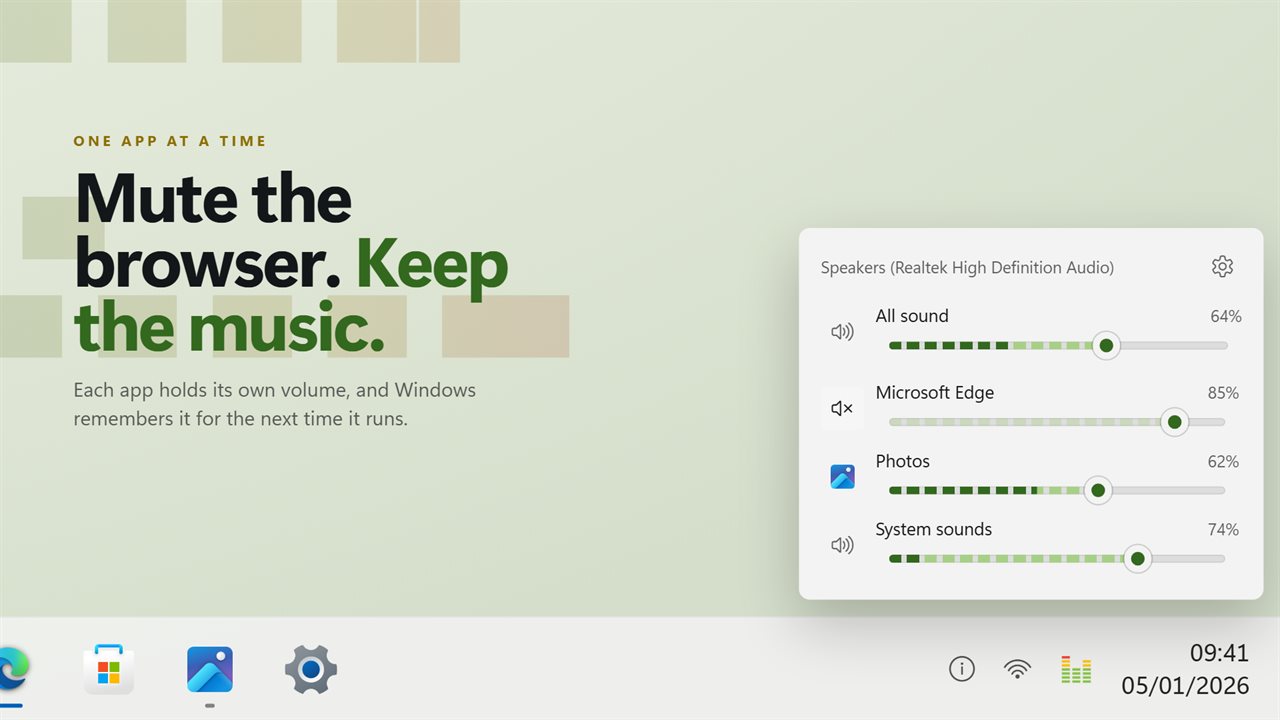
- Drag its slider, or click its speaker button to mute just that app.
- Click anywhere outside the flyout to close it. Windows keeps each app's level for the next time it plays.
How to mute an app on Windows without muting everything
Windows' own speaker button silences the whole PC. To silence a single program, such as a game's music while you keep a voice chat, use that app's mute button in the mixer instead. The master stays where it was and every other app keeps playing.
Apps that have stopped playing are kept in the list by default, so you can set a level before their next sound arrives. If you would rather see only what is playing now, turn off Show apps that have gone quiet in Settings.
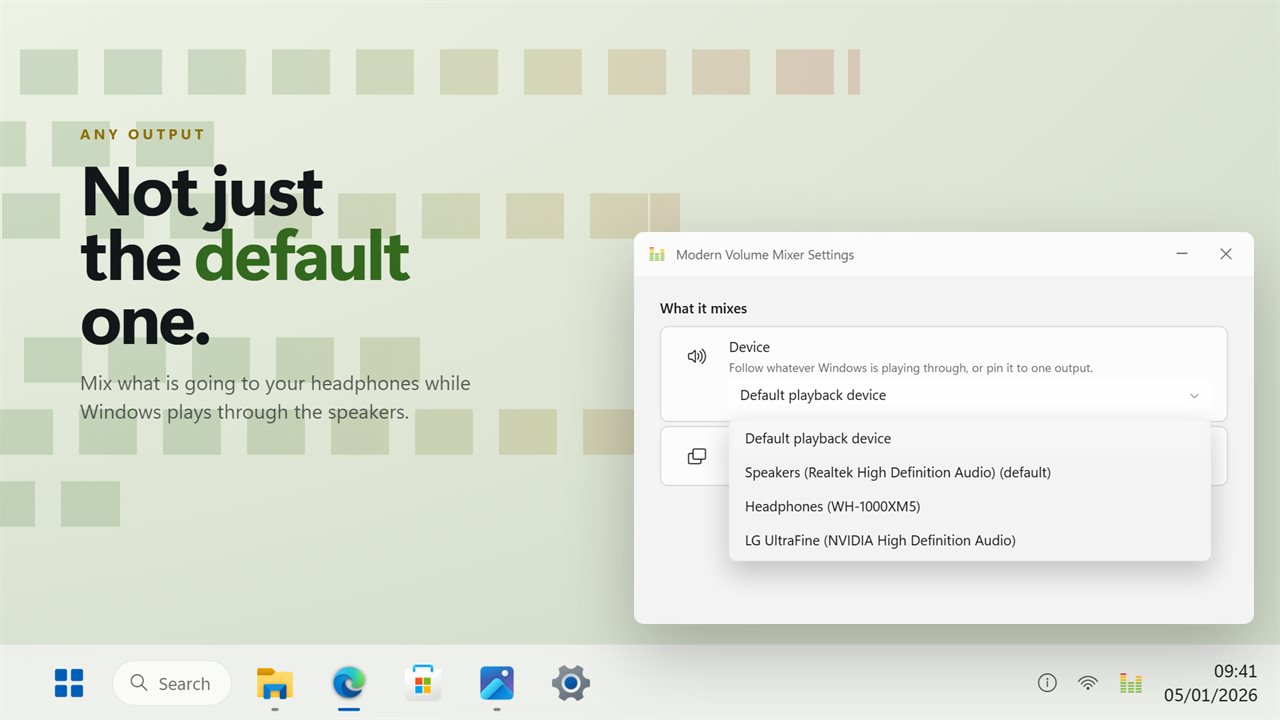
Headphones and speakers can be handled separately too. By default the mixer follows whatever Windows is playing through, and the Device setting can pin it to one output instead, so a headset used only for calls keeps its own app levels.
Control PC volume from your phone
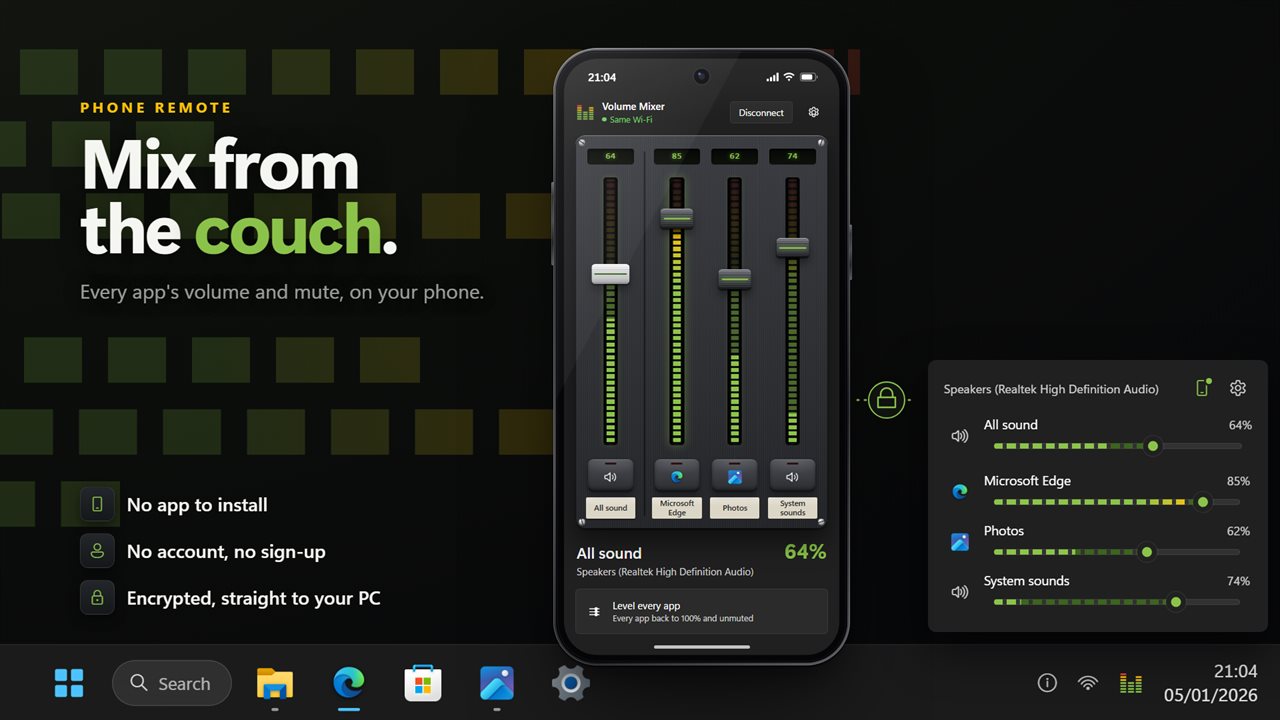
Press the phone button in the flyout, labeled Use your phone as a mixer, and a QR code appears. Scan it with your phone's camera and the phone's browser turns into a remote mixer with a fader, level lights and a mute key for each app, plus the master.
It is useful when the PC is across the room driving a TV or speakers, or when a full-screen game makes reaching the taskbar awkward. The phone shows the same apps the flyout does, so whatever you change on one is reflected on the other.