EEvlarSoft
No upload. Files stay on your PC

WebpMagic

Turn WebP images into JPG, PNG or PDF files that any program opens, or flip the switch and shrink a folder of photos into WebP.

Buy for $2.99
One payment. No subscription.
14-day money-back guarantee.
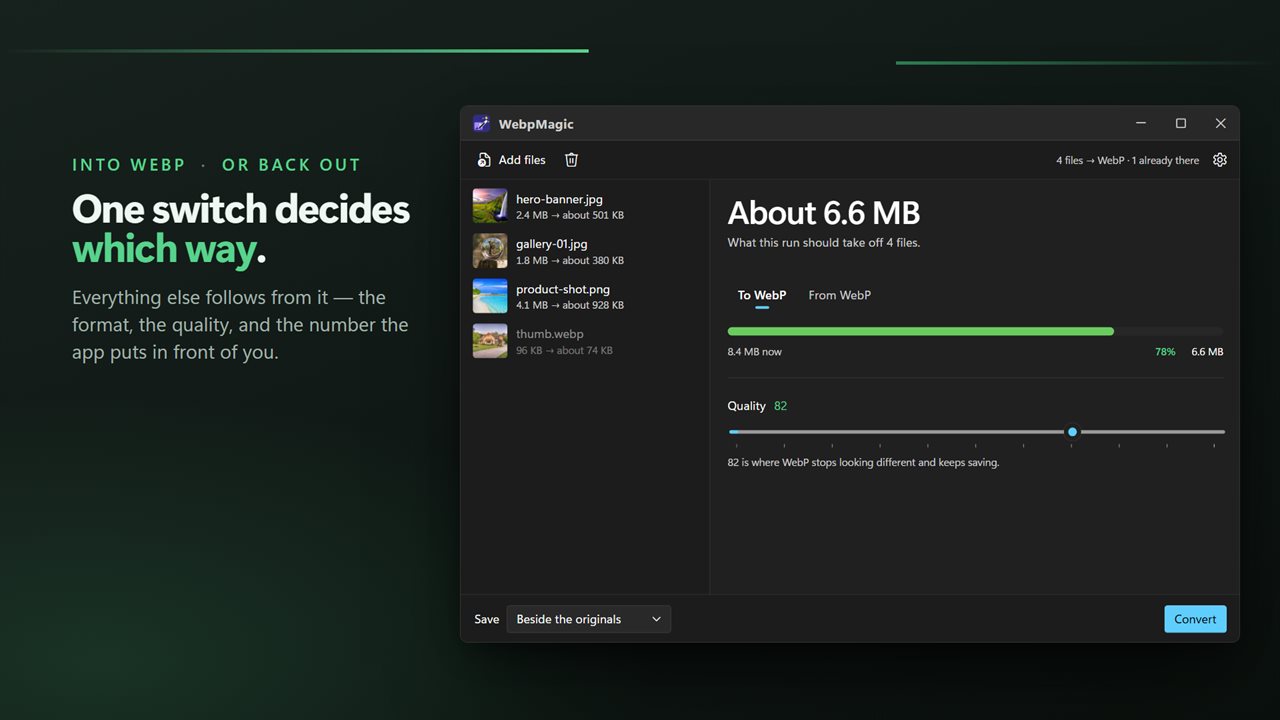
One switch decides which way: into WebP, or back out.
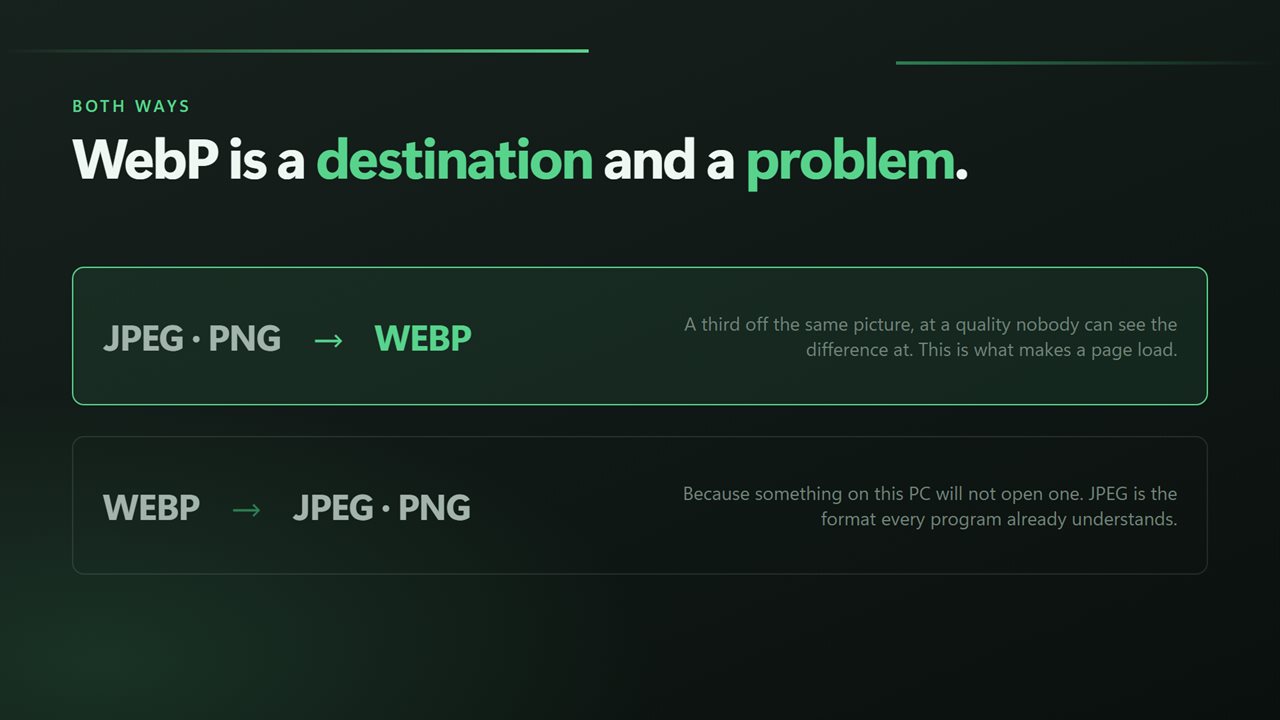
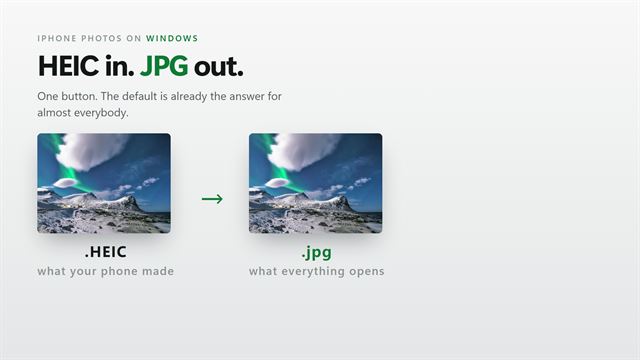
Both ways, because WebP is a destination and a problem.
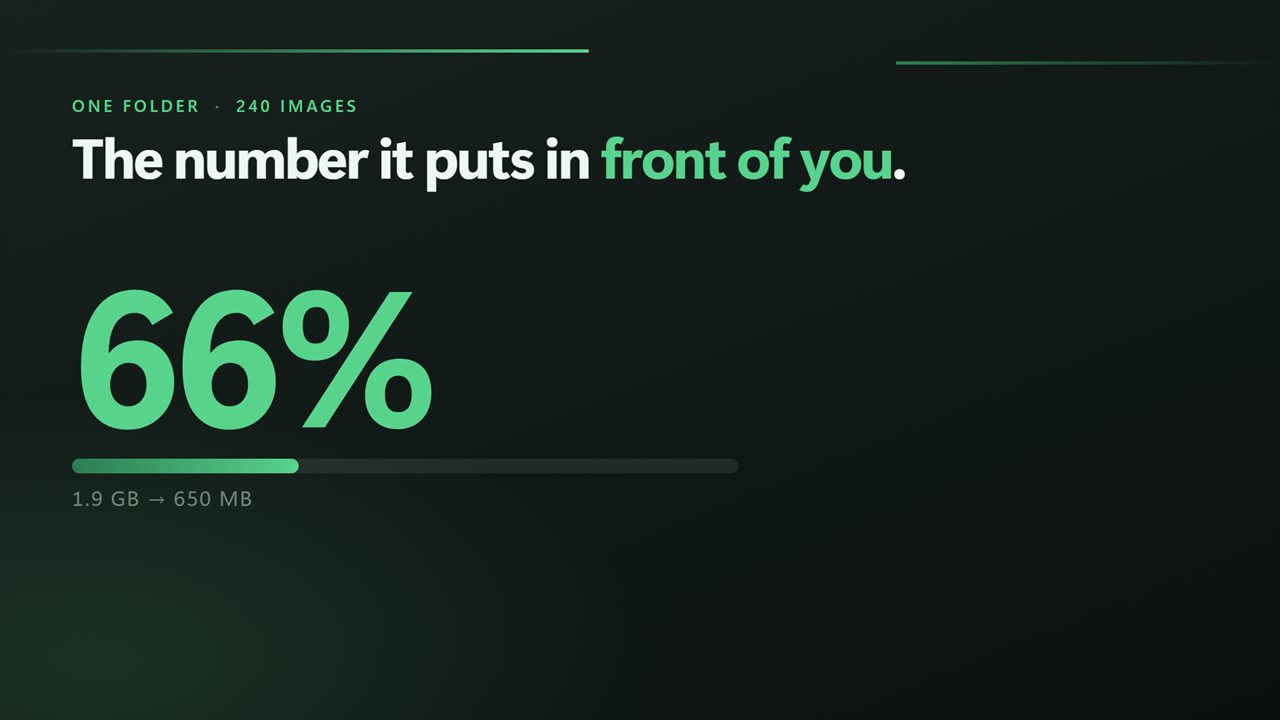
One folder, 240 images, and the number it puts in front of you.
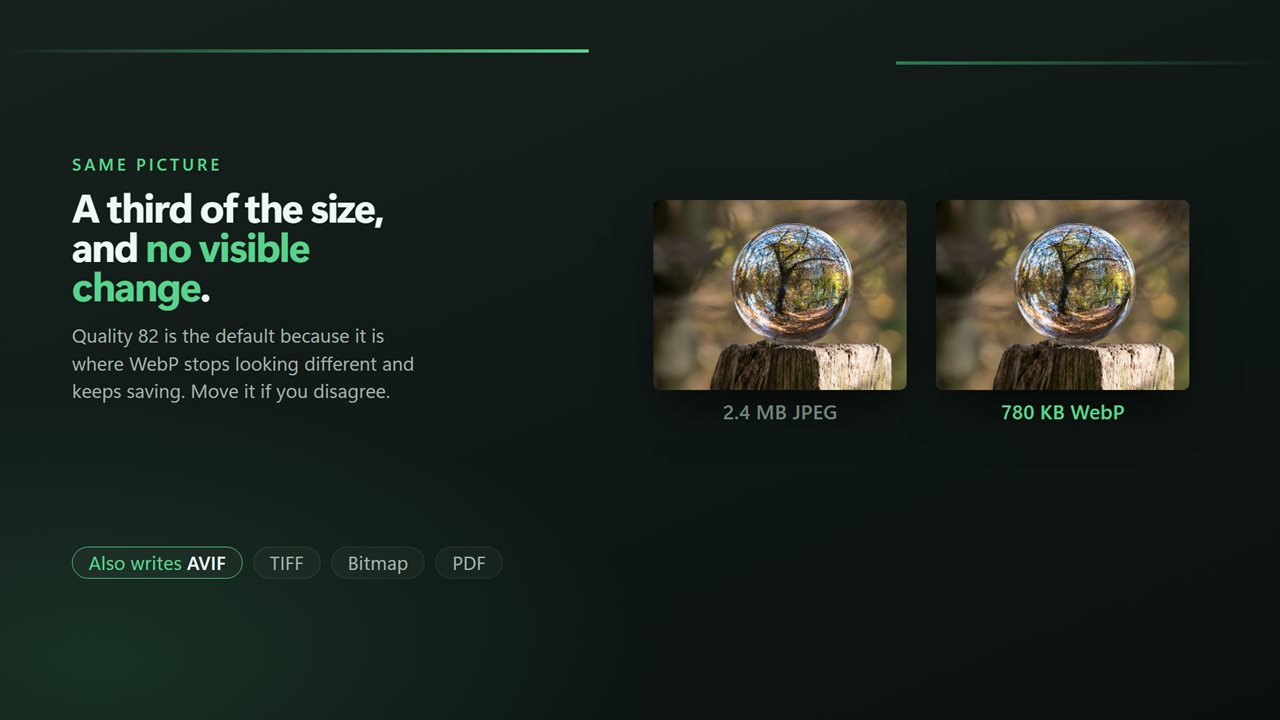
The same picture at a third of the size, and no visible change.
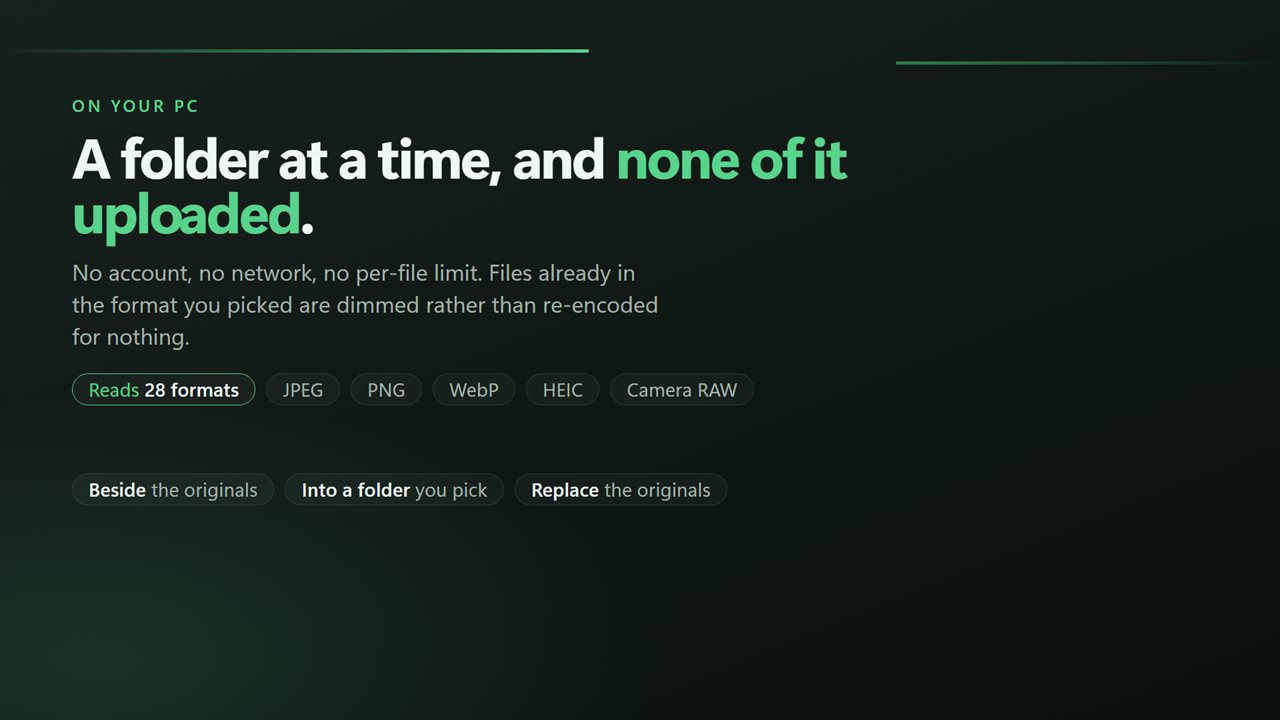
A folder at a time, and none of it uploaded.

One switch decides which way: into WebP, or back out.

190,000+downloads of EvlarSoft apps
Signed by EvlarSoftVerified US publisher
14-day money-backNo questions asked
Updates includedNo upgrade fees

Convert WebP to JPG without typing a command

Ask how to convert WebP to JPG in bulk on Windows and the usual answer is a command-line loop around a tool you first have to download and add to your PATH. Opening and re-saving each picture by hand works, but only one file at a time. This app does the whole batch from one window: add the images, set the direction to From WebP, choose JPEG, press Convert.

The same window works the other way round. Switch to To WebP and every JPEG, PNG, HEIC or camera RAW file in the list becomes a WebP, usually far smaller than the original. That single switch, labeled To WebP and From WebP, is the main control; everything else follows from it.

Before anything runs, each row shows the file's current size and an estimate of what it will weigh afterward, and the side pane totals the expected saving for the batch. When the run ends, the estimate is replaced by the real numbers: before, after and percentage off.

How to convert WebP to JPG or PNG in bulk

JPEG output coming from WebP is written at a high fixed quality of 92, because the goal on that side is a picture that opens everywhere, not the smallest possible file. Choose PNG when you need lossless output or transparency kept.

  • Click Add files, or drag a selection of .webp images onto the window.
  • In the side pane, pick From WebP, then choose a format under Turn them into: JPEG, PNG, AVIF, TIFF, Bitmap or PDF.
  • Set Save to Beside the originals, Into a folder…, or Replace the originals.
  • Press Convert.

Convert JPG, PNG and HEIC to WebP to save space

Switching to To WebP reveals a Quality slider from 40 to 100, set to 82 to start. Around that point WebP pictures look the same as the source to most eyes while still coming out much lighter than a JPEG of equal quality. Drag it down for thumbnails and web galleries, up for photos you care about.

The input side is wide: JPEG, PNG, GIF, TIFF, BMP, HEIC and HEIF from phones, AVIF, JPEG XL, PSD, and RAW files from Canon, Nikon, Sony, Fujifilm, Olympus, Panasonic, Pentax and others. That makes it a quick way to get a phone's HEIC photos or a camera card's RAW shots into a format that uploads fast and works in every modern browser.

If a file is already in the format you are heading toward, its row is marked so you can take it out, and a file that would get bigger rather than smaller is flagged too.

What converting keeps and what it drops

Pixel dimensions are left as they are and the color profile is carried across, so colors do not shift. Camera rotation is applied to the image itself, which keeps portrait shots upright in programs that ignore orientation tags.

Location and camera details stored in EXIF, XMP and IPTC are not copied into the new file. That makes converted images safer to post or send, but keep the originals if you rely on that information for sorting by date or place.

Features

  • One direction switchTo WebP or From WebP
  • WebP output with a 40 to 100 quality slider
  • From WebP to JPEG, PNG, AVIF, TIFF, Bitmap or PDF
  • Estimated size per file and total saving before the run
  • Actual before and after sizes and percentage saved once finished
  • Reads 42 image file extensions, camera RAW included
  • Save beside the originals, into another folder, or in place of the originals
  • Warns about files already in the target format or likely to grow

Questions

Anything else? Ask us

Can WebpMagic convert images to WebP as well as from WebP?

Yes. One switch picks the direction: To WebP, with a quality slider from 40 to 100 that starts at 82, or From WebP, into JPEG, PNG, AVIF, TIFF, Bitmap or PDF. Before you run it, it estimates how many bytes the batch will save.

Which image types can I convert to WebP?

JPEG, PNG, GIF, BMP, TIFF, HEIC, HEIF, AVIF, JPEG XL, JPEG 2000, PSD, ICO, TGA, EXR, QOI, DDS, HDR and several older formats, plus camera RAW files including CR2, CR3, NEF, ARW, DNG, ORF, RW2, RAF, PEF and SRW. HEIC can be read but not written.

What happens to my original images?

By default they are kept and the converted file is saved beside each one, under the same name with the new extension. You can save into another folder instead, or choose Replace the originals, which deletes each original once its converted file has been written.

Does it keep animation in animated WebP or GIF files?

No. Only the first frame of an animated or multi-page image is converted.

Does converting keep the EXIF data and GPS location?

No. EXIF, XMP and IPTC data, including any GPS location, are removed from the converted file, while the color profile is kept. The photo's rotation is applied to the pixels so it stays the right way up.

Can it resize images while converting?

No. The pixel dimensions stay the same; only the format and, for WebP, the quality change.

Why do downloaded images save as WebP?

Many websites serve WebP because it is smaller than JPEG and PNG at the same visual quality. Some older programs and upload forms still will not accept it, which is when converting to JPEG or PNG helps.

Is WebP smaller than JPG?

Usually, yes. At similar visual quality a WebP is typically noticeably smaller than a JPEG, and the app estimates the saving for your own files before you convert.

Can I convert WebP to PDF?

Yes. Choose From WebP and set Turn them into to PDF. Each image becomes its own PDF file.

Which versions of Windows does it run on?

Windows 10 (version 1809 or later) and Windows 11.

Is it a subscription?

No. WebpMagic is a one-time purchase of $2.99, and updates are included.

How do I get it?

Buy it on this page and your license key arrives by email. If the button says Notify me, WebpMagic is not on sale here yet; leave your email and we will tell you when it is.