Why your iPhone photos won't open
Since iOS 11, iPhones have saved photos as HEIC by default. It is a good format: about half the size of a JPEG at the same quality. The trouble starts when the photos leave the phone.
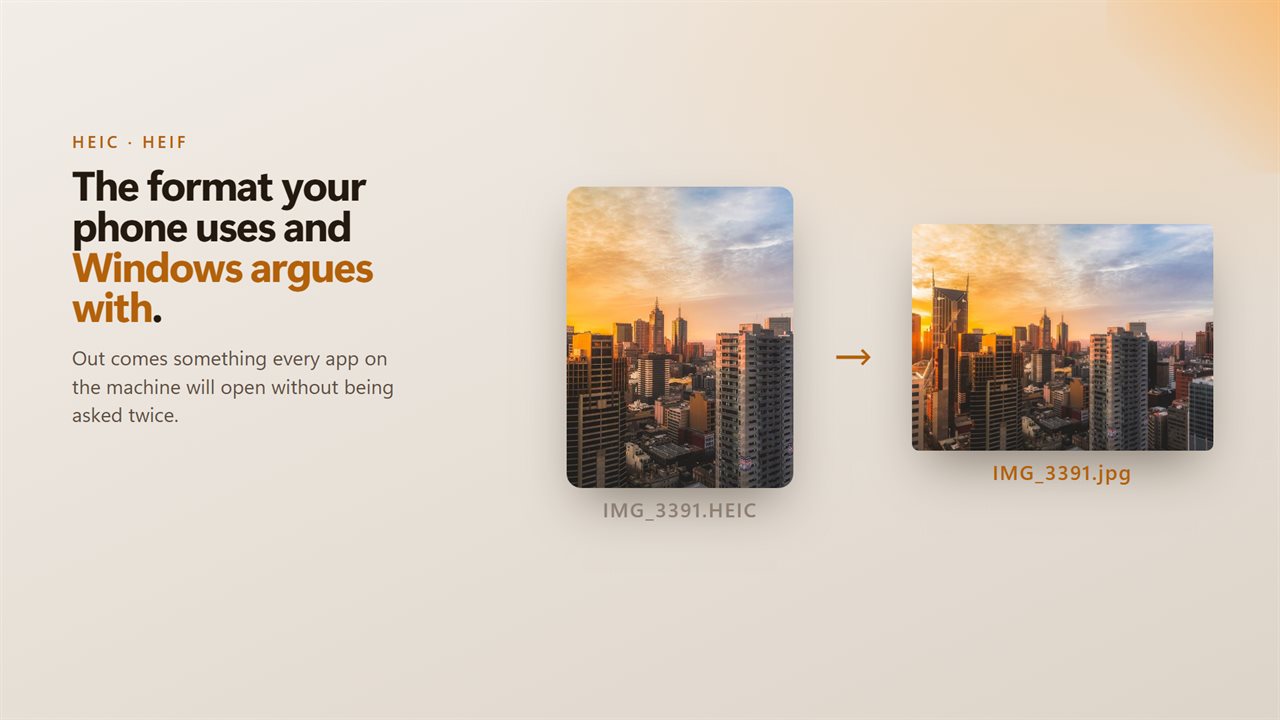
Windows needs extra extensions from the Microsoft Store before it can show HEIC files, and many websites, upload forms, older programs and print shops will not take them at all. A photo that looks fine on the phone becomes a file nobody can open.
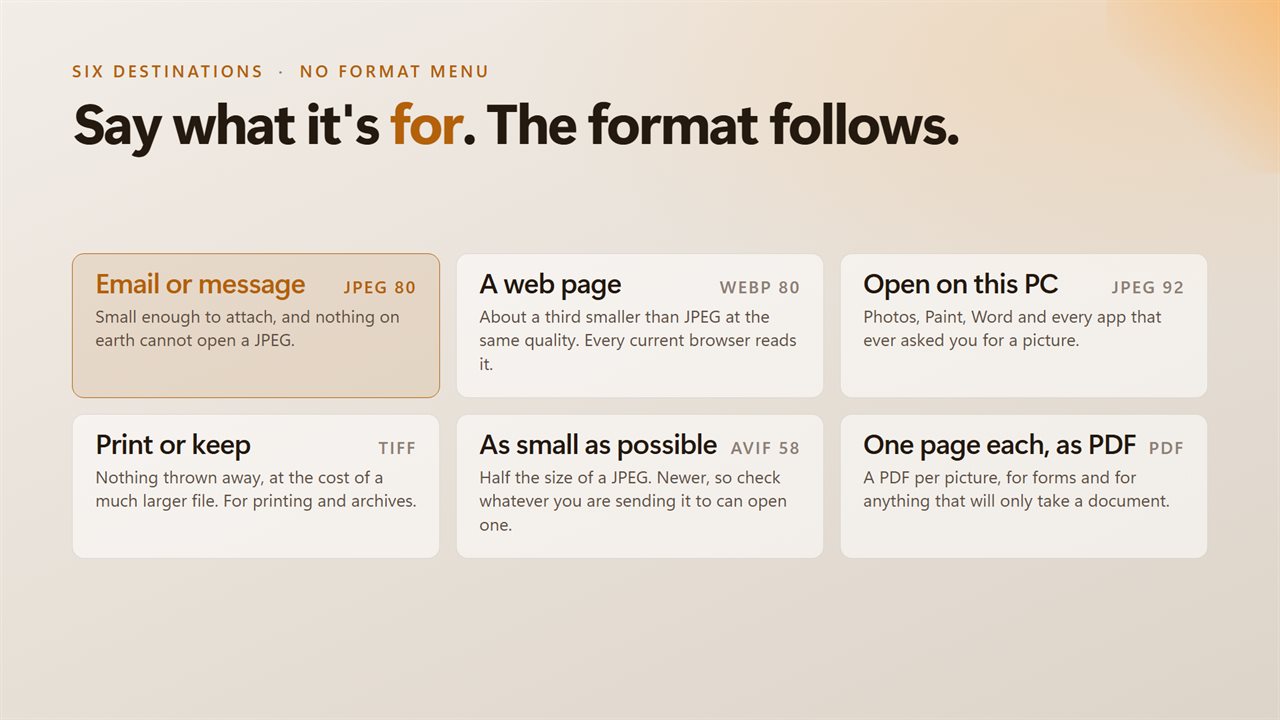
Converting them fixes that for good. JPEG opens everywhere, WebP and AVIF are smaller for the web, and TIFF keeps every detail for printing. This app does the conversion on your PC and keeps each picture's colors and orientation as they were.
How to convert HEIC to JPG on Windows
HEIC and HEIF Image Converter turns iPhone photos into files Windows apps and websites accept. You tell it where the photos are going, and it picks the format and quality.
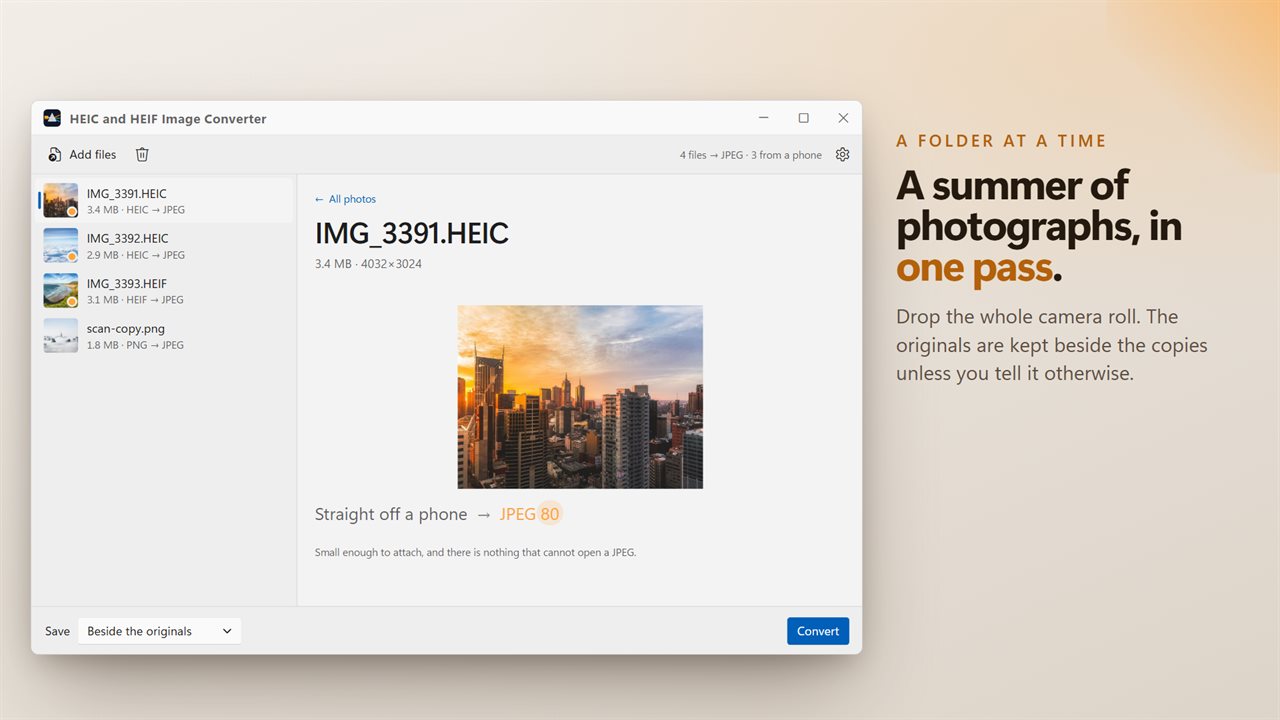
- Drop your HEIC or HEIF photos, or a whole folder of them, into the window.
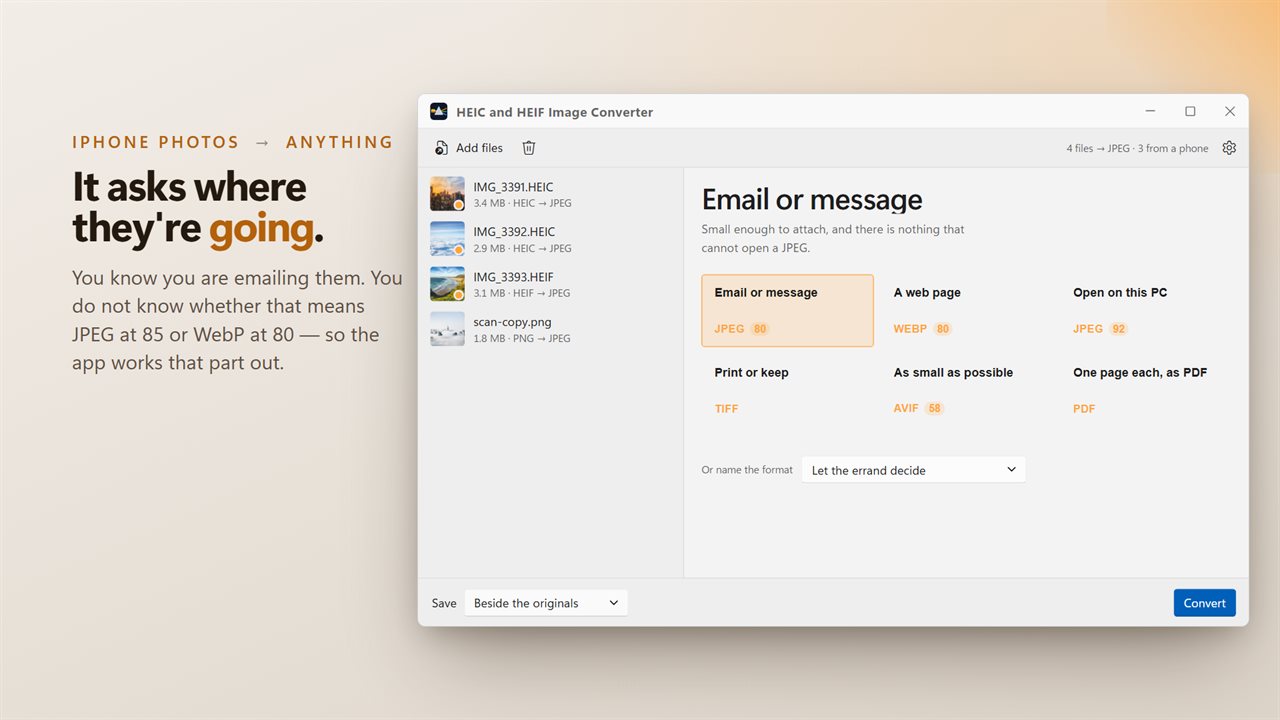
- Choose a destination such as Email or message. Each destination card shows the format and quality it will use.
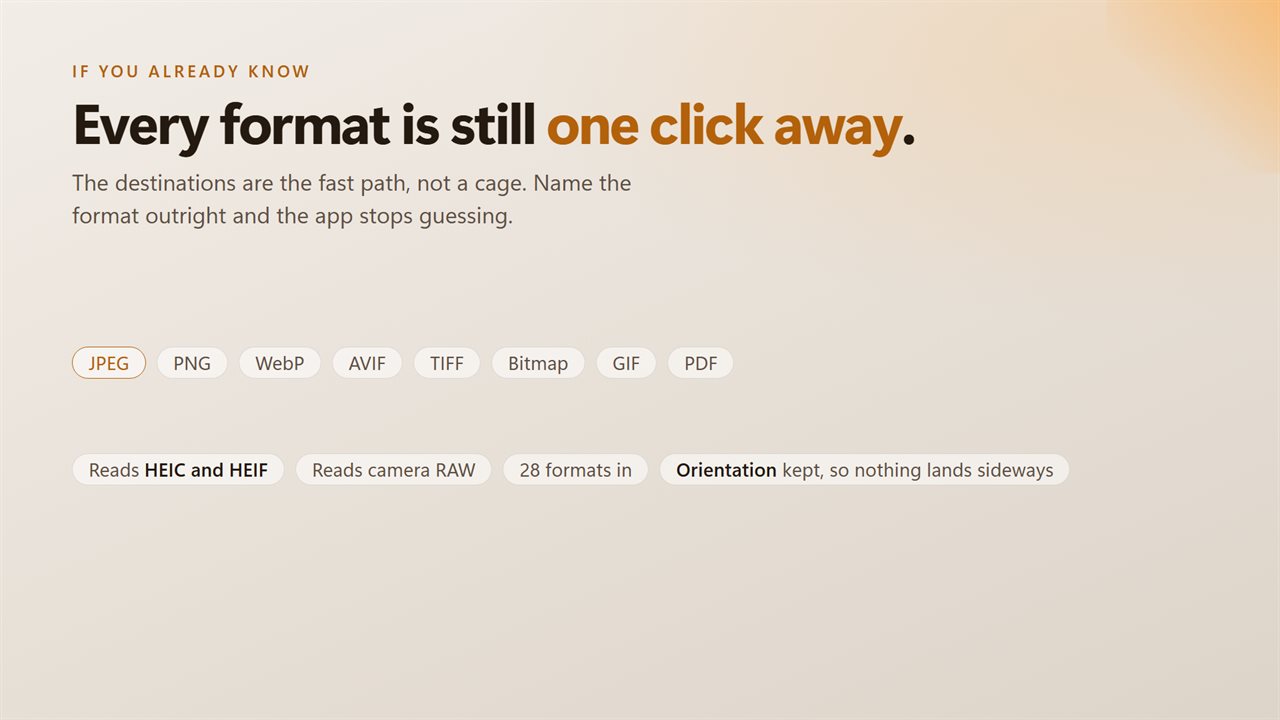
- If you already know you want JPEG, pick it from the format dropdown instead.
- Choose where the copies go: beside the originals, in a folder you pick, or replacing the originals.
- Convert, and check each file's size before and after.
HEIC to JPG, or another format?
JPG and JPEG are the same format, and it is the safest choice when you are not sure who will open the photo. A converted IMG_3391.HEIC comes out as IMG_3391.jpg, ready to attach to an email or upload to a form.
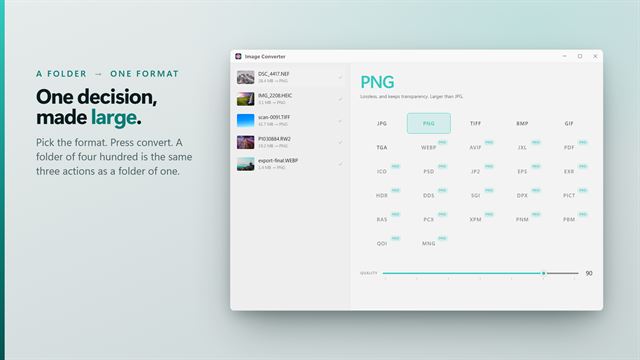
JPEG is not always the best fit, though. WebP and AVIF give smaller files for web pages, TIFF keeps every detail for a print shop, and PDF suits a site that only takes documents. The converter also writes PNG, Bitmap and GIF.
Converting a folder of iPhone photos at once
Photos copied off an iPhone usually arrive by the hundred. Drop the whole folder in, or as many photos as you like, and every one converts in a single run with the same settings.
By default the converted copies are saved beside the originals, so nothing is lost. Orientation and color profiles are kept, so pictures do not come out sideways or washed out.
A HEIC converter that works without uploading
Everything is converted on your PC. There is no account, no upload, no file limit and no watermark, which matters when the photos are of your family or your documents.
You also do not need Windows' HEIF extensions installed, because the converter reads HEIC and HEIF itself. It reads camera RAW files from Canon, Nikon, Sony, Fujifilm, Olympus, Panasonic and others too, along with PSD, TIFF and other common formats.