An image converter that handles the odd formats too
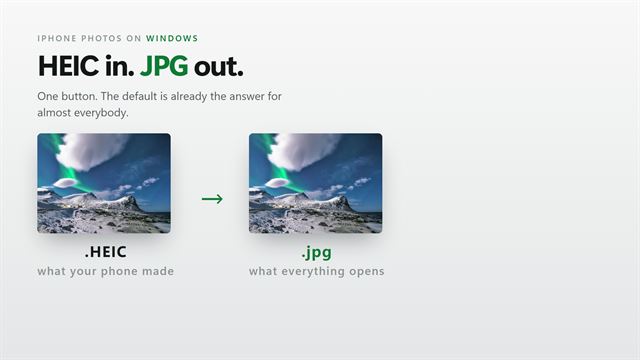
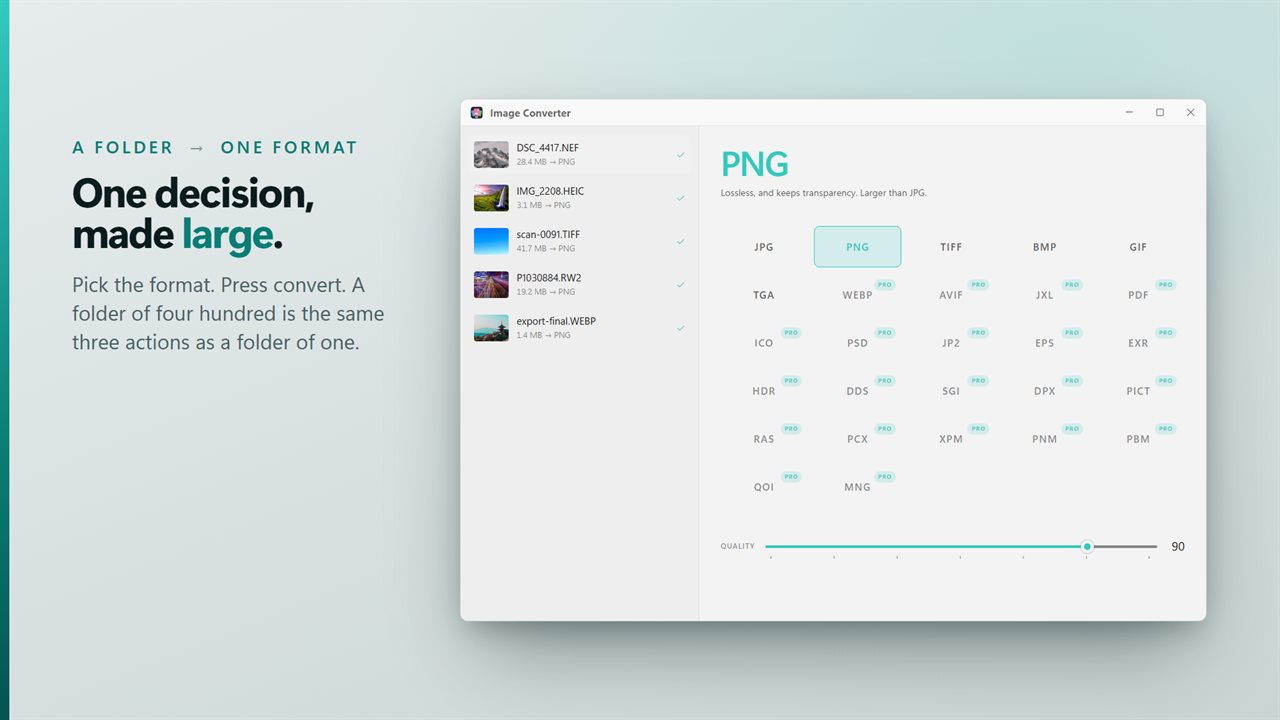
Most of the time an image converter is needed for something mundane: PNG screenshots that should be JPG, WebP downloads an old editor will not open, a camera card full of RAW files to share. Paint can save one picture at a time, and the command-line tools want a script. Image Converter turns the whole batch with three actions: drop the files, choose the output format, press Convert.
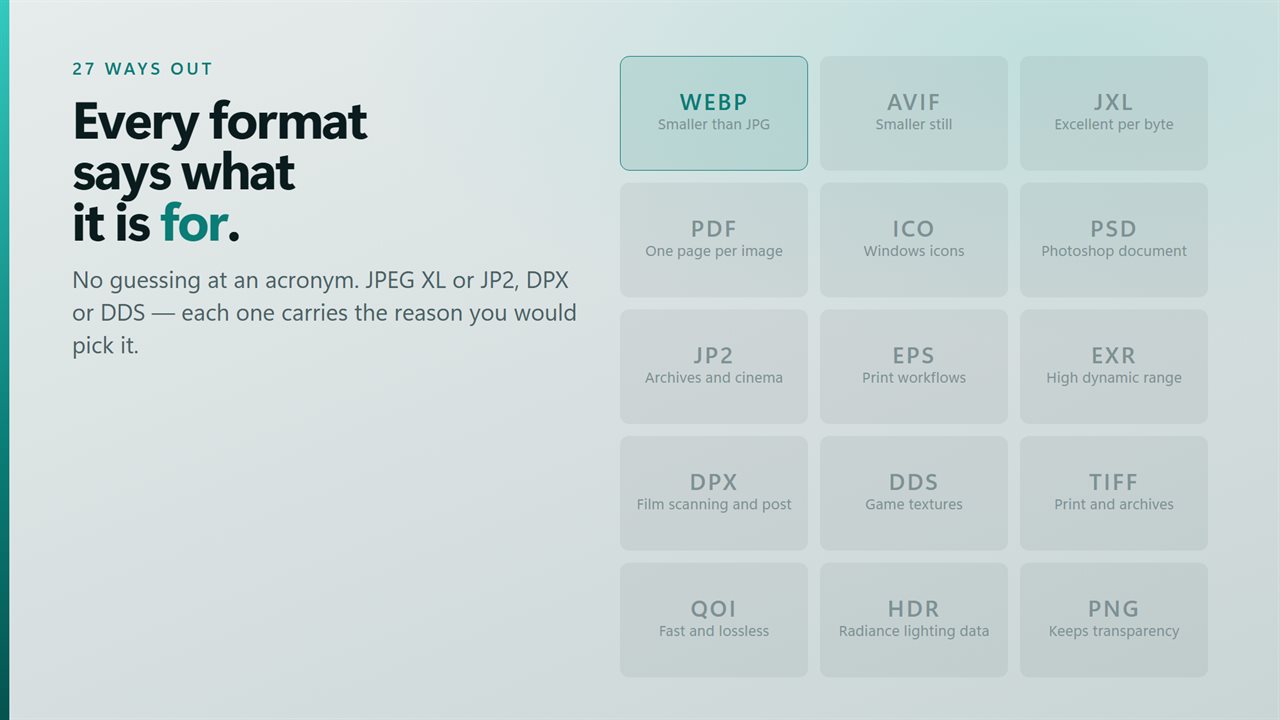
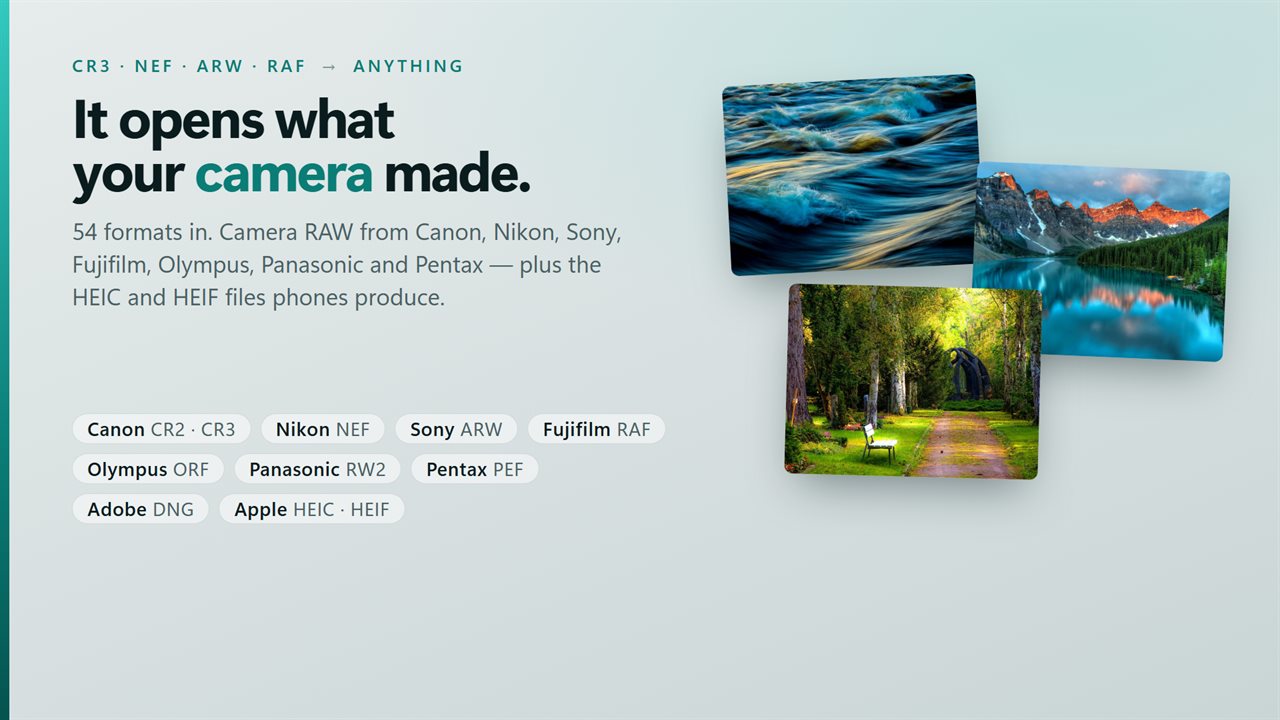
It reads 54 formats. That covers the everyday ones, HEIC and HEIF from phones, RAW from most major camera makers (CR2, CR3, NEF, ARW, RAF, ORF, RW2, PEF, SRW and DNG among them), and specialist files such as PSD, SVG, EXR, DPX and JPEG 2000. It writes 27, from JPG and PNG through WebP, AVIF and JPEG XL to ICO, PDF, TGA, DDS and QOI. JPG, PNG, BMP, GIF, TIFF and TGA output are open to everyone; the other formats carry a PRO badge in the format pane.
The output format is the centerpiece of the window, shown large, with one line under it describing what it is for. AVIF, for example, reads "The smallest of all. Newer, so not everything opens it yet." If you are not sure which to choose, those notes answer it.
How to batch convert images on Windows
- Drop images onto the window where it says Drop images here to convert them, or add them from the command bar.
- Pick the output format in the Output format pane. Files already in that format are pointed out.
- For JPG, WebP, AVIF, JPEG XL and JP2, set Quality between 40 and 100; 90 is the starting point.
- Next to Save, choose Beside the originals, Into a folder…, or Replace the originals.
- Click Convert. Any file that fails is listed with the reason instead of quietly dropping out of the count.
Convert images to JPG, PNG or WebP: picking the right one
- JPG: the smallest choice for photographs, at the cost of a little detail.
- PNG: lossless and keeps transparency, best for screenshots, logos and graphics.
- WebP: smaller than JPG at similar quality and supported by every current browser.
- AVIF and JPEG XL: smaller again, but check that the program you are sending to can open them.
- TIFF: lossless for print shops and archives, with large files.
Photo converter extras: Windows icons, PDF pages and RAW
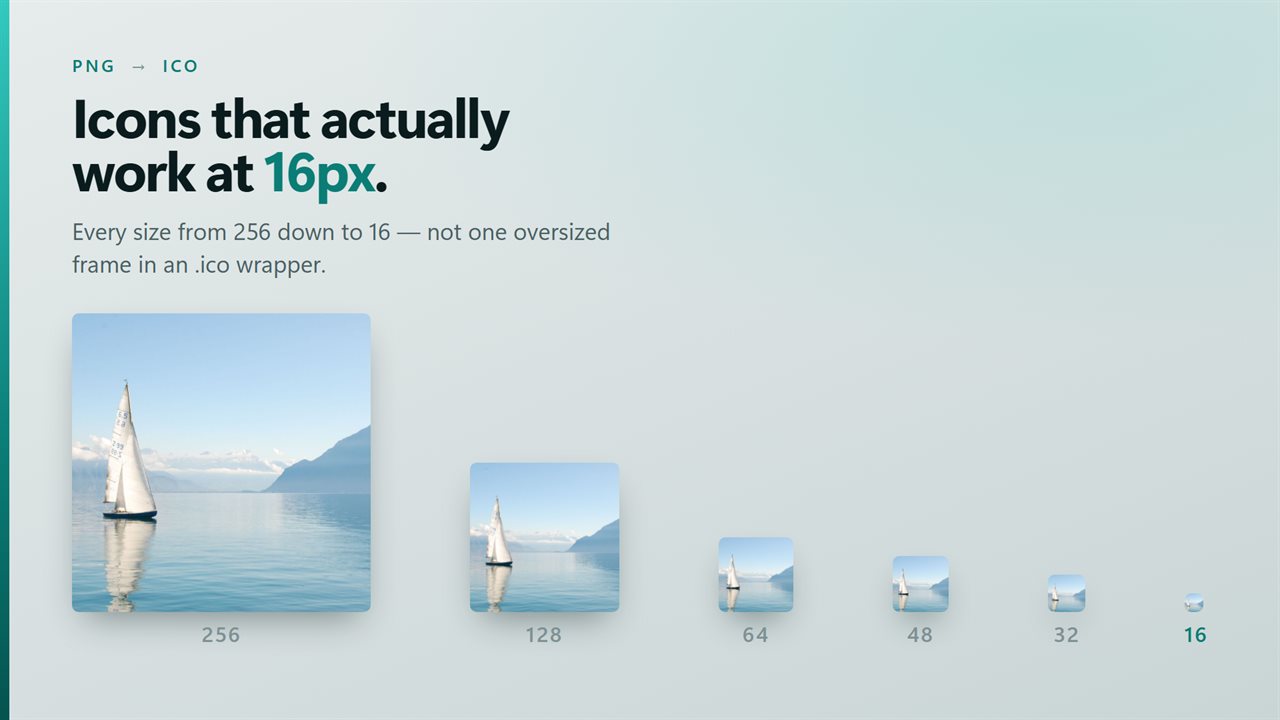
Choosing ICO writes a proper Windows icon containing 256 pixels and every standard size below it, so it stays sharp as a desktop shortcut or in a taskbar. PDF turns each image into its own one-page document for sending or printing.
RAW files are developed into ordinary images, which is what you want when someone simply needs to see the shot. There are no exposure or white-balance controls; this is a converter, not a RAW editor.
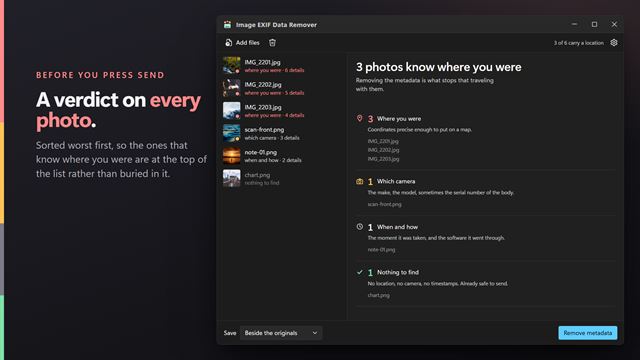
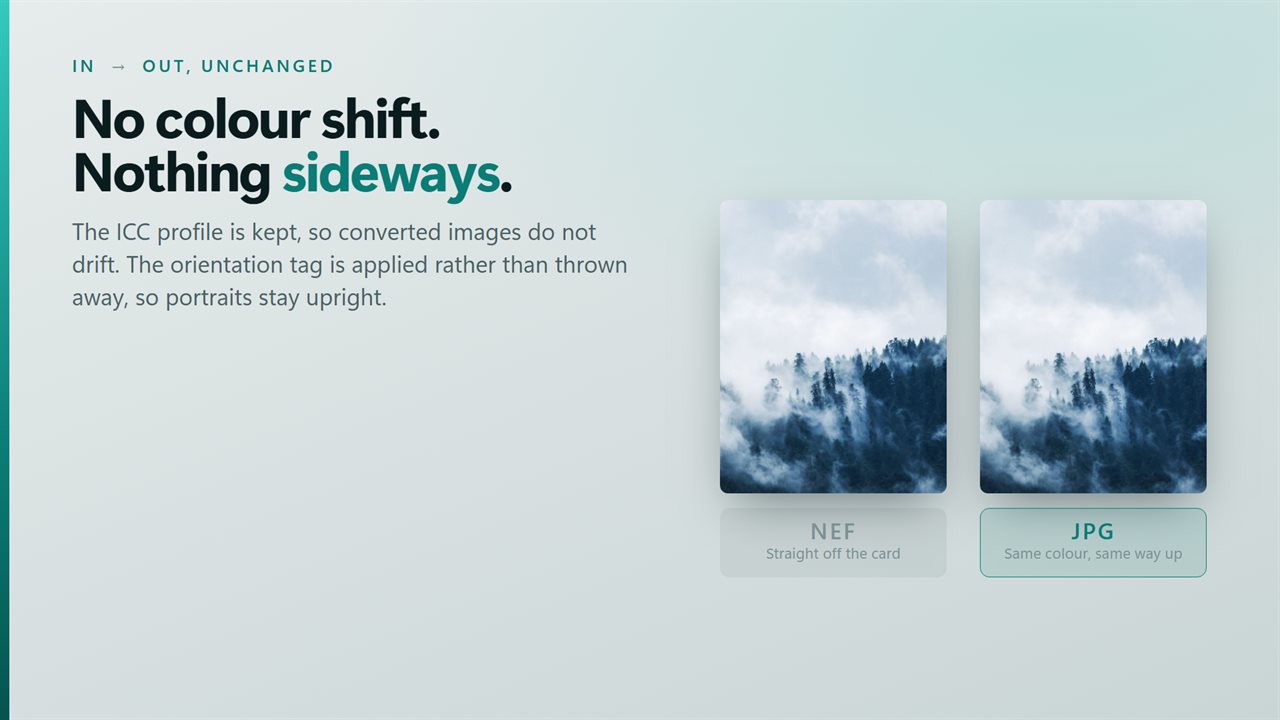
Colors and orientation are handled in every format. Each file keeps its color profile, so skin tones and skies do not shift, and the rotation flag is baked into the picture, which keeps portraits upright. Other metadata, including GPS, is left out of the converted file.