EEvlarSoft

HEIFMagic

Drop several folders of HEIF and HEIC pictures at once, choose one output format and quality, and convert the lot while every file stays filed where it was.

Buy for $2.99
One payment. No subscription.
14-day money-back guarantee.
5.0
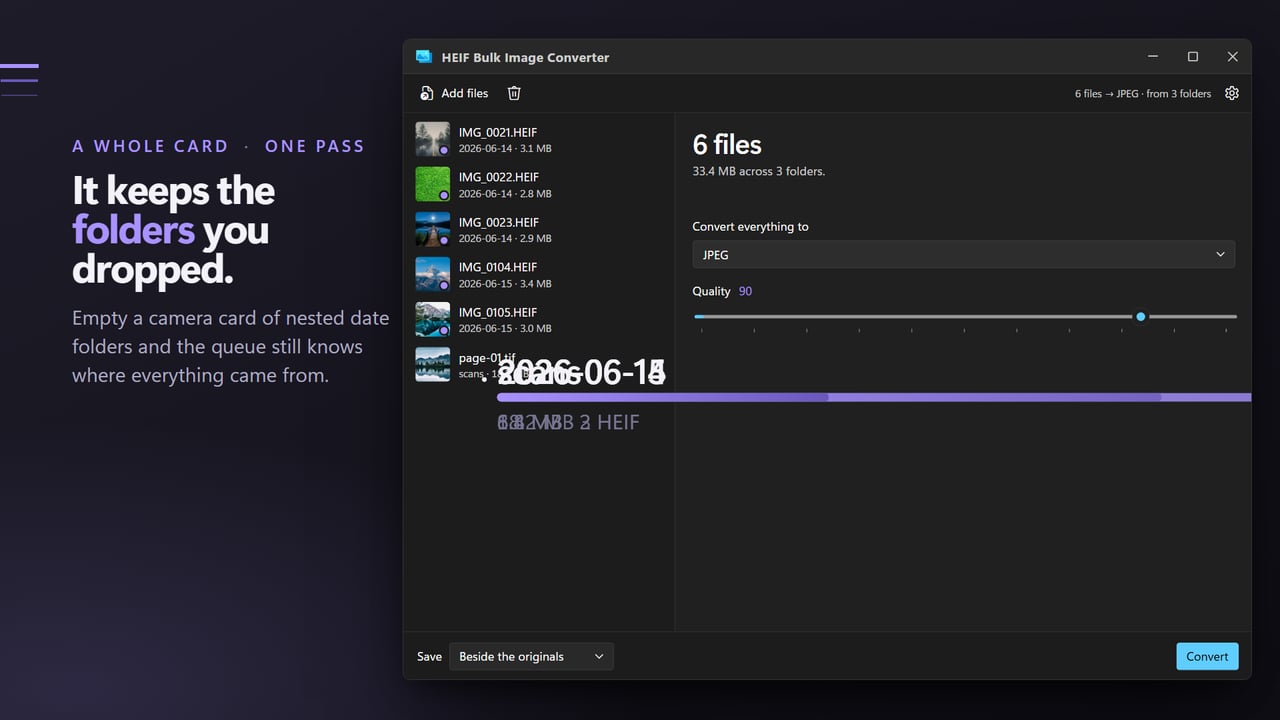
A whole card in one pass, and it keeps the folders you dropped.
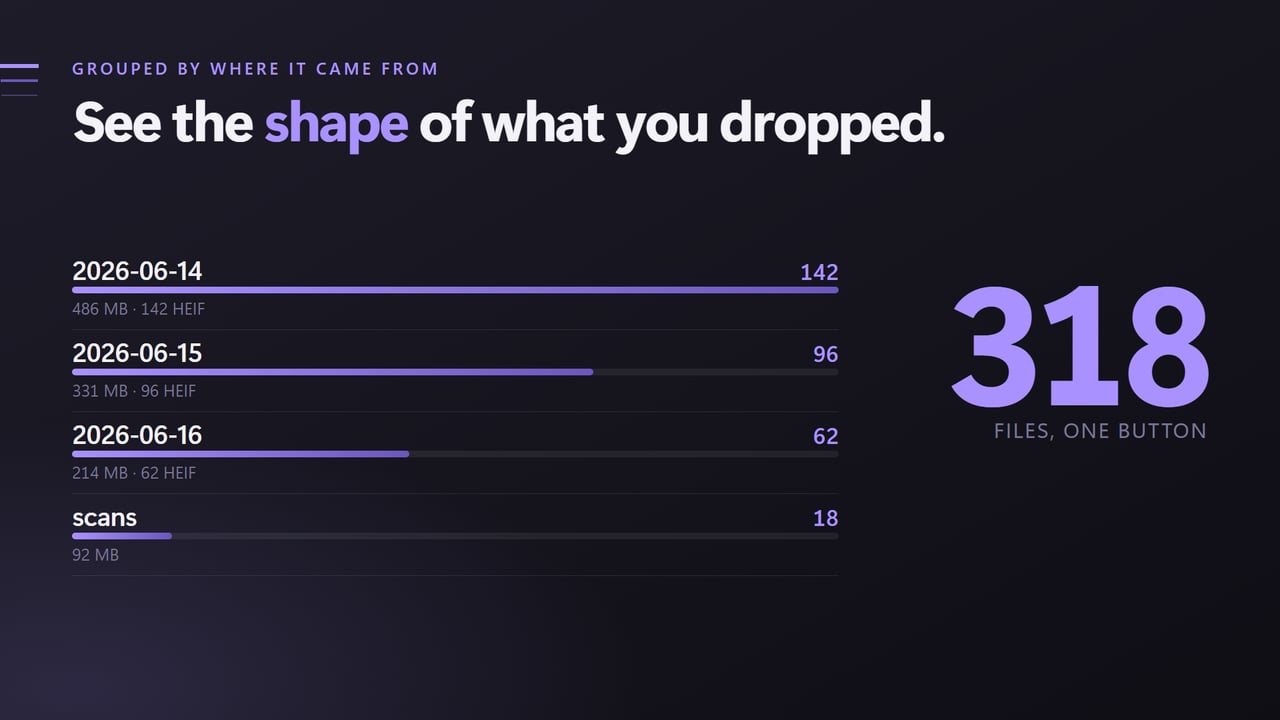
Grouped by where it came from, so you see the shape of the pile.
Hundreds at a time, with no file limit.
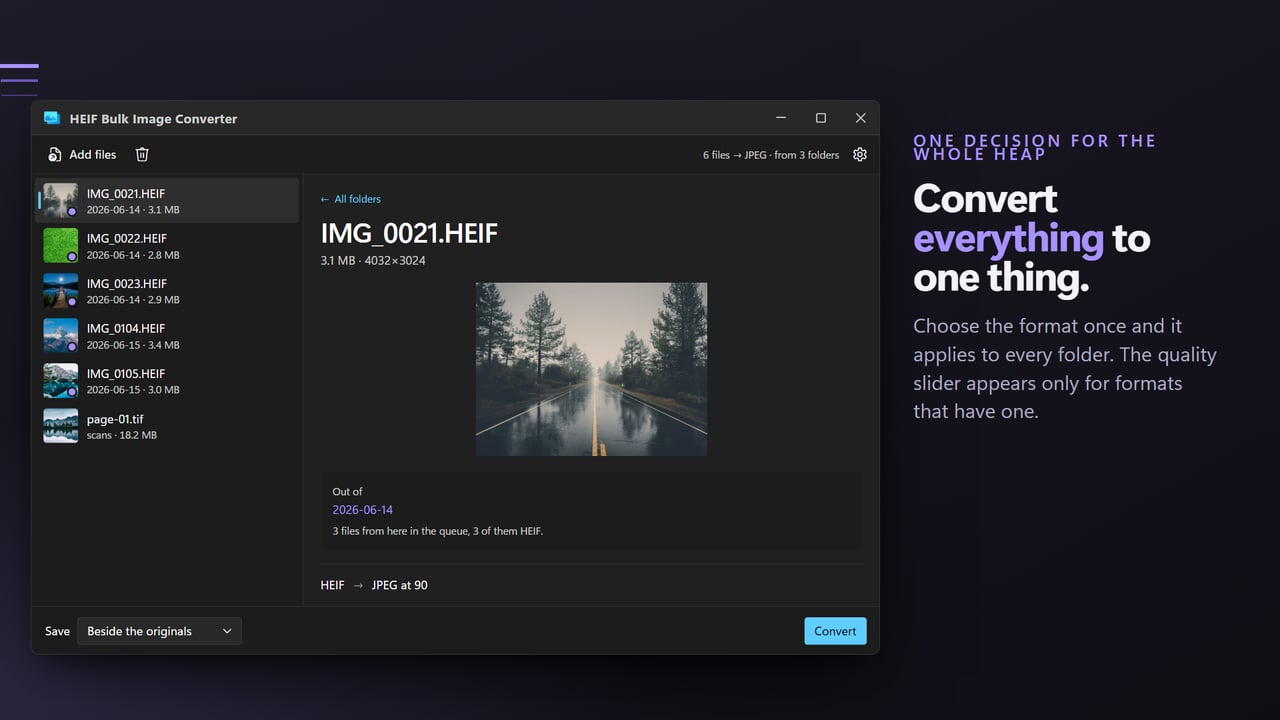
One decision for the whole heap: convert everything to one thing.
A gigabyte of photographs, and none of it uploaded.

A whole card in one pass, and it keeps the folders you dropped.

190,000+downloads of EvlarSoft apps
Signed by EvlarSoftVerified US publisher
14-day money-backNo questions asked
Updates includedNo upgrade fees

Batch convert HEIC to JPG when there are folders of them

Phone backups rarely arrive as one tidy folder. There is a folder per month, one per trip, a few from a partner's phone, and every one is full of HEIC files. Converting them one at a time in a photo viewer is out of the question, and a script that loops over a single directory has to be run again in each one.

HEIF Bulk Image Converter is built for exactly that pile. Drop all the folders together; the queue sorts the files into one stack per source folder, each with its file count, its total size, how many are HEIF, and a bar showing how big it is next to the others. You can see at a glance that the Summer folder holds 600 photos and Receipts holds four before you convert anything.

Pick a format under Convert everything to, set the quality, press Convert. With Beside the originals selected, each converted copy lands in the folder its HEIC came from, so the structure you had is the structure you keep.

How to bulk convert HEIC to JPG

  • Drag one or more folders, or individual photos, onto the window. Each folder contributes the files directly inside it.
  • Check the stacks under All folders to confirm everything you expected is there.
  • Under Convert everything to, choose JPEG. Drag the Quality slider if you want something other than 90.
  • Next to Save, keep Beside the originals, choose Into one folder… to collect everything in one place, or Replace the originals.
  • Press Convert. The summary changes to Done with the number of files written when it finishes.

HEIF to JPG, PNG, AVIF or PDF: eight outputs

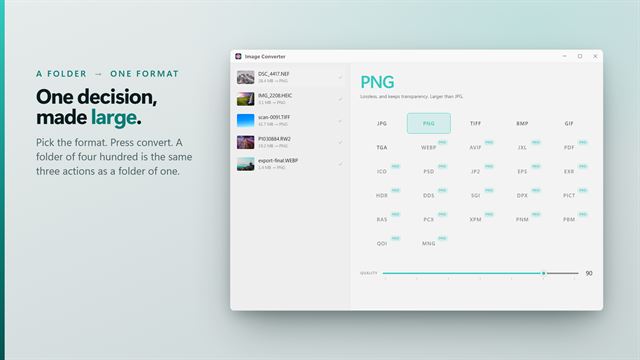
JPEG is the safe pick for sharing and printing. PNG keeps every pixel and suits screenshots or images headed for further editing. WebP and AVIF give the smallest files for the web, with AVIF usually smaller again. TIFF is what many print shops and archive systems ask for, Bitmap and GIF cover older software, and PDF turns each photo into its own one-page document, which is handy when a form wants a PDF upload.

JPEG, WebP, AVIF and PDF share one Quality slider running from 40 to 100. Lower numbers shrink files further; 90 is a good balance for photos.

Collecting a whole library into one folder

Into one folder… asks for a destination when the run starts and puts every converted file there. Phones reuse names like IMG_0001 across years, so when two files would collide, the later one gets a number added rather than overwriting the first. Choosing Replace the originals asks you to confirm, then removes each source only after its new copy has been written.

Strays are fine too. A JPEG or PNG sitting in a phone folder converts in the same run, and each stack's HEIF tally tells you how many of its files were HEIF to begin with, so a folder that was already converted stands out before you press Convert.

Features

  • Converts many folders of HEIF and HEIC files in one batch
  • Queue grouped by source folder, with counts, sizes and a HEIF tally
  • Eight output formatsJPEG, PNG, WebP, AVIF, TIFF, Bitmap, GIF and PDF
  • Quality slider from 40 to 100 for the lossy formats
  • Writes each file back into its own folder by default
  • Into one folder mode numbers clashing names instead of overwriting
  • Confirms before replacing originals
  • Rotation applied to the image so pictures stay upright
  • Accepts JPEG, PNG, TIFF, WebP and RAW images as input too

Questions

Anything else? Ask us

Which formats can it convert HEIC and HEIF photos to?

JPEG, PNG, WebP, AVIF, TIFF, BMP, GIF and PDF. JPEG, WebP, AVIF and PDF have a quality slider from 40 to 100, set to 90 by default.

Can it convert JPG or PNG files to HEIC?

No. HEIC and HEIF can be read but not written, so they are not offered as output formats. Other images, such as JPEG, PNG, WebP, TIFF and AVIF, can be added and converted to any of the eight outputs.

Does it keep the date taken and GPS location from my photos?

No. Converting removes the EXIF data, including the date taken, camera details and location, and keeps only the color profile. Photos still come out the right way up, because the rotation is applied to the picture itself.

Will it convert the photos inside subfolders?

No. Dropping a folder adds only the files directly inside it, not the folders within it. The queue groups the files by the folder each one came from.

Where are the converted files saved?

By default each one is saved beside its original with the same name and the new extension, and the original is kept. You can also save everything into one folder, where a name that clashes gets a number added, or replace the originals, which deletes each one once its converted copy has been written, after asking you first.

Does converting to PDF make one PDF of all the photos?

No. Each photo becomes its own PDF file. Only the first image is taken from a file that holds several, such as a multi-page TIFF or an animated GIF.

How do I convert HEIC photos in subfolders?

Drop the subfolders themselves along with the parent. Each folder adds the files directly inside it, and they all convert in the same run.

Which is smaller, HEIC converted to WebP or to AVIF?

At the same quality setting AVIF is usually the smaller of the two, while WebP opens in more older programs.

Which versions of Windows does it run on?

Windows 10 (version 1809 or later) and Windows 11.

Is it a subscription?

No. HEIFMagic is a one-time purchase of $2.99, and updates are included.

How do I get it?

Buy it on this page and your license key arrives by email. If the button says Notify me, HEIFMagic is not on sale here yet; leave your email and we will tell you when it is.