An XPM viewer for files that open as code in Notepad
XPM, the X11 Pixmap format, dates from 1989 and the X Window System on Unix. Its odd feature is that the file is plain text: a C source fragment with a palette of characters and a grid of rows, one character per pixel. That let programmers paste icons straight into their code, and it is why .xpm files still turn up in Linux icon themes, open-source projects and old window manager skins.
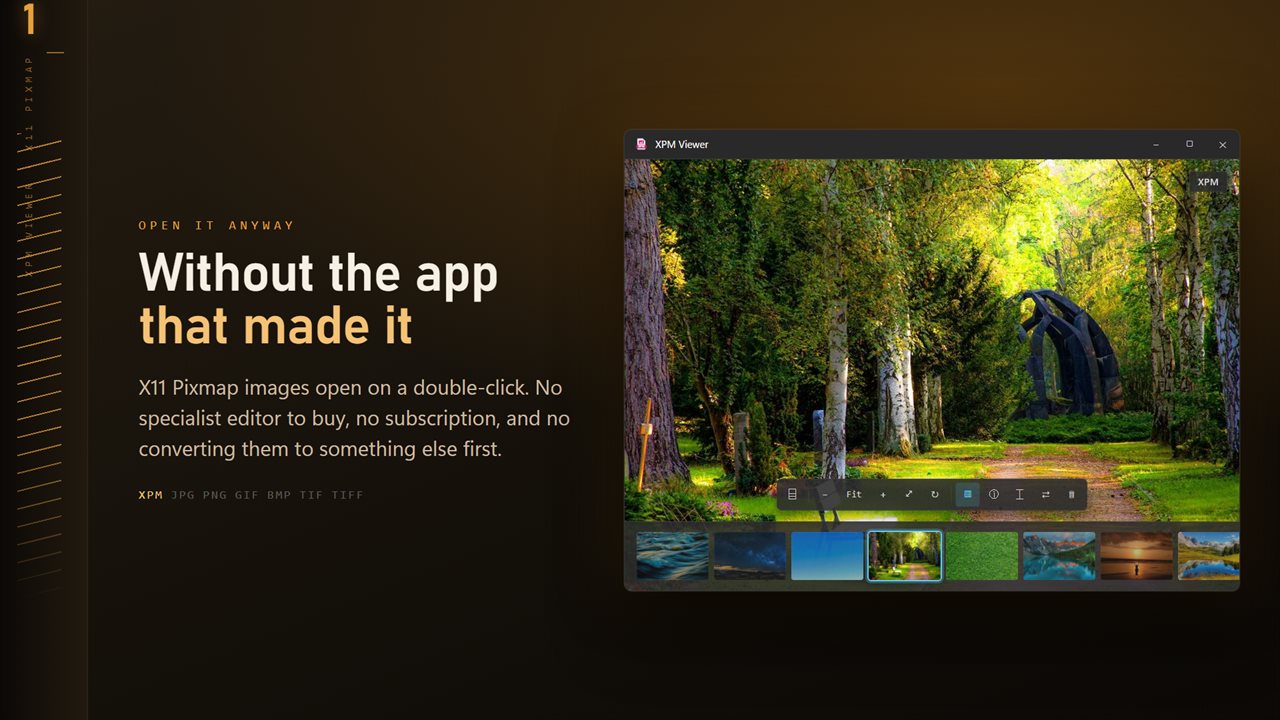
On Windows, double-clicking one usually opens a text editor, and you are left reading an array of quoted strings. An XPM viewer turns that text back into an image. XPM Viewer carries its own decoder for the format: make it the default app for .xpm and the icon appears as a picture.
It reads the file without changing it, so a pixmap that lives in a source tree stays byte for byte the same.
Where XPM files come from
If you have an .xpm, it most likely came out of a Linux or Unix context. Typical sources are the pixmaps folder of an application ported from Linux, an icon pack for an X11 desktop, the resources of an open-source project you cloned, or a file exported from an old drawing program for use as a cursor or toolbar button.
These images are usually small, often 16, 32 or 48 pixels square, with a limited palette and a transparent color for the background.
How to convert XPM to PNG
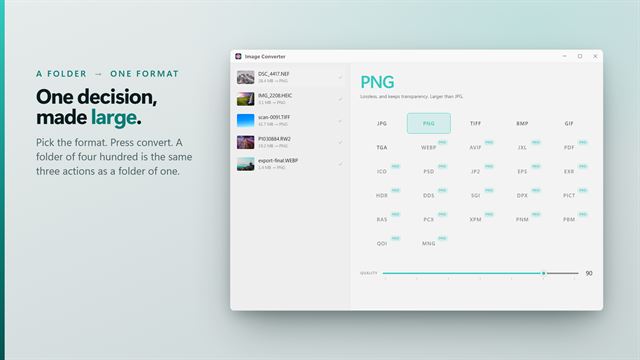
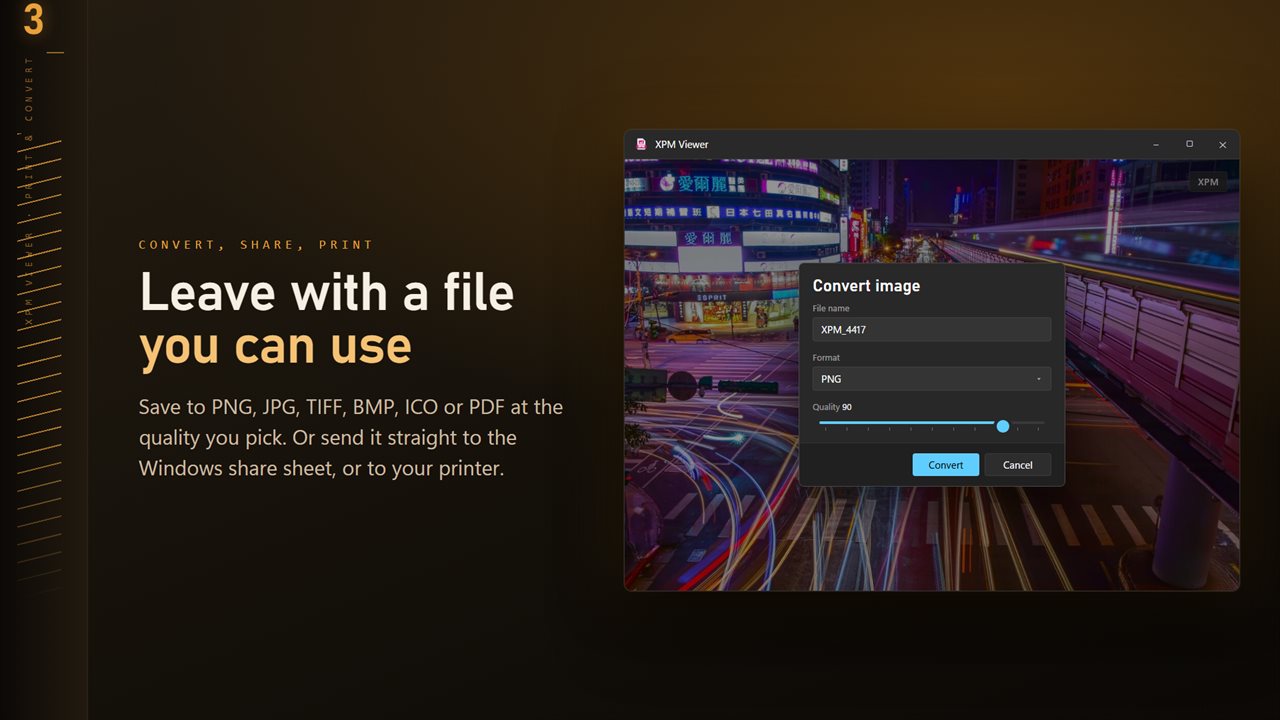
PNG is the right modern home for a pixmap. It is lossless, so every pixel stays exactly the color the palette defined, and it keeps the transparent background. Open the file, click Convert on the command bar, and leave Format on PNG, which is selected first. Choose ICO instead to get a Windows icon at the same size.
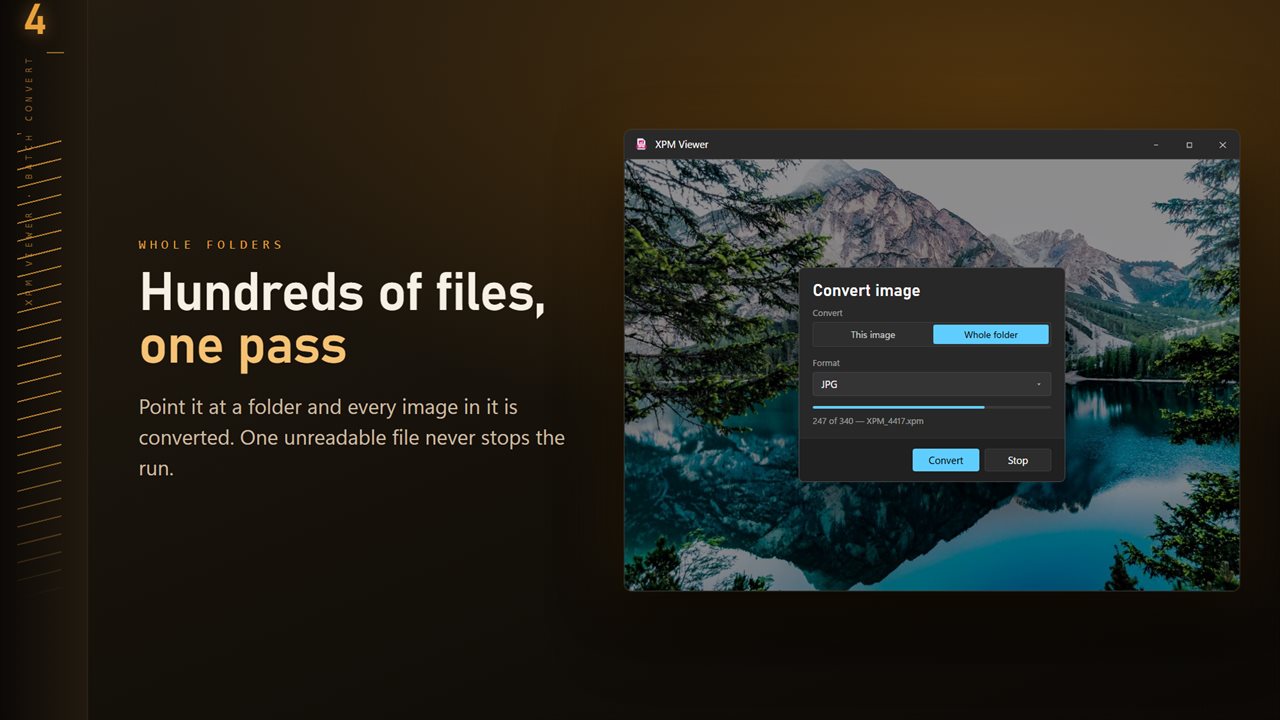
To modernize a whole icon set, set Convert to Whole folder and pick an output folder. The run converts every image the app can read in that folder and carries on past any file it cannot read.
Inspecting tiny icons pixel by pixel
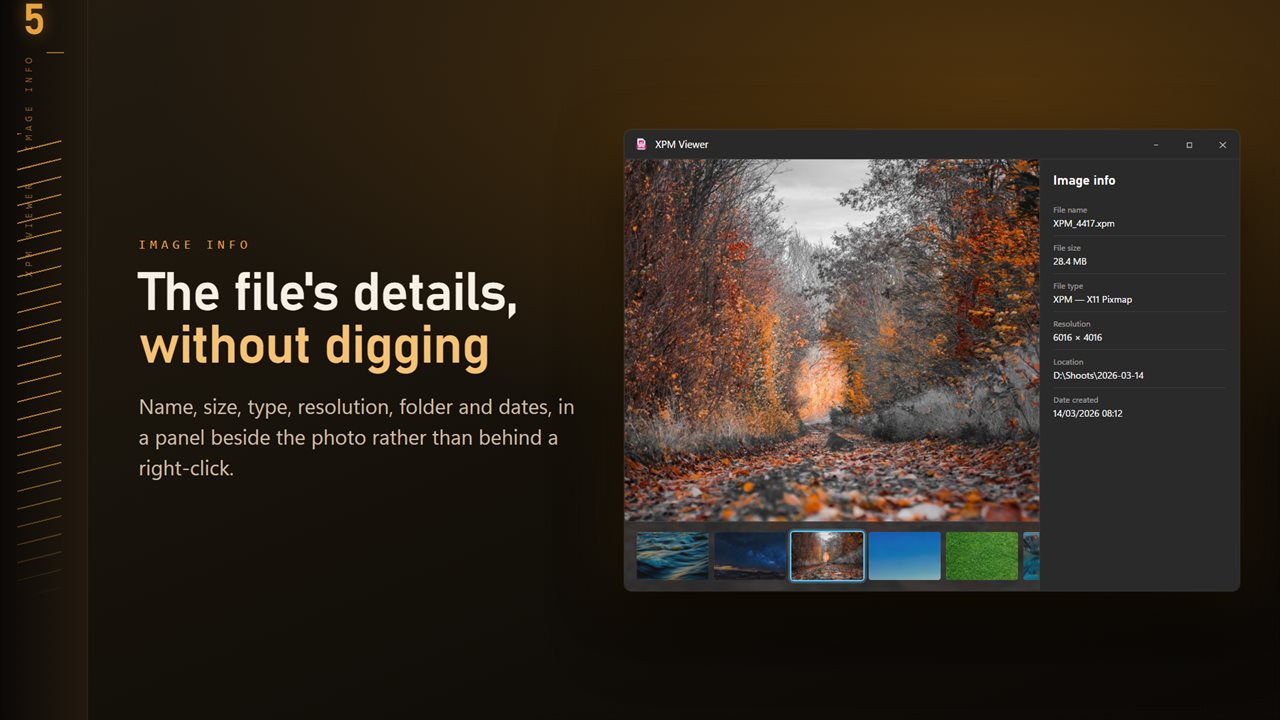
A 16-pixel icon fitted to a large window tells you little, so XPM Viewer opens small images at their real size and lets you zoom right in, up to 3200%, with each pixel drawn as a hard-edged square. Plus and minus step the zoom, 0 snaps to actual size, and dragging pans around the enlarged image. The info panel on I shows the resolution, and the arrow keys move to the next pixmap in the folder.