An ICO converter that shows the icon where Windows draws it
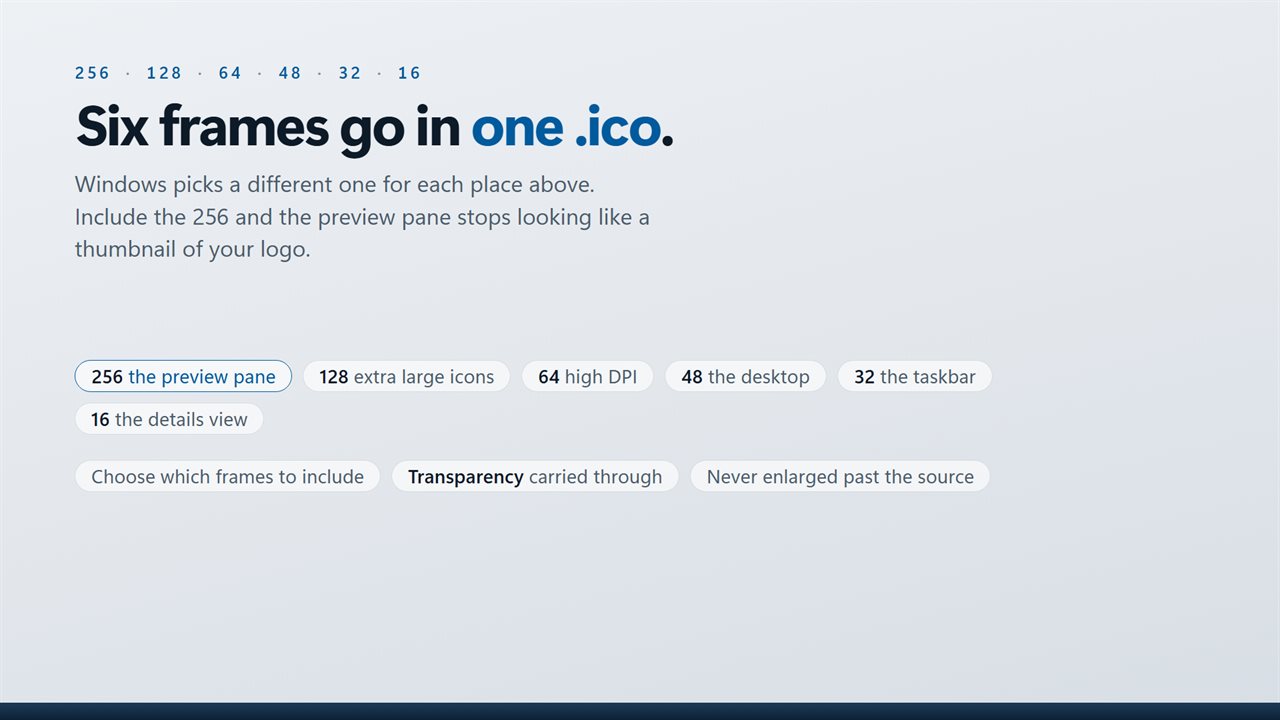
An ICO converter has one job that looks simple: take an image and pack it into an .ico file. The hard part is that Windows never shows an icon at one size. The same file appears at 48 pixels on the desktop, 32 on the taskbar, 16 in a Details list and up to 256 in the biggest icon views. A logo that looks crisp at the top of that range can turn into a smudge at the bottom.
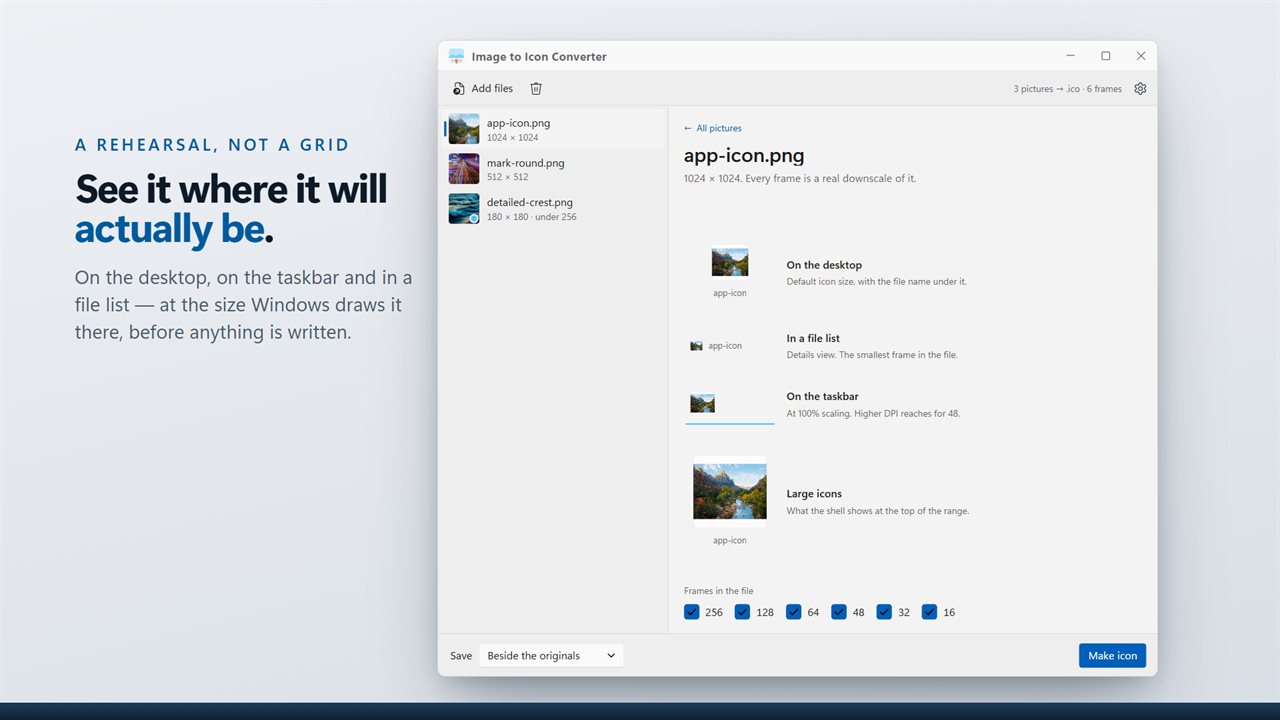
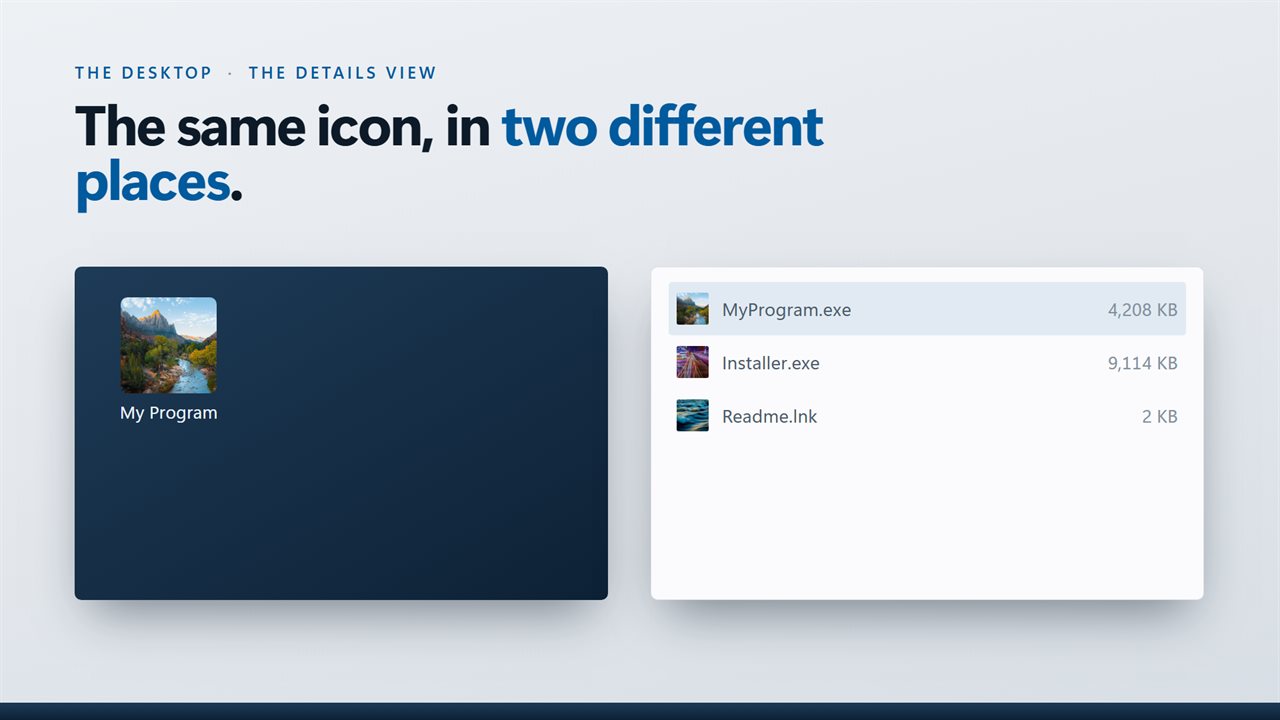
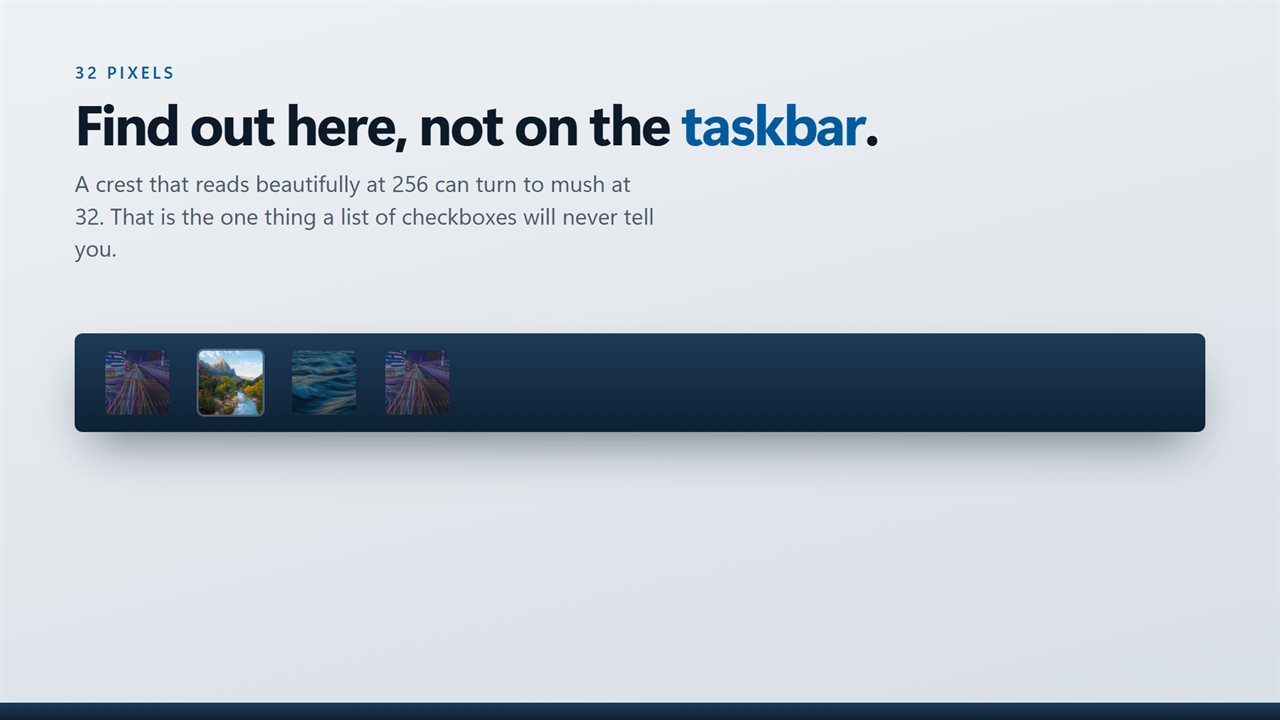
Image to Icon Converter puts that problem on screen before you commit. Add a picture and the side pane, How it will look, draws it in four scenes: On the desktop with the file name underneath, In a file list, On the taskbar, and Large icons. Each scene is labeled with the pixel size it represents, so you can see exactly which frame is letting the design down.
When it looks right, press Make icon. Every picture in the queue becomes its own .ico holding the frames you picked, saved next to the source image or into a folder you choose.
How to make an ICO file from a JPG or PNG
The steps are the same for one picture or fifty.
- Drop the images on the window or click Add a picture. JPG, PNG, WebP, BMP, GIF, TIFF, HEIC, AVIF, PSD and a long tail of other formats are accepted.
- Read each row in the list. It gives the picture's dimensions and flags anything not square or under 256 pixels.
- Click a file to preview that one in the four scenes, and use Frames in the file to tick or untick 256, 128, 64, 48, 32 and 16.
- Pick Beside the originals or Into a folder… under Save, then press Make icon. Finished rows show the size of the new .ico.
Convert an image to ICO without blur or stretching
Two things spoil a converted icon: a source that is too small and a source that is the wrong shape. The list warns about both. A row marked under 256 means the largest frame has to be scaled up from fewer pixels, and the preview says it will look soft. If you can, export your logo at 256 pixels or more before converting.
A wide or tall picture is never squashed to fit. It is centered inside a square and the leftover space is transparent, so a banner-shaped logo keeps its proportions with clear space above and below. If you would rather fill the square, crop the picture first; the not square flag tells you which files need it.
The smaller frames are scaled down from that 256-pixel square, never up, so a large, clean source gives you clean frames all the way to 16. Thin lines and small lettering are the first to go at that size, and the file list scene is where you will spot it.
How to use a custom ICO file on a folder or shortcut
A finished .ico works anywhere Windows lets you choose an icon. For a folder, open its Properties, go to the Customize tab and choose Change Icon, then browse to your file. For a desktop shortcut, the Change Icon button sits on the Shortcut tab of its Properties. Because the file carries several frames, Windows picks the sharp one for each view on its own, including the larger frames used at higher display scaling.
Developers can drop the same file into an app project as its executable icon, and designers can hand a client one .ico instead of a folder of loose PNGs.