EEvlarSoft

Night Vision Color Filter

A red screen filter for Windows that tints and dims every monitor at once, so you can read a star chart or a log without losing your dark-adapted eyes.

Buy for $1.99
One payment. No subscription.
14-day money-back guarantee.
3.3
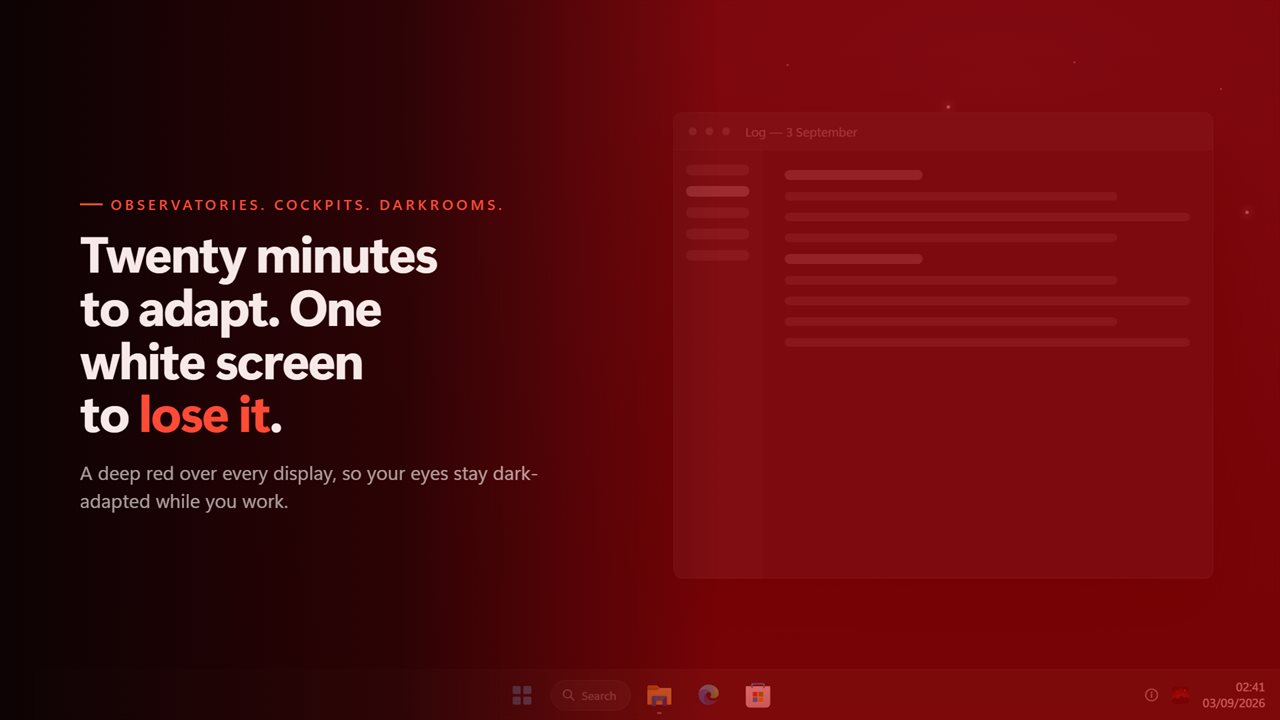
Deep red on every screen, so your eyes stay dark-adapted.
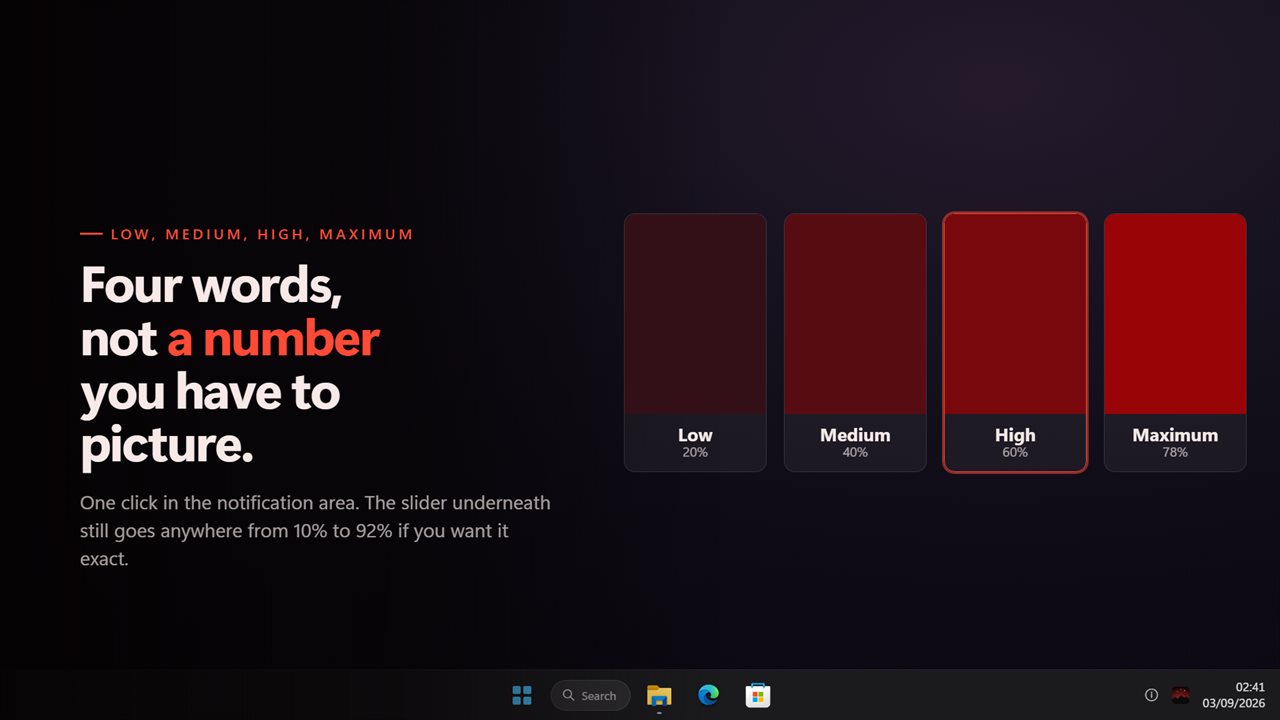
Four levels, in the words you would actually use.
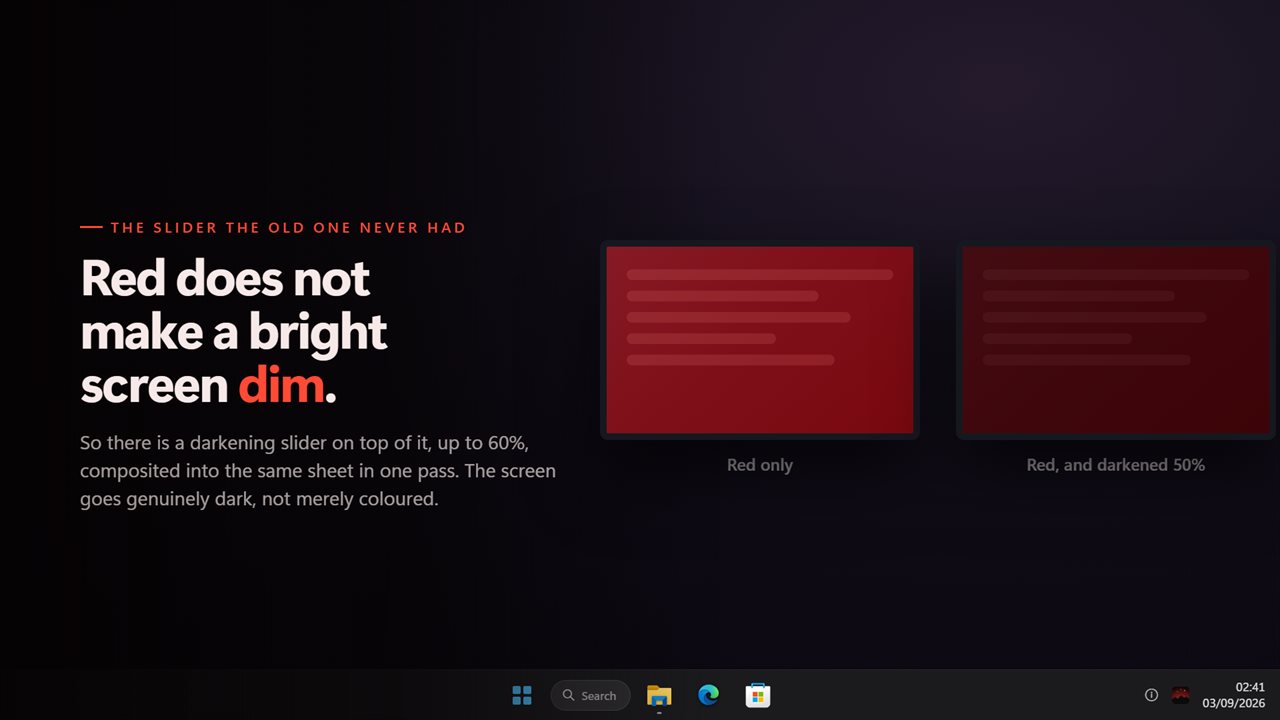
Darkens as well as reddens. Red alone is still bright.
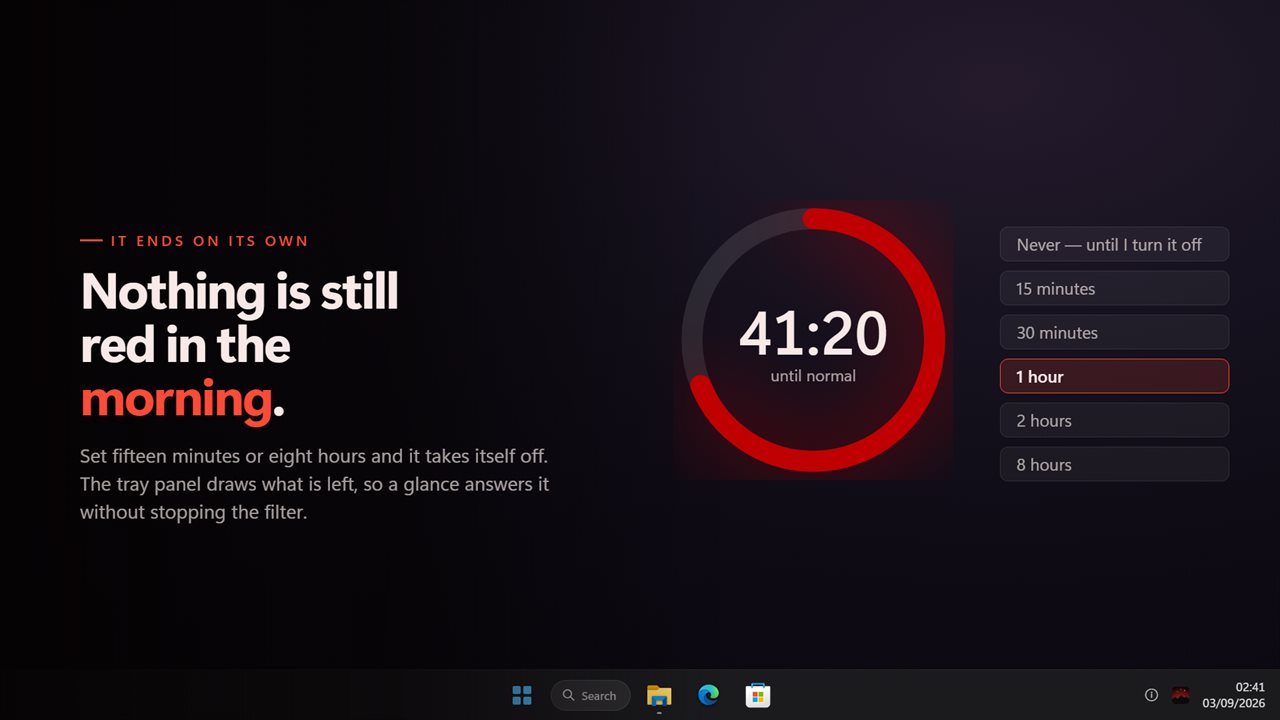
A timer takes it off on its own — and shows what is left.
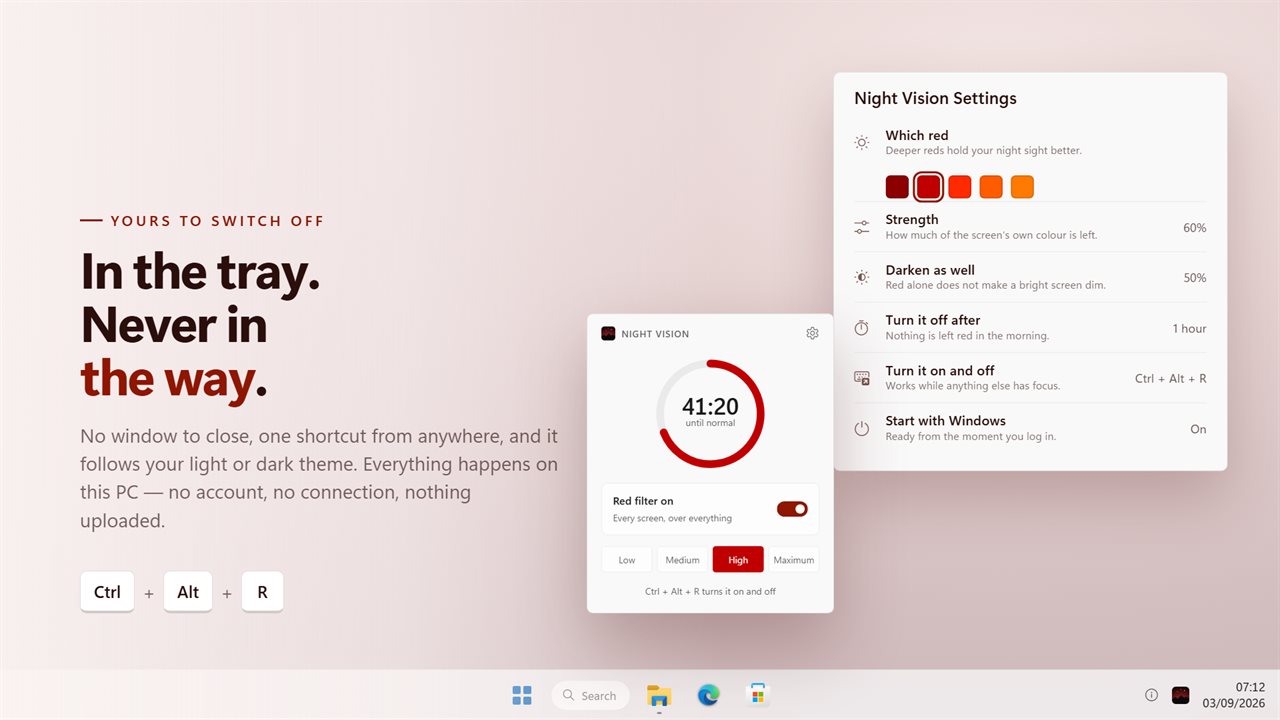
Five reds, a shortcut, and no window to close.

Deep red on every screen, so your eyes stay dark-adapted.

190,000+downloads of EvlarSoft apps
Signed by EvlarSoftVerified US publisher
14-day money-backNo questions asked
Updates includedNo upgrade fees

Why a red screen filter protects your night vision

Your eyes need 20 to 30 minutes in darkness to reach most of their night sensitivity, and one glance at a white laptop screen can set that back. The rods that do the work in the dark respond very little to deep red light, which is why observatories and darkrooms are lit red. A red screen filter brings the same idea to a Windows display.

Night Vision Color Filter lays a red layer over every monitor, taskbar included, and covers a screen you connect later without a restart. The layer is click-through and never takes focus, so star-charting software, capture programs and telescope control panels work underneath it exactly as before.

The usual complaint about software red modes is that the screen ends up bright red instead of dim red. That is why this one has a separate darkening control as well as the tint.

How to make your screen red and dim on Windows

For the darkest result in the field, combine Maximum and some darkening with your laptop's lowest backlight setting. The filter can only darken the picture; the backlight behind it is still yours to turn down.

  • Click the filter's notification-area icon to open the tray panel.
  • Pick a level. Medium suits a dim room; Maximum is for a dark site once your eyes have adjusted.
  • In Settings, use Strength for a level between the presets, and Darken as well to cut brightness while keeping the red.
  • If the shortcut clashes with software you run at the telescope, set your own key under Turn it on and off.

Choosing a shade of red light for night vision

There is a trade-off between darkness and legibility. The deep maroon at the dark end of Which red sends the least light into your eyes and is the one to use during an observing session. The warmer orange-reds at the other end make small text, chart symbols and colored markers easier to tell apart, which helps when you are reading a planning list or captioning images in a dim room rather than looking through an eyepiece.

If you already use a red headlamp or flashlight, Browse lets you pick a color close to it, so your eyes see one red all night instead of two.

A red light filter for an astronomy laptop

A field laptop is usually opened in the dark, which is exactly when a white sign-in screen hurts most. With Start with Windows on, the filter comes up as soon as you sign in, with the level and shade you used last.

Set Turn it off after before a session and the screen returns to normal on its own once you pack up, so the next person to use the PC in daylight does not meet a red desktop.
Features

  • Red layer over every connected monitor and the taskbar
  • Four one-click levels from the tray panel
  • A Strength slider for levels in between, plus a separate darkening control
  • Five preset reds, from deep maroon to orange-red, or any color you pick
  • Gentle fade when it turns on or off
  • Auto-off timer with a countdown ring on the tray panel
  • Global on/off shortcut you can change
  • Click-through layer that never takes focus

Who uses a red screen

Amateur astronomers and astrophotographers

Run planetarium, plate-solving and camera software at the telescope without wrecking your eyes between frames.

Pilots and night crews

Check charts, logs or checklists on a laptop in a dark cockpit, vehicle or control room.

Darkroom and night-shift work

Keep a monitor usable in a room lit only by red light, or tone down a screen during late hours.

What's new in 2.0.8

  • New: a darkening slider on top of the red, because red alone does not make a bright screen dim
  • New: the tray panel draws the time remaining, so you can see how long is left without stopping the filter
  • New: five reds to choose from, or any colour you name. The old version had one
  • New: the filter fades on and off instead of snapping
  • A monitor plugged in while the app is running is covered too, without a restart
  • The four levels keep the strengths the old version actually drew at, so an upgrade looks the same as it did
  • One keyboard shortcut for the whole app, working from anywhere
  • Redesigned settings and tray panel that match Windows 11 and follow the light and dark themes

Questions

Anything else? Ask us

Which shades of red can I use for astronomy or a darkroom?

Five presets, from a dark red (#8B0000) through bright red to a warm orange-red, plus a custom color picker if you want something else. The default is a mid red, #C00000.

What do the Low, Medium, High and Maximum levels mean?

They set the strength of the red layer to 20%, 40%, 60% and 78%. For a value in between, the Strength slider in Settings runs from 10% to 92%.

Can it make the screen darker as well as red?

Yes. Darken as well adds up to 60% black on top of the red, combined into the same layer. It does not lower the monitor's backlight; it darkens what the screen shows.

Can I set it to turn off by itself?

Yes. Turn it off after can be Never, 15 or 30 minutes, 1, 2 or 8 hours, and the tray panel shows the time left. If the PC sleeps past that time, the filter is off when it wakes.

Does it turn every monitor red?

Yes. Every screen gets the same red, including the taskbar, and a monitor plugged in while it runs is covered too. Clicks pass straight through the red layer to the windows underneath.

Is there a keyboard shortcut?

Yes. Ctrl+Alt+R turns it on and off from any app, and you can change the combination in Settings. Turning it on or off fades over about half a second instead of switching instantly.

Is a red screen filter the same as a blue light filter?

No. A blue light filter warms the screen toward amber to reduce evening blue light. A red screen filter turns the display deep red and dim to preserve night vision, which is a stronger and different effect.

Does the red filter change the colors of my astrophotos?

No. It only changes what the monitor shows, so images your camera software captures and saves keep their true colors. Turn the filter off when you judge color balance on screen.

Which versions of Windows does it run on?

Windows 10 (version 1809 or later) and Windows 11.

Is it a subscription?

No. Night Vision Color Filter is a one-time purchase of $1.99, and updates are included.

How do I get it?

Buy it on this page and your license key arrives by email. If the button says Notify me, Night Vision Color Filter is not on sale here yet; leave your email and we will tell you when it is.