EEvlarSoft

Display Calibration Helper

Calibrate your monitor by eye with test charts that spell out what you should see and which button on the monitor's menu to press.

Buy for $2.49
One payment. No subscription.
14-day money-back guarantee.
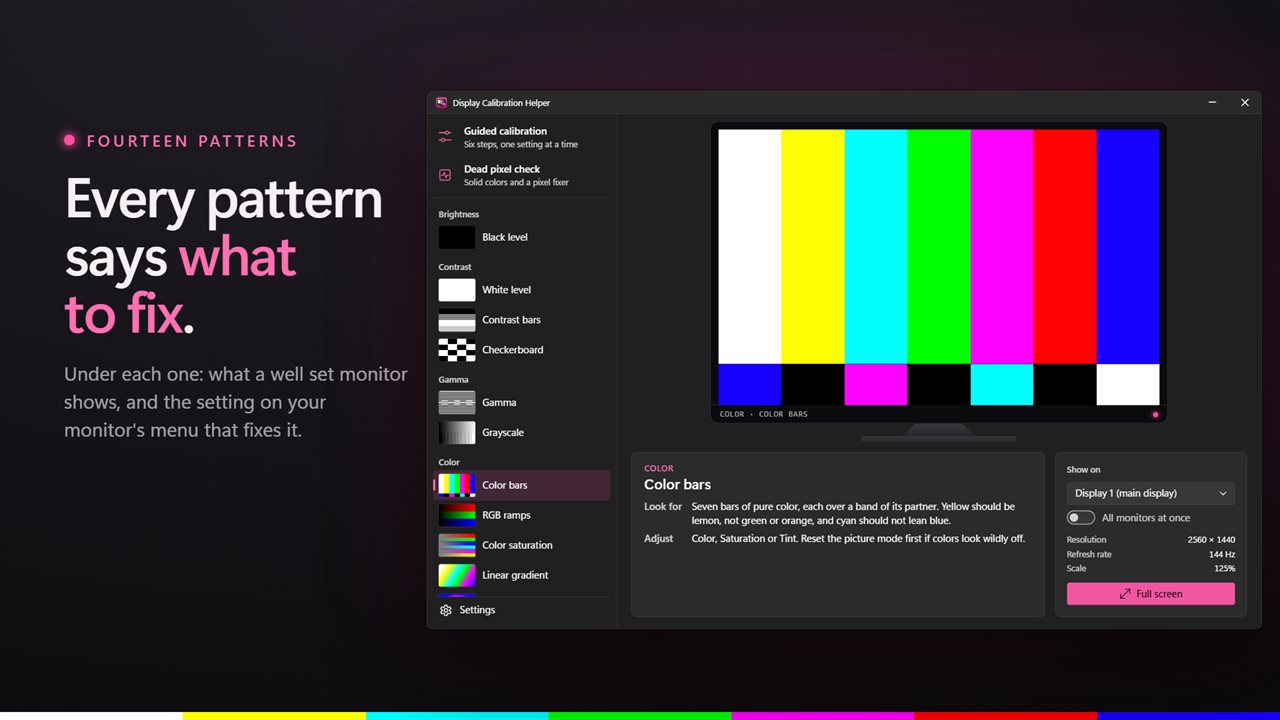
Every test pattern says what to look for and which monitor setting to change.
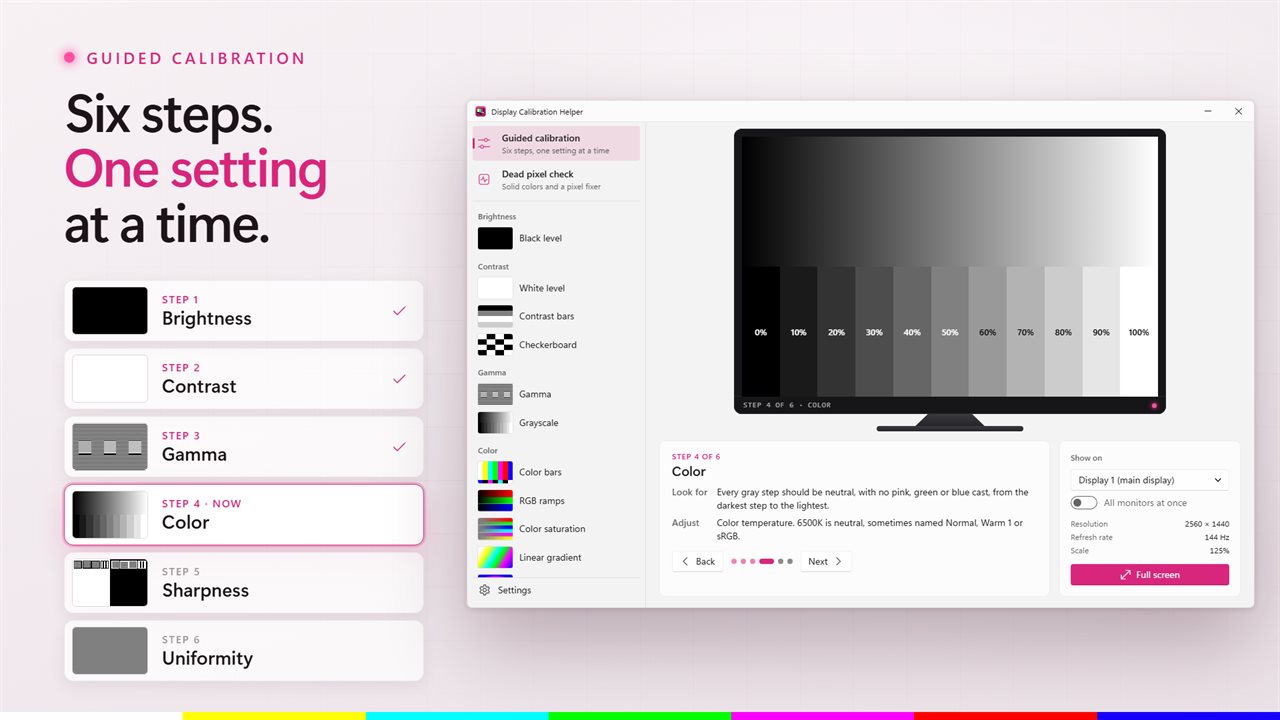
A six-step guided calibration, from brightness to uniformity.
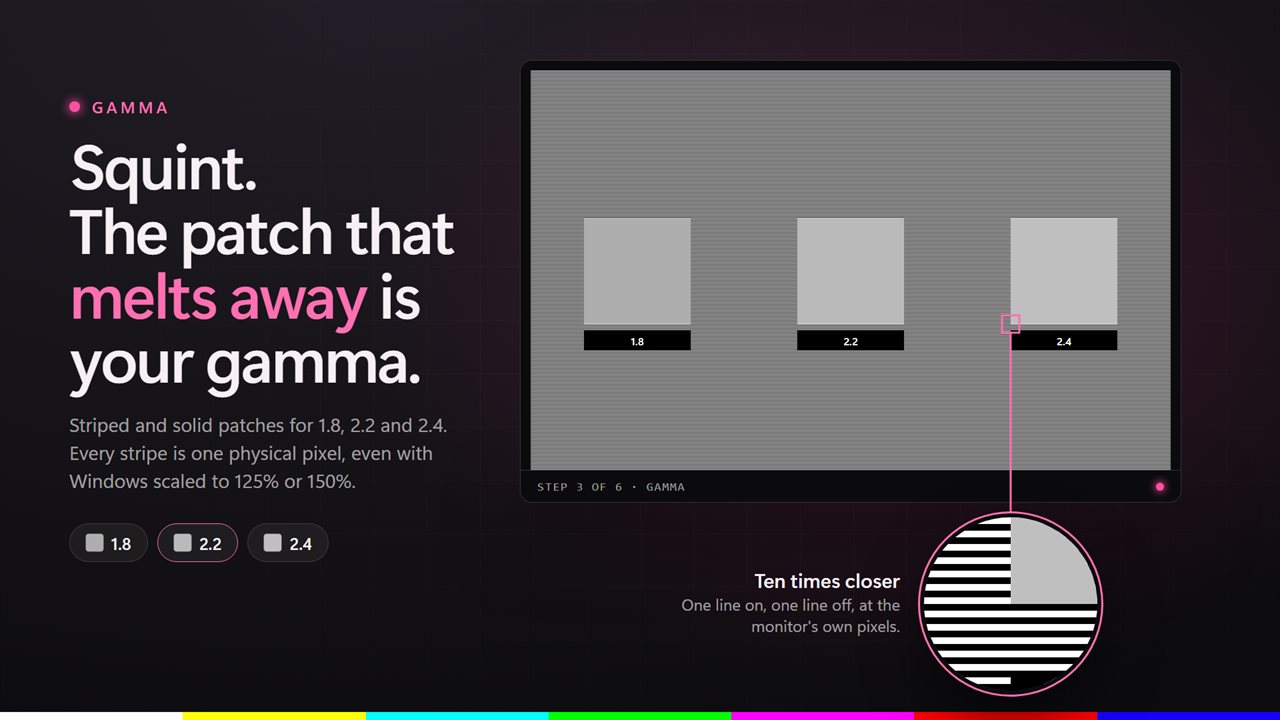
Check gamma against 1.8, 2.2 and 2.4, with lines drawn at the display's own pixels.
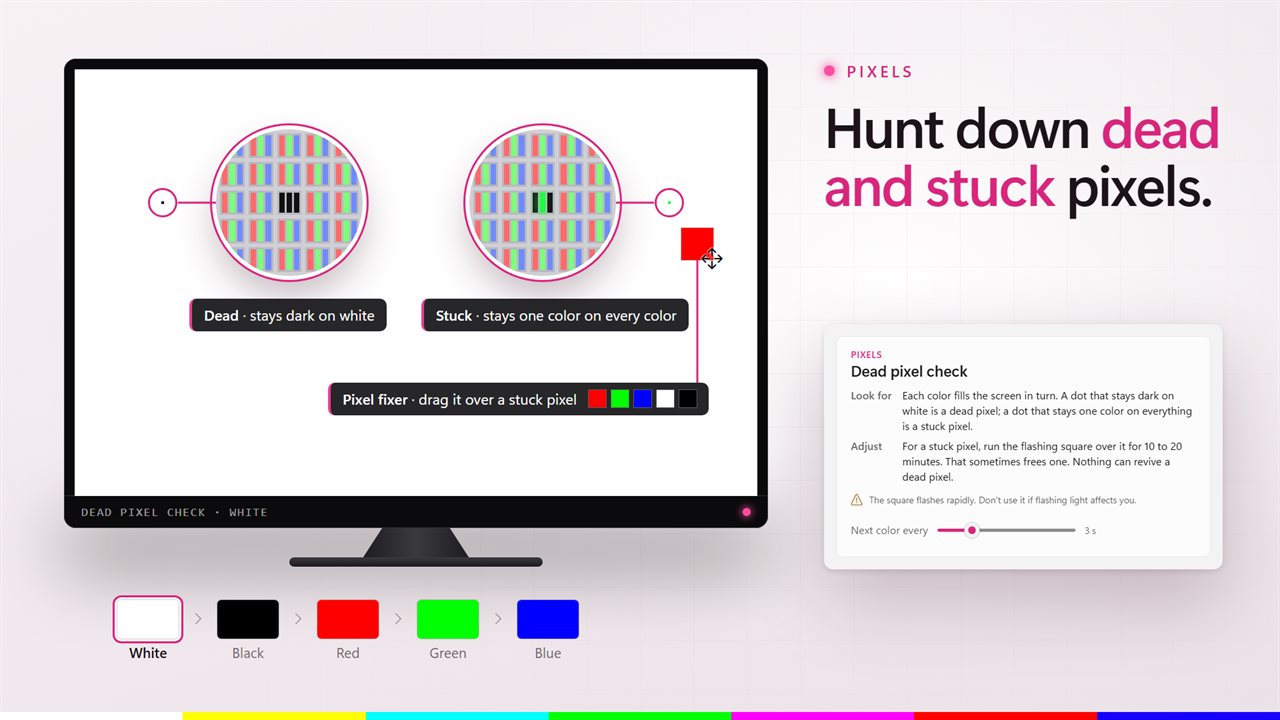
Find dead and stuck pixels, and try the pixel fixer on a stuck one.
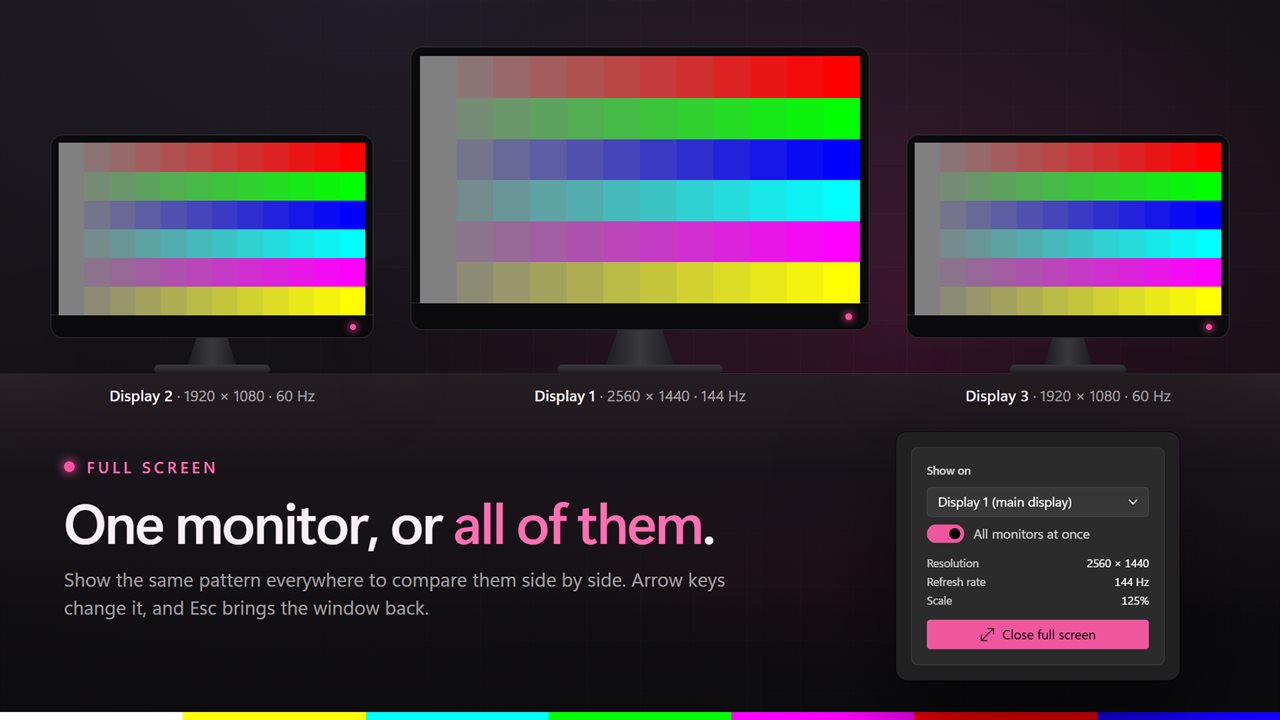
Full screen on the monitor you choose, or on every monitor at once.

Every test pattern says what to look for and which monitor setting to change.

190,000+downloads of EvlarSoft apps
Signed by EvlarSoftVerified US publisher
14-day money-backNo questions asked
Updates includedNo upgrade fees

Monitor calibration without a colorimeter

Full monitor calibration uses a hardware sensor and writes a color profile. Most screens, though, are badly set for simpler reasons: Brightness too high and shadows washed out, Contrast too high and highlights clipped, or a picture mode with a blue tint. You can fix all of that by eye with the buttons on the monitor itself, if you know what to look for.

Display Calibration Helper supplies the what-to-look-for. Every test pattern comes with a caption that says how a well set screen shows it, how a badly set one fails, and which control on your monitor's on-screen menu to change. It does not alter Windows or write a profile; it guides your hands on the monitor's own settings.

Patterns are drawn in your display's physical pixels. On a laptop or 4K screen running at 150% scaling, a single-pixel stripe really is a single pixel, which matters for the sharpness and gamma checks, where a scaled web page can smear fine lines into gray.

How to calibrate a monitor in six steps

Choose Guided calibration and the app walks through one setting at a time. Use Back and Next in the window, or the arrow keys once the pattern is full screen.

  • Brightness, on the Black level pattern: lower Brightness until the background is truly black, then raise it a notch at a time until square 3 just shows.
  • Contrast, on White level: push whites bright, then back off until square 2 or 3 separates from the background. Recheck Brightness if you moved it far.
  • Gamma: sit back, squint and find the patch that blends into its stripes. Aim for 2.2, or pick the sRGB or Standard picture mode.
  • Color: every gray step should look neutral, with no pink, green or blue tinge. 6500K is the neutral color temperature.
  • Sharpness: lines should be crisp with no halo around the letters; most panels look best near their default.
  • Uniformity: step through white, gray and black and look for patches or glow. There is no setting for this; it is the panel.

Monitor test patterns, from black level to banding

Outside the guide, all fourteen patterns are available on their own. They span near-black and near-white steps (twenty of each), contrast bars, a checkerboard, three gamma targets, an eleven-step grayscale, color bars, RGB ramps, color saturation, straight and radial gradients that expose color banding, sharpness and text lines, solid fills for backlight bleed and uniformity, and a grid with a circle for checking overscan and a stretched picture.

Click the monitor preview to go full screen. The caption fades after the delay set under Hide the caption after; H recalls it. Step through patterns with the arrow keys, Page Up and Page Down or the scroll wheel; Esc hides the caption, and a second Esc leaves full screen. Next to the preview you will see the chosen display listed by name, with its resolution, refresh rate and Windows scaling, and you can mirror a single pattern across all connected screens to judge two monitors against each other.

Run a dead pixel test and try to fix a stuck pixel

Dead pixel check cycles the whole display through five flat colors: black, white and the three primaries. Set how long each color stays with Next color every, from 1 to 10 seconds, and press Space to pause on one. A speck that never lights up, whatever the color, is dead. One frozen on a single color is stuck.

Press F for the fixer: a small flashing square you drag over the stuck spot and leave running for a while. It sometimes coaxes a stuck pixel back; nothing revives a dead one. The square flashes quickly, so skip it if flashing light is a problem for you.

What is included

  • Guided calibration through Brightness, Contrast, Gamma, Color, Sharpness and Uniformity
  • Fourteen test patterns, each with a caption naming the monitor setting to change
  • Three gamma targets plus twenty-step near-black and near-white charts
  • Gradients for banding, solid fills for backlight bleed, a geometry grid
  • Pixel-exact drawing on displays scaled by Windows
  • Full screen on a chosen monitor or on all of them together
  • Dead pixel check with a 1 to 10 second color timer and a draggable fixer
  • Remembers the last pattern and monitor you used

What's new in 2.1.3

  • Every pattern now explains what to look for and which monitor setting to change
  • New: a six-step guided calibration
  • New patterns: black level, white level, gamma, sharpness and text, and solid colors for uniformity
  • New: a dead pixel check, with a pixel fixer for stuck pixels
  • Choose the monitor, or show a pattern on all of them at once
  • Patterns are drawn at the display's own pixels, so fine lines stay sharp on scaled displays

Questions

Anything else? Ask us

Does Display Calibration Helper create an ICC color profile or change my monitor's settings?

No. It draws test patterns and tells you which button on your monitor's own menu to change, such as Brightness, Contrast or Gamma. It does not use a colorimeter, write a color profile or adjust anything in Windows.

Which test patterns does it include?

Fourteen, grouped as brightness, contrast, gamma, color, sharpness, uniformity and geometry. They include black and white level steps, gamma patches for 1.8, 2.2 and 2.4, color bars, RGB ramps, gradients for banding, one-pixel sharpness lines, solid colors and an alignment grid. A guided mode walks through six of them in order.

Can it find and fix a stuck pixel?

It can help. The dead pixel check fills the screen with black, white, red, green and blue in turn, changing every 1 to 10 seconds as you set, and pressing F shows a flashing square you can drag over a stuck pixel and leave running. A dead pixel that stays dark cannot be revived.

Are the fine-line patterns accurate when Windows is scaled to 125% or 150%?

Yes. Patterns are drawn at the display's physical pixels, so a one-pixel line stays one pixel wide on a scaled display. Judge the gamma and sharpness patterns full screen, where nothing resizes them.

Can I show a pattern on a second monitor, or on all of them at once?

Yes. Pick the monitor to use, or show the same pattern on every connected monitor at the same time to compare them. If the monitor you picked is unplugged, it uses the primary display.

How do I move between patterns in full screen?

The left and right arrows, Page Up and Page Down, or the mouse wheel change the pattern, and the up and down arrows change the color on the solid colors pattern. H shows or hides the explanation, Space pauses the dead pixel cycle, and Esc returns to the window.

What should I calibrate first on a monitor?

Brightness first, using a black level pattern, then Contrast on a white level pattern, then gamma and color. Changing contrast can shift the black level, so check brightness again afterwards. The guided mode follows this order.

What gamma should my monitor be set to?

2.2 is the usual target for Windows, the web and most games. The app shows striped targets at 1.8, 2.2 and 2.4, and whichever one dissolves into flat gray is roughly where your screen sits.

How do I check for backlight bleed?

In a dim room, show the solid black color full screen and look at the edges and corners for light glowing through. Gray and white reveal uneven patches across the panel.

Which versions of Windows does it run on?

Windows 10 (version 1809 or later) and Windows 11.

Is it a subscription?

No. Display Calibration Helper is a one-time purchase of $2.49, and updates are included.

How do I get it?

Buy it on this page and your license key arrives by email. If the button says Notify me, Display Calibration Helper is not on sale here yet; leave your email and we will tell you when it is.