EEvlarSoft

Quick Brightness Adjuster

Change screen brightness on a laptop or a desktop monitor straight from the notification area, picking one display or all of them.

Buy for $1.99
One payment. No subscription.
14-day money-back guarantee.
3.9
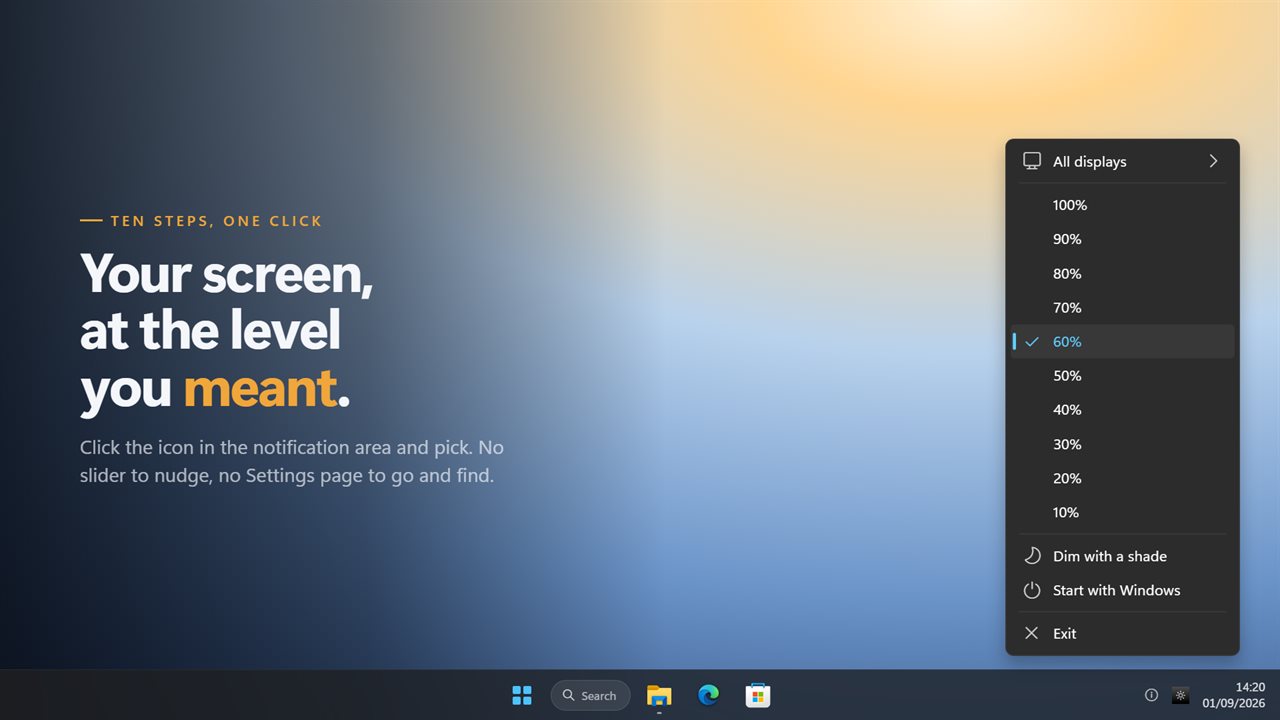
Ten brightness steps, one click away in the notification area.
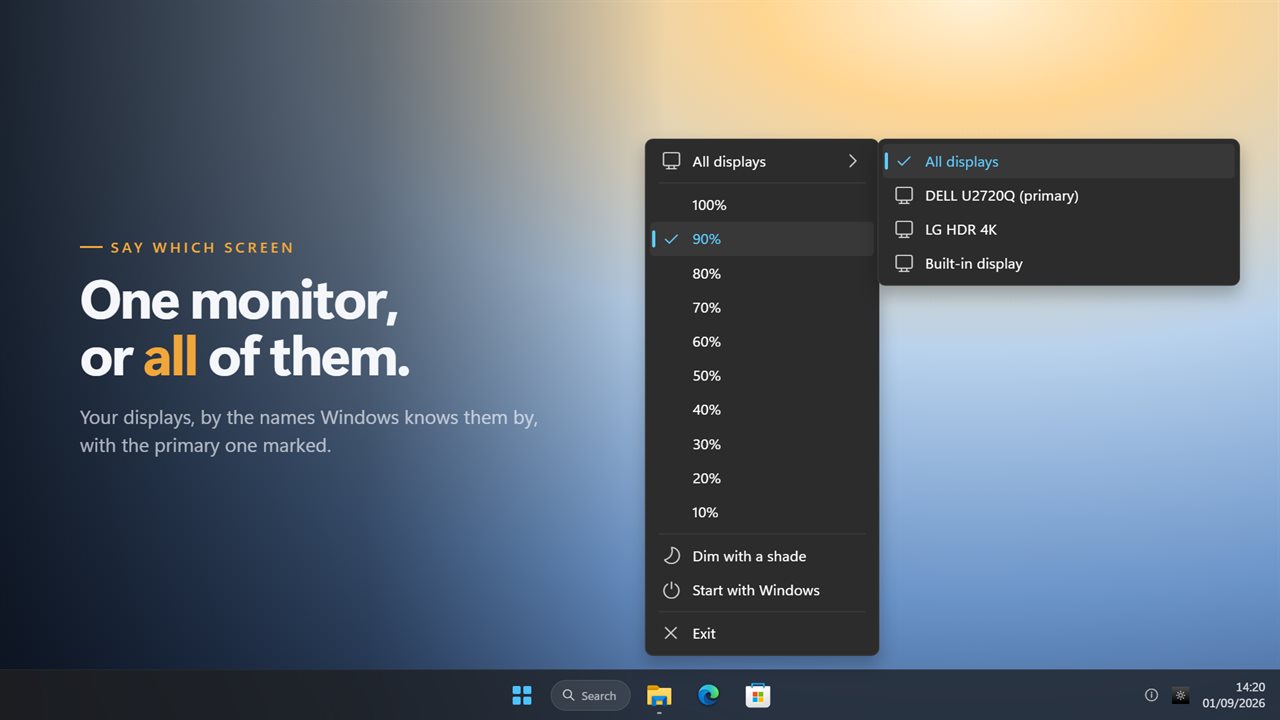
Point it at one display or at all of them, by name.
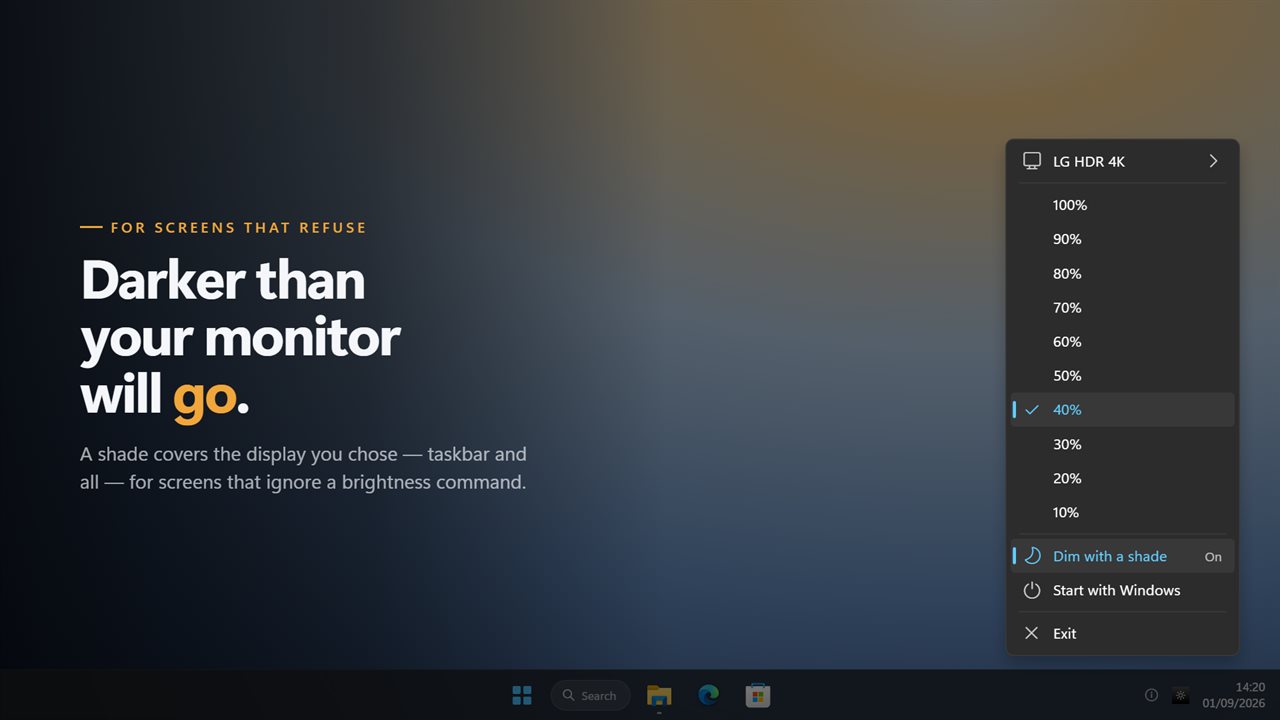
A shade takes a screen darker than its own backlight will go.
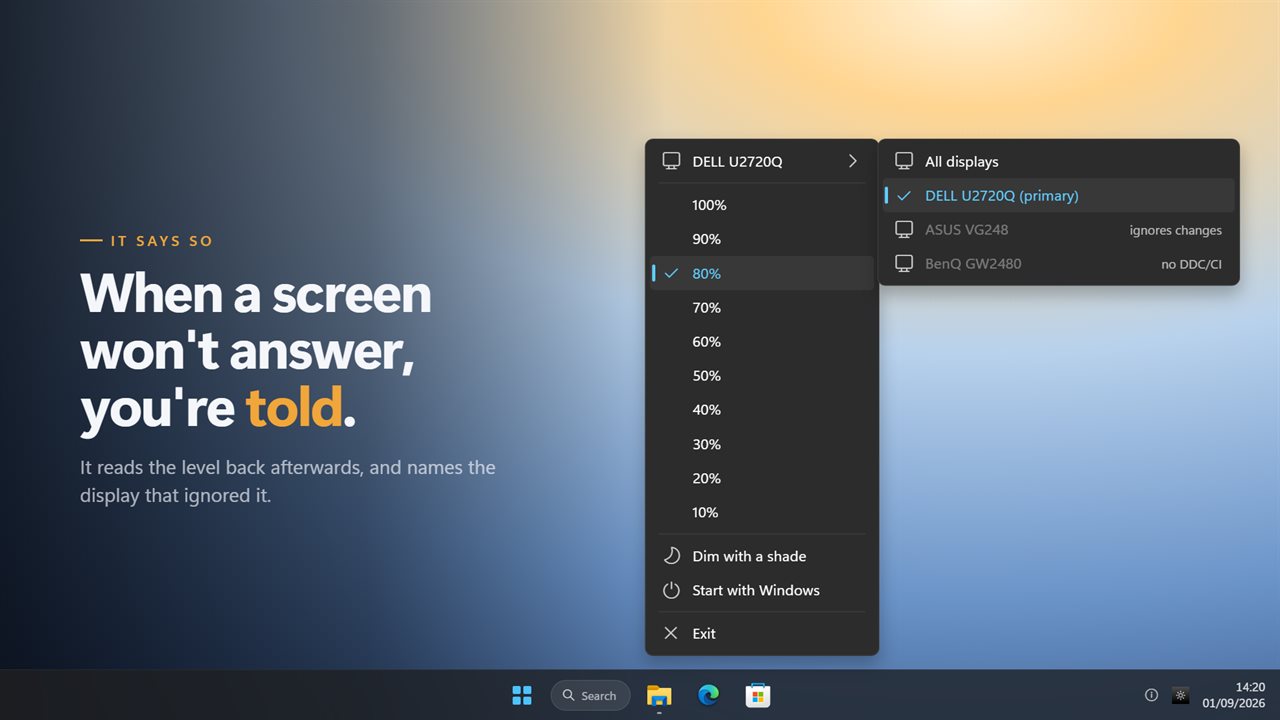
When a monitor ignores a change, it says so instead of failing quietly.
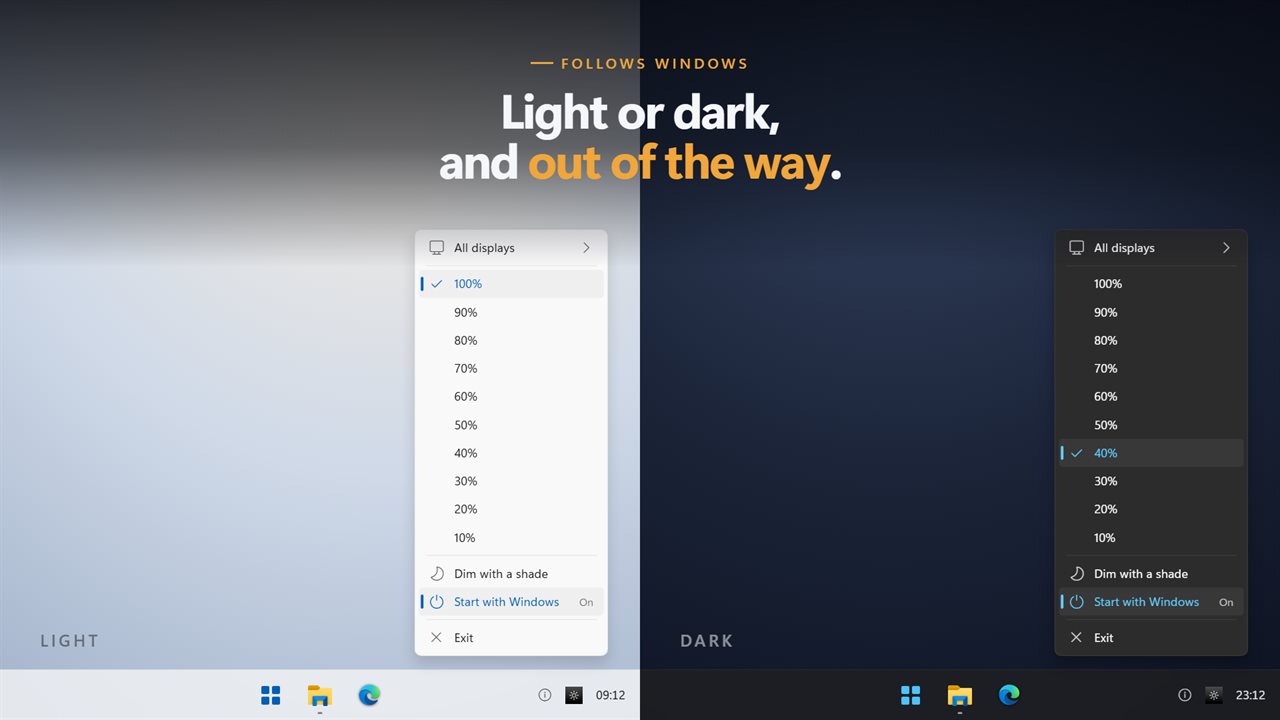
Follows the Windows light and dark themes, and stays out of the way.

Ten brightness steps, one click away in the notification area.

190,000+downloads of EvlarSoft apps
Signed by EvlarSoftVerified US publisher
14-day money-backNo questions asked
Updates includedNo upgrade fees

Screen brightness control that reaches desktop monitors

Windows gives a laptop a brightness slider, but on a desktop PC the slider is often missing because the setting only talks to built-in panels. Quick Brightness Adjuster is screen brightness control for both. External monitors are set over DDC/CI, the same channel the monitor's own buttons and menu use, and a laptop panel goes through the Windows brightness control it already relies on.

Click the tray icon and the levels are right there in a short menu, no Settings page and no slider to fiddle with. Pick one and the screen changes on the spot; the tick moves to wherever the display now says it is.

On a desk with two or three screens, a row above the levels names the display they act on. Leave it on All displays to dim the whole desk together for the evening, or point it at the one monitor beside a window that catches the afternoon sun.

How to adjust brightness on a monitor from Windows

The tick is your test. If it lands on the level you clicked, the monitor accepted the command. If it snaps back to the old value, the monitor heard the request and refused it, which is a monitor setting to look for rather than a fault in Windows or the cable.

  • Check that DDC/CI is turned on in the monitor's own on-screen menu. Some ship with it off, and it is sometimes labeled External control.
  • Connect the monitor directly where you can. Some docks and USB hubs do not carry DDC/CI.
  • Click the Quick Brightness Adjuster icon in the notification area.
  • If you have several screens, open the display row and pick the one to change, or All displays.
  • Click a level. The tick moves to what the monitor now reports.

When the monitor ignores brightness commands

Plenty of monitors refuse DDC/CI, or accept a command and quietly do nothing. The menu tells you which case you are in. A display marked ignores changes answered but did not move. A top line such as 2 displays found, none accept brightness means nothing on the desk is listening, usually because DDC/CI is off in every monitor menu or a dock is in the way.

In either case, switch on Dim with a shade. A dark, click-through layer covers the chosen display, taskbar included, and the same ten levels set how deep it goes. Your mouse and windows work through it normally, and the monitor's own settings stay as they were.

Make the screen darker than the lowest brightness

The shade has a second use: going below the dimmest level a monitor's backlight allows. At night, or in a dark room, a panel at its minimum can still be too bright. With the shade on, 10% sits well below that floor without changing the monitor's settings, and turning the shade off brings the picture straight back.

The shade is remembered, so it comes back on its own the next time the app starts, and choosing Exit from the tray menu lifts it straight away. That makes it safe to leave on for a whole evening of reading or late work.

What it does

  • Ten brightness levels from 100% to 10% in a tray menu
  • External monitors controlled over DDC/CI
  • Laptop built-in panels controlled through Windows
  • All displays at once, or a single chosen display
  • Each display named as the monitor reports it, primary flagged
  • A tick on the level the screen actually reports
  • A per-display warning when a command has no effect
  • A click-through shade for monitors that cannot be dimmed, covering the taskbar
  • Start with Windows, and a menu that follows the light or dark theme

What's new in 2.0.3

  • New: external monitors can be dimmed. The old version only ever reached the panel built into a laptop, so on a desktop nothing happened and nothing said why
  • New: choose which display the brightness levels act on, or leave it on all of them. They are named the way Windows names them, and the primary one is marked
  • New: when a display ignores a change, the app says so and names it. Errors used to be swallowed in silence
  • The shade now covers the whole screen including the taskbar, instead of stopping at it and leaving a lit strip
  • The shade goes on the display you chose rather than on every screen
  • The shade now clears completely at 100%. It used to leave a veil over the screen even at full brightness
  • Turning the shade off and on again no longer leaves dead windows behind, and Exit takes the shade down and removes the icon properly
  • Redesigned menu that matches Windows 11 and follows the light and dark themes

Questions

Anything else? Ask us

Can it change the brightness of an external monitor on a desktop PC?

Yes, if the monitor supports DDC/CI, the control channel its own on-screen menu uses. Some monitors ship with DDC/CI switched off in their menu, and some hubs and docks do not pass it through; in those cases the display is listed as not accepting brightness.

Does it work on a laptop's built-in screen?

Yes. A built-in panel is set through the same Windows brightness control the laptop itself uses, and a laptop with an external monitor attached can have both adjusted.

What brightness levels can I pick?

Ten steps from 100% down to 10%, in 10% increments, from the tray menu. There is no slider and no keyboard shortcut. The tick sits on the level the display reports, so it stays right after you use the laptop's own brightness keys.

Can I adjust one monitor without changing the others?

Yes. Choose All displays or a single display from the menu. Displays are listed by the name the monitor reports, and the primary one is marked.

What if my monitor ignores brightness commands?

After each change it reads the level back, and a display that did not move is marked "ignores changes". For those screens, Dim with a shade puts a click-through black layer over the display you chose, including the taskbar. The shade never goes fully black, and at 100% it is removed completely.

Does the shade change my monitor's real brightness?

No. It darkens the picture on top of whatever the backlight is set to and leaves the monitor's own setting alone. It comes back the next time the app starts, and Exit takes it down.

Why is there no brightness slider on my desktop PC?

The Windows slider controls built-in laptop panels. Most external monitors are only reachable over DDC/CI, which Windows does not reliably offer in Settings. Quick Brightness Adjuster sends those commands for you.

How do I enable DDC/CI on my monitor?

Open the monitor's on-screen menu with its physical buttons, look for an entry named DDC/CI or External control, and turn it on. If the monitor has no such option, or a dock sits between it and the PC, use Dim with a shade instead.

Which versions of Windows does it run on?

Windows 10 (version 1809 or later) and Windows 11.

Is it a subscription?

No. Quick Brightness Adjuster is a one-time purchase of $1.99, and updates are included.

How do I get it?

Buy it on this page and your license key arrives by email. If the button says Notify me, Quick Brightness Adjuster is not on sale here yet; leave your email and we will tell you when it is.

Prefer widgets? The Brightness widget on WidgetSpark does a similar job, alongside over 100 other desktop widgets in one app.

More from EvlarSoft