EEvlarSoft
The Steps Recorder replacement

Step Guide Recorder

Do a task once while it records, and get back a numbered how-to guide with a written instruction and a marked screenshot for every step.

Buy for $4.99
One payment. No subscription.
14-day money-back guarantee.
Do a task once and get a step-by-step guide.
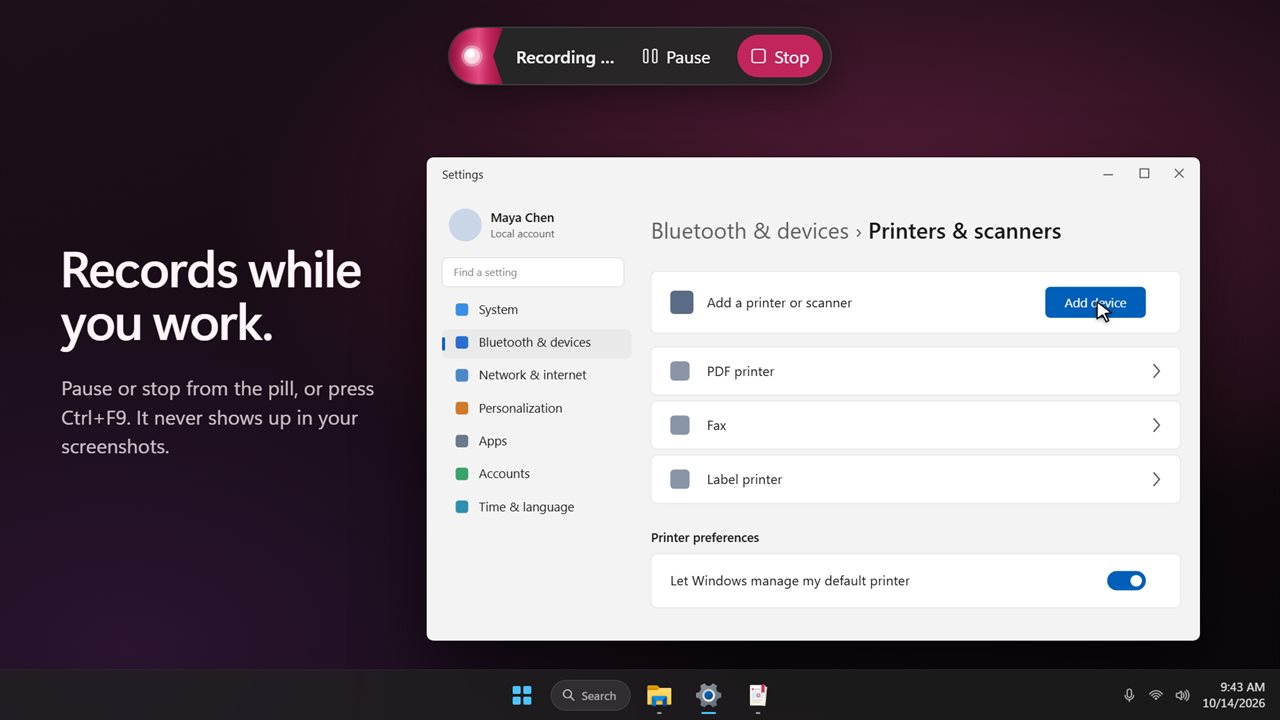
A small pill records while you work, and never shows in the screenshots.
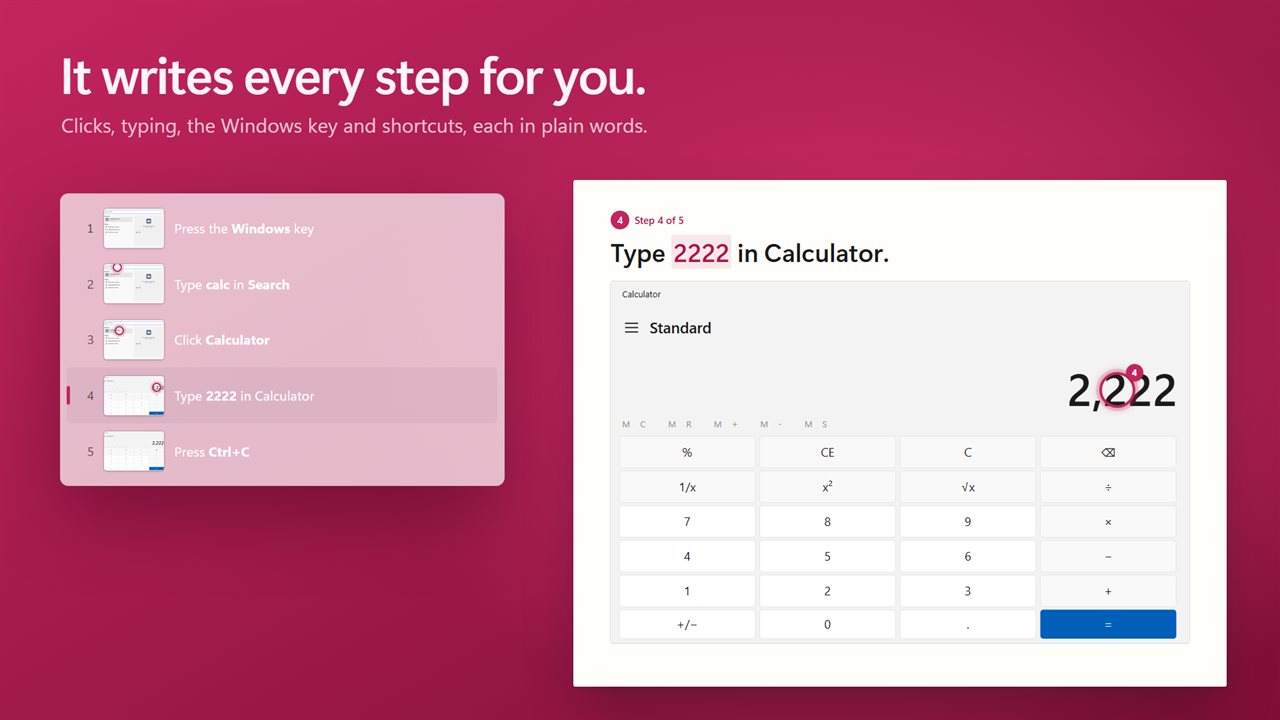
Every click, typed word and key press is written down for you.
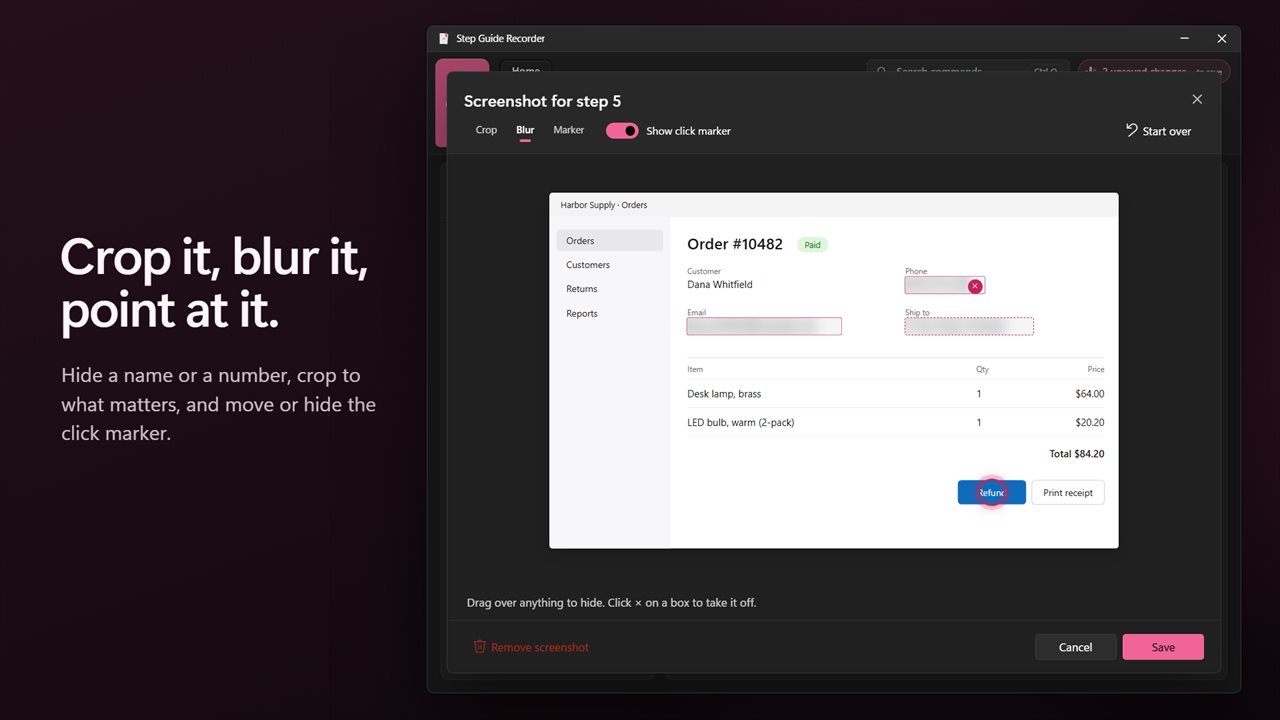
Crop a screenshot, blur part of it, or move the click marker.
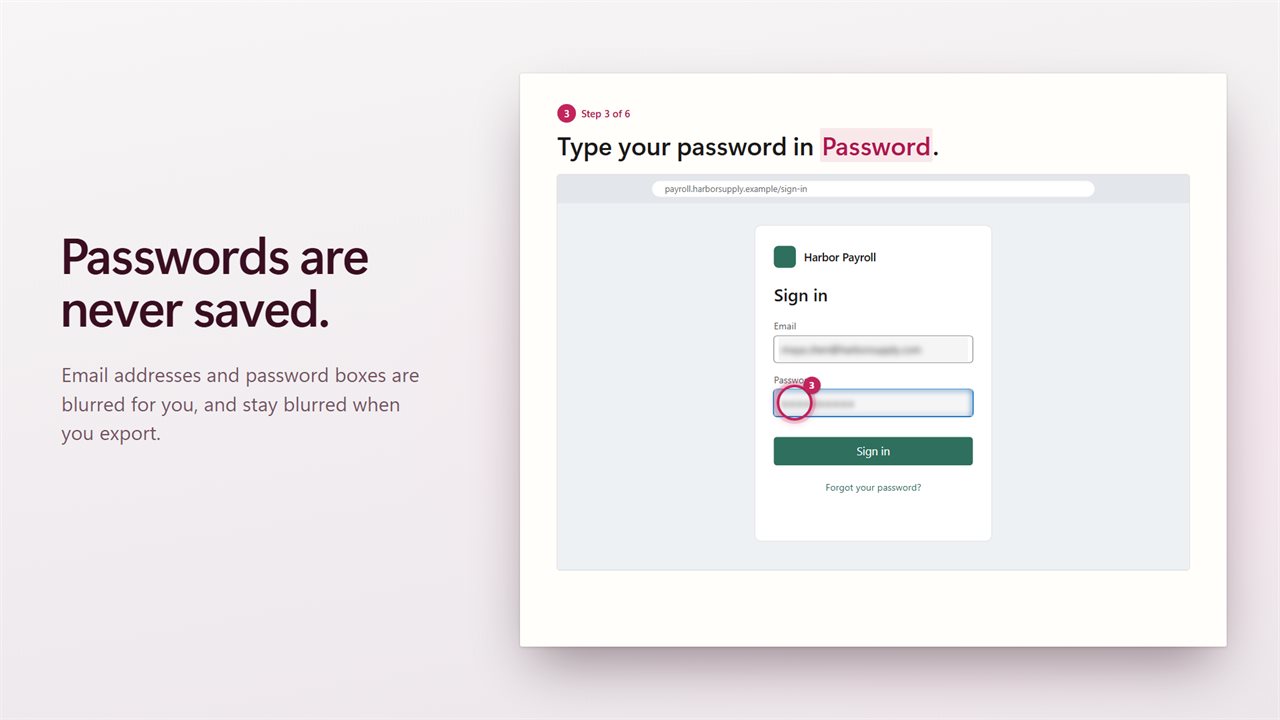
Passwords are never saved, and emails are blurred for you.
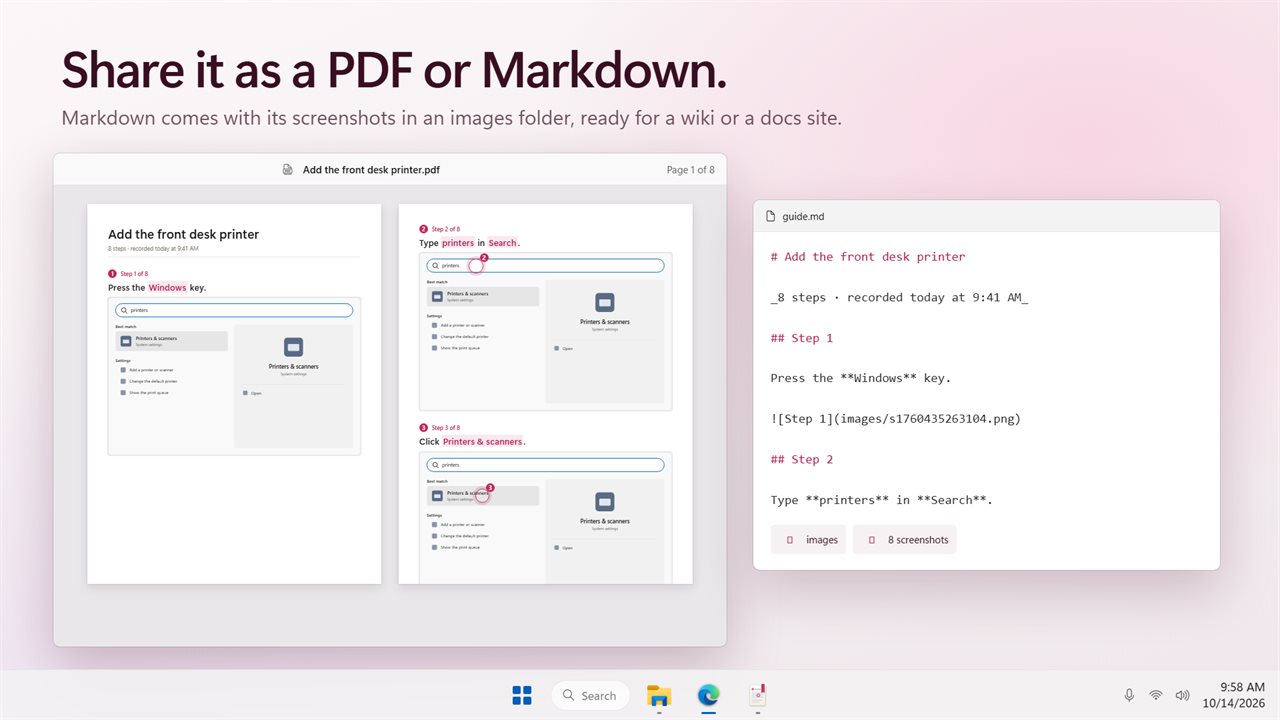
Export as a PDF, or as Markdown with its images.
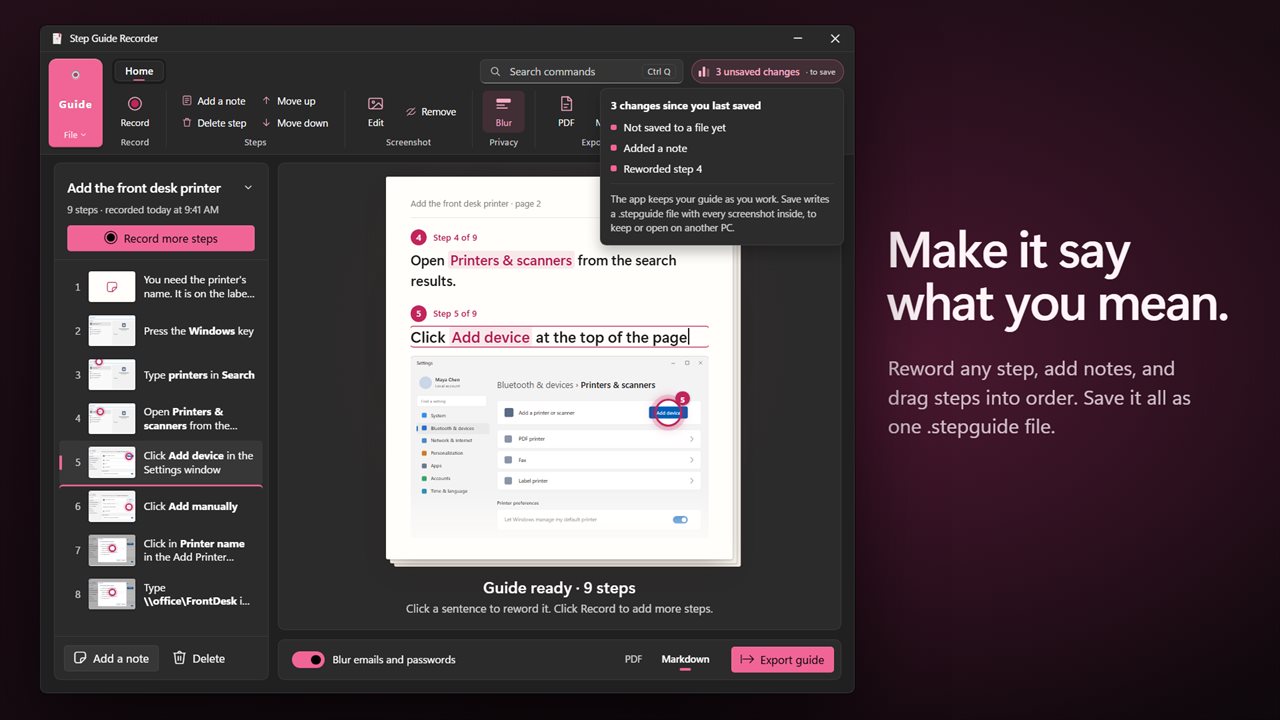
Reword any step, add notes and drag steps into order.

Step Guide Recorder in 34 seconds

Step Guide Recorder trailer
190,000+downloads of EvlarSoft apps
Signed by EvlarSoftVerified US publisher
14-day money-backNo questions asked
Updates includedNo upgrade fees

A steps recorder that writes the instructions for you

The steps recorder that came with older versions of Windows is being retired, and the tools usually suggested in its place record video. Video is the wrong format for most how-to work: nobody wants to scrub through a clip to find step seven, and a video cannot be pasted into a ticket or a wiki. Step Guide Recorder is a steps recorder that produces a written guide instead.

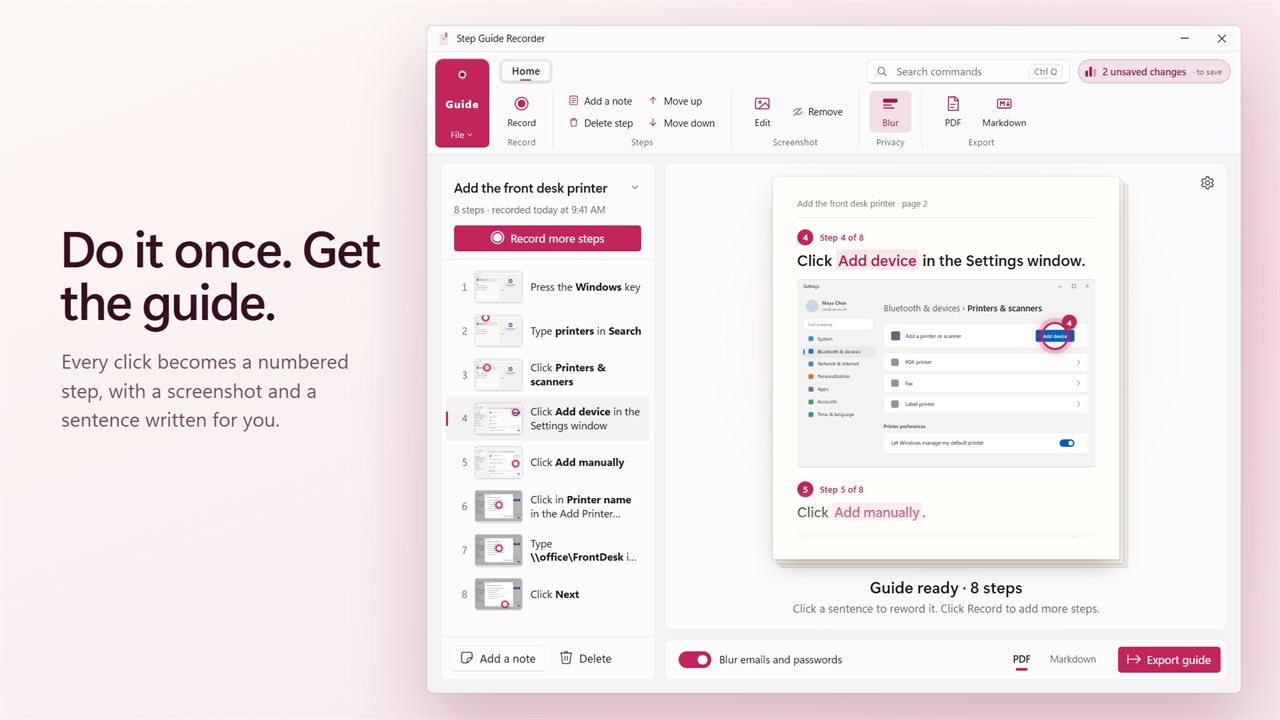
Press Record and carry out the task as you normally would. Each click, each piece of text you enter, the Windows key and any keyboard shortcut is captured as its own numbered step. The app writes a plain sentence for it, such as "Click Calculator" or "Open the File tab", and attaches a screenshot with a numbered marker on the exact spot you clicked.

When you stop, the guide is already in front of you as an editable document, with a ribbon toolbar along the top and a Search commands box for finding any tool by name.

How to record steps on Windows 11 and 10

Under Settings you can choose what each Screenshot of each step shows: The window you click or type in, which is the default, or The area around the click. You can also switch off Record typing as a step if you only want clicks.

  • Press Record on the Home tab, or Ctrl+F9 from any app.
  • Work through the task. A small pill near the top of the screen counts the steps and offers Pause and Stop; it is kept out of every screenshot.
  • Press Stop, or Ctrl+F9 again. The steps appear in order with their sentences and pictures.
  • Need to add more? Record more steps continues the same guide. Ctrl+S saves it.

Turn a recording into a polished SOP or work instruction

A raw recording is a first draft, and the editor is built for tidying it. Use Reword on any sentence to say it your way. Add a note after the selected step to explain why something matters. Move up, Move down or drag a step to reorder it, and Delete step for the detours.

Edit screenshot opens a picture for fixing. Crop it down to the part that matters, Blur anything private such as a customer name, and move or hide the click marker. Remove screenshot takes the picture off a step that reads fine without one.

That makes it practical for standard operating procedures, onboarding packs, help desk replies, classroom handouts or the instructions you keep sending a relative.

Privacy, export and sharing

Characters typed into password boxes are not kept. With Blur emails and passwords switched on, as it is out of the box, password fields and anything containing an @ are blurred in the screenshots, and the blur carries through to exports.

Export as PDF gives you a document to print, email or attach. Export as Markdown writes a text file with every image saved in a folder beside it, ready for a documentation site or a Git-based wiki. To keep working on a guide later, or move it to another PC that has the app, Save writes everything to a single .stepguide file.
What goes into each guide

  • Clicks, typed text, the Windows key and shortcuts become numbered steps
  • A plain-English sentence written for every step
  • Screenshot per step with a numbered marker where you clicked
  • Record from any app with Ctrl+F9, or a shortcut you choose
  • Recording pill with step count, Pause and Stop, hidden from captures
  • Reword, add notes, reorder and delete steps
  • Crop, blur and marker tools for each screenshot
  • Password text never stored; emails and password boxes blurred by default
  • PDF and Markdown export, plus a single-file .stepguide format

Who records step-by-step guides

IT and help desk

Answer the same how-do-I question once, export a PDF, and send it every time it comes up.

Operations and training

Capture a process exactly as it is done today and turn it into a work instruction new staff can follow.

Teachers and family helpers

Show a class or a parent how to do something on their PC with pictures they can follow at their own pace.

Questions

Anything else? Ask us

Is there a keyboard shortcut to start and stop recording?

Yes. Ctrl+F9 starts and stops recording from any app, the same as clicking Record. You can pick a different shortcut in Settings.

Does it record the passwords I type?

No. Keys typed into a password box are not kept, so the step says what was typed into but not the text. With Blur emails and passwords on, which is the default, password boxes and words containing an @ are blurred in the screenshots, and the blur is kept when you export.

What formats can I export a guide to?

PDF, or Markdown with every screenshot saved as an image in a folder beside it. A Word option appears in the list but is not available yet.

Can someone without the app open a .stepguide file?

No. A .stepguide file holds the guide and all its screenshots in a format only Step Guide Recorder opens, so it is for moving a guide to another PC that has the app. To share with anyone else, export a PDF or Markdown.

What does each screenshot show, and does it work on multiple monitors?

By default each step shows the window you clicked or typed in, on whichever monitor the click was on. You can switch to the area around the click instead. Screenshots wider than 1,400 pixels are scaled down.

Does the recording toolbar show up in the screenshots?

No. The small pill with the step count, Pause and Stop is hidden from screen capture, and clicks on the app's own windows are not recorded as steps.

Is this the same as a screen recording?

No. It does not make a video. Each action becomes a written step with a still screenshot, so the result reads like a manual and can be edited, printed or pasted into documentation.

Can I pause while recording?

Yes. The recording pill has Pause and Resume, so you can set something up or look something up without it becoming a step, then carry on.

Can I blur part of a screenshot after recording?

Yes. Open Edit screenshot, choose Blur and drag over anything you want hidden. Click the × on a blur box to take it off again.

Which versions of Windows does it run on?

Windows 10 (version 1809 or later) and Windows 11.

Is it a subscription?

No. Step Guide Recorder is a one-time purchase of $4.99, and updates are included.

How do I get it?

Buy it on this page and your license key arrives by email. If the button says Notify me, Step Guide Recorder is not on sale here yet; leave your email and we will tell you when it is.