Save a webpage as PDF and control how it lands on paper
Every browser can save a webpage as PDF through its print dialog, and most of the time the result is a mess: a sidebar sliced in half across two pages, a table clipped at the right edge, a photo split by a page break. The dialog gives you a tiny preview and a handful of dropdowns, and you find out what went wrong after you open the file.
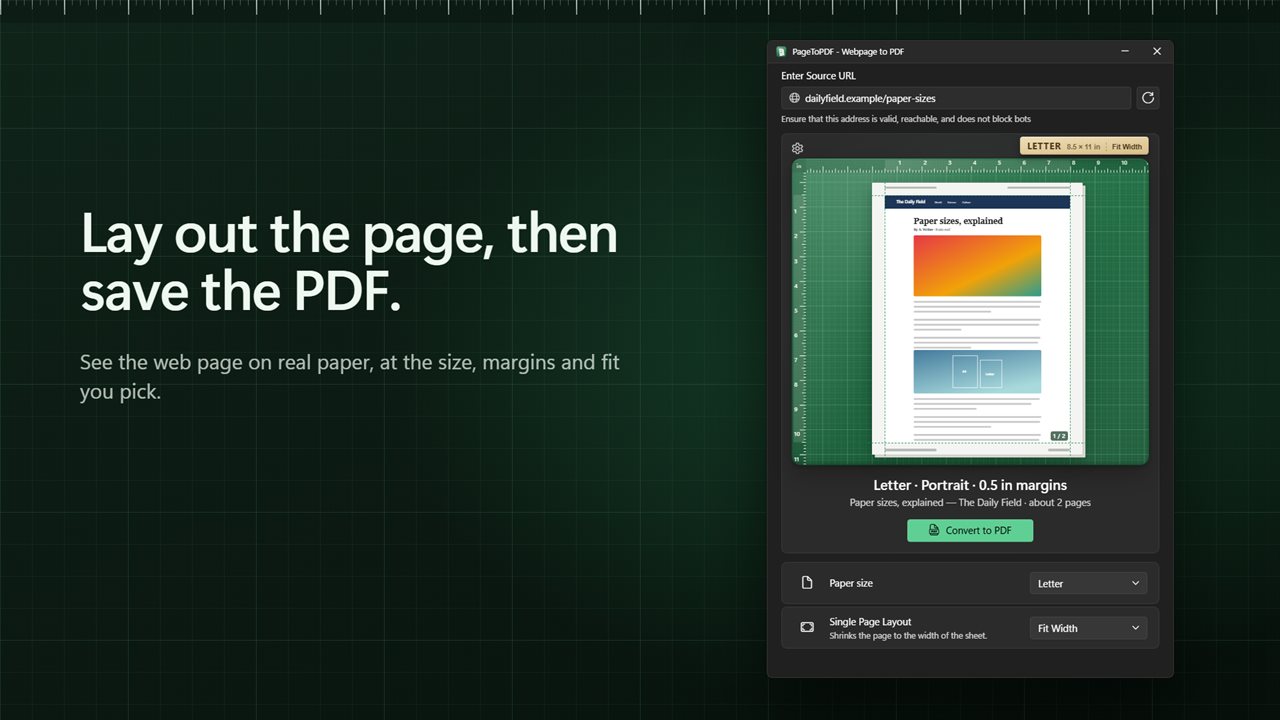
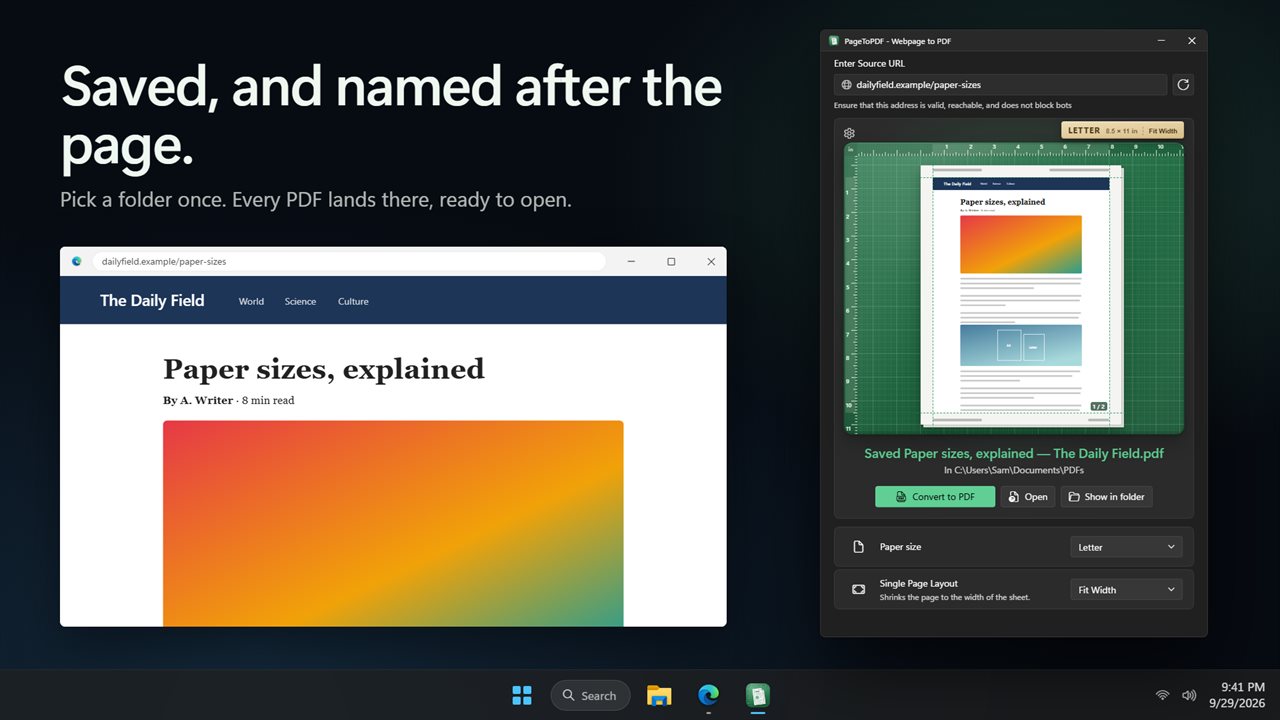
PageToPDF works the other way round. Type an address under Enter Source URL, even a bare one such as example.com, and choose Load the page onto the sheet. The page appears as a scale sheet resting on a craft mat between two rulers, which makes the margins and the content position obvious before a single file is written.
When it looks right, press Convert to PDF. The file is named after the page's title and goes to the folder you chose under Save to.
Print a webpage to PDF on A4, Letter or another size
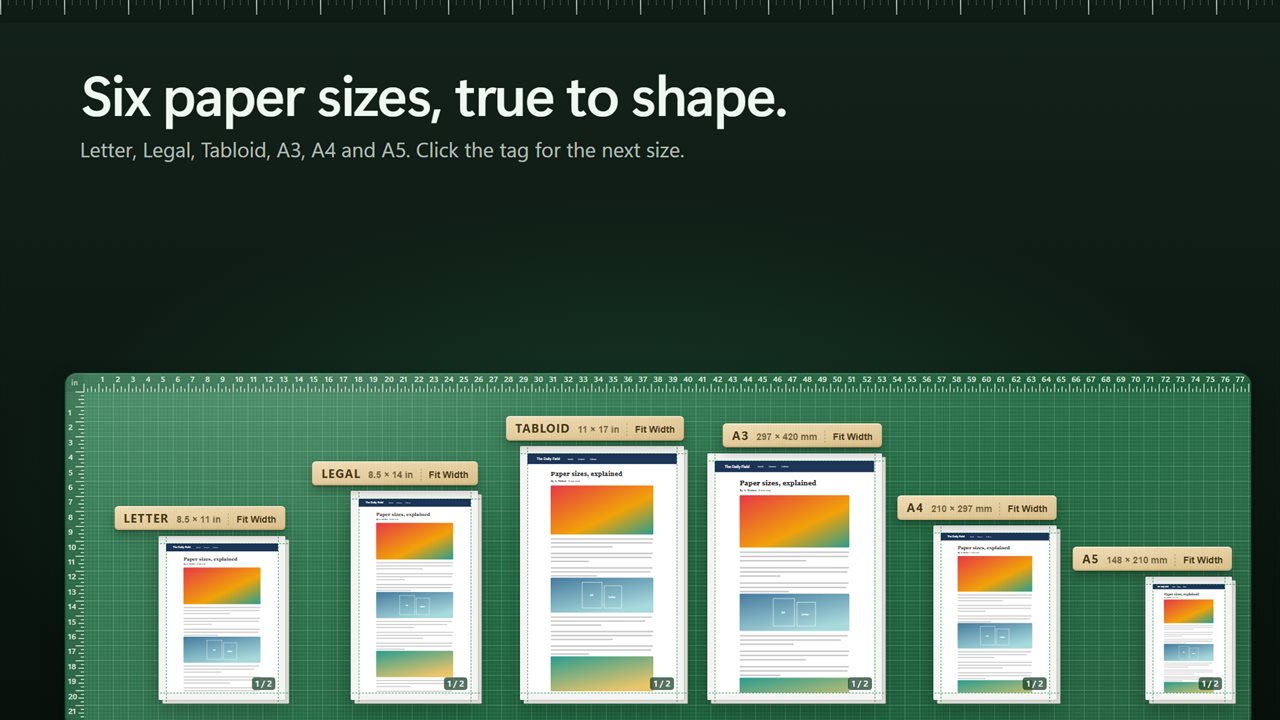
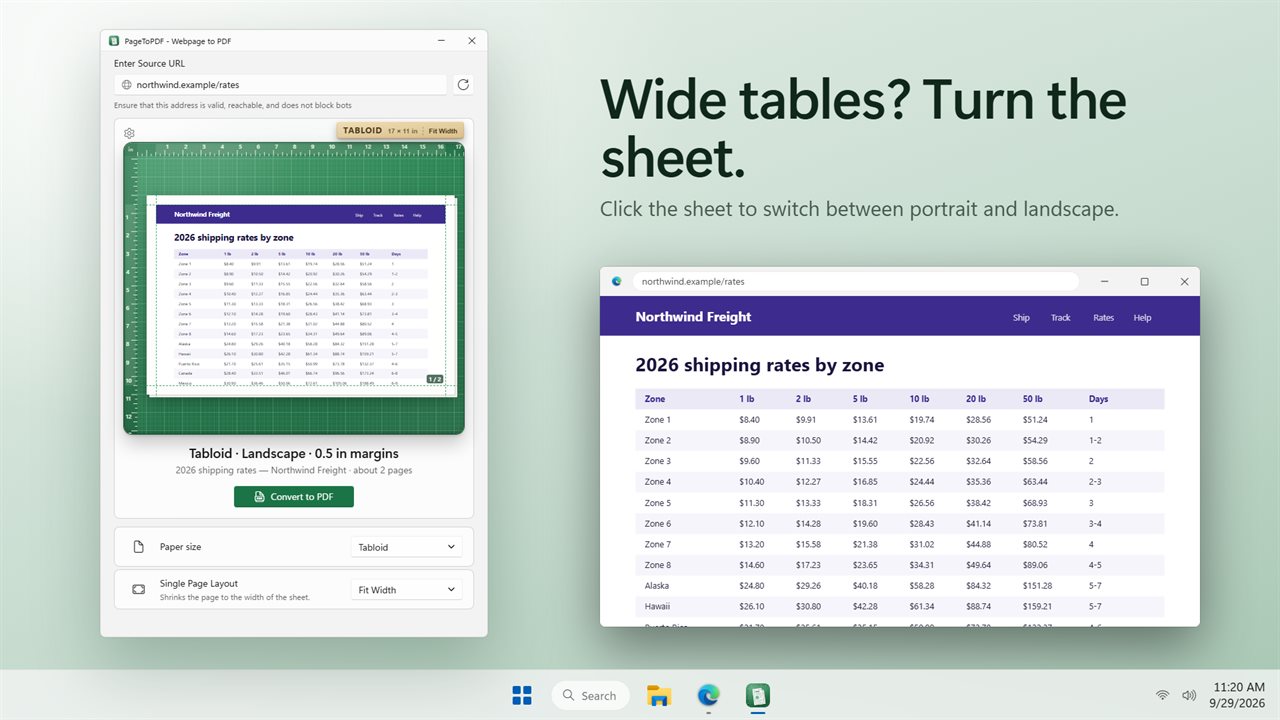
Paper size offers Letter, Legal, Tabloid, A3, A4 and A5, and you can also click the paper tag on the sheet to step through them. Click the sheet itself to switch between portrait and landscape, which is the quickest fix for a wide table or a dashboard.
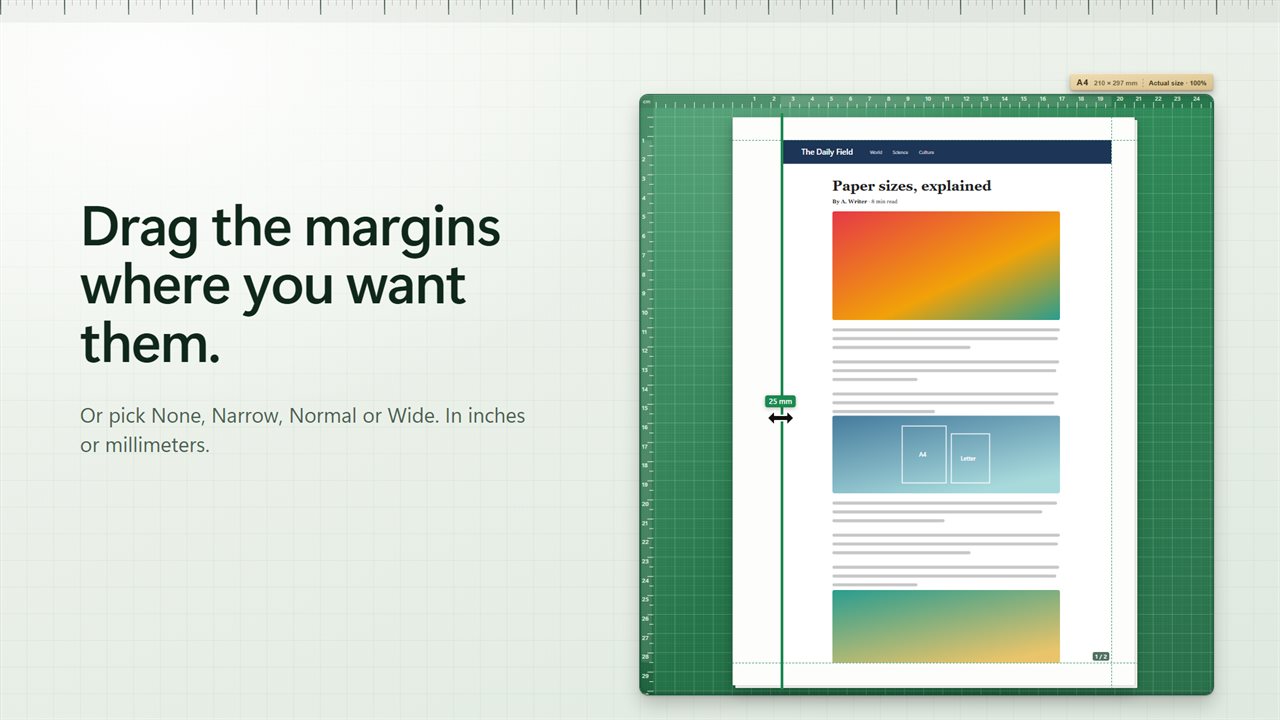
For margins, choose None, Narrow, Normal or Wide, or pull a dashed guide by hand while its measurement updates live. Settings has a Units choice of Inches or Millimeters that applies to the margins, the rulers and the paper tag.
Save an entire webpage as one PDF page without page breaks
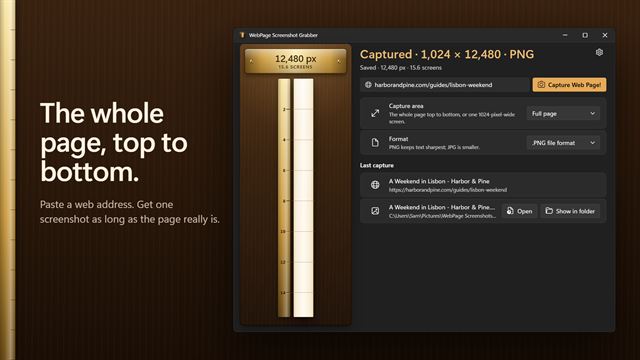
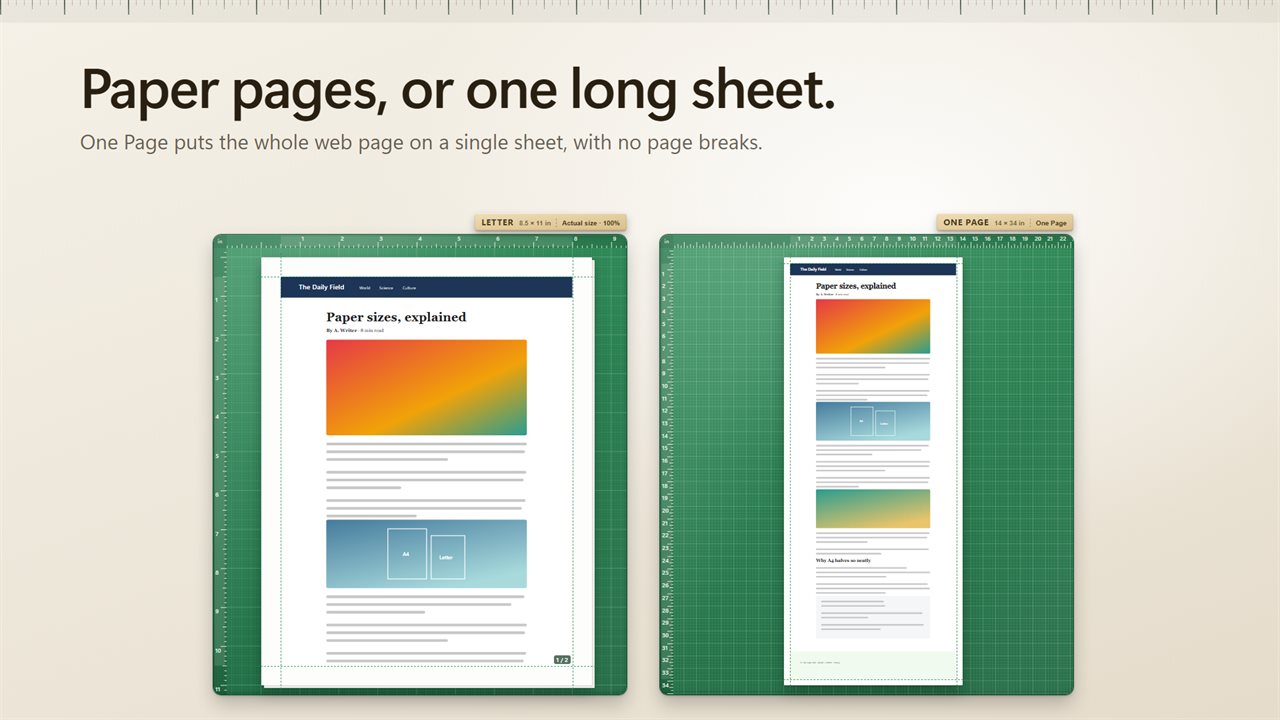
Long articles, receipts and chat logs read better as one continuous strip. Under Single Page Layout, One Page puts the entire page on a single sheet as wide as the page and as long as it runs, so nothing is cut at a break.
The other two settings keep normal pages. None lets the content flow across as many sheets as it needs at the Scale you set, anywhere from 25% to 200%. Fit Width scales the content down to the sheet's width, which stops a fixed-width site from running off the edge. An estimate of the PDF's page count updates as you change these.
Getting pages that load late or look different in print
Modern sites often load pictures only as you scroll, so a quick capture leaves gaps further down. A few options deal with that and with sites that style their printed version differently:
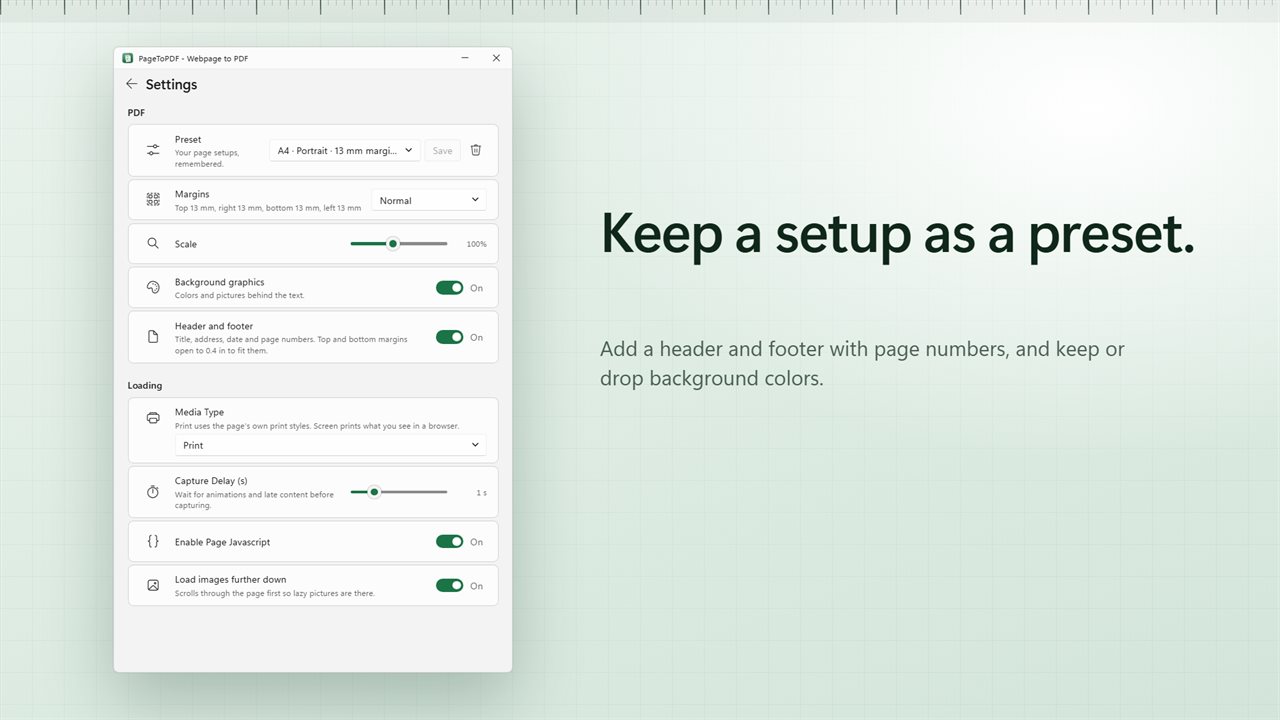
- Load images further down runs a scroll pass before capture so deferred pictures appear
- Capture Delay (s) pauses as long as 5 seconds for animations and slow content
- Media Type: Print uses the site's own print styles; Screen keeps the page as you see it in a browser
- Background graphics keeps or drops colors and pictures behind the text
- Header and footer adds the title, address, date and page numbers
- Enable Page Javascript and User-Agent for sites that need either changed