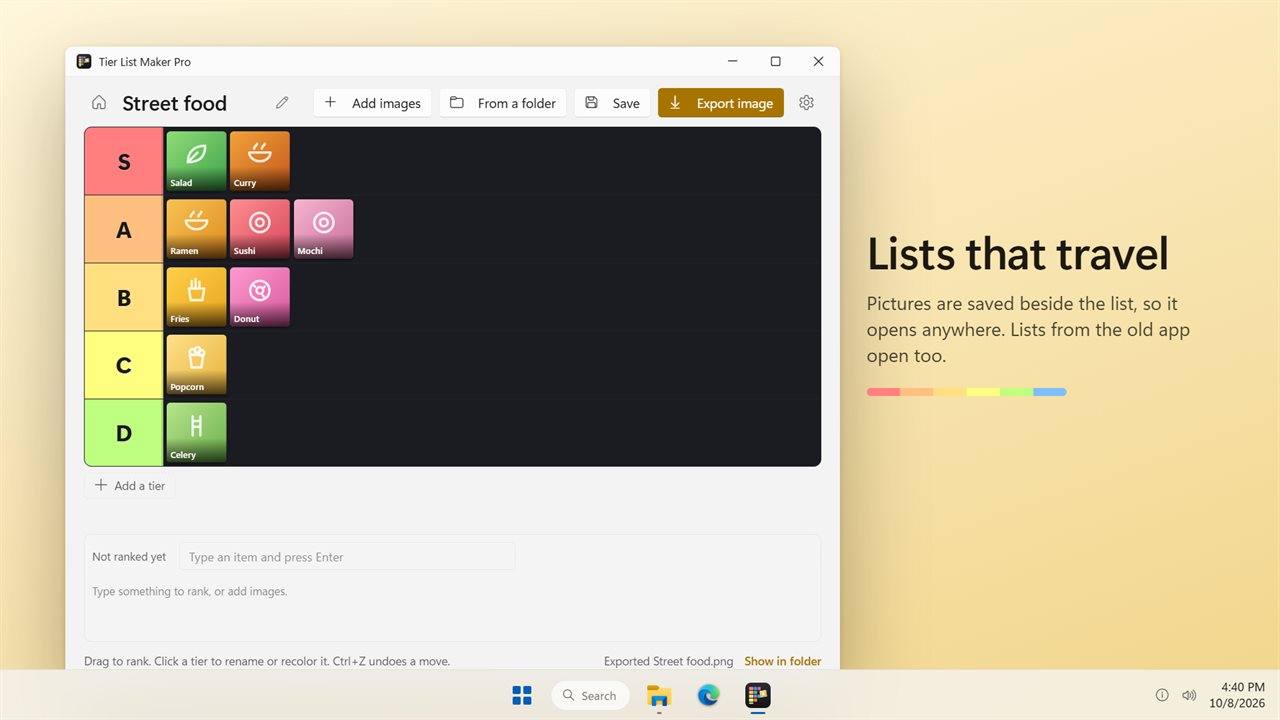
A tier list maker that starts from your own pictures
Most tier list maker sites work best with a template someone else built. When the thing you want to rank is your own, such as snacks you photographed, characters from a game you play, your vinyl shelf or this season's candidates for team mascot, you need a blank tier list and an easy way to fill it.
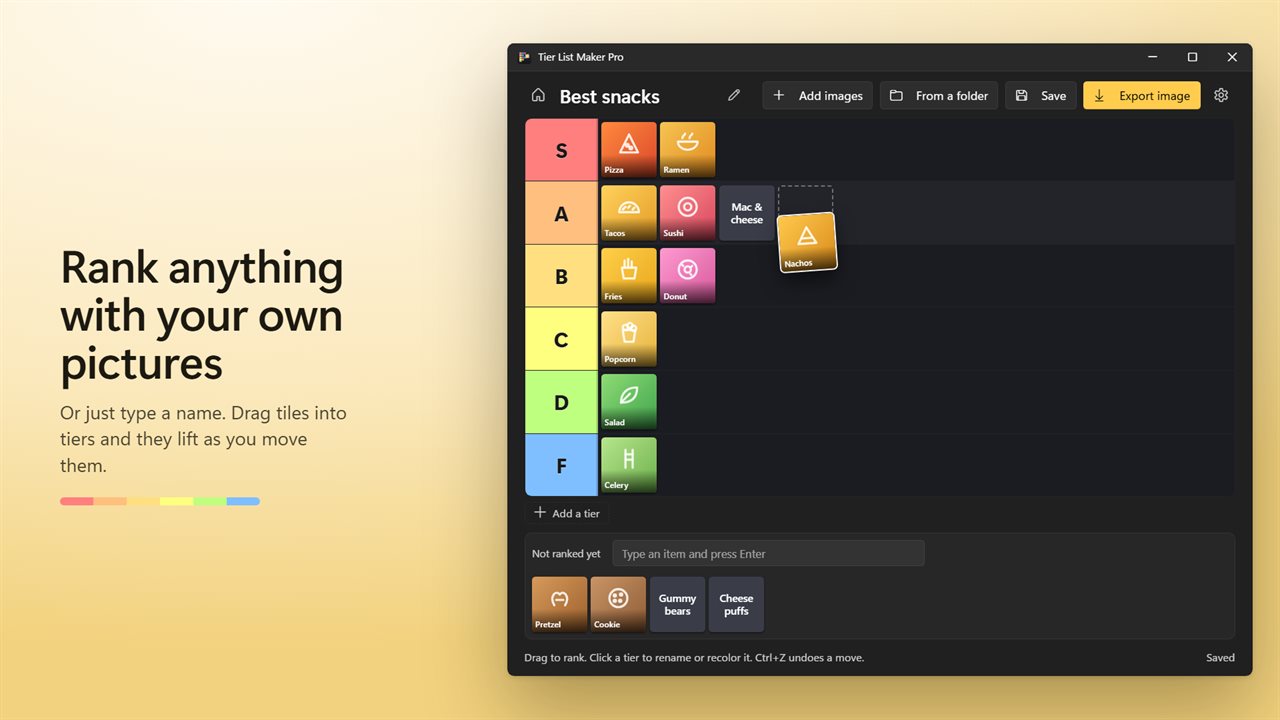
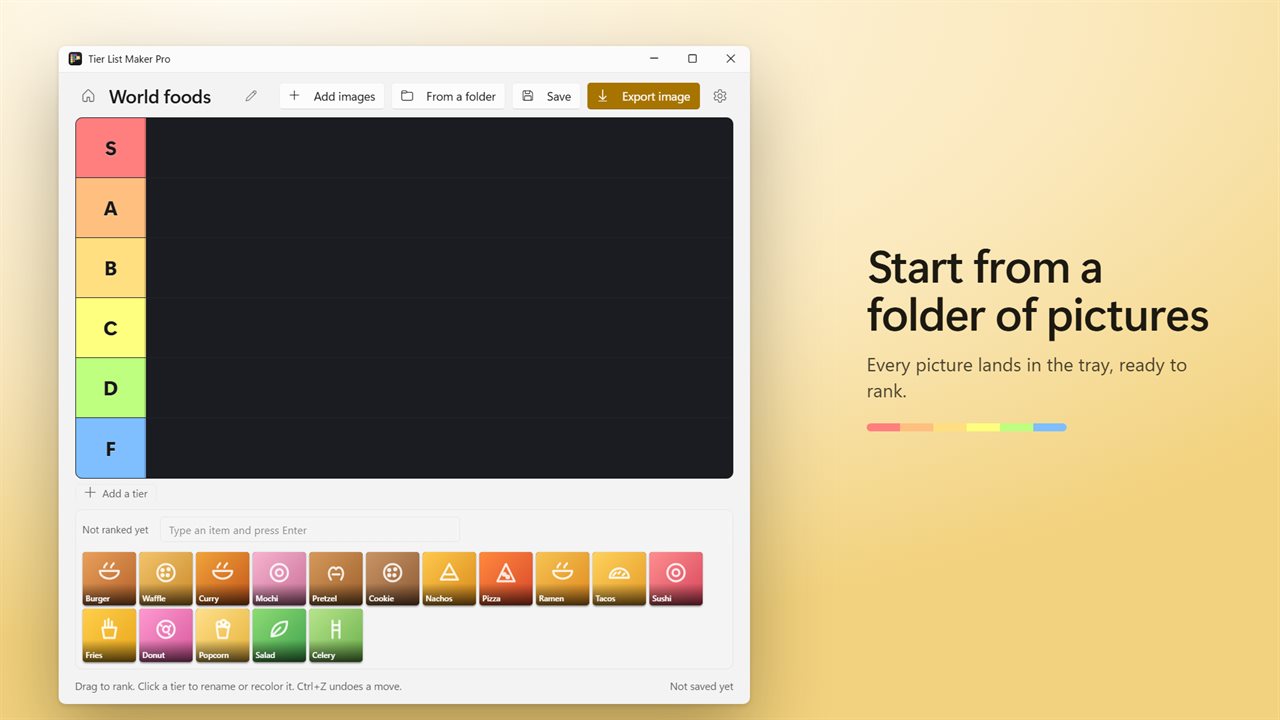
Tier List Maker Pro gives you that on the desktop. Choose New list, then Add images, or pick From a folder to bring in every picture in one go. Each picture becomes a square tile, cropped from its center, waiting in the Not ranked yet tray under the board.
Pictures are optional. Type an item and press Enter and it becomes a tile with its name on it, or paste several lines at once, one item per line, to fill the tray in a single step.
How to make a tier list in four steps
Ctrl+Z steps back through up to 60 changes if you change your mind, and Ctrl+S saves.
- Give it a name in the List name box at the top of the board.
- Fill the tray using Add images, From a folder, or the Type an item and press Enter box.
- Drag each tile into a tier. The tile lifts as you pick it up and a gap opens where it will land. You can also nudge a focused tile with the arrow keys, or press Delete to take it off the board.
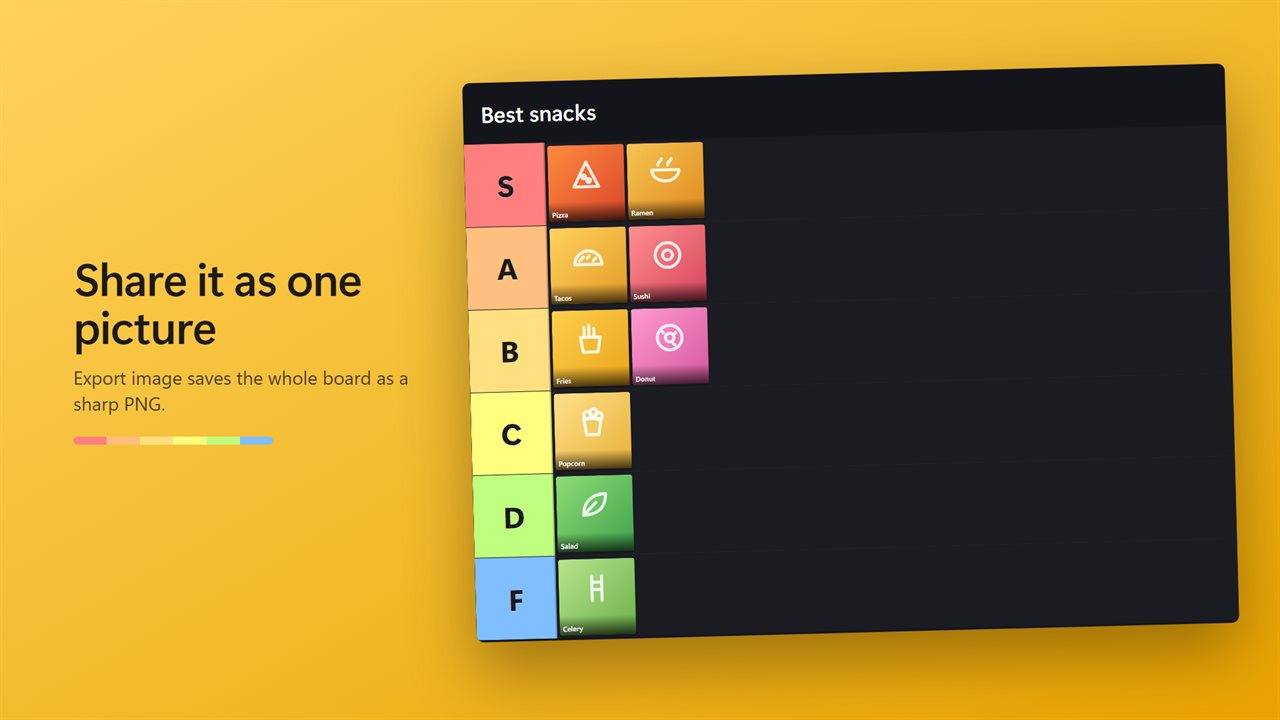
- Press Export image to save the board, title included, as a single PNG.
A custom tier list, not just S to F
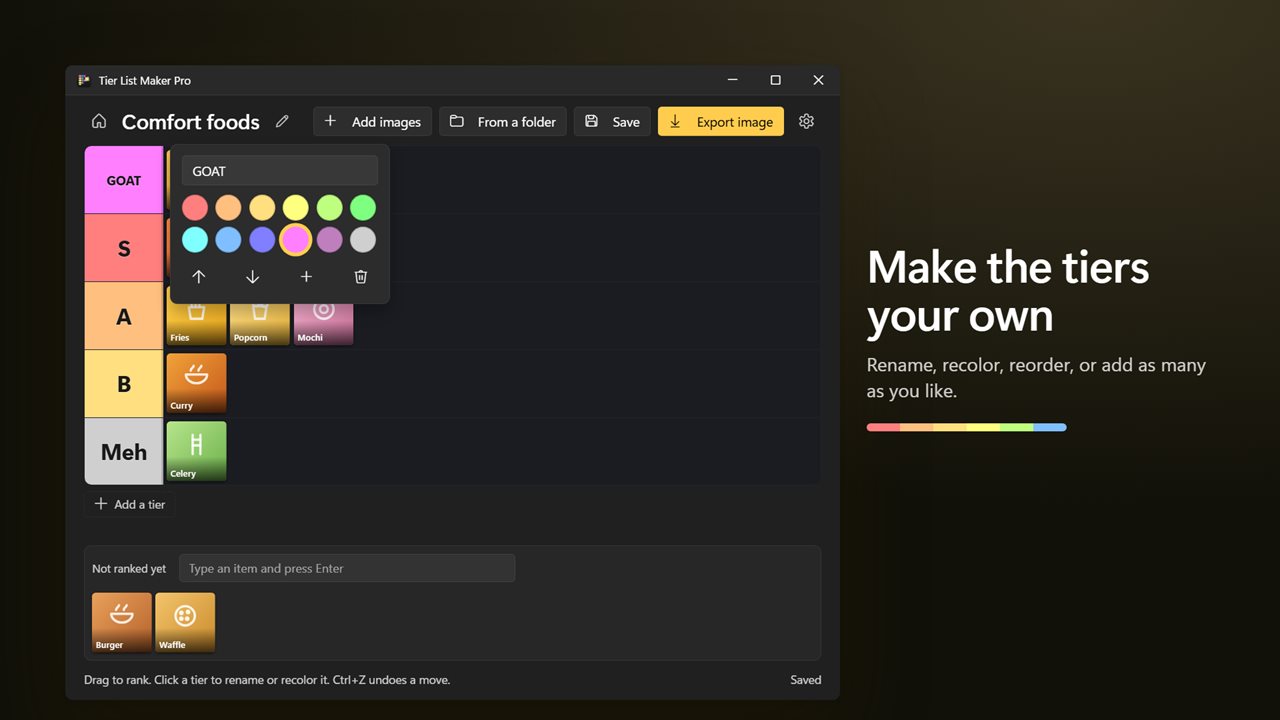
A new board opens with six rows, S down to F, in the warm-to-cool colors tier lists usually use. Nothing about that is fixed. Click any tier label to open its editor, where you can type a new Tier name, choose from 12 colors, Move up or Move down, Add a tier below, or Delete tier.
Deleting a tier never throws pictures away; its tiles drop back into the tray. That makes it easy to turn the board into something other than a grade scale: Must watch, Maybe, Skip; Love, Like, Meh; or one row per year.
Exporting a tier list image that stays sharp
Social feeds and chat apps compress what you post, so small exports turn to mush. Exported picture size in Settings offers Standard, 1200 pixels wide, Sharp, 2400 pixels wide, and Extra sharp, 3600 pixels wide. Sharp is the default and reads well on a phone; choose Extra sharp for a big board with many small tiles.
Saved lists you can move and reopen
Saving writes a .rank file plus a folder of copies of every picture, named after the list. Because the list points at those copies, renaming or deleting the originals does not break it, and you can move the pair to another drive or PC. With Save as you go on, every change after the first save is written automatically.
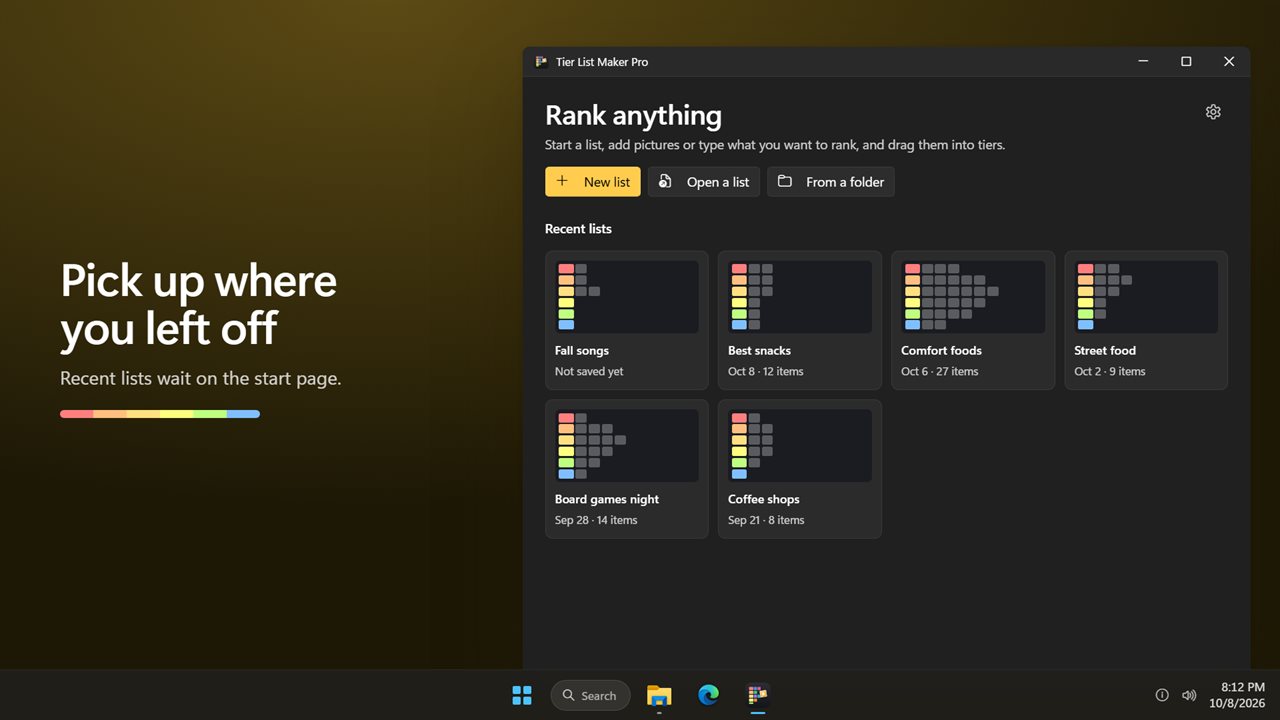
The start page lists your last eight Recent lists with their date and item count. A board you never saved appears there as Not saved yet, so closing the window by accident costs you nothing.