How to open an MPP file when you don't own the software that made it
An MPP file is a project schedule saved by desktop project management software: tasks, durations, dependencies, milestones, resources and a baseline, all in a binary format that ordinary office programs cannot read. Spreadsheets will not open it, and most online converters ask you to upload a client's plan to someone else's server first.
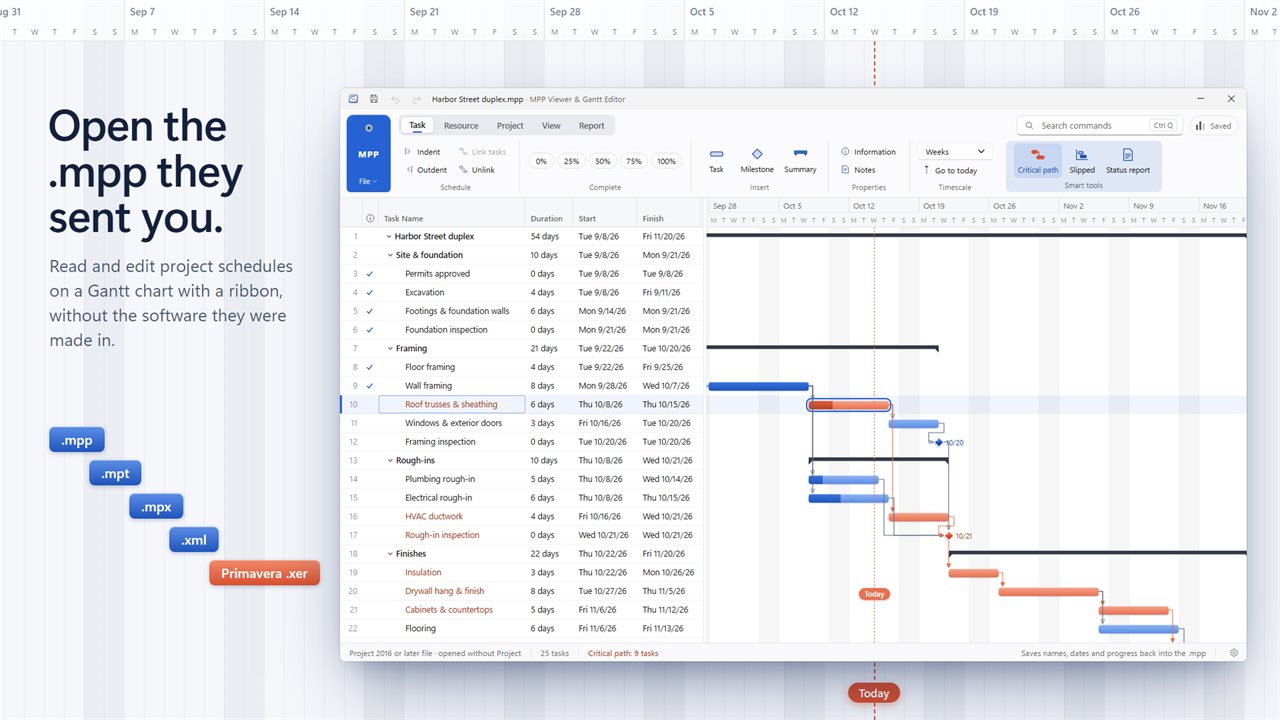
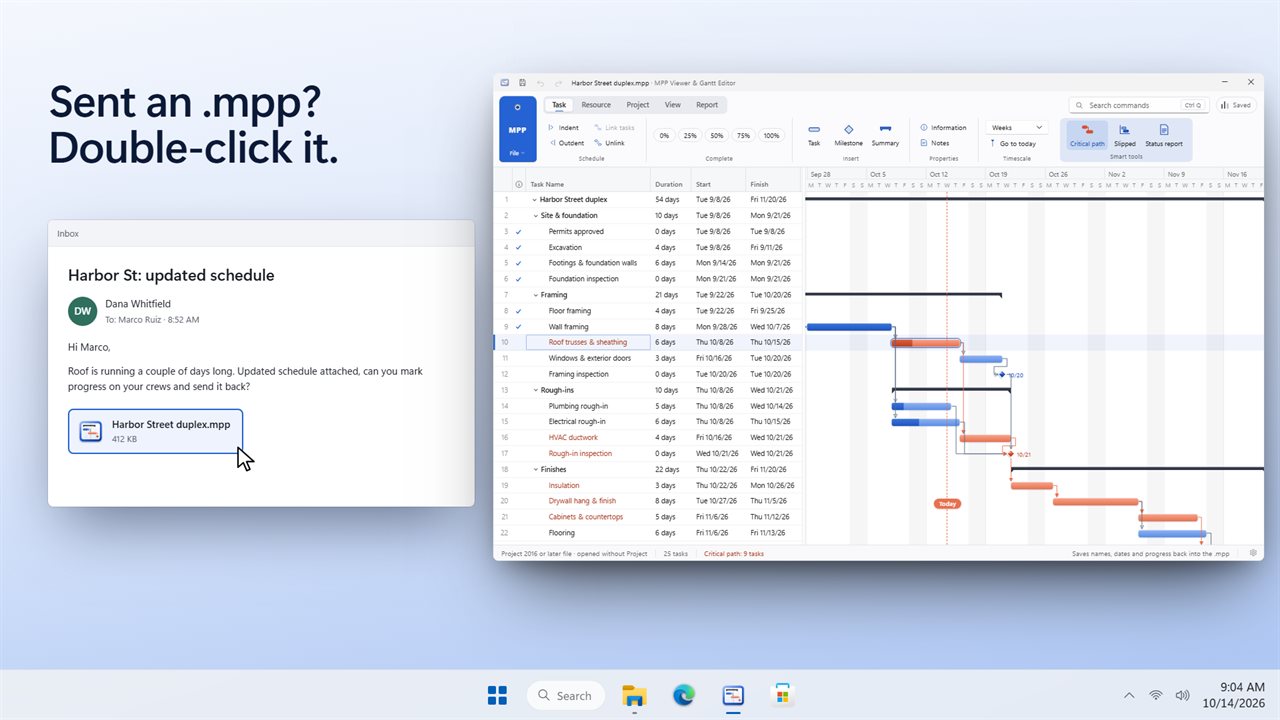
MPP Viewer reads the file directly on your PC with its own built-in reader. Choose Open…, or double-click the attachment once the app is installed, and the project appears as a table of tasks at the left and bars on the right, with summaries, milestones, links and percent complete drawn in.
It is aimed at the people on the receiving end of a schedule: subcontractors, clients, site supervisors, consultants and team members who need to read the plan, mark their progress and report back without a seat of the full planning suite.
Open MPP, MPT, MPX, Project XML and XER files
Five project file types open: .mpp schedules, .mpt templates, .mpx exchange files, Project XML (.xml) and Primavera P6 .xer exports. That makes it a usable XER file viewer too, for construction and engineering teams that receive P6 schedules alongside MPP ones.
If you have nothing to hand, Open the sample project from the File menu loads a demonstration schedule, and New blank project starts one from scratch.
Read the Gantt chart and find what is late
Under Timescale, switch the chart between days, weeks and months, use Entire Project to fit everything on screen, or Summaries only to collapse the detail. Go to today scrolls to the Today line.
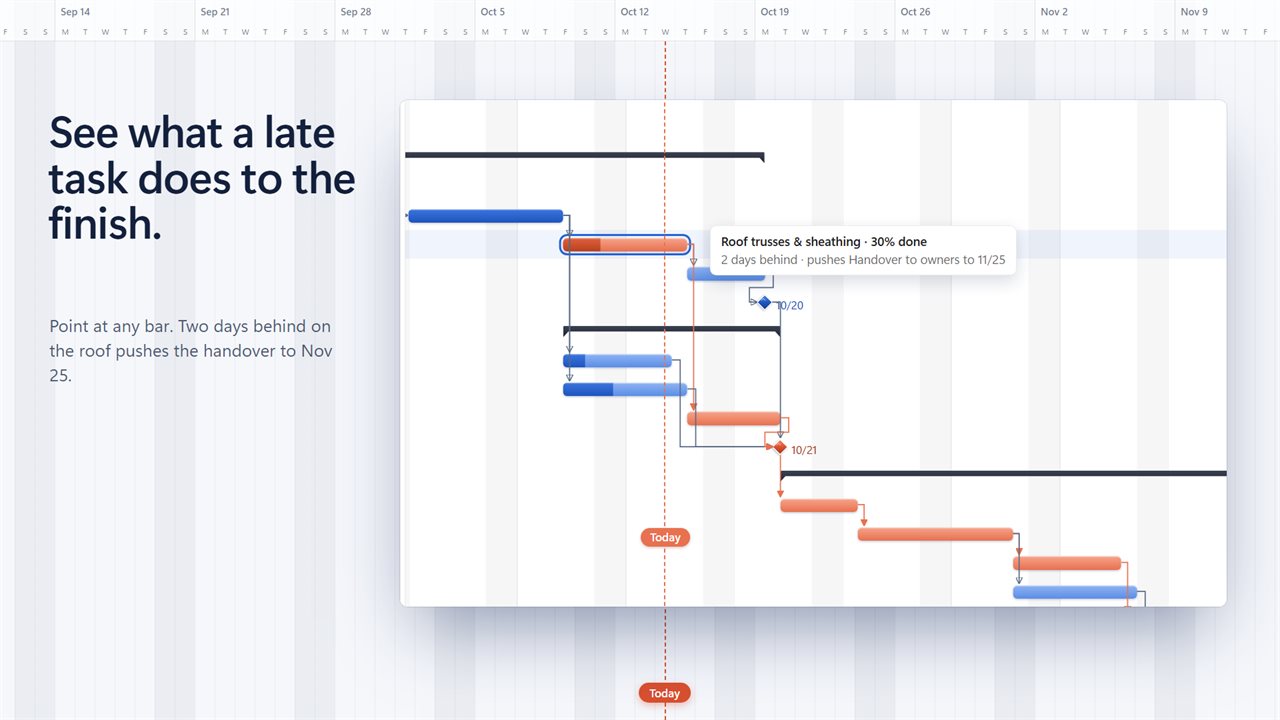
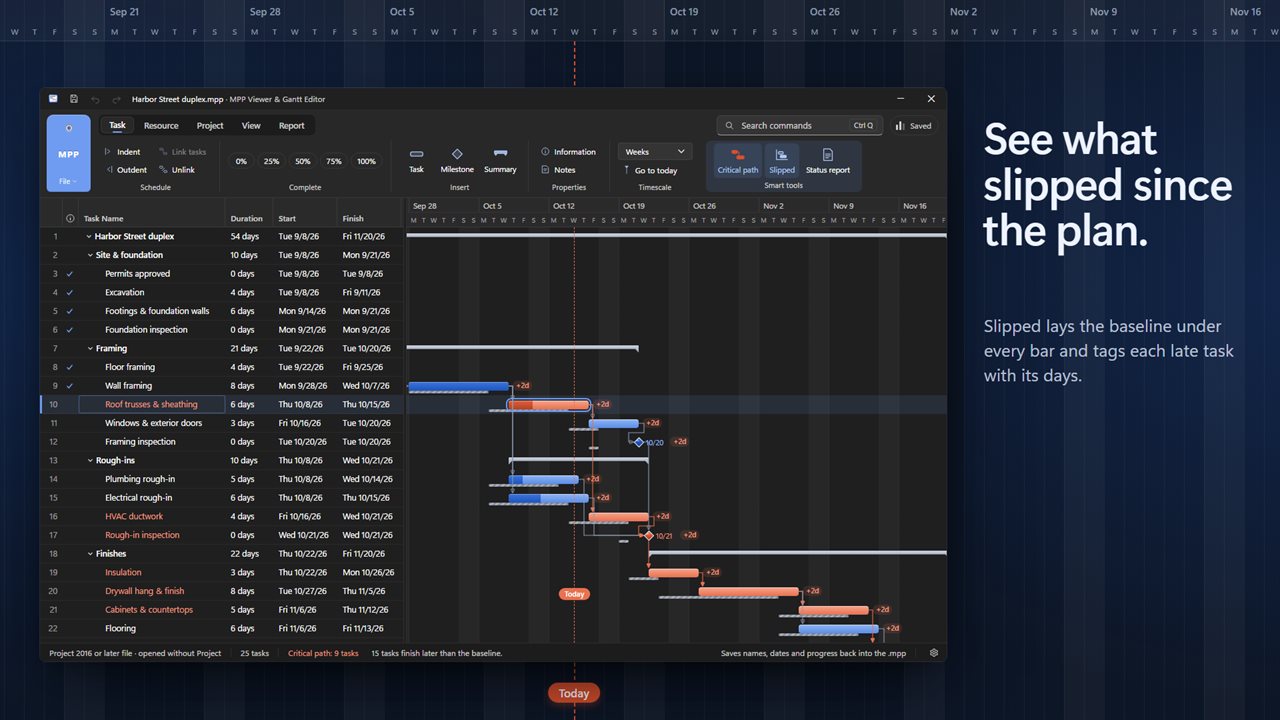
The Smart tools group answers the question most people open a schedule to ask. Critical path highlights the tasks that drive the finish date. Slipped compares the current dates with the baseline and shows how many days each task has moved. Point at a late bar and a tooltip gives the number of days it trails and the later date it pushes.
Edit an MPP file and save your changes
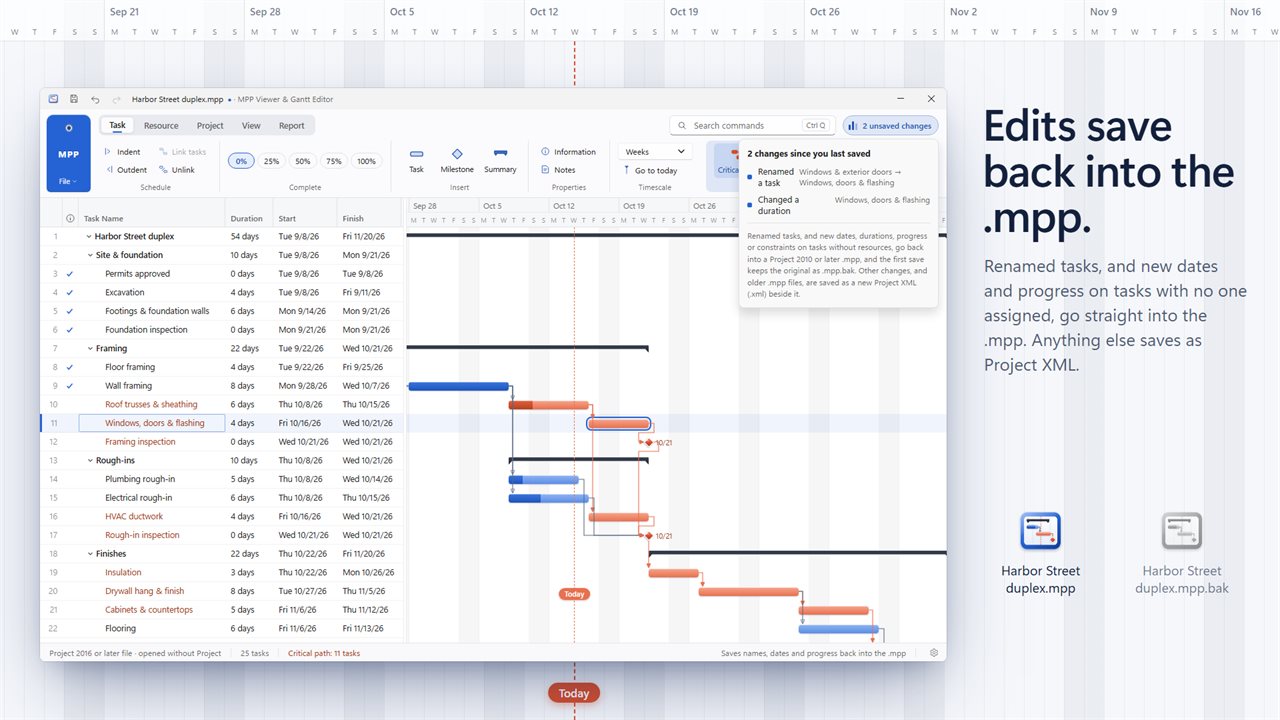
This is a Gantt chart editor, not only a reader. Type a new duration, start, finish or percent complete into the table and later tasks reschedule straight away. Insert a Task, Milestone or Summary, use Indent (Alt+Shift+Right) and Outdent (Alt+Shift+Left), and Link tasks with Ctrl+F2. Project Information sets the start and status dates, Change Working Time sets working days and holidays, and Move Project shifts the whole plan to a new start.
Saving is deliberately cautious. Renamed tasks, and new dates, durations and percent complete on any task nobody is assigned to, go back into an .mpp written by a 2010 or newer version, and the first save leaves a .mpp.bak beside it. Anything else is written to a new Project XML file next to the original, which the planner who sent it can open. The status bar says which of the two Save will do before you press it, and Save a copy as MPX… is on the File menu too.
Convert MPP to PDF, or send a project status report
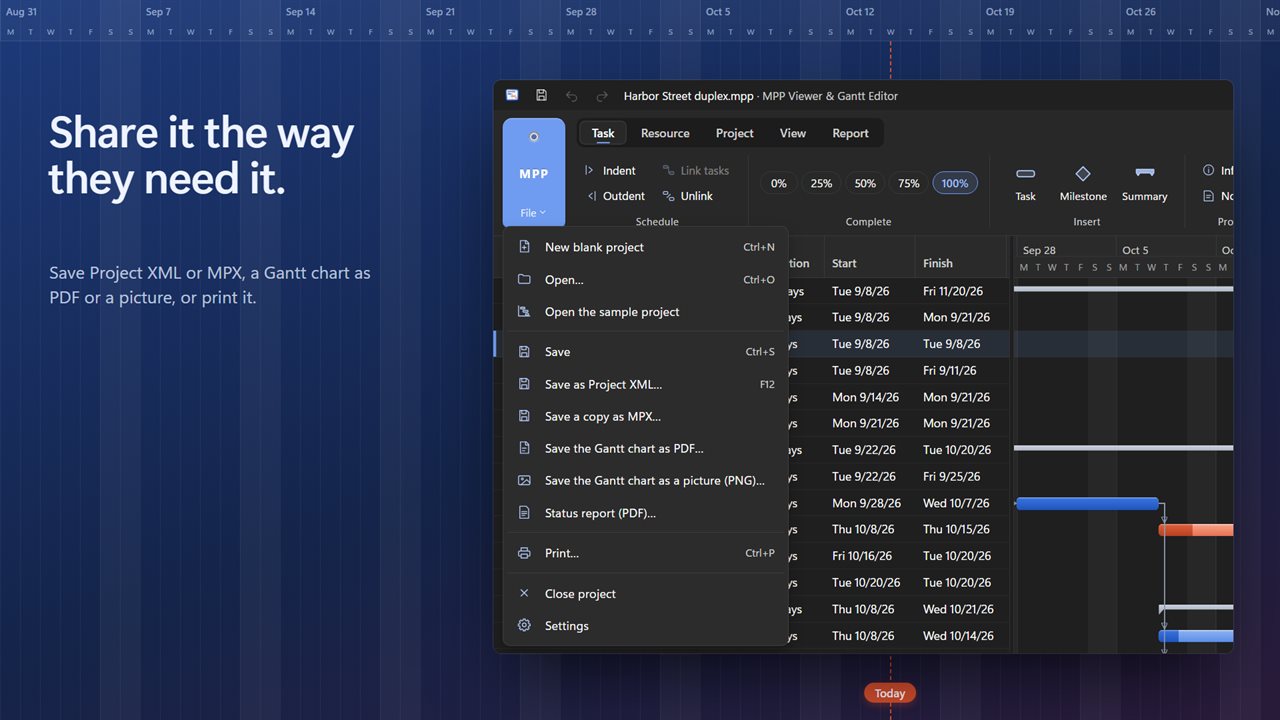
Save the Gantt chart as PDF… and Save the Gantt chart as a picture (PNG)… export the chart for people who just need to look at it, and Print… (Ctrl+P) puts it on paper.
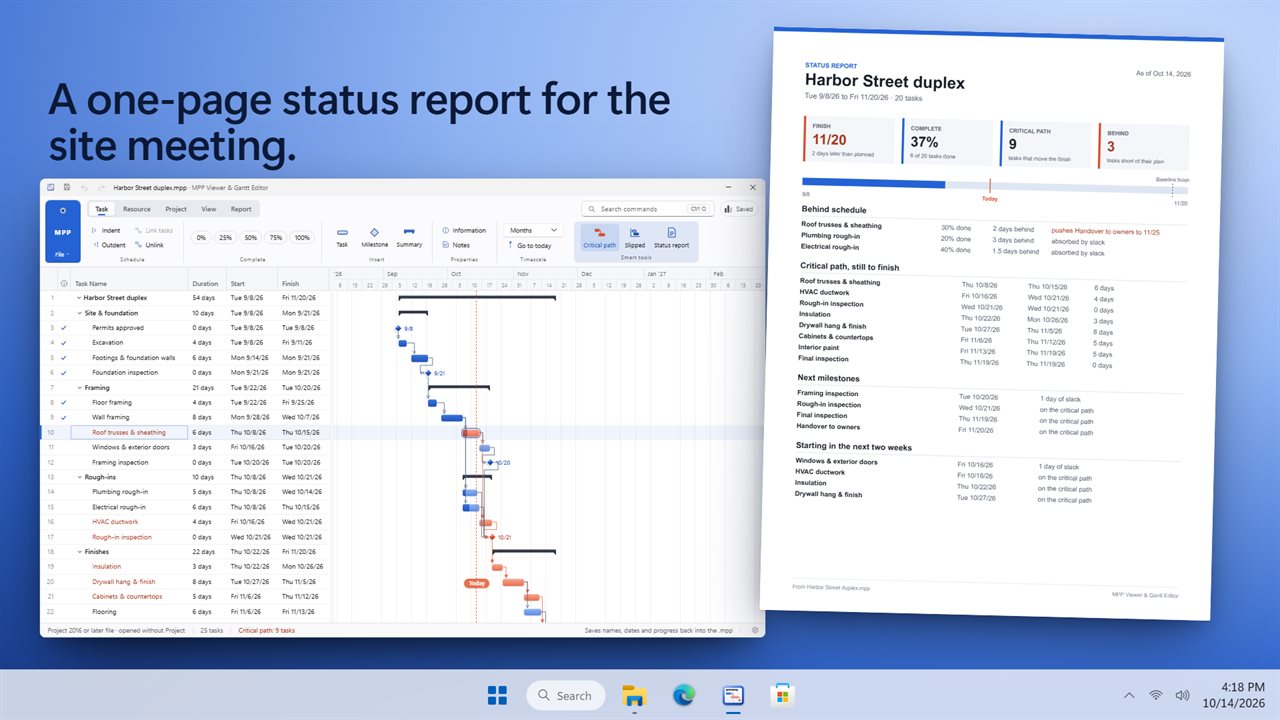
Status report (PDF)… builds a single page for a weekly update: the forecast finish against the baseline, overall percent complete, tasks that are behind and what they delay, the remaining critical path, upcoming milestones, and work starting in the next fortnight.