Extract images from PDF files without screenshots or blurry exports
The usual ways to extract images from PDF documents lose detail. A screenshot captures only what fits on your screen, and exporting pages as pictures re-renders the whole page at whatever resolution the exporter picks. The photo you wanted is already sitting inside the file at its full size; the job is to copy it out untouched.
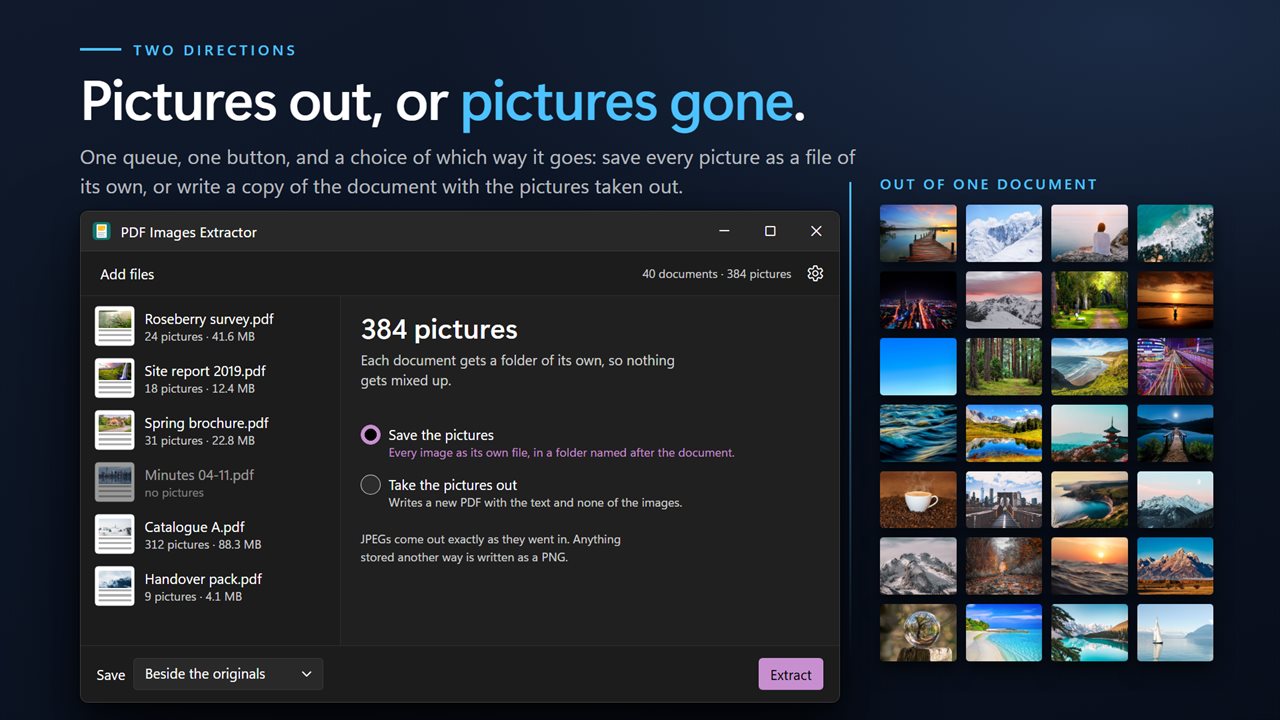
PDF Images Extractor does exactly that. A picture the document stores as JPEG comes out as the same JPEG, byte for byte, with a .jpg extension. JPEG 2000 comes out as .jp2, and other 8-bit color and grayscale pictures are written as lossless PNG. No resampling, no recompression.
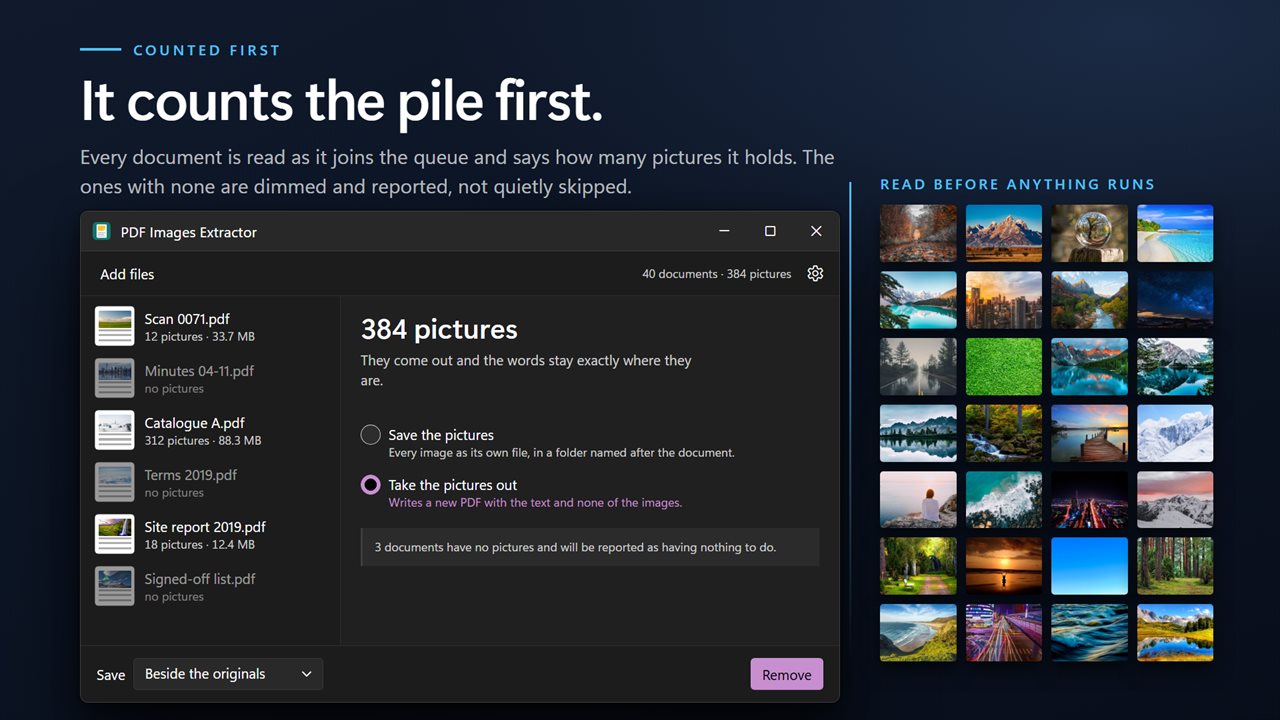
Before anything runs, each document is counted. Its row reads "14 pictures" or "no pictures" next to the file size, and the header totals the whole queue, so a PDF with nothing worth extracting is obvious before you press a button.
How to save an image from a PDF, or only the ones you want
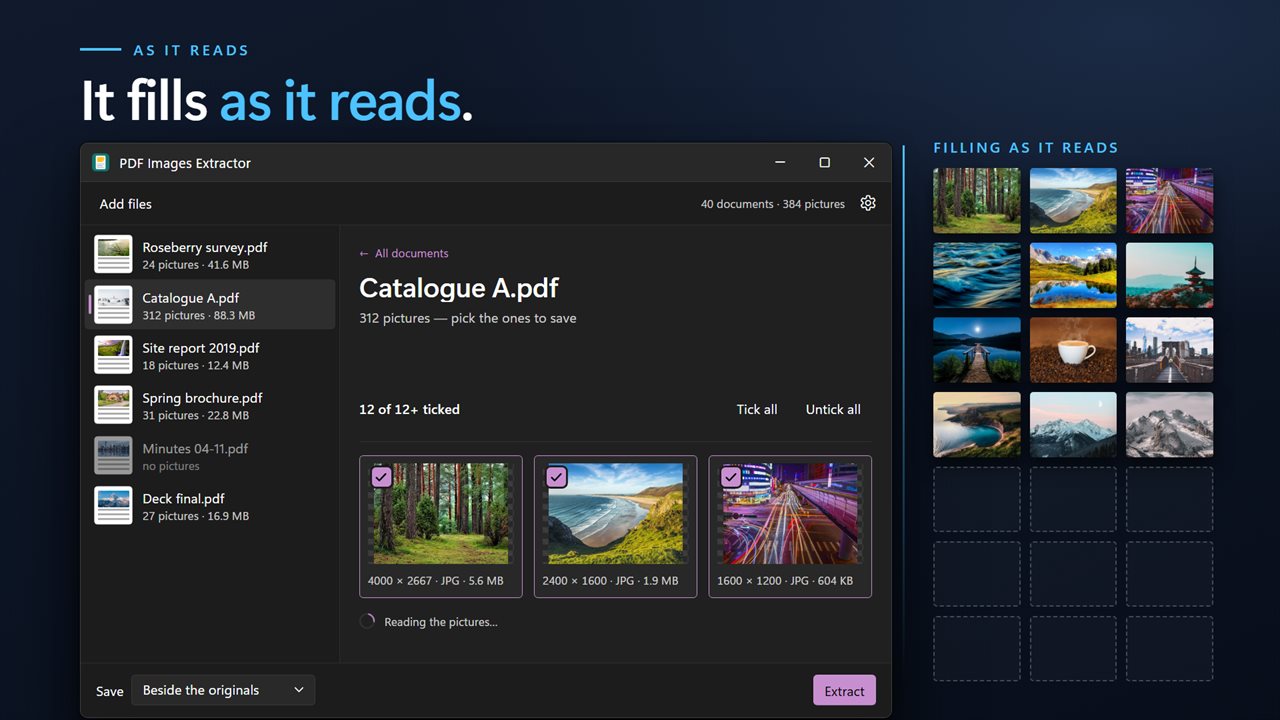
Each document gets a folder of its own named after it, so pictures from forty reports never end up in one heap. The grid fills in while it reads, which means a catalog with hundreds of pictures starts showing tiles straight away.
- Click Add PDFs, or drop documents or a folder on the window.
- Leave the direction on Save the pictures.
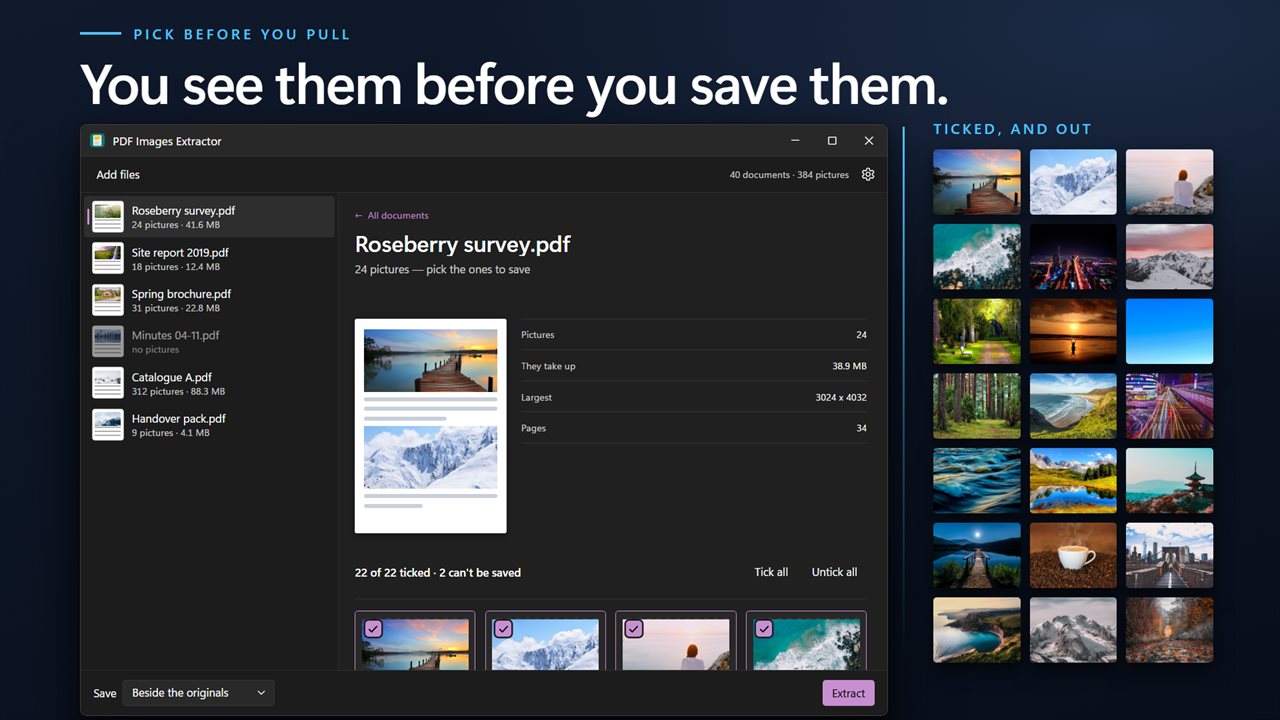
- Click a document to open its grid. Each tile shows a thumbnail, the pixel size, the format and the file size.
- Everything starts ticked. Untick logos, icons and page decorations, or use Tick all and Untick all.
- Choose Beside the originals or Into a folder under Save, then press Extract.
Remove images from a PDF to keep just the text
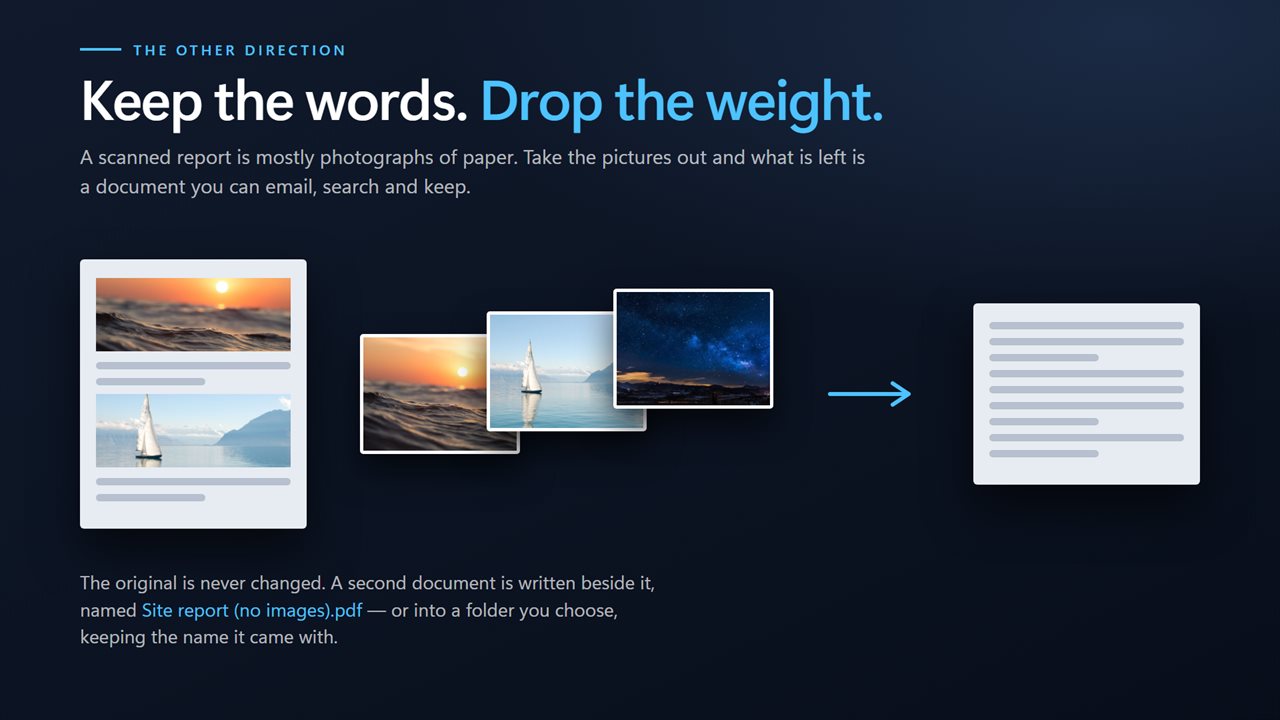
The second direction is the one most extractors leave out. Switch to Take the pictures out and the app writes a new PDF with every image removed and the words left where they were. The original stays as it is, and the copy has "(no images)" in its name.
This is useful when a report is heavy with photos and you only need its text to read, quote, search or archive. Note that a scanned document is usually nothing but pictures of pages, so removing them leaves little behind; this direction suits PDFs that were written digitally with photos placed in them.
Why some pictures show up but cannot be saved
PDFs store pictures in several ways. CMYK images from print workflows, indexed-color images and 1-bit black-and-white images from scanners are not ones this app can write out. They are still shown in the grid, sorted to the end and labeled as stored in a way the app can't read, so the tile count always matches the document. The counter beside the grid separates the two, reading something like "12 of 12 ticked · 3 can't be saved".