EEvlarSoft

XLSX Locker

Lock cells in Excel by painting the ones people may edit; each formula locks automatically, and a password to open can encrypt the file.

Buy for $1.99
One payment. No subscription.
14-day money-back guarantee.
3.0
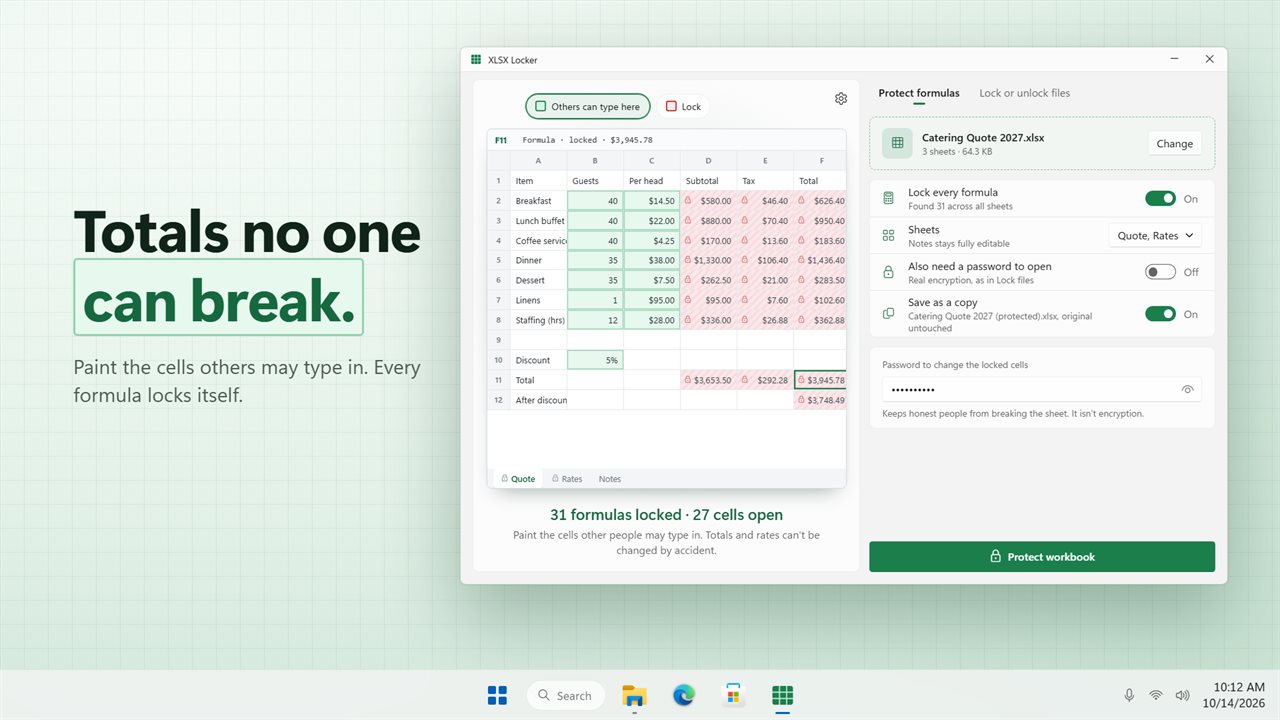
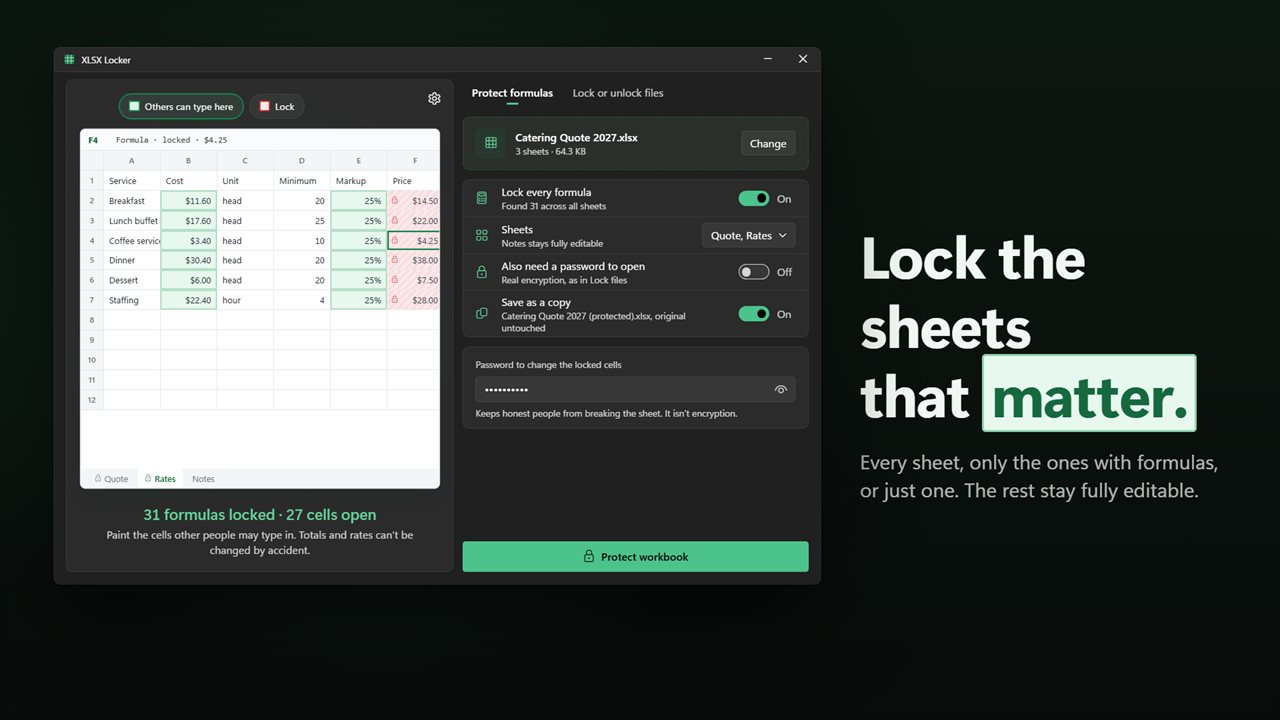
Paint the cells others may type in. Every formula locks itself.
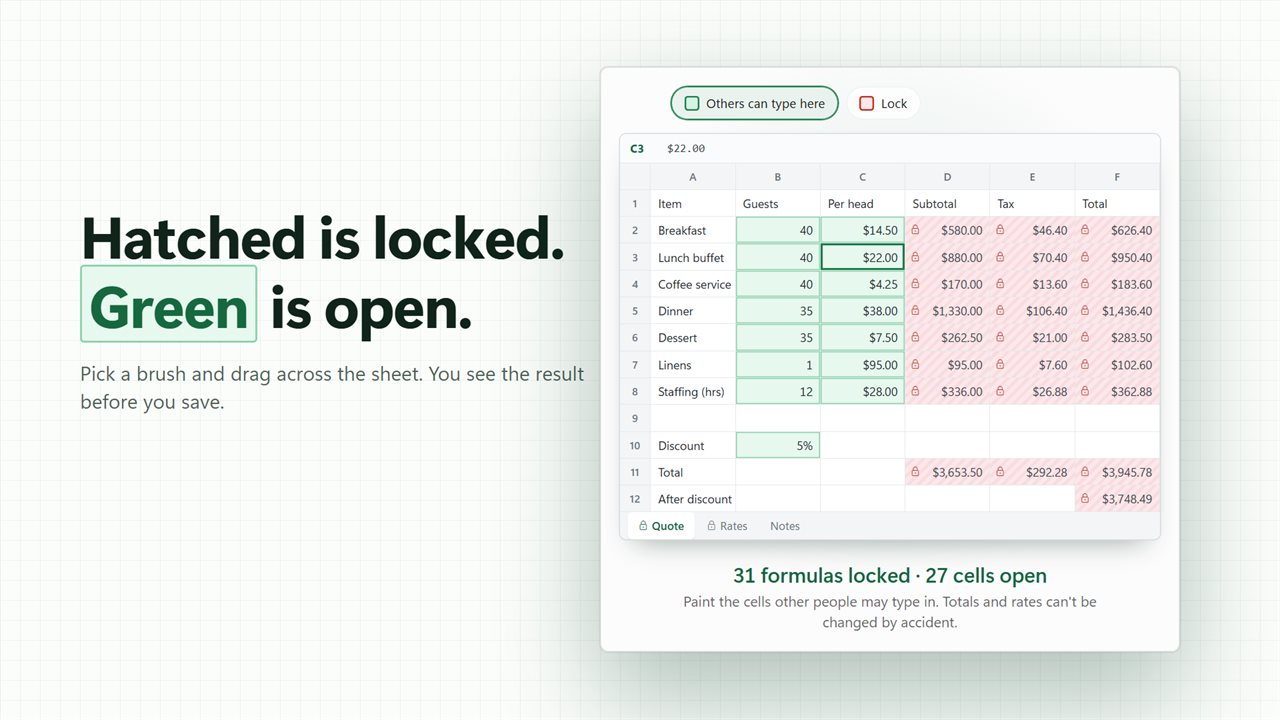
Hatched cells are locked. Green cells stay open.
Protect every sheet, only the sheets with formulas, or just one.
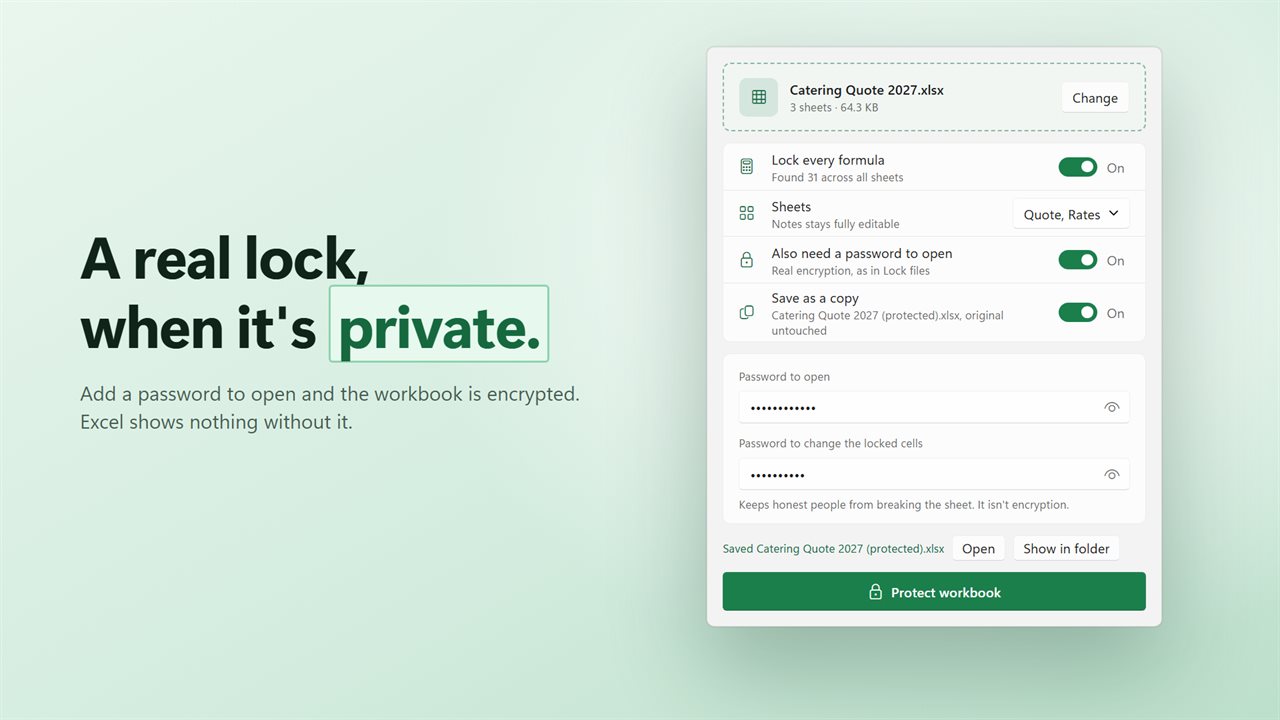
Add a password to open, and the workbook is encrypted.
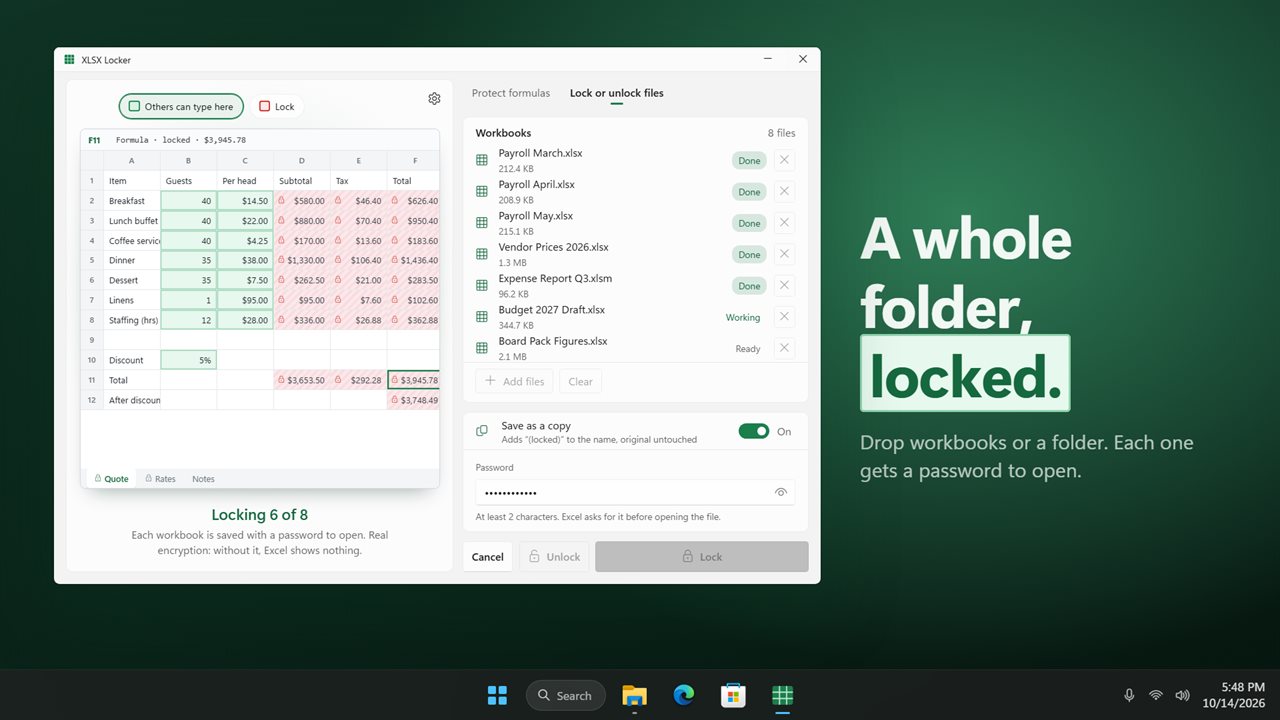
Lock or unlock a whole folder of workbooks at once.
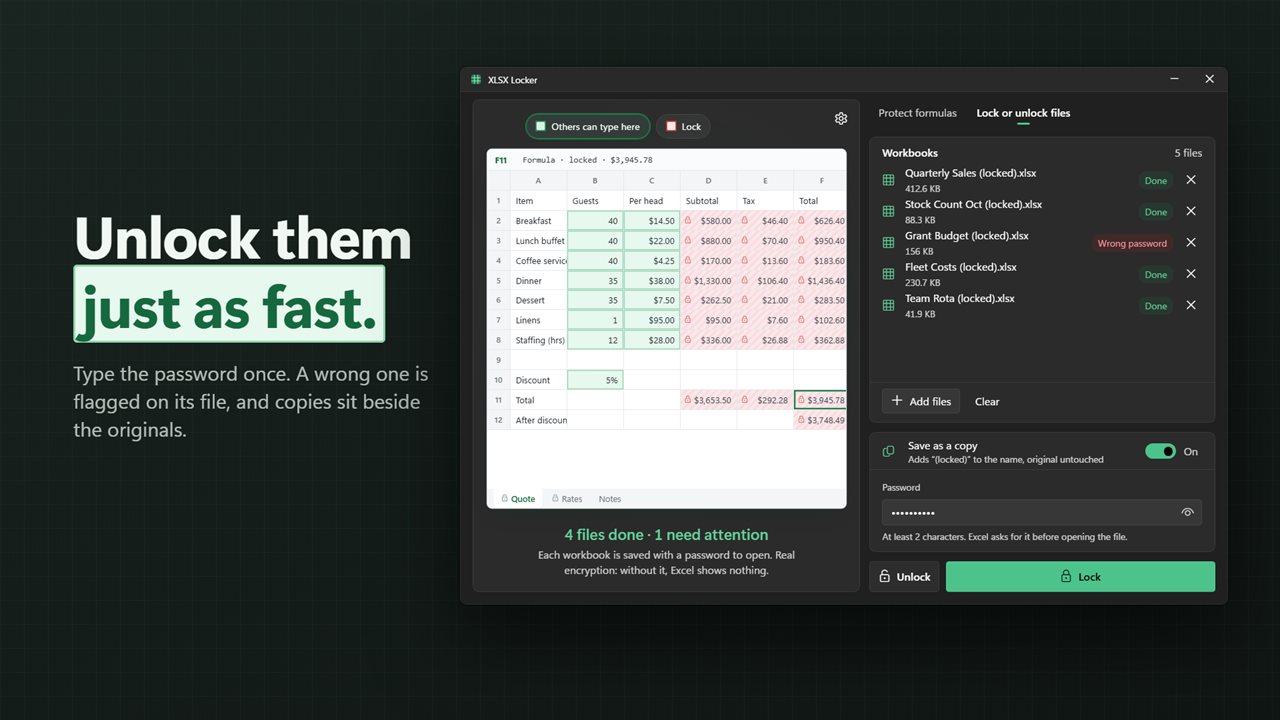
Unlock them just as fast. A wrong password is flagged on its file.

Paint the cells others may type in. Every formula locks itself.

190,000+downloads of EvlarSoft apps
Signed by EvlarSoftVerified US publisher
14-day money-backNo questions asked
Updates includedNo upgrade fees

Lock cells in Excel without the Format Cells routine

The standard way to lock cells in Excel takes four trips through the menus. Select the whole sheet and clear Locked in Format Cells, use Go To Special to find the formulas, lock just those, then switch on Protect Sheet. Do it on every tab, and do it again whenever someone sends a new version. Miss the first step and the whole sheet is frozen; miss the last and nothing is protected.

XLSX Locker turns that into one picture. Load a workbook and the sheet appears as a grid: red cells will be locked, green cells stay open for typing, and each formula is found for you, with a count of how many there are across all sheets. Cells the workbook already left unlocked start out green. Choose the Unlock cells or Lock cells brush and drag over the grid to adjust. A line under the grid reads, for example, 38 formulas locked · 120 cells open, and nothing is written until you press Protect workbook.

How to lock formulas in Excel but allow data entry

This is the most common reason people search for cell locking: a budget, a quote calculator or a timesheet where others should fill in numbers but never overwrite the totals.

  • On the Protect formulas tab, choose the workbook.
  • Leave Lock every formula on. It is the default, and it keeps formula cells locked even inside a range you paint open.
  • Paint the input cells green with Unlock cells, or use Unlock the whole sheet and then lock just a few.
  • Under Sheets, choose All sheets, only the sheets that contain formulas, or a single one.
  • Optionally type a Password to change the locked cells, then press Protect workbook.

Sheet protection vs. a password to open

These two are often confused. Sheet protection controls who can type where; anyone can still open the file and read every value, and the protection can be stripped by someone determined. It prevents accidents, not snooping. Password to change the locked cells is that kind of protection.

A password to open is a different thing: the file is encrypted, so without the password it shows nothing at all. Use both together for a template that only accepts input in the right cells, inside a file only the right people can open.

Password protect multiple Excel files at once

The Lock or unlock files tab handles batches. Drop several workbooks, or a folder to add every workbook directly inside it, type a password and choose Lock or Unlock. Each row shows its own status while the batch runs, Wrong password included, so a single bad file does not stall the rest.

Copies get a label in the name, so a folder of workbooks locked for a shared drive is easy to tell apart from the working originals sitting beside them.
What it does

  • Draws each sheet as a red and green grid, with every formula found and counted
  • Lock cells and Unlock cells brushes, plus whole-sheet lock and unlock
  • Lock every formula on by default, across every protected sheet
  • Protect all sheets, only sheets with formulas, or one sheet
  • Optional password to change locked cells and optional password to open
  • Batch Lock and Unlock for many workbooks or a folder
  • Opens .xlsx, .xlsm and .xls, including files that already have an open password
  • Saves a labeled copy or replaces the original, your choice

Where it helps

Templates sent to a team

Expense forms, order sheets and timesheets where people fill in the blanks and the totals cannot be broken.

Financial models

Protect the assumptions and formulas on every tab while leaving the scenario inputs open for whoever runs the numbers.

Confidential files in bulk

Put a password to open on a folder of payroll or client workbooks before they go to a shared drive.

What's new in 2.0.2

  • New: protect formulas. Paint the cells others may type in, and every formula is locked for you
  • New: protect every sheet, only the sheets with formulas, or just one
  • New: add a password to open while you protect
  • New: drop a whole folder of workbooks
  • The batch Lock and Unlock you know still works, and workbooks you locked before still unlock
  • Fixed: Lock and Unlock no longer overwrite your original. A copy is saved beside it unless you choose to replace it
  • Fixed: replacing an original is now written safely, so a failed save can't leave a half-written file

Questions

Anything else? Ask us

Is protecting a sheet the same as putting a password on the workbook?

No. Sheet protection stops people from typing over locked cells, but it is not encryption. Turn on Also need a password to open and the workbook is encrypted, so it cannot be opened without that password.

Will my formulas stay locked inside cells I paint as open?

Yes, while Lock every formula is on, which is the default. Every formula cell on the protected sheets stays locked, even inside a range you painted open.

Can I protect only some sheets?

Yes. You can protect every sheet, only the sheets that contain formulas, or a single sheet. The sheets you leave out stay fully editable.

Which Excel files does it work with?

It opens .xlsx, .xlsm and .xls workbooks, including ones that already have a password to open once you type it, and saves each one in its own format. Dropping a folder adds the workbooks directly inside it, not those in subfolders.

Does it change my original workbook?

Not by default. It saves a copy beside the original named "(protected)", "(locked)" or "(unlocked)", numbered if that name is taken. If you turn off Save as a copy, the original is replaced, and the new file is written in full before it takes the original's place.

Can it remove a password I have forgotten?

No. Unlock needs the password, and it removes only the password to open. It does not remove sheet protection or recover a lost password.

How do I lock only some cells in Excel?

Open the workbook in XLSX Locker, paint the cells that should stay editable with Unlock cells, and leave the rest locked. Press Protect workbook and only the painted cells accept typing.

Can I lock cells in Excel without protecting the sheet?

No. Every cell is marked Locked by default, but the mark does nothing until the sheet is protected. That is why XLSX Locker protects the sheets you pick in the same step that sets which cells stay open.

Which versions of Windows does it run on?

Windows 10 (version 1809 or later) and Windows 11.

Is it a subscription?

No. XLSX Locker is a one-time purchase of $1.99, and updates are included.

How do I get it?

Buy it on this page and your license key arrives by email. If the button says Notify me, XLSX Locker is not on sale here yet; leave your email and we will tell you when it is.