
How to merge Excel files into one without macros
Inside a spreadsheet program, there are two usual ways to merge Excel files. You can open each workbook and use Move or Copy to drag its sheets across, which is fine for three files and miserable for thirty. Or you can use a folder query, which stacks everything into a single table whether you wanted that or not. Keeping each file on its own tab without writing a macro is surprisingly hard.
XLSX Converter gives you both results directly. Open the Merge tab, drop the workbooks, CSV files or a whole folder, and set Combine to Each file becomes a sheet for one tab per source, or Stack rows into one sheet for a single table. Formatting and column widths come across, and the result is saved as one .xlsx.
The same window splits and converts, so a monthly routine of combining reports, carving them up for each team and sending PDFs can happen in one place.
Split an Excel file into multiple files by column value
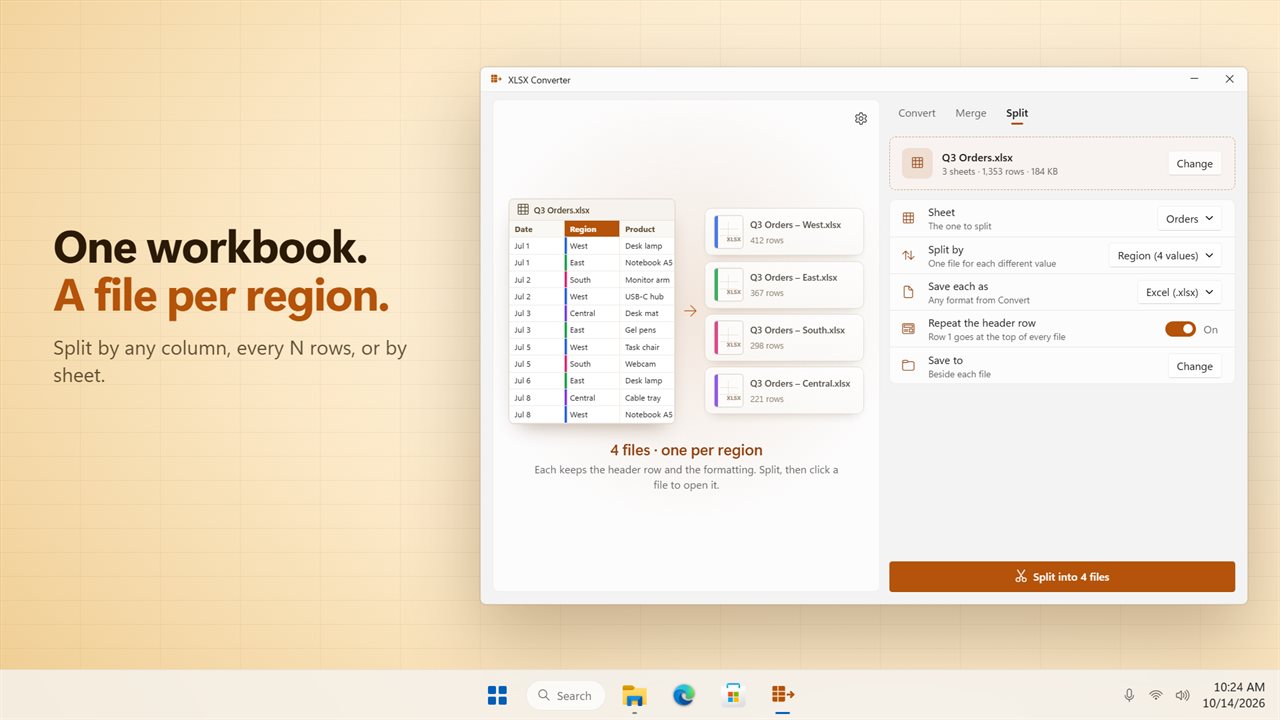
On the Split tab, drop one workbook and choose how to divide it. One file for each different value reads a column you pick, such as Region, Store or Sales Rep, and writes a separate workbook for every distinct entry. Files of the same length cuts the sheet every N rows, 250 unless you change it, which is the easy answer to a CSV too big to import somewhere else. One file for each sheet breaks a multi-tab workbook apart.
Before anything is written, a preview colors the first rows by the value they will be grouped under and lists every file you will get with its row count. The header row is repeated on each new file by default. Split files can be saved as XLSX or any other output format except PNG.
Batch convert Excel to PDF, CSV, JSON and other formats
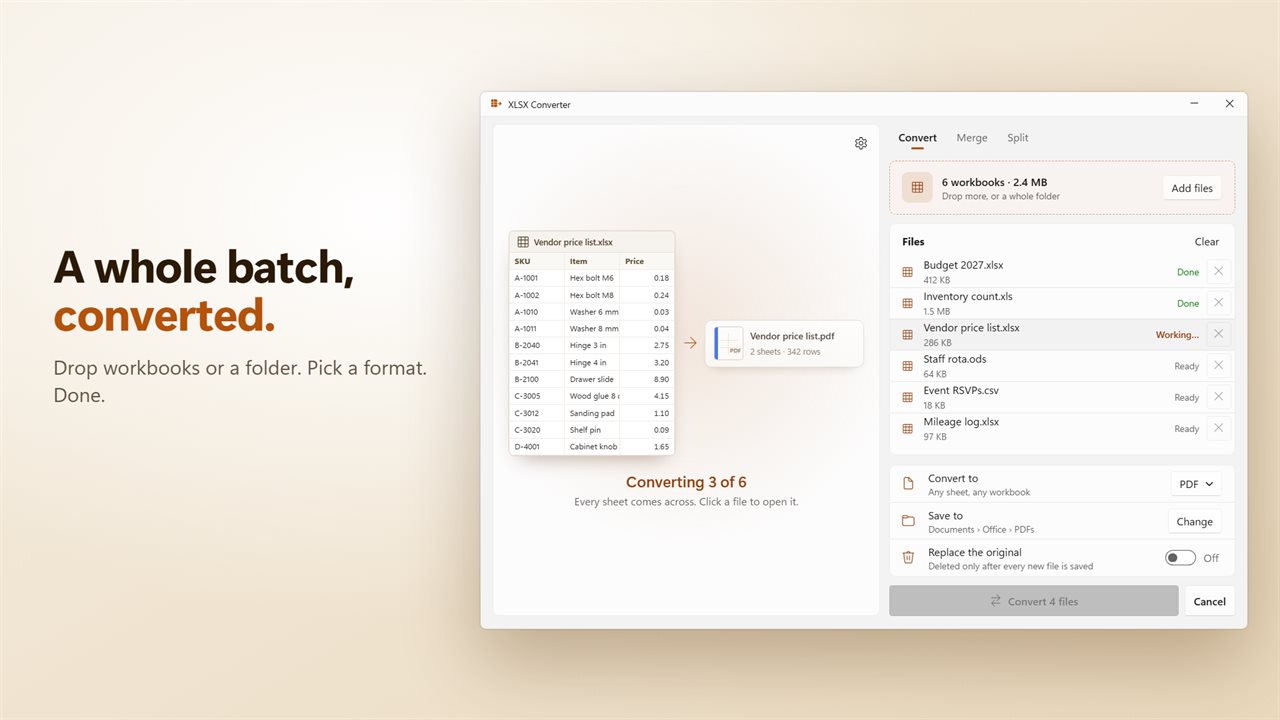
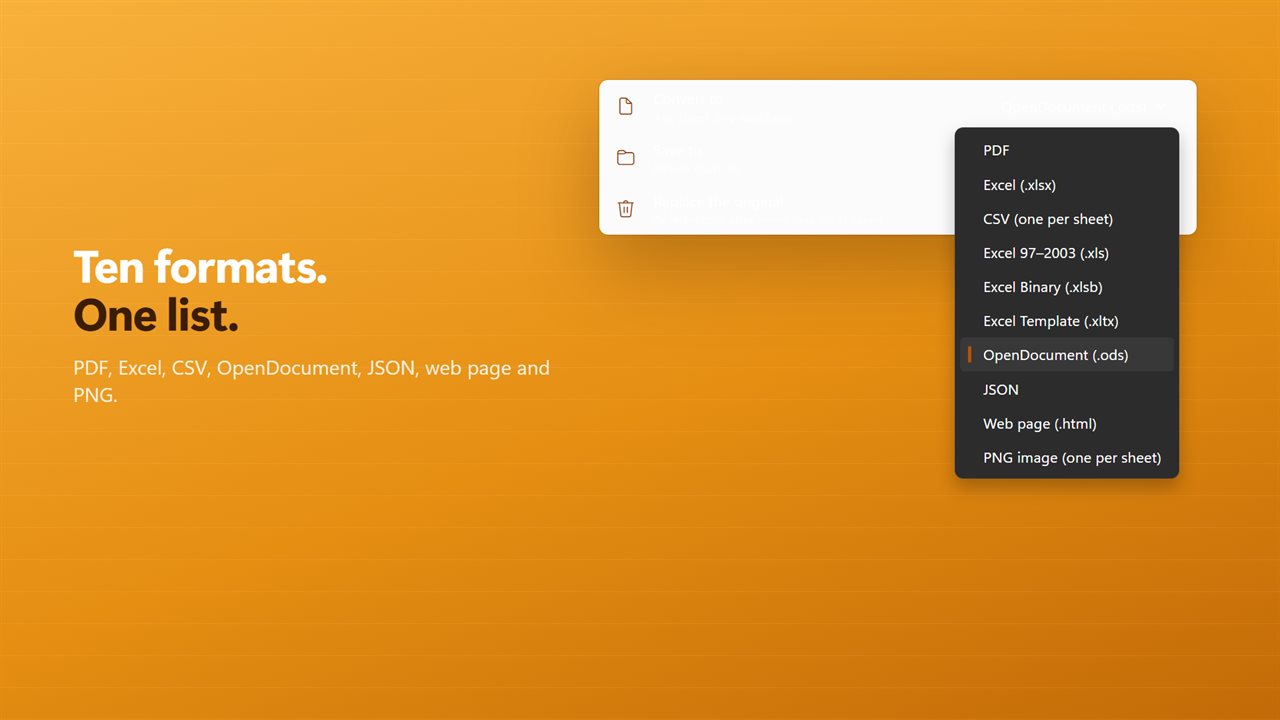
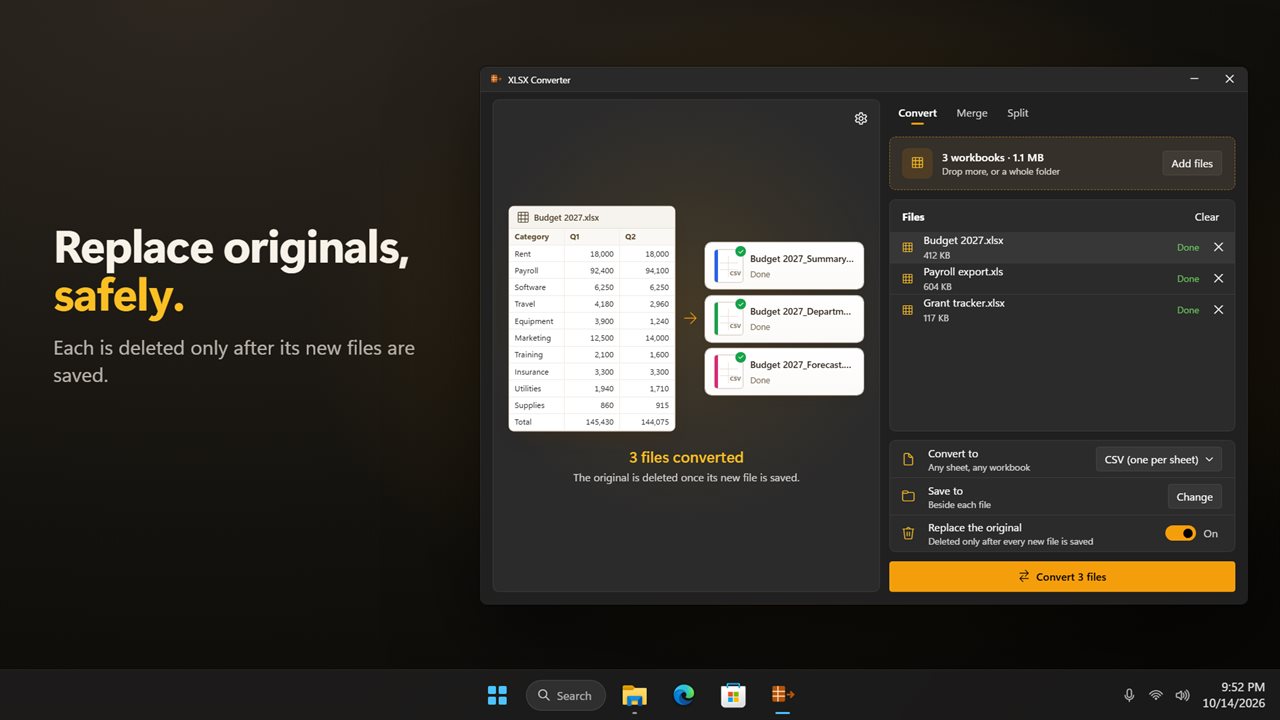
On the Convert tab, add as many workbooks as you like, pick a target and press Convert. Ten outputs are available: PDF, CSV, JSON, a Web page (.html) and a PNG image, plus five spreadsheet types, namely .xlsx, the older 97–2003 .xls, binary .xlsb, template .xltx and OpenDocument .ods. CSV and PNG write one file per sheet, since neither format holds more than one.
That covers the common one-off jobs as well: XLS to XLSX for an old archive, XLSX to CSV ahead of a database load, Excel to JSON for a developer, or a folder of quarterly workbooks to PDF for people without a spreadsheet program. It reads .csv, .ods, .xlsm, .xltx, .xlsb, .xls and .xlsx inputs.
Merge CSV files into one Excel workbook
CSV exports from a bank, a store platform or a sensor log usually arrive as one file per day or per account. Turning them into one workbook takes four steps here.
- Drop the .csv files, or the folder holding them, on the Merge tab.
- Set Combine to Stack rows into one sheet for a single table, or Each file becomes a sheet to keep the days apart.
- Leave Header row once on when stacking, so row 1 is taken from the first file only and the repeats are dropped.
- Press Merge and save. The file is offered as the first file's name plus merged.xlsx, and you can rename it before saving.