
How to password protect a PowerPoint you are about to send
When you password protect a PowerPoint file, you usually do it because the deck is going outside your team. That is exactly when the other things inside it matter: speaker notes with candid remarks, a comment thread arguing about the numbers, backup slides you hid during the meeting, and your name and company in the file properties. A password stops strangers opening the file. It does nothing about what the right recipient finds once it is open.
Doing both jobs in PowerPoint means two trips through the File menu: Inspect Document to strip the extras, then Encrypt with Password, and it is easy to run them on your only copy. PPTX Locker does them in one save and never edits the original.
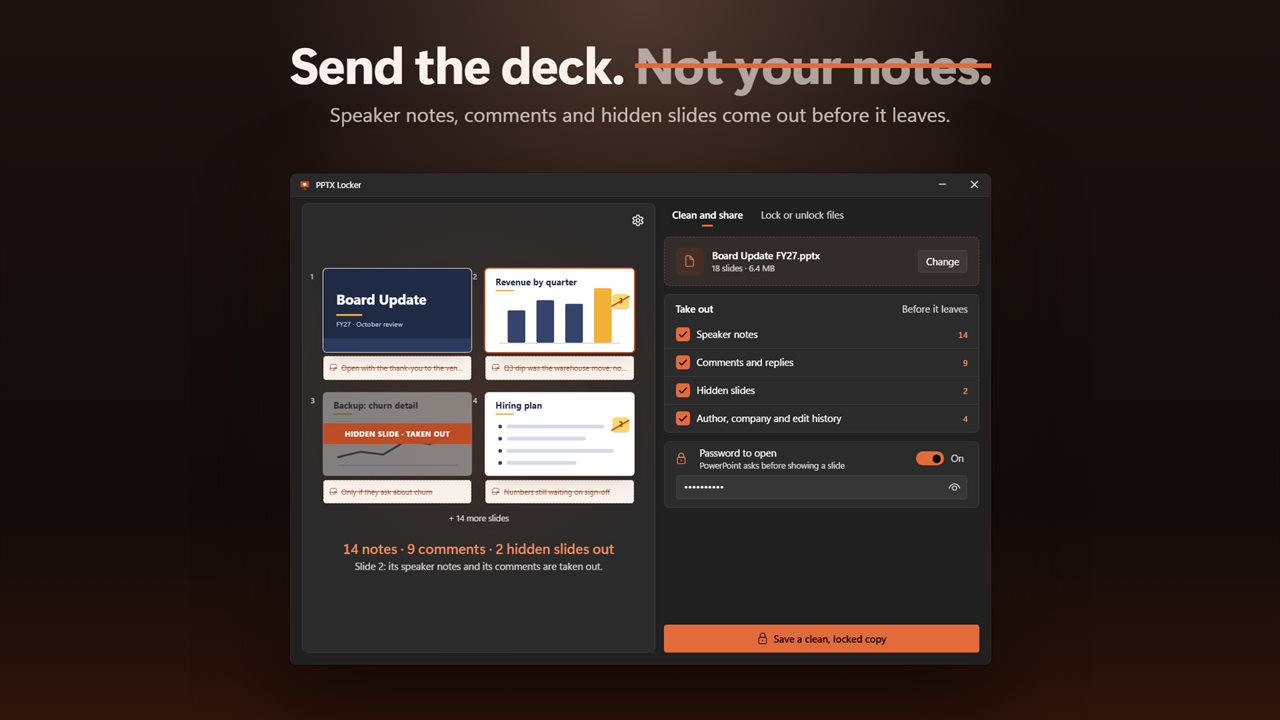
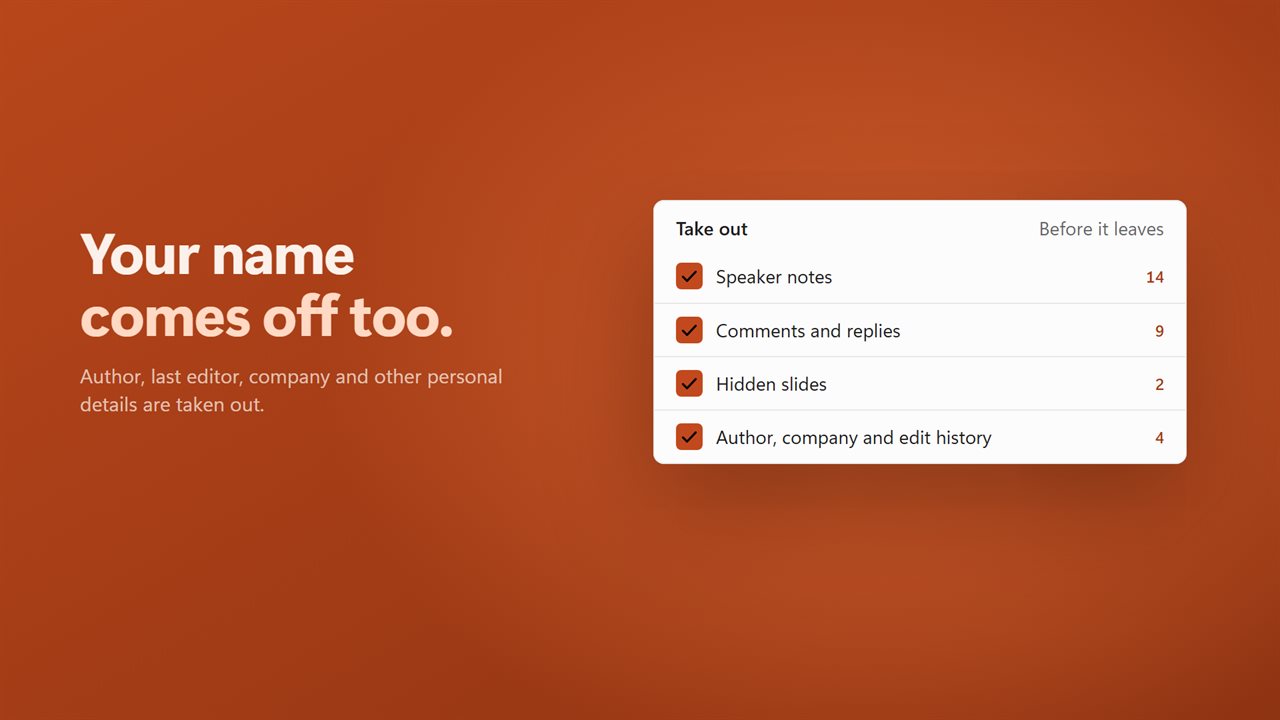
Open a deck on the Clean and share tab and the app counts what it found. Under Take out, tick Speaker notes, Comments and replies, Hidden slides, and Author, company and edit history. Turn on Password to open, type the password, and press Save a clean, locked copy. The result lands beside your file with (clean) in its name.
Delete all notes in PowerPoint, and check before you do
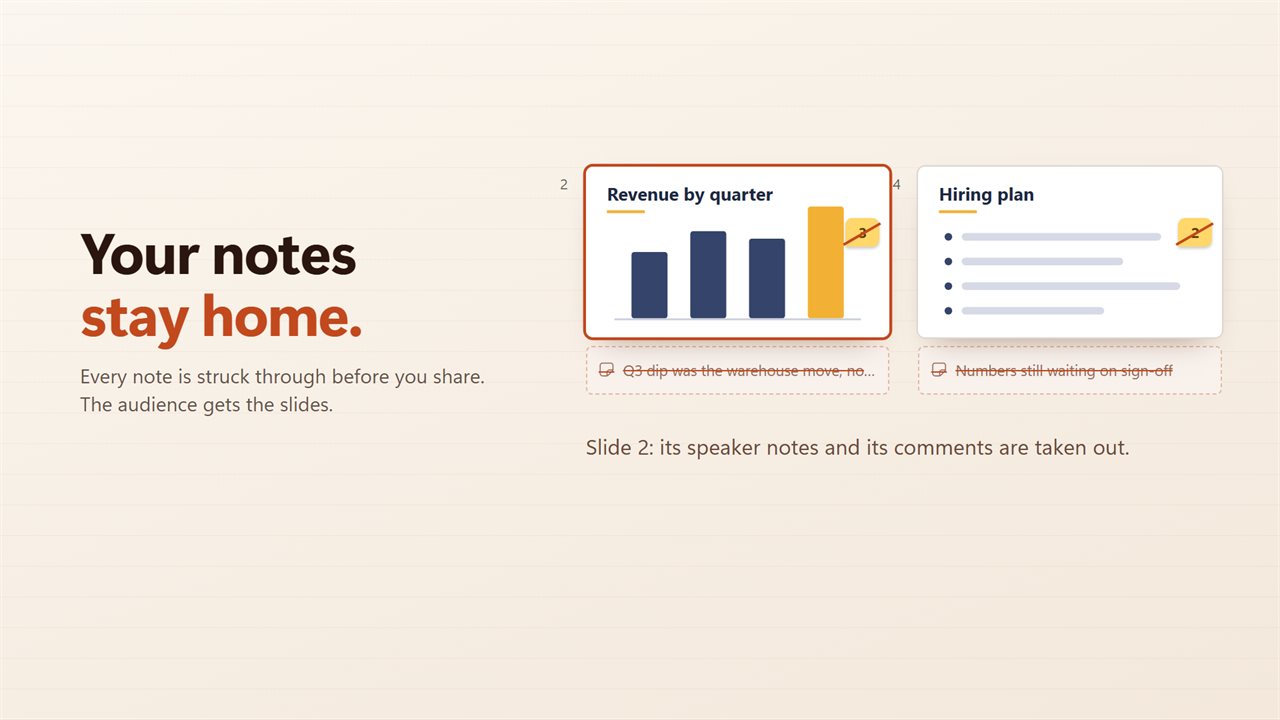
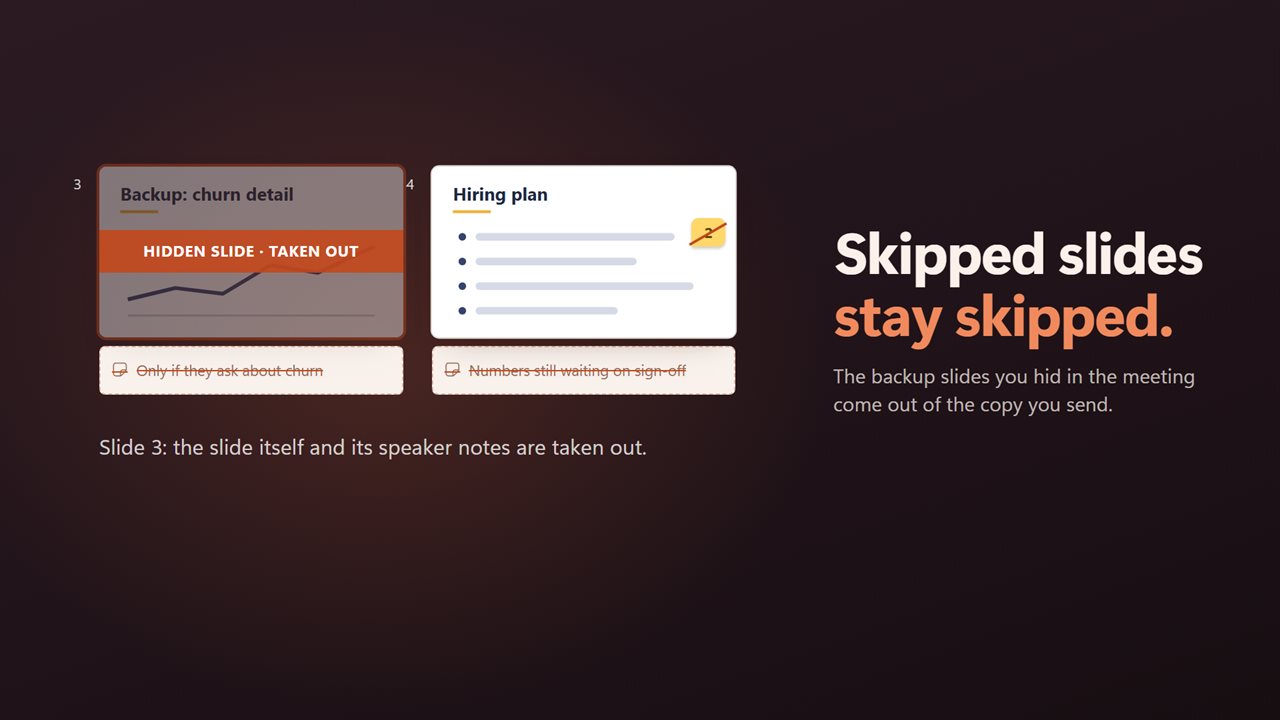
Removing speaker notes is a one-way step for the copy you send, so the app shows you what will go first. Previews of the first four slides mark it: notes that will go are shown with a line through them, each comment bubble, with its count, is struck through as well, and each hidden slide carries a banner that reads HIDDEN SLIDE · TAKEN OUT. Untick Hidden slides and the ribbon changes to STAYS.
Click any slide and a line beneath it lists what leaves that slide and what remains. If the deck holds nothing personal, the summary says so, and with nothing ticked and no password the app asks you to tick something rather than write a pointless copy.
Author, company and edit history clears the author, last editor, company, manager, comments and keywords properties. The title and subject stay, since a recipient usually expects to see them.
Remove comments from PowerPoint without losing your own copy
Comments and their replies come out as a set, so no orphaned reply is left pointing at nothing. Because the clean deck is a separate file, the review history is still in the original for the next round of edits. That separation is the main difference from the built-in inspector, which works on whatever file you have open and offers no undo for some of its changes.
Lock or remove a password from PowerPoint files in bulk
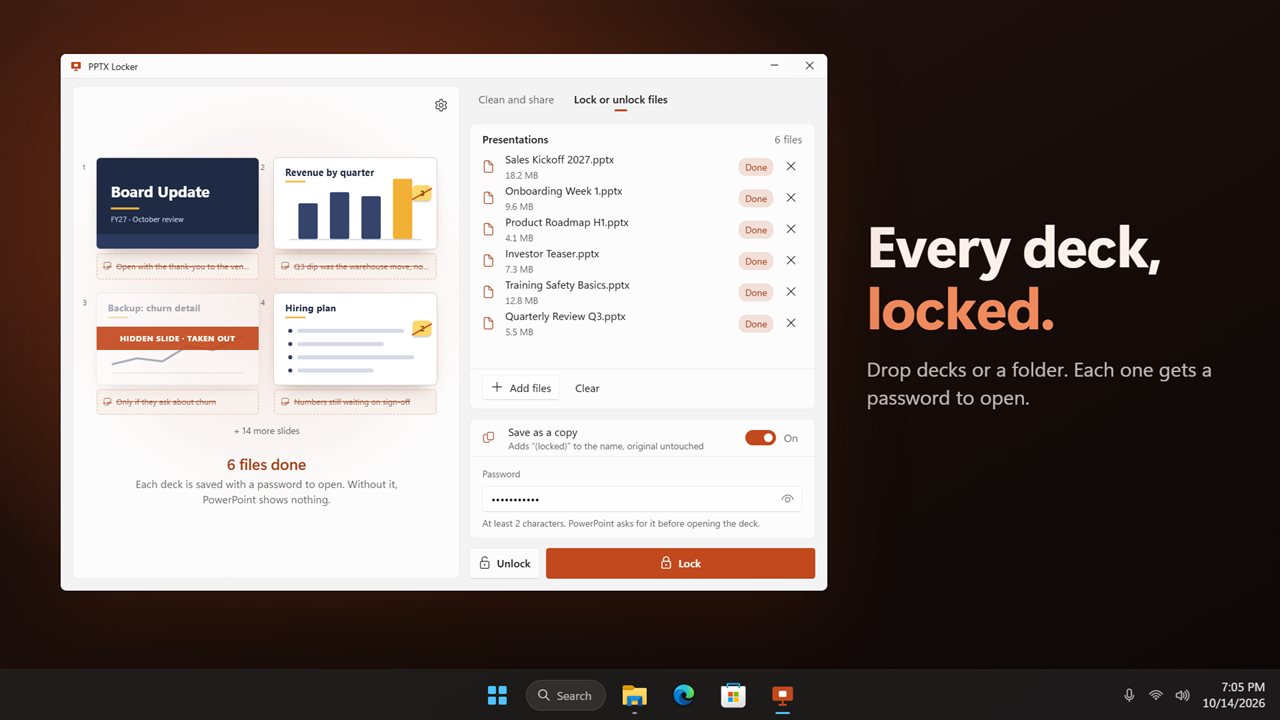
The Lock or unlock files tab is for a stack of decks that only need a password. Use Add files or drop a folder onto the Presentations list, type a Password of at least two characters, then press Lock or Unlock. Each deck shows its own status, including Wrong password if a file does not match.
With Lock and unlock as a copy on in Settings, which is the default, results are saved beside the originals as (locked) or (unlocked). Turn it off to replace the originals instead. Unlocking needs the right password; the app removes a password you know, it does not guess one you have lost.