How to password protect a PDF without doing it one file at a time
Windows has no built-in way to password protect a PDF. The usual advice is to open each document in a full PDF editor, find the security menu, type a password and save, then repeat for the next file. That is fine for one contract. It is slow for a month of invoices, a set of payslips or a folder of scanned records.
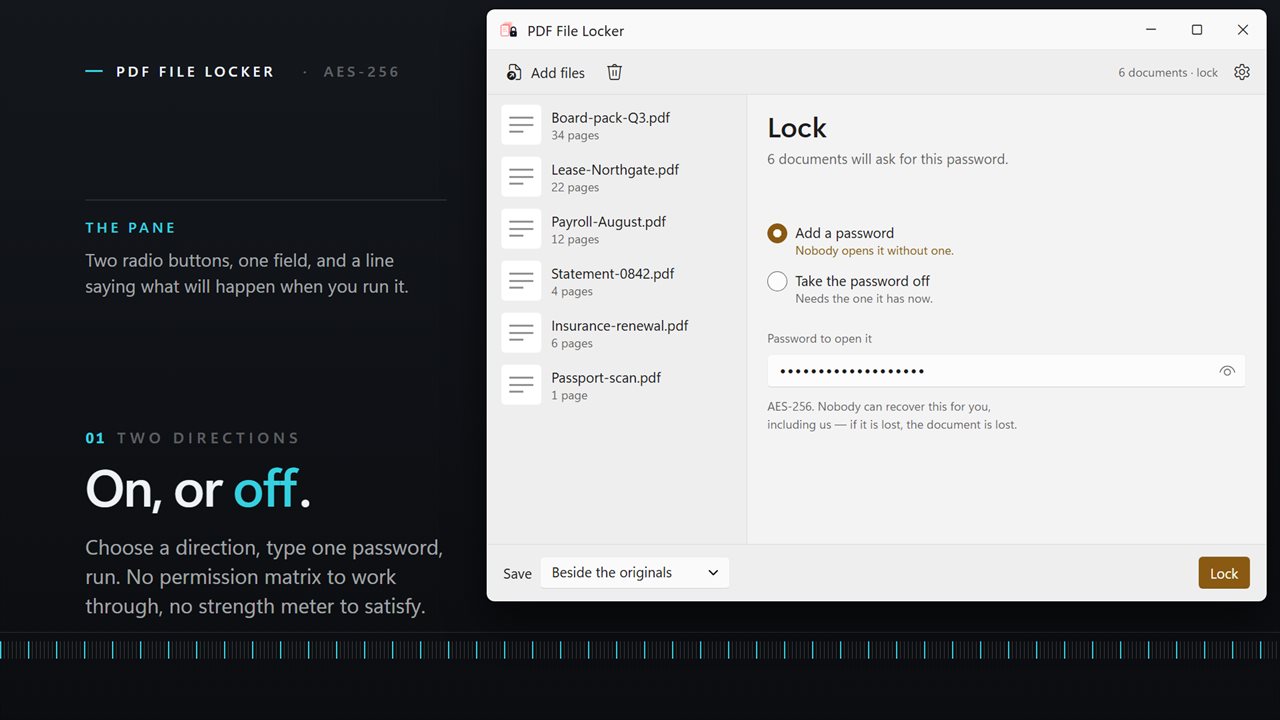
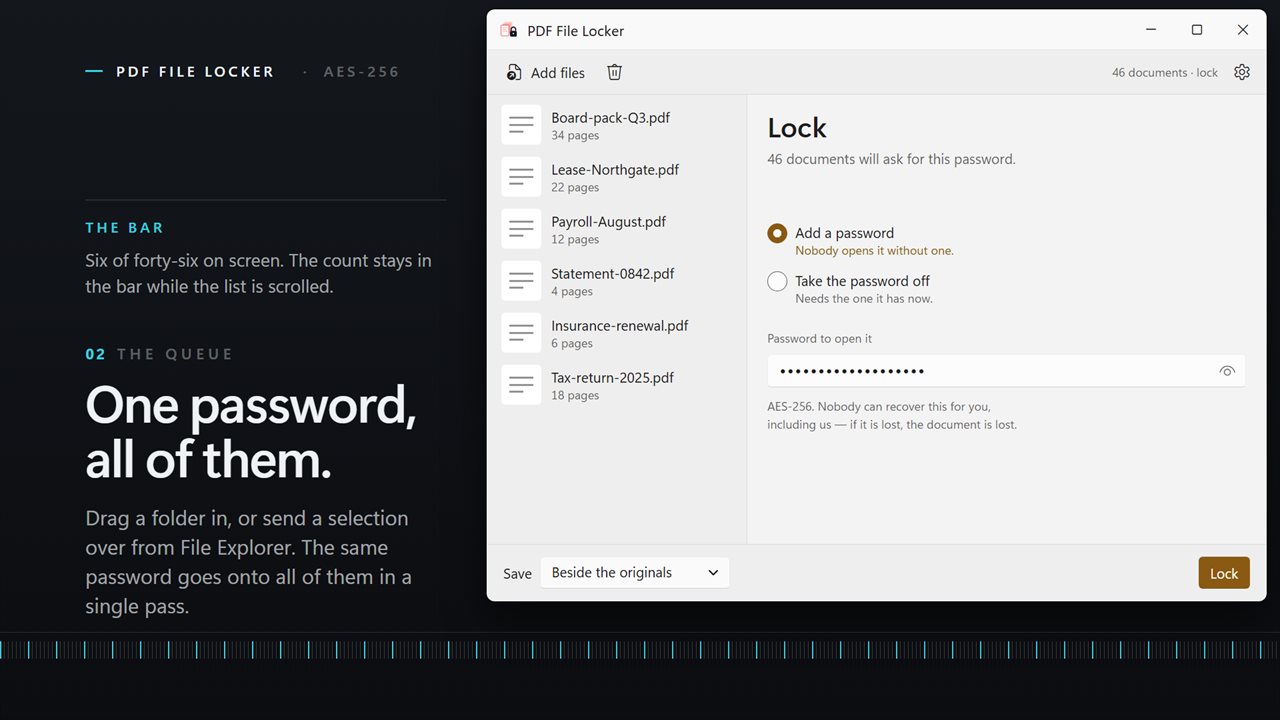
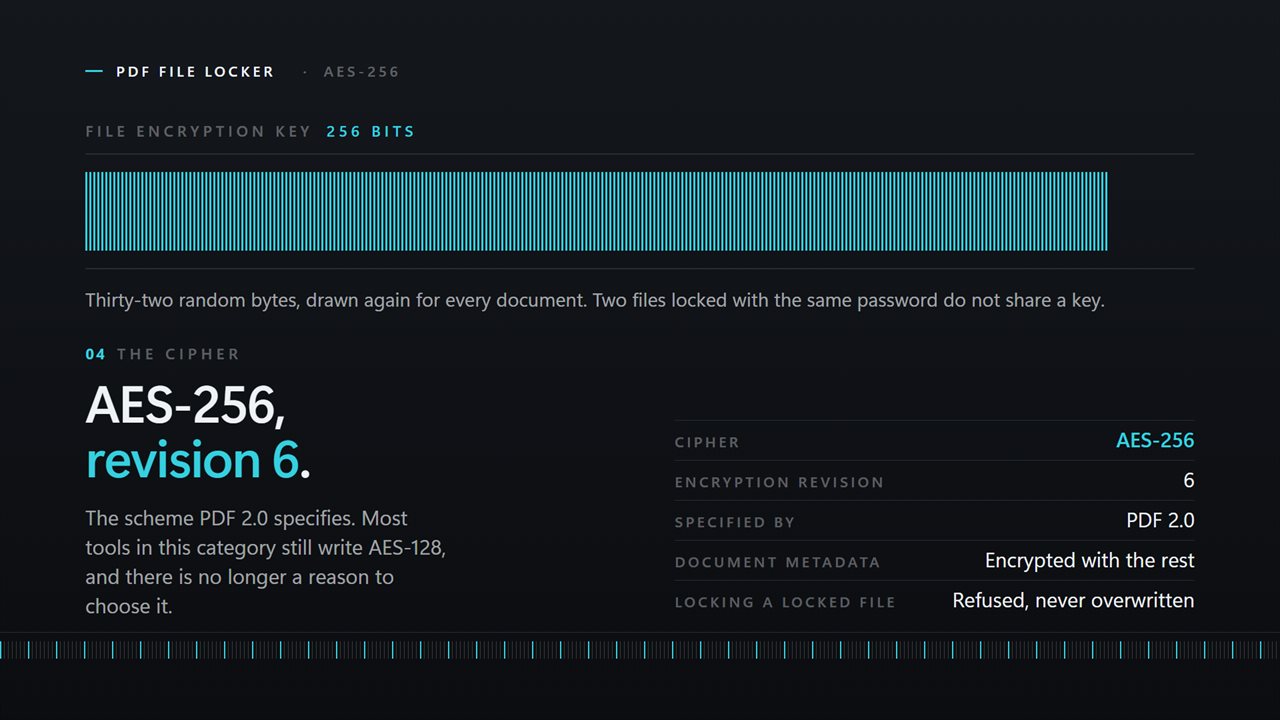
PDF File Locker treats the folder as the job. Drop in as many PDFs as you like, choose Add a password, type the password once in Password to open it, and press Lock. Every document in the queue comes out encrypted with AES-256, the scheme defined in PDF 2.0, and any modern PDF reader will ask for that password before it shows a page.
The same window works in reverse. Choose Take the password off, enter the password they open with, and it writes copies that open without asking. That is the honest version of "unlock PDF": it removes protection you are entitled to remove, and it cannot open a file whose password you do not know.
Lock a folder of PDFs in four steps
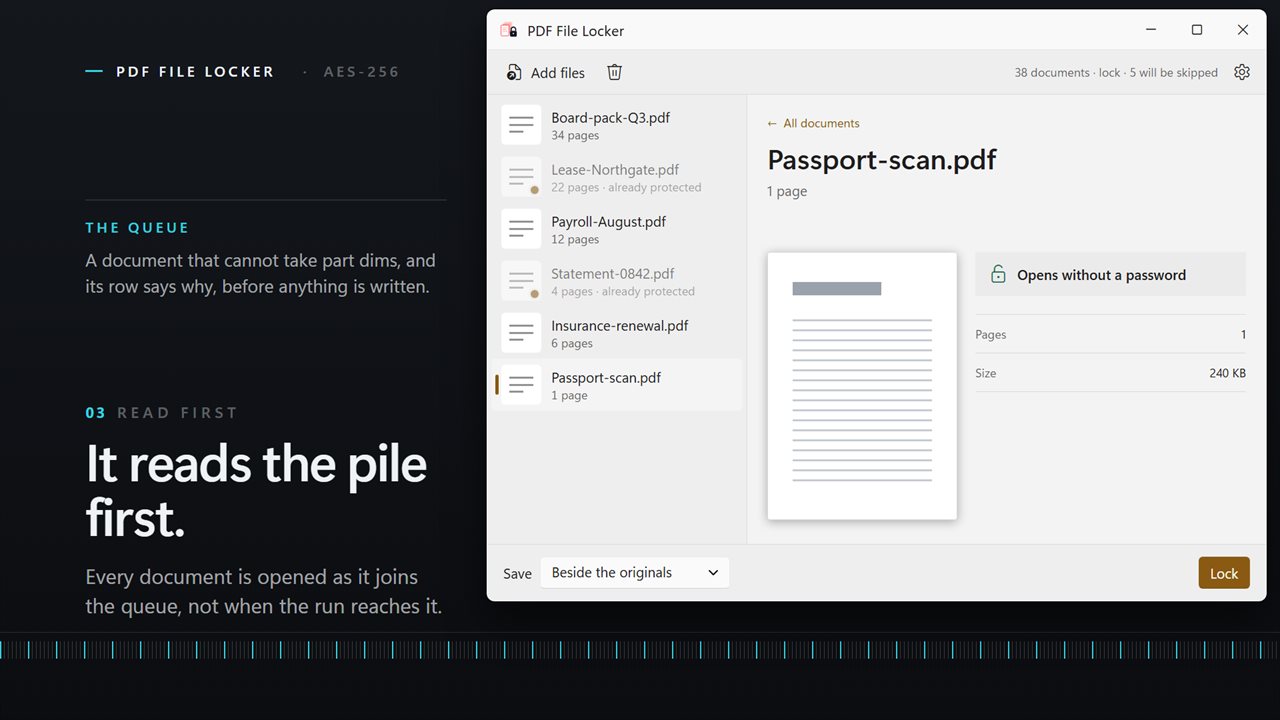
While the queue loads, each document is read for its page count and size, and you get a preview of the first page in the detail view. Files that already carry a password are marked already protected before you run, and they are left untouched rather than failing halfway through the batch.
Keep the password somewhere safe. AES-256 has no back door, so a lost password means a document nobody can open, including you.
- Drag the documents or a whole folder onto the window, select Add PDFs, or select files in File Explorer and send them over with Open with.
- Leave Add a password selected at the top of the Password pane.
- Type the password in Password to open it. The line above it tells you how many documents will ask for it.
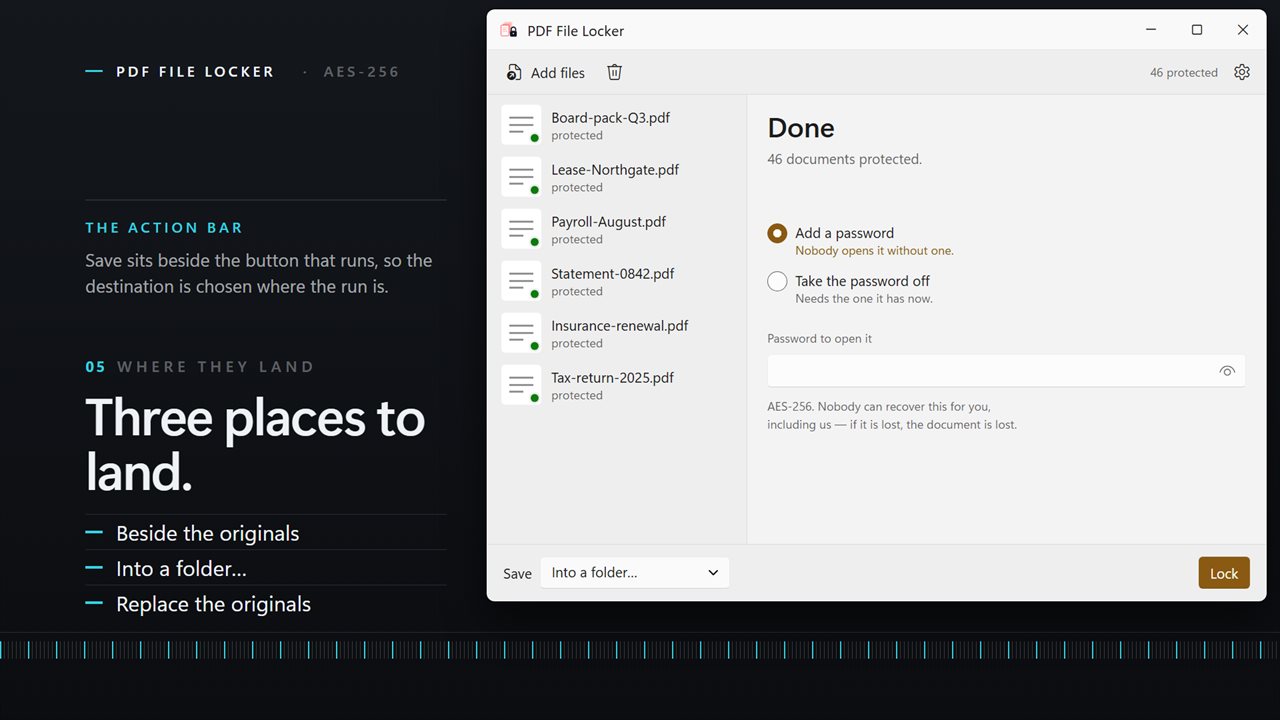
- Pick where results go under Save, then press Lock.
Remove a password from PDF files you can already open
A password made sense while a document was moving between people. Once it is filed in your own archive, it is just a prompt in your way, and it stops search, merging and other tools from reading the file.
Switch to Take the password off and type the password the files have now in Its current password. One password covers the whole queue. If a few documents were locked with something different, those few fail on their own with the reason shown next to them, and the rest of the run carries on. Documents that never had a password are marked not protected and skipped.
Where the locked and unlocked copies are saved
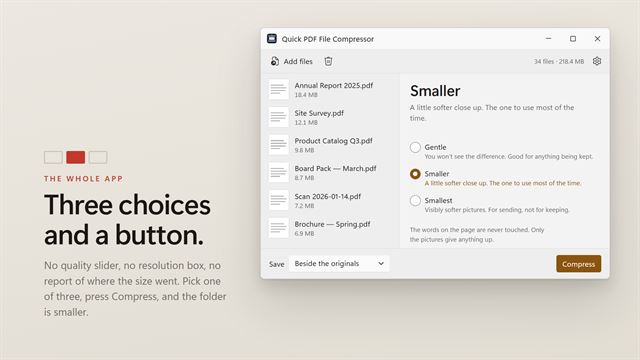
Beside the originals is the default. Each new file keeps its name with (locked) or (unlocked) added, and a second run adds a number rather than writing over the first run's output. Into a folder puts the copies somewhere you choose under their original names. Replace the originals asks you to confirm first, then swaps each original out only after its new copy has been written, so a failure partway through never leaves you with neither file.
You can stop a long batch with Cancel. Documents already finished stay finished, and the one in progress is left as it was.