EEvlarSoft

HTML to PDF

html files, or paste markup, and get one tidy PDF per page with the layout you designed.

Buy for $2.99
One payment. No subscription.
14-day money-back guarantee.
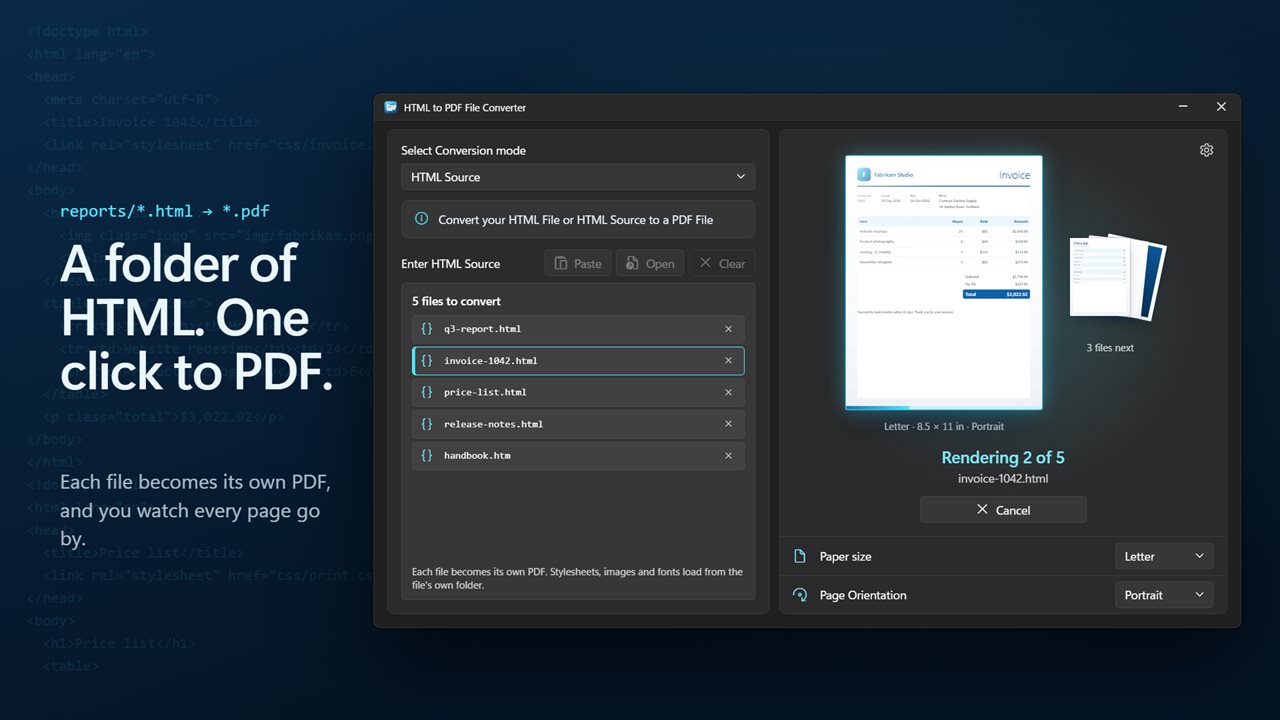
Convert a whole stack of HTML files to PDF in one go.
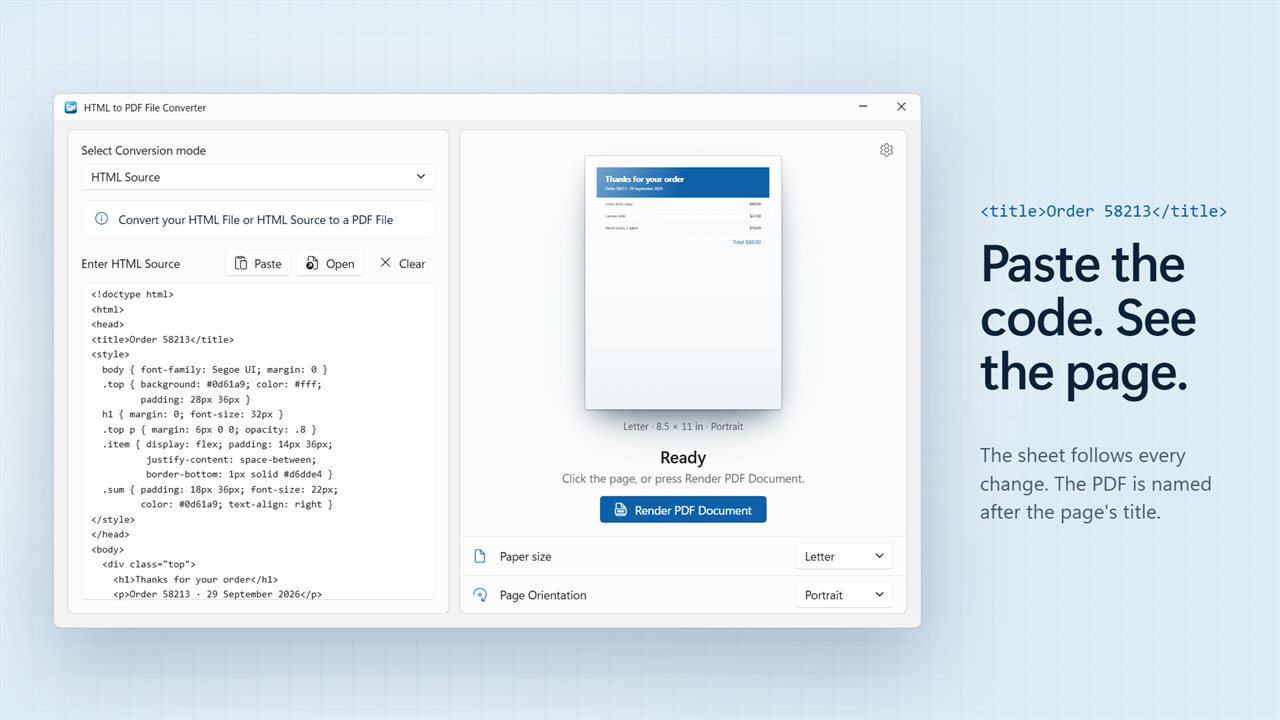
Paste your code and see the page before you convert.
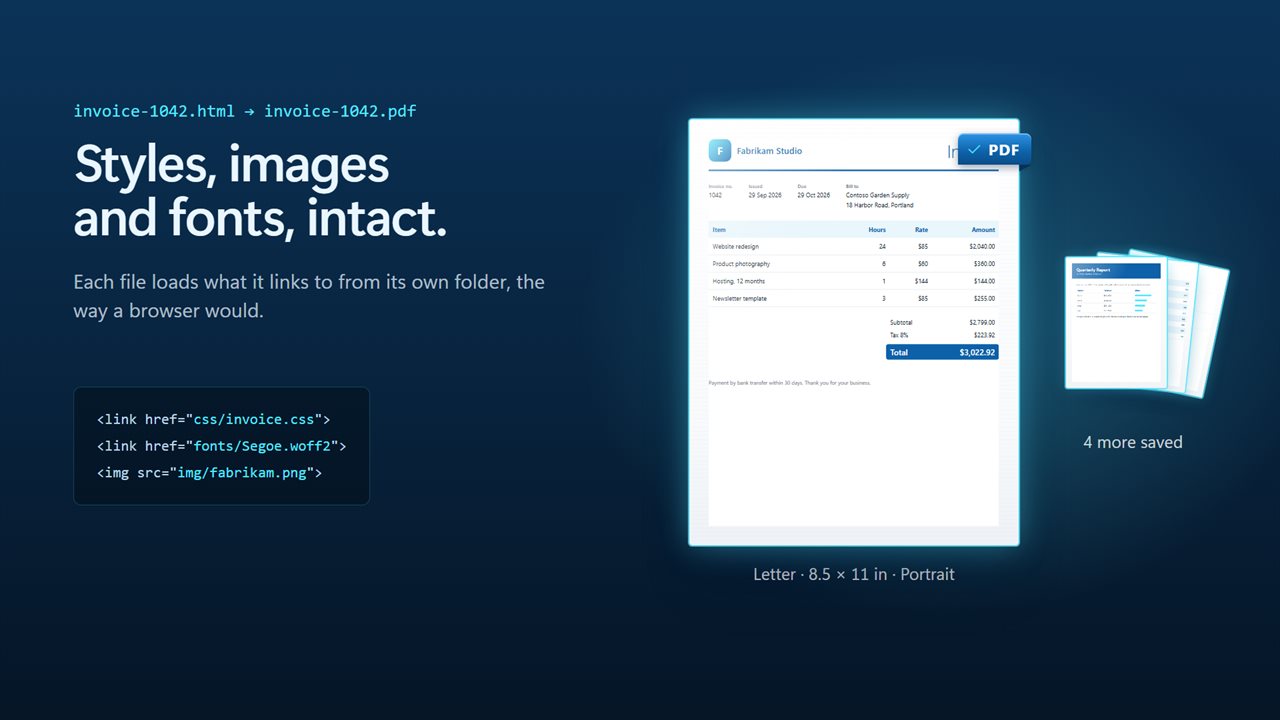
Stylesheets, images and fonts come through intact.
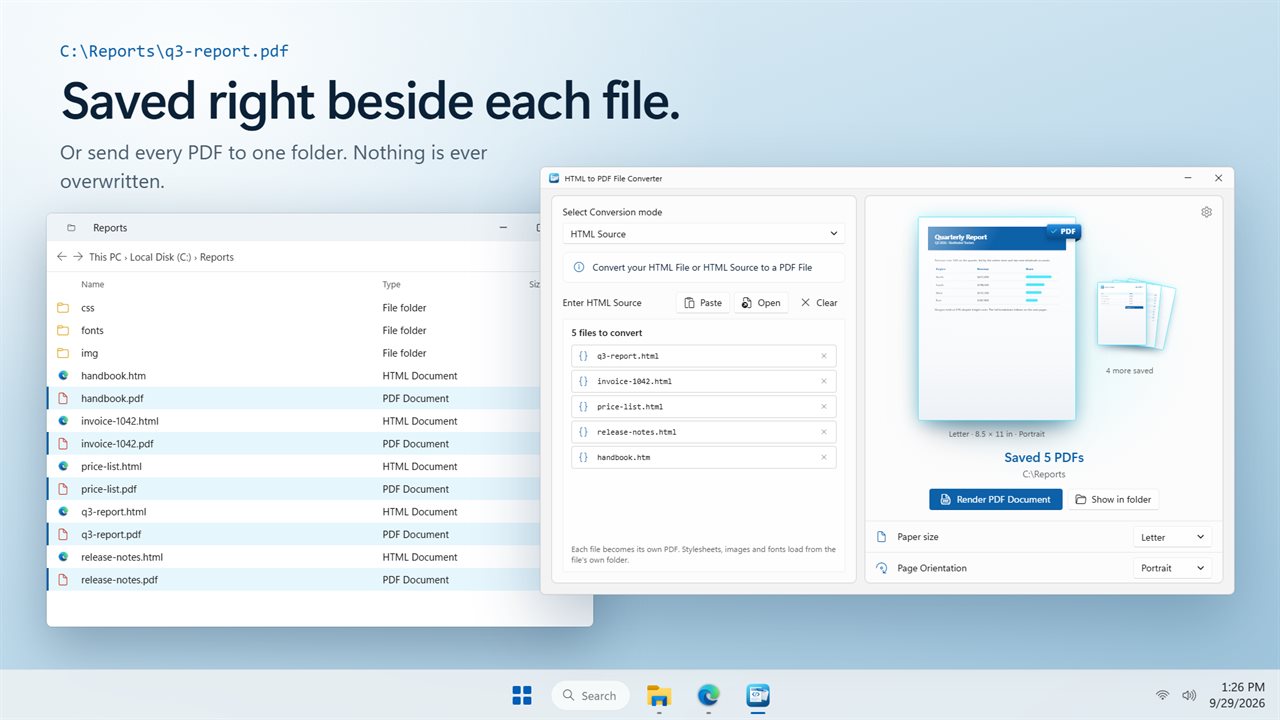
Each PDF is saved right beside its HTML file.
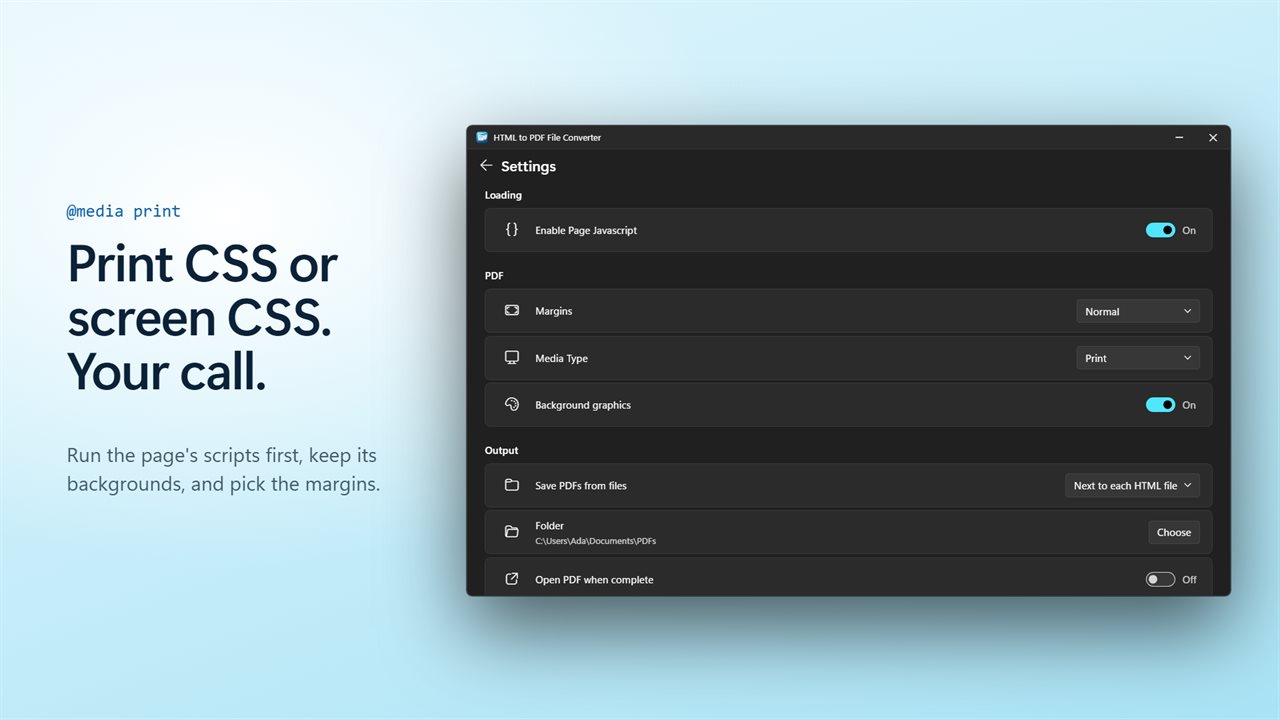
Print styles or screen styles, scripts and backgrounds: your call.
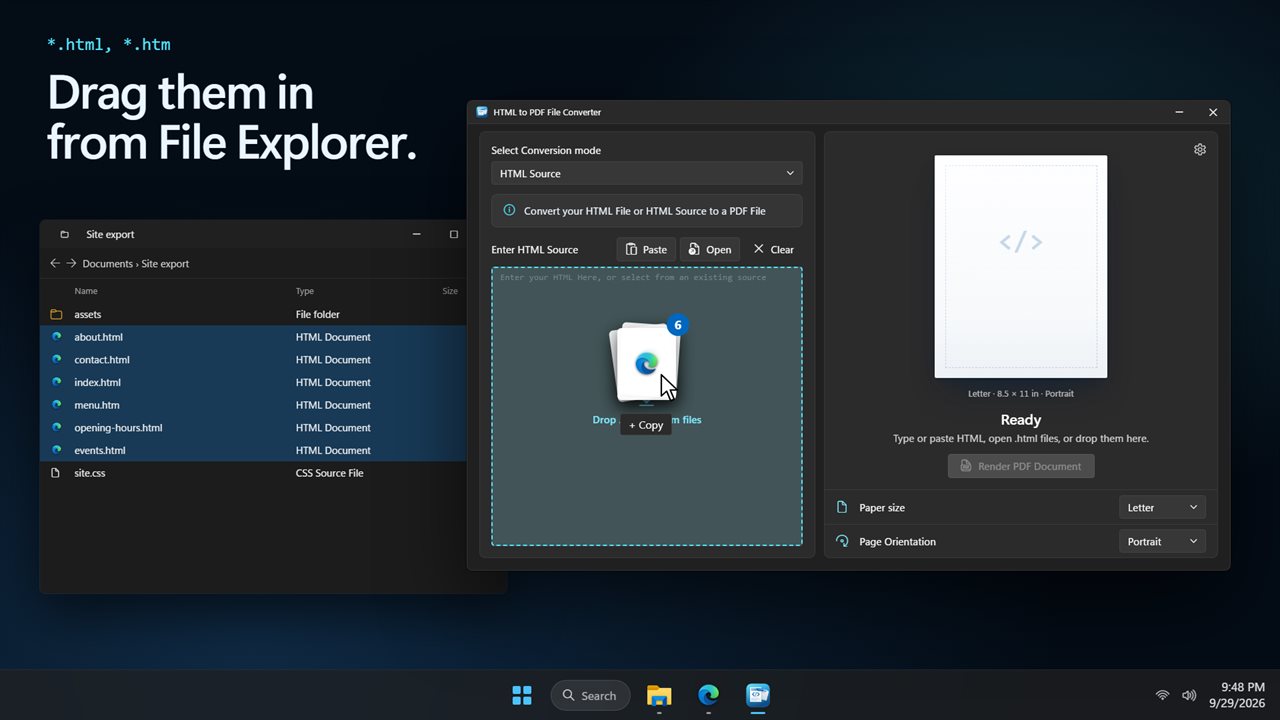
Drag .html and .htm files straight from File Explorer.

Convert a whole stack of HTML files to PDF in one go.

190,000+downloads of EvlarSoft apps
Signed by EvlarSoftVerified US publisher
14-day money-backNo questions asked
Updates includedNo upgrade fees

A desktop HTML to PDF converter that keeps your layout

Most people who need an HTML to PDF converter start with the browser: open the file, press Ctrl+P, pick Save as PDF. That works for one page. For twenty invoices or a folder of exported reports it means twenty trips through the print dialog, and the browser stamps a date, a title and a file path along the edges of every sheet unless you remember to switch that off.

This app does the same rendering job in a batch. Every file you add gets its own PDF, built by the Edge engine that already ships with Windows (Chrome is used when Edge is missing), running out of sight. No header or footer is printed, so the pages carry only your content.

Because each file is opened from where it sits on disk, relative links to stylesheets, pictures and web fonts resolve exactly as they did when you previewed the page. That is the usual reason a conversion loses its formatting, and it is the part that tends to break when a page is uploaded to an online service on its own.

How to convert an HTML file to PDF

The window opens in HTML Source mode. From there the steps are short:

  • Click Open HTML files and pick one or more .html or .htm files, or drag them from File Explorer onto the window.
  • Under Paper size, Page Orientation and Margins, set the sheet you want: Letter, Legal, Tabloid, A3, A4 or A5, portrait or landscape, with None, Narrow, Normal or Wide margins.
  • Press Render PDF Document, or Ctrl+Enter. Each page appears on the sheet as it is processed, and Cancel rendering stops the run.
  • When it finishes, open the result or choose Show in folder. Turn on Open PDF when complete if you always want to see it straight away.

Save HTML as PDF straight from pasted code

Not every page lives in a file. If you are working on an email template, a receipt layout or a snippet from a CMS, paste the markup into the Enter HTML Source box. The preview redraws while you type, so you can fix a broken tag or a missing style before anything is written.

When it looks right, click the page itself or press Render PDF Document. The PDF takes its name from the document's title tag. One caution: pasted markup has no home folder, so images and stylesheets referenced by relative paths will not be found. Use absolute addresses, or save the markup as a file and open that instead.

Batch convert HTM to PDF and control where files land

Under Save PDFs from files you choose Next to each HTML file or In one folder. Side by side keeps report.html and report.pdf together, which suits a project tree. One folder suits an export you plan to email or archive.

A file that already exists is left alone. The new copy gets a number in brackets, so a second run never wipes out yesterday's output. If one page fails, the run carries on and tells you at the end which file could not be rendered.

Print styles, screen styles and scripts

Pages that ship a print stylesheet usually look best with Media Type set to Print. If the printed version hides things you want, switch to Screen and the PDF follows what you see in a browser window. Background graphics keeps or drops colored panels and background images, and Enable Page Javascript decides whether the page's scripts run before capture, which matters for charts and content built on load.

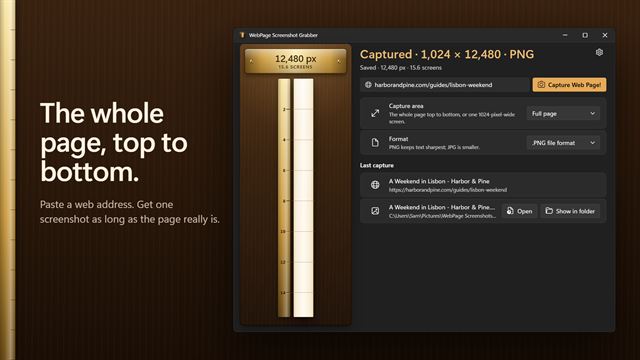
Switch the conversion mode to Single URL to convert a web address to PDF. The page is fetched and printed the way Edge would print it.
What the converter handles

  • One PDF per .html or .htm file, for as many files as you queue
  • Drag and drop from File Explorer, or a multi-select file picker
  • Relative CSS, image and font links resolve from each file's folder
  • Live preview of typed or pasted markup, saved under the page title
  • Six paper sizes, portrait or landscape, four margin widths
  • Print or screen media, background graphics on or off, scripts on or off
  • Output beside each source file or collected in a single folder
  • Existing PDFs are never replaced; new copies are numbered
  • Single URL mode for converting one live web page
  • Ctrl+Enter shortcut and a cancel button that stops the run

Who uses it

Invoices and receipts generated as HTML

Billing systems and scripts often write one HTML page per customer. Queue the whole batch and send PDFs that open the same on any device.

Documentation and offline archives

Exported help pages or saved sites keep their styling because their assets are read from disk, ready to file or hand to someone without a browser bookmark.

Designers checking a template

Paste the markup, watch the preview, adjust margins or paper size and produce a proof without setting up a build step.

What's new in 2.0.3

  • New: convert a whole stack of .html and .htm files at once, one PDF each
  • New: drag files onto the window from File Explorer
  • New: stylesheets, images and fonts load from each file's own folder
  • New: see the page as you type or paste your HTML
  • New: save each PDF beside its file, or all of them in one folder. Nothing is overwritten
  • New: six paper sizes, landscape, margins, print or screen styles, and background graphics
  • New: Cancel really stops the conversion
  • Your Open PDF when complete setting carries over

Questions

Anything else? Ask us

Will my CSS, images and fonts show up in the PDF?

Yes, for .html and .htm files you open: each loads its stylesheets, images and fonts from its own folder the way a browser does. Pasted source has no folder of its own, so relative paths in it do not find their files; use full addresses or open the file instead.

Can I convert many HTML files at once?

Yes. Open several files or drag them in from File Explorer, and each becomes its own PDF in one run. A file that cannot be converted is named at the end and the rest still convert.

Where are the PDFs saved, and will it overwrite an existing PDF?

Each PDF is saved next to its HTML file under the same name, or all go to one folder you choose. An existing PDF is never overwritten; the new one is saved as name (2).pdf, name (3).pdf and so on.

Does it need a web browser installed?

Yes. Pages are rendered by Microsoft Edge, which comes with Windows, running hidden in the background; Google Chrome is used if Edge is not found.

Does it add page numbers, headers or footers?

No. The PDF has no header or footer added, so there are no page numbers, dates or addresses printed at the top or bottom of the pages.

Can I choose the paper size and margins?

Yes. Letter, Legal, Tabloid, A3, A4 or A5, in portrait or landscape, with no margins or narrow (0.25 in), normal (0.5 in) or wide (1 in) ones. You can also choose print or screen styles, keep or drop background graphics, and turn page scripts on or off.

How do I convert a URL to PDF instead of a file?

Switch the mode from HTML Source to Single URL, type or paste the address and press Enter or Render PDF Document. The page is loaded, printed to your chosen paper size and saved as one PDF.

Can I convert an HTML string or snippet that is not saved as a file?

Yes. Paste it into the Enter HTML Source box, check the live preview, then press Render PDF Document. The PDF is named after the page's title.

Why does my page look different in the PDF than in the browser?

Usually because the page has a print stylesheet. Set Media Type to Screen to capture the browser look, and turn on Background graphics if colored backgrounds are missing.

Will charts and content built by JavaScript appear in the PDF?

Yes, as long as Enable Page Javascript is on, so the page runs its scripts before it is captured. Turn it off when you want the static markup only.

Which versions of Windows does it run on?

Windows 10 (version 1809 or later) and Windows 11.

Is it a subscription?

No. HTML to PDF is a one-time purchase of $2.99, and updates are included.

How do I get it?

Buy it on this page and your license key arrives by email. If the button says Notify me, HTML to PDF is not on sale here yet; leave your email and we will tell you when it is.