EEvlarSoft

DocX Image Extractor

Make a picture-heavy Word, PowerPoint or Excel file small enough to send, or pull every image out of it, from one window on your PC.

Buy for $1.99
One payment. No subscription.
14-day money-back guarantee.
3.0
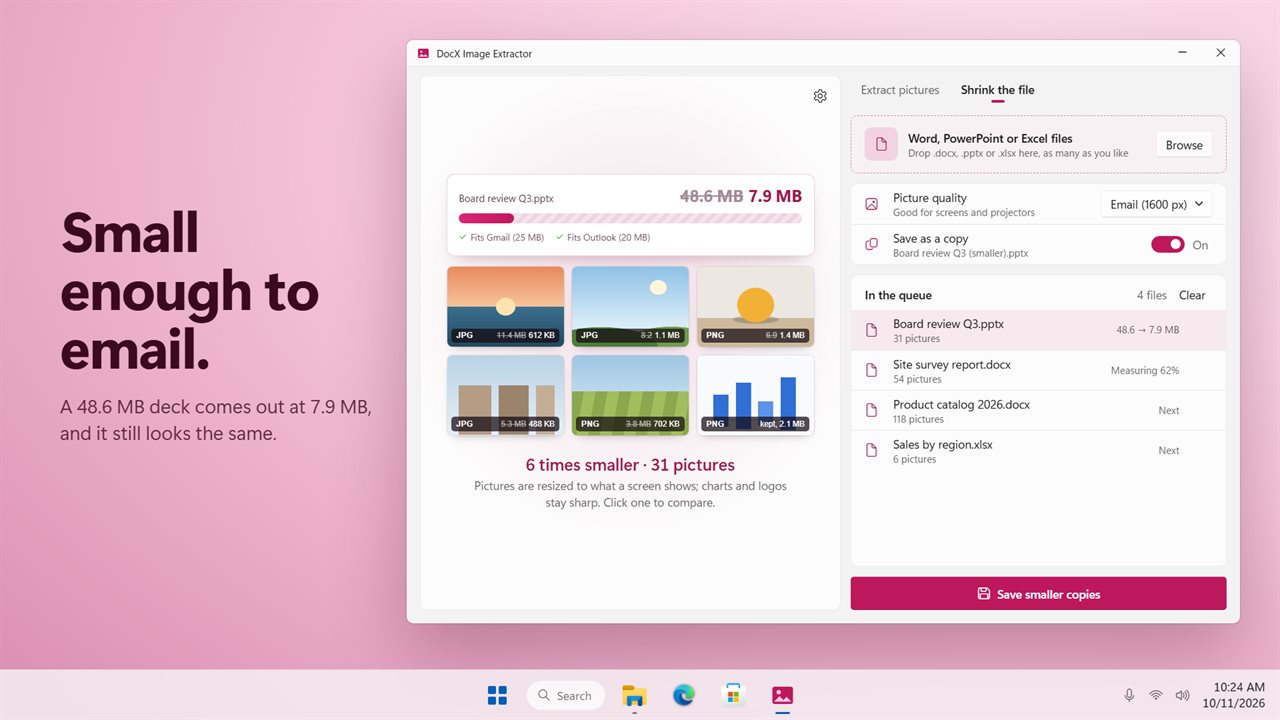
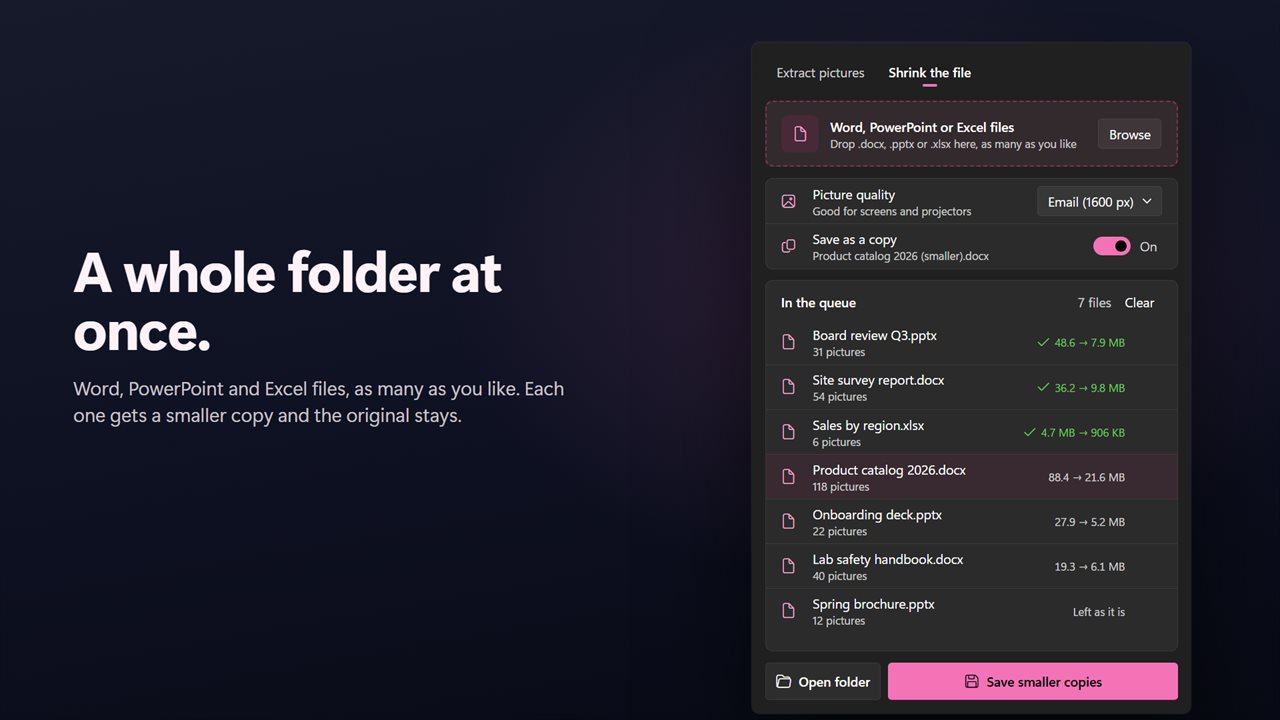
Shrink a 48.6 MB deck to 7.9 MB, small enough to email.
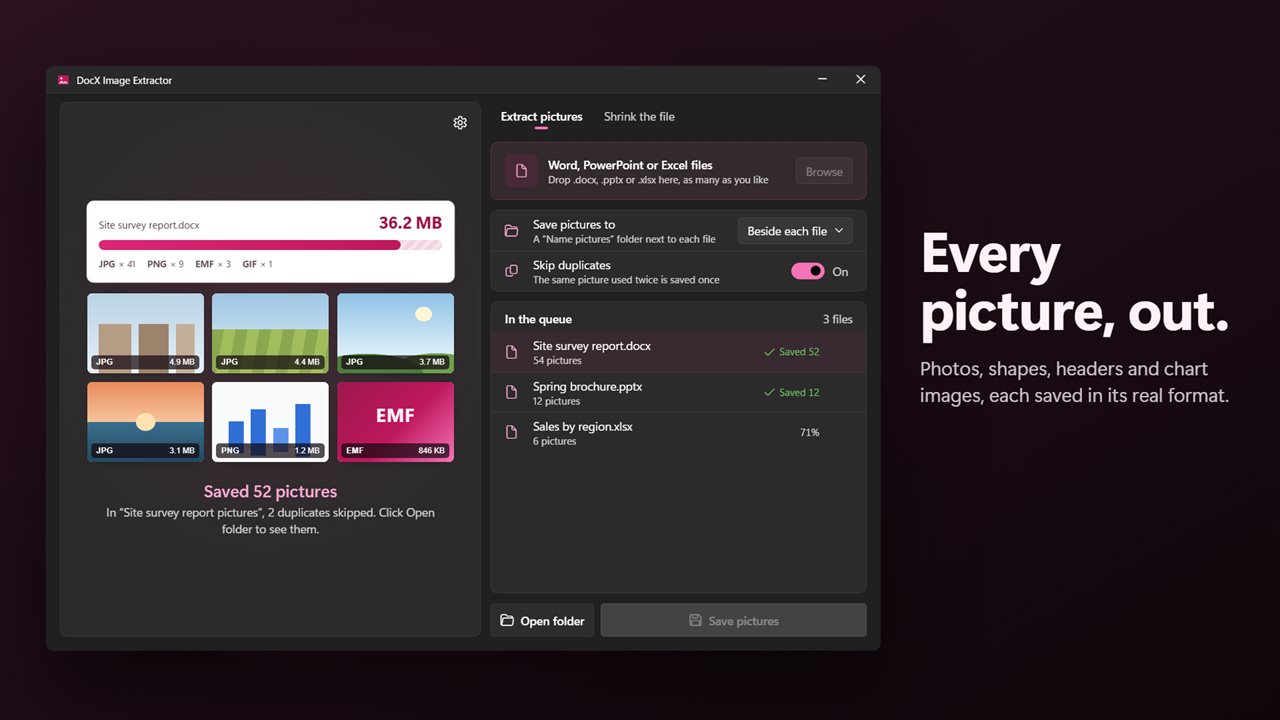
Pull every picture out, each in its real format.
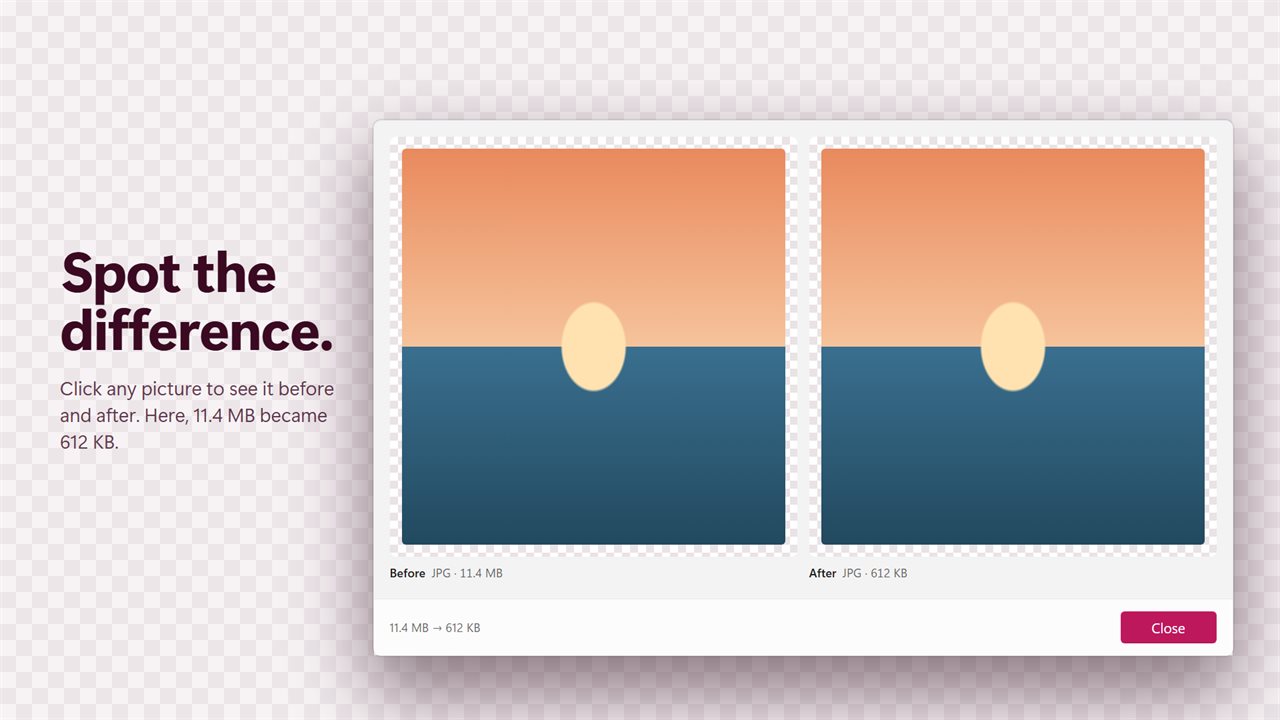
Compare any picture before and after.
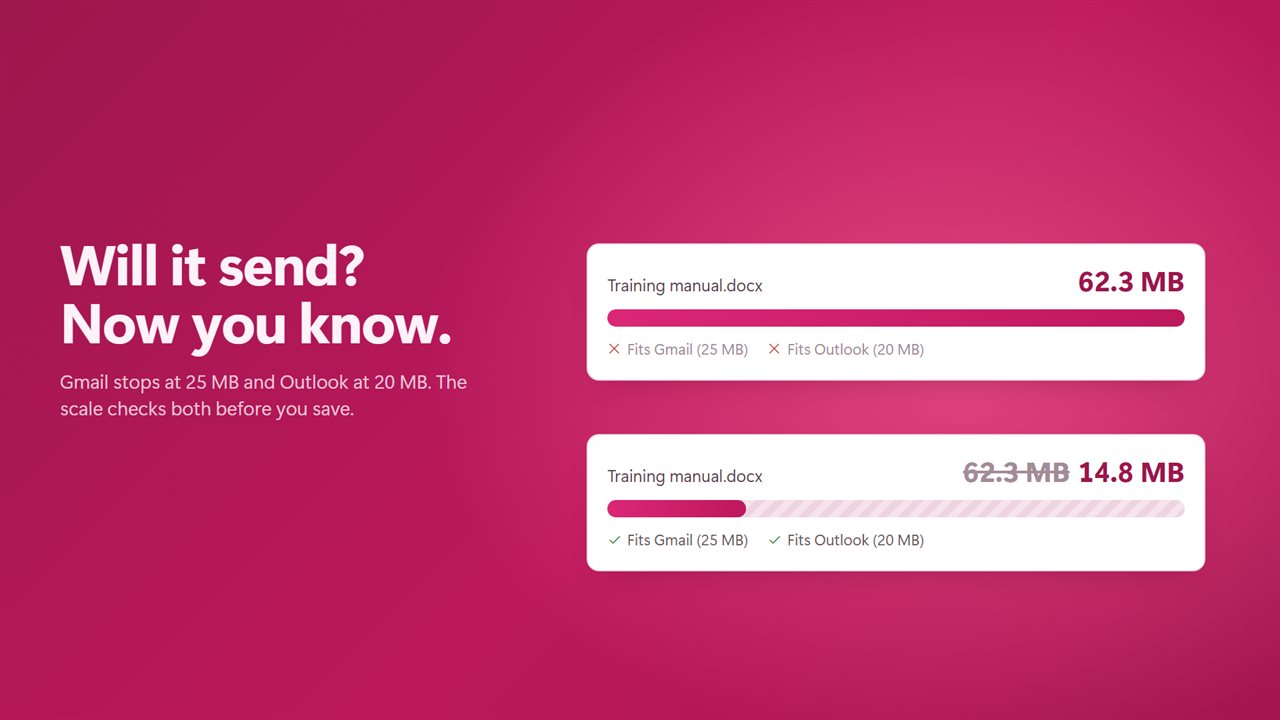
See at once if it fits Gmail and Outlook.
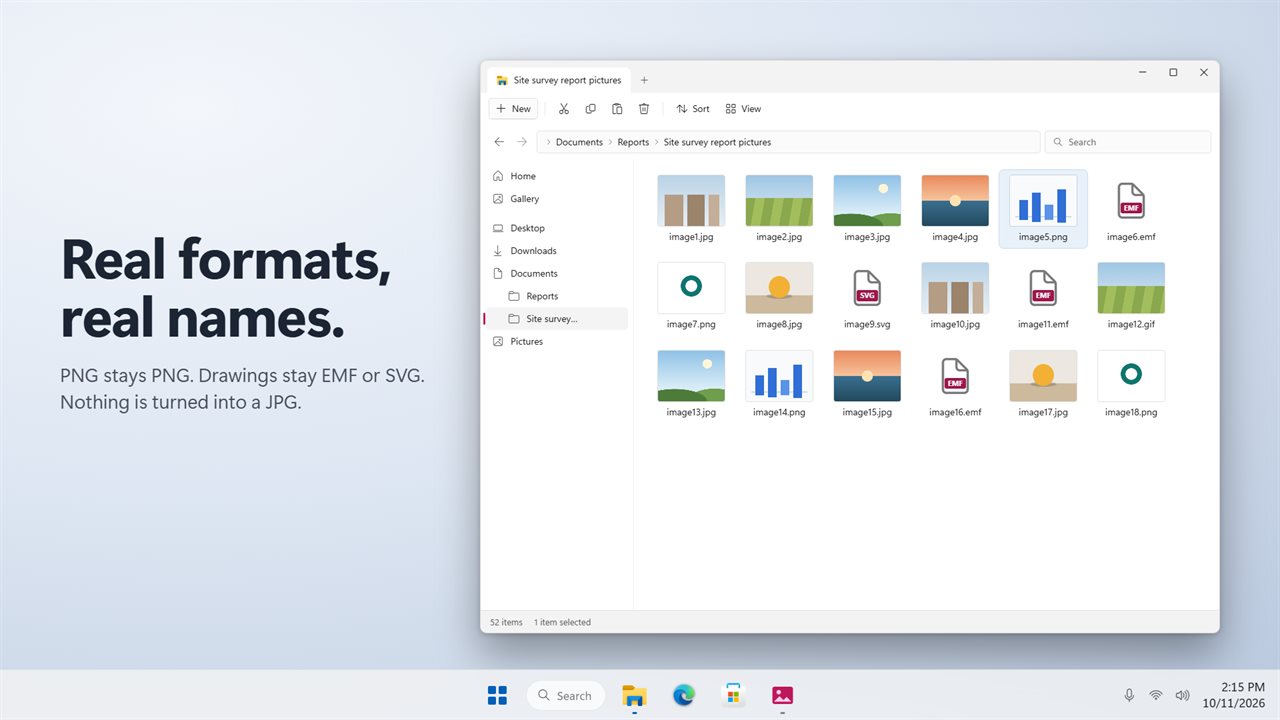
PNG stays PNG, and drawings stay EMF or SVG.
Word, PowerPoint and Excel, as many as you like.

Shrink a 48.6 MB deck to 7.9 MB, small enough to email.

190,000+downloads of EvlarSoft apps
Signed by EvlarSoftVerified US publisher
14-day money-backNo questions asked
Updates includedNo upgrade fees

Compress a Word document without touching the words

When you need to compress a Word document, the weight is almost never the text. It is the photos pasted in at full camera resolution, often several megabytes each, when the page only ever shows them a few inches wide.

DocX Image Extractor goes straight for those pictures. Drop a .docx, .pptx or .xlsx on the Shrink the file tab and it measures the result before anything is saved: the size now, the size after, what share of the file is pictures, and two checks, Fits Gmail (25 MB) and Fits Outlook (20 MB). The headline reads something like 4 times smaller, or 62% smaller, followed by the picture count.

Nothing outside the pictures changes. Paragraphs, slides, formulas, fonts and layout are copied across as they were, and a picture is swapped only if its new version comes out smaller.

Reduce PowerPoint file size and compress Excel files the same way

Slide decks are the usual worst case: a photo per slide, each one larger than any projector can show. The same three Picture quality choices apply to Word, PowerPoint and Excel alike, and each is a cap on a picture's long side.

Email (1600 px) suits screens and projectors. Print (2400 px) keeps enough detail for a full printed page. Smallest (1024 px) is for files that only need to look right on a laptop. JPEGs are saved again as JPEG and PNGs stay PNG. Other bitmaps, and vector drawings such as EMF, WMF and SVG, are left alone, so charts and logos stay sharp.

How to shrink a file and check the pictures first

Every step happens before the file is written, so you can back out at any point.

  • Open the Shrink the file tab and drop in one file or many, or click Browse.
  • Pick a Picture quality and watch the before and after sizes update.
  • Click any picture to compare it Before and After. Pictures that would not get smaller are marked Left as it is.
  • Keep Save as a copy on to write a new file named Name (smaller) beside the original, or turn it off to replace the original.
  • Click Save a smaller copy, or Save smaller copies when several files are queued.

Extract images from a Word document, slide deck or workbook

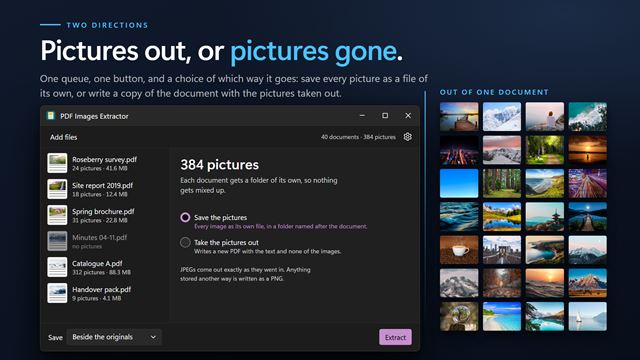
The Extract pictures tab does the opposite job: it lifts every image out of the file and saves it unchanged, under its real type rather than a generic name. Photos, pictures inside shapes, header images and chart images all come out, which matters when the only copy of a logo or a scanned signature lives inside an old report.

Save pictures to Beside each file puts them in a Name pictures folder next to each document; A folder I choose collects them in one place. Skip duplicates saves a picture used twice only once. With Open the folder when pictures are saved on in Settings, File Explorer opens on the result.

What it does

  • Measures the shrunk size before saving, with checks against 25 MB and 20 MB attachment limits
  • Three long-side caps for pictures1600, 2400 and 1024 px
  • Replaces a picture only when the new version is smaller
  • Leaves text, layout and vector drawings untouched
  • Side-by-side Before and After view for any picture
  • Saves a Name (smaller) copy by default, or overwrites the original if you choose
  • Extracts images byte for byte, named by their true format
  • Includes pictures from shapes, headers and charts
  • Queues as many Office files as you drop in and shows each file's result
  • Clear messages for password-protected, damaged, locked and older .doc, .ppt and .xls files

Who uses it

A report bounced by the mail server

A 38 MB proposal full of site photos comes back as too large. Email quality brings it under the limit, and the text the client reviews is unchanged.

Teachers and trainers with slide decks

Course decks built over years of pasted screenshots and photos shrink to a size a learning platform will accept, with diagrams left crisp.

Recovering images from old documents

When the original photos are gone but a Word file or a deck still has them, Extract pictures gets them back at the quality they were inserted.

What's new in 2.0.2

  • New: shrink the file. Make Word, PowerPoint and Excel files small enough to email, at one of three qualities
  • New: Gmail and Outlook size checks, and a before and after view of each picture
  • New: PowerPoint and Excel files, as well as Word
  • New: drop in as many files as you like
  • New: skip duplicate pictures, and choose where pictures are saved
  • Fixed: pictures are saved in their real format, not all as .jpg
  • Fixed: pictures in shapes and headers are no longer missed
  • Fixed: a file with two pictures of the same name no longer crashes the app

Questions

Anything else? Ask us

Which file types does it open?

Word .docx, .docm and .dotx, PowerPoint .pptx, .pptm, .potx and .ppsx, and Excel .xlsx, .xlsm and .xltx. Older .doc, .ppt and .xls files have to be saved in the newer format in Office first.

Are the extracted pictures the original quality?

Yes. Extracting copies each picture's bytes out of the file unchanged, and names it by its real format, such as PNG, JPG, GIF, BMP, TIFF, WebP, EMF, WMF or SVG. Turn on Skip duplicates and a picture stored twice is saved once.

How much smaller does shrinking make the file?

It depends on the pictures, so the app measures the result before you save and shows the size before and after. Photos and PNGs larger than the chosen size are scaled down to 1600 px (Email), 2400 px (Print) or 1024 px (Smallest) on their long side. It also shows whether the result fits Gmail's 25 MB or Outlook's 20 MB limit.

Which pictures does shrinking change?

Only JPEG and PNG pictures. JPEGs are saved again at quality 80 and PNGs stay PNG, and a picture is replaced only when the new version is smaller. GIF, BMP, TIFF, WebP, EMF, WMF and SVG pictures are left as they were.

Does shrinking change my text or layout?

No. Every part of the file other than the shrunk pictures is copied across unchanged. By default the result is saved as a new "Name (smaller)" file beside the original, or you can choose to replace the original.

Can it open password-protected documents?

No. A file with an open password is refused with a message to remove the password in Office and try again.

Why is my Word document so large?

Almost always because of pictures inserted at full resolution. The Shrink the file tab shows what share of the file the pictures take, for example Pictures are 94% of this file, so you can see where the size is before changing anything.

Does it work on several files at once?

Yes. Drop in as many .docx, .pptx and .xlsx files as you like. They wait In the queue, each shows its own progress and result, and one click saves smaller copies of all of them or extracts all their pictures.

Will shrinking make my pictures look blurry when printed?

Choose Print (2400 px) if the file will be printed. It caps each picture at 2400 pixels on its long side, enough for a full printed page. A PNG already within that size is not touched, and a JPEG within it is saved again only when that cuts it by at least a tenth.

Which versions of Windows does it run on?

Windows 10 (version 1809 or later) and Windows 11.

Is it a subscription?

No. DocX Image Extractor is a one-time purchase of $1.99, and updates are included.

How do I get it?

Buy it on this page and your license key arrives by email. If the button says Notify me, DocX Image Extractor is not on sale here yet; leave your email and we will tell you when it is.