A word processor for everyday writing, not a whole office suite
Most people do not need a full office suite to write a thank-you note or answer a letter from the council. They need a word processor that opens quickly, shows a white page, and has bold, a font list, bullets and a Print button where they expect them. Write Pad is that word processor.
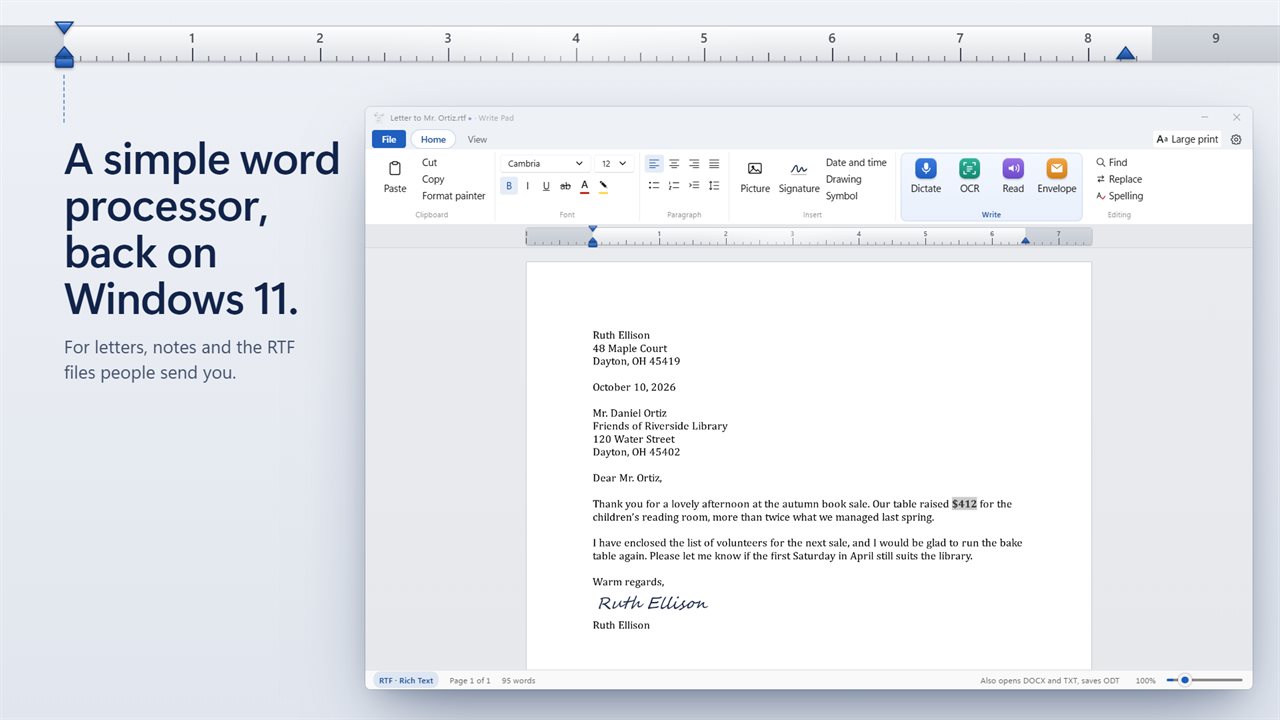
The Home tab groups its controls into Clipboard, Font, Paragraph, Insert and Editing, with a ruler above the page for dragging the first-line, left and right indents. The font list holds 15 typefaces, from Cambria and Georgia to Courier New, in sizes from 8 to 72 points, with text color, highlight and line spacing beside them.
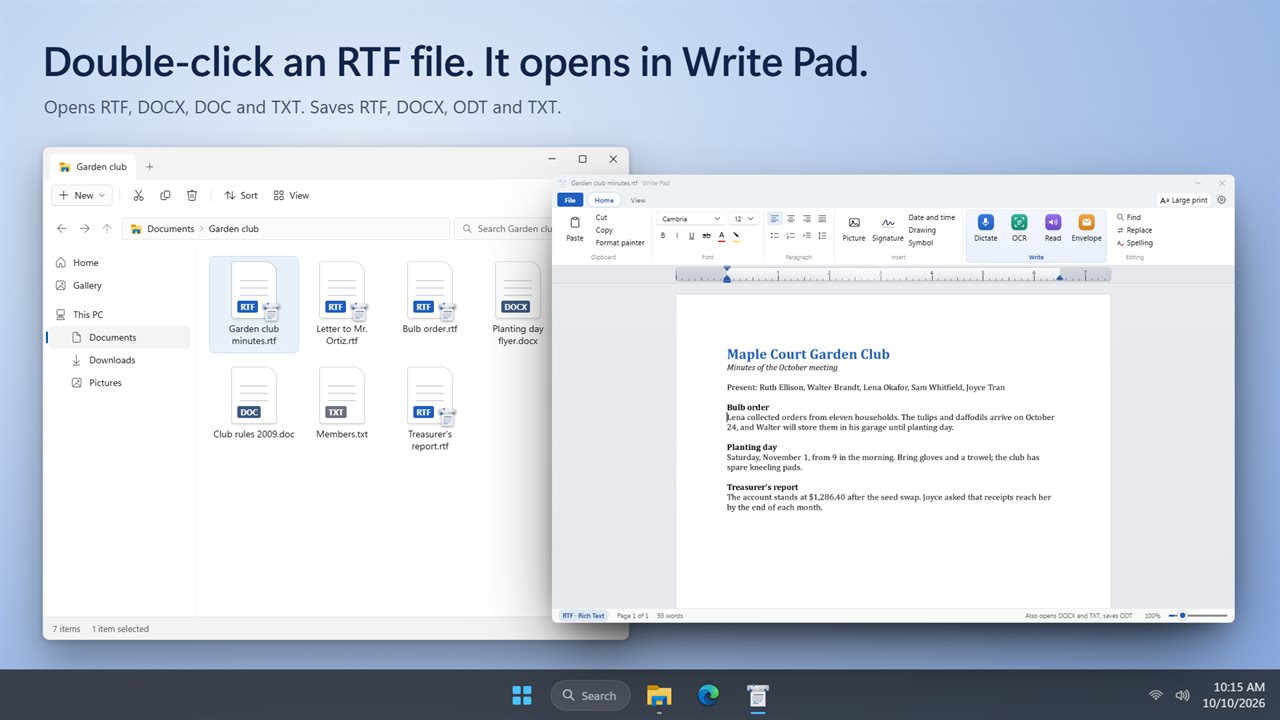
Since the 24H2 update, Windows 11 no longer includes WordPad, which left .rtf files with nothing built in to open them. Write Pad registers for RTF, so double-clicking one in File Explorer brings it straight up, formatting and all.
How to open an RTF file on Windows 11
Install Write Pad and double-click the .rtf file in File Explorer. If another program has already claimed the type, right-click the file, choose Open with, then Choose another app, pick Write Pad and select Always.
Rich Text Format is old, small and read almost everywhere, which is why banks, forms and older programs still export it. It carries fonts, colors, bold, lists and pictures in a file that nearly any word processor can read.
If the person you are writing to expects a .docx, open the RTF and save it on in that format. ODT suits open-source office suites.
Dictation software built into the editor
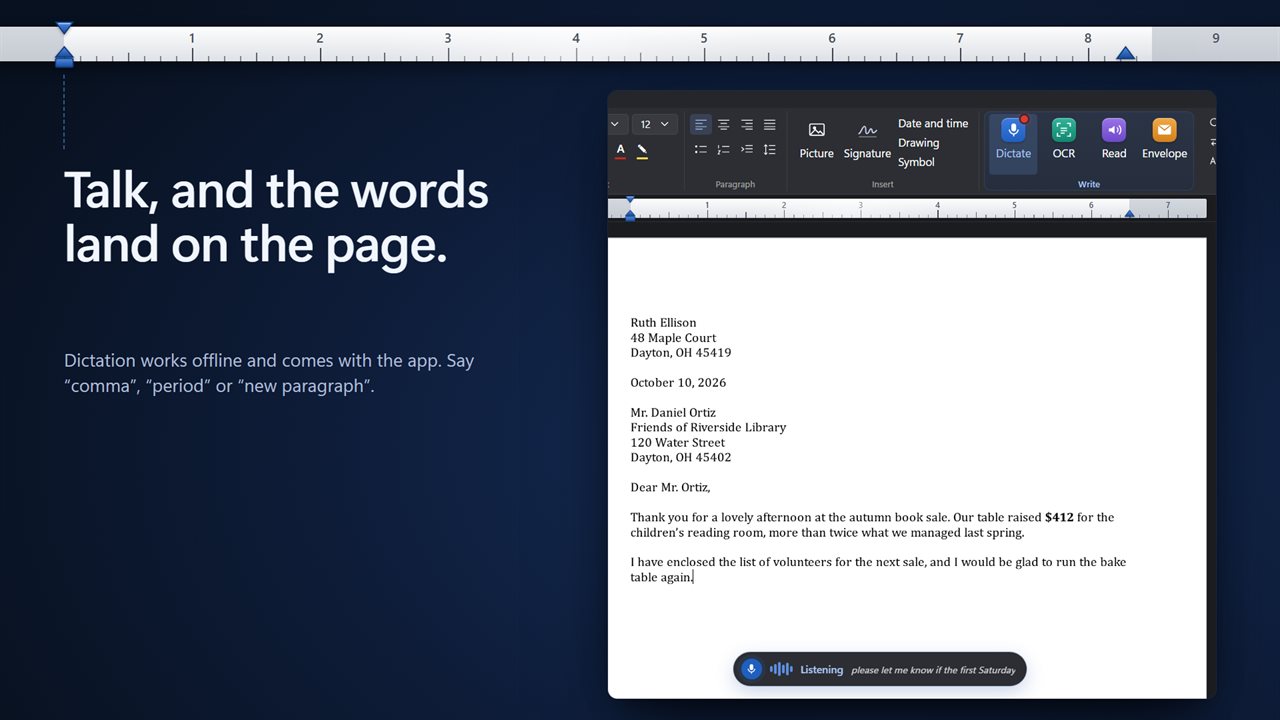
Select Dictate and talk. A preview of what it is hearing shows beside Listening, and each finished phrase is typed at the cursor, so you can watch the letter take shape. Speak the punctuation as you go and select Stop when you are done.
Dictation is good for a first draft and less good for a final one. Talk the whole letter through, then go back with the keyboard to fix names and numbers.
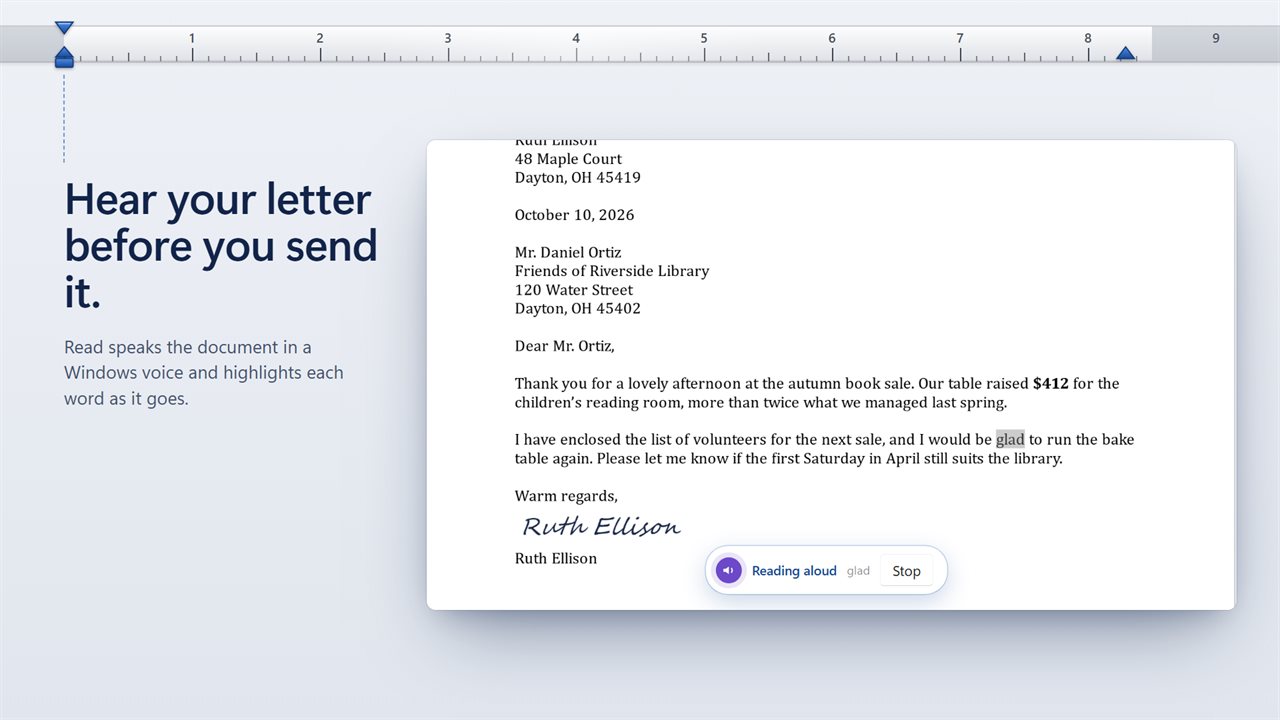
Read closes the loop. It speaks the document in a Windows voice and highlights each word as it is read, with Reading voice and Reading speed in Settings. Hearing a letter aloud is a reliable way to catch the word you typed twice or the one dictation misheard.
Copy text from an image, and print an envelope
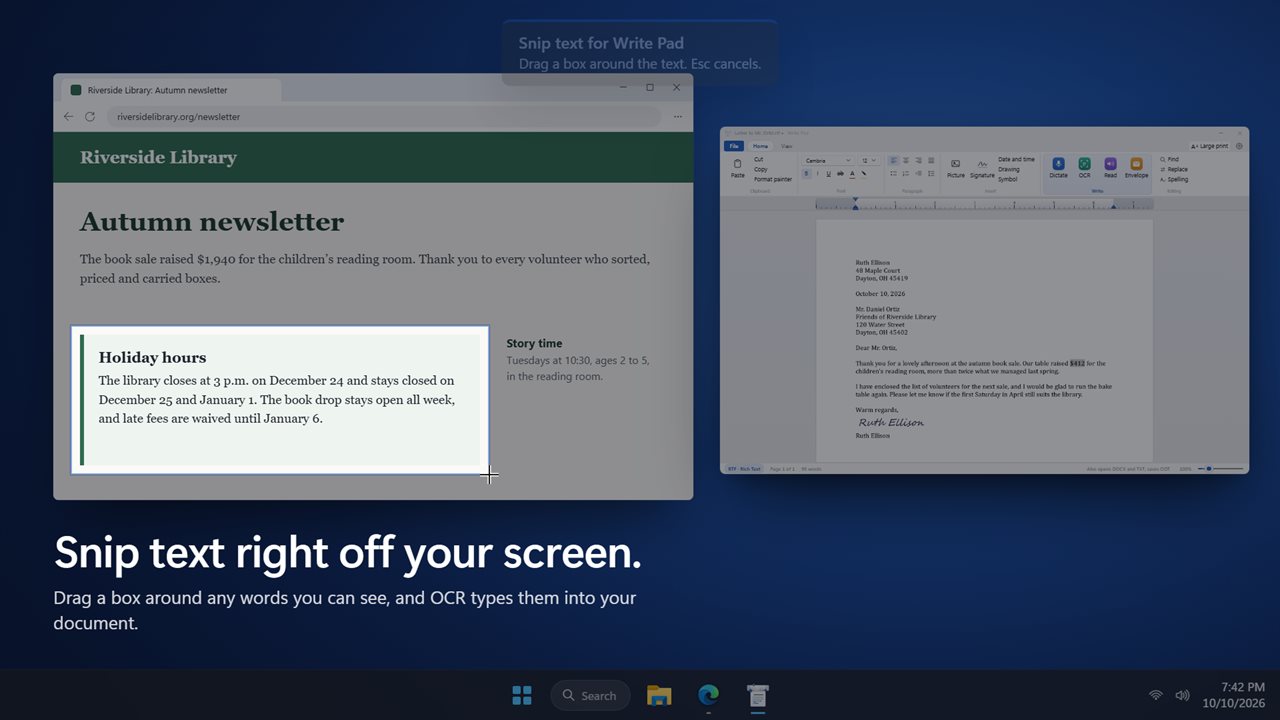
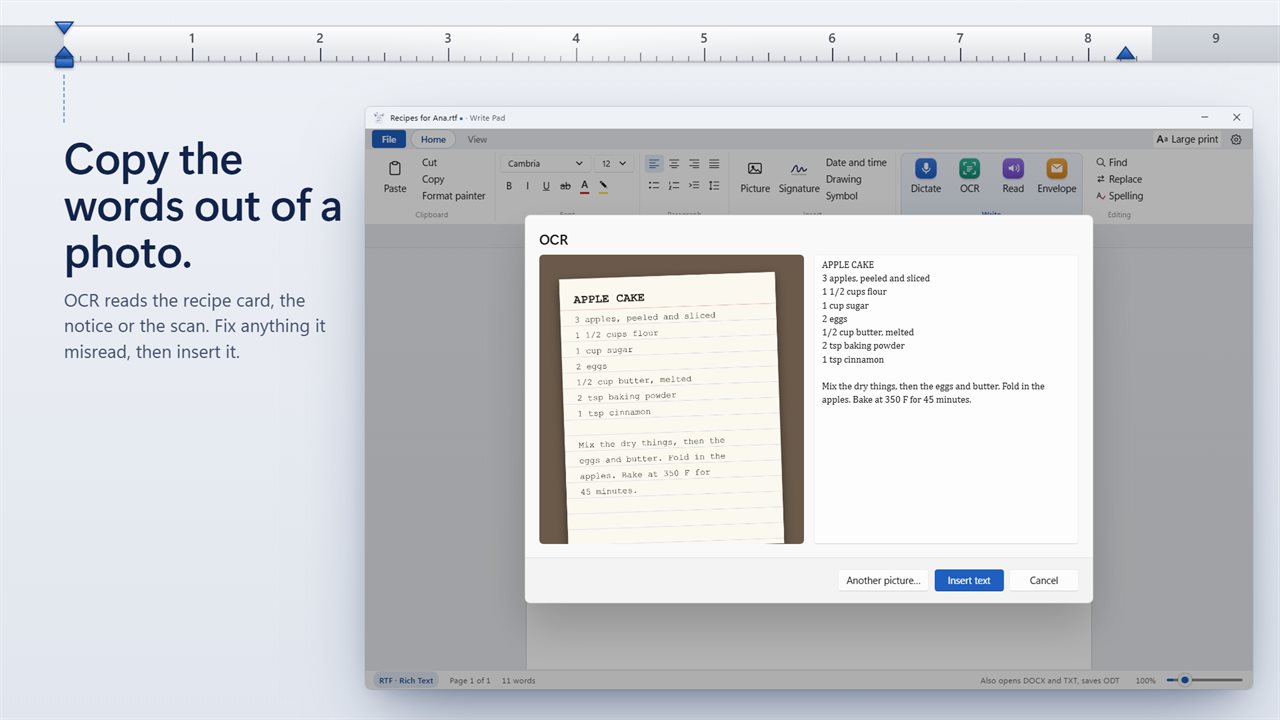
A printed letter, a photo of a notice or a screenshot of a form can become editable text without retyping. Snip is the quickest route for anything already on screen: draw a box around the words and they come back in a panel where you can correct the odd misread letter before choosing Insert text.
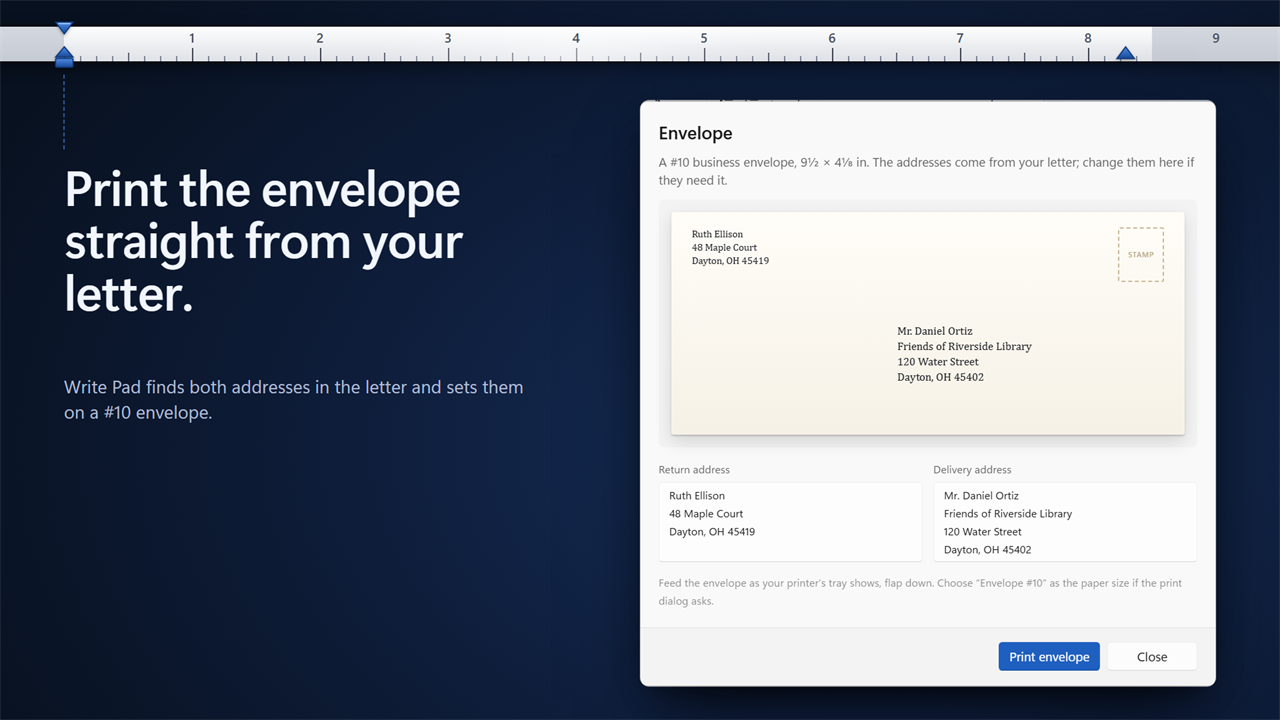
Envelope saves hunting for a template. It reads the addresses off the letter you just wrote, puts them in the Return address and Delivery address boxes for you to check, and sends a #10 envelope to the printer with Print envelope. Feed one envelope in first to see which way your printer wants it.