EEvlarSoft

Text Snippet Saver

Type a short code in any app and watch it turn into your signature, address or standard reply, or pick a snippet from the tray and paste it.

Buy for $2.49
One payment. No subscription.
14-day money-back guarantee.
4.0
Your snippets in a tin, one click from the tray.
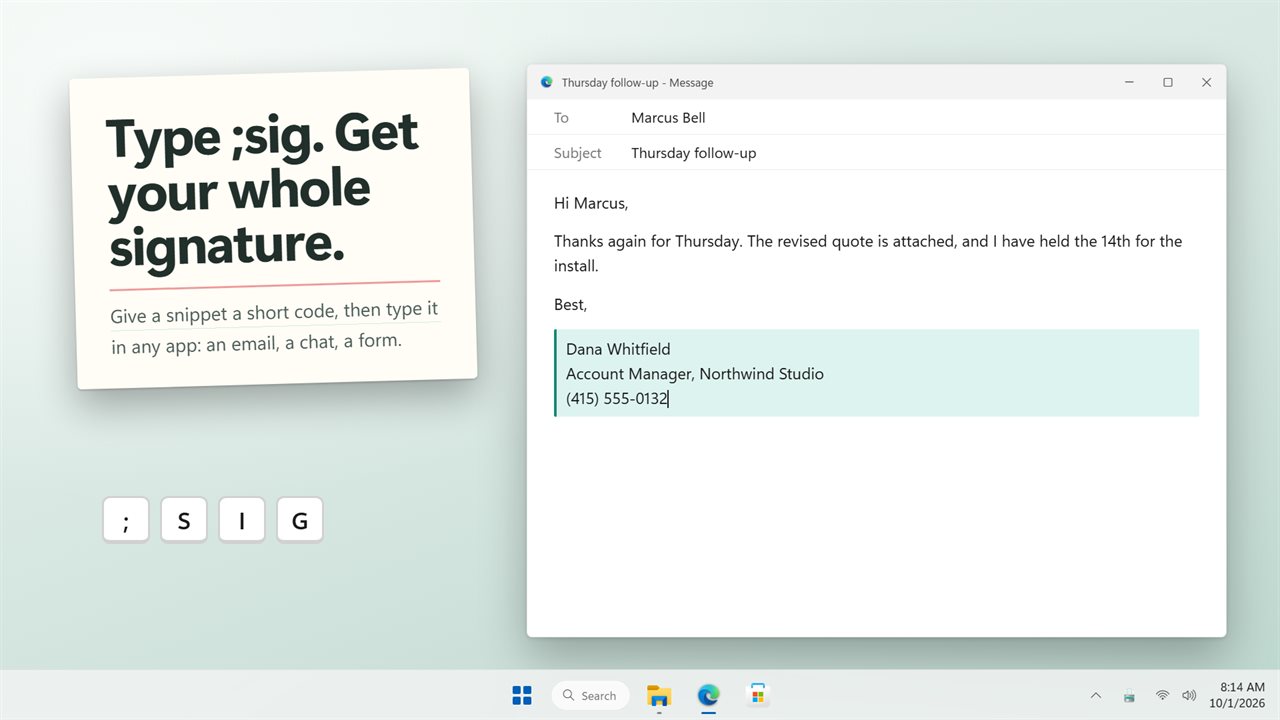
Type ;sig in any app and your signature appears.
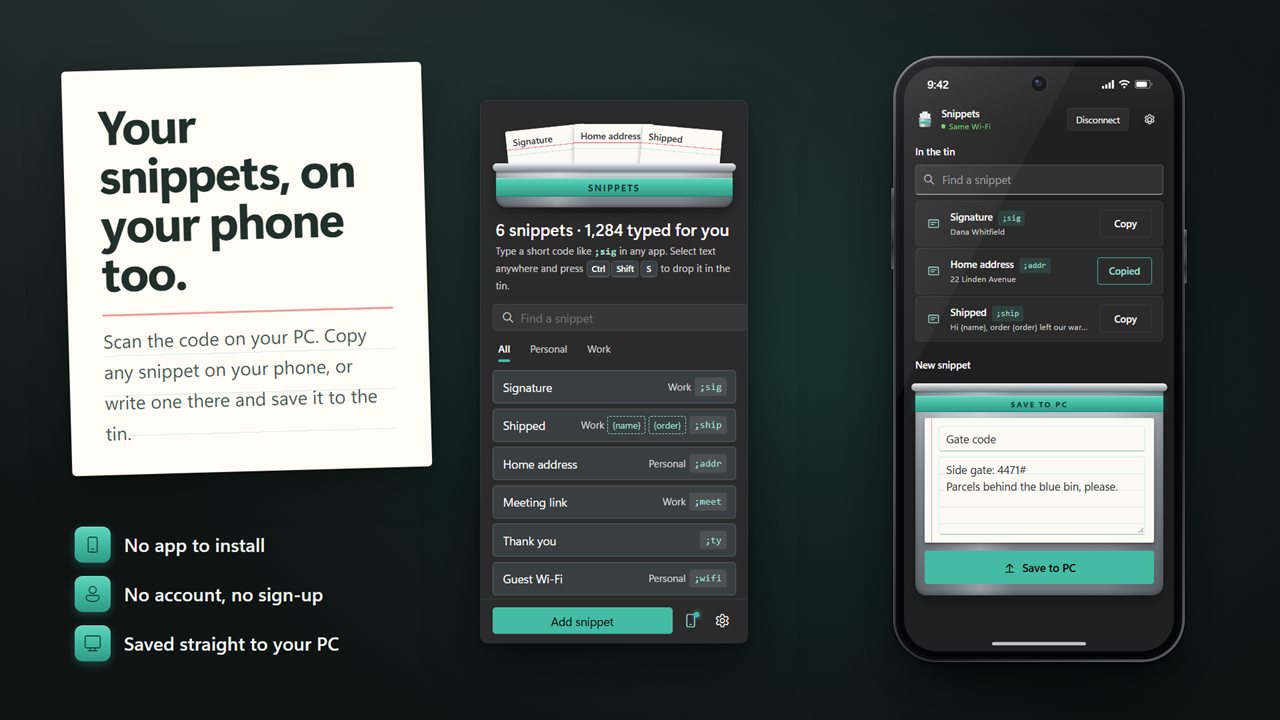
Browse and copy your snippets on your phone, or save new ones to your PC.
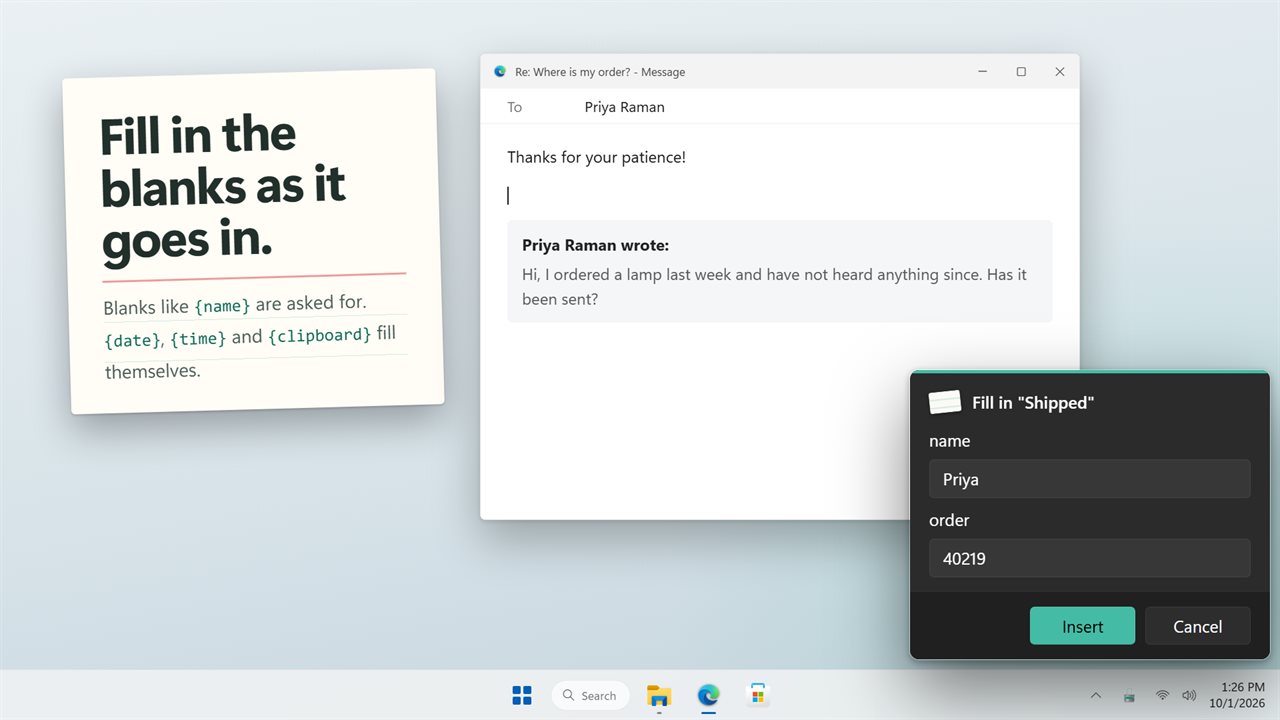
Blanks ask for a value before the snippet goes in.
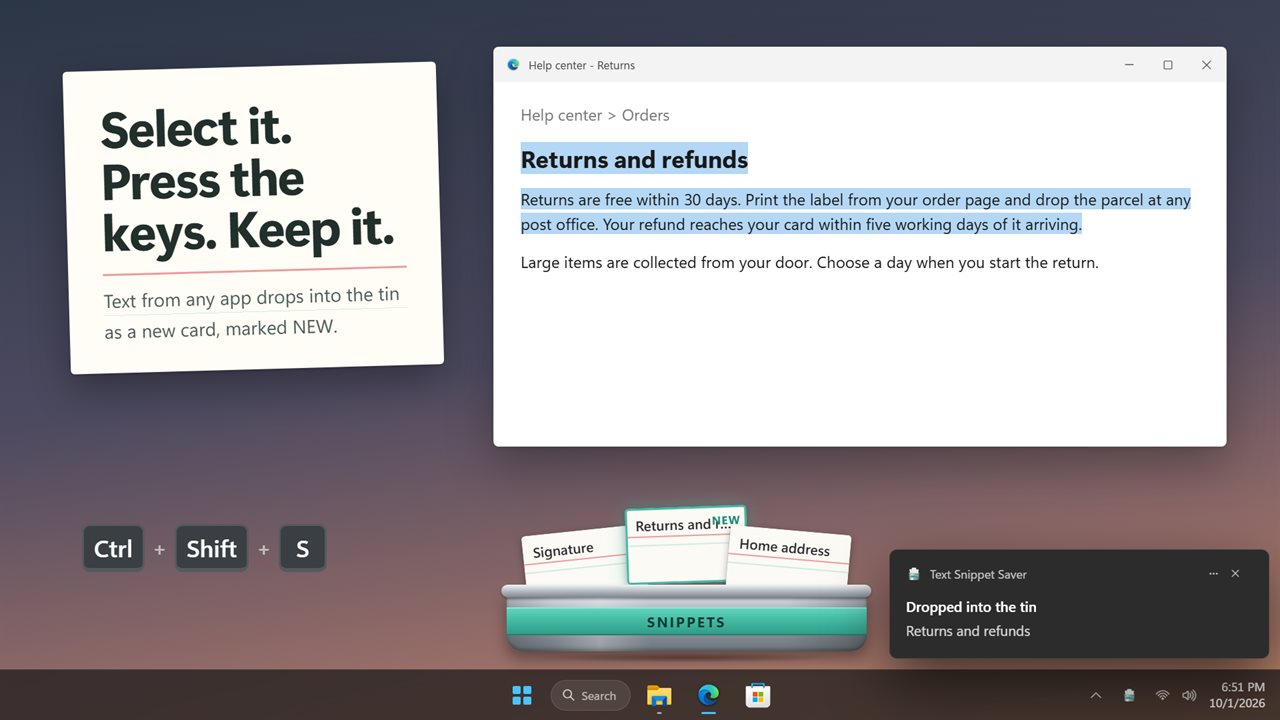
Select text anywhere and press Ctrl+Shift+S to keep it.
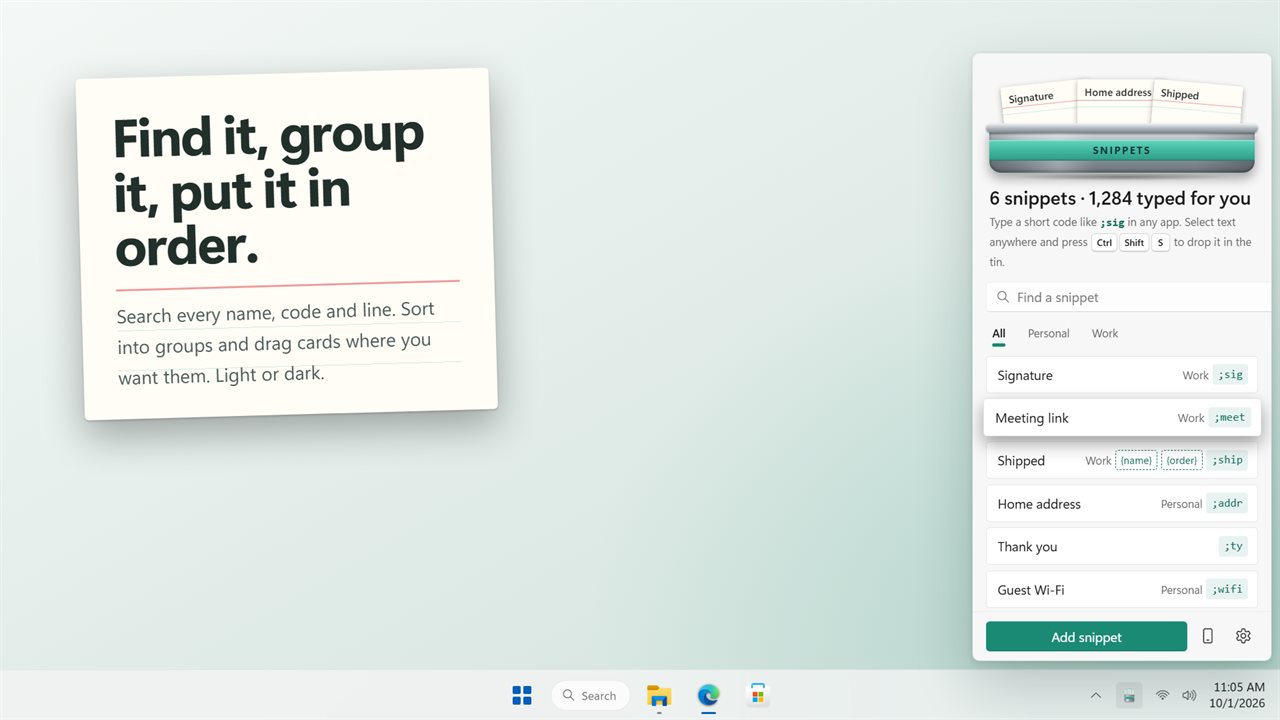
Search, group and reorder, in dark or light.

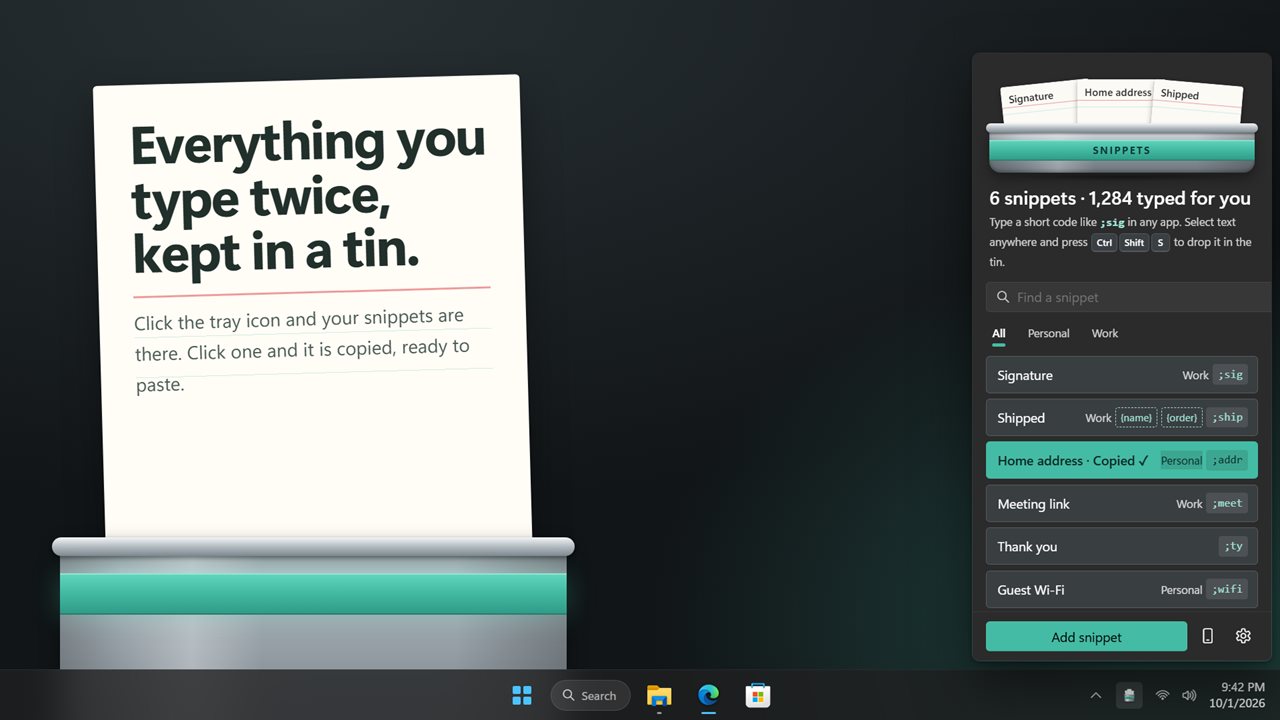
Your snippets in a tin, one click from the tray.

190,000+downloads of EvlarSoft apps
Signed by EvlarSoftVerified US publisher
14-day money-backNo questions asked
Updates includedNo upgrade fees

A text expander that works in every app you type in

A text expander swaps a short abbreviation for a longer block of text as you type. Text Snippet Saver does that across Windows: give a snippet a code such as ;sig, ;addr or ;ty, and typing those characters in an email, a chat, a browser form or a spreadsheet cell erases them and puts the full text in their place.

There are no configuration files and no scripting. You add a snippet in a small form with four fields: Name, Text, Short code and Group. The code is optional, so a snippet can also be something you simply click to copy.

Snippets live in a panel that opens from the notification area. Your three most used ones stand up at the top where they are always in reach, and the rest sit below with a search box that matches the name, the code or any line of the text.

How to set up text replacement on Windows 11

Windows does not offer typed text replacement across all your apps, so this fills that gap in four steps.

  • Click the tray icon and choose Add snippet.
  • Type a Name such as Signature, then the full Text you want inserted.
  • Enter a Short code. It needs at least two characters and no spaces; starting it with a symbol like ; keeps it from clashing with real words.
  • Click Add, then type the code anywhere. Make sure Type my short codes for me is on in Settings, and turn on Start with Windows so codes work from the moment you sign in.

Canned responses with blanks to fill in

Standard replies are rarely identical. Put a blank in curly braces, such as {name} or {order number}, and when the snippet fires a small card titled Fill in asks for each value before inserting the finished text. Click Insert and it goes in.

Three blanks fill themselves: {date} and {time} use your Windows regional format, and {clipboard} drops in whatever you copied last. A support reply can greet the customer by name, quote their order number and stamp today's date from one short code.

Save text snippets from anything you select

Highlight a paragraph in any app and press Ctrl+Shift+S. It becomes a new snippet marked NEW, and a notification confirms it was saved. When you are typing somewhere and cannot remember a code, press Ctrl+Shift+V to open your snippets; the one you choose is placed where your cursor was. Both shortcuts can be reassigned or switched off in Settings.

Groups such as Work and Personal keep a long list manageable, and you can drag snippets into any order or use Move to top on the ones you want first.

What the snippet manager handles

  • Short codes that expand as you type in any app
  • Codes ignored inside password fields
  • Snippets up to 80 characters on one line typed out; longer or multi-line ones pasted in one step
  • Fill-in blanks like {name}, plus {date}, {time} and {clipboard} filled automatically
  • Ctrl+Shift+S saves selected text as a snippet; Ctrl+Shift+V opens the list from anywhere
  • Search across names, codes and text, with groups and drag-to-reorder
  • Click any snippet to copy it instead of using a code
  • Link a phone by scanning a code to browse, copy and add snippets in its browser

Where short codes pay off

Support and sales replies

Keep greetings, refund steps and follow-ups as snippets with {name} blanks, and answer a ticket with one code.

Forms you fill every week

Store your address, phone number and company details under codes like ;addr and stop retyping them.

Links and boilerplate

Booking links, tracking URLs, disclaimers and email sign-offs go in with a couple of keystrokes.

What's new in 2.0.4

  • New: type a snippet's short code in any app and it is replaced by the snippet
  • New: blanks such as {name} that ask for a value, and {date}, {time} and {clipboard} that fill themselves
  • New: Ctrl+Shift+S saves the text you have selected in any app
  • New: Ctrl+Shift+V opens your snippets and puts the one you pick where you were typing
  • New: search, groups, drag to reorder, and Settings
  • New: browse and copy your snippets on your phone, and save new ones from it to your PC
  • New: a panel by the tray in place of a separate window, in dark or light
  • Fixed: Move to top now moves a snippet to the top, and the order is saved
  • Fixed: the tray menu no longer has a Refresh item that emptied your clipboard
  • Your snippets and Start with Windows carry over

Questions

Anything else? Ask us

How do short codes work in Text Snippet Saver?

Give a snippet a code like ;sig, then type that code in any app and it is erased and replaced by the snippet. A code needs at least two characters and no spaces, and a code that starts with a letter or digit only fires at the start of a word, so sig does not go off inside design.

Will it expand a short code inside a password field?

No. Codes are ignored while a password box has focus, and inside Text Snippet Saver's own windows. Codes also only work while the app is running, so turn on Start with Windows if you rely on them.

Can a snippet ask me to fill in a name or number?

Yes. Write a blank like {name} or {order number} and a small card asks for it before the snippet goes in. {date}, {time} and {clipboard} fill themselves, with the date and time written in your Windows regional format.

What happens to my clipboard when a long snippet is inserted?

Snippets up to 80 characters on one line are typed out. Longer or multi-line snippets are pasted through the clipboard, and the snippet is left on the clipboard afterwards.

Are my snippets encrypted?

No. Snippets are saved as plain text in a file in the app's settings folder on this PC, so it is not a safe place for passwords.

Can I use my snippets on my phone?

Yes. Scan the code shown on the PC with your phone's camera and your snippets open in the phone's browser, ready to search and copy, with nothing to install. Blanks like {name} are not filled in on the phone, and a snippet you write there and save lands in the tin on your PC.

Can I turn text expansion off without closing the app?

Yes. Switch off Type my short codes for me in Settings, or Text expansion in the tray menu. Snippets can still be clicked to copy while expansion is off.

What if two snippets use the same code?

The app will not allow it. When you save a snippet with a code another one already has, the form tells you and asks for a different code.

How do I edit or delete a snippet?

Right-click a snippet in the panel and choose Edit to change its name, text, code or group, or Delete to remove it. Deleting asks first, and once it is gone its short code stops working.

Which versions of Windows does it run on?

Windows 10 (version 1809 or later) and Windows 11.

Is it a subscription?

No. Text Snippet Saver is a one-time purchase of $2.49, and updates are included.

How do I get it?

Buy it on this page and your license key arrives by email. If the button says Notify me, Text Snippet Saver is not on sale here yet; leave your email and we will tell you when it is.