How to recover deleted Sticky Notes, and why it is usually too late
Most guides on how to recover deleted Sticky Notes send you hunting for a database called plum.sqlite inside a hidden AppData folder, then suggest a SQLite browser, Previous Versions, or file-recovery software. Those only work if an older copy of that file still exists somewhere, and on most PCs nothing ever made one. The note is gone because nobody was keeping a backup.
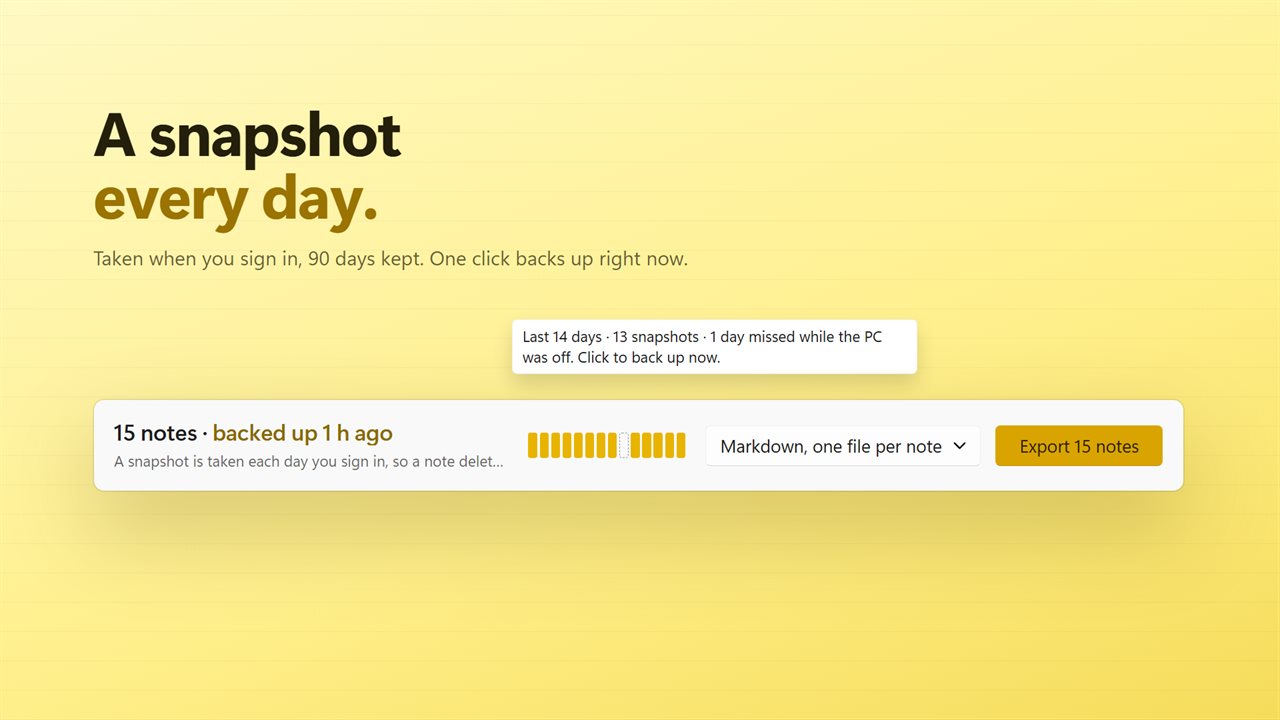
Desktop Notes Backup is that backup. Each day you sign in, Windows starts it briefly, it copies the Sticky Notes database to its own folder, and it closes again. Ninety daily snapshots are kept, so a note you deleted last month is still recoverable. Sticky Notes itself also marks some deletions instead of erasing them right away, and the app reads those too.
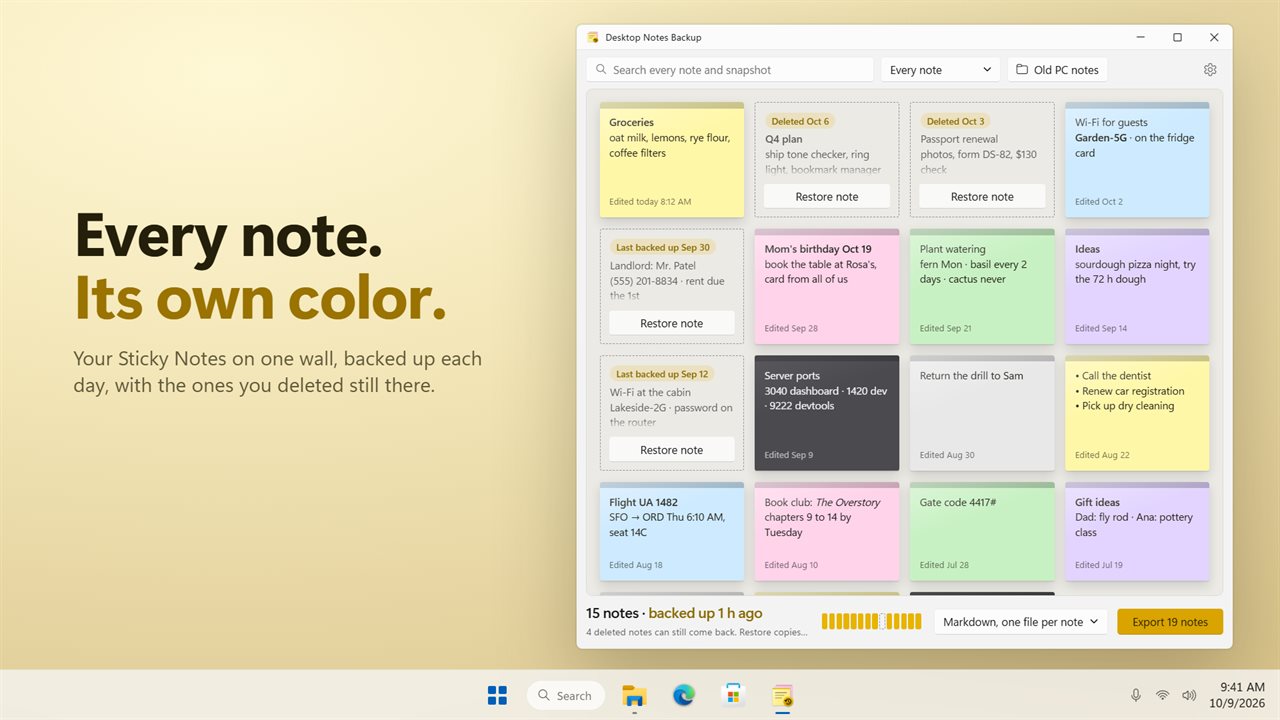
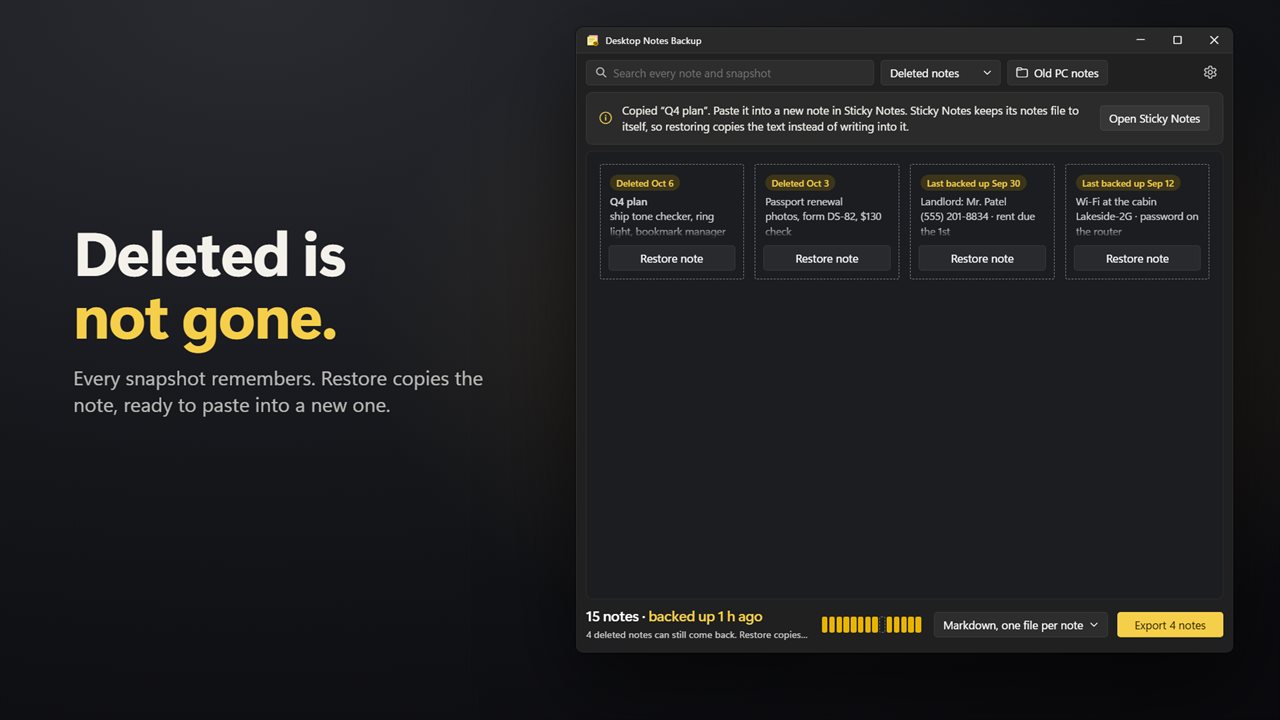
Deleted notes stay on the app's wall with a dashed outline. Choose Restore note and the text goes to your clipboard, ready to paste into a fresh note in Sticky Notes. The app never writes to Sticky Notes' own file, which is why restoring works by copy and paste.
Set up a Sticky Notes backup that runs every day
Because the snapshot happens at sign-in rather than on a schedule, a laptop that sleeps for a week simply resumes the routine the next time you log in. The app closes again after the sign-in snapshot rather than staying in the background.
- Open the app once. Every current note appears on the wall in its Sticky Notes color, with the date it was last edited.
- In Settings, turn on Back up each day when I sign in.
- Glance at the row of marks under the wall: a filled mark is a day with a snapshot, a dashed one is a day the PC was off. It covers the last 14 days.
- Before a risky clean-up or a Windows reset, press Back up now to replace today's snapshot with your notes as they stand.
Export Sticky Notes to Word, Markdown, text or a web page
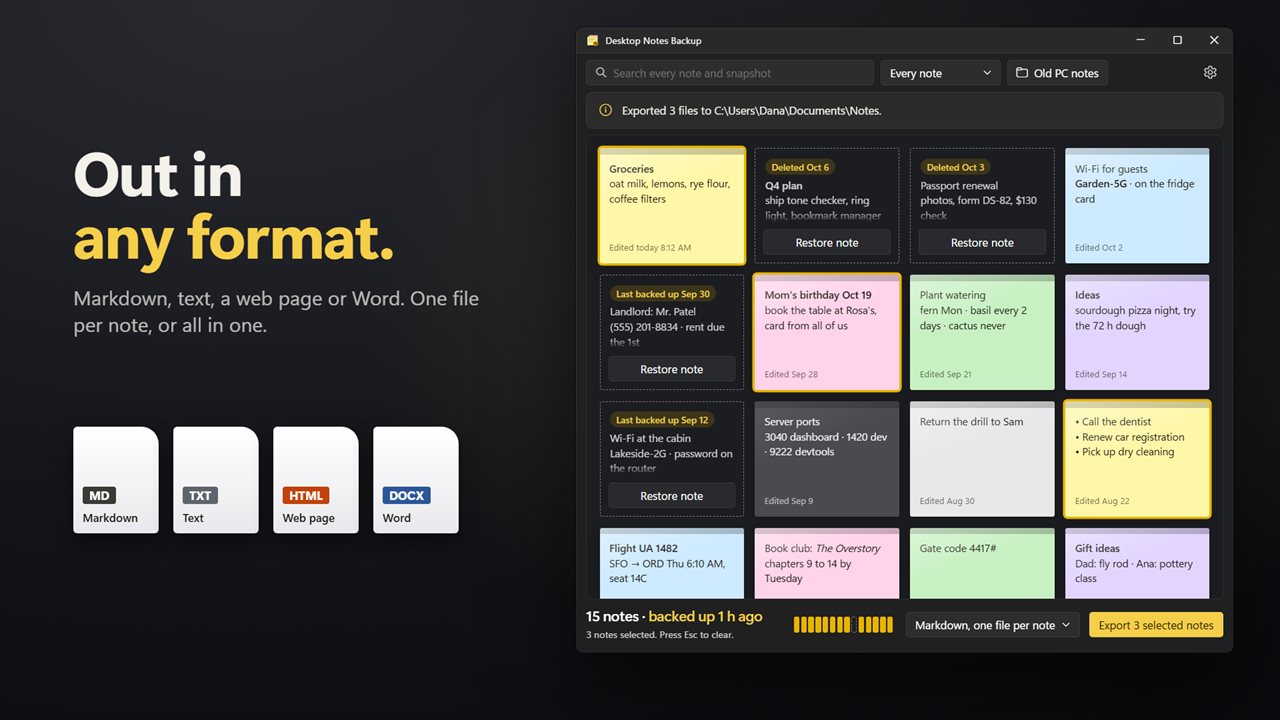
Sticky Notes has no export button. Here you pick a format and a layout: Word, one file per note or all in one file; Markdown, either way; Text, either way; or Web page, one per note or all notes. Click notes to select a few, or leave nothing selected to export everything currently shown.
Word and web page exports keep bold, italic, underline and bullets, and the web page keeps each note's color, which makes it a tidy way to print Sticky Notes. Markdown keeps bold and italic; plain text keeps the words and bullet points.
Moving Sticky Notes to a new computer
If you sign in to Sticky Notes with a Microsoft account, sync may already handle this. If you do not, export everything to a Word or web page file before you retire the old machine; that file opens anywhere and keeps your formatting.
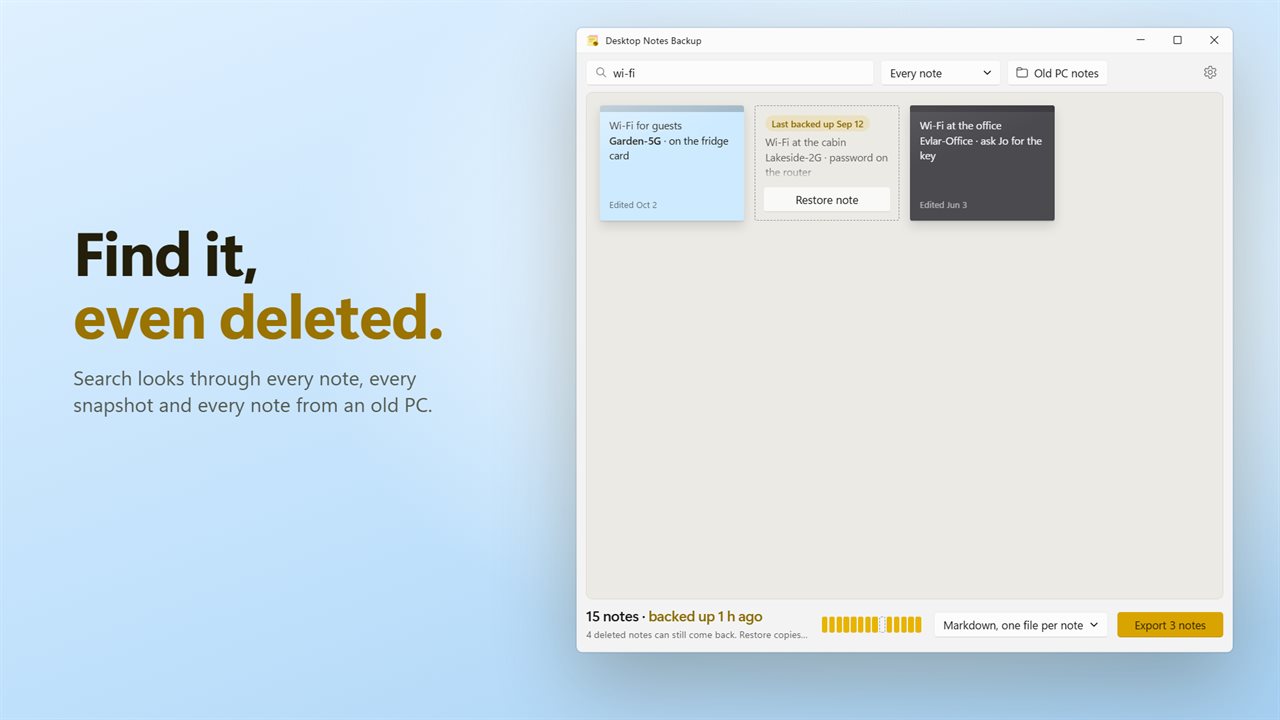
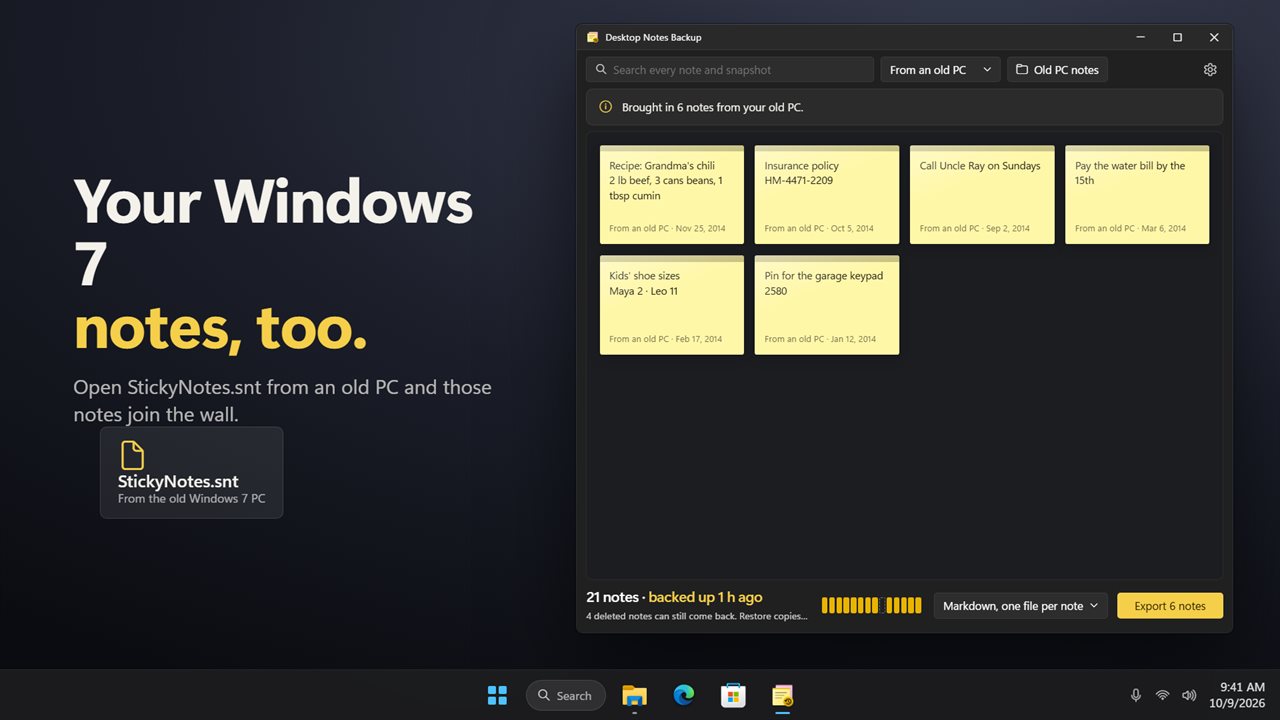
Coming from a much older PC? Old PC notes opens a StickyNotes.snt file from Windows 7 and adds those notes to the wall, words and line breaks intact, so they are searchable and exportable alongside your current ones.