How to add a password to a PDF, and to sixty more
If you need to add a password to a PDF, you probably need to add it to more than one. Payslips, client statements, medical letters and contracts tend to arrive as a folder, and doing them one by one in a PDF editor is slow and easy to get wrong halfway through.
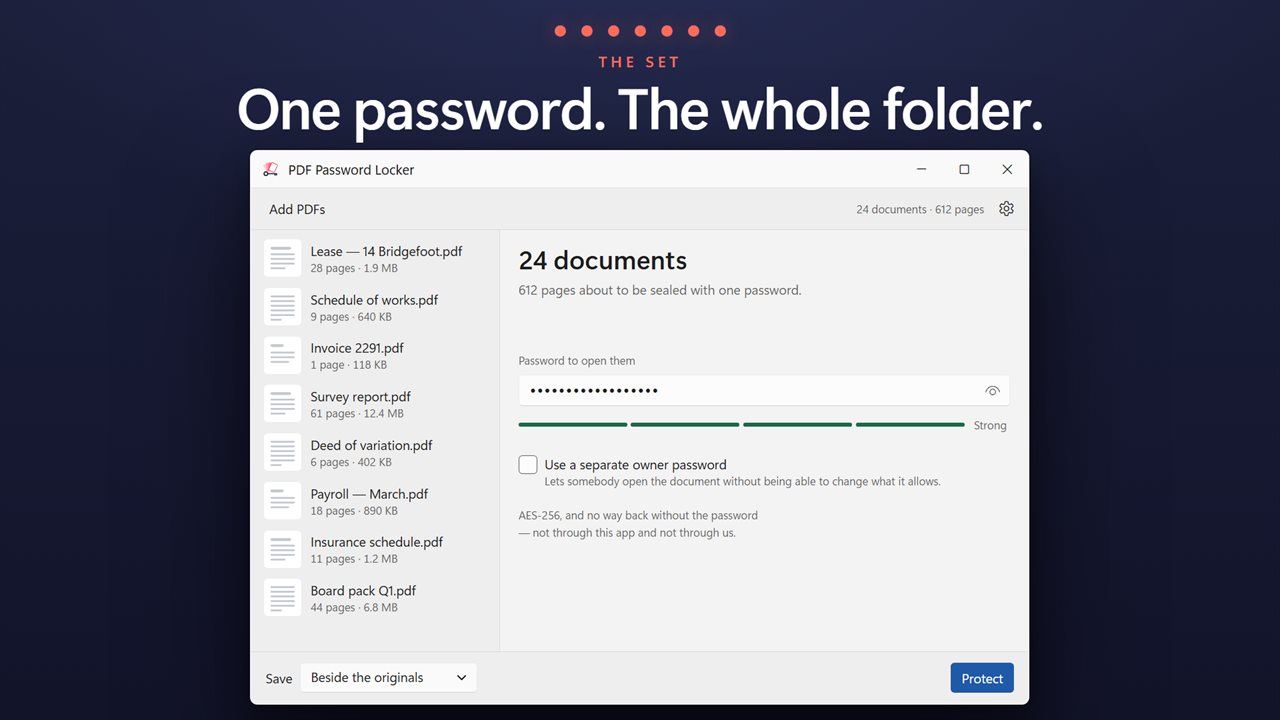
This app works on the set. Load the documents, type a password once in Password to open them, and press Protect. Every document in the queue is encrypted with the same password in a single run, and the header counts the pages about to be sealed so you know the scope before you commit.
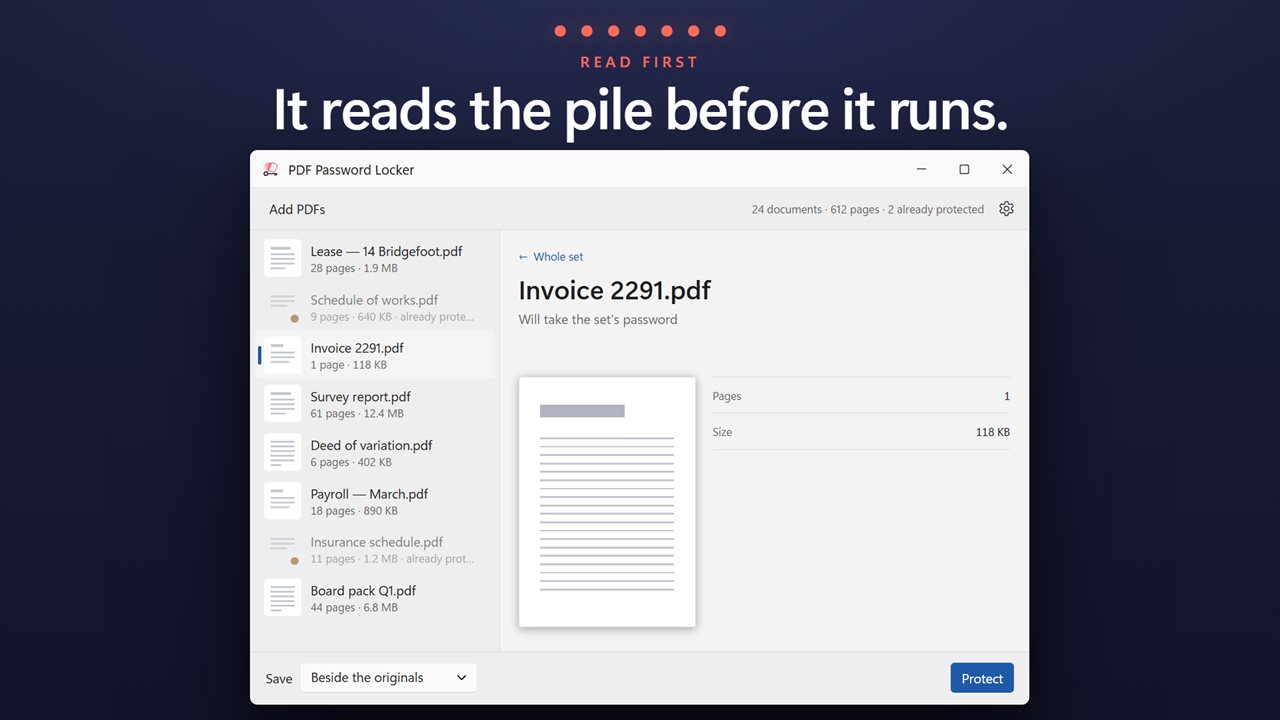
Documents that already have a password are spotted when they join the queue. Their row reads "already protected" and they are left untouched, so a long run does not fail at the end over a file that was locked last month.
Put a password on PDF files in four steps
Each row shows the page count and size, and clicking a document shows its first page and other details, so you can confirm you have the right set before locking it.
- Click Add PDFs, drop files, or drop a whole folder on the window.
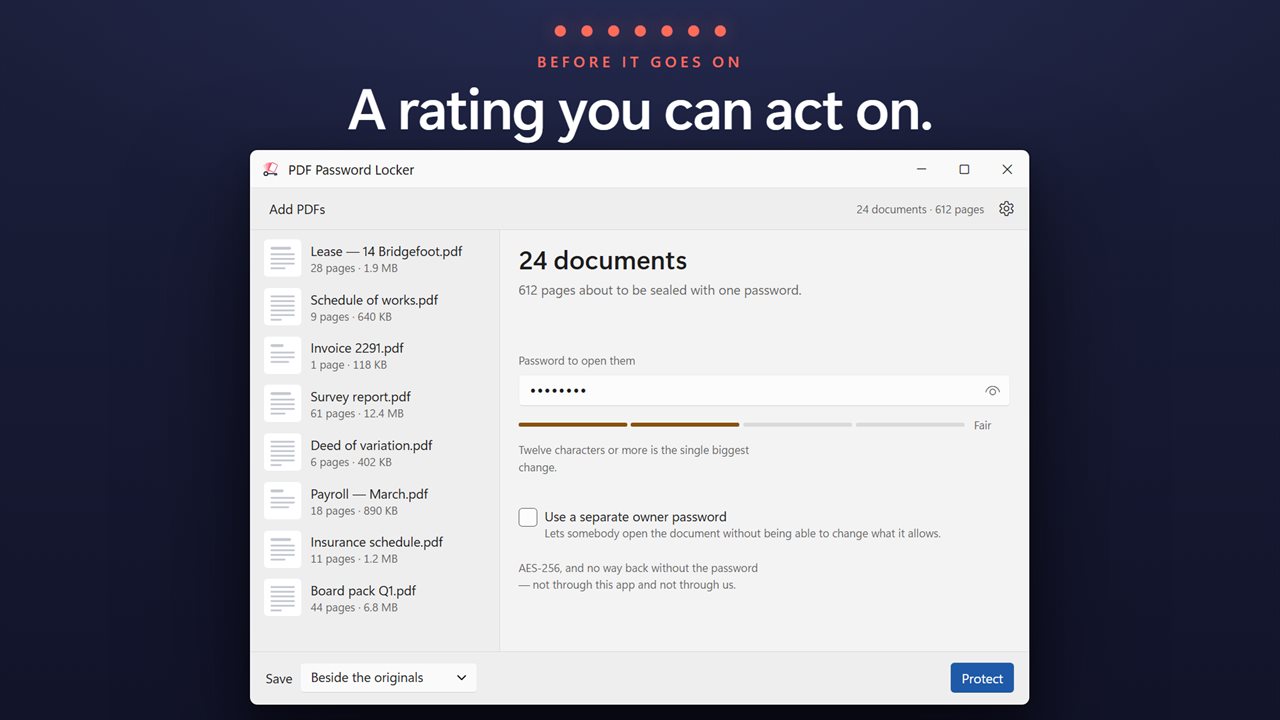
- Type the password in Password to open them and watch the four-bar rating under it.
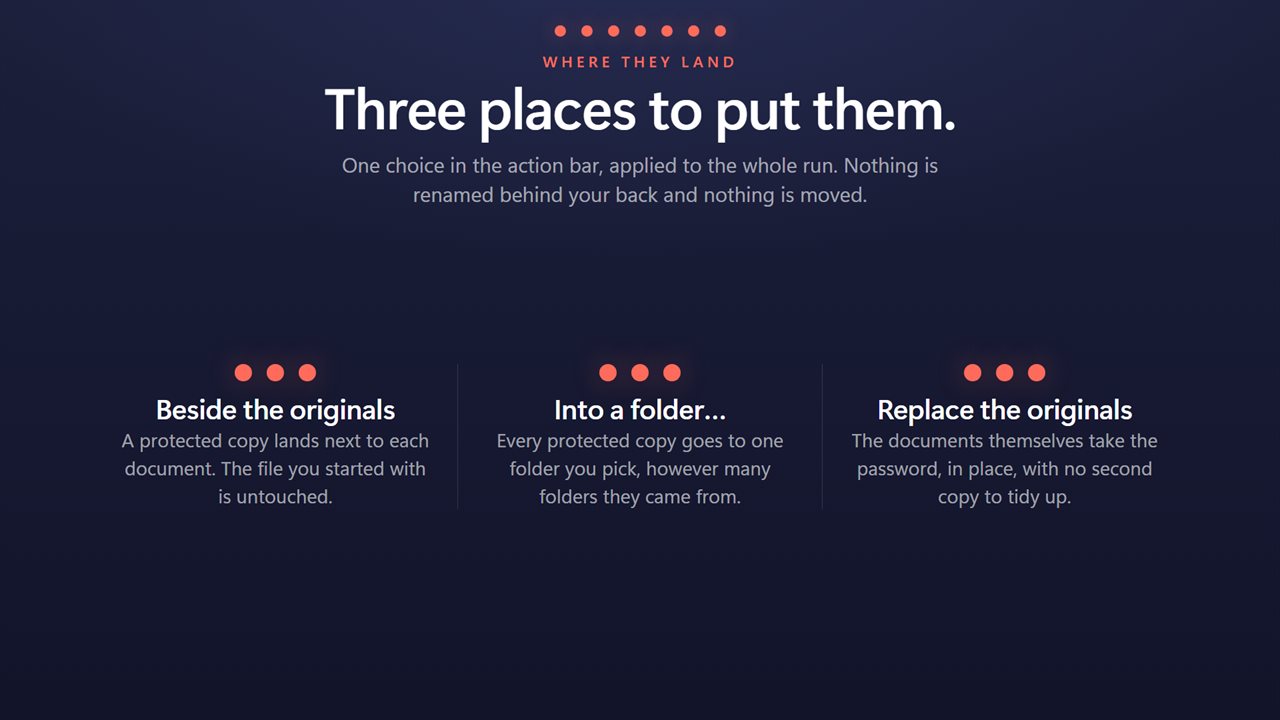
- Under Save, pick Beside the originals, Into a folder, or Replace the originals.
- Press Protect. The result line confirms how many documents now ask for the password.
PDF password protection that is actually strong
One password across sixty documents is only as good as the password. The rating under the field is deliberately simple. It checks four things you can change: at least twelve characters, upper and lower case, a digit, and a symbol. The bars go from Weak through Fair and Good to Strong, and a one-line hint names the most useful fix, such as making it longer.
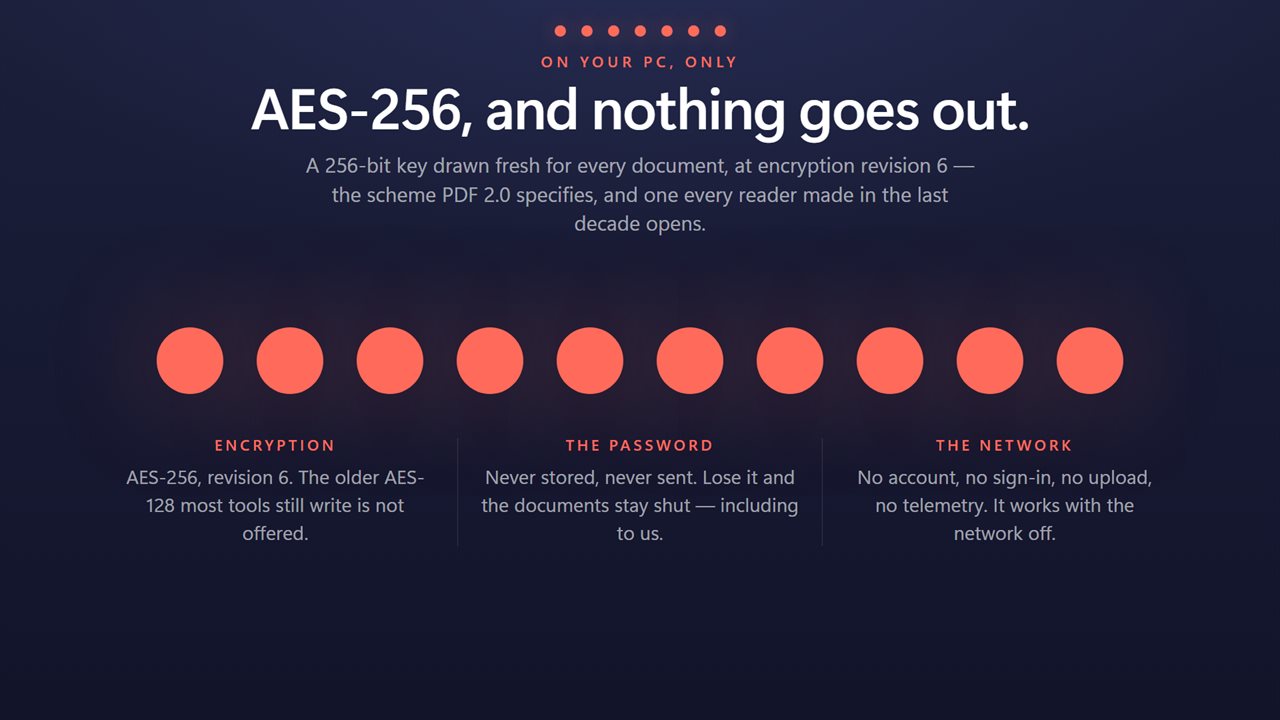
Encryption is AES-256 at revision 6, the scheme PDF 2.0 defines, rather than the older AES-128 or RC4. With a reasonable password there is no practical way back in without it, which is also the warning: store it carefully, because neither this app nor anyone else can recover it.
Open password and owner password, explained
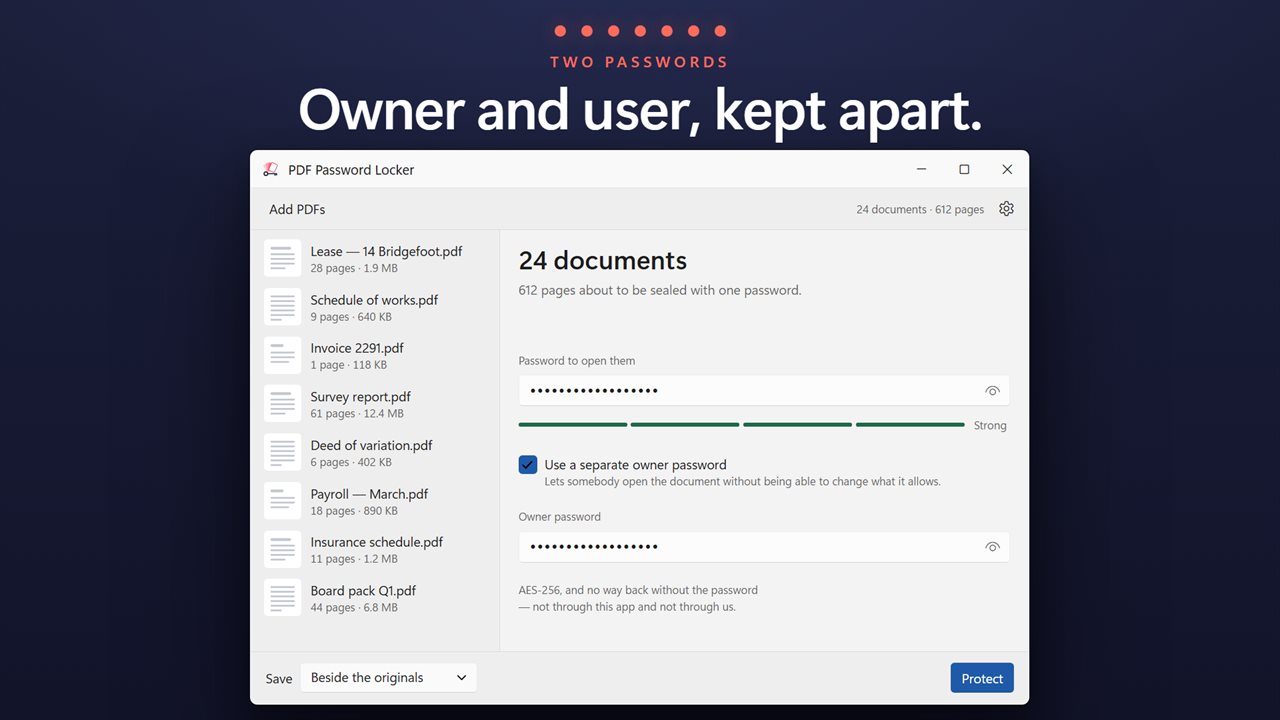
A PDF can hold two passwords. The open password, sometimes called the user password, is the one a reader types to see the document at all. The owner password is meant for whoever controls the file, and in other tools it is usually paired with restrictions on printing, copying or editing.
This app sets no such restrictions, so what protects your documents is the open password alone, and it is always required. If you still want the owner password to differ from the one you hand out, tick Use a separate owner password and type a second one. Left unticked, both are the same value.