EEvlarSoft

Quick PDF File Compressor

Shrink PDF files on your PC by choosing Gentle, Smaller or Smallest, then pressing Compress. Each file reports exactly how much smaller it got.

Buy for $2.49
One payment. No subscription.
14-day money-back guarantee.
3.1
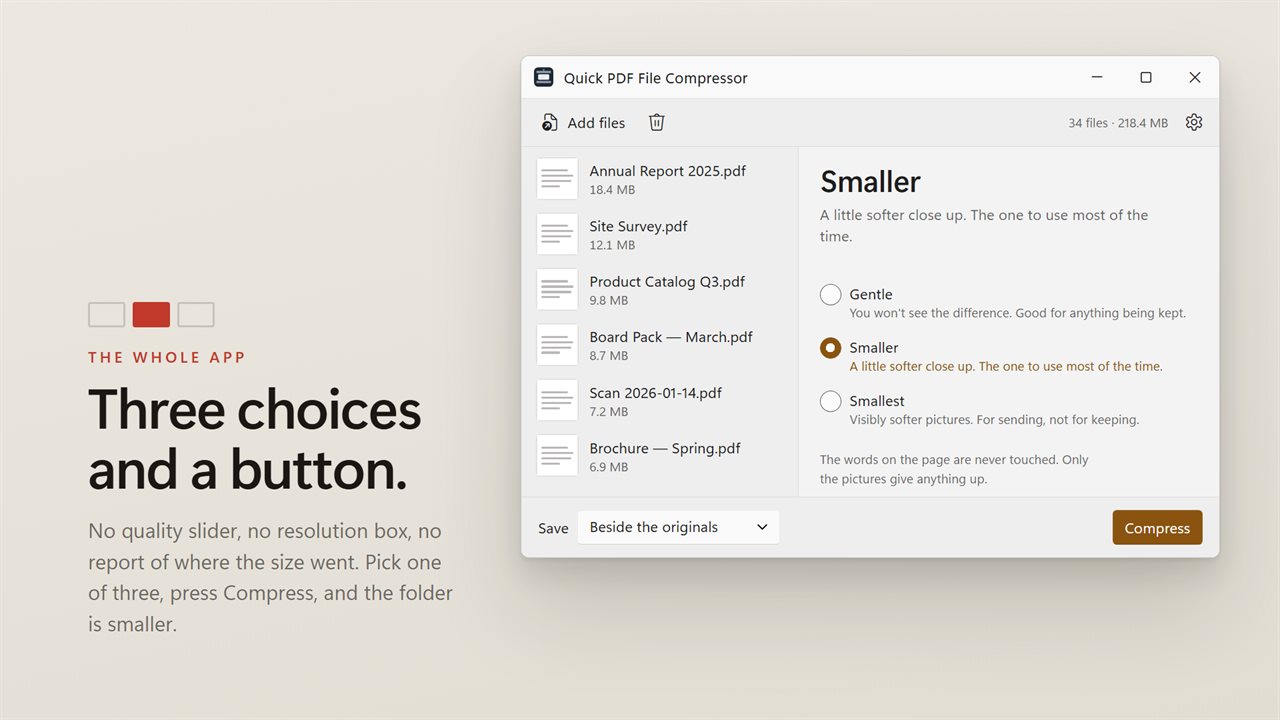
Three choices and a button. That is the whole app.
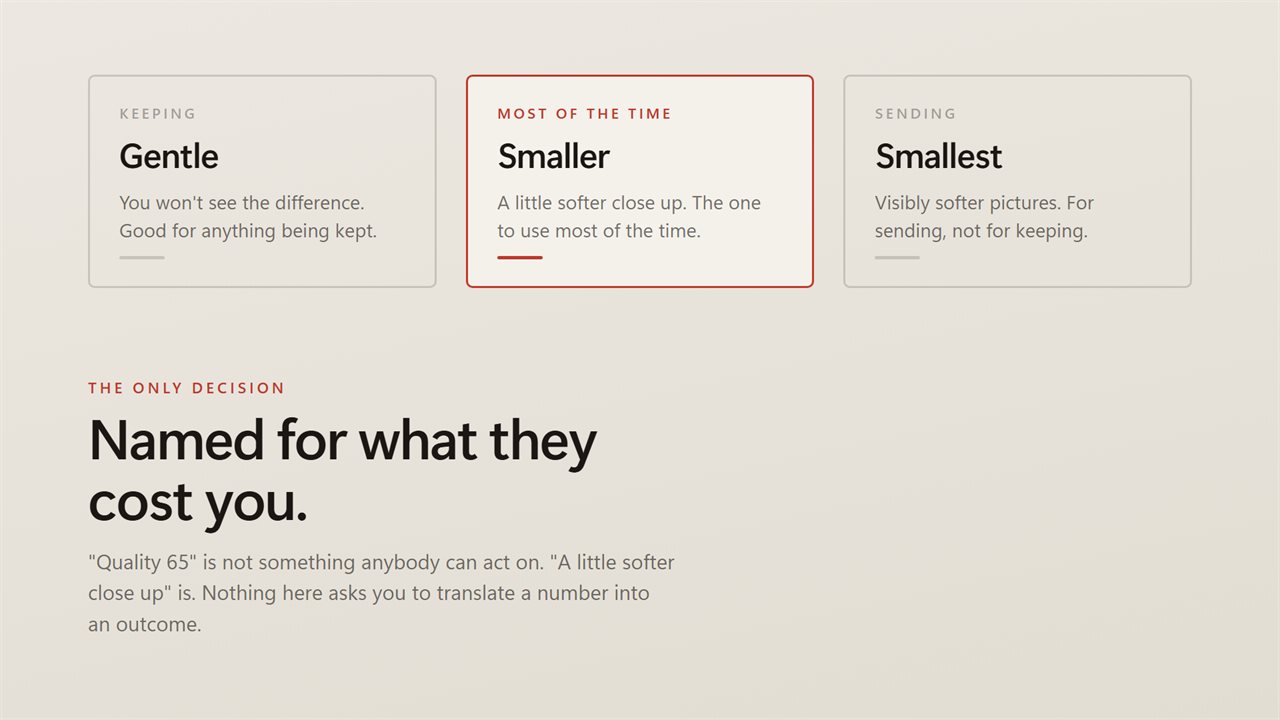
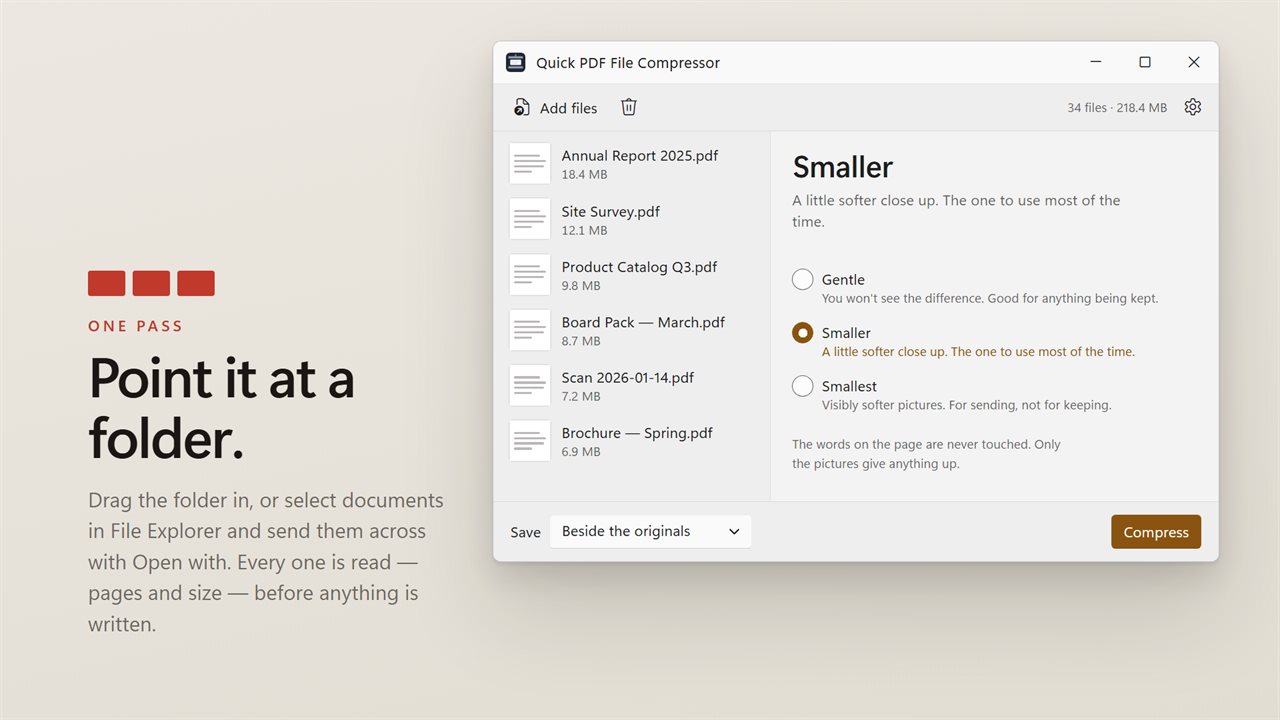
Gentle, Smaller, Smallest — described by what they cost you, never by a number.
Point it at a folder. Every document in it, in one pass.
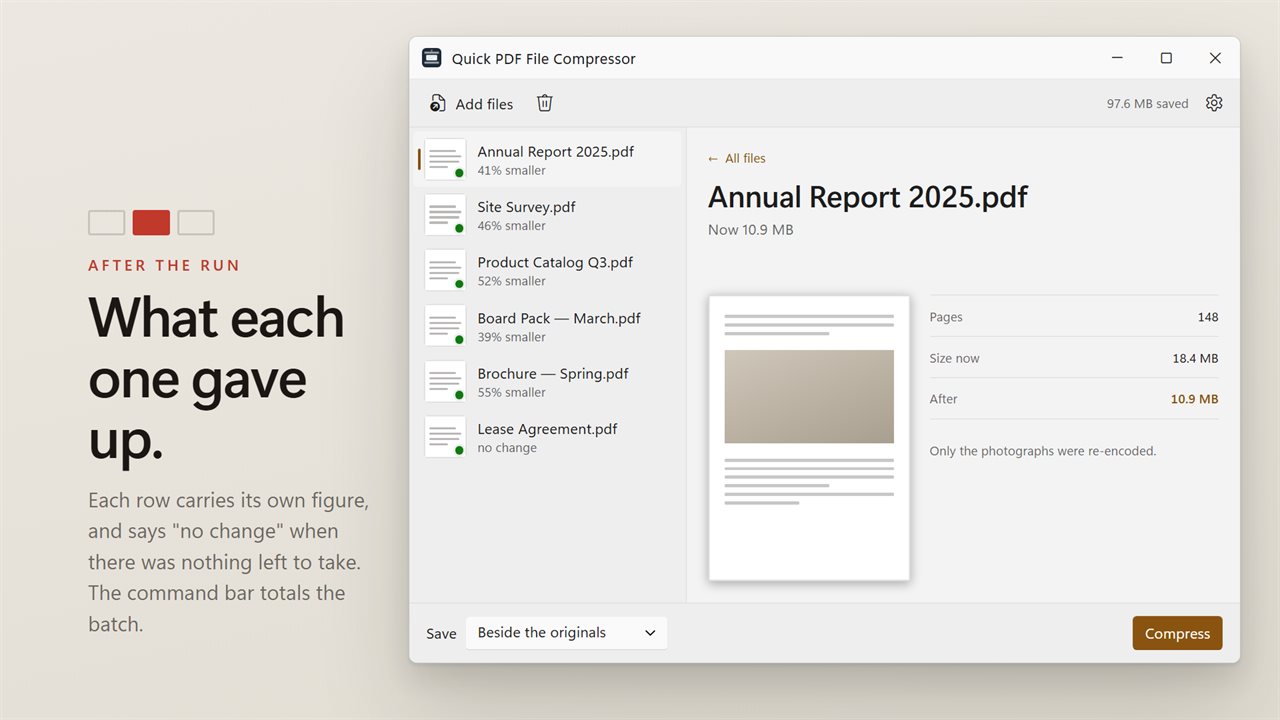
Before and after, per document and across the batch.
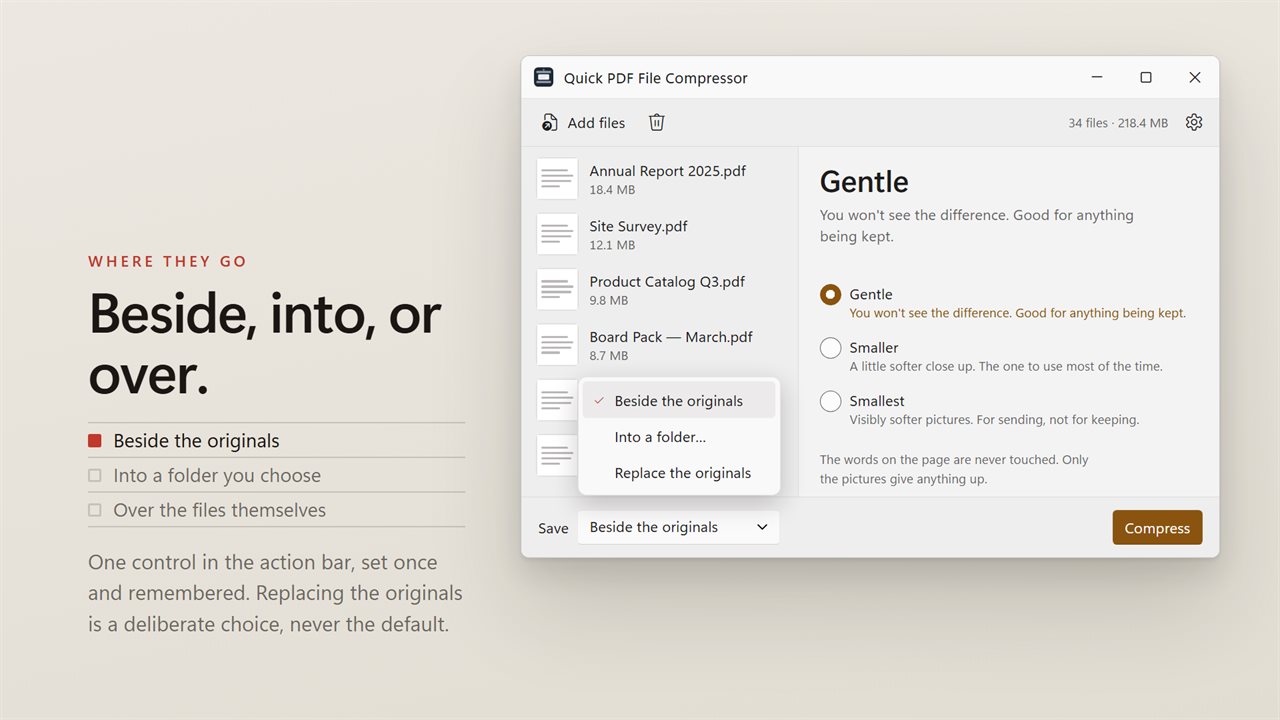
Copies beside the originals, into their own folder, or over the files themselves.
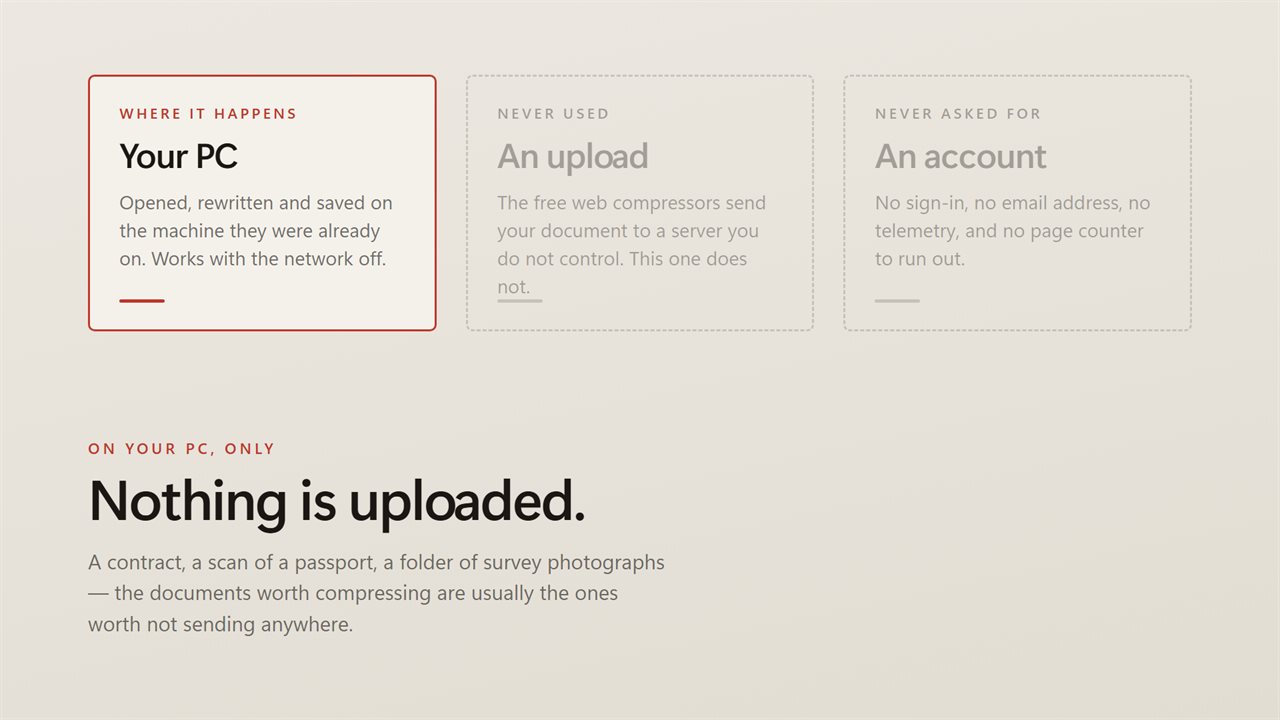
No upload, no account, no server processing. The documents stay on your PC.

Three choices and a button. That is the whole app.

190,000+downloads of EvlarSoft apps
Signed by EvlarSoftVerified US publisher
14-day money-backNo questions asked
Updates includedNo upgrade fees

A PDF size reducer without the jargon

Most PDF size reducer tools ask questions nobody can answer: a DPI number, a JPEG quality from 1 to 100, a preset named after a printing standard. This one asks a single thing, how hard to squeeze, and gives you three answers written in terms of what you will see on the page.

Drop PDFs onto the window, or click Add PDFs. Choose a strength in the side pane, labeled How hard to squeeze, and press Compress. When the run ends, every row shows a percentage such as 38% smaller, or no change if a file had nothing left to give, and the pane shows the total space saved across the batch.

Click any file to see its first page, its page count and its size now, then its size after once it has been compressed. Thumbnails of the pages sit underneath, so you can confirm you dropped the right document before you send it anywhere.

How to shrink a PDF in three steps

Save offers Beside the originals, Into a folder…, or Replace the originals. The first is the default, so your source files stay untouched unless you deliberately ask otherwise.

  • Add the files: drag them in, or use Add PDFs. Anything that is not a PDF is turned away.
  • Pick Gentle for documents you are archiving, Smaller for everyday use, or Smallest for an attachment that has to get through.
  • Choose where the results go under Save, then press Compress.

Why some PDFs shrink a lot and others barely move

Almost all of the weight in a large PDF comes from pictures: photos, scanned pages, screenshots pasted into a report. Those are what this app works on. Each picture is re-encoded at the strength you chose and, on the two stronger settings, scaled down if it is wider or taller than it needs to be. A picture is only swapped when the new copy is actually smaller.

Text, fonts and line art are not converted into images, so lettering keeps its sharp edges however far you zoom in. Around them, the file is tidied without loss: objects that nothing on any page refers to are dropped, and content streams that were stored uncompressed are packed.

That is why a slide deck exported with full-resolution photos might lose most of its size, while a text-only contract that is already lean comes back marked no change. Nothing is forced smaller at the cost of breaking it.

Compress multiple PDF files at once

The strength you pick applies to every file in the queue. Drop a whole folder's worth of invoices or scanned forms, press Compress once, and walk away. A file that fails, for example one that is password protected, is marked with the reason and the rest of the batch carries on.

Each finished copy is named after its source with (smaller) added, so report.pdf sits next to report (smaller).pdf and it is obvious which is which.

What you get

  • Three strengths, Gentle, Smaller and Smallest, each described in plain words
  • Batch compression with one setting for the whole queue
  • Per-file result as a percentage, plus the total saved for the batch
  • Preview of the first page, page count and before and after size for each file
  • Copies saved beside the originals, into a chosen folder, or in place of the originals
  • Pictures are the only thing re-encoded; text and vector content stay sharp
  • Unused objects removed and uncompressed streams packed losslessly
  • Author and other document properties removed from every output

When a smaller PDF matters

Email attachments

Smallest is meant for this: a report full of photos that bounced back from a mail server, made light enough to send.

Upload forms with a size cap

Job portals, school sites and government forms often reject large uploads. Smaller usually gets a scanned document under the line without making it hard to read.

Tidying an archive

Run Gentle over years of saved statements and manuals to recover disk space while keeping them looking as they did.

What's new in 2.0.5

  • Simplified to three choices — Gentle, Smaller, Smallest — each described by what it costs rather than by a quality number
  • Now takes a whole folder in one pass instead of one document at a time
  • Shows what each document weighed before and after, and totals the batch
  • Anything that could not be compressed is now named with the reason instead of being skipped silently
  • A redesigned interface that follows your Windows light or dark theme

Questions

Anything else? Ask us

What is the difference between Gentle, Smaller and Smallest?

Gentle re-encodes pictures at high quality and keeps their size. Smaller, the default, uses medium quality and shrinks pictures larger than 1700 pixels on the longest edge. Smallest uses low quality and caps pictures at 1100 pixels, which suits files you are sending rather than keeping.

Can I set a target file size, like under 10 MB?

No. You pick one of the three strengths and every document gets that setting. There is no quality slider or size target in this app.

Will compressing make the text blurry?

No. Only the pictures are re-encoded. Text and drawings are kept as they are, and the page contents are only repacked losslessly.

Why did a scanned PDF barely get smaller?

Some kinds of picture are never re-encoded: ones with transparency, JPEG 2000 pictures, and CMYK, palette or 1-bit black-and-white pictures. Many black-and-white scans are stored the last way, so they stay close to their original size. A picture is also kept as it was if the new version would not be smaller.

Does it change or delete the original PDFs?

Not by default. Each compressed copy is saved beside its original with "(smaller)" added to the name, or in a folder you choose. Replace the originals is also available, and you are asked to confirm first.

Does it remove the author and other hidden details?

Yes, always. The document information, such as author and the software that made it, and the XMP metadata are removed from every compressed file. There is no option to keep them.

Can it compress a password-protected PDF?

No. An encrypted PDF is skipped with the message Password protected, unlock it first. Remove the password in another tool, then compress the unlocked copy.

Which setting should I start with?

Start with Smaller, which is selected when the app opens. If a file is still too large, run it again on Smallest; if you plan to keep it long term, use Gentle.

Do I have to upload my PDFs to shrink them?

No. You add files from your own drive, the compression runs inside the app on your PC, and the smaller copies are written to a folder on that same PC.

Which versions of Windows does it run on?

Windows 10 (version 1809 or later) and Windows 11.

Is it a subscription?

No. Quick PDF File Compressor is a one-time purchase of $2.49, and updates are included.

How do I get it?

Buy it on this page and your license key arrives by email. If the button says Notify me, Quick PDF File Compressor is not on sale here yet; leave your email and we will tell you when it is.