A PDF editor for Windows that changes the words themselves
Many tools sold as a PDF editor for Windows only let you type on top of a page. The usual trick for correcting a word is a white rectangle with new text laid over it, and the original is still in the file for anyone who copies, searches or opens it in another program.
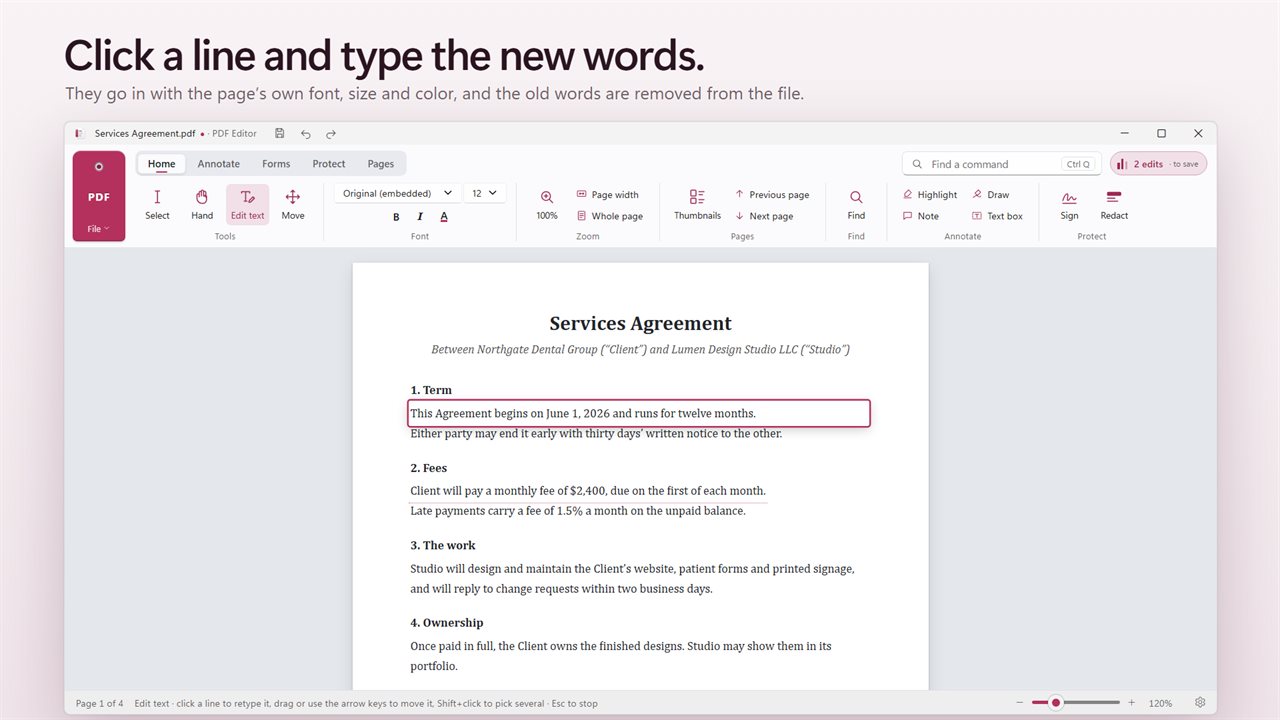
Evlar PDF Editor works differently. Pick Edit text on the Home tab, click a line and retype it. On save, the old characters are taken out of the page and the new ones are written in their place, in the document's embedded font when it contains every character you used, or in a matching font family when it does not.
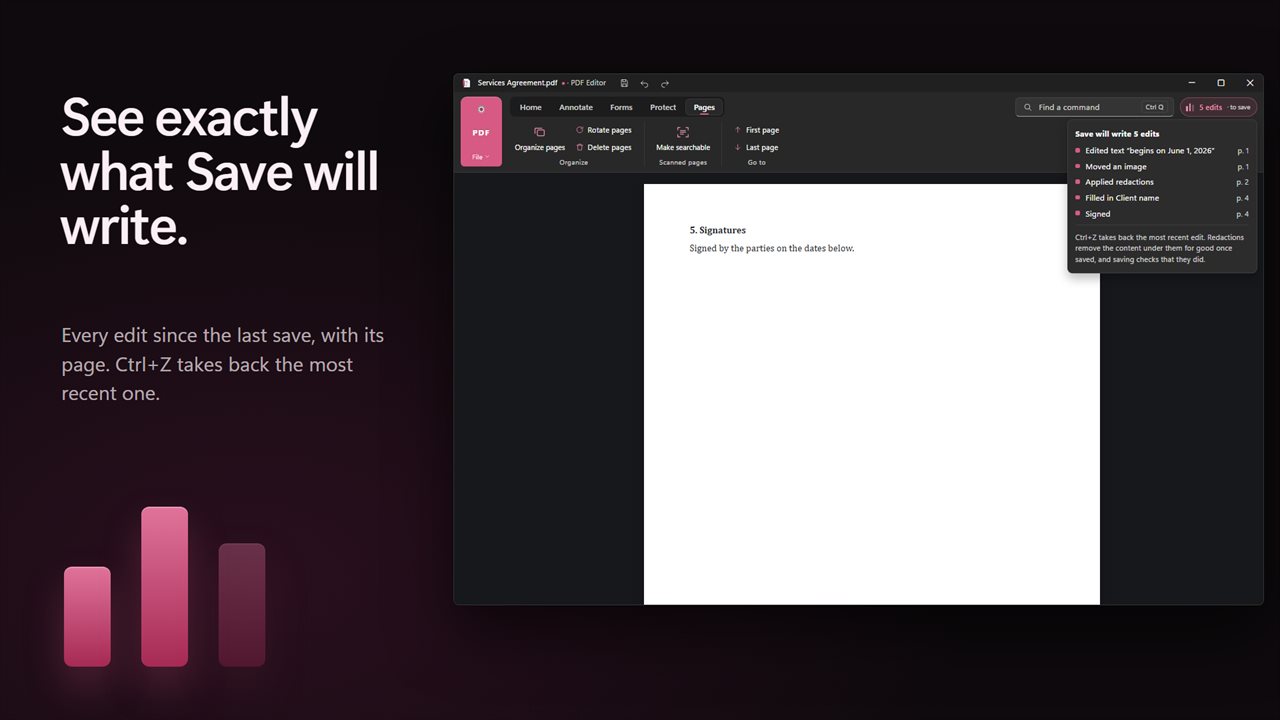
Everything you change is collected in the Changes list, so before you press Save you can see exactly what will be written.
How to edit text in a PDF
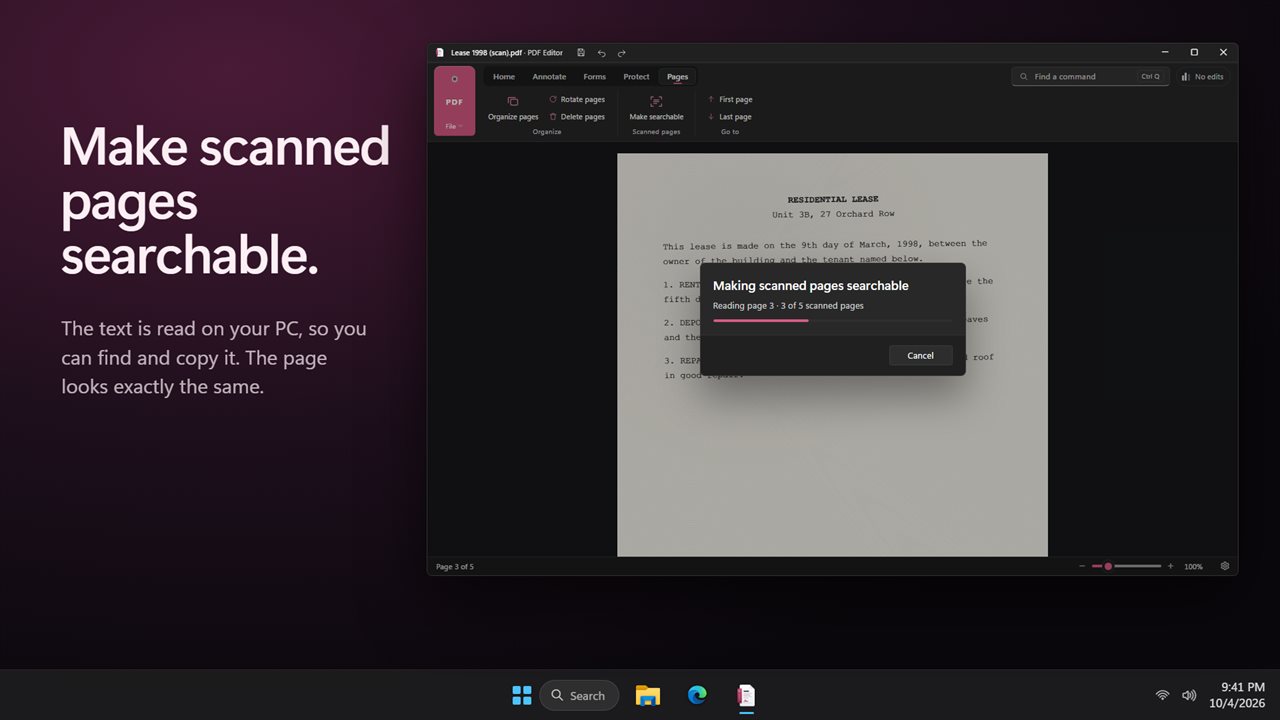
Scanned pages have no text to edit until they are read. Under Scanned pages, Make searchable finds image-only pages and runs the text recognition built into Windows over them, adding an invisible layer so you can search, select and copy the words while the page looks unchanged.
- Open… the file. Each PDF gets a window of its own, so you can compare two side by side.
- On the Home tab choose Edit text, then click the line you want to change.
- Type the correction. Use Font, Font size, Bold, Italic and Font color if you need to.
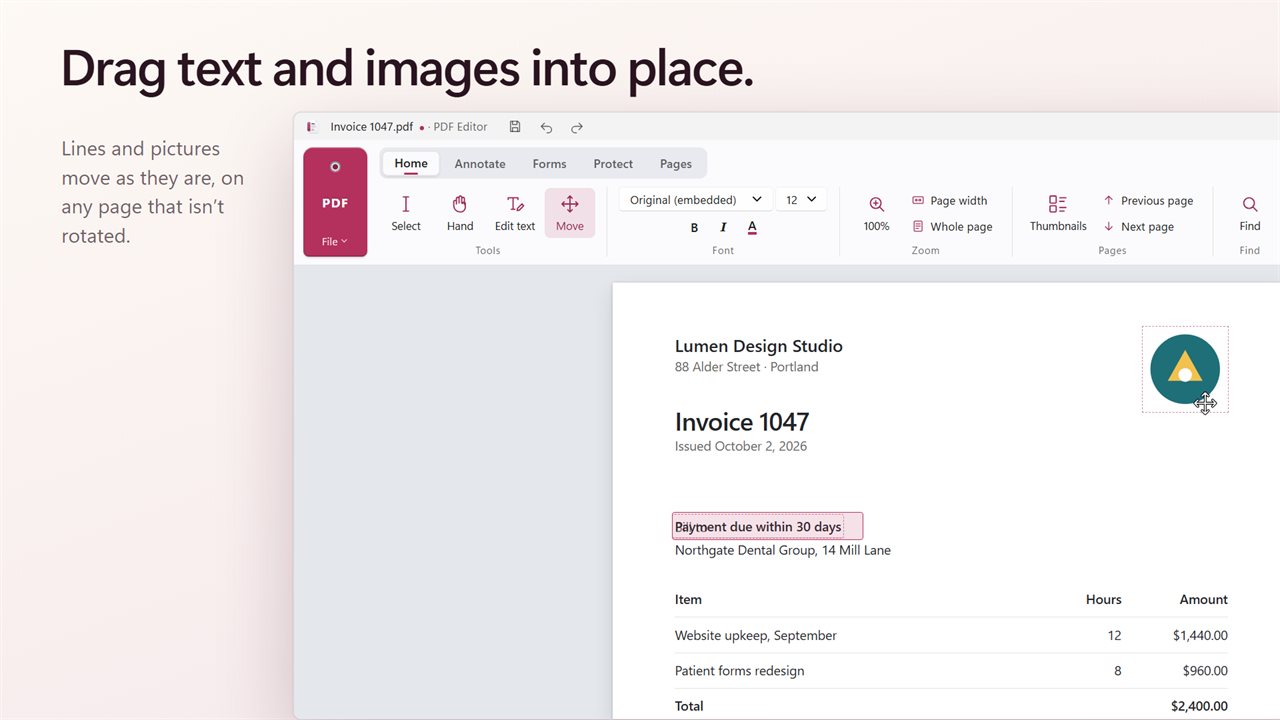
- To shift words or pictures instead, use Move.
- Check the Changes list, then Save, or Save as… to keep the original.
How to redact a PDF properly
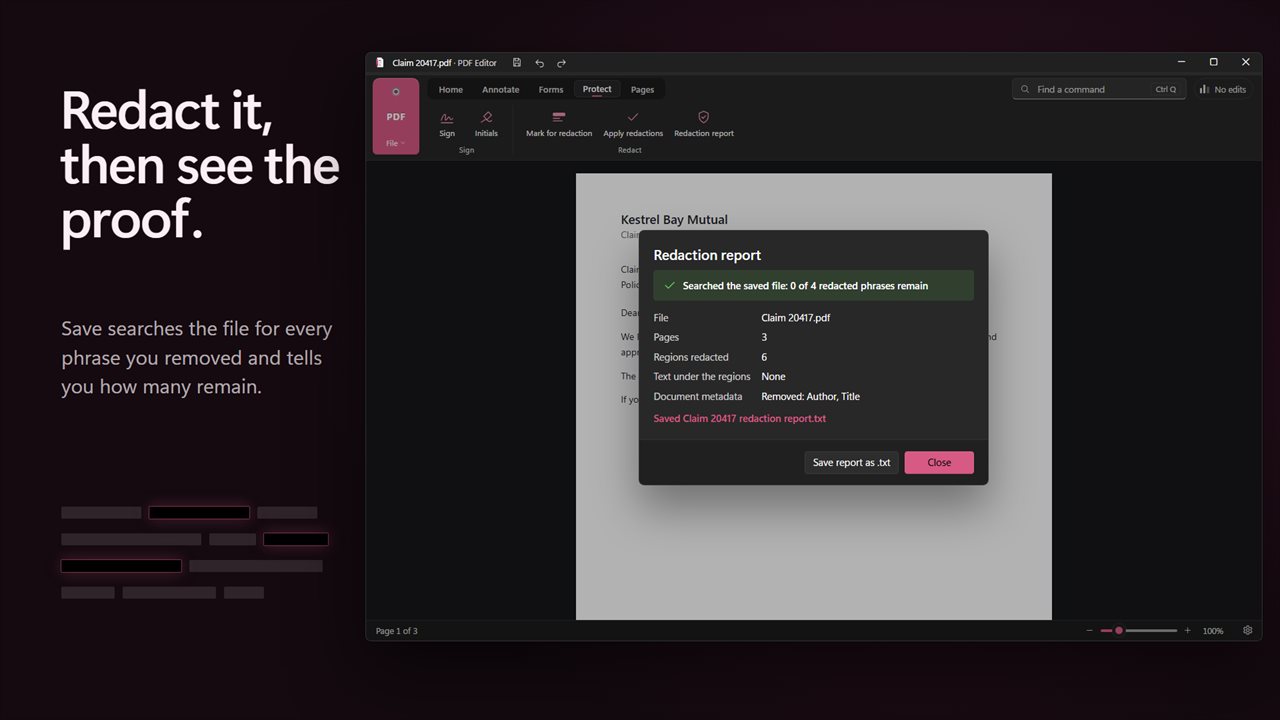
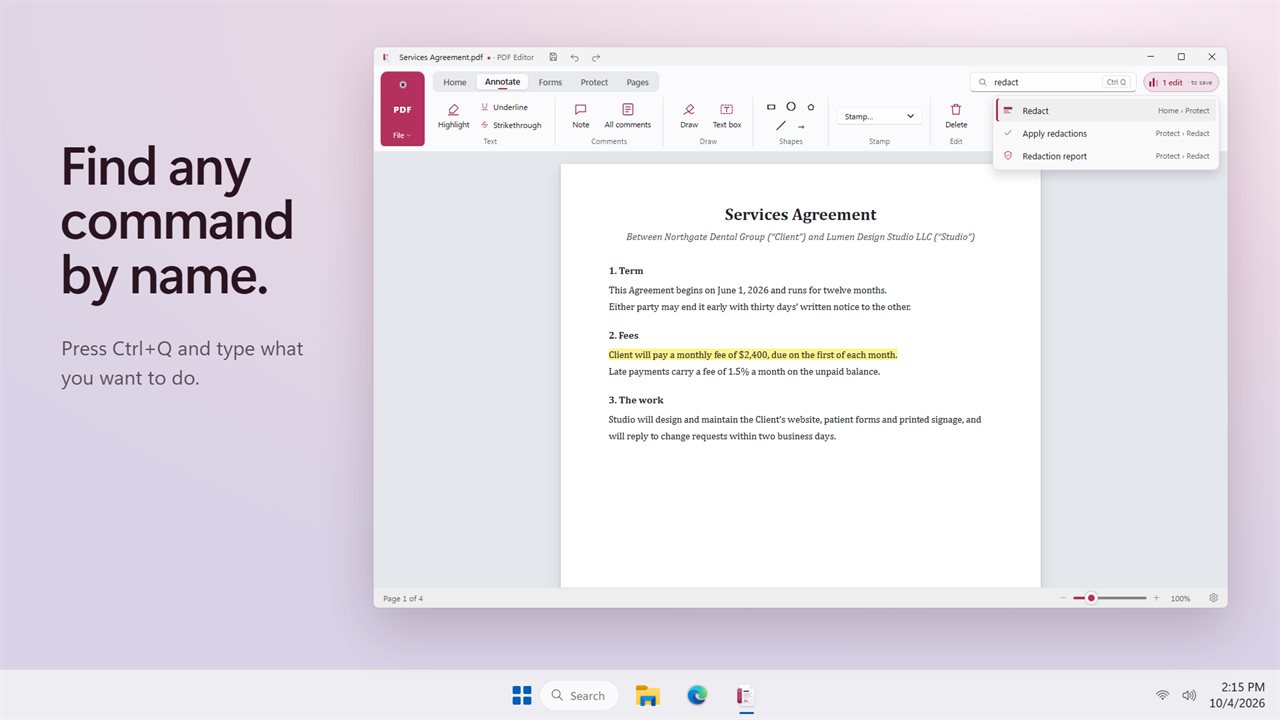
A black box drawn over a name hides nothing; the text is still underneath. Real redaction removes it. On the Protect tab, choose Mark for redaction, drag over each name, account number or address, then Apply redactions. When the file is saved, the editor reads the result back, searches for every phrase you removed and for any characters still under a redacted area, and reports the count, which should be zero.
Document properties often give away the very name you just removed, so a redacted save also clears title, author, subject, keywords, creator, producer and XMP metadata. Redaction report saves the outcome as a text file to keep with the PDF, without repeating the redacted words.
Sign a PDF, fill forms and create fillable fields
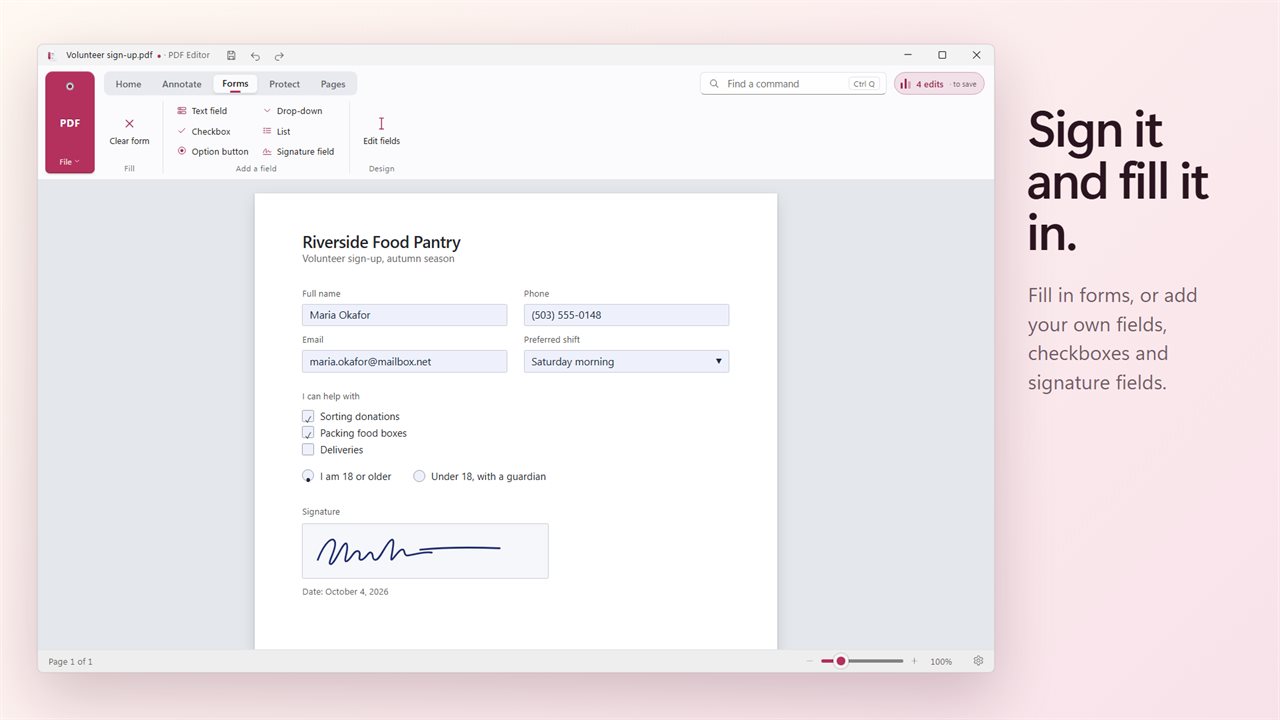
Sign and Initials place your signature on the page. Forms that already have fields are filled by clicking into them, and Clear form empties them again.
To turn a flat document into a fillable PDF, go to the Forms tab and, in its Design group, add a Text field, Checkbox, Option button, Drop-down, List or Signature field wherever the recipient should respond. Edit fields adjusts ones you have placed.
Annotate and organize pages
The Annotate tab has Highlight, Underline and Strikethrough for text, plus Note, Text box, Draw, Stamp and shapes: Rectangle, Circle, Line, Arrow and Polygon. All comments lists every annotation in one place.
Organize pages lets you rotate, reorder and delete pages, insert pages from another PDF after the current one, and Export pages as images… to save each page as a PNG.