
EEvlarSoft

Text File Splitter

Split a CSV file or a big log into smaller files that each open on their own, cut cleanly between lines and with the header row repeated if you want it.

Buy for $2.99
One payment. No subscription.
14-day money-back guarantee.
3.1
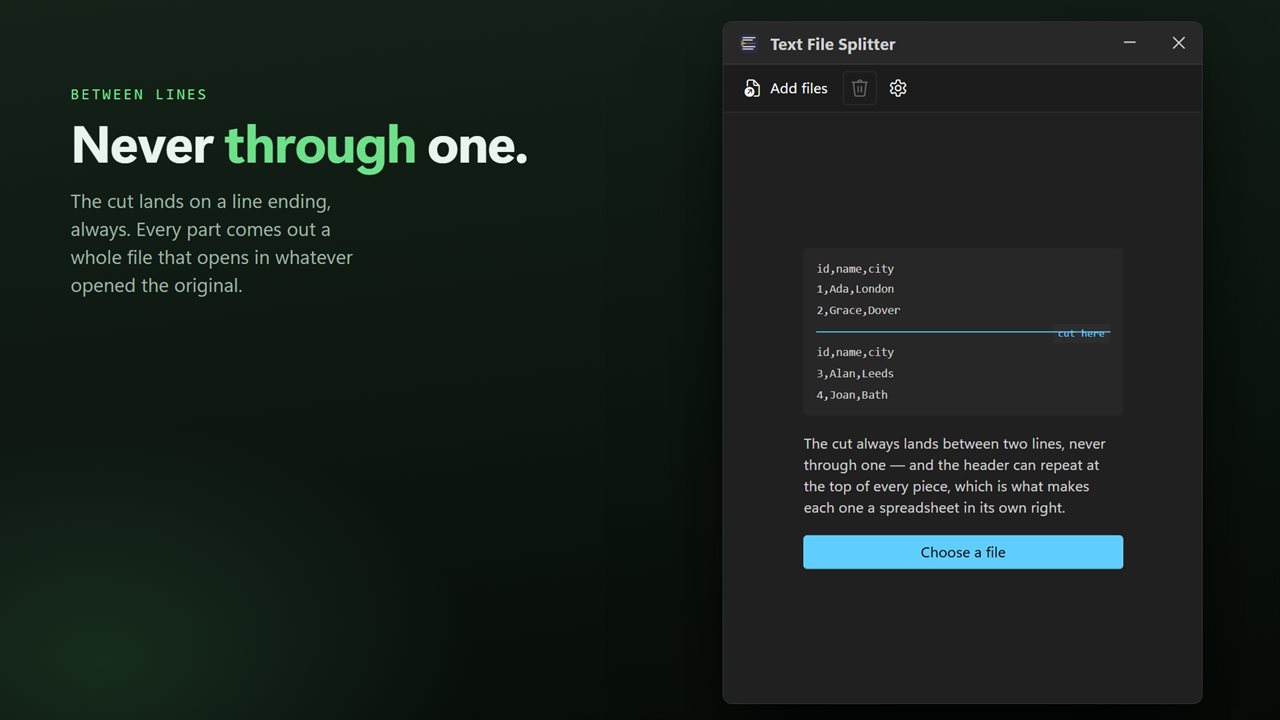
Cut between lines, never through one. Every part is a whole file.
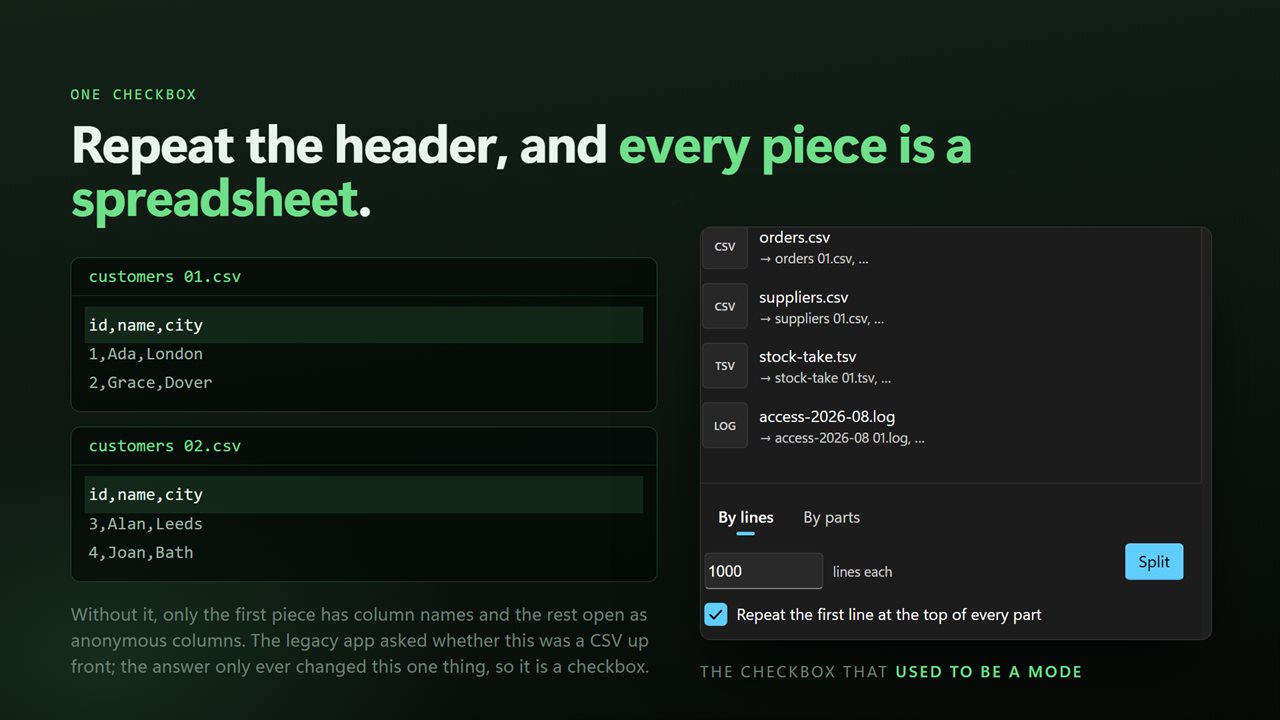
Repeat the header on every piece — each one a spreadsheet in its own right.
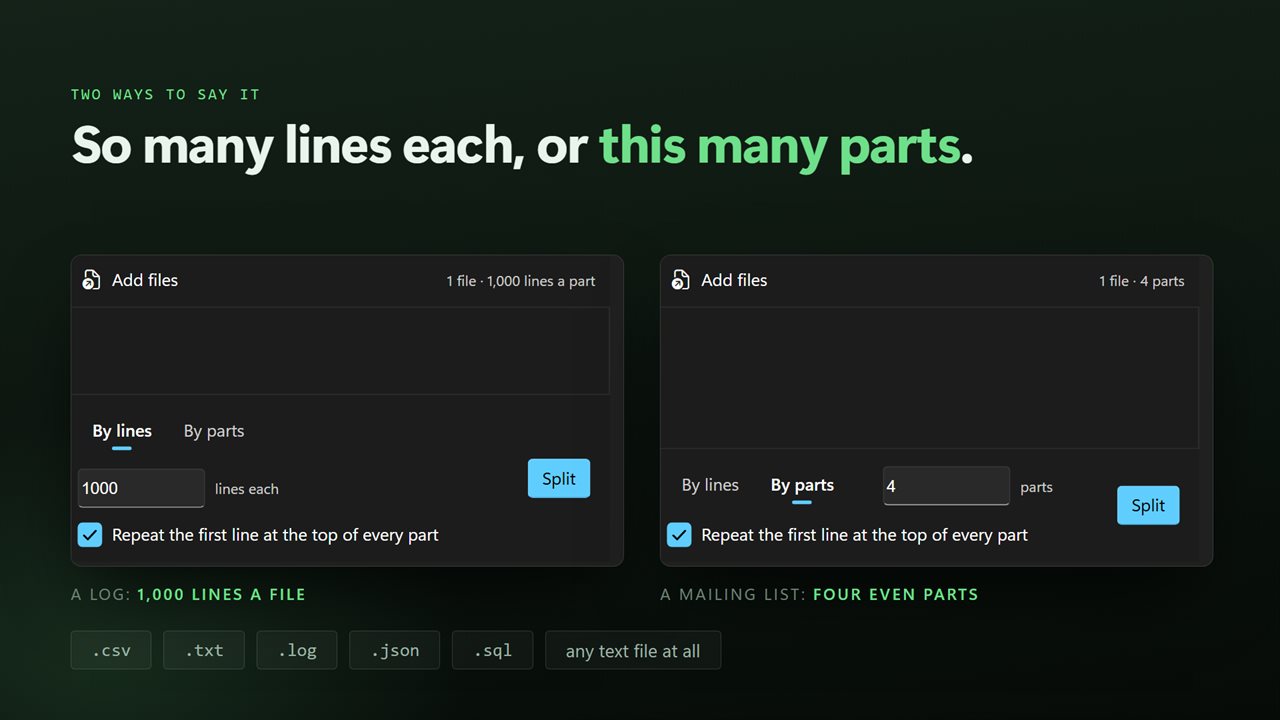
By lines per part, or into a set number of even parts.
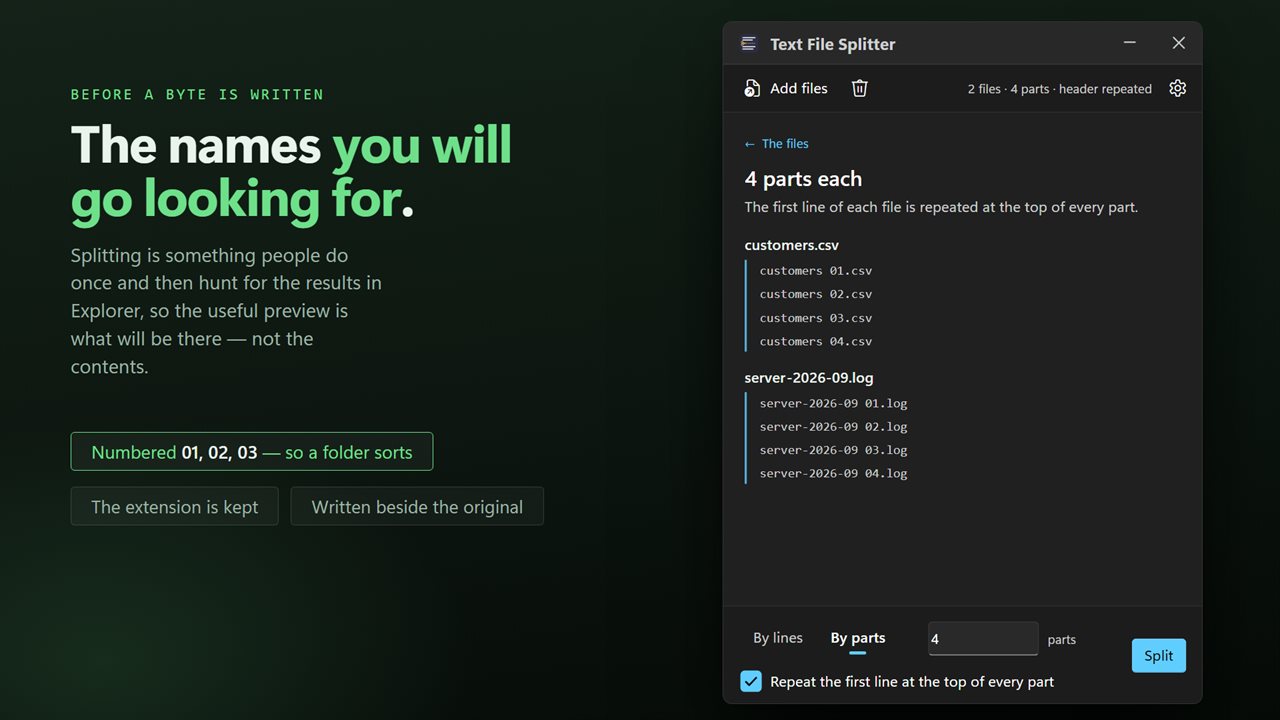
See the part names before a byte is written.
A whole batch at once, and nothing ever leaves your PC unless you choose to send feedback.

Cut between lines, never through one. Every part is a whole file.

190,000+downloads of EvlarSoft apps
Signed by EvlarSoftVerified US publisher
14-day money-backNo questions asked
Updates includedNo upgrade fees

How to split a CSV file without breaking a row

When you split a CSV file with a general-purpose file splitter, the cut lands at a byte count, often in the middle of a row. The first piece ends on half a record, the next starts on the other half, and neither opens cleanly in a spreadsheet. This app only ever cuts at a line break, so every piece holds complete rows.

It can also copy the first line, usually the column names, to the top of every piece. That turns each part into a usable spreadsheet in its own right rather than a block of anonymous values you have to match back to the original.

The window is small and does one thing. Pick By lines or By parts, type a number, decide about the header, and press Split. The pane shows the file names that are about to be written before you run it.

Split a CSV into multiple files: step by step

  • Drop one or more files on the window, or click Choose a file.
  • Pick By lines and enter how many lines each part should hold, 1,000 to begin with, or pick By parts and enter how many files you want, from 2 up.
  • Tick Repeat the first line at the top of every part for a CSV or TSV with column headings. Leave it off for logs and plain text.
  • Press Split. The pieces are written next to the original, which is left alone.

Splitting a large text file, log or subtitle file

The same line-safe cutting works on more than spreadsheets. Server logs that are too big for a text editor to open comfortably, SQL dumps, Markdown notes, line-based JSON, XML and DAT files can all be broken into parts that a normal editor will load. Subtitle files in SRT and VTT format are accepted too.

Line endings are copied byte for byte, so Windows-style files keep their CRLF endings and Unix-style files keep theirs. Nothing is re-encoded on the way through, which also means the parts use whatever character set the original did.

Lines per file or number of parts: which to choose

Choose By lines when something downstream has a limit: an import screen that takes 5,000 contacts at a time, an upload form with a row cap, or a mail-merge tool that slows down on large lists. Every part except the last will have exactly the count you typed.

Choose By parts when you want to share the work out, for example handing a list to four people or running four jobs side by side. The lines are divided as evenly as they will go. With the header option on, the heading line is added on top of each part's share and does not count toward it.

What it handles

  • Cuts only at line breaks, so no row or line is ever split in half
  • Split by a fixed number of lines (1 to 9,999,999) or into 2 to 9,999 parts
  • Optional header row repeated at the top of every part
  • Accepts TXT, CSV, TSV, LOG, MD, JSON, XML, SQL, SRT, VTT and DAT
  • Several files can be queued and split in one run with the same settings
  • Preview of the output file names before anything is written
  • Original file kept unchanged; numbered parts saved in the same folder

Common reasons to split a file

CSV too big for a spreadsheet

Exports that run past what a spreadsheet will load can be cut into pieces that open normally, each one still labeled by its header row.

Batch imports

CRMs, mailing platforms and online stores often cap how many records one upload may contain. Splitting by lines matches that cap exactly.

Reading huge logs

A log too long to scroll through becomes a set of smaller files you can open, search and attach to a support ticket.

What's new in 2.0.5

  • Now takes a whole batch. Earlier versions split one file per run; drop in a folder and every file in it splits in one pass
  • The separate CSV mode is gone, and nothing is lost with it: repeating the header row is now a switch that works on any text file, which is all that mode ever was
  • Split into a set number of even parts as well as by lines per part
  • The part names are listed before anything is written, so you can see what you are about to get
  • Encoding and line endings are carried through, so accented characters no longer come back mangled in a spreadsheet
  • Part names are unchanged, so a folder half-split by the old version stays one sequence
  • A redesigned interface, in light or dark, and it can follow Windows instead if you prefer

Questions

Anything else? Ask us

Can a split cut a line or CSV row in half?

No. Every cut lands at the end of a line, so each part holds whole lines only. Windows (CRLF) line endings are copied as they are, and a file with no newline at the end does not gain one.

Does it repeat the CSV header row in every part?

Yes, with Repeat the first line at the top of every part turned on. That line is not counted, so asking for 1,000 lines a part gives 1,000 rows plus the header in each one.

Can I split a file into a set number of parts instead of by line count?

Yes. Choose By parts and enter how many you want, from 2 up. The lines are shared out as evenly as they divide, with the last part being the short one.

Which file types can it split?

TXT, CSV, TSV, LOG, MD, JSON, XML, SQL, SRT, VTT and DAT. It only cuts between lines, so it does not take pictures, archives or other binary files.

What are the parts called, and where are they saved?

They are saved in the same folder as the original and numbered in order, so report.csv becomes report 01.csv, report 02.csv and so on. The original file is not changed. A part with the same name already in that folder is written over, so move earlier parts out first.

Will accented characters still show correctly in Excel after splitting?

Yes, for UTF-8 files. The bytes are copied as they are, and if the original starts with a UTF-8 byte order mark, every part gets one too, which is what Excel needs to read the accents.

Can it split a CSV file that is several gigabytes?

Yes. The file is read one line at a time rather than loaded into memory whole, so a very large export or log is split the same way as a small one. Your free disk space is the practical limit.

Can it split Excel XLSX files?

No. It works on plain text formats only. Save the workbook as CSV first, then split the CSV.

Can I choose a different output folder?

No. The parts are always written beside the original file, in the same folder.

Which versions of Windows does it run on?

Windows 10 (version 1809 or later) and Windows 11.

Is it a subscription?

No. Text File Splitter is a one-time purchase of $2.99, and updates are included.

How do I get it?

Buy it on this page and your license key arrives by email. If the button says Notify me, Text File Splitter is not on sale here yet; leave your email and we will tell you when it is.