How to lock a PDF from editing, and what that really means
When people search for how to lock a PDF from editing, they usually want two things at once: the document should open only for the right people, and once it is open, nobody should be able to change it, lift the text out or print a clean copy. A PDF can carry both. The open password controls the first. A set of permission flags, guarded by a separate owner password, controls the second.
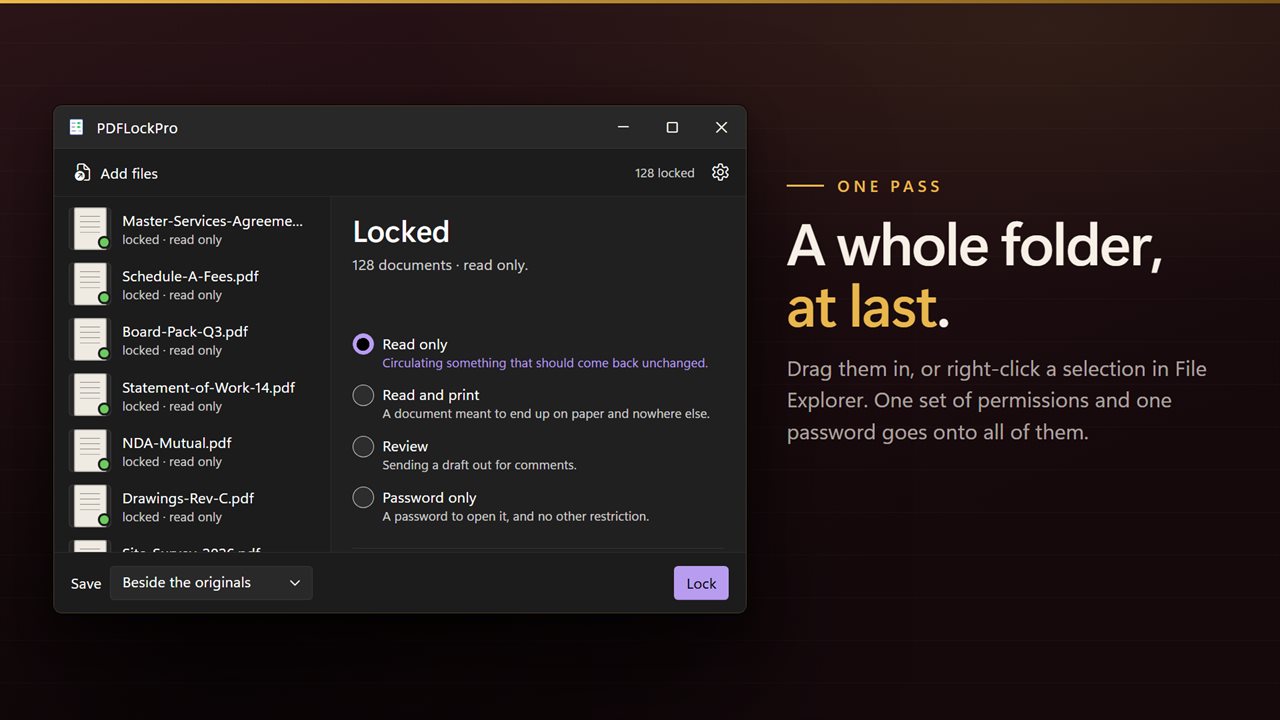
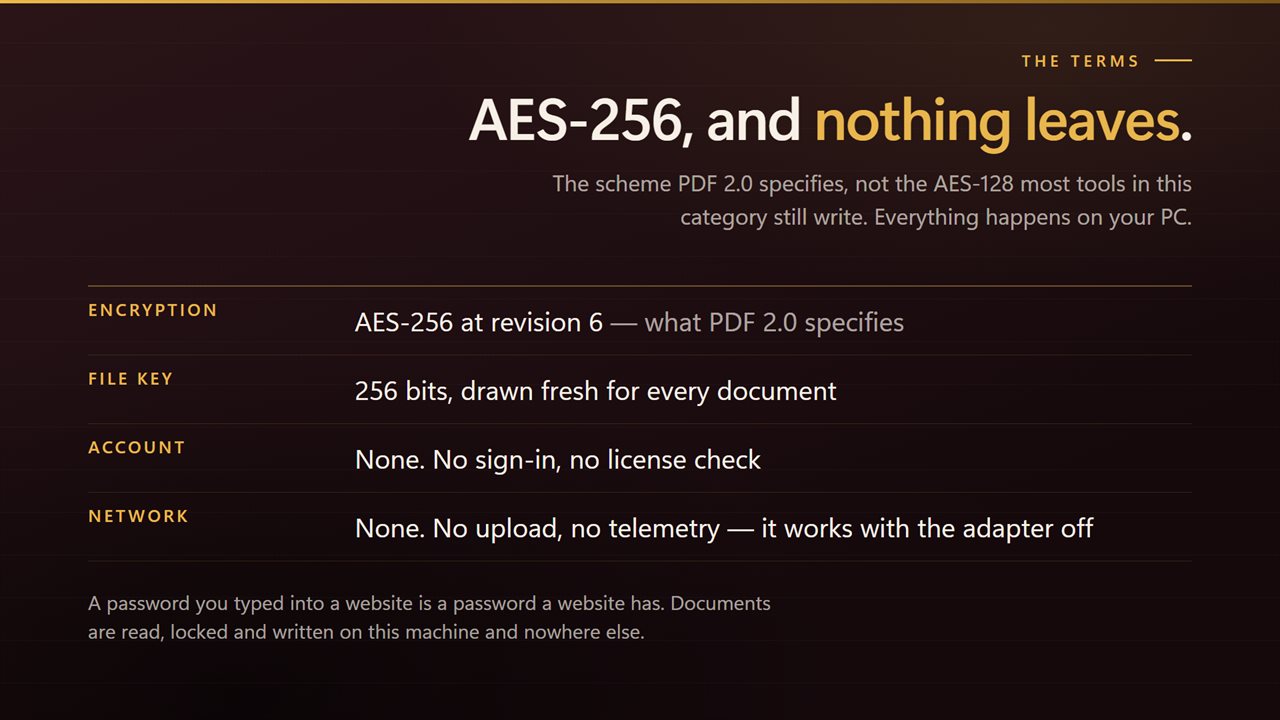
PDFLockPro sets both in one pass and for as many documents as you queue. You choose what a reader may still do, type the password to open, optionally set an owner password, and press Lock. Every file is encrypted using the AES-256 encryption defined by PDF 2.0, and the permissions are written into that encryption.
One honest caveat: permission flags are honored by the reader software, not by mathematics. Mainstream readers grey out the blocked commands, but a determined person with a tool that ignores the flags can get around them. That is why this app always pairs restrictions with an open password, so the document is encrypted and unreadable to anyone outside the group you gave the password to.
How to make a PDF read only or non-editable
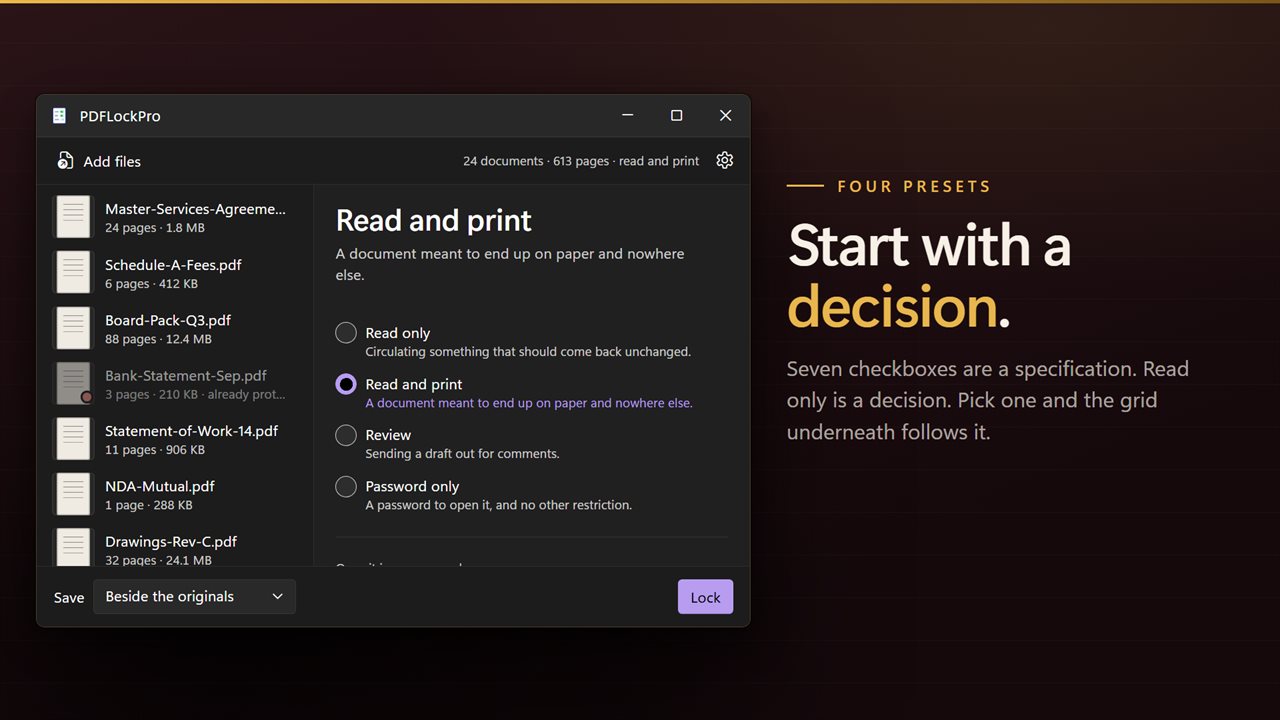
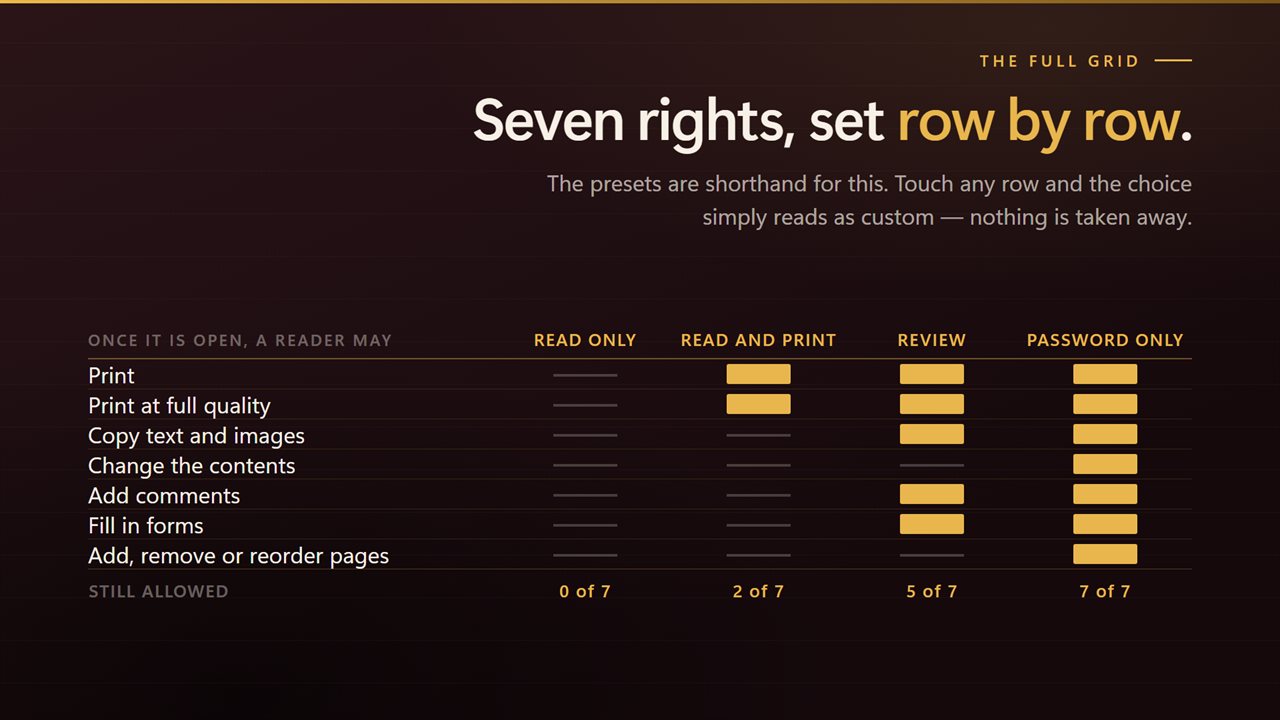
The app opens on Read only, which switches off all seven permissions. Three more presets cover the other common jobs, and each one is labeled in the app by what it is for:
- Read only: nothing but reading. For anything that should come back exactly as it left.
- Read and print: printing is allowed, including at full quality, and everything else is blocked.
- Review: readers may print, copy, add comments and fill in forms, but cannot change the contents or rearrange pages.
- Password only: no restrictions at all, just the password to open.
Protect a PDF from copying, printing or page changes, one permission at a time
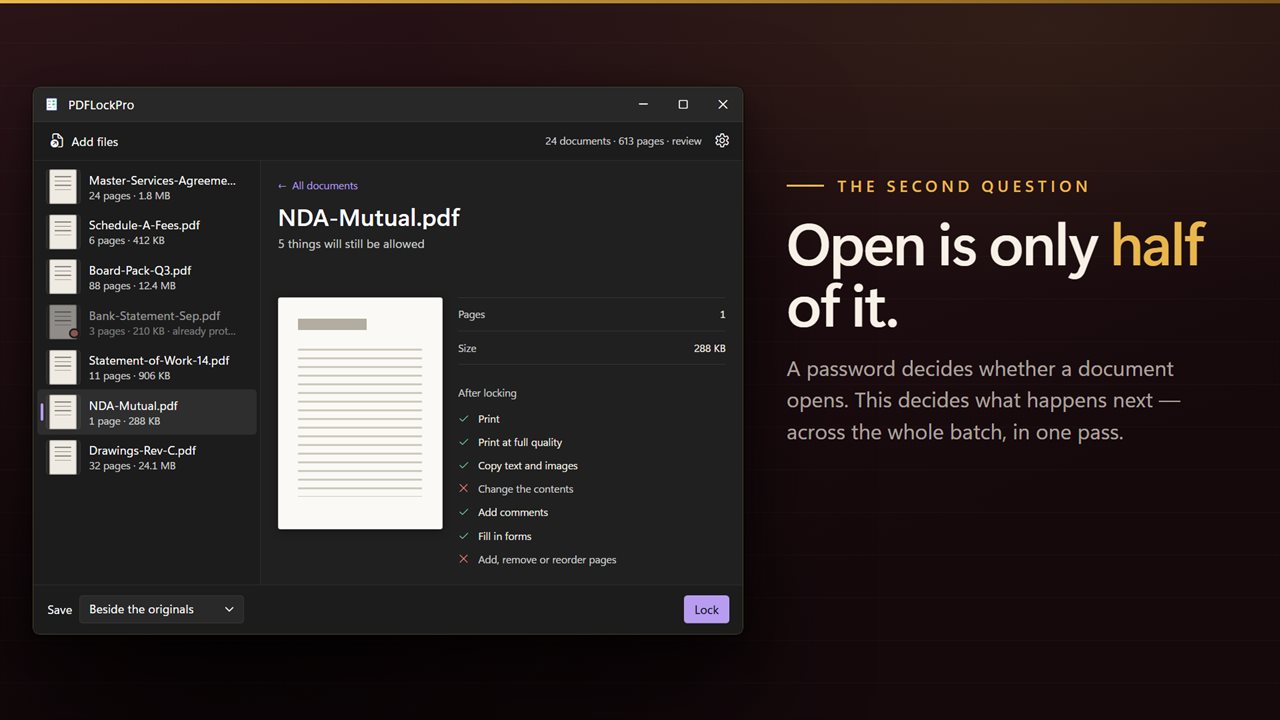
Under the presets is a grid headed Once it is open, a reader may. The two printing rows are Print and Print at full quality. Copy text and images covers the clipboard. Change the contents, Add comments and Fill in forms cover editing, and the last row governs adding, removing or reordering pages. Tick or clear any of them and the pane title changes to Custom, with a count of how many things are still allowed. Click a document in the queue and its detail view shows an After locking list, with a tick or a cross beside each permission.
The grid has no row for screen readers on purpose. Accessibility extraction stays on in every preset, so a locked document still reads aloud for blind and low-vision users.
Why the PDF owner password matters
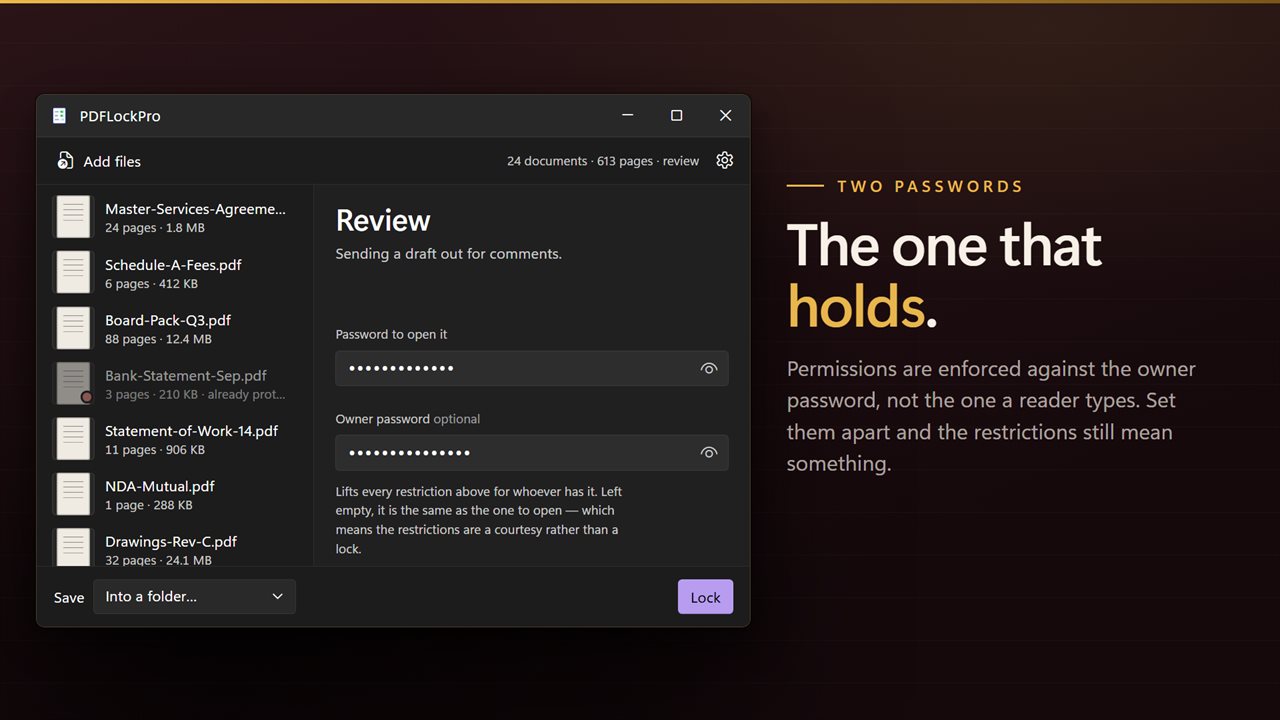
The Password to open it box decides who can read the file. The Owner password box, marked optional, decides who can lift the restrictions. If you leave it empty, the app uses the open password for both, and then anyone who can open the document can also unlock its permissions. For restrictions that hold, give the owner password to nobody but yourself.
Documents that already have a password are marked already protected when they join the queue and are left unchanged. Locked copies are saved next to each source file with (locked) in the name, collected in another folder of your choosing, or written over the sources once you confirm.