EEvlarSoft

WebPage to PDF

Paste one link or a page full of them and get a webpage to PDF conversion for each, named after the page title and saved to Downloads.

Buy for $1.99
One payment. No subscription.
14-day money-back guarantee.
3.0
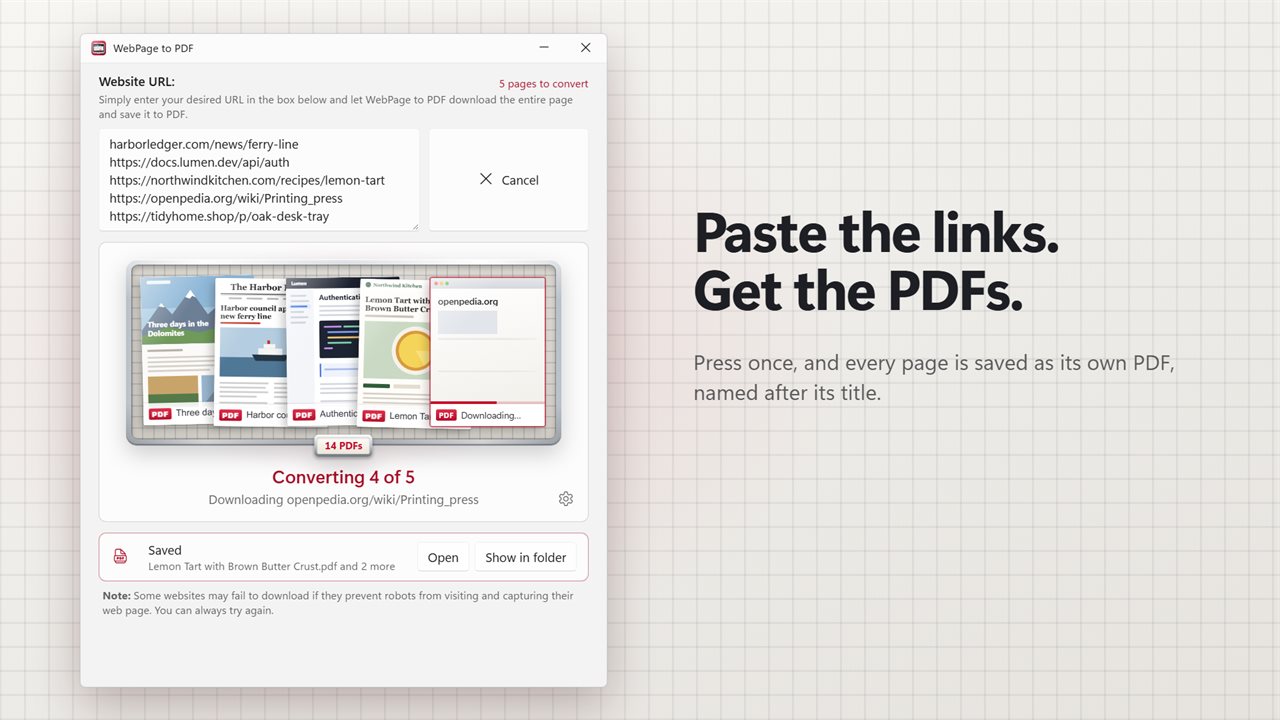
Paste the links. Every page is saved as its own PDF.
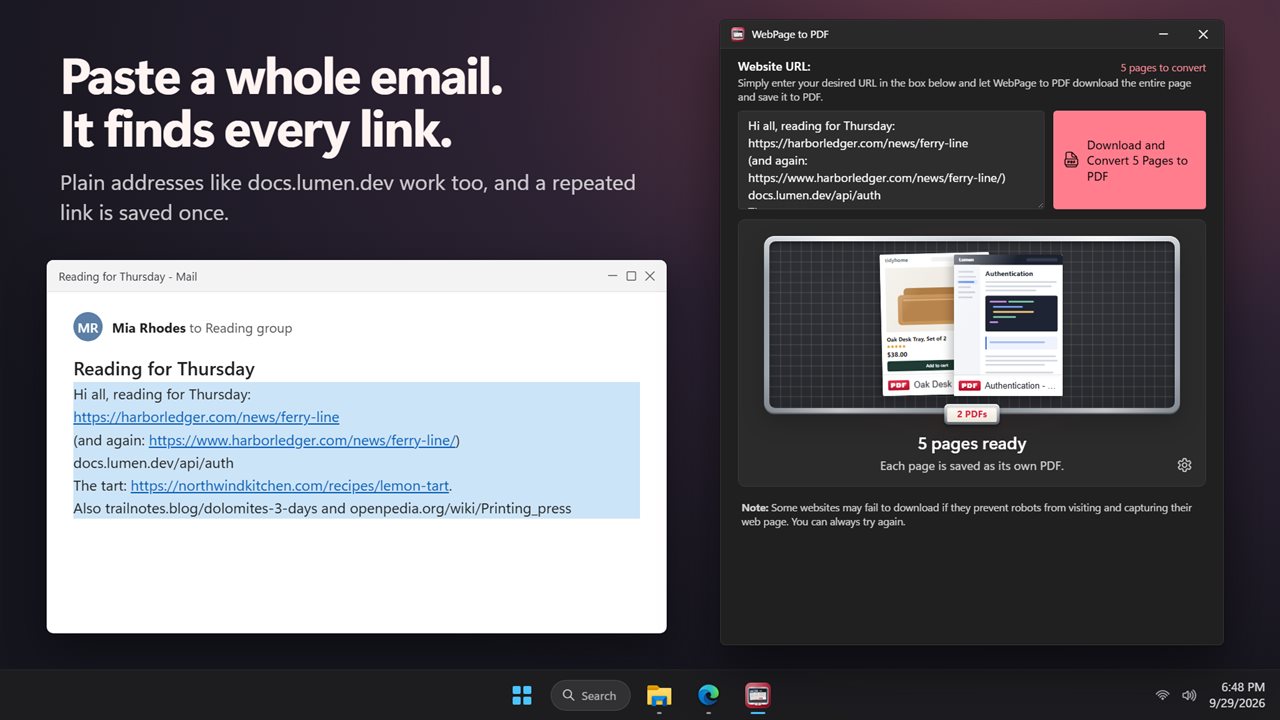
Paste a whole email. It finds every link and skips the repeats.
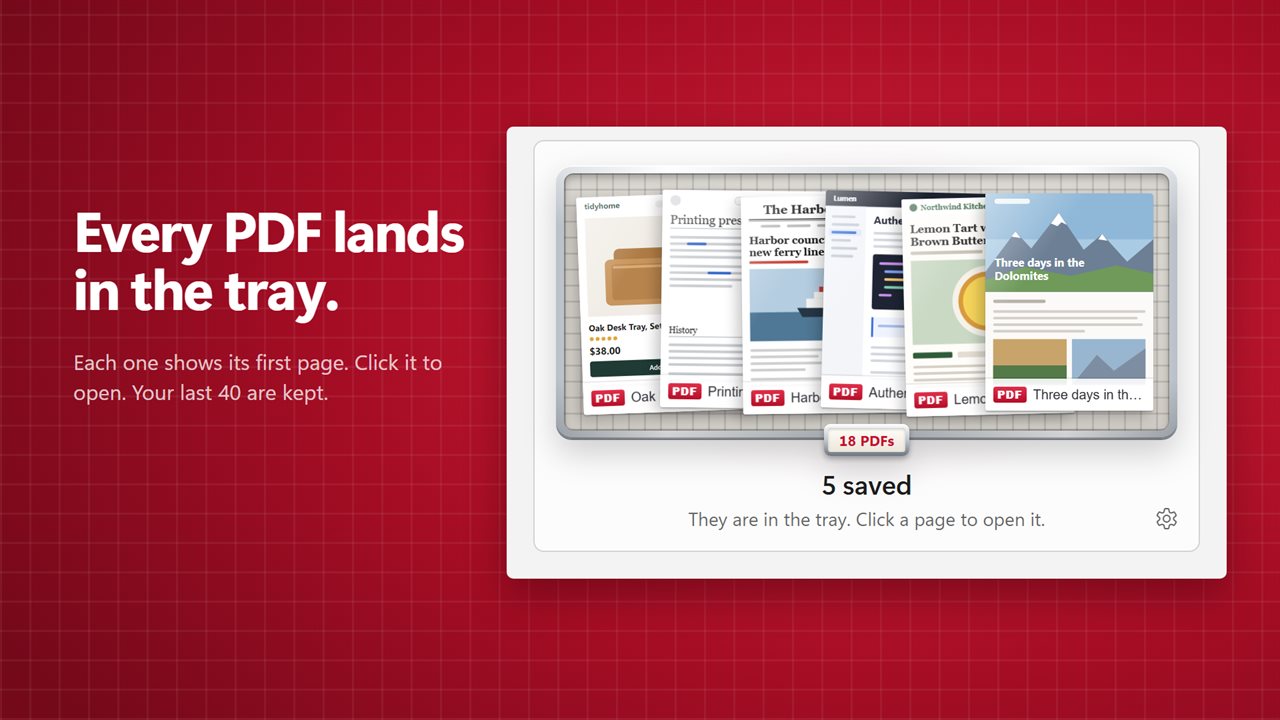
Every PDF lands in the tray, showing its first page.
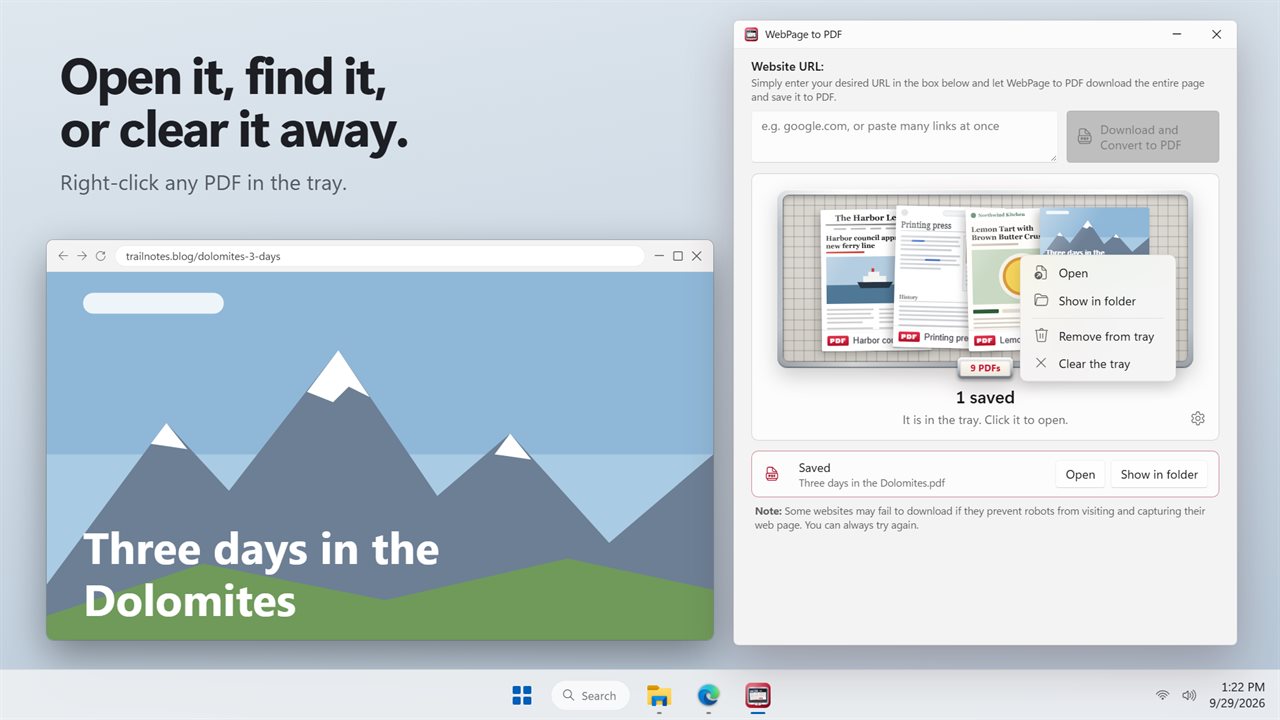
Right-click to open a PDF, show it in its folder, or clear the tray.
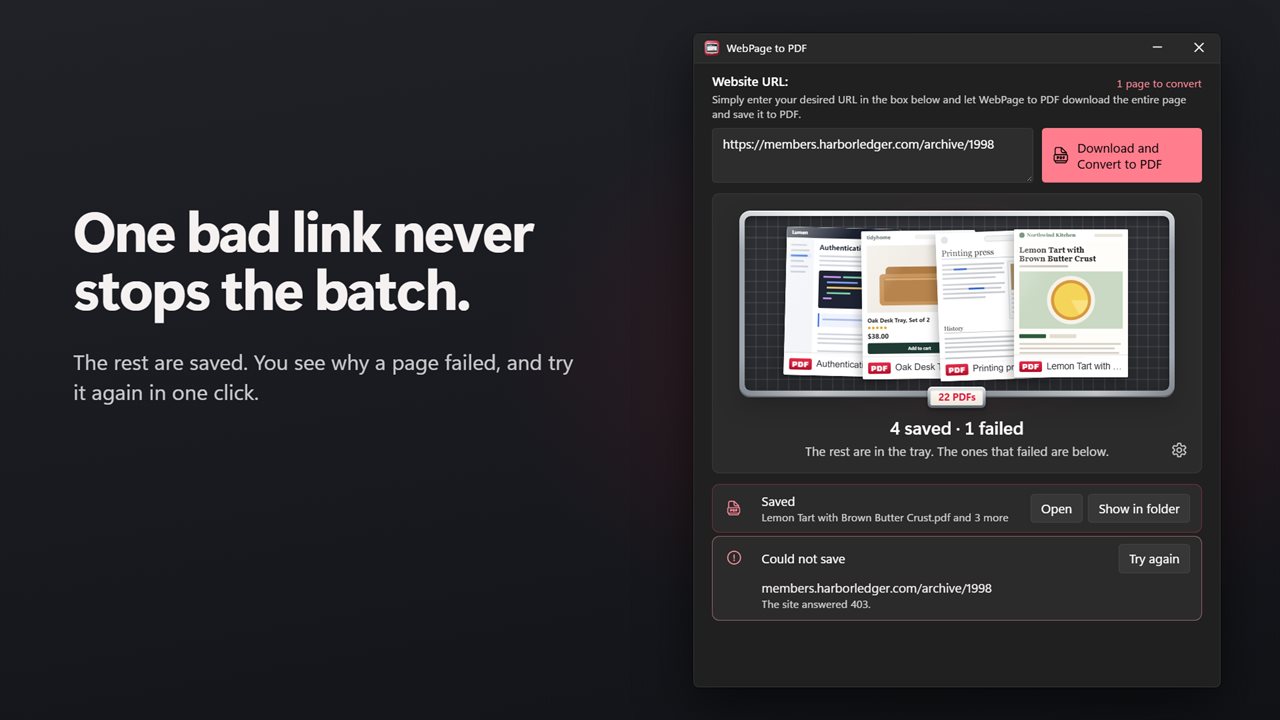
One bad link never stops the batch. See why, and try again.
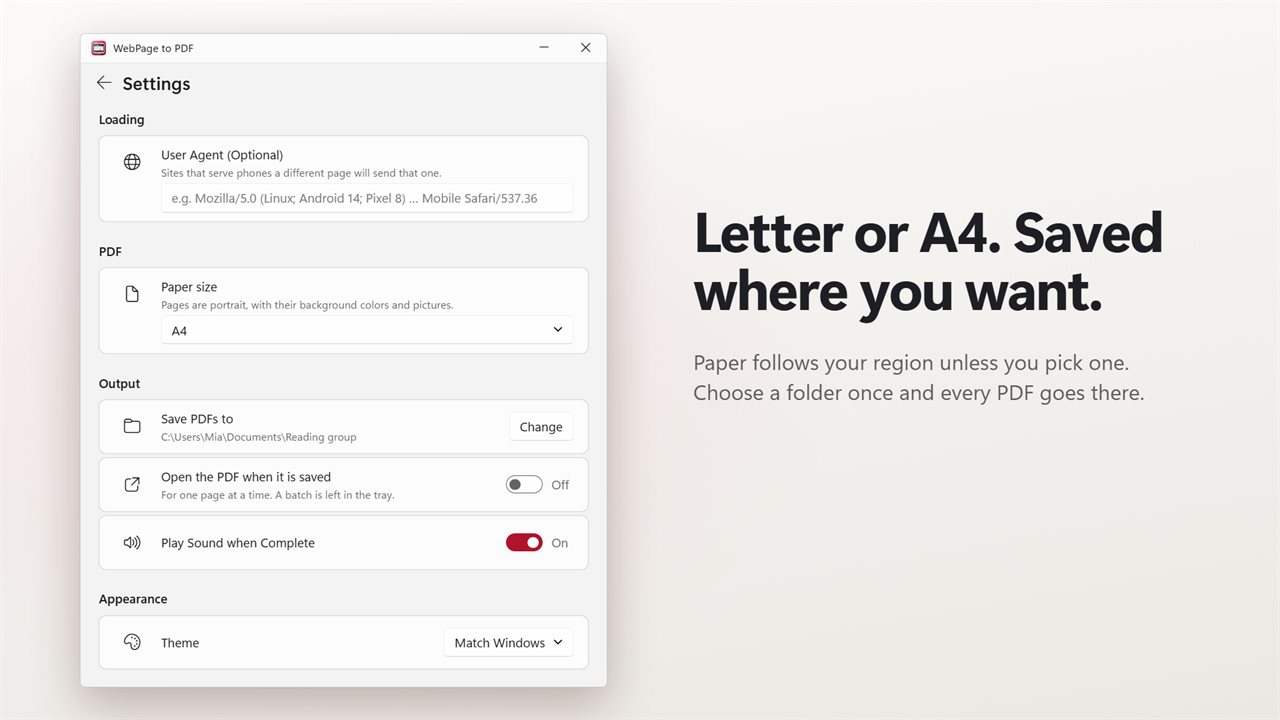
Letter or A4, saved to the folder you pick.

Paste the links. Every page is saved as its own PDF.

190,000+downloads of EvlarSoft apps
Signed by EvlarSoftVerified US publisher
14-day money-backNo questions asked
Updates includedNo upgrade fees

Webpage to PDF without printing each tab by hand

The usual way to save a webpage as a PDF is to open it, press Ctrl+P, pick a PDF printer, type a file name and click Save. That is fine once. For twenty articles, a set of receipts or every link in a research email, it becomes an afternoon. WebPage to PDF does the webpage to PDF step for the whole list after a single press.

Paste into the Website URL box and the app counts what it found: the button changes to Download and Convert 12 Pages to PDF, or however many there are. Press it, or Ctrl+Enter once the box holds several lines, and each page is loaded, rendered and written to its own file.

There is no Save dialog to answer twenty times. Each file is named for you, and the batch runs from the first link to the last while you get on with something else.

How to save a webpage as a PDF, step by step

Cancel stops the batch at any point. Anything already converted stays on disk and in the tray.

  • Copy a link, a list of links, or an entire email or chat message that contains them.
  • Paste it into Website URL. Addresses beginning http, https or www are picked up, and so are bare ones like example.com. A link repeated in the text counts only once.
  • Select Download and Convert to PDF. The status line shows Converting 3 of 12 and the address being downloaded.
  • Watch the finished PDFs appear in the Saved PDFs tray with a picture of their first page. Click one to open it.
  • If any pages could not be saved, they are listed under Could not save with a reason. Select Try these again to retry them all.

Convert a URL to PDF with pictures and backgrounds intact

Many sites only load images as you scroll toward them, which is why a quick print often comes out with grey boxes halfway down. Before each PDF is made, the page is scrolled through so those late pictures arrive, and background colors are printed rather than dropped.

Pages are laid out in portrait on Letter or A4. Paper size in Settings defaults to Match my region, so a US PC gets Letter and most others get A4, and you can fix either one.

A site that has not finished loading after 45 seconds is marked as timed out, and the batch moves on to the next link instead of hanging.

Mobile pages and the User Agent setting

Some sites send a simpler layout to phones, often with fewer ads and a single column that reads well on paper. Enter a phone browser's identity under User Agent (Optional) in Settings and those sites will serve their mobile page for the conversion. Leave the box blank to get the normal desktop page.
What it handles for you

  • Finds every link in pasted text, including addresses typed without https://
  • Skips duplicate links in the same paste
  • Names each PDF from the page title, adding (2) instead of overwriting
  • Saves to Downloads or a folder set once under Save PDFs to
  • A tray of the last 40 PDFs, with first-page previews, kept between sessions
  • Right-click a tray item for Show in folder or Remove from tray
  • Failed links listed with the reason, and retried together with one button
  • Optional Play Sound when Complete, and Open the PDF when it is saved for single pages

When a stack of PDFs beats a stack of tabs

Research and reading lists

Paste the sources from a notes file and keep a PDF copy of every article, even if the page later changes or disappears.

Records and paperwork

Save order confirmations, policy pages or public notices that are open to anyone, each filed under a readable title.

Offline reading

Convert a week of long reads before a flight, then open them from the tray or the folder with no connection needed.

What's new in 2.0.3

  • New: paste many links at once, and each page is saved as its own PDF
  • New: paste a whole email or list, and every link in it is found
  • New: addresses like example.com work without https://
  • New: PDFs are named after the page's title and saved to a folder you pick once
  • New: a tray of your finished PDFs, each showing its first page. Click to open
  • New: failed pages are listed with the reason, and can be tried again in one click
  • New: Cancel really stops, and what was saved stays saved
  • New: Letter or A4 paper, picked for your region
  • New: dark theme
  • Your user agent and sound settings carry over

Questions

Anything else? Ask us

Can I paste a whole email or a list of links and get a PDF of each page?

Yes. It finds every link that starts with http, https or www, plus plain addresses like example.com on their own, and saves each page as its own PDF. A link that appears more than once is saved only once.

What paper size and layout do the PDFs use?

Letter or A4, chosen for your region unless you pick one, always in portrait with background colors and pictures kept. There are no margin, scale or landscape settings.

Where are the PDFs saved and what are they called?

In your Downloads folder, or a folder you choose once in Settings. Each file is named after the page's title, and if that name is taken a number such as (2) is added, so nothing already there is replaced.

What happens if one of the links fails?

The rest of the batch carries on. Failed pages are listed with the reason, such as the site refusing the visit or taking longer than 45 seconds to load, and you can try them again with one click.

Can it save pages I am signed in to in my browser?

No. Each batch runs in a hidden copy of Microsoft Edge with a fresh, empty profile, so sites see a visitor who is not signed in.

Can each PDF open on its own when it is done?

Only when you convert a single page. With Open the PDF when it is saved on, a one-page job opens in your PDF reader, while a batch stays in the tray, where a click opens any of them. You can also have a sound play when a batch is done.

Does it combine several webpages into one PDF?

No. Every link becomes a separate PDF file. If you need a single document, merge the files afterward with a PDF tool.

Can I convert a link to PDF without opening it in a browser first?

Yes. Paste the address and press the button. The page is loaded in a hidden copy of Microsoft Edge, which is already part of Windows, so you never see it open.

How do I save a webpage as a PDF in Windows without installing anything?

Open the page in your browser, press Ctrl+P, choose Microsoft Print to PDF or Save as PDF as the printer, and save. That works well for a single page; for a list of links, pasting them into this app saves the repeated print dialogs.

Which versions of Windows does it run on?

Windows 10 (version 1809 or later) and Windows 11.

Is it a subscription?

No. WebPage to PDF is a one-time purchase of $1.99, and updates are included.

How do I get it?

Buy it on this page and your license key arrives by email. If the button says Notify me, WebPage to PDF is not on sale here yet; leave your email and we will tell you when it is.