EEvlarSoft

Document Converter

Convert Word to PDF for a whole folder of documents at once, merge them into one PDF, or switch DOCX, RTF, Markdown and HTML into another format.

5.0
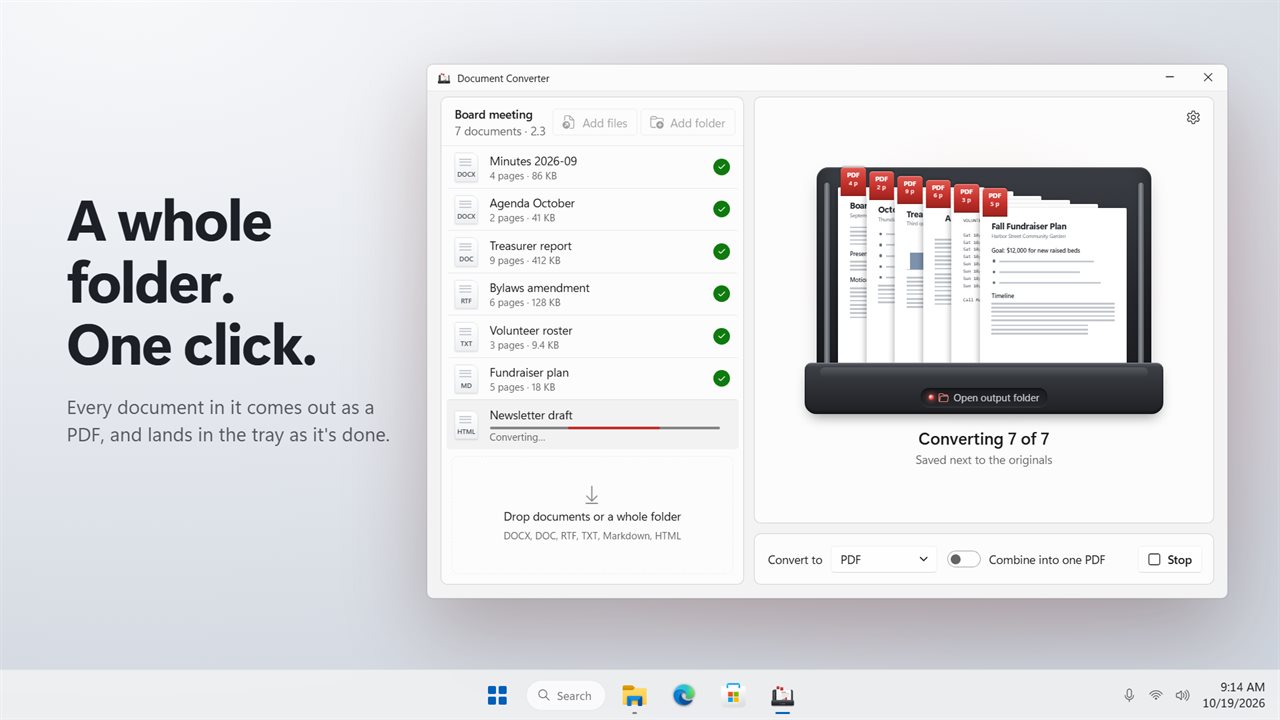
Convert a whole folder of documents in one click.
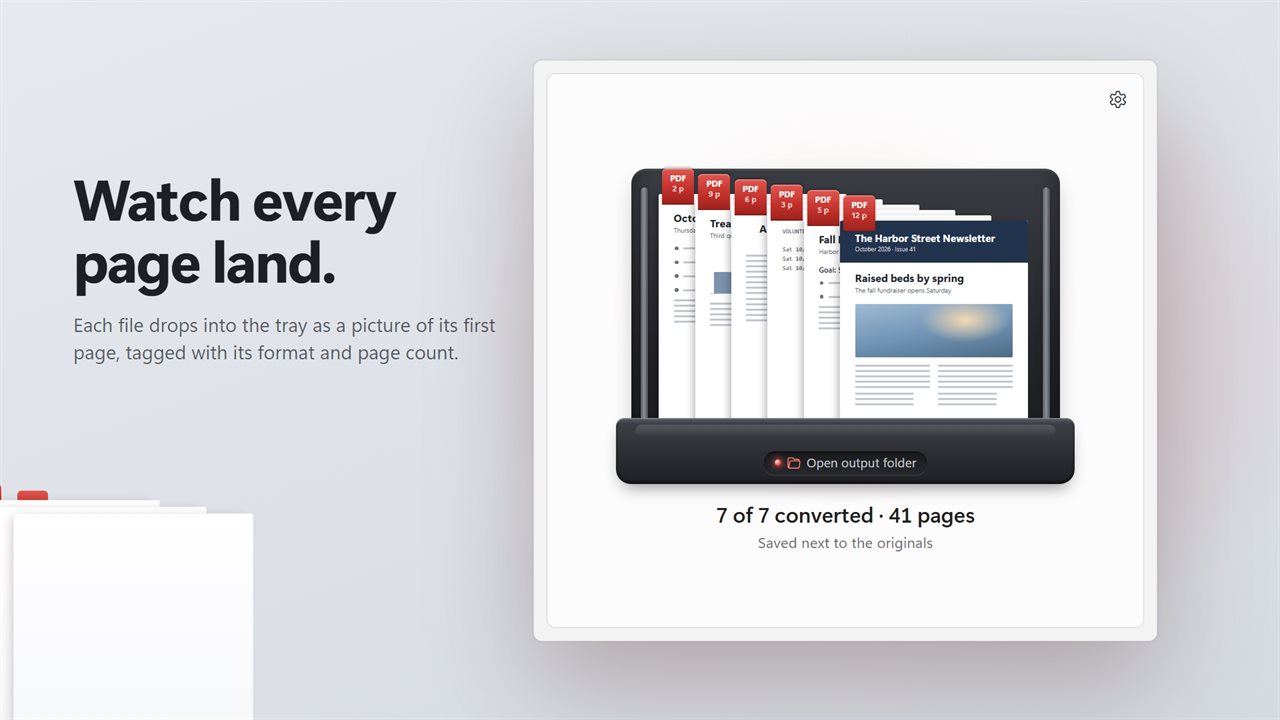
Every result lands in the tray, with its first page and page count.
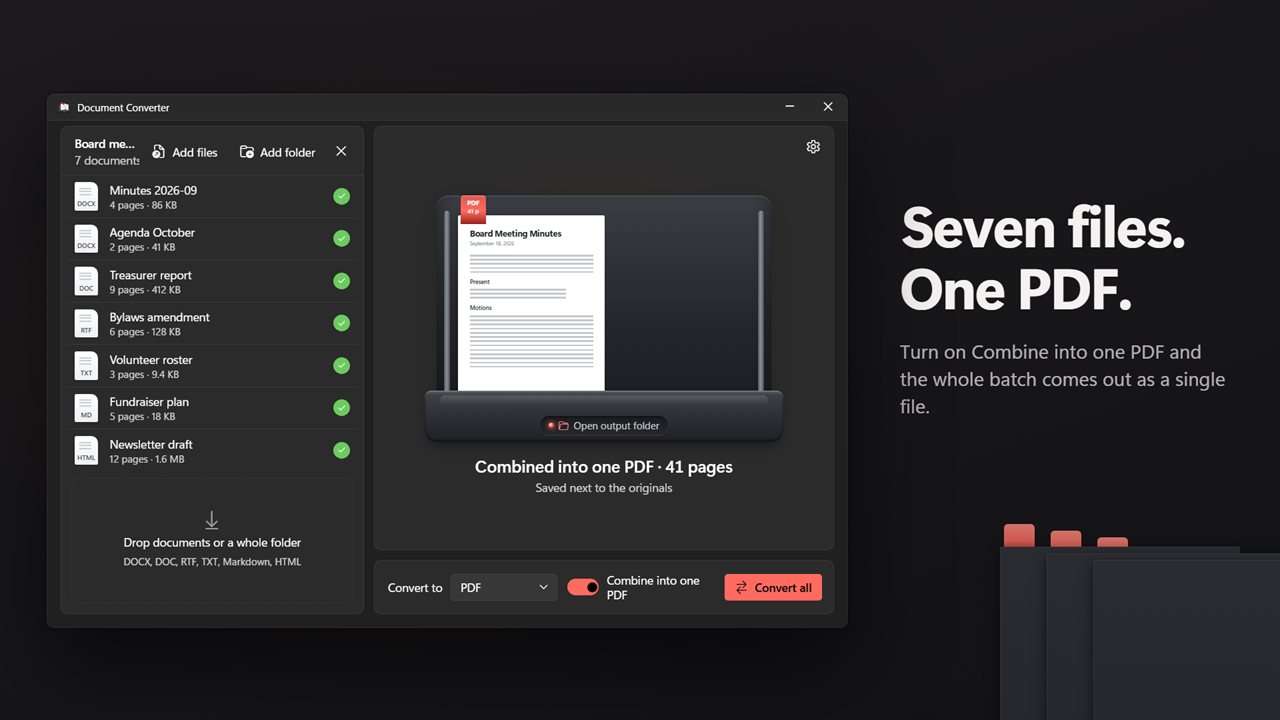
Combine the whole batch into one PDF.
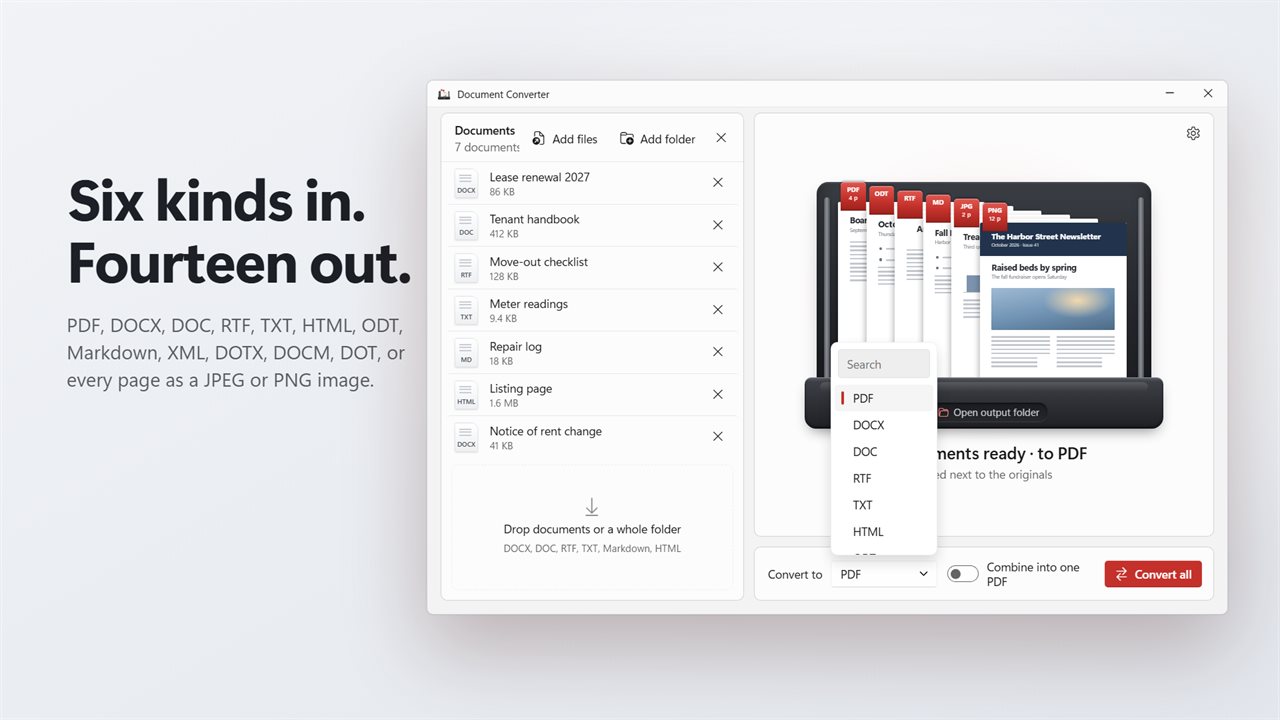
DOCX, DOC, RTF, TXT, Markdown and HTML in. Fourteen formats out.
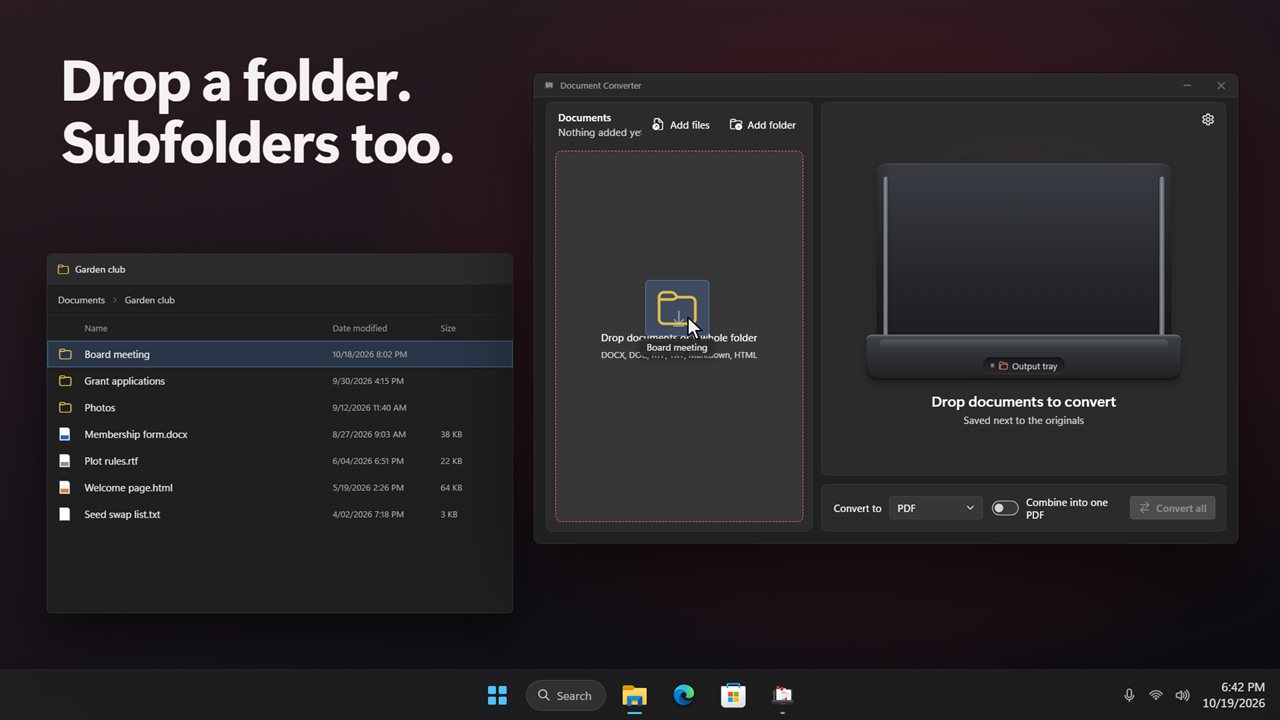
Drop a folder onto the window. The folders inside it come too.
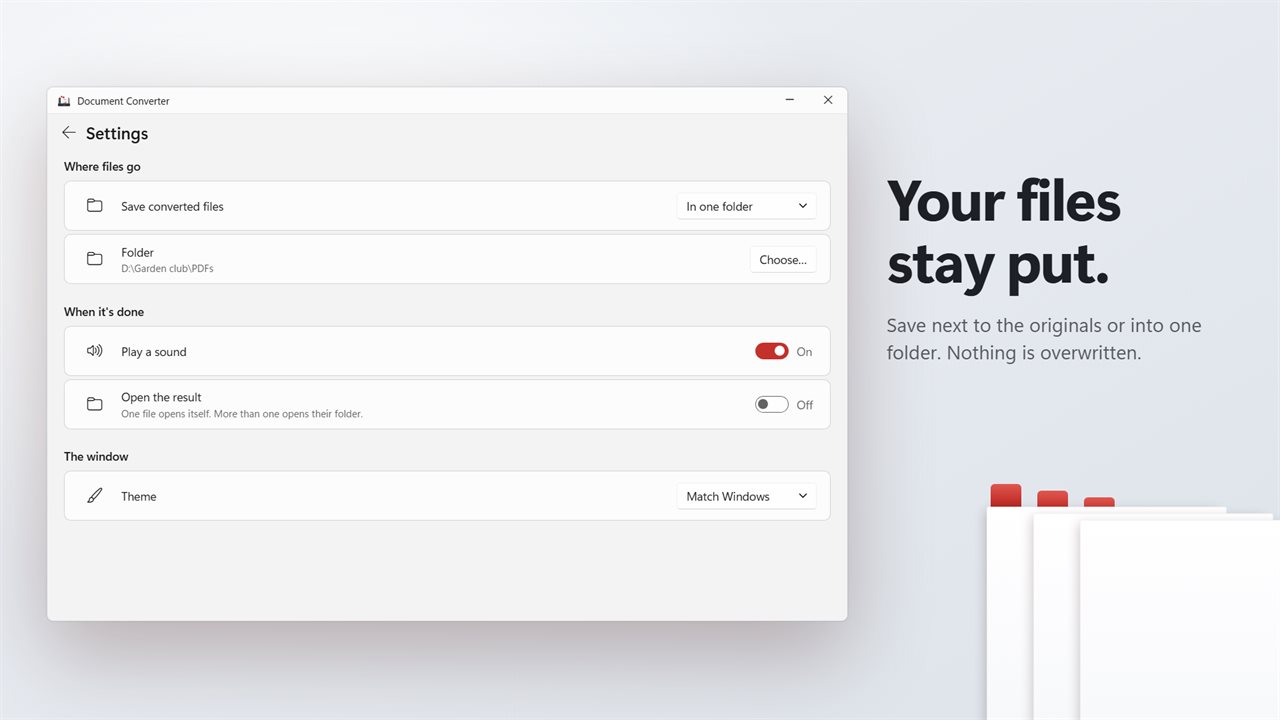
Save next to the originals, or into one folder.

Convert a whole folder of documents in one click.

190,000+downloads of EvlarSoft apps
Signed by EvlarSoftVerified US publisher
Free, no stringsNo timer, no sign-up
Kept up to dateEvery version, free

Convert Word to PDF without opening each file

Saving one document as a PDF is easy. Converting Word to PDF for sixty contracts, a term's worth of handouts or an archive of old DOC files is not, and the usual answers are a macro, a PowerShell script or uploading the lot to a website.

Document Converter takes the folder instead. Drop it on the window, or use Add folder, and every Word document, RTF, text, Markdown or HTML file inside it and in the folders beneath it joins the list, each with its size. Word's temporary ~$ lock files are left out. Pick PDF under Convert to and press Convert all.

The headline keeps count as it goes, such as Converting 12 of 60, and you can press Stop at any point. It brings its own document engine, so no word processor has to be installed.

How to batch convert DOCX to PDF

Four steps take a mixed folder to a set of PDFs:

  • Click Add folder, or drag the folder onto the Documents list.
  • Choose PDF in the Convert to menu.
  • In Settings, set Save converted files to Next to the originals, or to In one folder and press Choose… to pick it.
  • Press Convert all. When the batch ends, click the output tray to open the output folder.

Combine Word documents into one PDF

Sometimes the goal is one file, not sixty. With PDF selected, switch on Combine into one PDF and the batch is joined in list order into a single document that takes its name from the source folder, and the headline reports its total page count when it is done. It is a quick way to send a stack of chapters, invoices or minutes as one attachment.

Leave the switch off and each document becomes its own PDF beside, or apart from, the original.

Combine is offered only while PDF is the target, since the merged result is always a PDF. The rest of the options stay the same, so you can still choose whether it lands beside the source files or in a folder of your own.

Markdown to PDF, DOC to DOCX and other conversions

PDF is the common target, not the only one. The same list can go out as ODT, DOCX, DOCM, DOTX, DOT, DOC, RTF, HTML, XML, Markdown or plain text, which covers jobs such as moving legacy DOC files to DOCX, handing an ODT to someone on another office suite, or turning Markdown notes into a PDF to print.

Choose JPEG pages or PNG pages and every page becomes a separate picture, useful for slides, previews or posting a page online. Inputs of different types can be mixed, so a folder of DOCX, RTF and HTML files converts in a single pass.

What happens during a batch

  • Each row shows its page count once converted, then Done, or Didn't convert with the reason
  • Plain reasons for a failureA password, a file open in another program, a full disk, or a folder Windows won't let it write to
  • One problem file is marked and skipped; the rest of the list keeps going
  • A thumbnail of page one for every finished file lands in the output tray, labeled with its format
  • Name clashes get a number, so earlier results are never replaced
  • Optional sound when the run finishes
  • With Open the result switched on, the finished output is brought up in File Explorer when the batch ends
  • Light, dark or Match Windows theme

Where it saves time

Offices sending final copies

Turn a folder of signed-off DOCX contracts into PDFs that keep their layout on any device.

Teachers and trainers

Merge a term's handouts into one PDF for printing, or export each page as an image for a slide deck.

Cleaning up an archive

Bring years of DOC and RTF files forward to DOCX or ODT in one run, subfolders and all.

What's new in 2.0.1

  • New: convert a whole folder at once. Drop documents or a folder, then Convert all
  • New: RTF, TXT, Markdown and HTML documents can now be converted too
  • New: combine a whole batch into one PDF
  • New: save every page as a JPEG or PNG image
  • New: the output tray shows the first page of each converted file
  • New: save next to the originals, or into one folder you choose
  • Your sound and open-when-done choices carry over

Questions

Anything else? Ask us

Do I need Microsoft Word installed to convert documents?

No. The app ships with its own document engine and converts the files on your PC without Word or any other office suite.

Which file types can it convert?

It reads DOCX, DOCM, DOTX, DOC, DOT, RTF, TXT, Markdown and HTML, and they can be mixed in one batch. It saves as PDF, DOCX, DOC, RTF, TXT, HTML, ODT, Markdown, XML, DOTX, DOCM or DOT, or as JPEG or PNG images. Spreadsheets, presentations and PDFs are not accepted as input.

Can it convert a folder that has subfolders?

Yes. Dropping a folder, or using Add folder, adds every supported document inside it and inside all the folders below it. Word's temporary lock files that start with ~$ are skipped.

Will it overwrite my original files or earlier conversions?

No. Each result is saved next to its original, or into one folder you choose, and if the name is taken the new file gets a number, such as Report (2).pdf. The originals are only read.

Can it merge several documents into one PDF?

Yes. With PDF selected, turn on Combine into one PDF and the batch is saved as a single PDF in list order. It is named after the folder the documents came from, such as "Reports combined.pdf".

What happens when I convert to JPEG or PNG?

Every page is saved as its own image, named like "Report - page 1.jpg", "Report - page 2.jpg" and so on. JPEG images are saved at quality 90.

How do I convert multiple Word documents to PDF at once?

Add the files or the folder that holds them, choose PDF under Convert to, and press Convert all. Each document is saved as its own PDF unless you switch on Combine into one PDF.

Can I stop a batch conversion partway through?

Yes. While a batch runs, Convert all becomes Stop. Files already converted are kept and the headline says how many finished. Press Convert all again and it carries on with the rows that are not done yet.

What if a document is password-protected?

It is marked Didn't convert with the note that it has a password, and the batch moves on to the next file.

Which versions of Windows does it run on?

Windows 10 (version 1809 or later) and Windows 11.

Is it free?

Yes. Document Converter is free to download.

How do I get it?

Download it from this page. If the button says Notify me, Document Converter is not ready to download here yet; leave your email and we will tell you when it is.