EEvlarSoft

Smart File Organizer

Point it at a cluttered folder and it files everything into subfolders by type, after showing you exactly which folder each group of files will land in.

Buy for $2.99
One payment. No subscription.
14-day money-back guarantee.
3.0
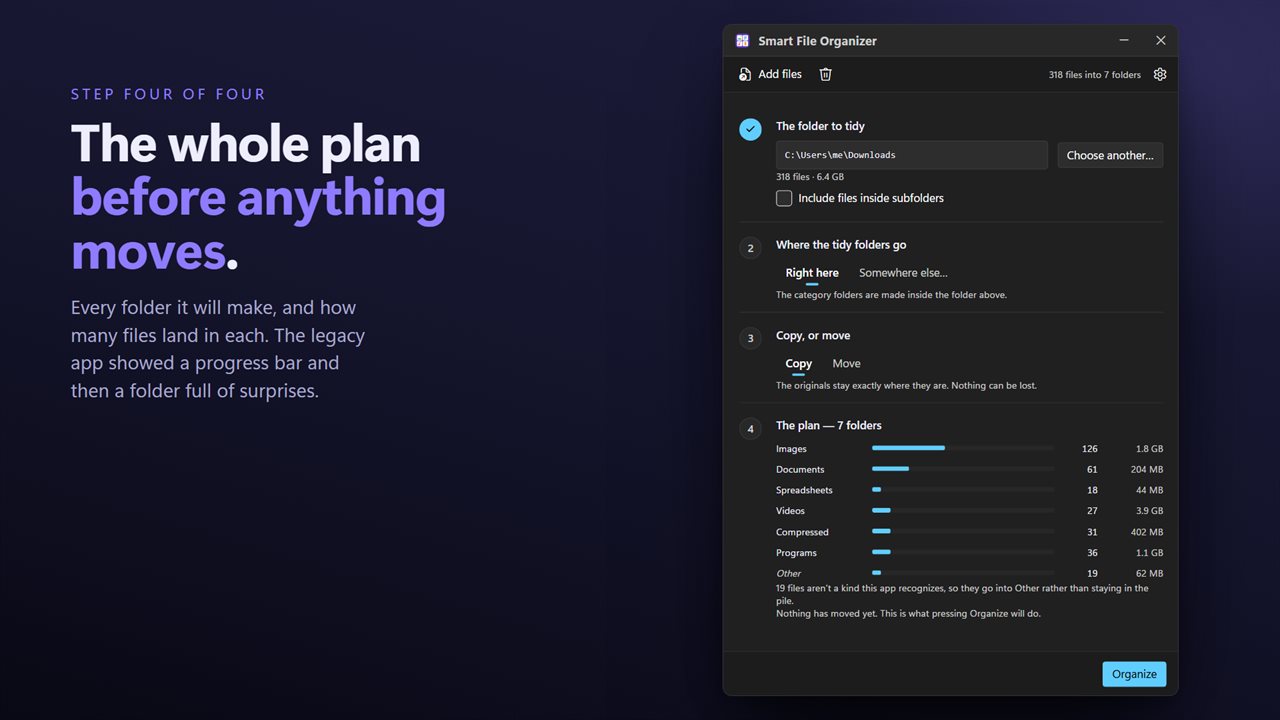
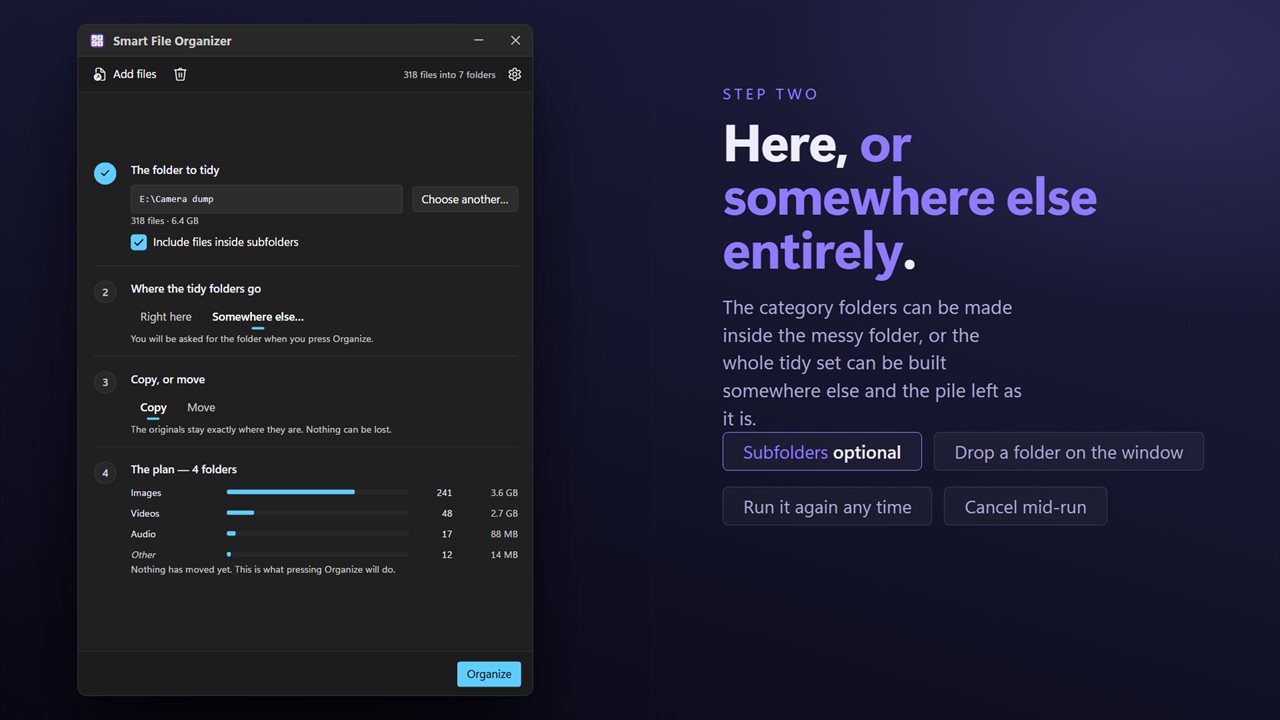
The whole plan before anything moves: every folder, and how many files.
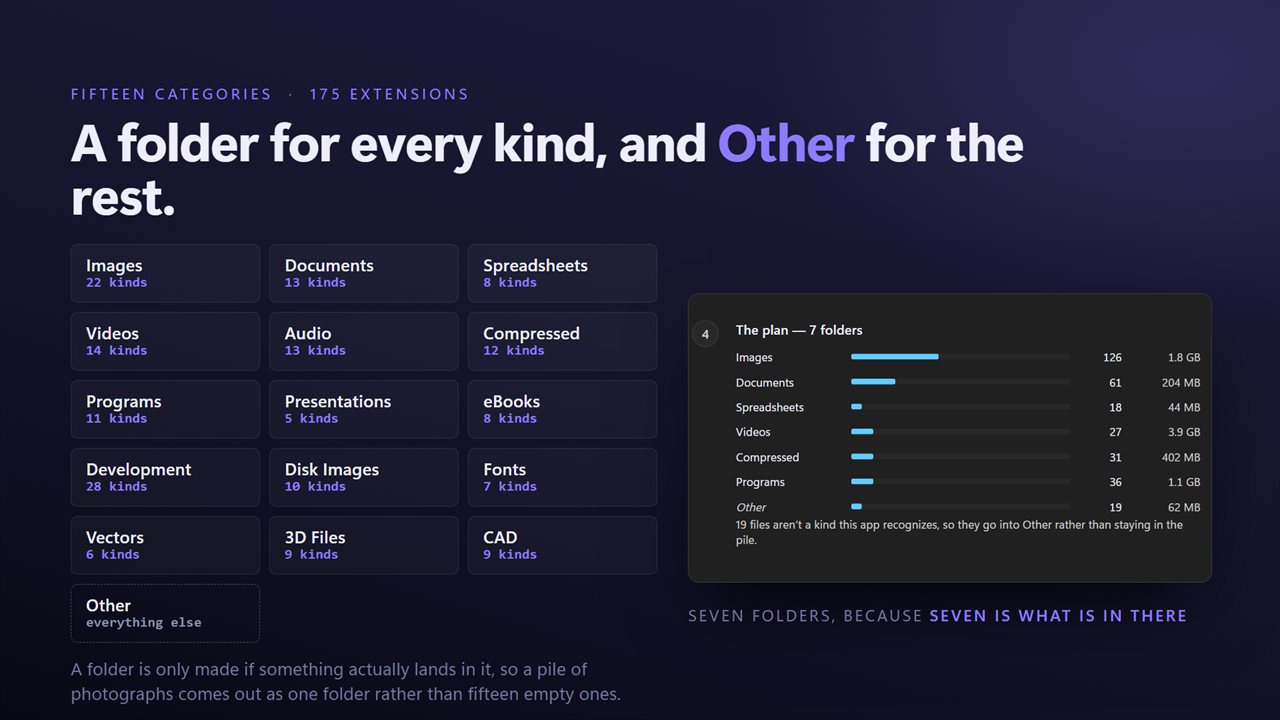
Fifteen categories covering over 170 file types.
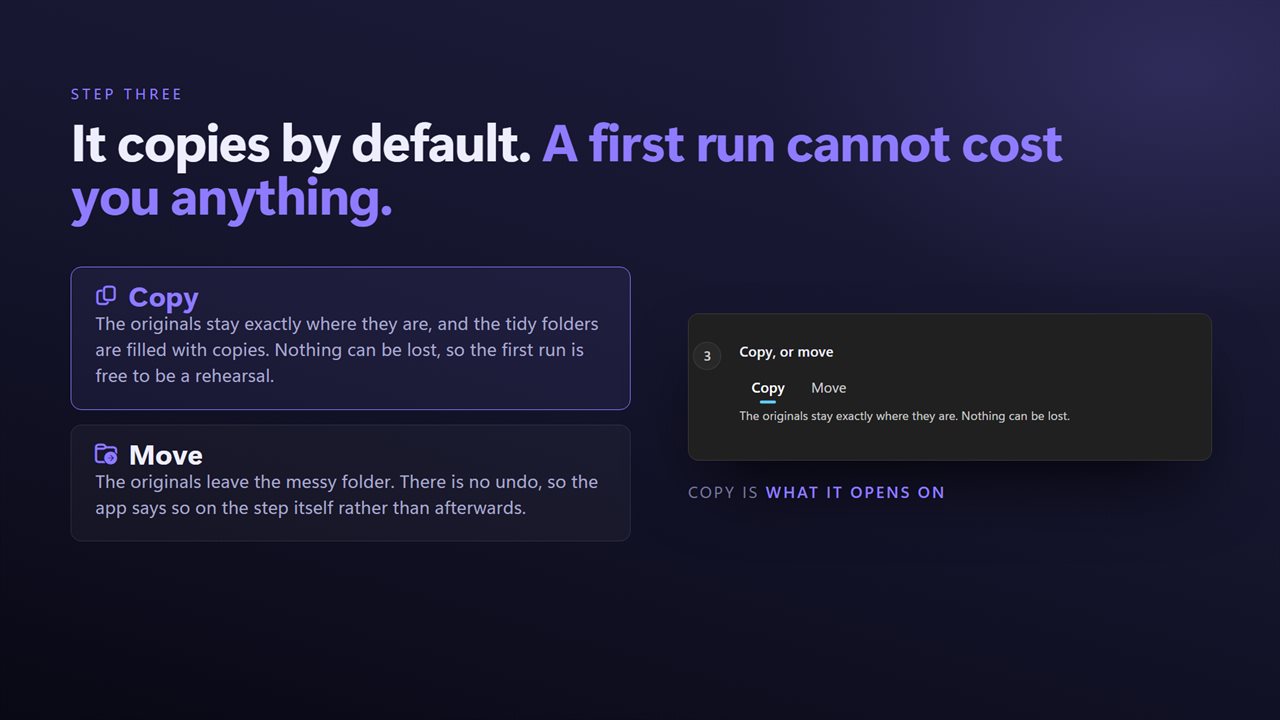
It copies by default. A first run cannot cost you anything.
File them where they are, or send everything somewhere else.
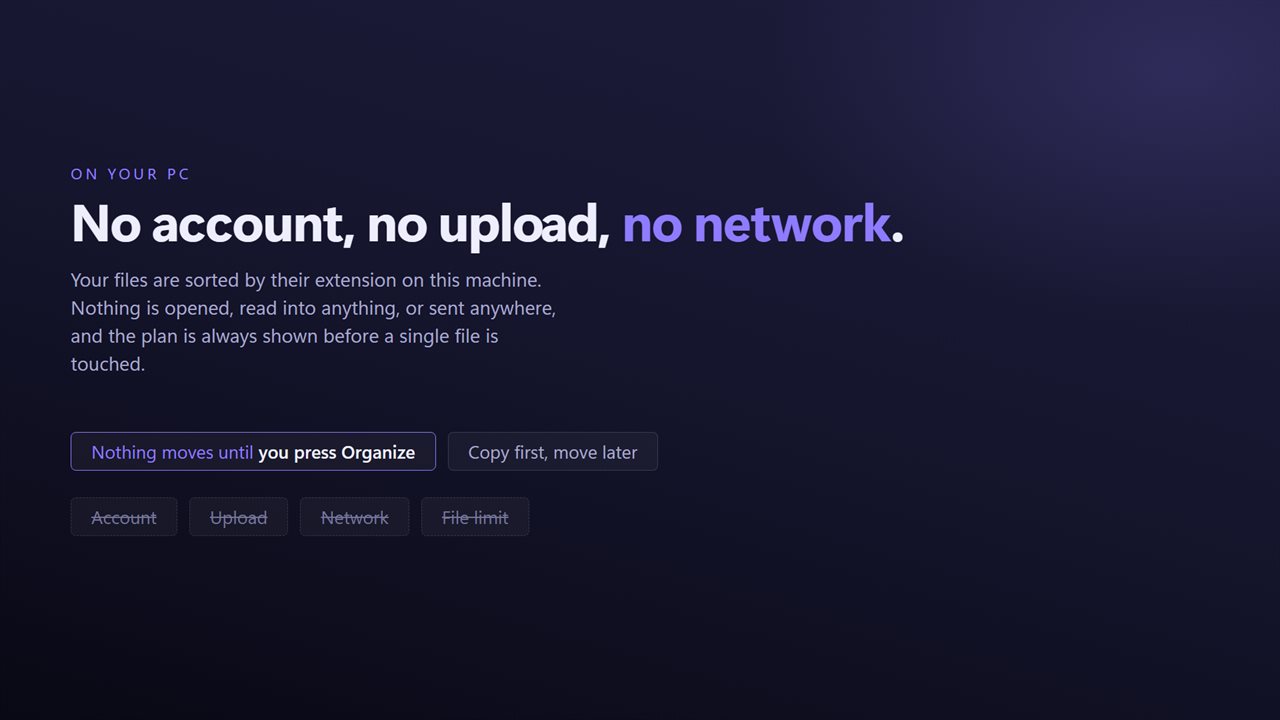
No account, no upload, no server processing. It all happens on your PC.

The whole plan before anything moves: every folder, and how many files.

190,000+downloads of EvlarSoft apps
Signed by EvlarSoftVerified US publisher
14-day money-backNo questions asked
Updates includedNo upgrade fees

File organizer software that tells you what it will do first

Most file organizer software works the same way: pick a folder, press a button, and look afterward at what happened to your files. That is a lot of trust to hand over on a folder you care about, and many of the small sorting tools for Windows give you no undo either.

Smart File Organizer is a four-step wizard, and the fourth step is the plan. Once you choose a folder, it lists every category folder it is about to create, how many files will go into each, and how much space they take. Nothing is copied or moved until you press Organize. If the plan looks wrong, you change a setting or pick a different folder and the plan redraws.

It also copies by default rather than moving. A first run on your Documents or Downloads folder leaves every original where it was, so you can inspect the result and decide whether you want the real thing.

How to organize computer files into folders by type

At the end every file is accounted for, and any file that could not be filed is named along with the reason.

  • Step 1, The folder to tidy: select Choose a folder or drop one on the window. Tick Include files inside subfolders first if you want nested files too.
  • Step 2, Where the tidy folders go: Right here creates the category folders inside the folder you picked. Somewhere else asks for a destination when you run.
  • Step 3, Copy, or move: Copy keeps the originals in place. Move empties the messy folder and cannot be undone.
  • Step 4, The plan: read it, then press Organize.

The 15 categories and 175 file types it recognizes

Files are sorted by extension, ignoring upper and lower case. Everyday files go to Images, Documents, Spreadsheets, Presentations, Videos and Audio. Downloads and installers go to Compressed, Programs and Disk Images. Reading and design files go to eBooks, Fonts, Vectors, 3D Files and CAD, and source code goes to Development.

Between them those folders cover 175 extensions, from HEIC photos and FLAC audio to VHDX disk images, STL models and DWG drawings. Anything that matches none of them, including files with no extension at all, goes into a folder called Other. That way the folder you are trying to clear actually ends up clear, rather than keeping a stubborn residue of unknown files.

How it handles duplicate names and files already sorted

Two files called receipt.pdf from different places will not overwrite each other. The second is saved as receipt (2).pdf. And a file that is already sitting in its correct category folder is left untouched, so running the organizer twice on the same folder does not shuffle things into numbered copies.

Because sorting is by extension only, the app never opens or reads your files. A file whose extension is wrong will be filed by its name.

What Smart File Organizer does

  • Sorts any folder into 15 category folders plus Other
  • Recognizes 175 file extensions, case-insensitive
  • Shows a plan with folder names, file counts and sizes before running
  • Copies by default; Move is a deliberate choice
  • Builds the category folders in place or in a separate destination
  • Optionally includes files inside subfolders
  • Never overwrites a file with the same name
  • Leaves files that are already in the right category folder alone

Folders people tidy with it

Downloads

Years of installers, PDFs, zips and photos split into Programs, Documents, Compressed and Images in one pass.

An old drive or backup

Copy everything from a cluttered external drive into a clean destination folder sorted by type, without touching the source.

Project and design folders

Separate fonts, vector artwork, 3D models and CAD drawings that have piled up beside the documents that use them.

What's new in 2.0.4

  • The plan is shown before anything happens: every folder that will be created, how many files go into each, and how much. Nothing moves until you press the button, and the app now reports exactly what it did
  • Copying is the new default. Moving was the old default and there is no undo
  • Files are listed individually, so you can take any of them out of the run before it starts
  • A file that is already in the right category folder is left where it is instead of being re-filed into report (2).pdf every time
  • Anything that could not be filed is named with the reason instead of being skipped silently
  • Drag and drop from Explorer, and a right-click selection now opens one window rather than one per file
  • The same fifteen category folders as before, so an existing Images or Documents folder carries on being used
  • A redesigned interface, in light or dark, and it can follow Windows instead if you prefer

Questions

Anything else? Ask us

Does it move my files or copy them?

It copies by default, so the originals stay where they are. Switch step three to Move to empty the messy folder; there is no undo for a move.

What folders does it sort files into?

Images, Documents, Spreadsheets, Videos, Audio, Compressed, Programs, Presentations, eBooks, Development, Disk Images, Fonts, Vectors, 3D Files and CAD, which together cover 175 file extensions. Anything else, including files with no extension, goes into Other.

How does it decide what kind of file something is?

By the file extension only, ignoring capitals, so holiday.JPG goes to Images. It does not look inside files, so a file with a wrong or missing extension is filed by its name.

Can I see what it will do before anything moves?

Yes. The plan shows every folder it will create, how many files go into each and how much space they take, and nothing is touched until you press Organize.

What happens if two files have the same name?

Nothing is overwritten. The second file is saved with a number added, such as "report (2).pdf". A file that is already in its correct category folder is left where it is.

Does it sort files inside subfolders too?

Only if you tick Include files inside subfolders before choosing the folder. By default it takes just the files directly in the folder you pick.

How do I organize files in Windows 11 automatically?

Windows can sort a view by type, but it does not move files into folders. Smart File Organizer does that: choose the folder, choose Copy or Move, check the plan and press Organize.

Can I undo a sort?

There is no undo for Move. That is why Copy is the default: the originals stay put, and you can delete the copies if you do not like the result.

Which versions of Windows does it run on?

Windows 10 (version 1809 or later) and Windows 11.

Is it a subscription?

No. Smart File Organizer is a one-time purchase of $2.99, and updates are included.

How do I get it?

Buy it on this page and your license key arrives by email. If the button says Notify me, Smart File Organizer is not on sale here yet; leave your email and we will tell you when it is.