Shred files by the folder, not one at a time
When you need to shred files, the job is rarely one document. It is ten years of scanned statements, an old client archive, a folder of family photos on a computer that is about to change hands. Pressing Delete only removes the entry Windows uses to find each file; the contents stay on the disk until something happens to overwrite them, which is why recovery software can still find them months later.
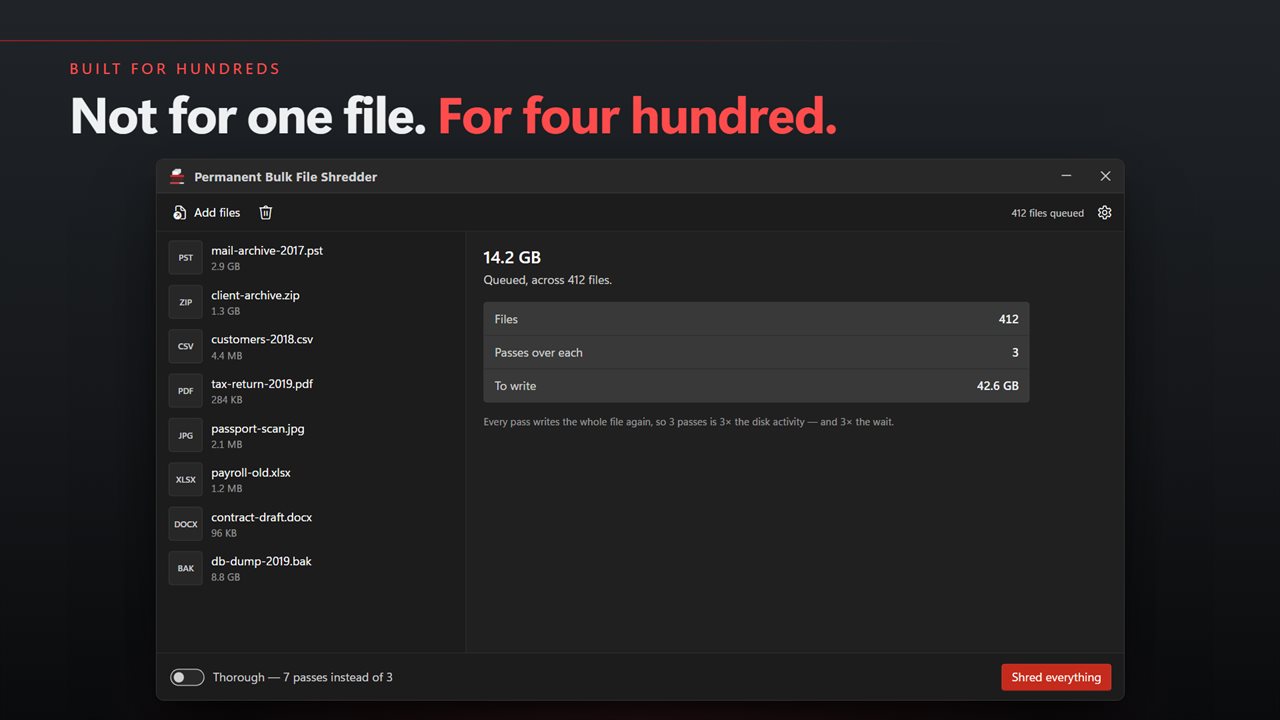
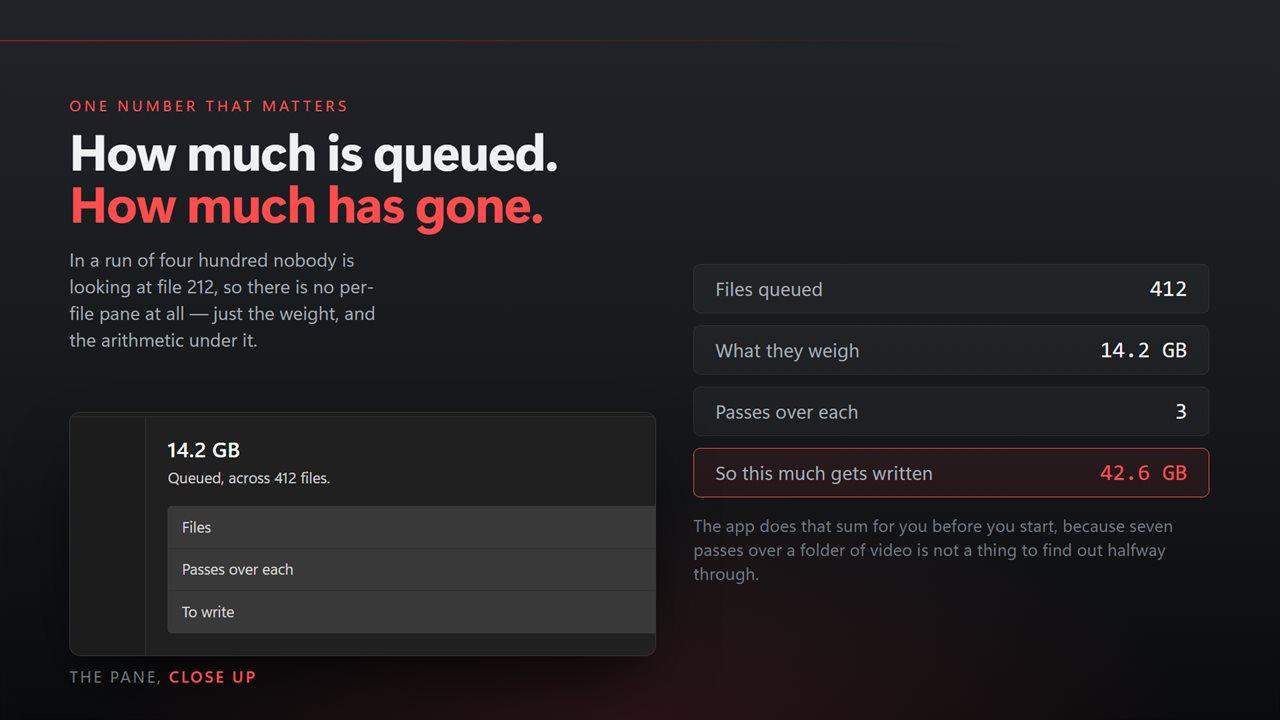
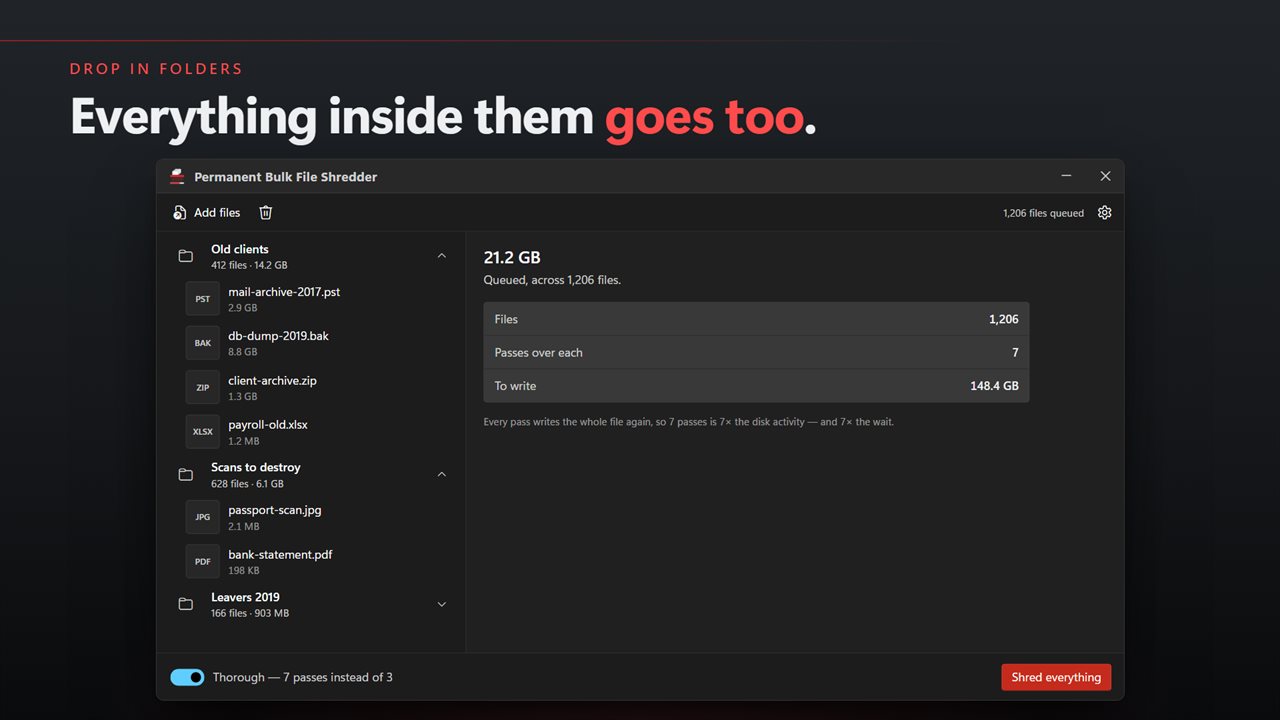
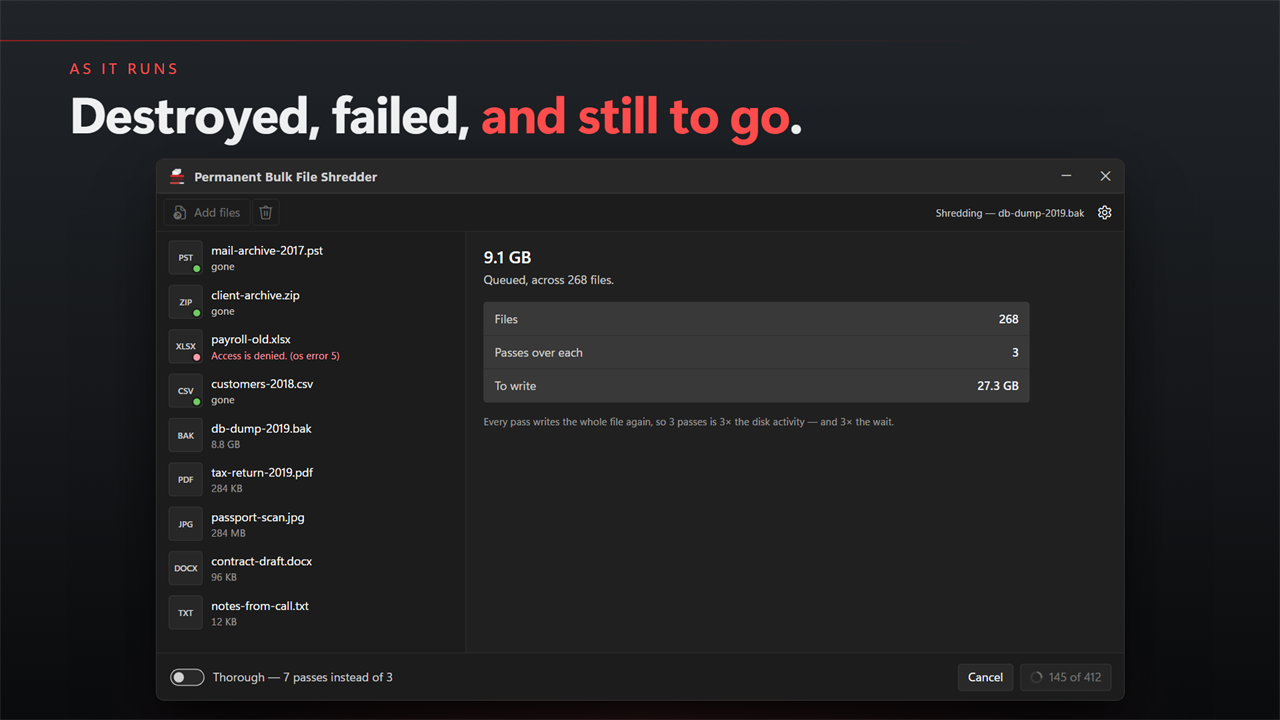
Permanent Bulk File Shredder is made for the large case. Choose a folder and everything inside it joins the queue, subfolders included. The main pane shows one big figure, the total size queued, with three numbers under it: Files, Passes over each, and To write. Rows stay short on purpose, reading just the size and then "gone".
Press Shred everything and each file's contents are overwritten, flushed to disk, cut to zero length, renamed to something meaningless and deleted. When it finishes, the headline becomes the total that was written over and deleted.
How to shred a folder and everything in it
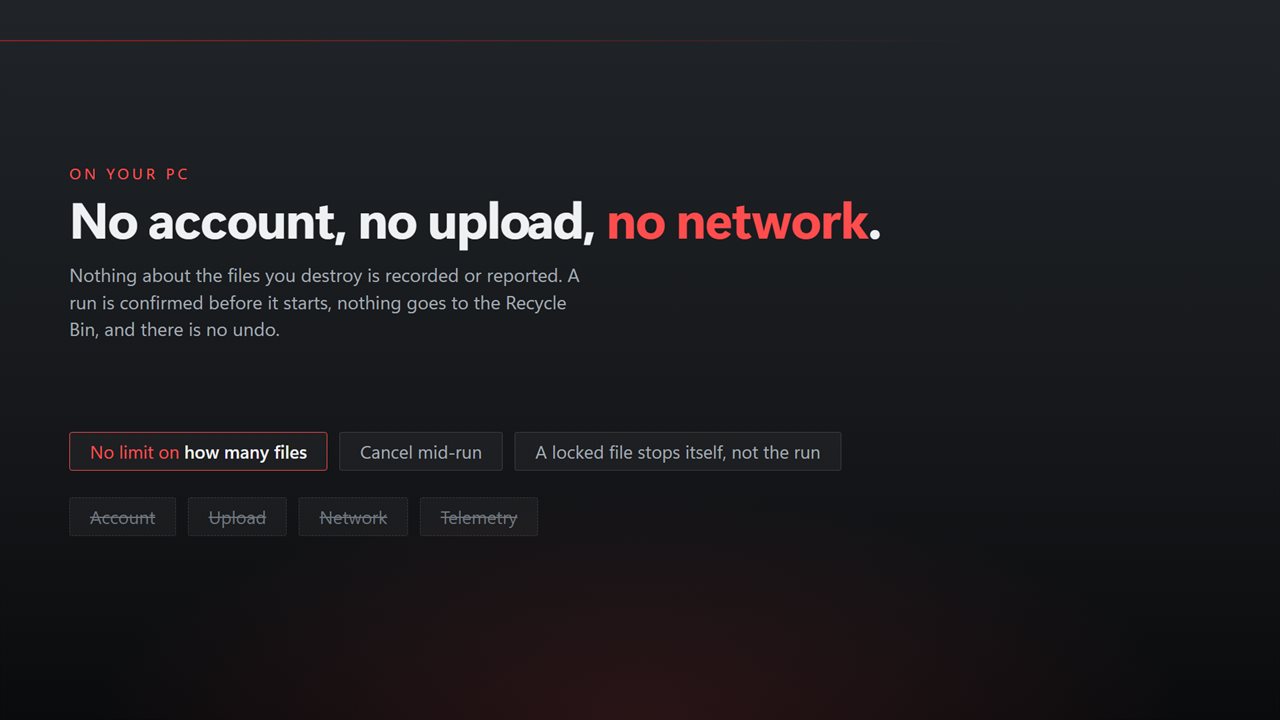
The folders themselves are left behind, empty, so the structure is still there if you want to reuse it. Nothing passes through the Recycle Bin and nothing can be undone.
- Click Choose a folder, or Add folder in the command bar, and pick the top folder. Every file below it is added.
- Add more folders or individual files with Or pick files, or drag them in from Explorer.
- Check the totals. To write shows how much disk activity the run will cause.
- Leave Thorough off for three passes, or switch it on for seven.
- Press Shred everything and confirm.
Data shredder passes: three or seven
Every pass writes over the entire file again. The default run writes zeros, then ones, then random data. Thorough continues that alternating pattern to seven passes in total.
Because each pass rewrites the whole file, passes multiply the wait. Shredding 40 GB at three passes means writing 120 GB; at seven it is 280 GB. The To write figure in the pane spells this out before you start, which matters far more on a run of thousands of files than on a single document.
Clearing personal files before you sell or give away a laptop
If you plan to keep Windows on the machine and pass it on, shredding your own folders is a quick way to clear documents, downloads and photos without reinstalling. Add your Documents, Pictures and Downloads folders, run it, and check the results list for anything another program was holding open.
Know the limit on solid-state drives. An SSD decides internally where data physically lands and may keep old copies beyond the reach of any program. Overwriting through the file system is the most any ordinary program can do there; for a drive leaving your hands for good, pair it with the drive's own secure-erase or a full Windows reset.