EEvlarSoft

Clipboard Formatting Remover

Make plain Ctrl+V paste without formatting in every Windows app, strip tracking from copied links, and grab text straight off the screen.

Buy for $1.99
One payment. No subscription.
14-day money-back guarantee.
5.0
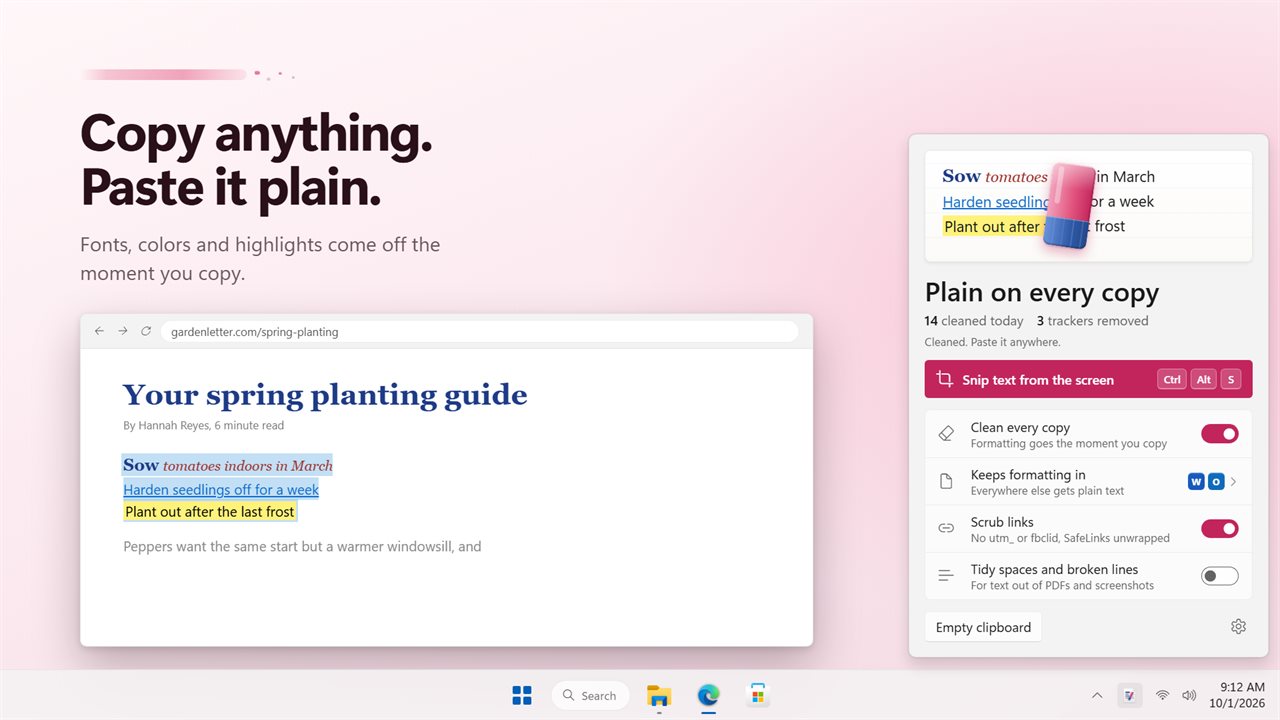
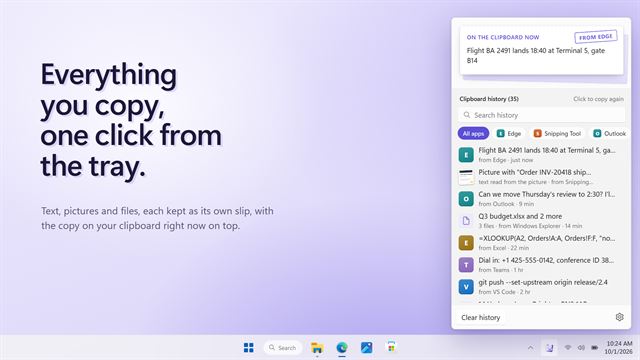
Every copy pastes as plain text, one click from the tray.
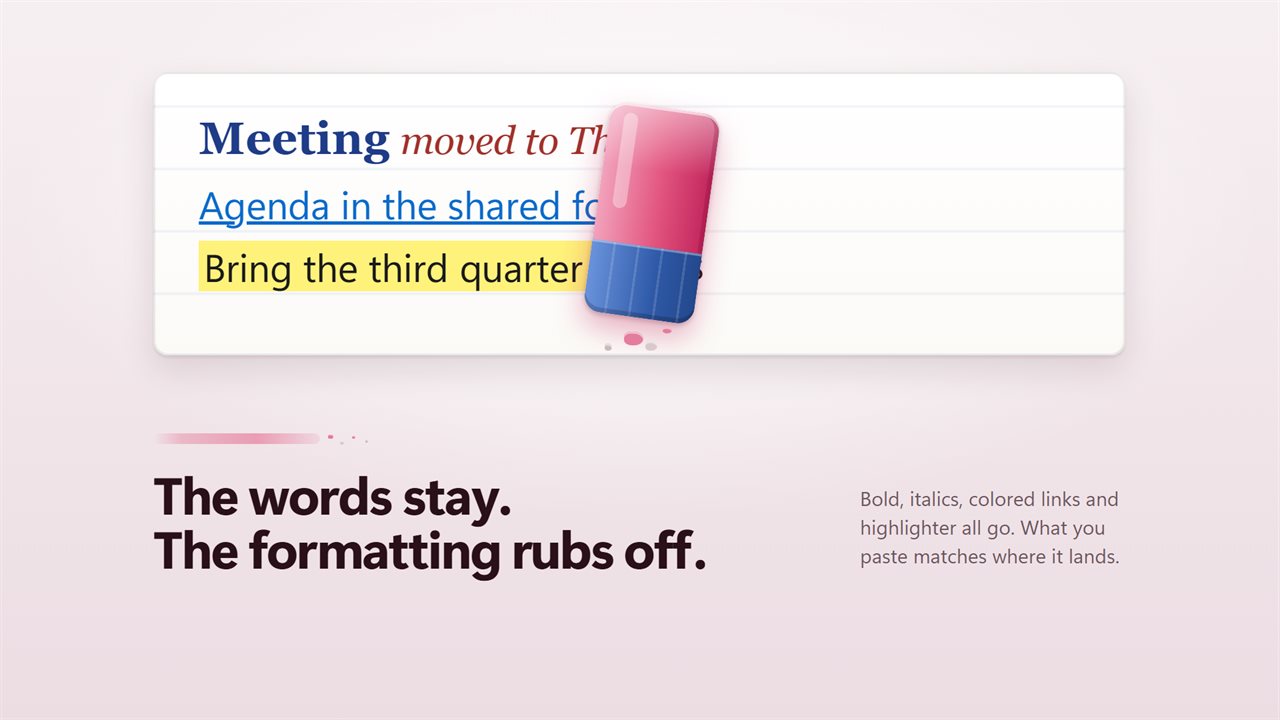
Fonts, colors and highlights rub off; the words stay.
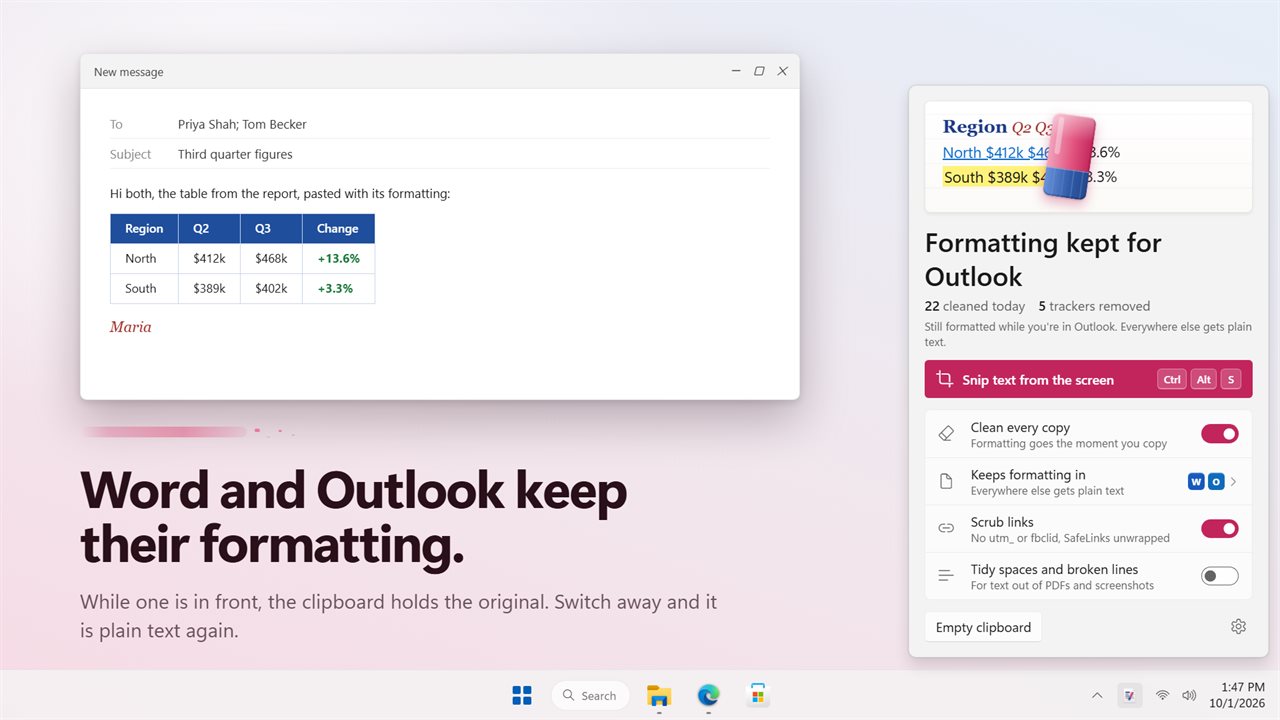
Word and Outlook keep their formatting; everywhere else gets plain text.
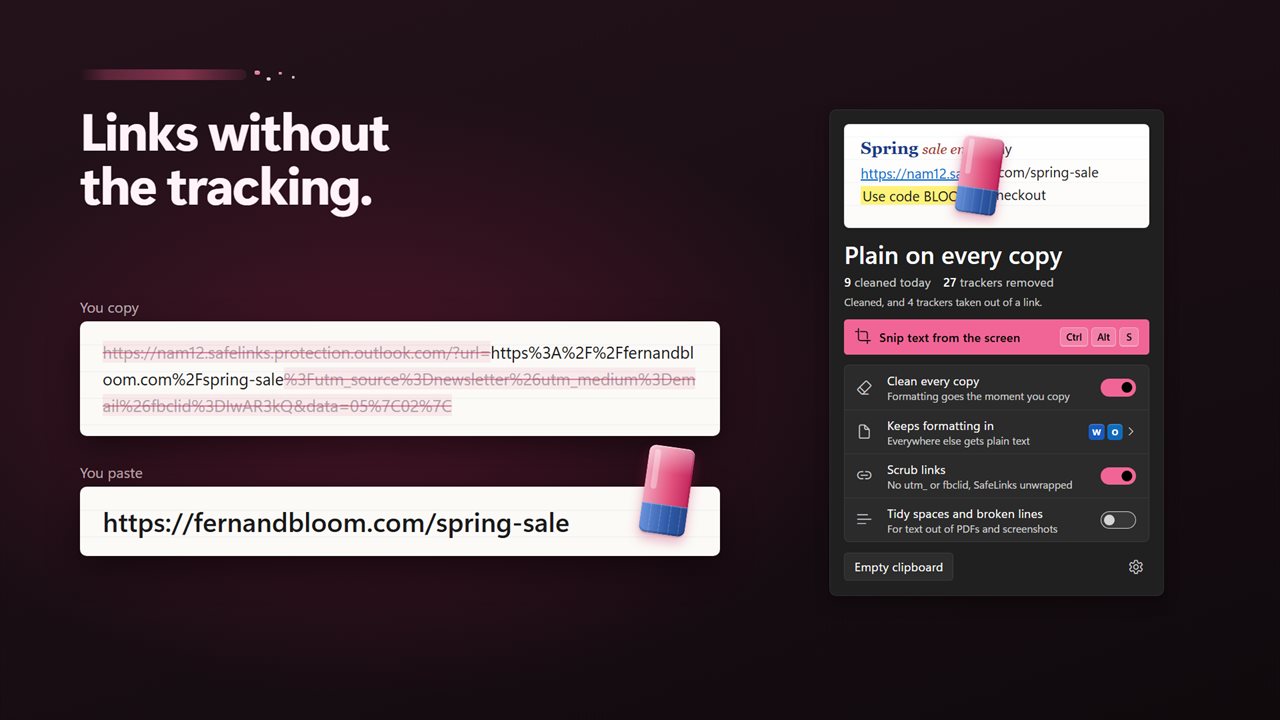
Tracking tags come off every link you copy.
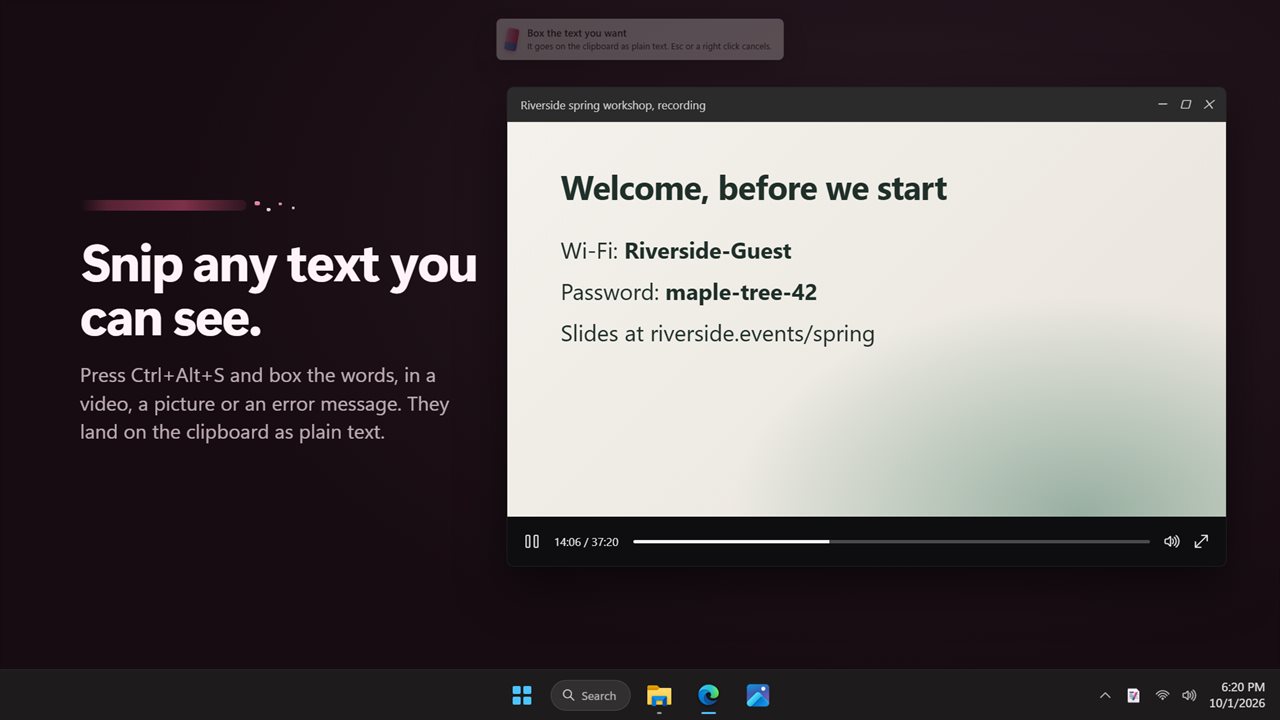
Snip any text you can see with Ctrl+Alt+S.
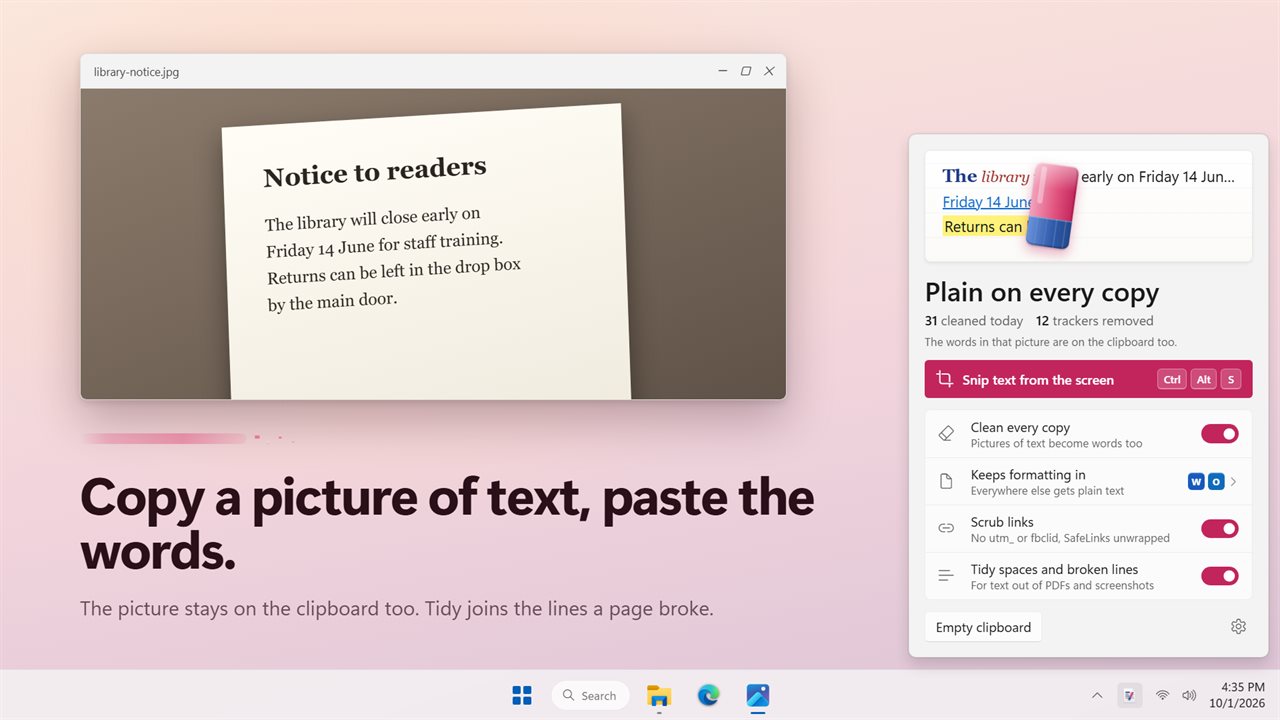
Copy a picture of text, paste the words.
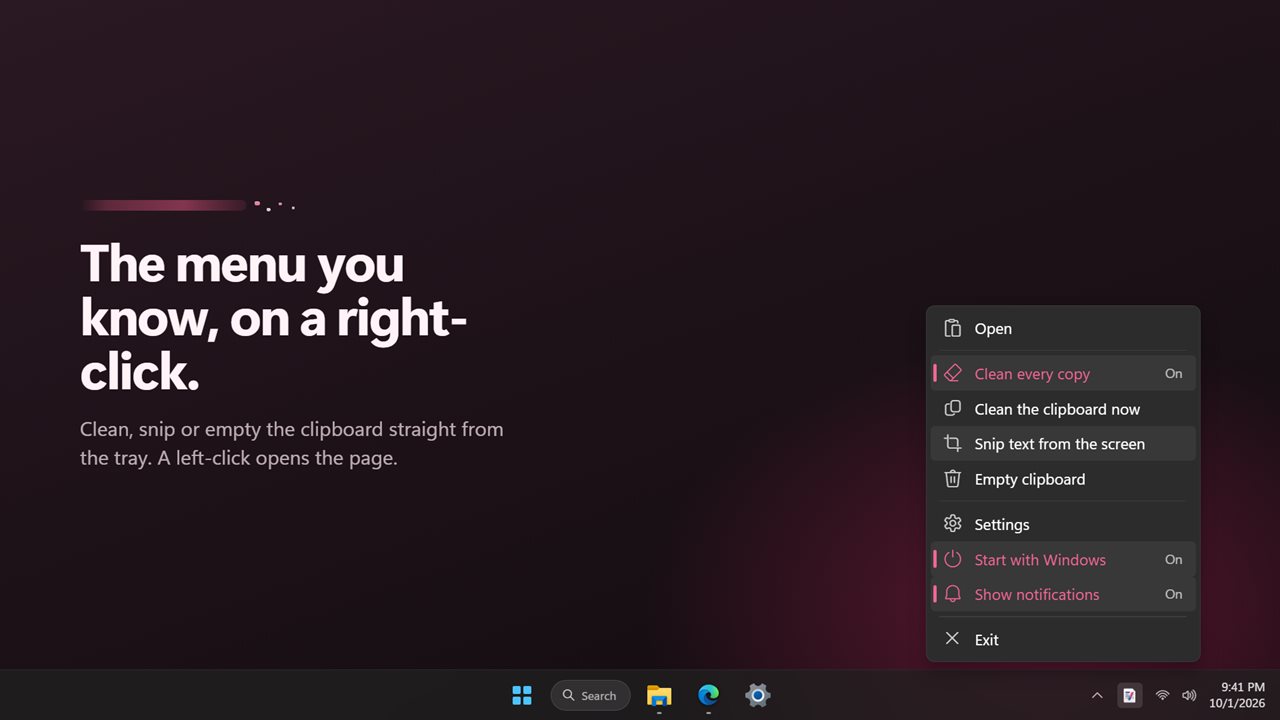
The menu you know, on a right-click.

Every copy pastes as plain text, one click from the tray.

190,000+downloads of EvlarSoft apps
Signed by EvlarSoftVerified US publisher
14-day money-backNo questions asked
Updates includedNo upgrade fees

How to paste without formatting in any app

There is no single way to paste without formatting on Windows. Ctrl+Shift+V works in some apps and does nothing in others, Word hides its option under Paste Options, and the old trick of pasting into Notepad and copying again costs a detour every time. Clipboard Formatting Remover fixes it at the source: it removes the formatting the moment you copy, so a normal Ctrl+V pastes plain text wherever you are.

Grab a paragraph from a news site, a newsletter or a shared report, and the fonts, colors, sizes, embedded links and inline pictures are gone before you paste. The words themselves are untouched, and nothing is added to them. Pictures and files you copy are left exactly as they are, and anything a password manager marks as private is skipped.

Open the panel from the tray and your latest copy is shown on a page, alongside a tally of today's cleanups and the number of trackers stripped. Clicking the page cleans the clipboard on demand, which is how it works if you turn Clean every copy off.

Keep formatting in Word and Outlook only

Sometimes you do want the styles, for instance when moving a table between documents. Under Keeps formatting in, Word and Outlook (both OUTLOOK.EXE and the new olk.exe) are listed from the start. Whenever one of them is the active window, you paste the styled original. Bring a browser, a chat app or a web form forward and the next paste is plain once more.

To change the list, open Settings and find Paste formatted in. Add an app takes a name and its program file, such as WINWORD.EXE; remove the defaults and every app gets plain text.

A link cleaner for tracking parameters

Links copied from emails, social posts and search results often carry a tail of tracking tags. With Scrub links on, which is the default, those tags are removed from every address you copy: all utm_ tags, fbclid, gclid, msclkid and the rest of the 27 kinds it knows. Wrapped links from Outlook SafeLinks and Google, Facebook and Instagram redirects are unwrapped to the real destination, so the link you share is the one people will actually visit. Every tag taken out adds to the trackers removed count in the panel, so you can see how much tracking your copies were carrying.

Copy text from the screen and remove line breaks

Press Ctrl+Alt+S and an overlay appears with the prompt Box the text you want. Drag around words in a video, a photo, a dialog box or a scanned PDF and the words are copied as unformatted text, read by the text recognition built into Windows. Esc or a right-click cancels.

Text pulled from PDFs and screenshots often arrives with a hard break at the end of every line and doubled spaces. Switch on the Tidy option in Settings and those breaks are joined back into sentences and the extra spaces squeezed out.
What gets cleaned

  • Fonts, colors, sizes and embedded links removed from every copied text, automatically or on a click
  • A Keeps formatting in list, starting with Word and Outlook, where originals stay formatted
  • Scrub links27 tracking parameters removed and SafeLinks and redirects unwrapped
  • Screen text capture on Ctrl+Alt+S, with a shortcut you can change
  • Optional words from copied pictures added beside the picture
  • Tidy spaces and broken lines for PDF and screenshot text
  • Copies marked private by password managers skipped entirely
  • Empty clipboard, Clean the clipboard now and Show notifications in the tray menu

What's new in 2.0.4

  • New: a tray panel. Left-click the icon to open it; click the page to clean the clipboard
  • New: keep formatting in the apps you choose, Word and Outlook to start
  • New: tracking tags scrubbed from links, and SafeLinks unwrapped
  • New: tidy spaces and broken lines
  • New: snip text from the screen with Ctrl+Alt+S
  • New: copy a picture of text and paste the words
  • New: counts of copies cleaned and trackers removed
  • New: settings, with light and dark themes
  • Fixed: auto-clean no longer reacts to its own changes
  • Your settings and Start with Windows carry over

Questions

Anything else? Ask us

Can I keep formatting when I paste into Word or Outlook?

Yes. Word and both versions of Outlook (OUTLOOK.EXE and the new olk.exe) are on the keep-formatting list from the start, and you can add any other app by its program file name. While one of those apps is in front, the clipboard holds the formatted original; switch to anything else and it is plain text again.

Which tracking tags does Scrub links remove?

It removes 27 kinds of tracking parameter, including every utm_ tag, fbclid, gclid, msclkid, mc_eid, _ga and igshid, plus si on YouTube and Spotify links. It also unwraps Outlook SafeLinks and Google, Facebook and Instagram redirect links to the real address.

Can it copy text out of a picture, a video or an error message?

Yes. Press Ctrl+Alt+S, draw a box around the words on screen, and they go on the clipboard as plain text. It uses the text recognition built into Windows on this PC, and you can change the shortcut in Settings.

What happens when I copy a picture or files?

Pictures and files are left as they are. If you turn on Copy an image of text, paste words, the words in a copied picture are added to the clipboard beside the picture, so you can paste either one.

Does it touch passwords copied from a password manager?

No. Copies that carry the Windows marker asking other apps to ignore them, which password managers such as KeePass and 1Password set, are skipped entirely.

Can I clean only when I choose instead of on every copy?

Yes. Turn off Clean every copy and copies keep their formatting until you click the page in the tray panel or choose Clean the clipboard now from the tray menu.

What is the shortcut to paste as plain text?

With this app running, it is plain Ctrl+V. Every copy is already turned into plain text, so you do not need a special paste shortcut in any app.

Will it change the words I copy?

No. Only the formatting is removed. The exception is Tidy spaces and broken lines, which is off by default and, when on, joins broken lines and collapses repeated spaces.

How do I clear the clipboard completely?

Pick Empty clipboard, which sits in both the panel and the right-click menu of the tray icon. The clipboard is emptied, so the next paste has nothing to insert.

Which versions of Windows does it run on?

Windows 10 (version 1809 or later) and Windows 11.

Is it a subscription?

No. Clipboard Formatting Remover is a one-time purchase of $1.99, and updates are included.

How do I get it?

Buy it on this page and your license key arrives by email. If the button says Notify me, Clipboard Formatting Remover is not on sale here yet; leave your email and we will tell you when it is.